

Note: supported in all countries where Messenger business messaging is available. See the full list here.
Overview
Messenger Calls allows you to make and receive calls through Facebook Messenger directly on respond.io. This feature enables businesses to provide real-time support and communication with their customers.
Prerequisites
Connect your Facebook Channel on respond.io. If you haven't connected your Facebook Channel, you can do so here.
Enable Calls in your Channel configuration page.
Enable Messenger calling feature for your Facebook page.
How to enable Messenger calling feature for your Facebook Page
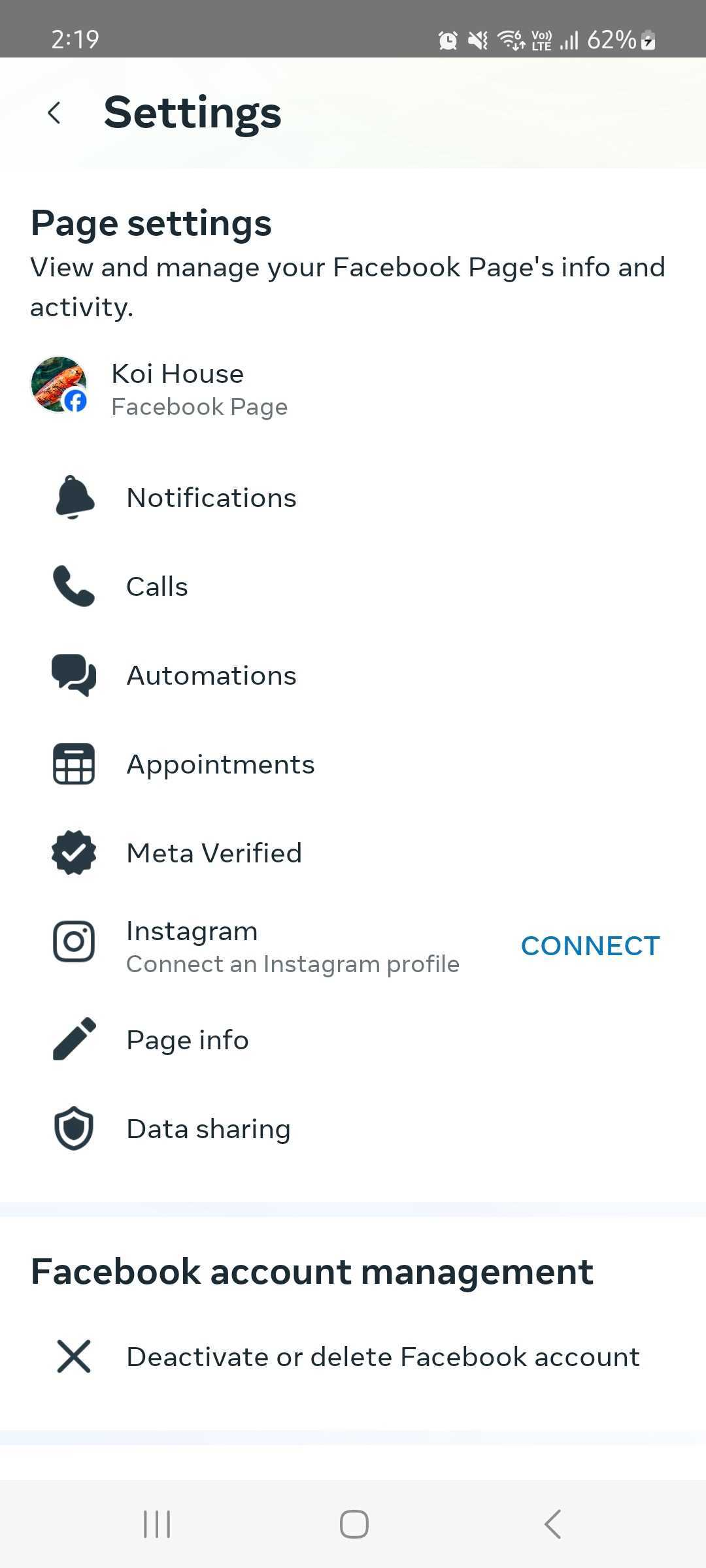
Enable Calls via the Meta Business Suite Mobile App
Open the Meta Business Suite app on your mobile device.
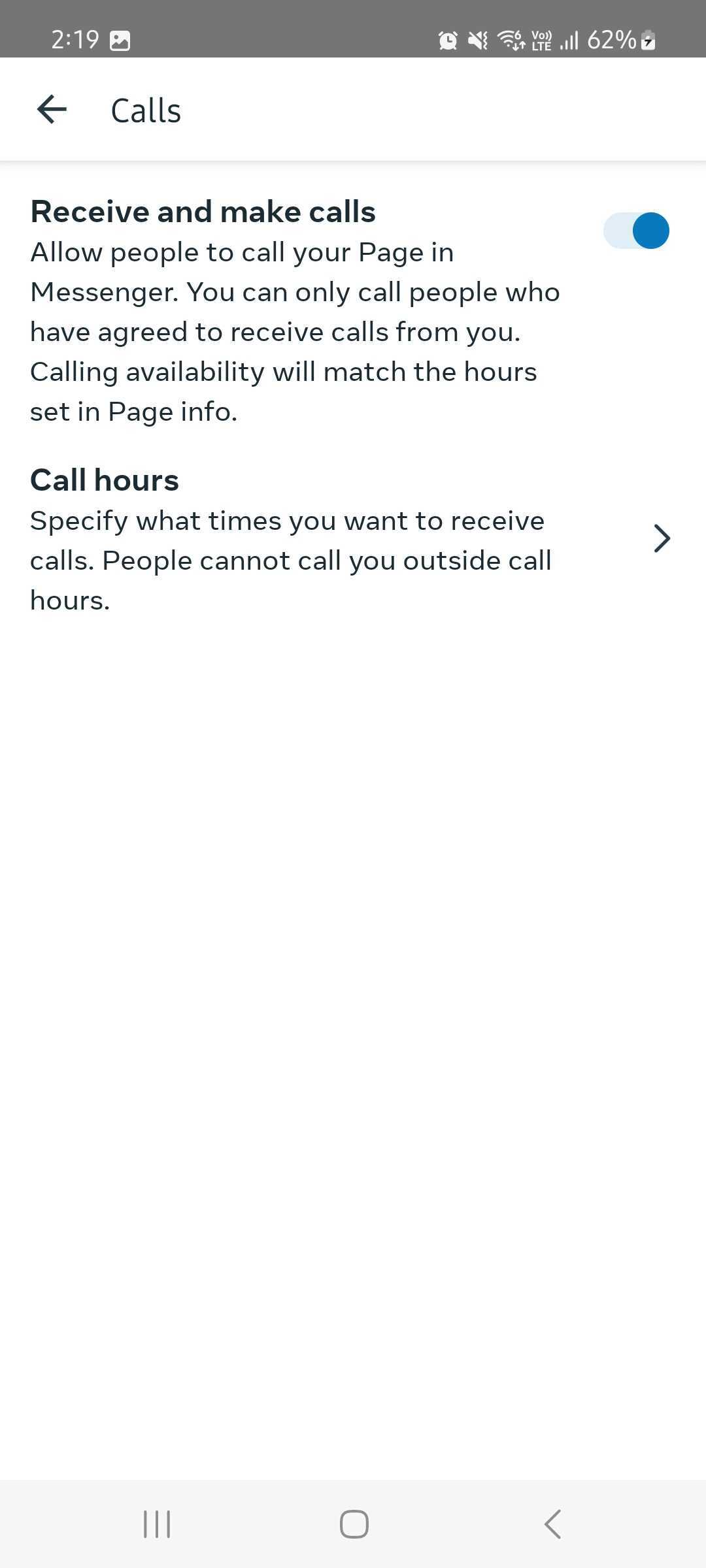
Navigate to Tools > Settings > Calls.
Locate the option to enable calls and verify your call hours.


Connect your Facebook Channel on respond.io
If you have already connected your Channel on the platform, reconnect your Channel again by refreshing the permission.
Receive a Messenger Call
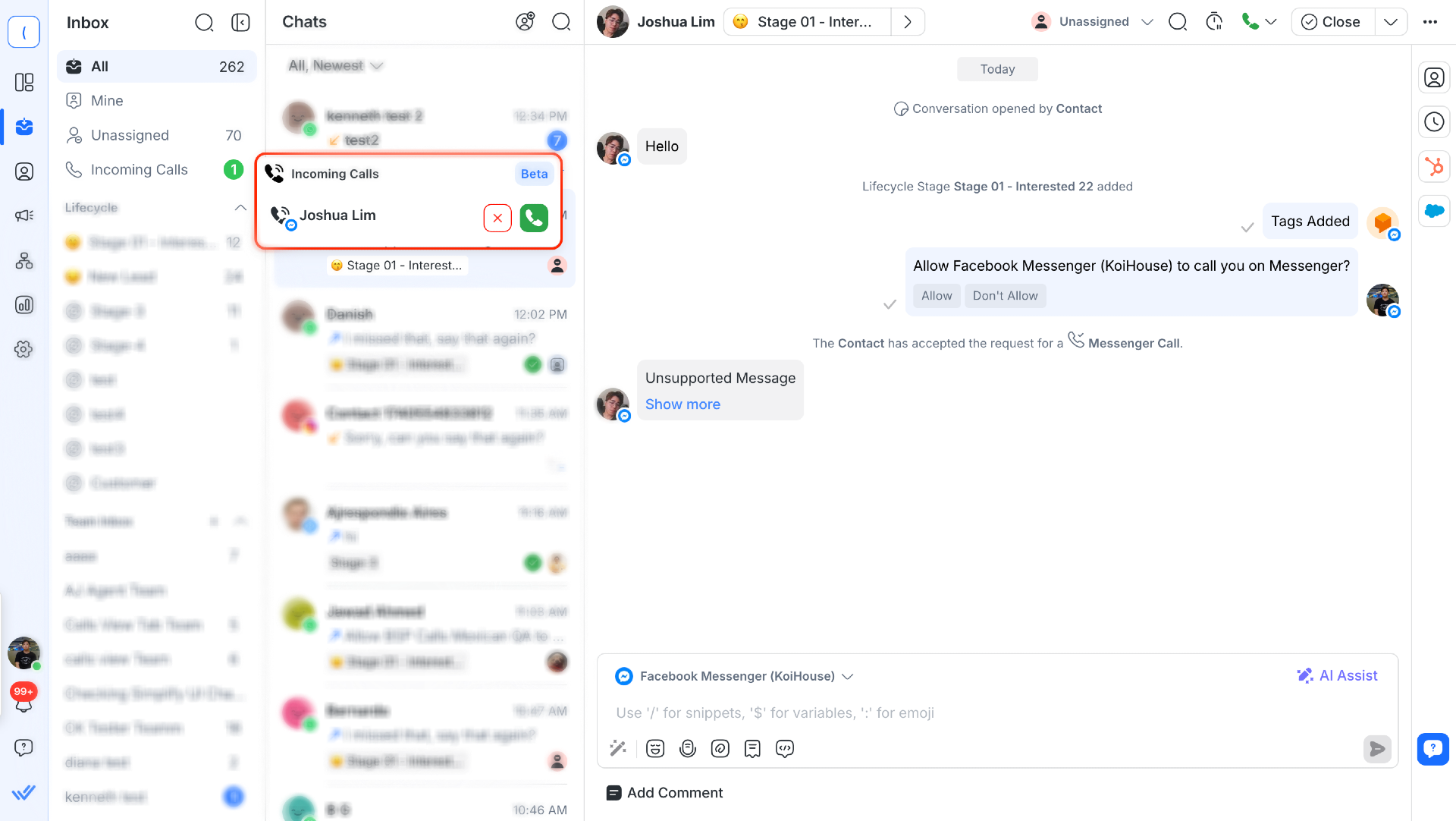
When a customer initiates a call via Messenger:
A notification will appear on the Incoming Calls tab in your Inbox.
You can choose to accept or decline the call.
If accepted, the call will take place and you can start talking to the Contact through the platform.
Make a Messenger Call
How to Request Permission to Call
Conditions for Sending Permission Requests:
Open Conversation Window: Permission requests can only be sent during an open conversation window, meaning there’s an active chat history with the Contact.
Request Limits: You can send up to two call permission requests per conversation thread per day.
Steps to Request Permission:
Go to the conversation with the Contact you wish to call.
Click the phone icon in the message composer.
Click the Request permission to call button.
The Contact will receive a notification asking for their consent. The Contact can either approve or decline the request.
What happens next?
If the Contact approves, you’ll be able to call them immediately or within the next 7 days.
If the Contact declines, you can send another permission request later (up to two times per day).
Messenger Call permissions remains valid for up to 7 days from approval.
Call permission also remains valid for 7 days after any of these actions:
- The Contact has a fully connected call with the business.
- The Contact calls the business but the business did not pick up the call.
Call the Contact
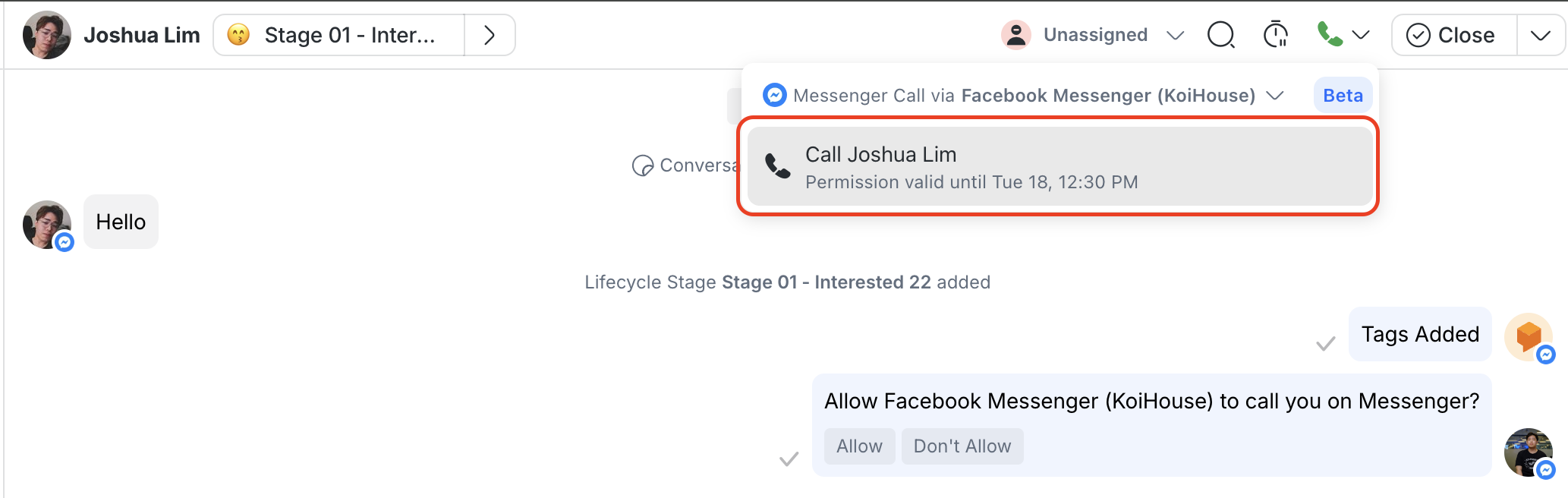
Once Messenger Calling is enabled, follow these steps to initiate a call:
Open a conversation with a Contact on respond.io.
Click on the Call button in the conversation actions bar.
Request permission to call the Contact.
Once accepted, you can initiate the call and the Contact will receive a notification on their Messenger app.
FAQ and Troubleshooting
Why don’t I see the option to make a Messenger Call?
Check if Messenger Calls are enabled in your Channel configuration page.
How do I request permission to call?
Click the phone icon in the chat and select Request permission to call.
How often can I request permission?
You can send two requests per conversation thread per day.
How long is call permission valid?
Approved call permissions last for 7 days.
What if my request is declined?
You can send another request later, up to twice per day.
Does call permission reset automatically?
No, Messenger Call permissions stay valid for 7 days from approval.


