

Action required: Update your webhook URL before 5th August 2026
Your webhook URL is moving fromapp.respond.iotowebhook.respond.io. Update your Bird SMS Channel before 5th August 2026 or incoming messages will stop being delivered.
How to update
1. In respond.io, go to Channel Settings > Configuration and copy your new webhook URL.
2. In Bird, open the Flow Builder and paste it into the URL field of the Forward to URL step.
Need help? Contact support.
Note: Bird previously offered account creation through the Connectivity Platform and has since introduced the Engagement Platform. respond.io connects to accounts created on the Connectivity Platform. New account creation on the Connectivity Platform is not currently supported, and integration with the Engagement Platform is under review.
Bird (formerly MessageBird) is a cloud communications platform that sends and receives SMS text messages through web service APIs. Connecting Bird to respond.io lets you reply to SMS messages directly from the platform and manage them alongside your other Channels.
Before you begin
You'll need:
A Bird account on the Connectivity Platform
Account funds added — required to purchase a virtual number
A Bird virtual number with SMS capability
How to purchase a Bird virtual number
Navigate to the Bird dashboard and sign in with your user credentials. If you don't have an account, sign up on the Bird sign-up page.
On the sidebar, select Numbers, then click Buy a Number at the top right.

Select a phone number that suits your needs. Choose a number from any country available on Bird.
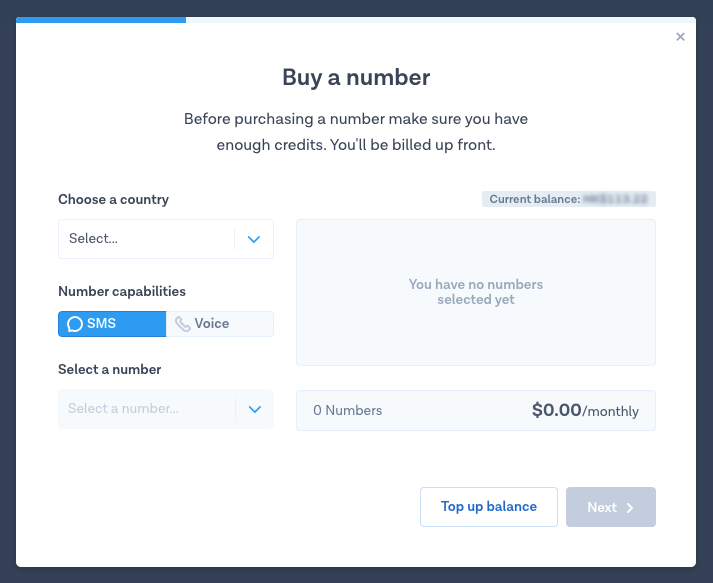
Warning: Select a phone number that supports SMS capability. SMS support is required for this connection to work.
How to connect Bird SMS to respond.io
Watch the video below for a step-by-step guide on How to Connect Bird SMS Number to respond.io.

Navigate to Workspace Settings > Click Add Channel
Locate the Bird SMS Channel > Click Connect

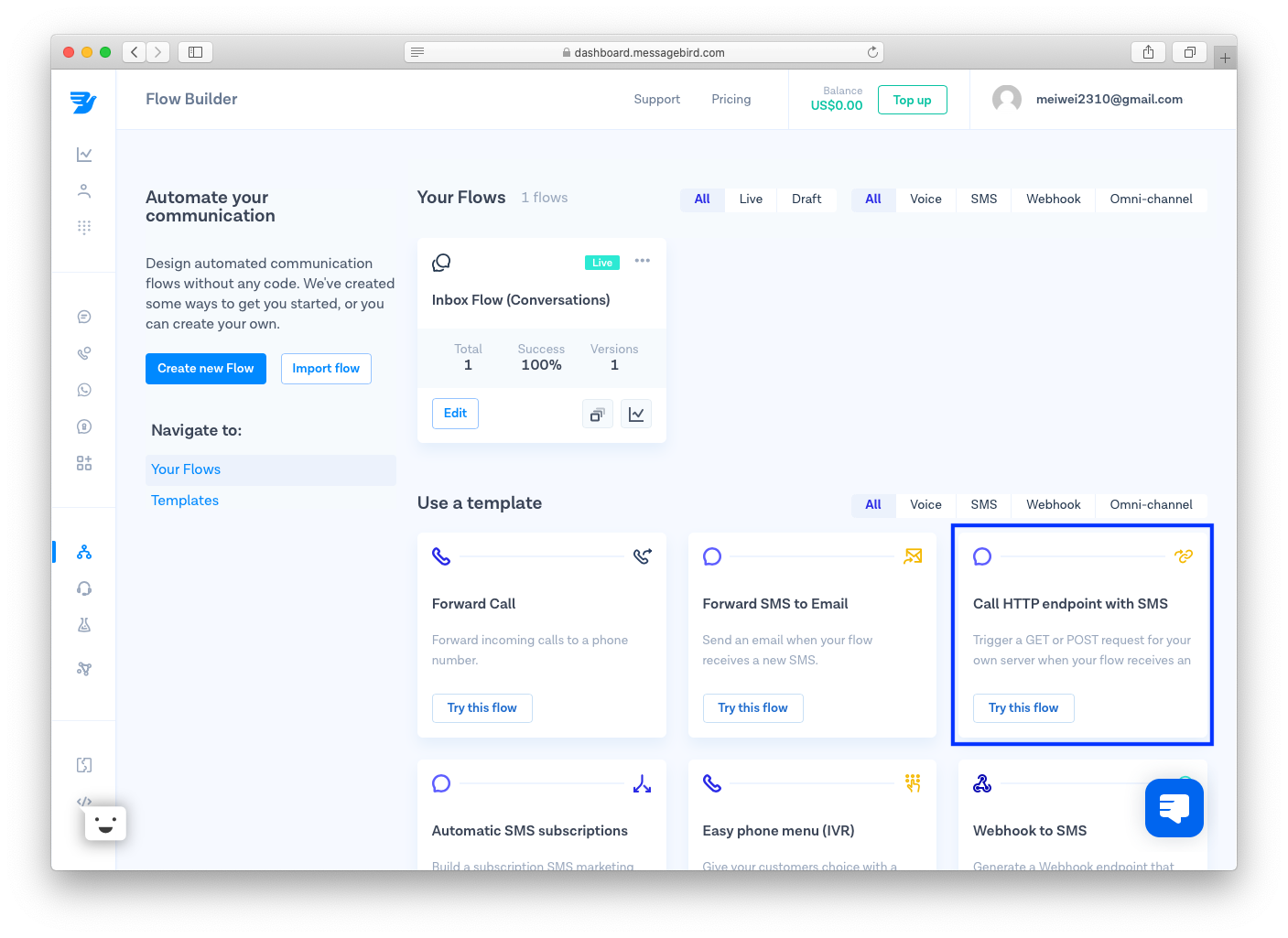
Sign in to your Bird account and navigate to the Bird dashboard > Flow Builder.
Locate the Call HTTP endpoint with SMS template and click Try this flow.

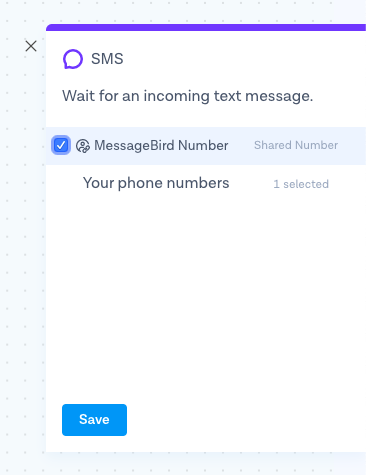
Select the preferred phone number and click Save.

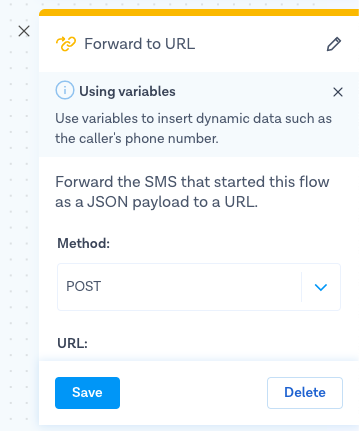
From the Flow Builder, click Forward to URL icon and select POST as the method.

From the respond.io platform, copy the generated URL and paste it to the URL field in Bird.
If there are no errors, you may proceed to publish and activate the flow.
On the respond.io platform, follow the instructions and click Next.
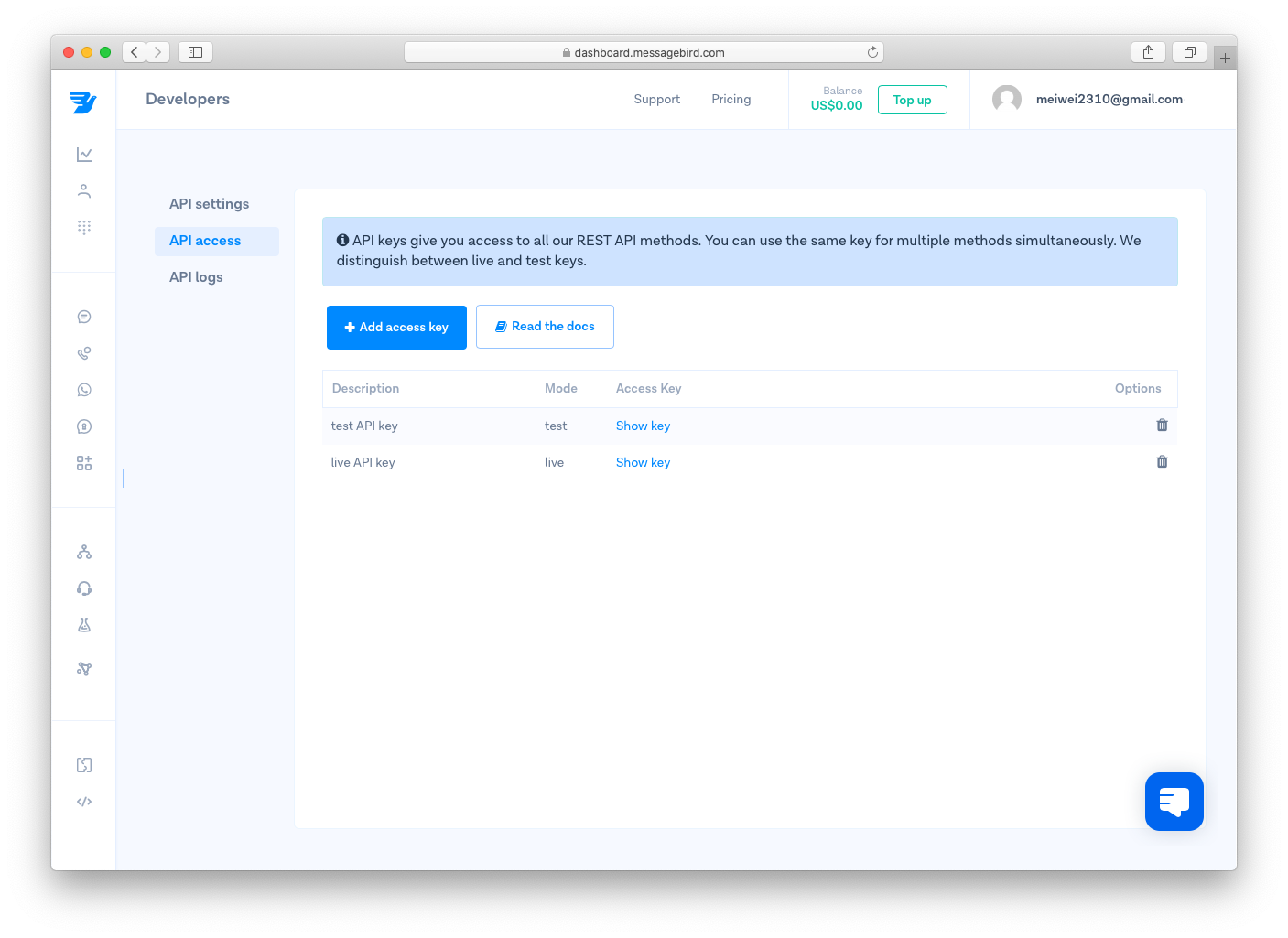
Navigate to the Developer Access Page and click Show Key. Add the API key to the respond.io platform.

Select the phone number from the dropdown on the respond.io platform.
Click Save Changes to complete the setup.

Once setup is complete, any SMS sent to the Bird phone number arrives in your Workspace.
How to configure the Bird SMS Channel
The Bird SMS Channel uses a unique Channel name to identify the account internally.
Navigate to Workspace Settings > Click Channels.
Locate the Bird SMS Channel > Click Manage > Configuration.
Configure the Channel name, which is used internally to identify the account.
Click Save Changes to update the Channel configuration.
Ensure all your details are entered correctly as errors may cause outbound messages from your Bird SMS account to fail.


