

Action required: Update your webhook URL before 5th August 2026
Your webhook URL is moving fromapp.respond.iotowebhook.respond.io. Update your Vonage SMS Channel before 5th August 2026 or incoming messages will stop being delivered.
How to update
1. In respond.io, go to Channel Settings > Configuration and copy your new webhook URL.
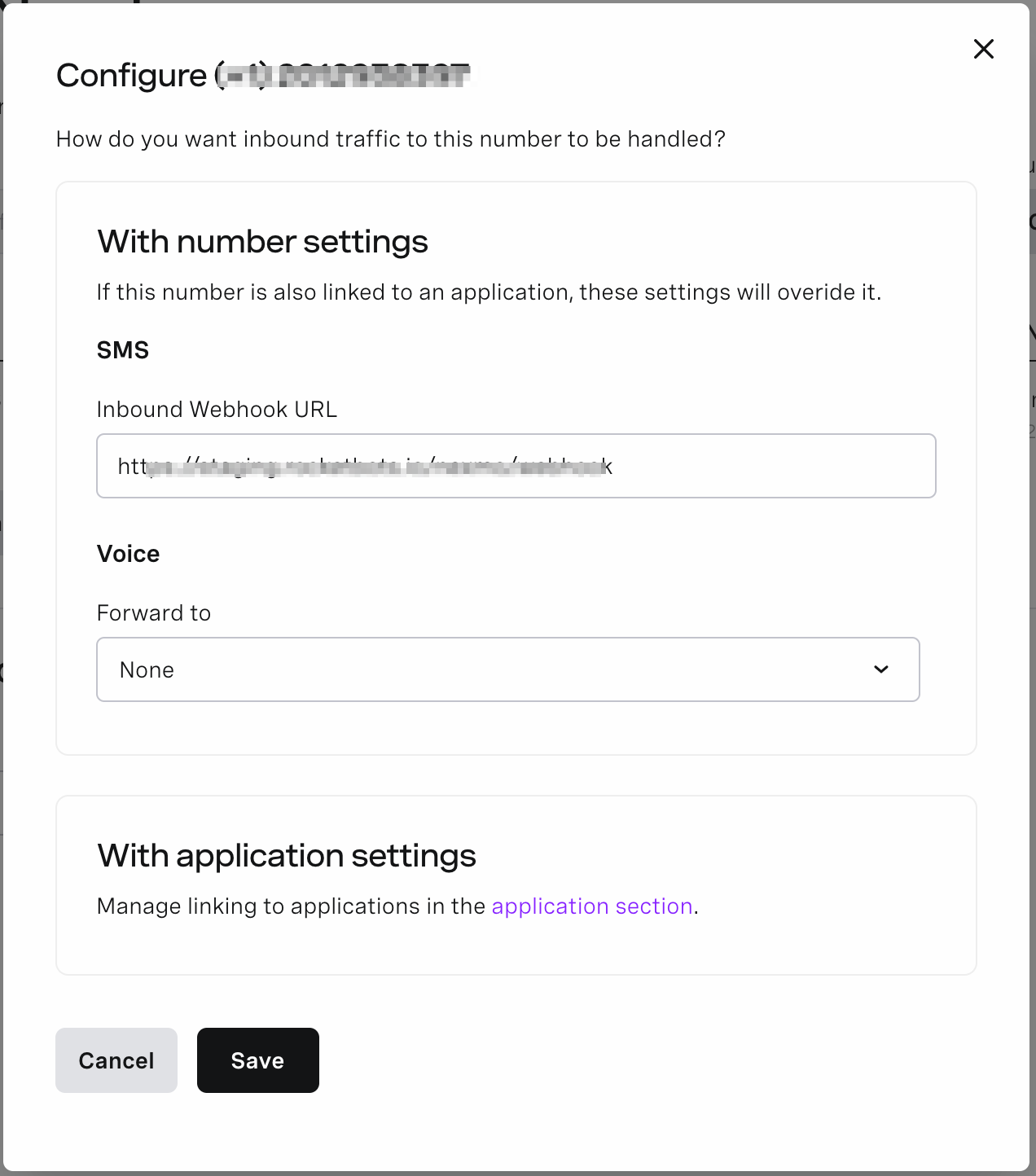
2. In Vonage, open your phone number settings and paste it into the Inbound Webhook URL field.
Need help? Contact support.

Vonage is a cloud communications platform that sends and receives SMS text messages through web service APIs. Connecting Vonage to respond.io lets you reply to SMS messages directly from the platform and manage them alongside your other Channels.
Before you begin
You'll need:
A paid Vonage account — required to purchase a virtual number
A Vonage virtual number with SMS capability
How to purchase a Vonage virtual number
Navigate to the Vonage Developer Dashboard and sign in with your user credentials.
Under the Numbers section of the sidebar, select Buy numbers.

Select a phone number that suits your needs. Choose a number from any country available on Vonage.

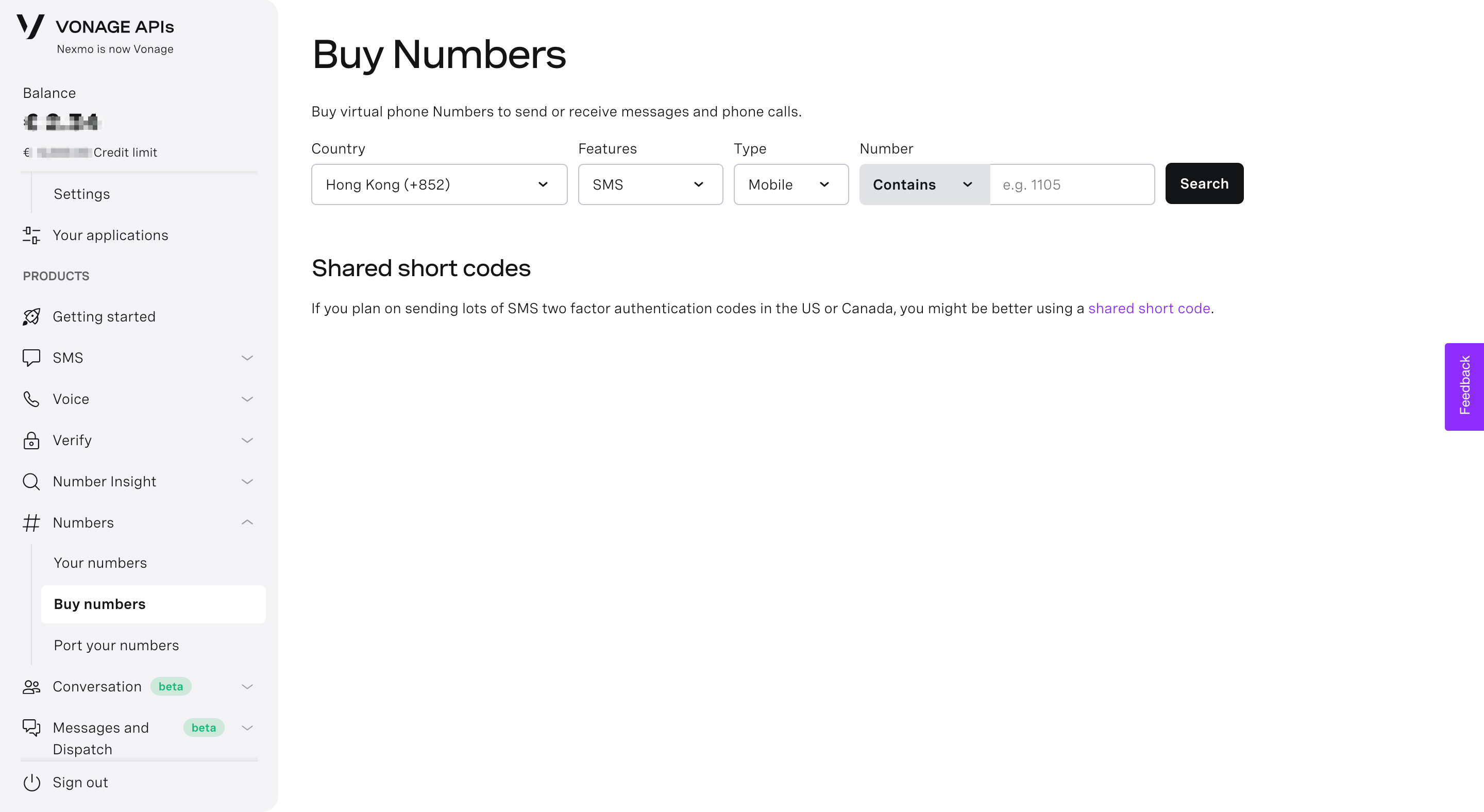
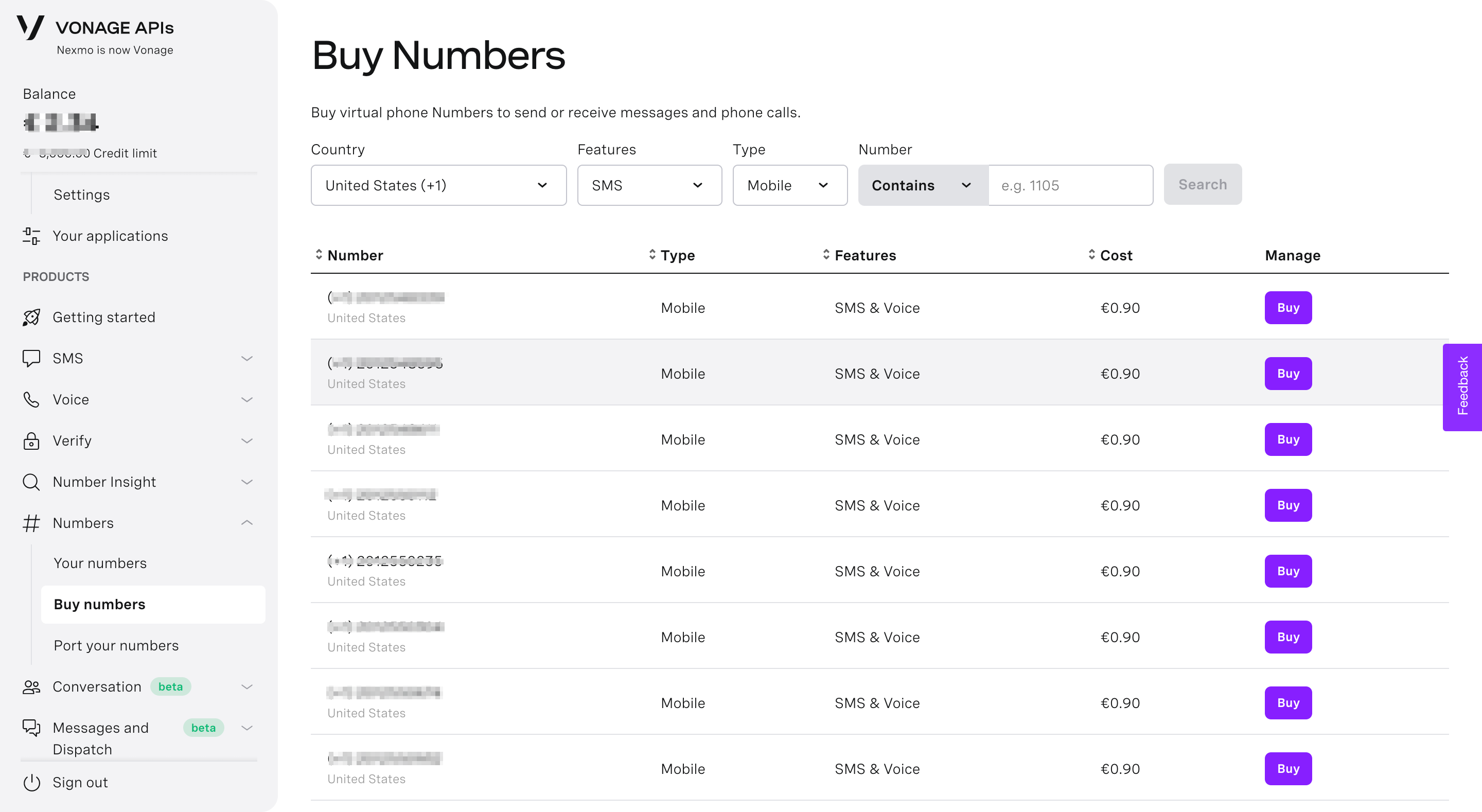
Warning: Select a phone number that supports SMS capability. SMS support is required for this connection to work.
How to connect Vonage SMS to respond.io
Watch the video below for a step-by-step guide on How to Connect Vonage SMS Number to respond.io.

Navigate to Workspace Settings and click Add Channel.
Locate the Vonage SMS Channel and click Connect.

Sign in to Vonage with your user credentials.
Locate the API Key and API Secret on the Vonage dashboard and add them to the corresponding fields in respond.io.

Click Next to follow the on-screen instructions.
Open Your Numbers, locate the phone number and add it to the corresponding field in respond.io.

In Vonage, open the phone number settings and click the settings icon next to the number to connect.
Copy the generated URL from respond.io and paste it into the Inbound Webhook URL field in Vonage.

Click Save to save the webhook configuration.
Click Save Changes to complete the setup.

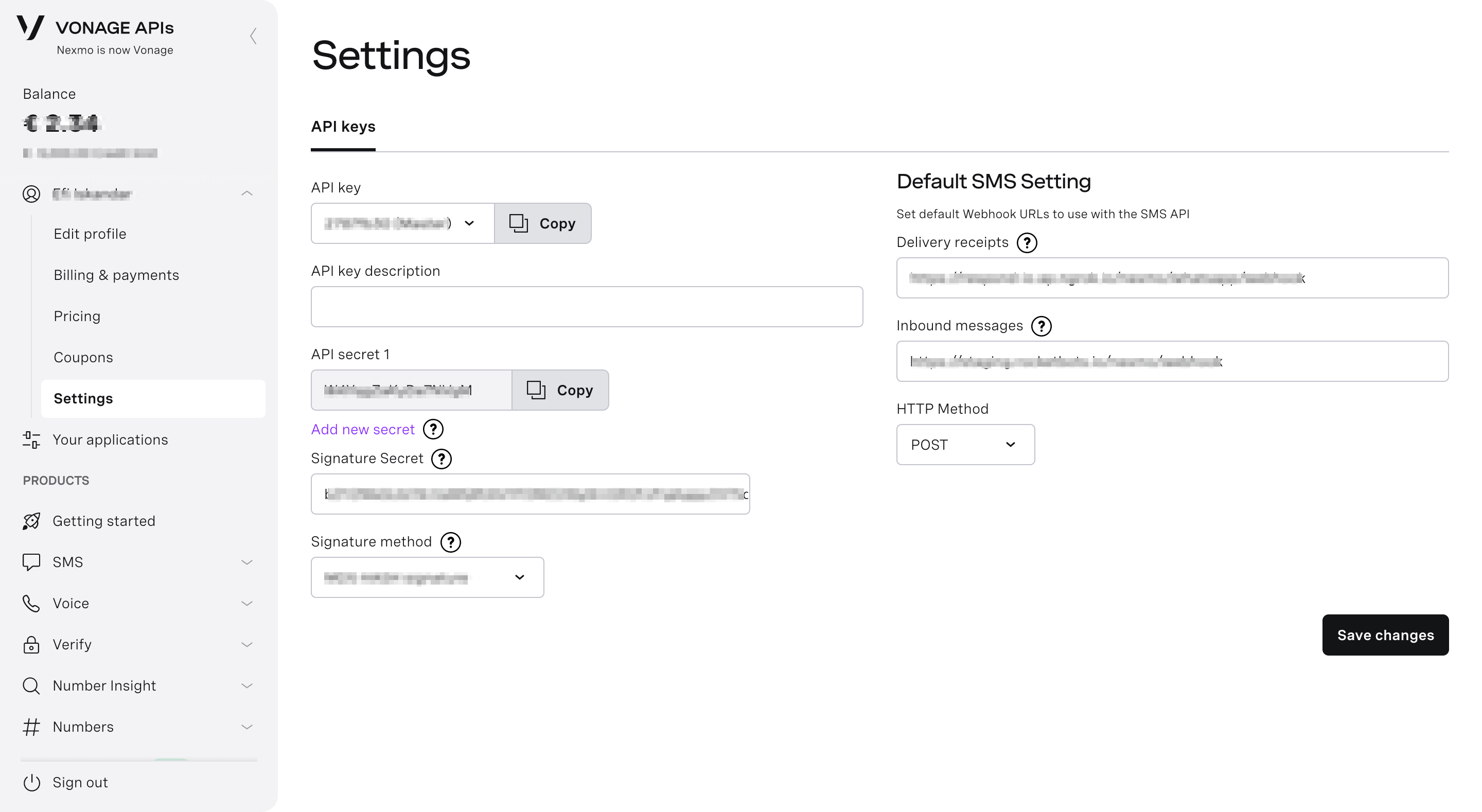
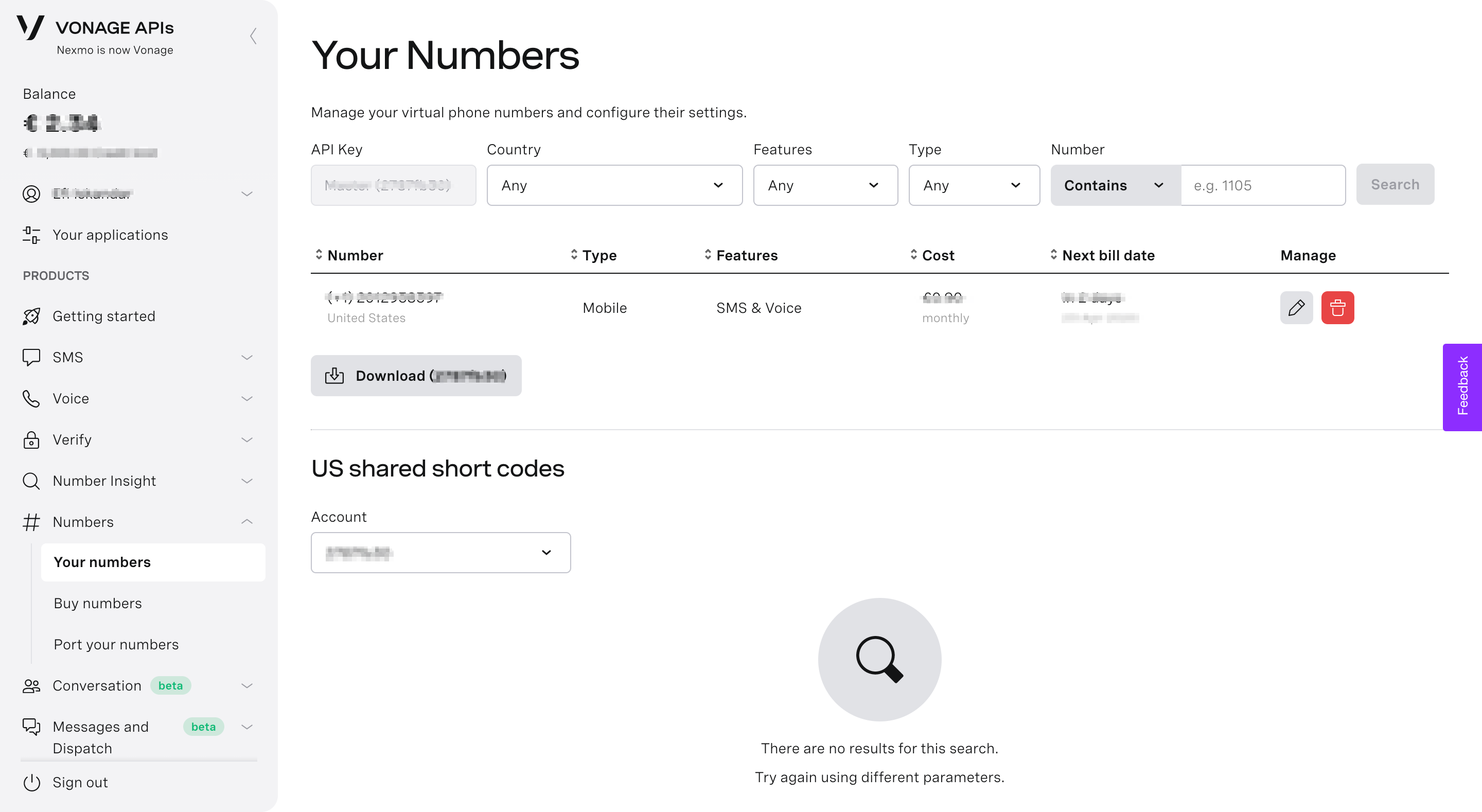
Once setup is complete, any SMS sent to the Vonage phone number arrives in your Workspace.
How to configure the Vonage SMS Channel
Vonage SMS channel can be configured with a unique channel name.
Navigate to Workspace Settings > Click Channels.
Locate the Vonage SMS Channel > Click Manage > Configuration
Configure the Channel name, which is used internally to identify the account.
Click Save Changes to update the Channel configuration.
Enter all details correctly. Errors may cause the connected Vonage SMS account to stop receiving messages.


