


Twilio is a cloud communications platform that sends and receives SMS text messages through web service APIs. Connecting Twilio to respond.io lets you reply to SMS messages directly from the platform and manage them alongside your other Channels.
Before you begin
You'll need:
An active Twilio account
A Twilio phone number with SMS capability
Billing details added to your Twilio account before the SMS Channel goes live — message charges depend on your country
How to set up a Twilio phone number
Sign in to your Twilio account. If you don't have one, sign up for a free account with a $15 credit.
Open the Twilio Dashboard and click the red Get a Trial Number button. Twilio recommends a phone number based on your location.

Select a phone number that suits your needs. Choose a number from any country available on Twilio.
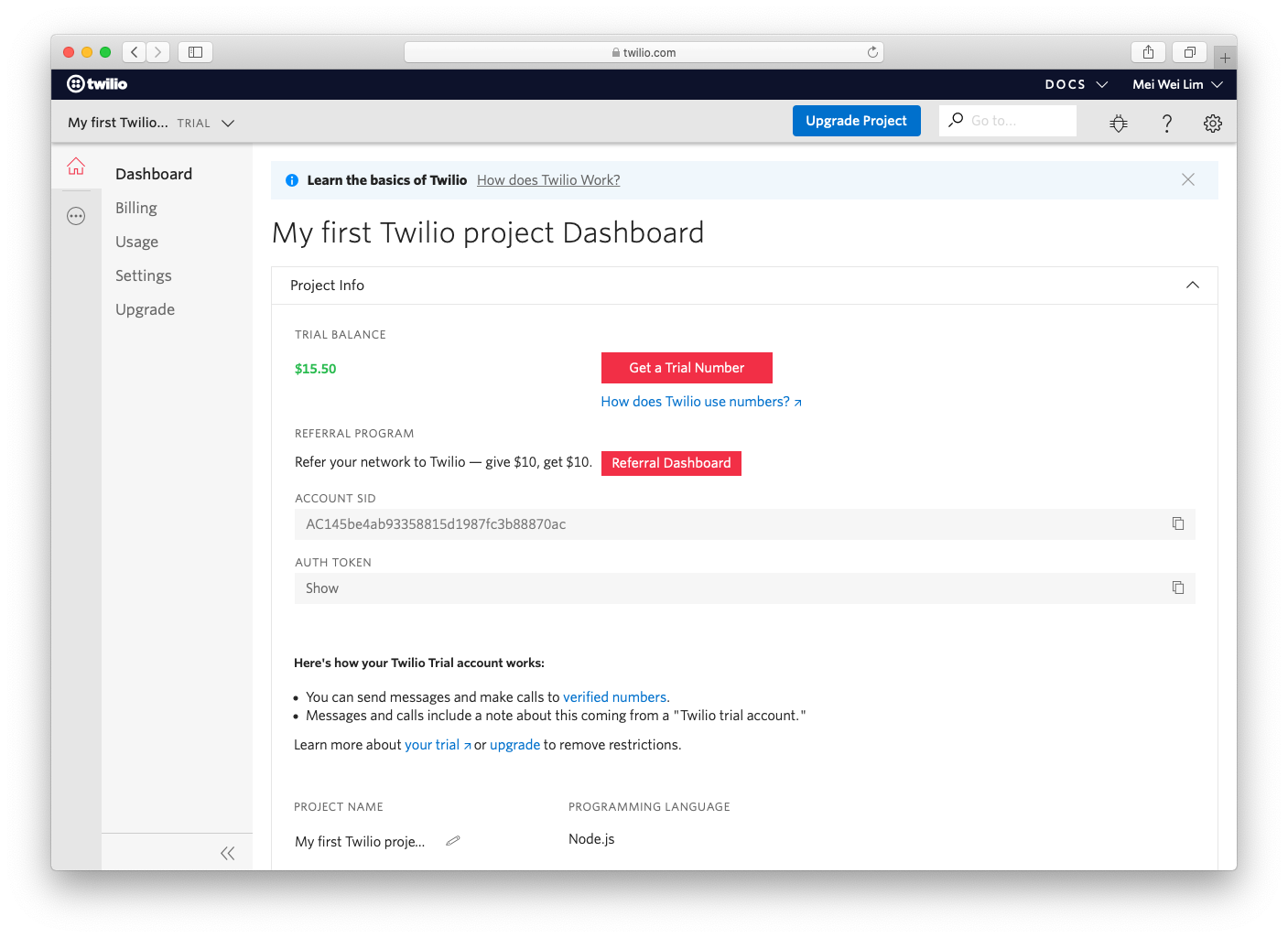
Warning: Be sure to select a phone number that supports SMS capability as it is required for this connection to work.
How to connect Twilio SMS to respond.io
Navigate to Workspace Settings > Click Add Channel
Select the SMS tab > locate the Twilio SMS Channel > click Connect.

Sign in to Twilio
Find the Account SID on the Twilio dashboard and add it to the Account SID field.


Find the Auth Token on the Twilio dashboard and add it to the Auth Token field.


Select the Twilio phone number to connect from the Phone Number dropdown.

Click Complete.


Once setup is complete, any SMS sent to the Twilio phone number arrives in your Workspace.
How to configure the Twilio SMS Channel
Twilio SMS channel can be configured with a unique Channel Name.
Navigate to Workspace Settings > Click Channels.
Locate the Twilio SMS Channel > Click Manage > Configuration.
Configure the Channel name, which is used internally to identify the account.
Click Save Changes to update the Channel configuration.
Ensure all your details are entered correctly as errors may cause failure to receive messages from the connected Twilio SMS account.
FAQ and troubleshooting
Why am I unable to receive messages?
If messages don't arrive after setup, check the Twilio webhook configuration for the selected phone number.
Sign in to Twilio with your user credentials.
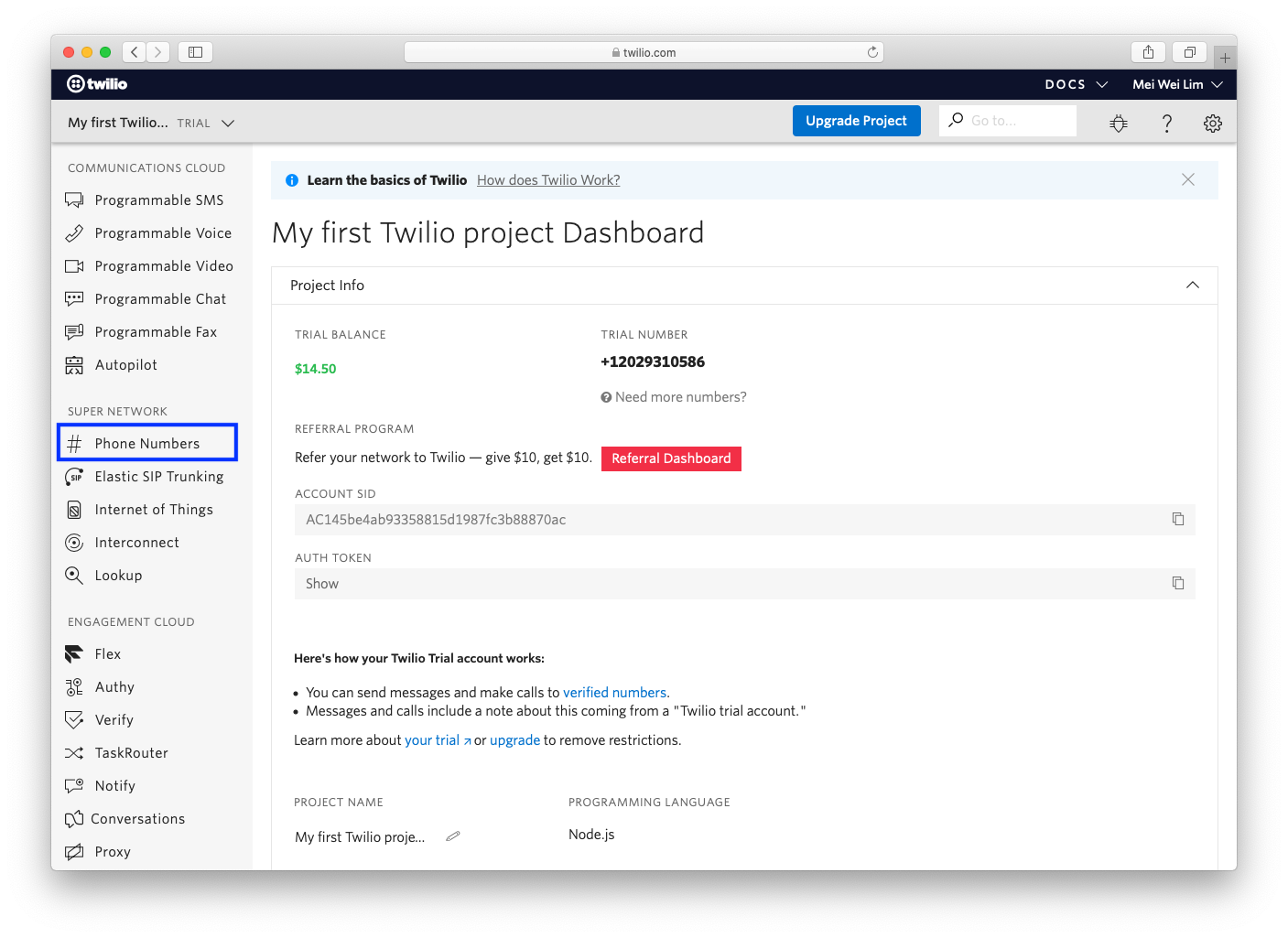
From the side navigation menu, open Products and Services and select Phone Numbers.

Choose the phone number you want to troubleshoot.
Open the Messaging section and check the webhook details. Confirm
https://webhook.respond.io/twilio/webhookappears under the A MESSAGE COMES IN field.
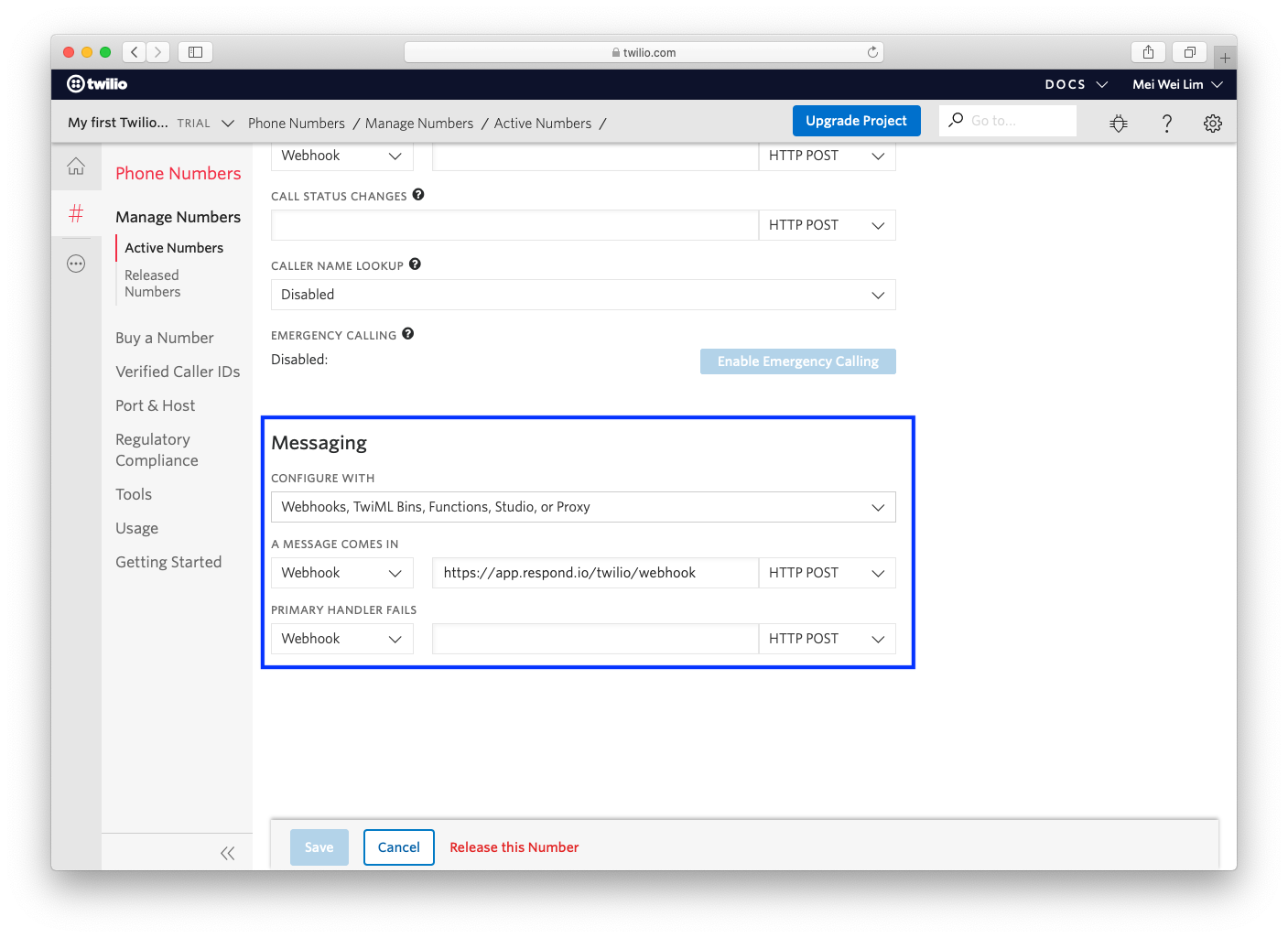
respond.io adds the correct webhook when the number is first connected. If you previously connected other tools to that number, a different webhook may be stored there, which stops messages from reaching respond.io.
Why do my SMS recipients see a Sender ID or short code instead of my phone number?
This happens because the Sender ID might change when you send messages from a Twilio number that isn't local to your recipients.
For example, if you're using a US Twilio number to send SMS to Polish mobile users, the recipient may see a Sender ID or a short code instead of your phone number. This is often done to comply with local regulations or to ensure the highest possible delivery rate for your messages.


