

The Wait Step creates a waiting period before the next Step begins.
Important: The Wait Step does not support waiting until a specific date or time, such as 6:30pm or tomorrow at 9am.
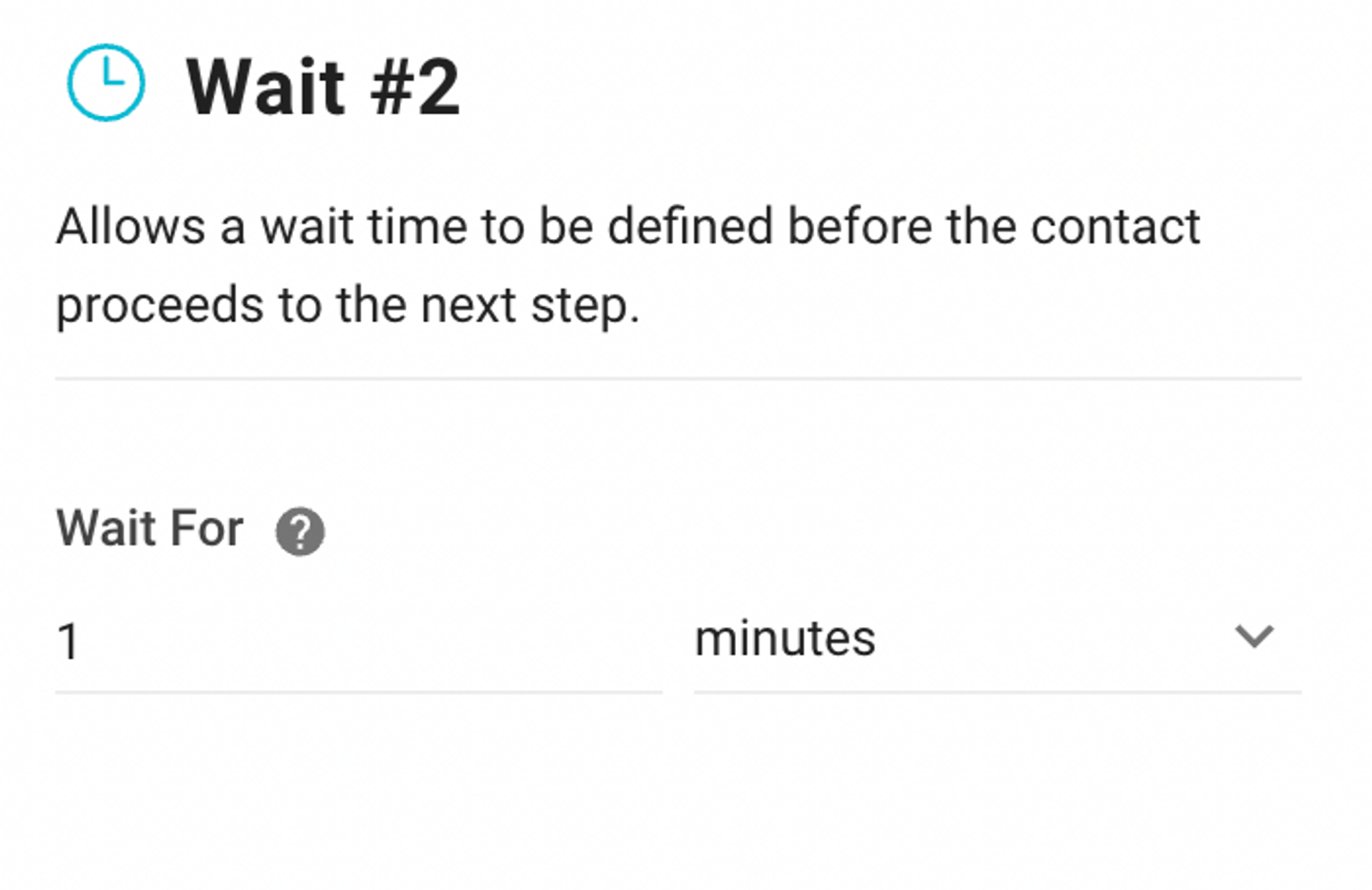
Configuration
In this Step, the only configuration is the Wait For field, which decides the duration the Contact will wait before the next Step starts. The maximum wait period allowed is 7 days.
Note: Workflows can only run for a maximum of 7 days total execution time. If the Workflow’s total running time reaches 7 days, it will automatically end.
How It Works
The Contact remains at this Step for the set waiting time before proceeding to the next Step.
You can also set specific waiting times based on your Contact’s needs and preferences. This can be done with waiting times consisting of seconds, minutes, hours, or days with the Wait Step.
Important: A Workflow can run for up to 7 days total execution time (including time spent in Wait Steps). If the total running time reaches 7 days, the Workflow will end automatically and the Contact will not proceed to subsequent steps.
Suggested Use Cases
Here’s how you can use the Wait Step:
Sendingfollow-up messages: Improve personalization efforts by tailoring subsequent messages more effectively. Use the Wait Step to send a follow-up message to your Contacts after a designated time period following the sending of a promotional message.


