

Using notifications, respond.io platform will send you alerts whenever there are contacts that require your attention. Notifications can be received anytime, even though you are not on the platform.
Notification Channels
Notification Center
The Notification Center can be found in the top navigation bar of the platform. It is represented with a bell and a number indicator. The number represents the unread count of notifications the user has.
When you press on it, the notification center will appear and it will list all your notifications sorted by time received. The unread notifications will have a slightly darker background than the others.
The notification center has 3 tabs namely New, Archived and All and their functions are as follows:-
New - This tab lists all unread and unarchived notifications.
Archived - This tab lists all archived notifications.
All - This tab lists all notifications regardless of archived or unarchived.
Notifications are deleted automatically 6 months (180 days) after they're created. This applies to every notification, whether it's read, unread, archived, or unarchived.
Archiving or Unarchiving a Notification
This Notification Center will also work as a task manager where users can archive or unarchive the tasks when necessary.
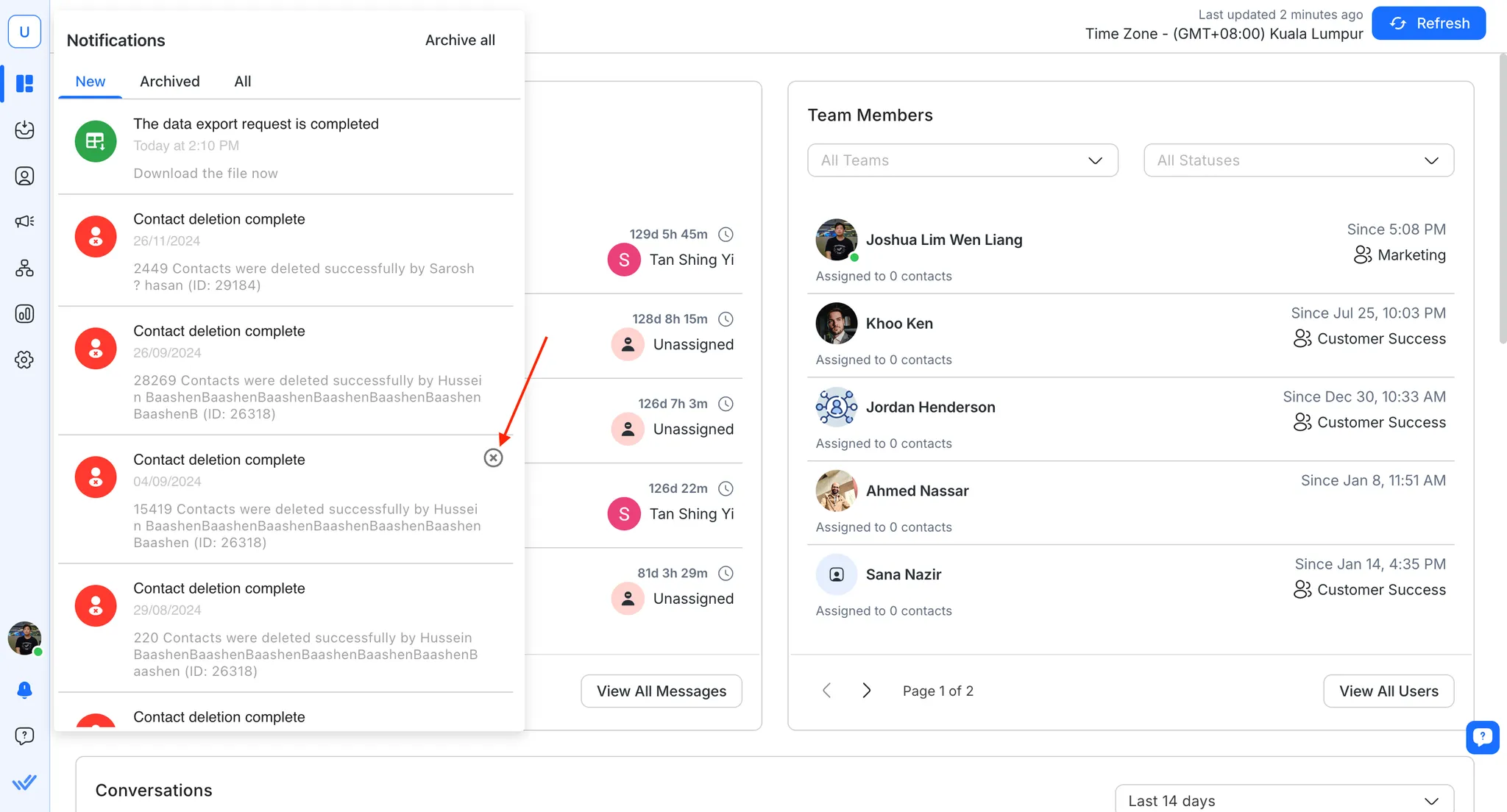
You can archive any task by hovering over the notification in the NEW tab and clicking on the x on the top right corner of the notification.
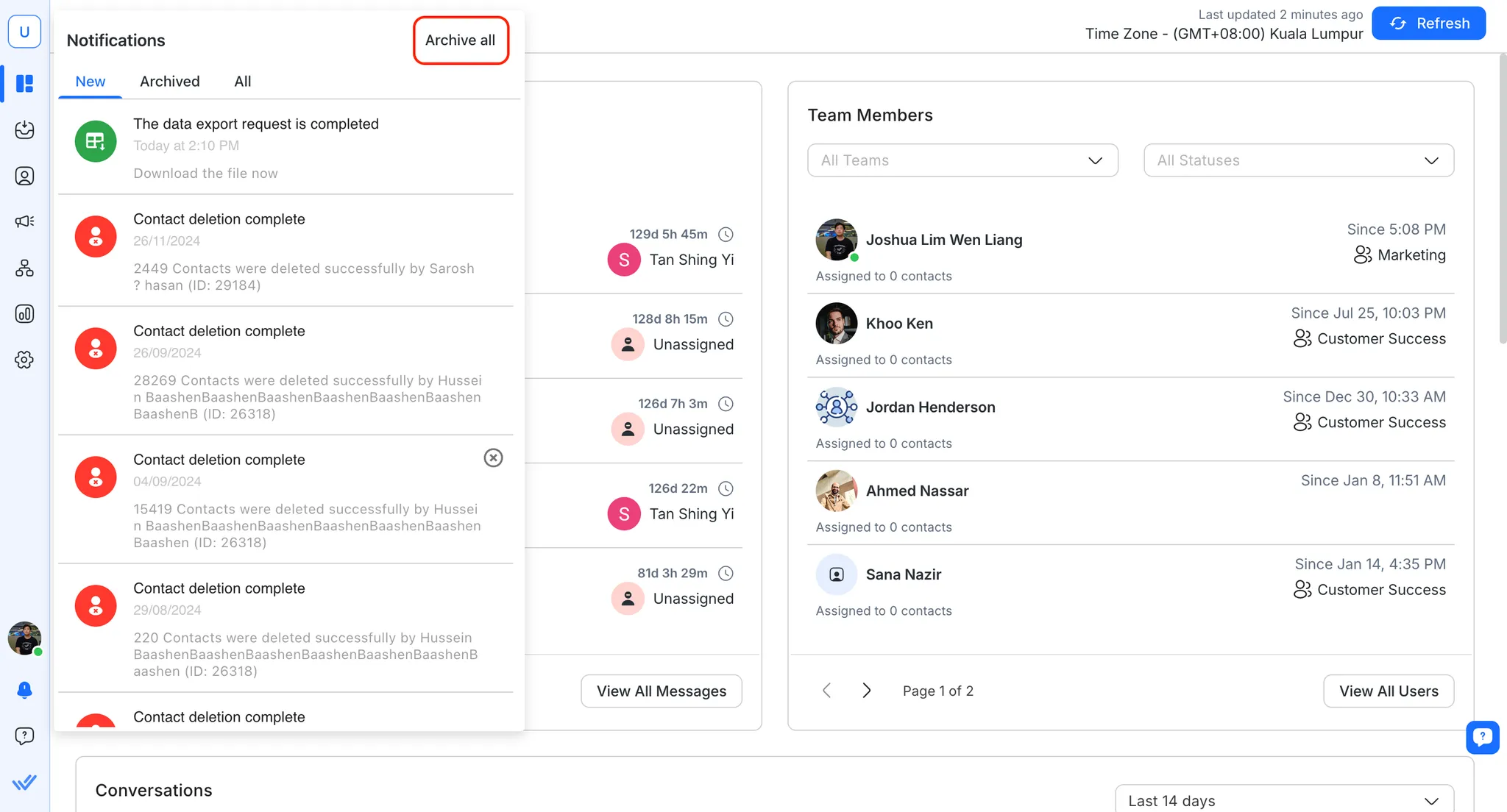
Alternatively, if you would like to archive all, you can do by clicking on Archive all on the top right of the notification center.
If you accidentally archive a notification, you can unarchive the notification by doing the same in the Archived tab.
Browser tab notification
Whenever there's new activity, respond.io platform shows an unread count and a colored badge directly in the browser tab, even when the tab isn't in focus.
Tab title
The browser tab title updates to show the unread count for the conversation currently open in that tab, followed by the Contact name and Workspace name:
(5) John Doe - Acme Co - Inbox - respond.io

The count updates in real time as new messages arrive and resets the moment you return to the tab. If you open a different conversation in the same tab, the title switches to that conversation's unread count; the original conversation's unread activity keeps surfacing through the colored badge on that Workspace's tab.
If there's an incoming call in the Workspace, the tab title alternates between the call state and the normal title, regardless of who the call is assigned to.
Tab badge
A colored badge also appears on the tab depending on the unread activity in that Workspace:
Badge | Meaning |
|---|---|
🔴 Solid red dot | 1 or more unread conversations are assigned to you in this Workspace |
⭕ Hollow red ring | Unread activity exists in the Workspace, but none of it is assigned to you |
No badge | No unread activity in this Workspace |
If both conditions apply, the solid dot takes priority over the hollow ring.
Tab title and tab badge updates work independently of your Sound Notification preference — both are always on.
Desktop Notification
Whenever a user is away from the platform, desktop notifications can be sent to them via the browser.

We recommend using Google Chrome to enable your desktop notifications to ensure the reliability of the notifications' delivery.
Google Chrome
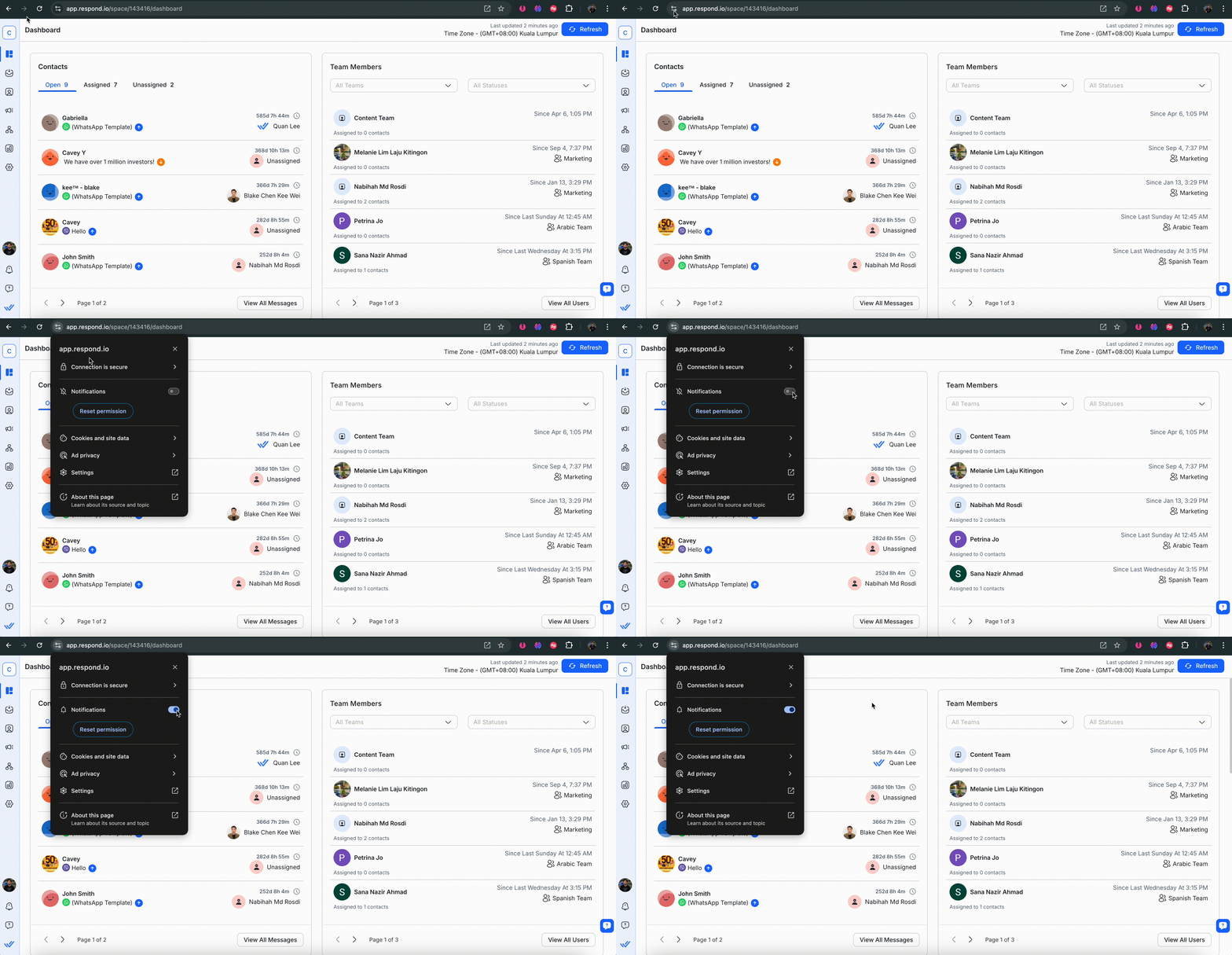
Guide on enabling desktop notifications: Chrome, Firefox, Opera, and Microsoft Edge.
Mobile Notification
If you are using the respond.io mobile app, you will be able to receive notifications on your mobile too. Learn more about notifications on your respond.io mobile app here.
Email Notification
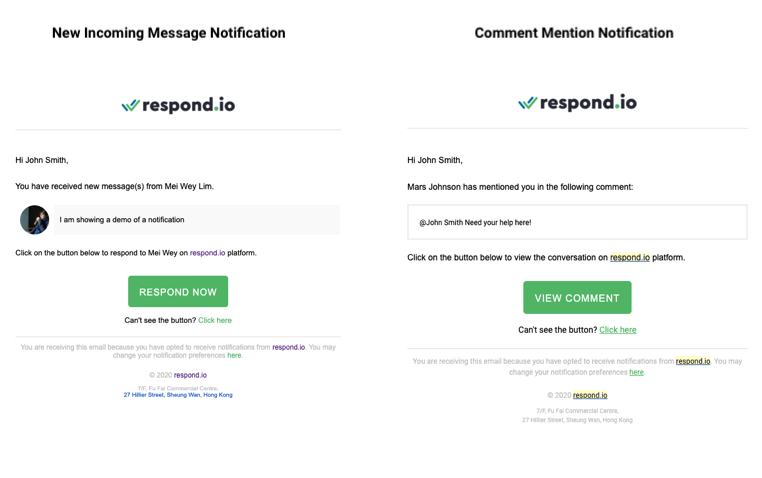
If you prefer to receive notifications via email, we also send notifications to the email address you provided during sign-up. The notification includes actionable information that will keep you informed of what is important and the action that needs to be taken.
Examples of Email Notifications
Sound Notification
When a new message is received, the notification sound will be played based on the preferences. The sounds will only play when the user is active in the Messaging Module.
Notification Types
On the platform, there are many events that will trigger a notification such as:
Notification | Description |
|---|---|
New Incoming Message | A notification will be sent to the preferred users notifying them of the new incoming message. |
Contact Assigned | A notification will be sent to the assigned user, notifying them of the contact assignment performed by another user or automation. |
Comment Mention | A notification will be sent to the mentioned user, notifying them of the comment mentioned by another user. |
Removed As Collaborator | A notification will be sent to the user who was removed, notifying them that they're no longer a collaborator on the conversation. |
Custom Notification | When a Custom Notification is sent via RB_Notify, everyone on the platform will receive a notification. |
Contacts Import Notifications | A notification will be sent to the user who performed the task notifying them of the completion of the contacts import. |
Data Export Notifications | A notification will be sent to the user who performed the task, notifying them once the file from data export is ready to be downloaded. |
For Custom Notification, it will be sent to the users as long as the user opts to receive notifications.
For Contacts Import Notifications, it will be sent to the user regardless of the notification preference of the user.
The following table lists how each type of notification is being sent on the respective channels.
Notification Center | Desktop Notification | Mobile Notification | ||
|---|---|---|---|---|
New Incoming Message | ❌ | ⭕ | ⭕ | 🔶 |
Contact Assigned | ❌ | ⭕ | ⭕ | 🔷 |
Comment Mention | ✅ | ⭕ | ⭕ | ⭕ |
Removed As Collaborator | ✅ | ❌ | ❌ | ❌ |
Custom Notification | ✅ | ⭕ | ⭕ | ❌ |
Contacts Import Notifications | ✅ | ❌ | ❌ | ✅ |
Data Export Notifications | ✅ | ❌ | ❌ | ✅ |
✅ Always Send
❌ Never Send
⭕ Send based on Preference
🔷 Send based on Activity Status and Preference
🔶 Send based on Activity Status, Preference and Notification History
Notifications with 🔷 are only sent when the user opts to receive such notifications and their activity status is offline.
Notifications with 🔶 are only sent when the user fulfills the following:
1. The user opts to receive such notifications.
2. The user is offline.
3. The user has not received such notification from the same contact throughout his inactivity.
Notification Preferences
Notification Preferences can be accessed from the Settings navigation menu under the Personal Settings sub-menu item, Notifications.
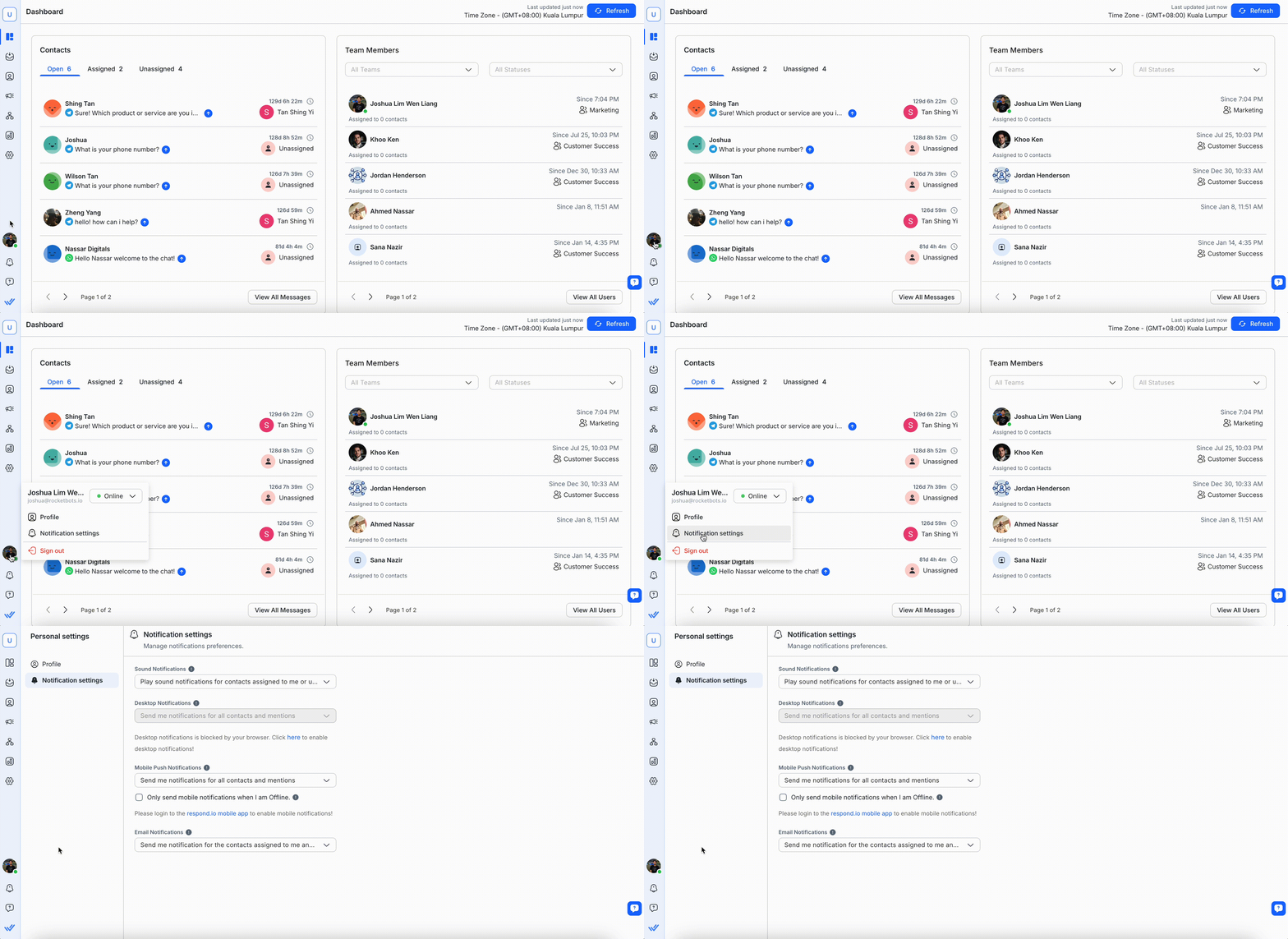
Under the Notification Preferences section, you can change how often you want to receive notifications for each notification channel.
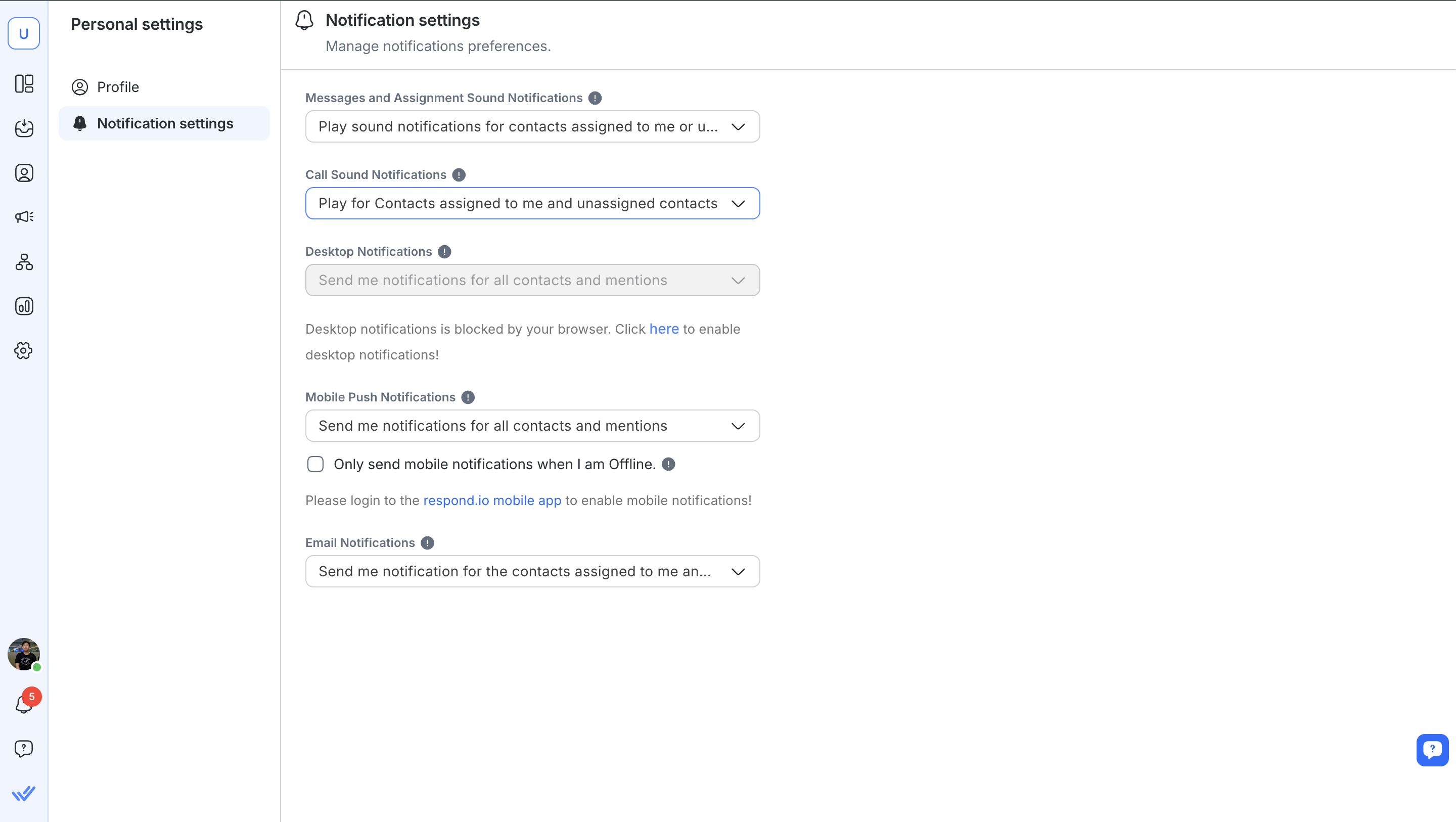
Preferences for Messages and Assignment Sound Notifications
Preference | Description |
|---|---|
Play sound for assigned contacts, collaborations, or unassigned contacts | Users opt to receive the following notifications when they are active on the platform: |
Play sound for assigned contacts and collaborations only | Users opt to receive the following notifications when they are active on the platform: |
Do not play sound notifications | Users opted out from receiving notifications sound when they are active on the platform. |
Preferences for Call Sound Notifications
Preference | Description |
|---|---|
Play for assigned contacts, and unassigned contacts | Users opt to receive the following notifications when they are active on the platform: |
Play for assigned contacts only | Users opt to receive the following notifications when they are active on the platform: |
Play for all Contacts | Users opted out from receiving call notification sounds when they are active on the platform. |
Mute all | Users opt out of receiving all notifications, including sound and visual alerts, when they are active on the platform. |
Preferences for Desktop, Mobile and Email Notifications
Preference | Description |
|---|---|
Send me notifications for all contacts and mentions | Users opt to receive the following notifications on the preferred channel: |
Send me notifications for assigned contacts, collaborations, unassigned contacts and mentions | Users opt to receive the following notifications on the preferred channel: |
Send me notification for assigned contacts, collaborations, and mentions | Users opt to receive the following notifications on the preferred channel: |
Send me notifications for mentions only | Users opt to receive the comment mention notification on the preferred channel. |
Do not send me any notifications | Users opted out from receiving notifications on the preferred channel. |
Default Configurations
For users who signed up and created an organization, their default notification preference will be the following:
Notification Channel | Default Configuration |
|---|---|
Sound Notification | Play sound notifications for Contacts assigned to me or unassigned Contacts. |
Desktop Notification | Send me notifications for all Contacts and mentions. |
Mobile Push Notification | Send me notifications for all Contacts and mentions. |
Email Notification | Send me notifications for all Contacts and mentions. |
For users who signed up by invitation, their default notification preference will be the following:
Notification Channel | Default Configuration |
|---|---|
Sound Notification | Play sound notifications for Contacts assigned to me only. |
Desktop Notification | Send me notifications for Contacts assigned to me and mentions. |
Mobile Push Notification | Send me notifications for Contacts assigned to me and mentions. |
Email Notification | Send me notifications for Contacts assigned to me and mentions. |
Remember to click the Save Profile button to save the changes made to your User Profile.
Notifications Troubleshooting
Desktop Notifications Are Not Arriving
Outdated site data in your browser
Outdated notification data stored in your browser can stop desktop notifications from arriving, even when notification permissions are enabled correctly. Clearing it lets your browser re-register for notifications.
To clear it:
1. Go to Site Settings > Cookies and site data.
2. Click Manage on-device site data.
3. Scroll to onesignal.com and click the delete icon.
4. Refresh the page.
Clearing this data does not sign you out of respond.io or change your notification preferences.
Browser notification permissions are blocked
Check that notifications are allowed for `app.respond.io` in your browser settings, and that your operating system is not blocking notifications for the browser itself.
Mobile Push Notifications Are Not Arriving
User inactivity timeout is too high
Mobile notifications are only sent when the User Activity Status is Offline. The User Activity Status is affected by the User Inactivity Timeout configuration, which by default is set to 5 minutes in every space. You can reduce the timeout from Settings > General > User Inactivity Timeout.
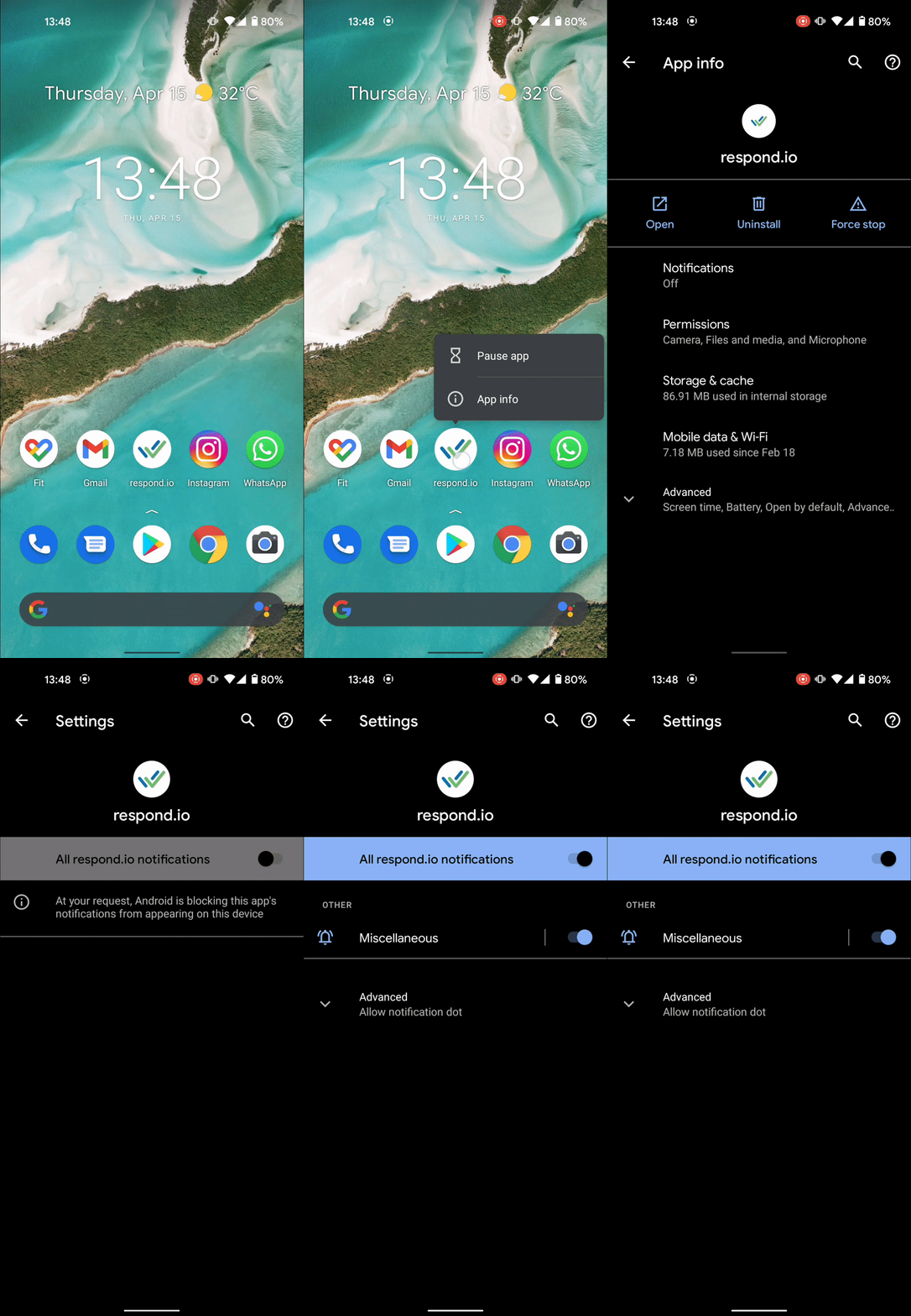
Android App Notification Settings Are Not Enabled
You can turn the app notifications from App info > Notifications > All respond.io notifications.
Android Battery Optimization Is Enabled For respond.io App
Some Android phones, in their pursuit to improve the battery life, will kill the app background process. Follow the next steps to disable battery optimization on your phone:
Android 8.x and Higher:
From Settings > Search settings: Battery optimization
Select All apps
Search respond.io
Select the option Don't optimize
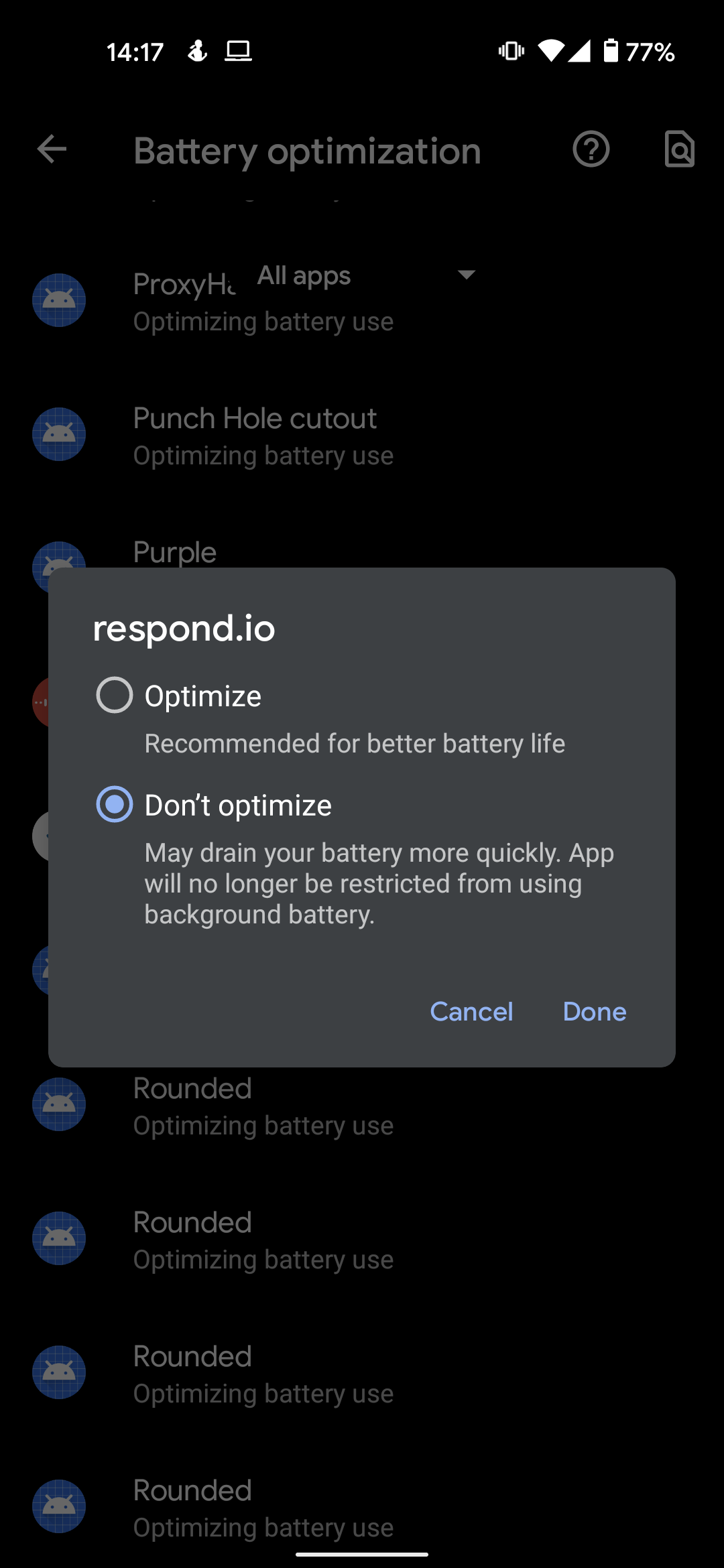
The App will no longer be restricted from running background processes.


