

Your User Activity Status is visible to everyone in your Team and appears throughout the platform. You can see it in the bottom-left corner, where a colored indicator is displayed next to your avatar.
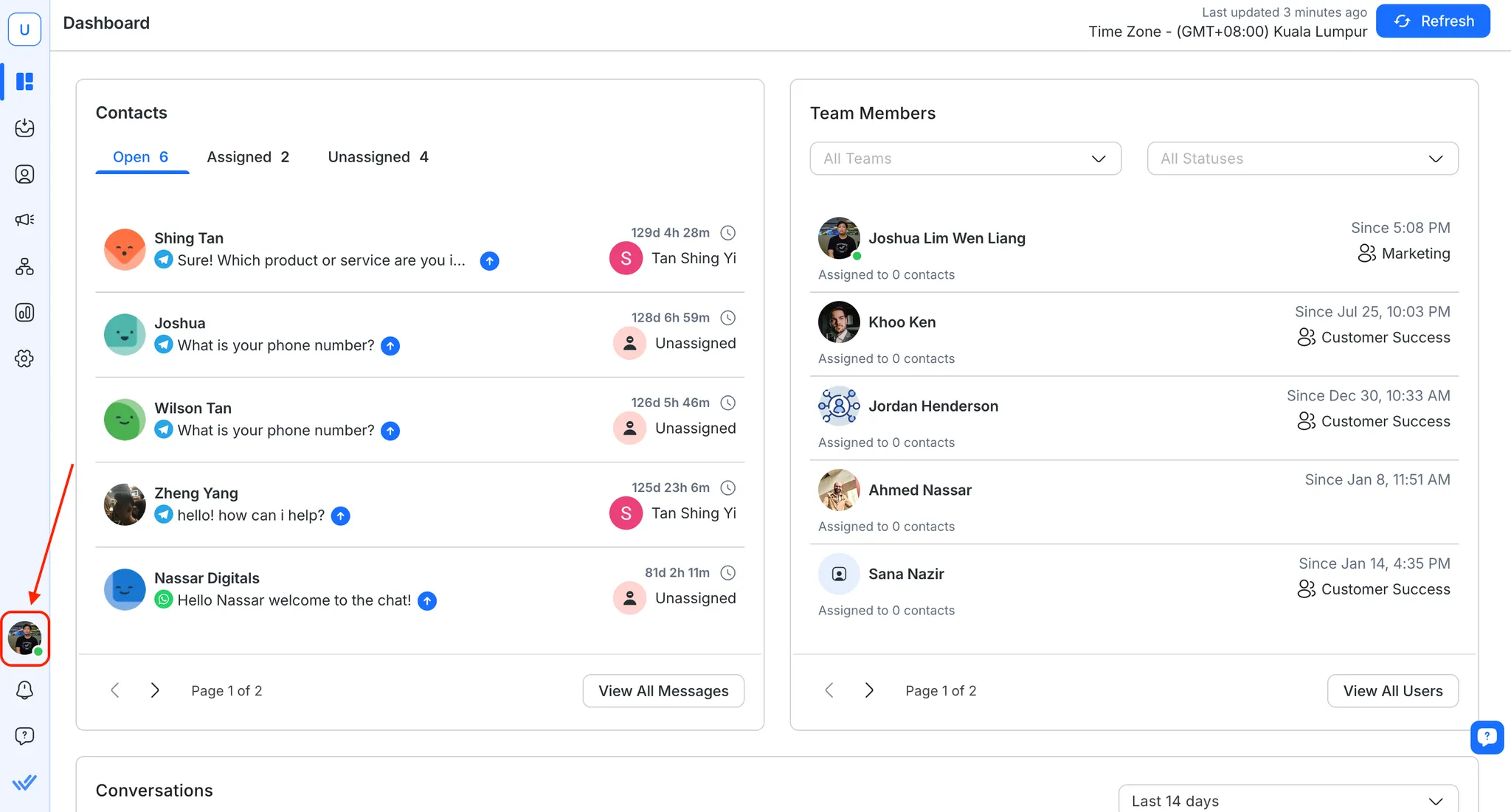
User Status
User Status allows a Team to determine a User's status before assigning a Contact to them. Besides that, it is also used for Automatic Contact Assignment for conditions where a new Contact in the queue can only be assigned to online users.
The User's activity status on the platform can appear as:
Change your status by pressing on the activity status indicator and selecting your desired status.
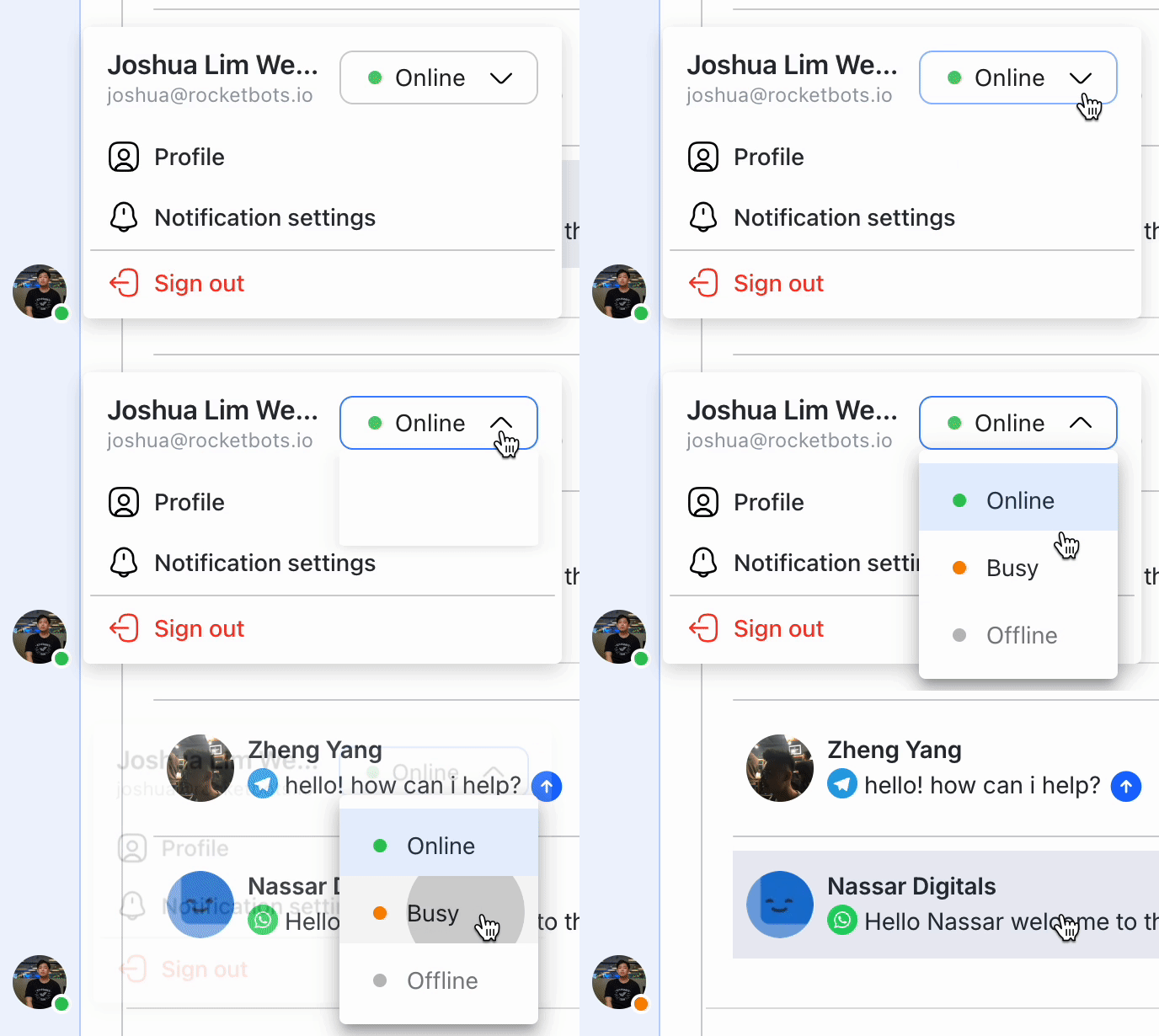
Online Mode
This status indicates that you are currently available on the platform to answer messages. Assigning Contacts to online Users ensures Contacts' issues can be resolved as soon as possible.
Read about Automatic Contact Assignment to learn more.
Busy Mode
This status indicates that you are temporarily unavailable on the platform. This mode can be useful when you are on a break.
Tip: If you need to access the platform but don't want any Contacts to be assigned to you, use this status to inform your colleagues or bypass the Automatic Contact Assignment if it is enabled.
Offline Mode
This status cannot be selected from the status options as it is automatically set. You're marked Offline when your connection to respond.io is lost and the defined User Inactivity Timeout period passes — for example, when you close the respond.io tab or browser, your device goes to sleep, or your connection drops. The same behavior applies when a User is logged out of the platform.
When you log into the platform or become active, your status reverts to the previous status automatically.
For more information, read more on User Activity.
FAQ and troubleshooting
Does switching to another browser tab start the inactivity timer?
No. As long as the respond.io tab stays open and connected, your status stays Online — even if you switch to another tab and don't click or interact with respond.io during that time. Your status only changes to Offline when the connection is lost, for example when you close the tab, your device goes to sleep, or your connection drops.
Note: If your Workspace's User Inactivity Timeout is set to a very short period (such as 1 minute), your browser may throttle background tabs for up to around 60 seconds. In this case, you may occasionally still be marked Offline even with the tab open.
Learn more about configuring User Inactivity Timeout.


