

Getting Here
This setting is accessible to Owners, and to Managers with the required permissions.
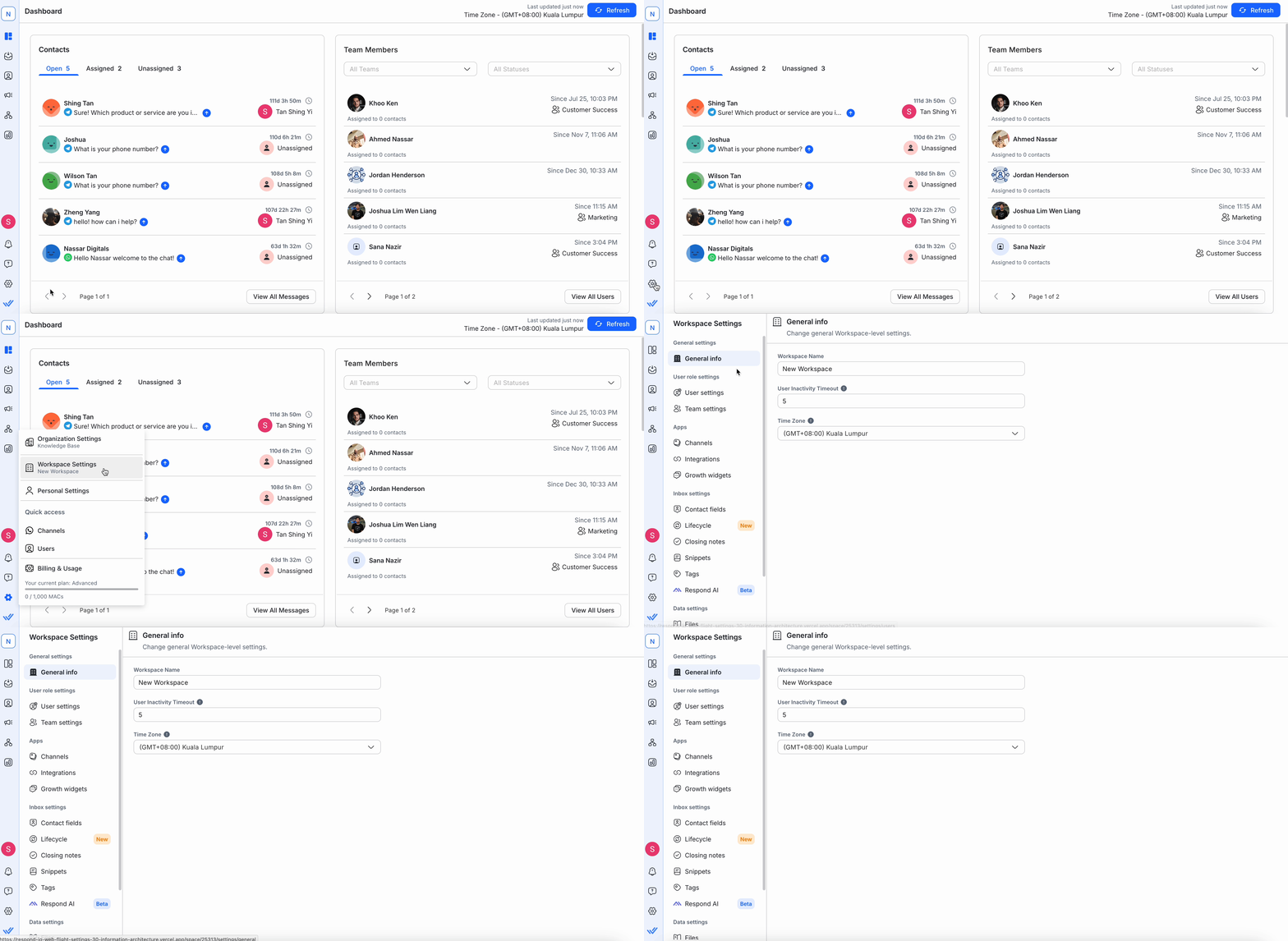
You can access it from the Settings navigation menu, under Workspace Settings → General info.
Configuring User Inactivity Timeout
The User Inactivity Timeout setting allows you to configure how long a user can remain idle on the platform before their status is automatically changed to Offline.
You can set the timeout period between 1 minute and 60 minutes.
Setting a Workspace’s Timezone
The Time Zone setting applies to the workspace you are configuring. It affects how workspace data is displayed in Reports, Dashboards, and View Filters.
Changes are saved automatically as you update the setting.
Configuring the Weekly Recap Email
The Weekly Recap Email provides a summary of your workspace’s Conversations and Lifecycle performance. It is delivered to selected recipients every Monday at 9:00 AM in their local timezone.
By default, this setting is enabled for all new Workspaces. The email will only be sent if relevant data is available—no email is sent if all tracked metrics are zero.
The tracked metrics consist of:
Customer Won: Number of customers entering the Won stage, with a conversion rate (Won customers ÷ total Contacts entering the Lifecycle)
Customer Lost: Number of customers entering the Lost stage, with a drop-off rate (Lost customers ÷ total Contacts entering the Lifecycle)
Opened conversations from new and returning Contacts
Average first response time, including the percentage of Contacts who received a reply in under 10 minutes.
Managing Recipients
You can choose which users should receive the weekly email:
Owners are automatically included in the recipient list and updated if their role changes.
Managers can be manually added or removed.
Agents are not eligible to receive the email and will not appear in the list.
To configure recipients:
Use the Recipient dropdown.
Select users from the list.
Selected names will appear as tags.
Changes are saved automatically.
Unsubscribing
Recipients can change their preferences anytime by clicking on the link in the email footer.
If a Manager without Workspace Settings permission clicks this link, they will be redirected to the platform’s default landing page.
Legacy: Configuring How Conversations Open (Deprecated)
The option to configure how conversations are opened was available to users with legacy data (older workflows and processes based on previous behavior). If you do not see this option, it means it no longer applies to your workspace.


