

Getting here
Go to Workspace setting > Inbox settings > Calls
Workspace Call Settings
Manage all call-related settings and configurations for your Workspace.
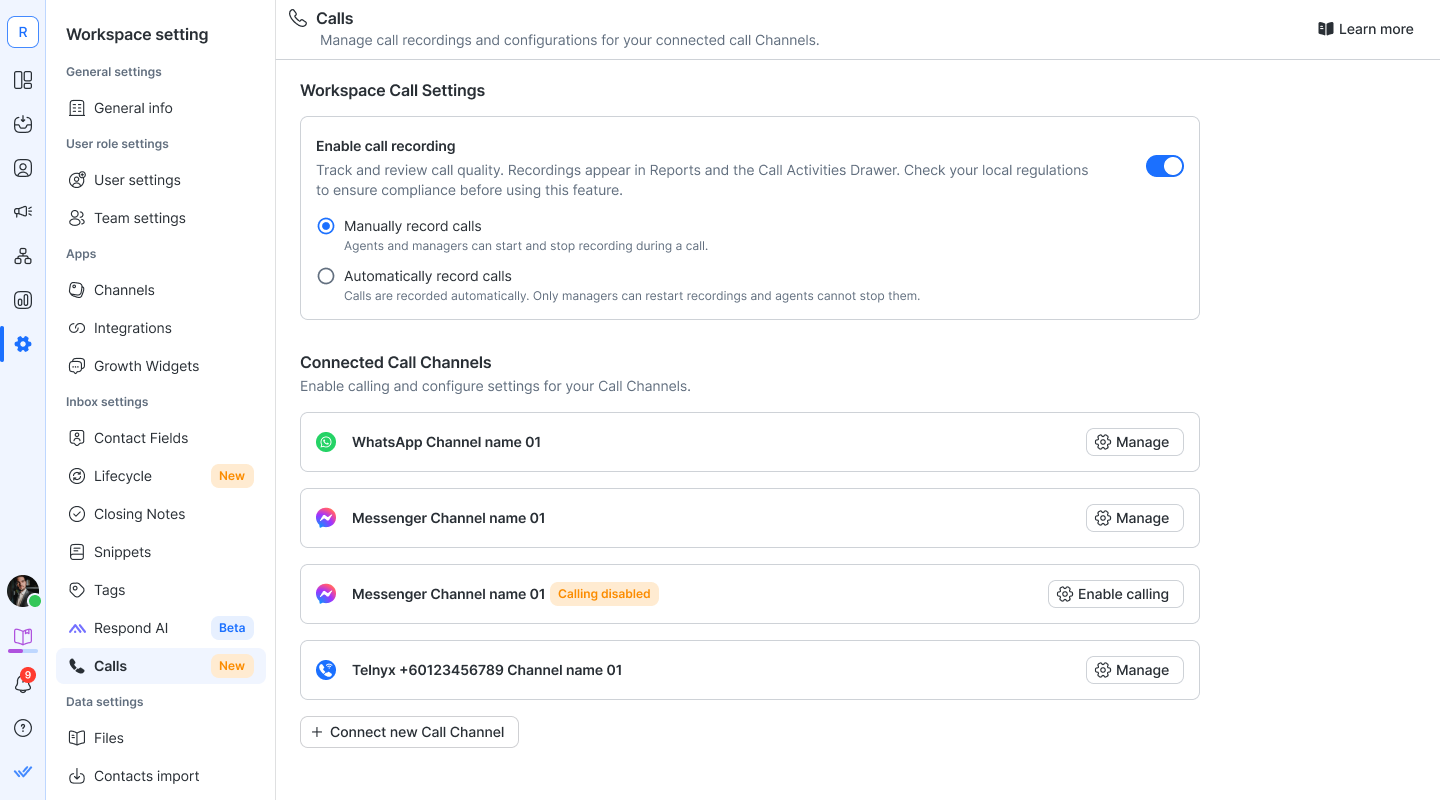
Enable call recording
Turn on call recording to track and review call quality. Recordings appear in Reports: Calls and in the Contact Drawer → Calls tab.
Choose your preferred mode:
Manual recording: Agents and Managers can start, pause, and stop recordings during calls.
Automatic recording: Calls are recorded automatically. Only Managers/Owners can pause or resume. Agents cannot stop recordings.
Please review your local call recording regulations before enabling this feature.
Enable call transcript and AI call summary
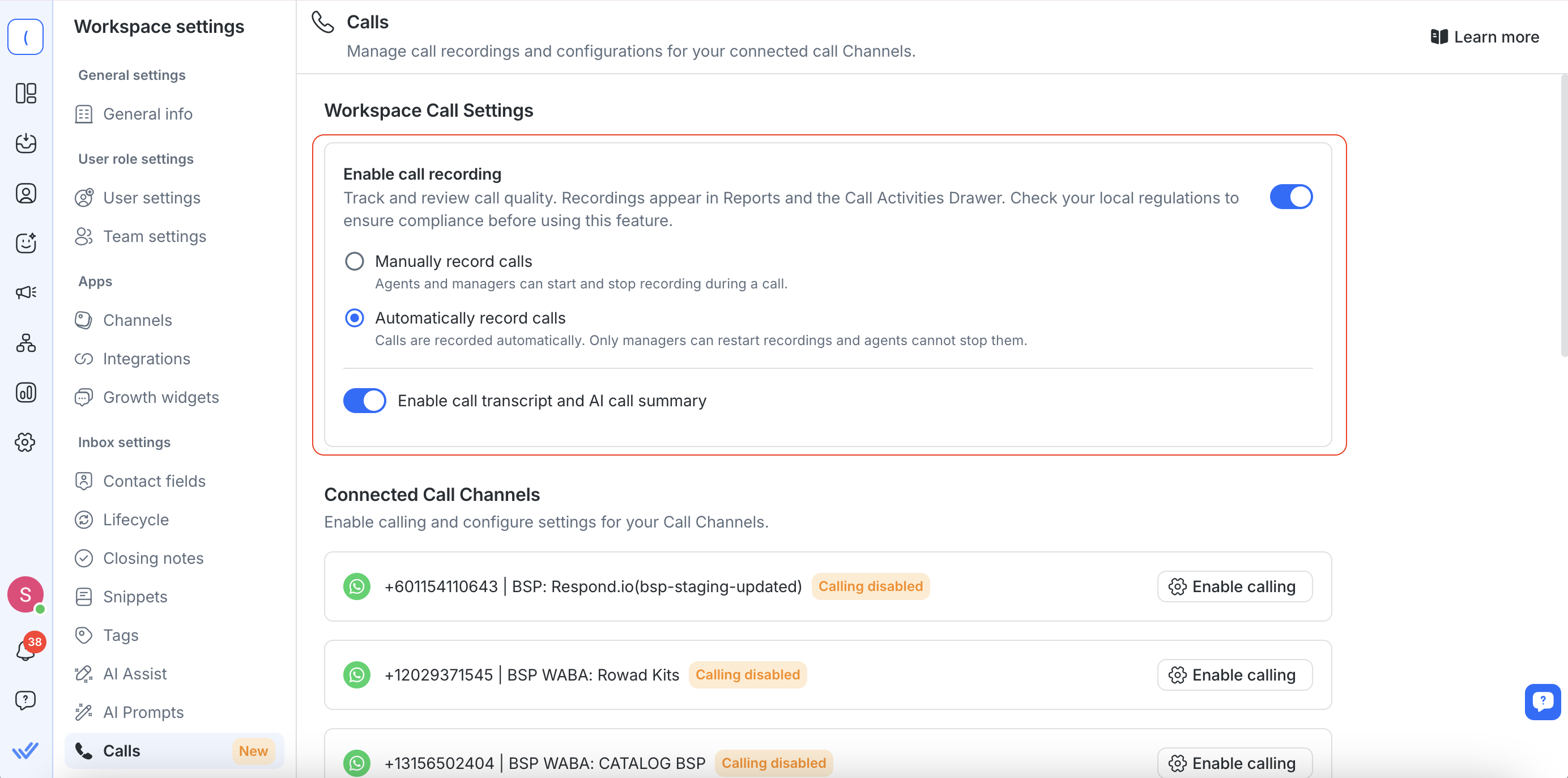
The Call Transcript & AI Call Summary option becomes available once Call Recording is enabled, and is turned on by default.
When enabled:
A call transcript is automatically generated after each recorded call ends.
An AI call summary is also generated from the transcript.
You can view, copy, and download transcripts and summaries.
If you disable this option later:
No new transcripts or summaries will be generated.
Previously generated transcripts remain accessible for up to 1 year for Telnyx calls (other Channels follow their provider’s storage policies).
Previously generated AI call summaries remain accessible.
Connected Call Channels
This section lists all connected Channels that support calling. From here, you can enable or disable calling for each Channel, and access individual Channel settings.
Manage: Opens the individual Channel’s settings page (Calls tab).
Enable calling: Turns on calling for a Channel that supports it.
+ Connect new Call Channel: Opens the Channel Gallery (Calls tab) in a new tab, where you can connect a new call-capable Channel.
FAQ and troubleshooting
Why does call recording playback sound like voices are coming from different speakers?
When call recording is enabled, the agent’s audio is recorded on the right channel and the contact’s audio on the left channel.
This is the expected behavior, based on Telnyx’s recording structure, which separates participants to ensure accurate speaker identification in transcripts.


