

Plan eligibility: Có sẵn trên các gói Advanced, Enterprise và một số gói Legacy được chọn. Tính năng kiểm tra có sẵn cho tất cả người dùng, nhưng phải có gói hợp lệ để xuất bản.
Hành động Make HTTP requests cho phép trợ lý AI của bạn gọi các API bên ngoài trong cuộc trò chuyện. Điều này cho phép Tác nhân AI truy xuất dữ liệu thời gian thực hoặc kích hoạt hành động trong hệ thống bên ngoài dựa trên yêu cầu của liên hệ. Ví dụ: nó có thể kiểm tra trạng thái đơn hàng, truy xuất thông tin tài khoản hoặc tạo bản ghi trong hệ thống khác. Trong bài viết này, bạn sẽ học cách cấu hình hành động yêu cầu HTTP và kiểm tra nó với trợ lý AI của bạn.
Trợ lý AI:
Phân tích tin nhắn của liên hệ để xác định liệu nó có khớp với ý định được định nghĩa trong hướng dẫn hành động của bạn hay không.
Thu thập mọi thông tin cần thiết.
Gửi yêu cầu HTTP.
Diễn giải phản hồi API.
Tác nhân AI trả lời liên hệ một cách tự nhiên.
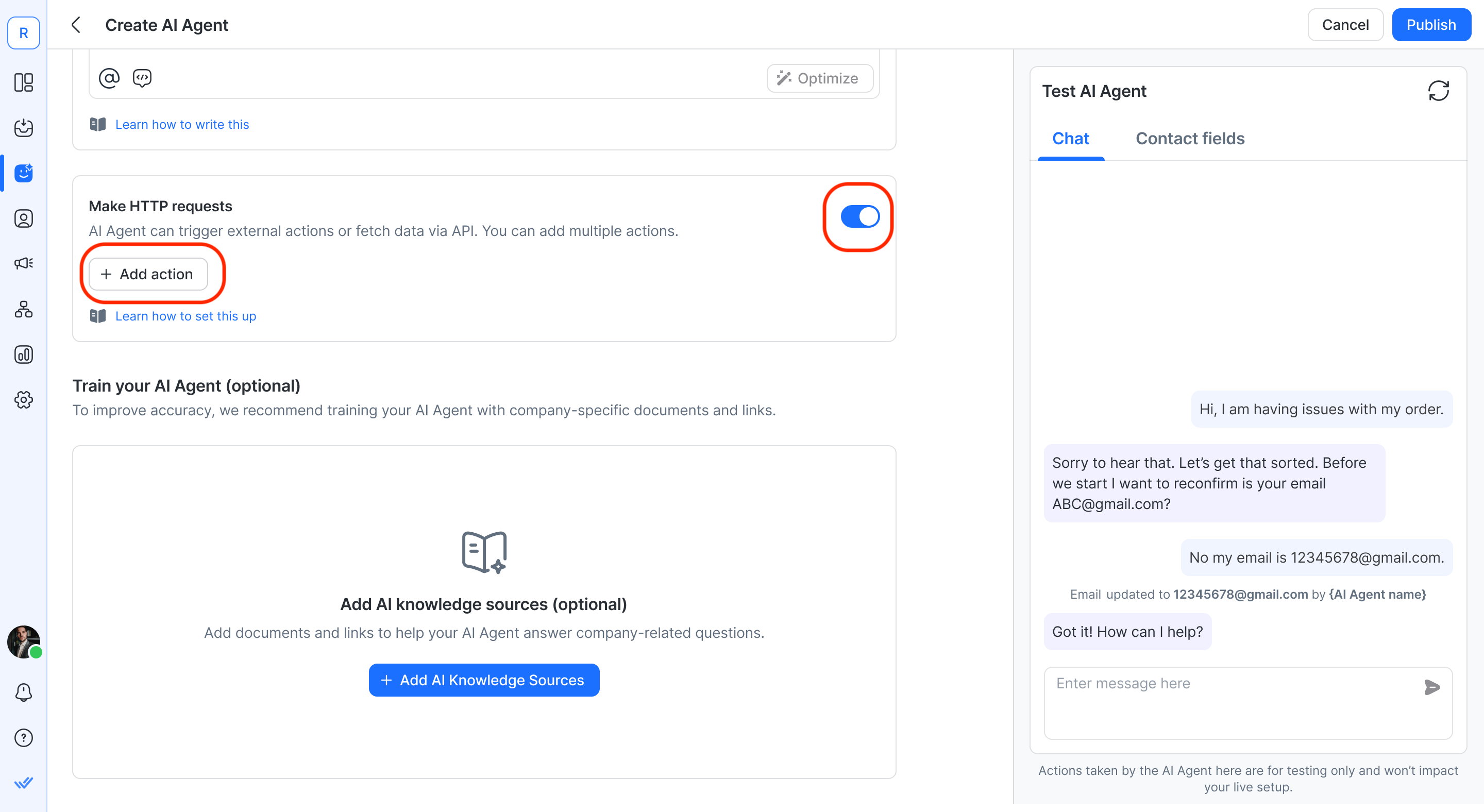
Thêm hành động Make HTTP requests
Bật hành động và nhấp vào “Add action” để bắt đầu cấu hình yêu cầu HTTP của bạn.
Xác định khi nào hành động nên chạy
Đặt tên mô tả cho hành động trong trường Action name.
Trong When and how should this action be performed? trường, mô tả:
Khi nào Tác nhân AI nên sử dụng hành động này
Những gì nó truy xuất hoặc gửi
Bất kỳ điều kiện hoặc kết quả nào cần xử lý
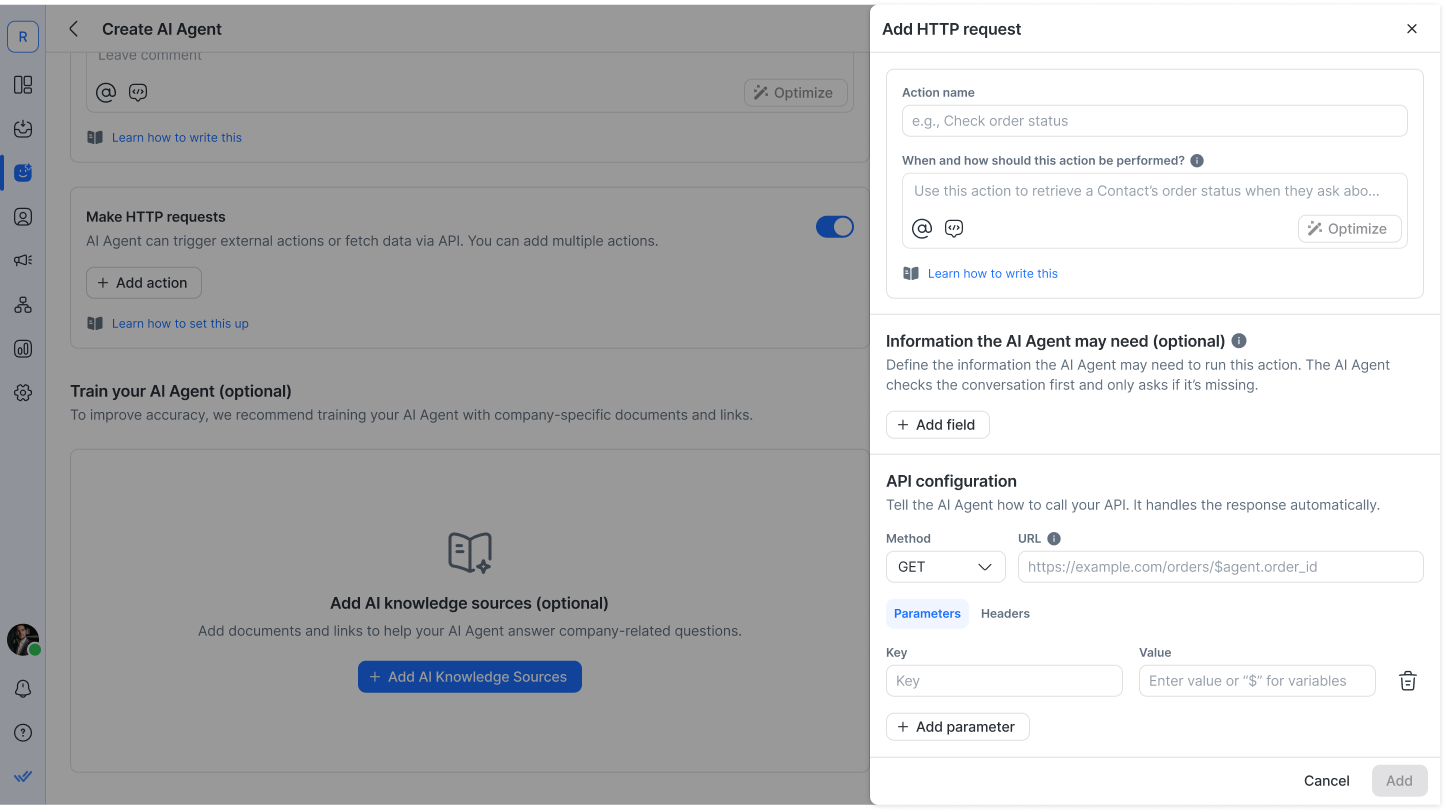
Ví dụ:
Sử dụng hành động này để truy xuất trạng thái đơn hàng của liên hệ khi họ hỏi về đơn hàng của mình. Nếu API trả về lỗi 404, thông báo cho liên hệ rằng không thể tìm thấy đơn hàng.Trợ lý AI sử dụng mô tả này để quyết định khi nào kích hoạt yêu cầu.
Thông tin trợ lý AI có thể cần (tùy chọn)
Xác định các đầu vào cần thiết trong phần này trước khi gọi API của bạn.
Đây là các biến có cấu trúc mà trợ lý AI phải thu thập. Yêu cầu chỉ được kích hoạt sau khi tất cả các đầu vào bắt buộc có sẵn.
Nếu một giá trị:
Đã được đề cập trong cuộc trò chuyện → trợ lý AI sử dụng nó.
Thiếu → Tác nhân AI sẽ hỏi liên hệ về giá trị đó.
Các biến được tạo ở đây có thể được sử dụng trong cấu hình API. Các biến liên hệ (như $contact.email) có sẵn tự động và không cần phải thêm.
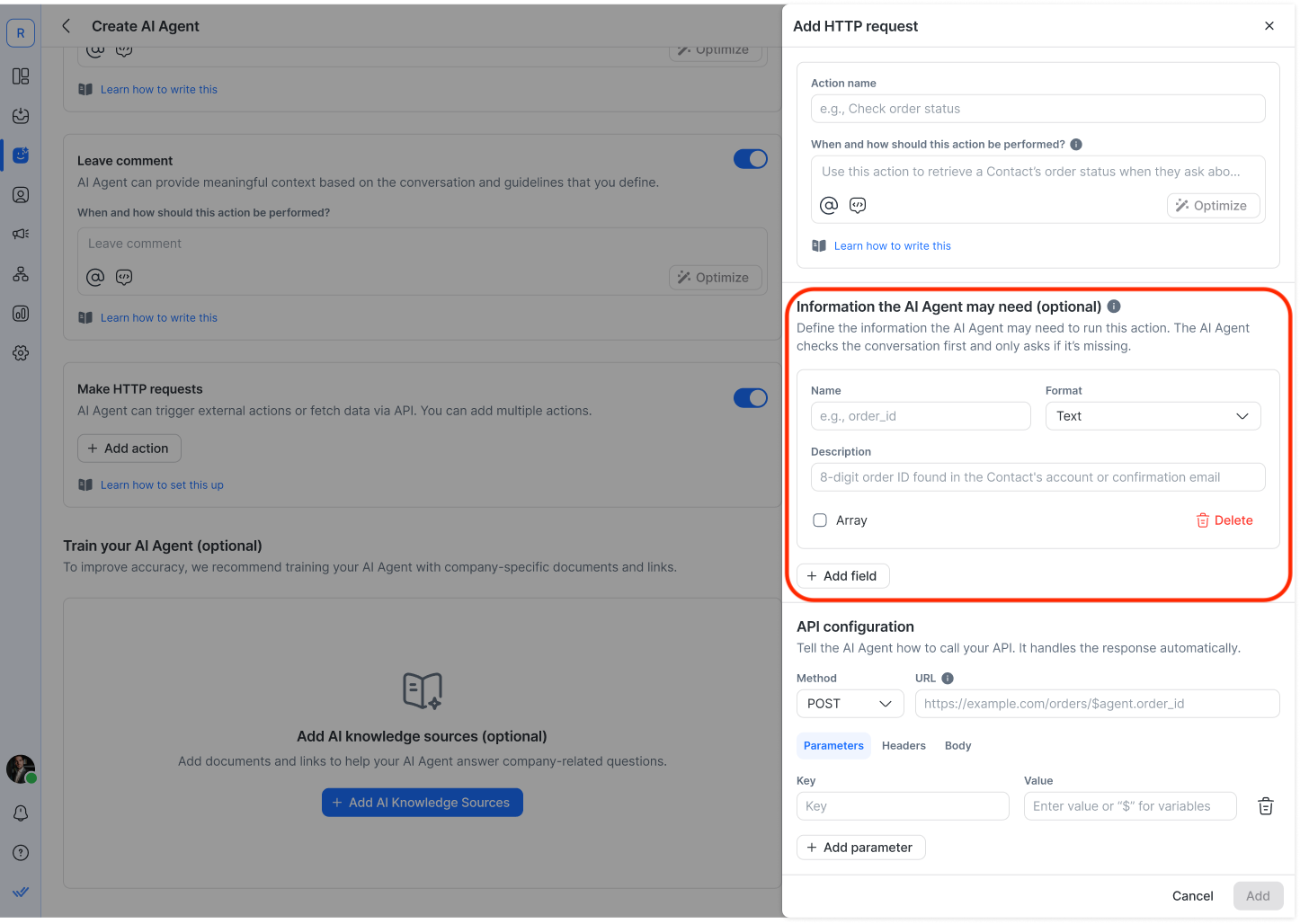
Cài đặt trường
Trường | Ghi chú |
|---|---|
Tên | Định danh biến được sử dụng trong yêu cầu API của bạn. |
Định dạng | Định nghĩa kiểu dữ liệu mong đợi: |
Mô tả | Giải thích giá trị đại diện cho điều gì và giúp trợ lý AI hỏi rõ ràng. |
Mảng (tùy chọn) | Bật tùy chọn này để thu thập nhiều giá trị thay vì một giá trị. Mỗi mục tuân theo Định dạng đã chọn. |
Cấu hình API
Xác định cách trợ lý AI gọi API của bạn.
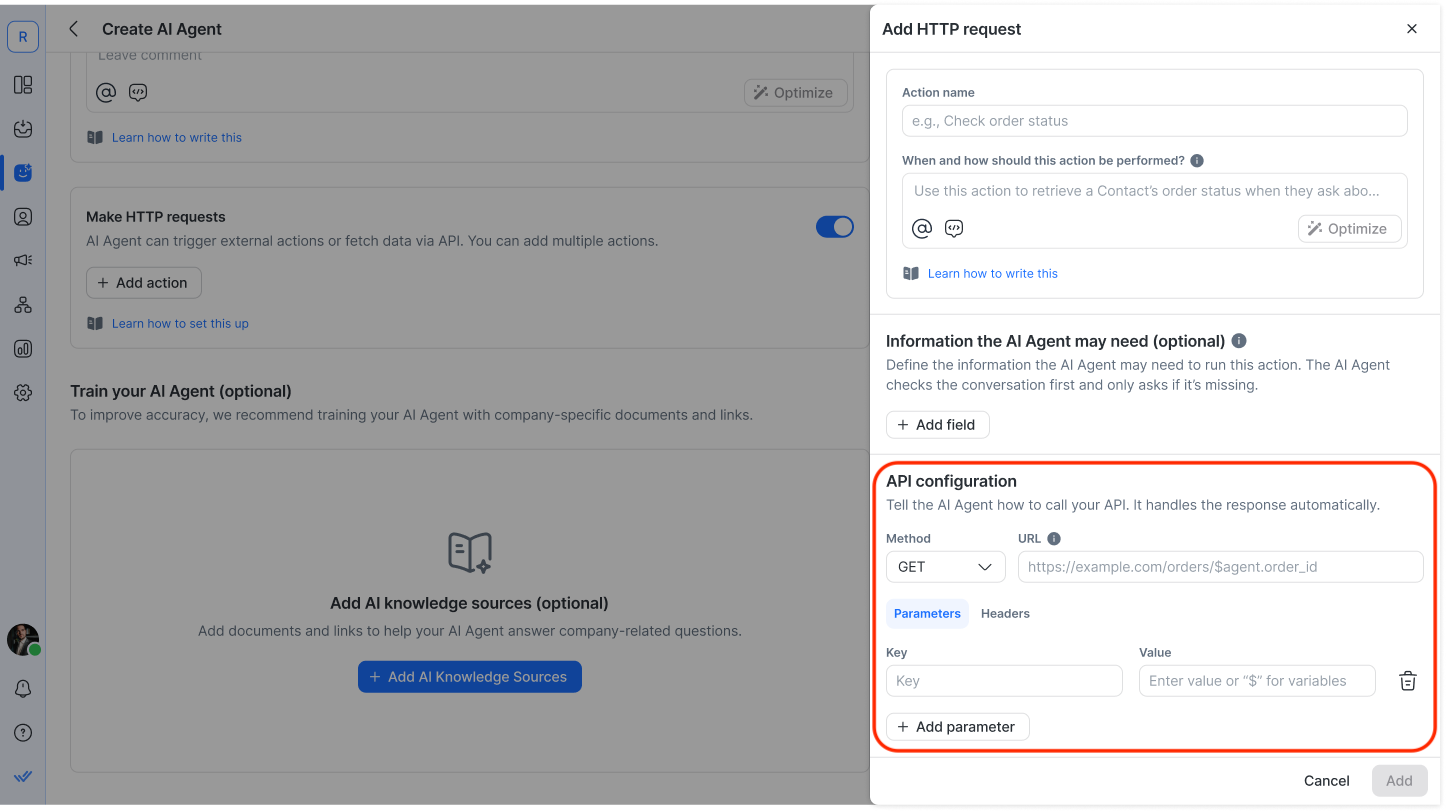
Bạn có thể cấu hình:
Phương thức
URL
Tham số truy vấn
Tiêu đề
Thân JSON (cho POST, PUT, PATCH)
Tham chiếu biến
Bạn có thể chèn biến vào URL, tham số, tiêu đề hoặc thân bằng cách sử dụng $.
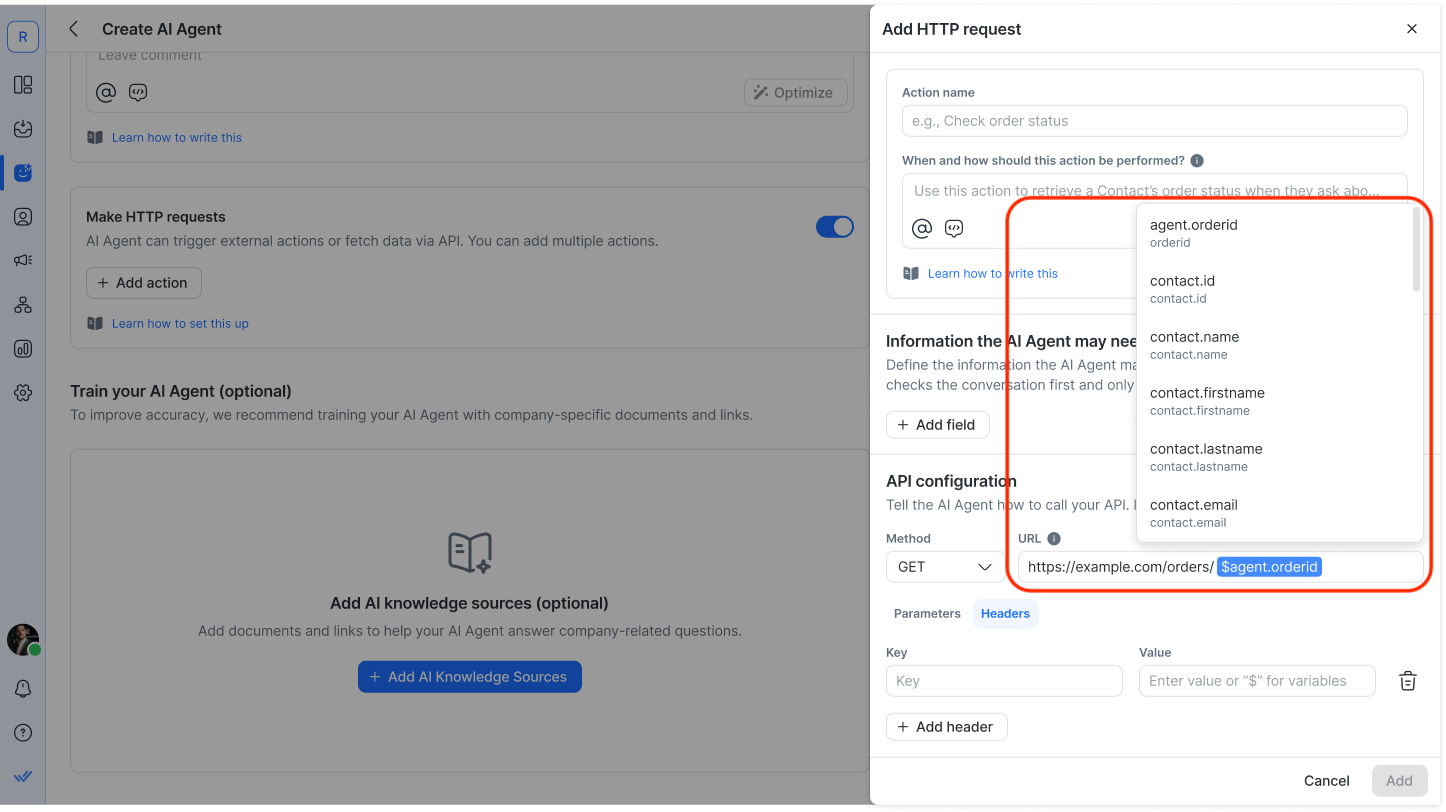
Có hai loại:
Biến Liên hệ — các trường Liên hệ hiện có
$contact.email
Biến trợ lý AI — các trường được định nghĩa trong Thông tin trợ lý AI có thể cần
$agent.order_id
Các biến sẽ được thay thế bằng giá trị thực khi yêu cầu được chạy. Nếu một biến trợ lý AI bắt buộc bị thiếu, trợ lý AI sẽ hỏi giá trị đó trước khi kích hoạt cuộc gọi API.
Cách trợ lý AI xử lý phản hồi API
Ví dụ về thân (body):
{
  "order_id": "$agent.order_id",
  "email": "$contact.email"
}
Trợ lý AI tự động diễn giải phản hồi JSON của API và tạo ra câu trả lời tự nhiên.
Ví dụ phản hồi API:
{
  "status": "shipped",
  "eta": "2025-12-12"
}
Phản hồi của AI: “Tin tốt! Đơn hàng của bạn đã được gửi và dự kiến đến vào ngày 12 tháng 12 năm 2025.”
Gửi hình ảnh hoặc tệp từ phản hồi API
Nếu phản hồi API chứa một URL hình ảnh hoặc tệp hợp lệ (ví dụ: sơ đồ mặt bằng, hóa đơn hoặc ảnh sản phẩm), Tác nhân AI có thể gửi nó dưới dạng tệp đính kèm được hiển thị — cùng cơ chế được sử dụng cho nguồn kiến thức và các URL hướng dẫn. Xem Gửi tệp và hình ảnh dưới dạng tệp đính kèm.
Điều này đòi hỏi một hướng dẫn rõ ràng cho phép hành động đó, ví dụ:
Gửi hình/tệp làm tệp đính kèm khi có URL hình/tệp hợp lệ trong phản hồi API.Nếu không có hướng dẫn này, Tác nhân AI sẽ chỉ dùng URL để tạo phản hồi bằng văn bản — sẽ không gửi URL đó dưới dạng tệp đính kèm.
Kiểm tra
Bạn có thể kiểm tra hành động yêu cầu HTTP của mình trong bảng Test AI Agent trước khi xuất bản.
Cách kiểm tra
Bắt đầu một cuộc trò chuyện thử nghiệm phù hợp với điều kiện hành động của bạn.
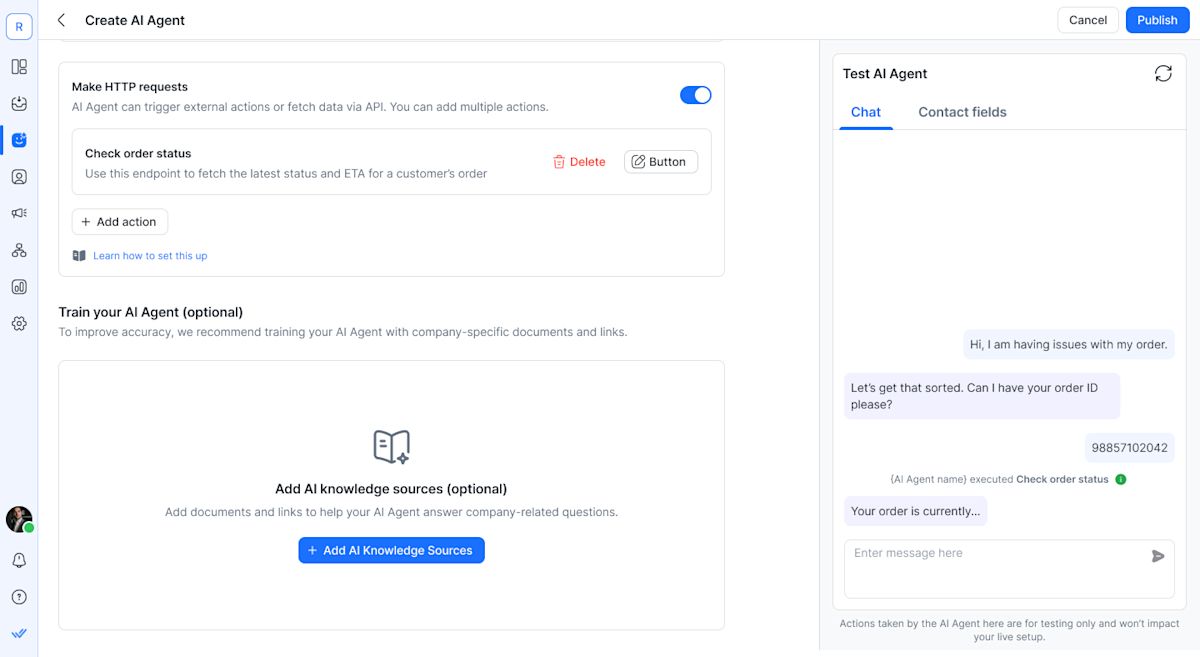
Khi ý định được phát hiện và các đầu vào cần thiết có sẵn, trợ lý AI sẽ thực thi yêu cầu HTTP.
Một sự kiện thực thi xuất hiện trong bảng kiểm thử:
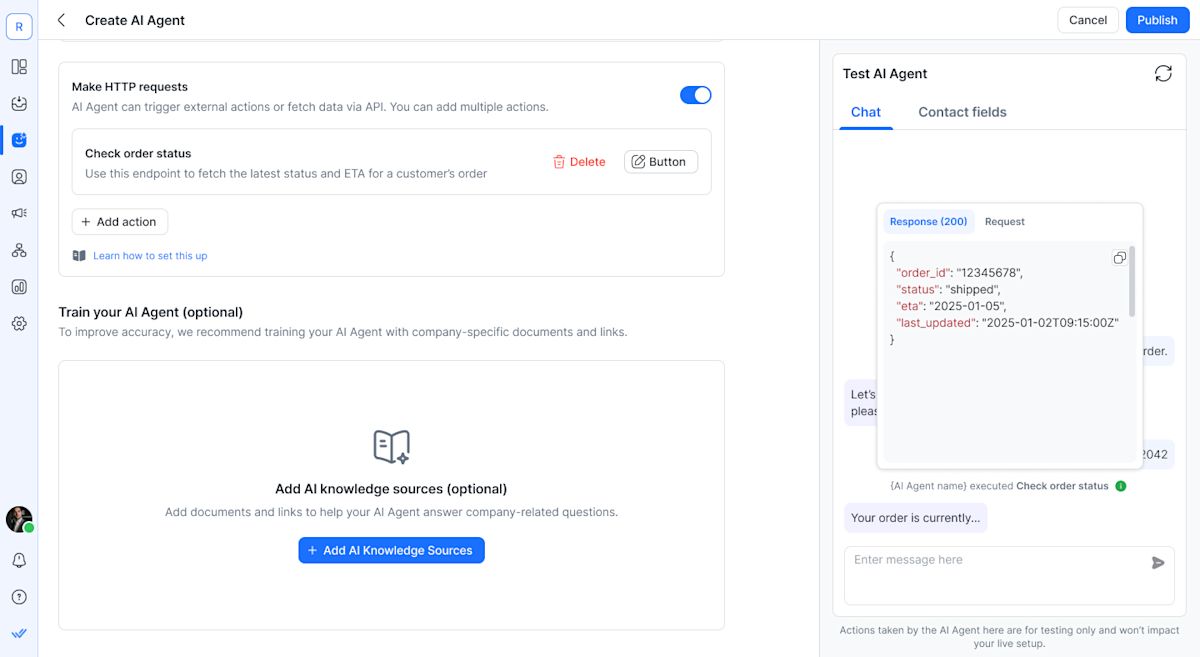
{AI Agent name} đã thực thi {Action name}
Các phản hồi 2xx được hiển thị là thành công
Các mã trạng thái khác được hiển thị là thất bại
Nhấp vào sự kiện để xem:
Response tab (mặc định) — toàn bộ thân phản hồi API
Request tab — toàn bộ payload yêu cầu cURL
Tùy chọn sao chép để gỡ lỗi
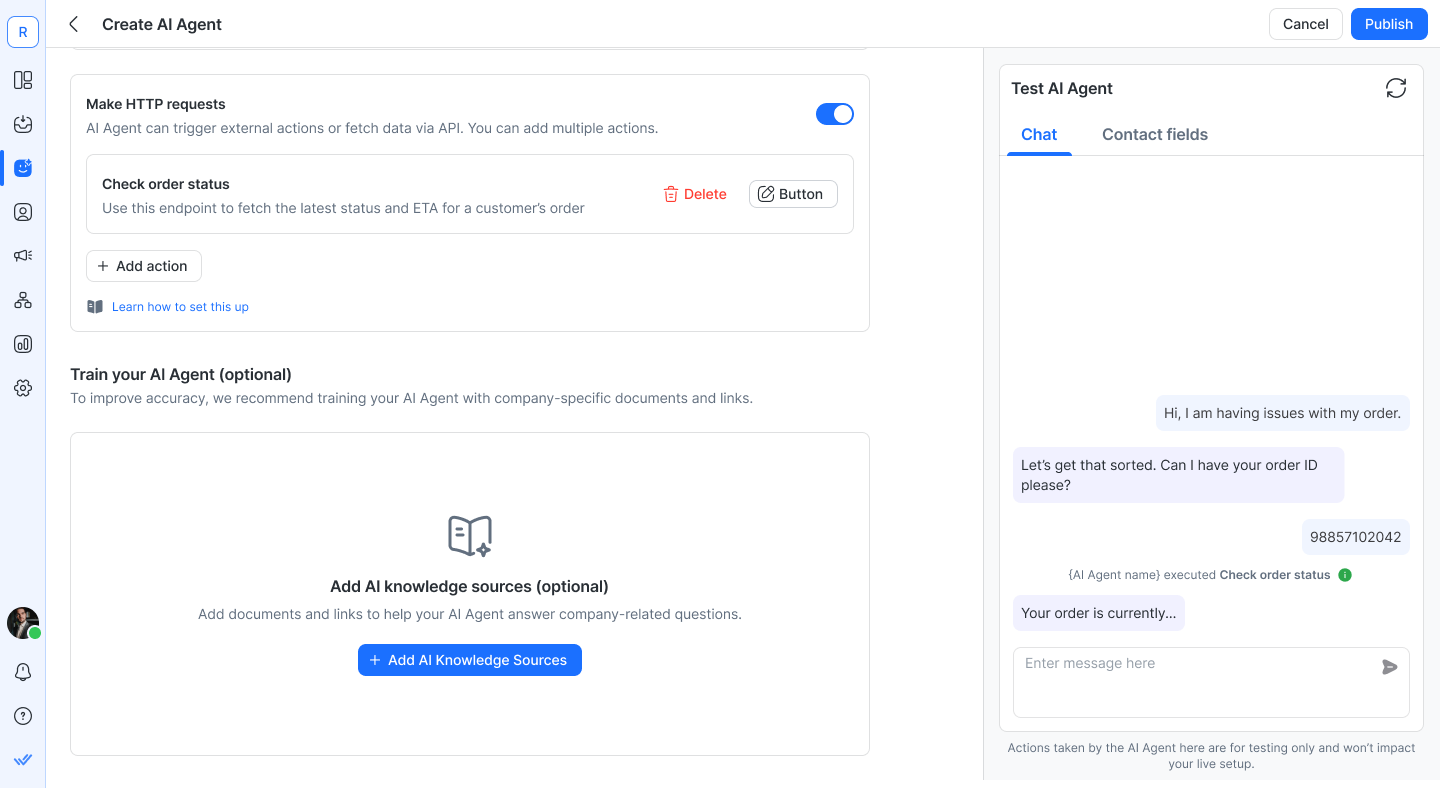
Sau khi nhận phản hồi API, trợ lý AI tạo câu trả lời dựa trên dữ liệu trả về.
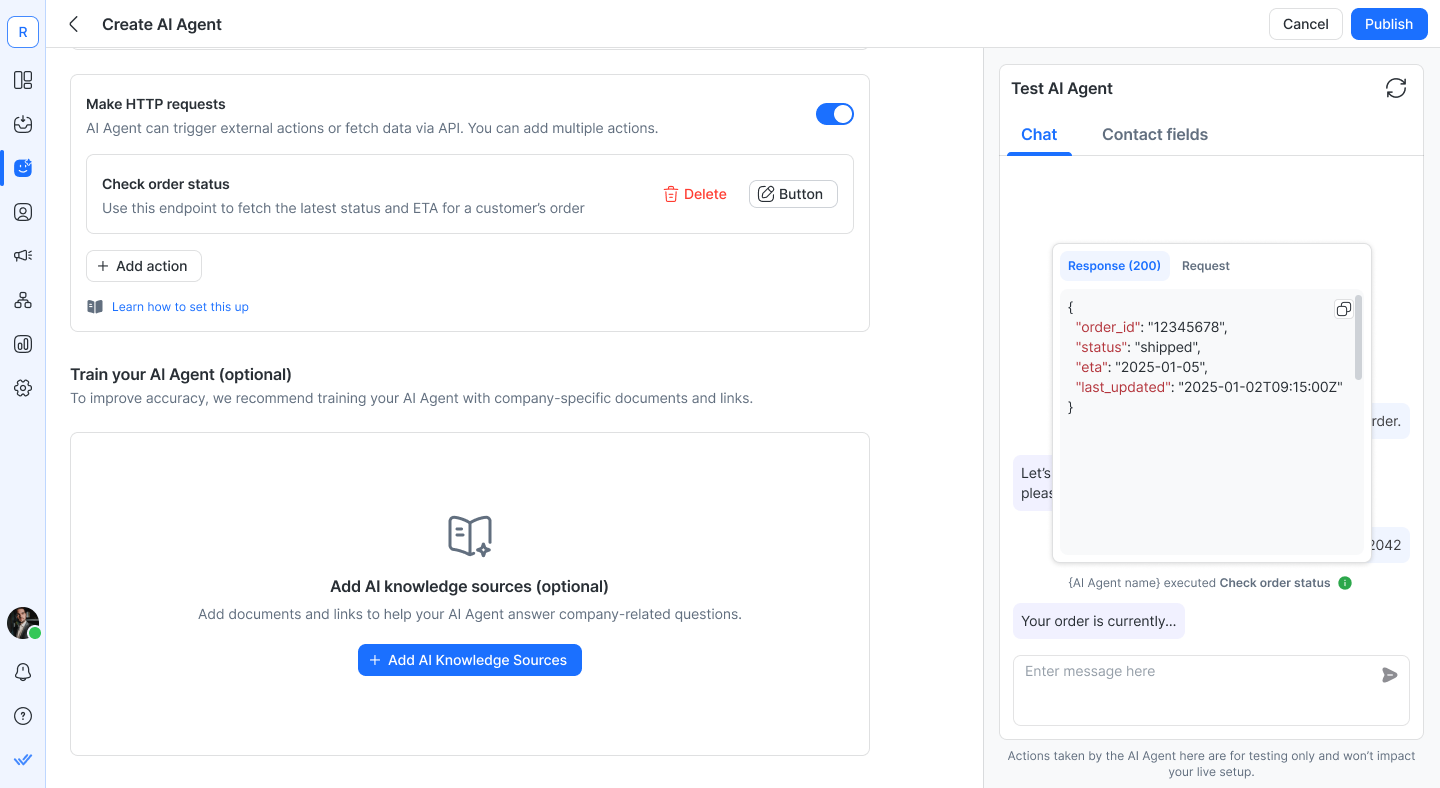
Lưu ý quan trọng
Sự kiện thực thi chỉ xuất hiện trong bảng Test AI Agent. Chúng không xuất hiện trong Inbox hoặc Hoạt động Liên hệ.
Nếu các đầu vào bắt buộc bị thiếu, trợ lý AI sẽ yêu cầu chúng trước khi kích hoạt yêu cầu.
Các phương pháp hay nhất
Hãy chính xác trong mô tả hành động của bạn. Hướng dẫn mơ hồ dẫn đến các kích hoạt mơ hồ.
Định nghĩa các đầu vào bắt buộc rõ ràng. Nếu AI phải yêu cầu điều gì, hãy làm cho điều đó rõ ràng.
Xử lý các trường hợp lỗi trong hướng dẫn của bạn.
Luôn kiểm tra trước khi xuất bản.
Tránh lặp lại logic đã được xử lý bởi Workflows trừ khi được thiết kế cố ý.
Hạn chế
Tối đa 10 hành động yêu cầu HTTP cho mỗi trợ lý AI.
Tối đa cho mỗi hành động:
20 trường đầu vào dữ liệu
50 tham số
50 tiêu đề
Trợ lý AI quyết định khi nào gọi API dựa trên mô tả viết của bạn. Hướng dẫn viết kém có thể gây kích hoạt không mong muốn.
Xử lý phản hồi API là tự động. Bạn không thể ánh xạ thủ công các trường phản hồi — AI sẽ diễn giải JSON theo ngữ cảnh.
Sự kiện thực thi yêu cầu HTTP chỉ xuất hiện trong bảng Test AI Agent và không xuất hiện trong Hoạt động Liên hệ.
Trợ lý AI thoại có thể kích hoạt hành động Make HTTP requests. Tuy nhiên, phản hồi API trả về không được chuyển lại cho Trợ lý AI thoại để tạo phản hồi, nghĩa là cuộc trò chuyện bằng giọng nói không thể phản hồi động dựa trên kết quả API.
Nếu Tác nhân AI của bạn cập nhật một trường liên hệ và cũng sử dụng trường đó trong hành động này trong cùng một lượt, yêu cầu sẽ luôn gửi giá trị cũ (hoặc rỗng, nếu chưa từng được thiết lập). Điều này xảy ra bất kể hành động nào chạy trước. Nếu bạn quan tâm, hãy bầu chọn yêu cầu tính năng.
Câu hỏi thường gặp và Khắc phục sự cố
Tôi có thể kích hoạt nhiều endpoint API không?
Có. Bạn có thể cấu hình tối đa 10 hành động yêu cầu HTTP riêng biệt cho mỗi trợ lý AI.
Tôi có thể đưa dữ liệu Liên hệ vào API không?
Có. Sử dụng $contact.field_name trong URL, tiêu đề, tham số hoặc thân.
Điều gì xảy ra nếu dữ liệu bắt buộc bị thiếu?
Trợ lý AI sẽ hỏi Liên hệ về thông tin bị thiếu trước khi kích hoạt yêu cầu.
AI có chờ phản hồi API không?
Có. Trợ lý AI chờ phản hồi, diễn giải nó và trả lời một cách tự nhiên dựa trên dữ liệu trả về.
Tôi có thể gọi một endpoint API yêu cầu xác thực OAuth 2.0 không?
Không. HTTP Request không hỗ trợ các luồng xác thực OAuth 2.0, chẳng hạn như việc người dùng đồng ý, trao đổi mã ủy quyền, làm mới token truy cập hay tạo token động.
Bạn có thể dùng HTTP Request với các endpoint chấp nhận phương thức xác thực đơn giản, chẳng hạn khóa API (API key) hoặc token tĩnh được thêm vào URL, tham số truy vấn hoặc header.
Ví dụ, nếu bạn đang gọi một endpoint Google API và yêu cầu thất bại, hãy kiểm tra xem endpoint đó có yêu cầu xác thực OAuth 2.0 hay không. Nếu có, thì không được hỗ trợ. Nếu endpoint hỗ trợ API keys hoặc static tokens, bạn có thể sử dụng phương thức xác thực đó trong cấu hình HTTP Request của mình.


