

HubSpot is only available for Growth plan and above.
The HubSpot integration enables you to connect your HubSpot account with your respond.io workspace. With this integration, you can:
Automatically sync HubSpot contact properties into respond.io Contact fields whenever a Contact is created or updated in HubSpot.
View and edit HubSpot contact properties like email, phone number, lifecycle stage, and more directly in respond.io.
Reduce platform switching by accessing contact data inside the Inbox and Contacts modules.
Before you begin
A HubSpot account.
Admin access in HubSpot.
Owner or Manager access in respond.io.
Limitations:
You can only connect 1 HubSpot account per Workspace.
Contact sync only applies to contacts created or updated in HubSpot after you turn it on — it doesn't backfill contacts that already existed in HubSpot. To bring those in, import them manually into respond.io.
You can map up to 100 HubSpot properties per Workspace.
You can't remove all field mappings — at least one must remain.
To sync the Lifecycle Stage field, you must enable Lifecycle in your Workspace first.
Lifecycle Stage values must match between HubSpot and respond.io — a HubSpot stage without a corresponding respond.io option won't sync for that Contact.
Setting up the integration
Go to Workspace settings > Integrations > Browse.

Select the CRM tab, or use the search bar to find HubSpot.

Click Connect.

Click the Connect HubSpot button.

A popup opens for you to sign in with your HubSpot account. Follow the steps to connect your HubSpot account.
Once connected, you'll see a confirmation message and your HubSpot account details.


Viewing HubSpot Contact Properties in respond.io
You can view HubSpot properties in the Inbox and Contacts modules.
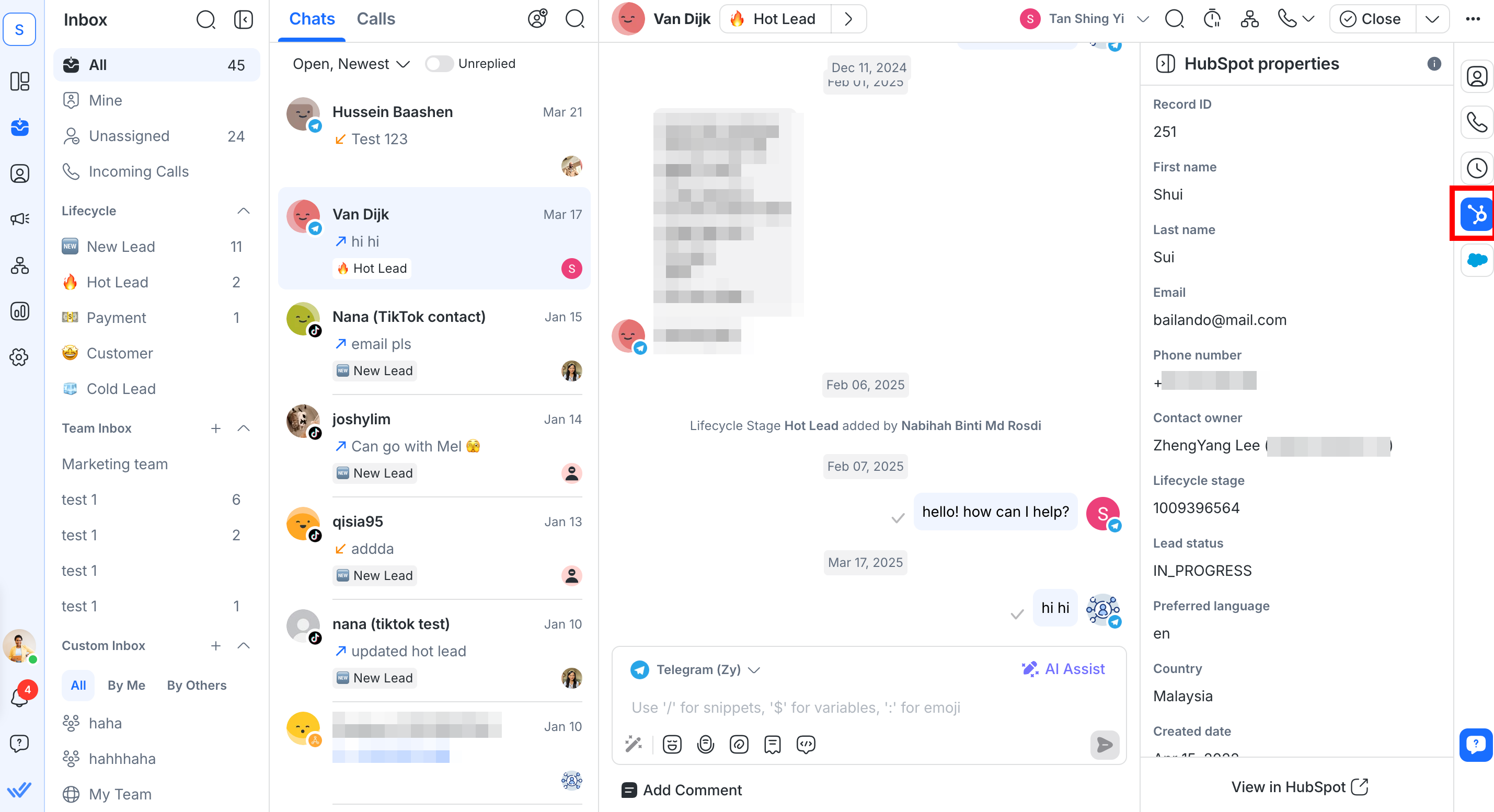
Inbox module
Go to Inbox and click on a Contact to view their HubSpot properties in the right sidebar.
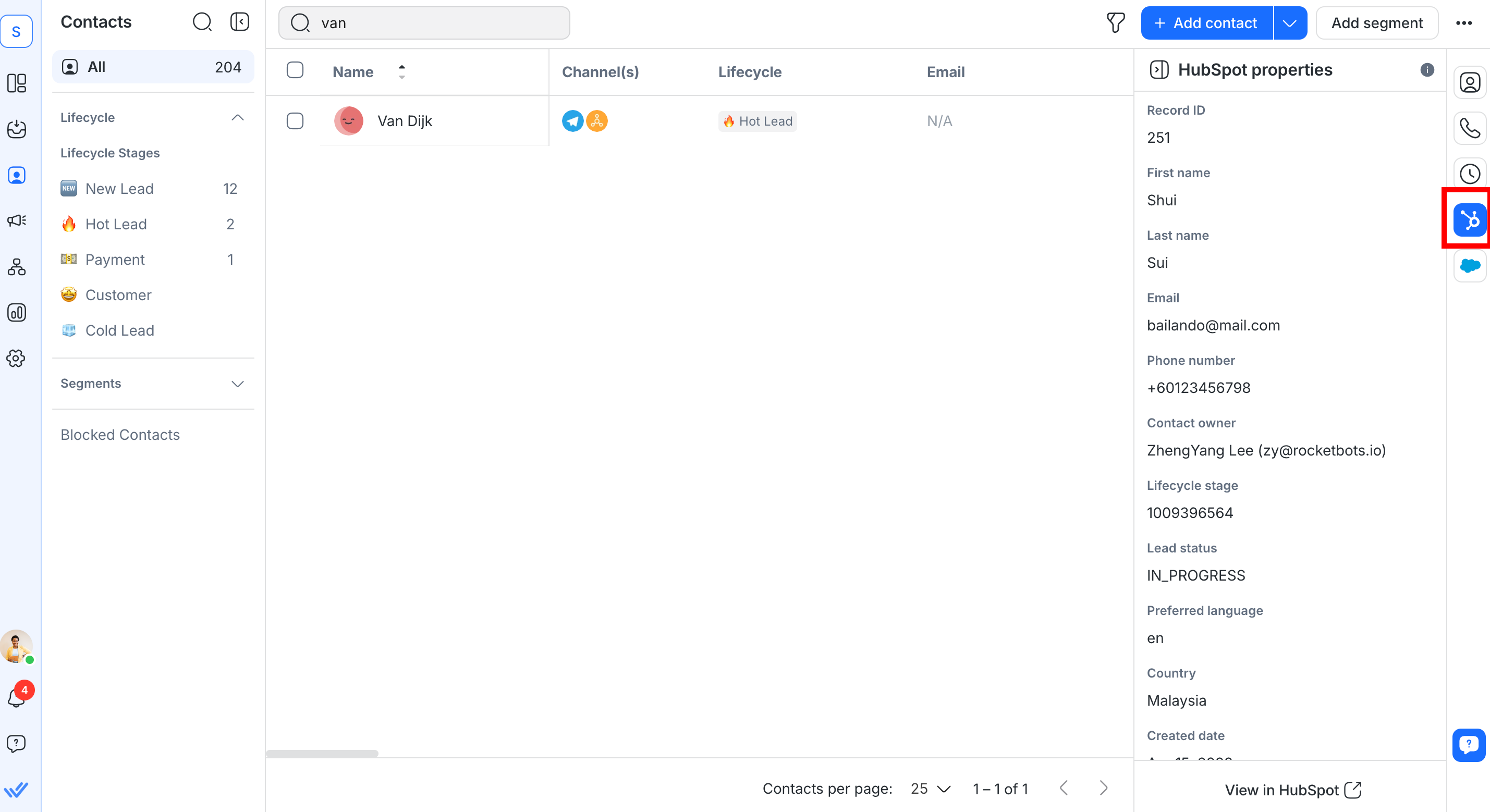
Contacts module
Go to Contacts and click on a Contact to view their HubSpot properties in the right sidebar.
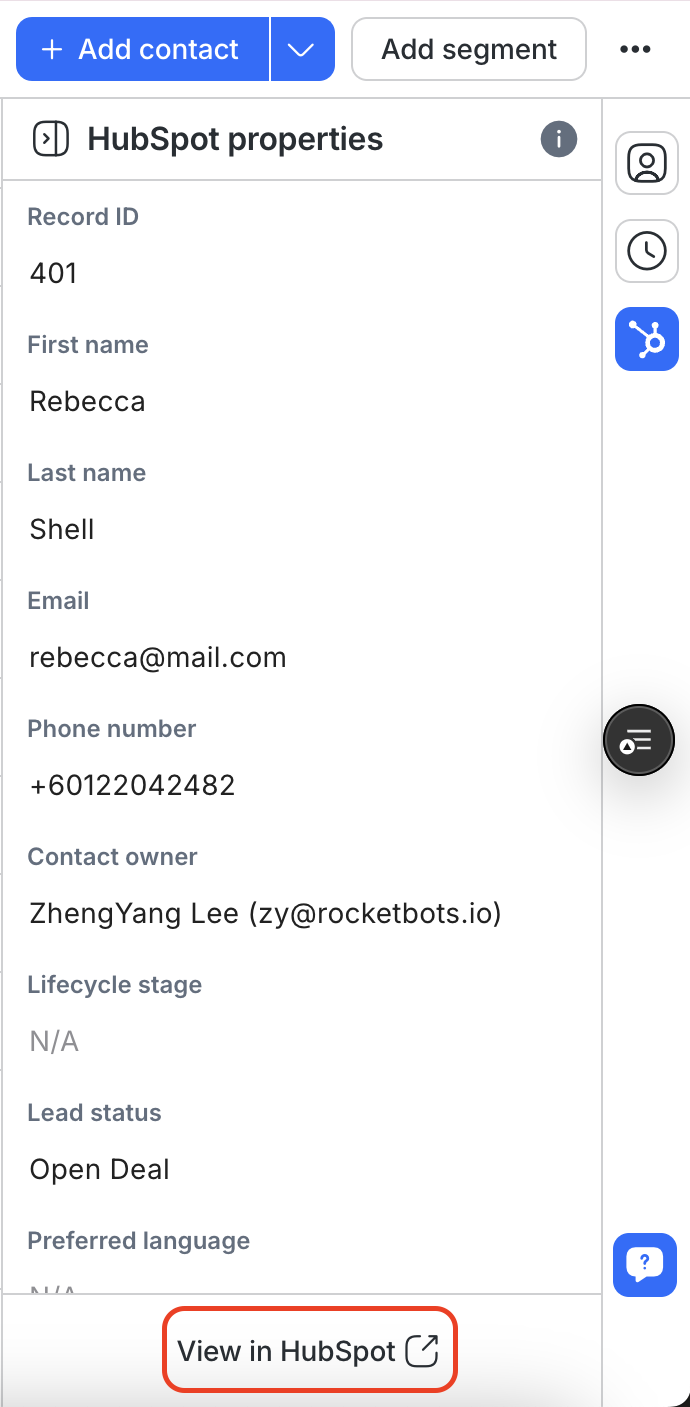
For both the Inbox and Contacts modules, if no match is found, you can verify and update the contact’s email or phone number.
You can then click View in HubSpot to open the Contact’s profile directly in HubSpot.
Managing HubSpot contact properties in respond.io
Customize which HubSpot contact properties are visible in your Workspace and directly edit selected properties within respond.io.
Customize visible properties
Go to Workspace settings > Integrations > HubSpot > select Manage.
Under View HubSpot properties on respond.io, find Customize visible properties.
Click Customize view to choose which HubSpot properties to display and in what order, in the Inbox and Contacts modules.

Click Save.


Note: This customization applies to the whole Workspace, not just your own view. Once saved, the Inbox and Contacts modules show the same properties in the same order for every user.
Allow users to edit HubSpot properties
This toggle lets all users in your Workspace edit certain HubSpot contact properties directly within respond.io.

Sync Contacts from HubSpot
Contact sync automatically creates and updates respond.io Contacts using data from your connected HubSpot account.
Turn on Contact sync
This toggle allows Contact sync from HubSpot to respond.io. Once enabled, it'll automatically create or update Contacts in respond.io when they're created or updated in HubSpot.

If you turn this toggle off later, your field mapping and sync mode settings are preserved — turning it back on restores them.
How Contacts are synced
Choose whether Contacts from HubSpot are created, updated, or both in respond.io. Field mapping decides which fields sync.

Click the dropdown to choose your sync mode:
Create and update Contacts: Creates new Contacts and updates existing ones.
Create Contacts only: Creates new Contacts. Existing Contacts aren't updated.
Update Contacts only: Updates existing Contacts. New Contacts aren't created.
Note: If you previously had Automatic Contact creation turned on, it's now set to Create Contacts only.
How Contact matching works
When a HubSpot contact is created or updated, respond.io looks for a matching Contact by email or phone number. Matching only happens when one of these identifiers is available.
If more than one Contact matches, respond.io uses the oldest Contact.
Once matched, the Contact is linked to the HubSpot contact. Later updates go straight to the linked Contact instead of searching again.
Only fields included in your field mapping are updated. Unmapped fields are ignored.
A Contact is never duplicated when a matching email or phone number already exists.
Whether an unmatched update creates a Contact depends on your sync mode:
Create and update Contacts: it always creates one.
Create Contacts only: it creates one unless Create Contacts from new HubSpot contacts only is selected.
Update Contacts only: it never creates one.
How updates are applied
HubSpot is the source of truth for mapped fields. If a value is cleared in HubSpot, the mapped field is cleared in respond.io too.
Existing duplicate Contacts
If a person already has duplicate Contacts in respond.io, only the oldest one syncs with HubSpot. The others still show the HubSpot contact in the Contact drawer, but they don't receive updates.
Advanced settings
Under How Contacts are synced, click Advanced settings to expand additional settings.
Note: Which settings appear depends on your sync mode. Update Contacts only hides all three. Create and update Contacts hides Create Contacts from new HubSpot contacts only.

Add “Auto-Create: HubSpot” tag
Automatically adds a tag “Auto-Create: HubSpot” to Contacts created via this integration.
This helps identify how the Contact was sourced, but will not trigger Workflows on respond.io.
The tag is listed in the Tags module and cannot be manually removed or edited.
Include bulk-imported Contacts from HubSpot
When selected, Contacts added to HubSpot via Bulk Import will also be created on respond.io.
These Contacts do not count towards MAC (Monthly Active Contacts) and do not trigger Workflows unless a conversation is initiated.
Create Contacts from new HubSpot contacts only
This checkbox only appears when How Contacts are synced is set to Create Contacts only.
Select it to limit Contact creation to contacts that are newly created in HubSpot.
Selected: an update to a HubSpot contact won't create a Contact, even when no matching Contact is found.
Cleared: both new and updated HubSpot contacts create a Contact when no match is found.
It's cleared by default. For Organizations migrating from Automatic Contact creation, it's selected.
Field mapping
Choose which HubSpot properties sync to respond.io Contact fields. You can map any HubSpot property, including custom properties.
Click Configure field mapping to open the setup dialog.

Every new HubSpot connection starts with these default mappings already configured which you can edit anytime:
Email → Email
Phone Number → Phone
First Name → First Name
Last Name → Last Name
Country/Region → Country
Preferred language → Language
Lifecycle Stage → Lifecycle (requires Lifecycle enabled in your Workspace)
You can also map HubSpot Owner to Assignee. The HubSpot owner is matched to a user in your Workspace by email. This mapping is optional and isn't configured by default.
Note: When Owner is mapped to Assignee, changing the owner in HubSpot reassigns the Contact in respond.io. This applies even when an AI Agent is currently assigned.
FAQ and Troubleshooting
Can I edit HubSpot data in respond.io?
Yes, once your Workspace admin enables the Allow users to edit HubSpot properties toggle.
Why am I not seeing recent edits from HubSpot in my respond.io Workspace?
Check the following:
Contact sync is enabled.
The changed HubSpot property is included in your field mapping.
How Contacts are synced is set to Create and update Contacts or Update Contacts only.
For list-type fields (e.g. Lifecycle Stage), the HubSpot value matches an existing respond.io option.
The Contact isn't already linked to a different HubSpot contact.
What happens if I disconnect HubSpot?
Disconnecting will remove access to HubSpot data and stop syncing in this Workspace. You can reconnect anytime to restore access.
Why can’t I view my HubSpot contact properties in respond.io?
If you can’t view your HubSpot properties in our Inbox or Contacts module, check that their email or phone number in respond.io exactly match those in HubSpot. Even minor differences, such as spaces or special characters, can prevent properties from being displayed.
For example, if a phone number is stored as “12 3” in HubSpot but as “123” in respond.io, that Contact’s information won’t be displayed in respond.io. To fix this, update the contact property in HubSpot to match the format used in respond.io.
Can I connect multiple workspaces to the same HubSpot account?
Yes, you can. However, if the same user connects multiple respond.io workspaces to the same HubSpot account, they will share the same refresh token.
If HubSpot is disconnected from one of these workspaces, the refresh token will be deleted, affecting all other connected workspaces. This is a HubSpot behavior.
If you need to disconnect a workspace, we recommend reconnecting the integration in any affected workspaces immediately after.
Why didn’t a HubSpot property sync to my respond.io Contact field?
A HubSpot value only syncs if respond.io has a matching value for that field. For example:
A Contact’s HubSpot Lifecycle Stage has no matching Lifecycle option in respond.io.
A text value is passed into a respond.io URL field, which fails the field’s data type validation.


