

In the Inbox module, compose your message in the messaging console. Select AI Prompts and choose which prompt you’d like to improve your message with. Click send once you’re happy with the changes.
To change the settings of AI Prompts, go to Workspace Settings > AI Prompts.
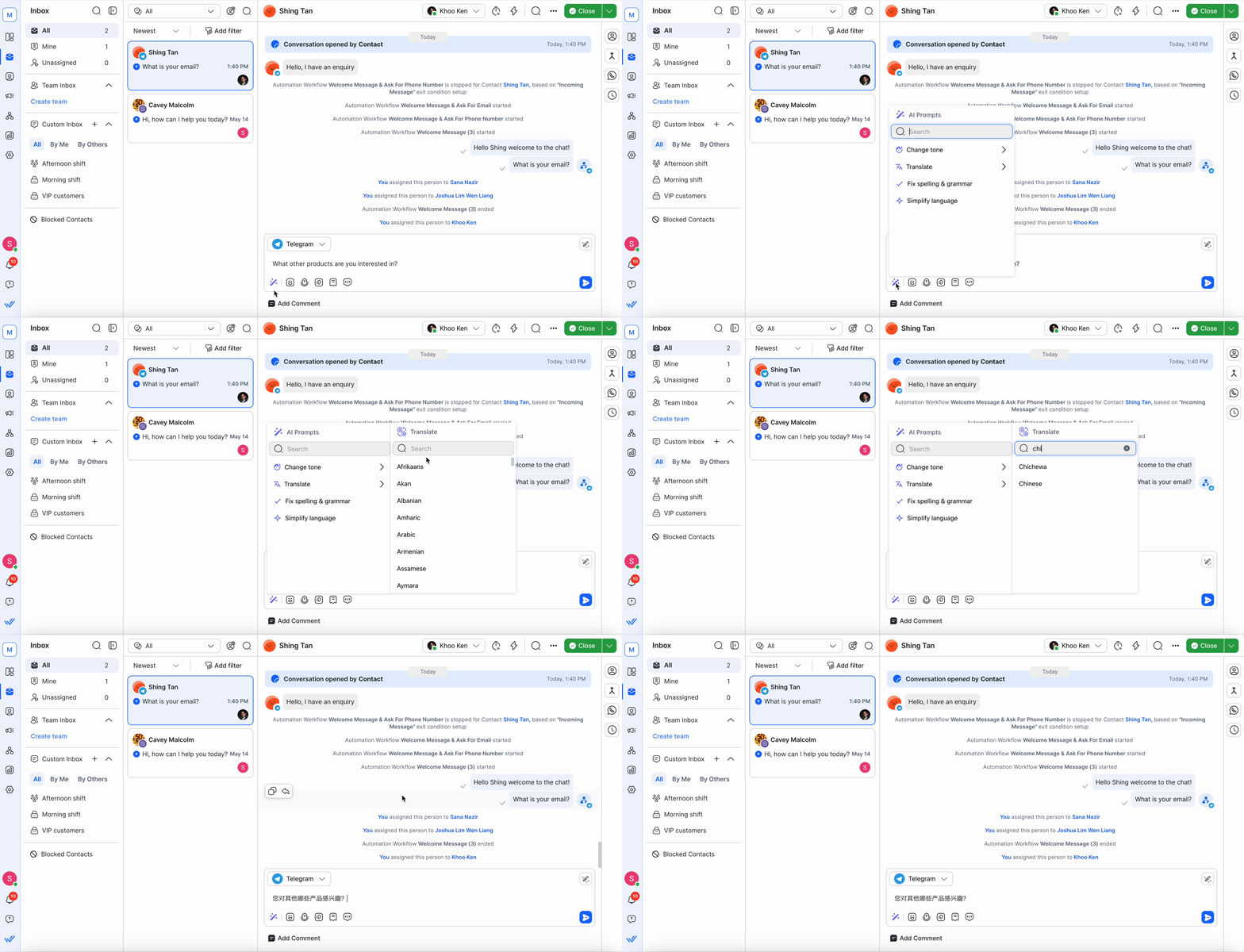
Prompt Details
Here is a list of prompts available to you for selection:
Prompt | Details | Prompt Options |
|---|---|---|
Change Tone | Select this prompt to set your response’s desired tone/attitude. Your response can be set to one of the following tones. | Professional: Select to give a formal and objective tone to your response. |
Translate | Select this prompt to translate your response from one language to another. When you enter a response and select this prompt, a list of languages displays for you to choose from. Your response is converted to the chosen language. | Multiple languages. For your convenience, languages used most recently are listed first. |
Fix Spelling & Grammar | Select this prompt to check and fix errors in your response, e.g., spelling mistakes, grammatical errors, incorrect/missing punctuations, etc. | - |
Simplify Language | Select this prompt to make the response easier to comprehend by making it concise and direct. | - |
Custom Settings | Up to 4 custom prompts are available for selection according to your need. You can learn more about managing these custom prompts here. | - |
If a selected prompt is not working, you have likely exceeded your plan’s usage limit.
Adding internal comments with AI Prompts
Use AI Prompts while adding internal comments to summarize key points, adjust tone, or clarify a message for your teammates. This is useful during collaboration or handovers.
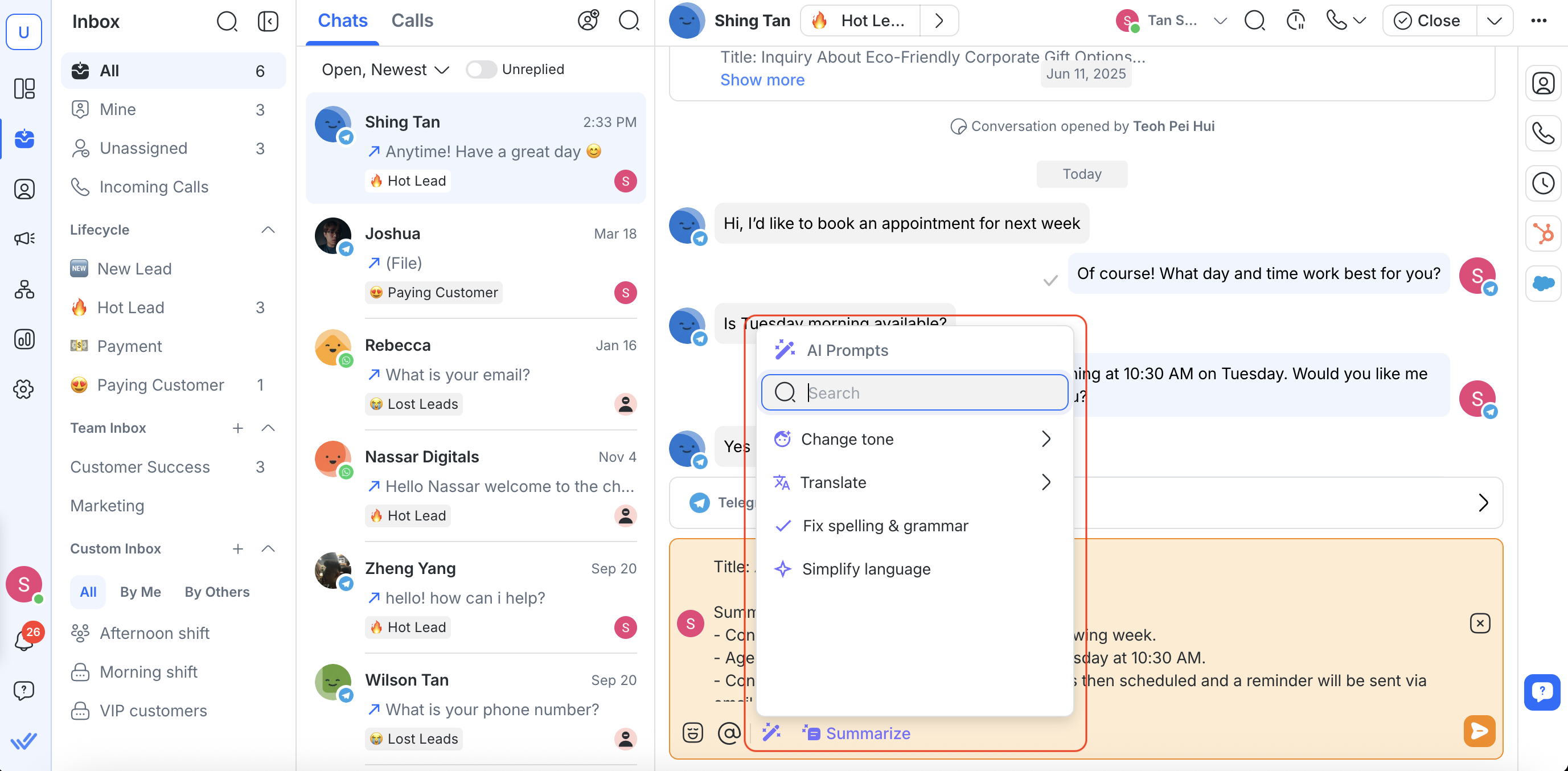
You’ll find the AI Prompts icon directly within the comment composer
Adding closing notes with AI Prompts
When wrapping up a conversation, you can use AI Prompts to quickly refine or summarize your closing note content.
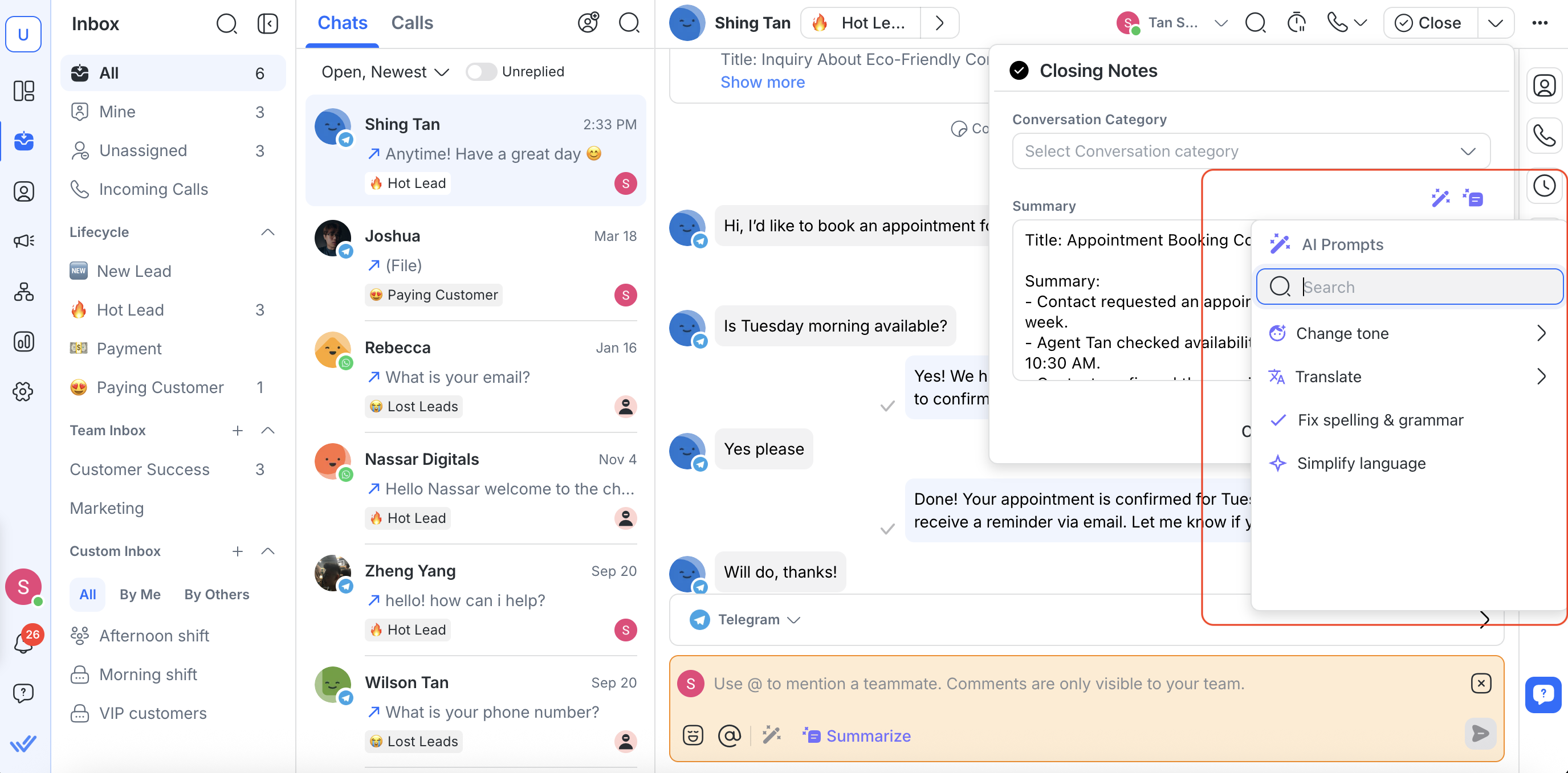
FAQ and Troubleshooting
What happens to my original message when I use the prompt on it?
It will be replaced with the improved message from AI Prompts. You can always use Ctrl + Z (Windows) or Command + Z (Mac) to switch to your original message. You can use Ctrl + Y (Windows) and Command + Shift + Z (Mac) to switch back to your improved message.
Do I need to select the text in the composer for it to work with the prompt?
No, you do not. The prompt will work on all the text present in the composer.


