

Adding teammates to a respond.io Workspace allows the team to collaborate on conversations, share Inbox access, and distribute workload. Users can be assigned different access levels and organized into Teams.
How to add a user to the Workspace
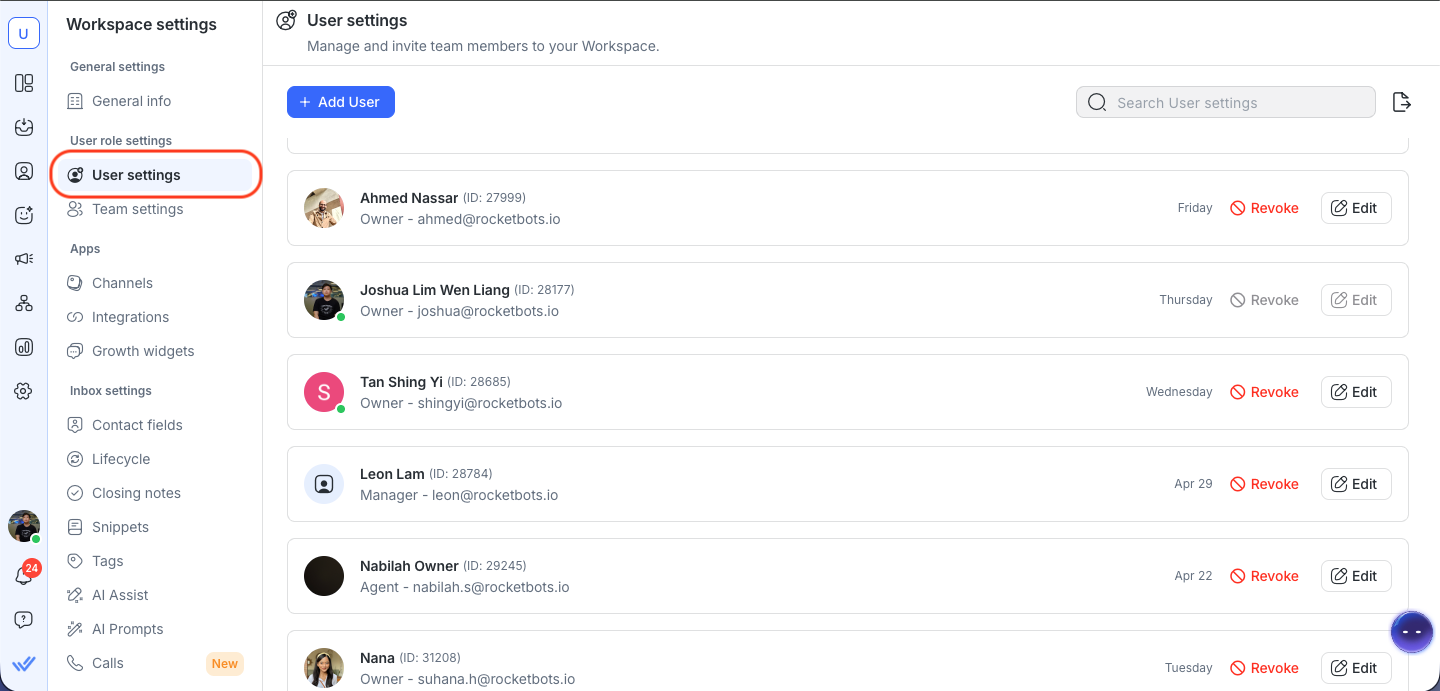
Navigate to Settings > Workspace Settings > User settings.
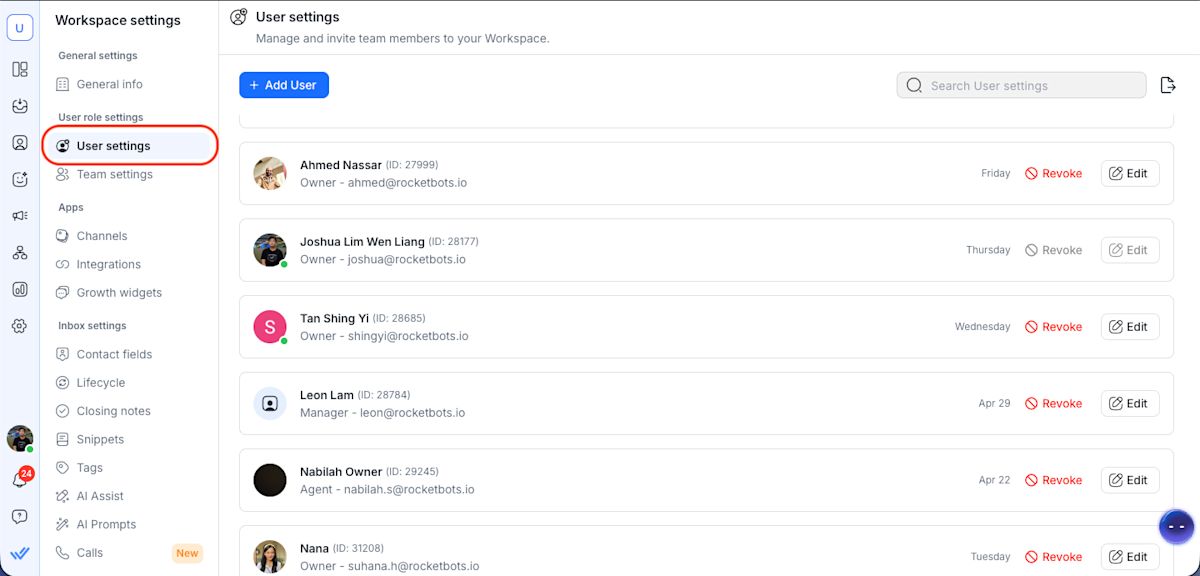
Click Add User.
Enter the teammate's email address.
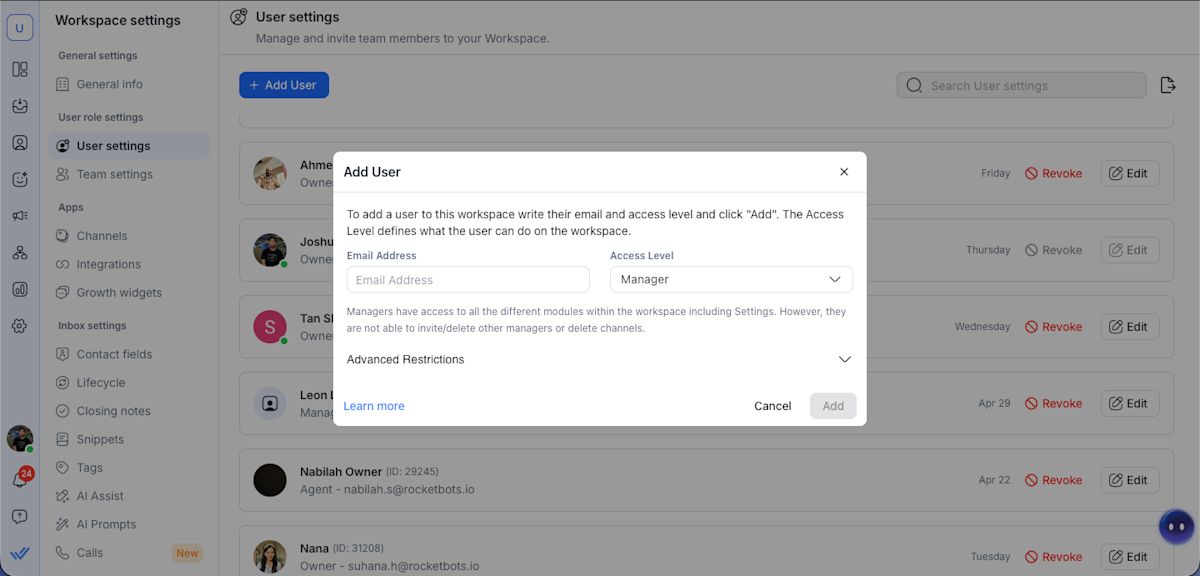
Select an access level (Owner, Manager, or Agent).
Click Add.
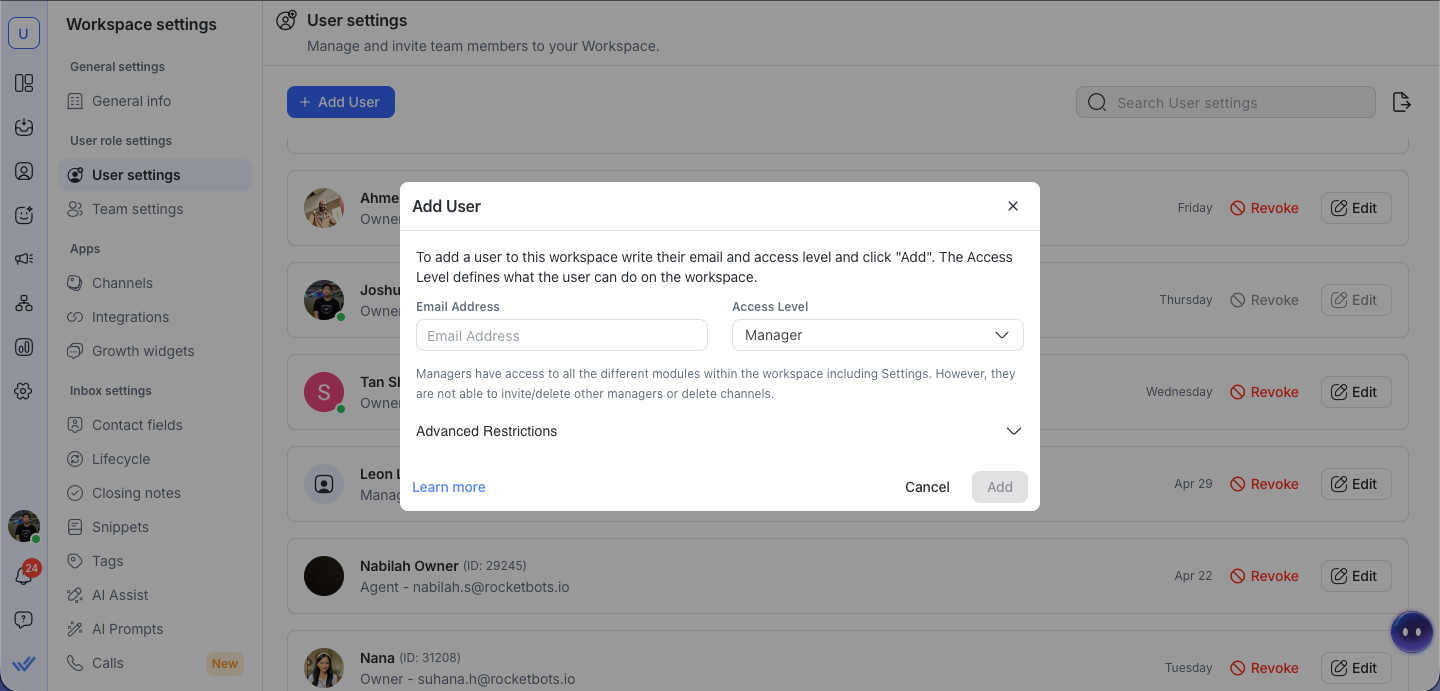
An email invitation is sent to the new user. They must click the link in the email to accept and register if they do not have a respond.io account.
Learn more about the different access levels and their permissions.
How to organize users into Teams
Once users accept the invitation, group them into Teams for better visibility and assignment routing.
Navigate to Settings > Workspace Settings > Team settings.
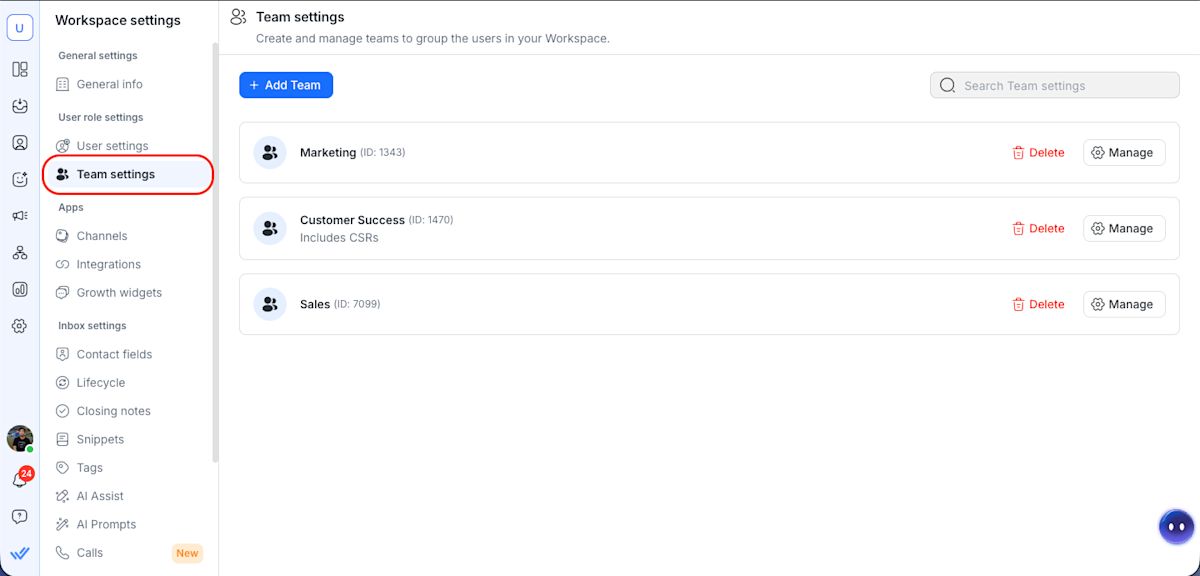
Create a team and add users.
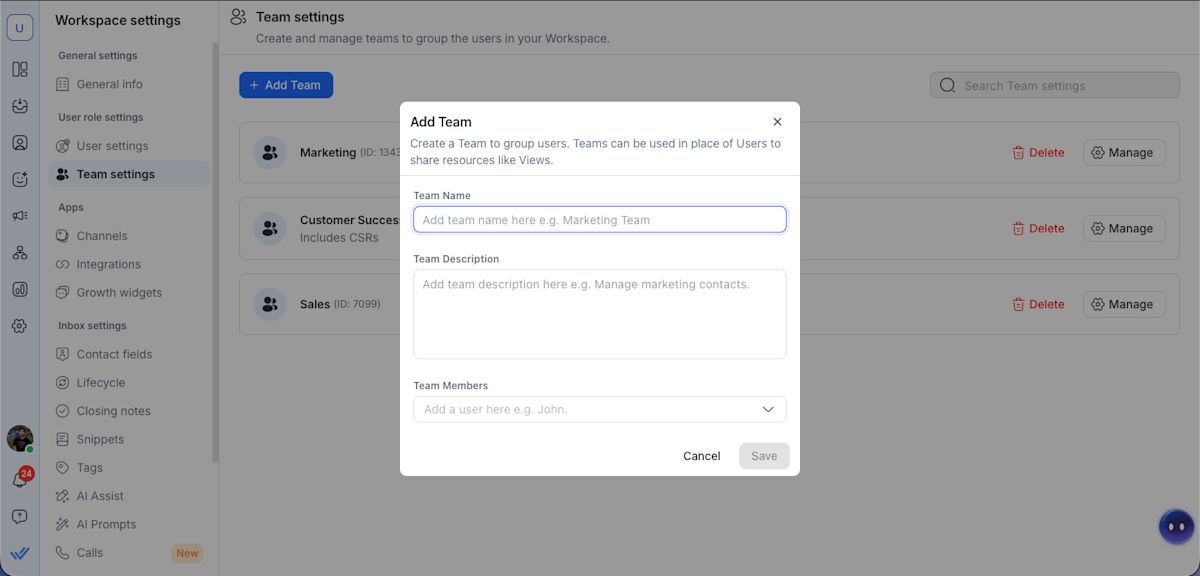
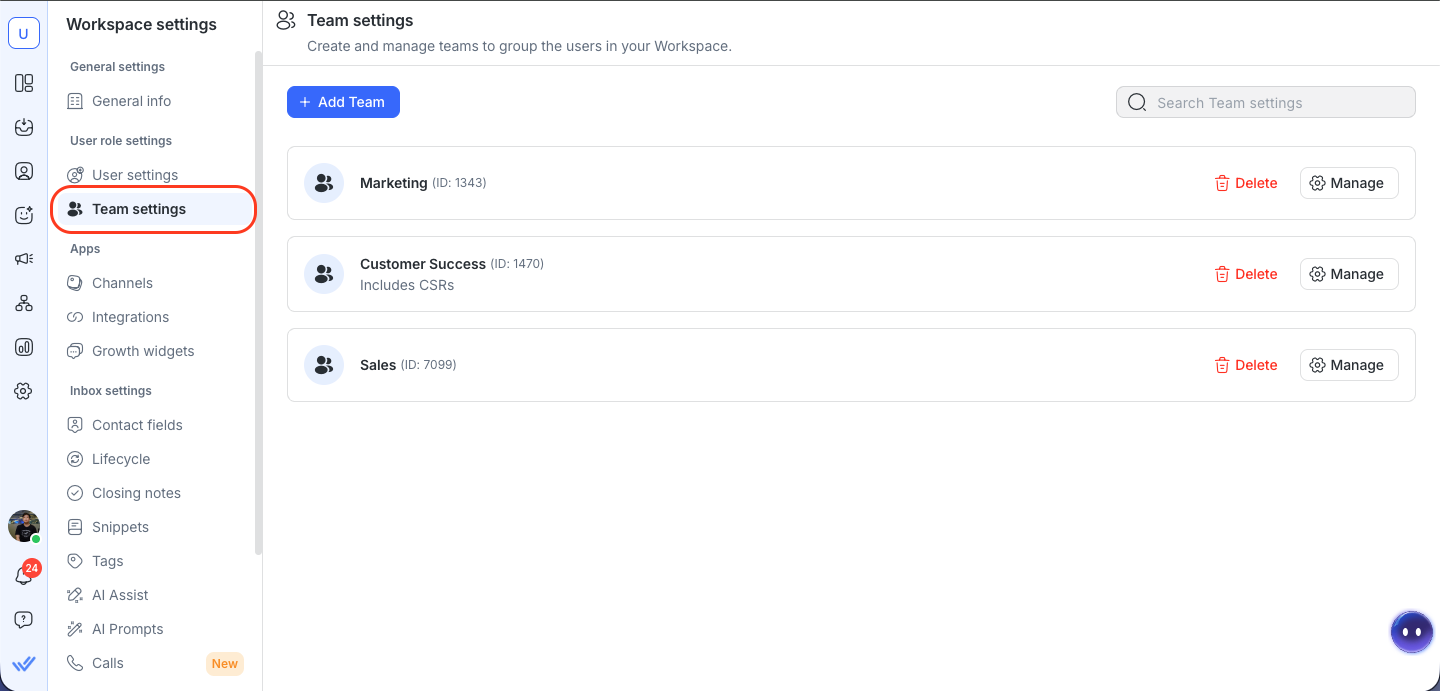
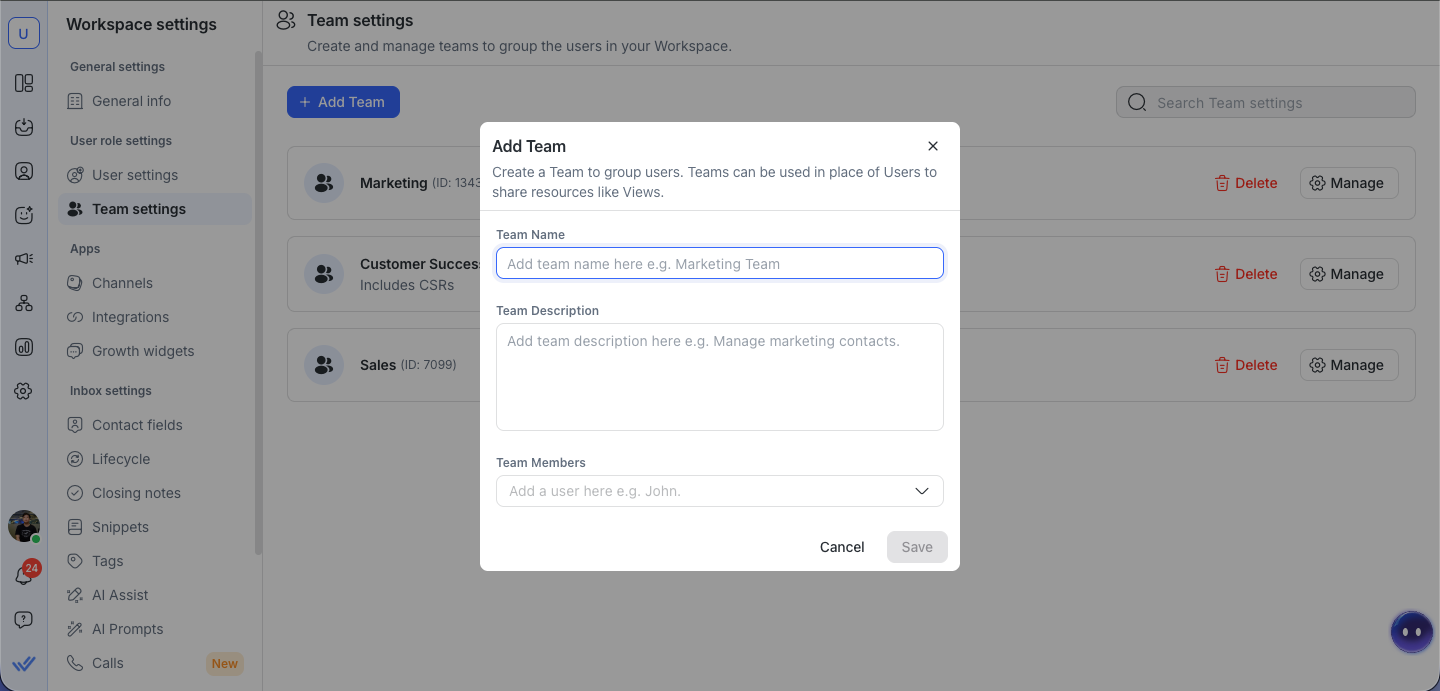
Learn more about how to manage teams.
What's next?
Let's move on to setting up automated first responses for incoming messages.


