

Getting Here
This setting is accessible by Owners and Managers only!
This setting can be accessed from the Settings navigation menu under the Workspace Settings sub-menu item, Team settings.
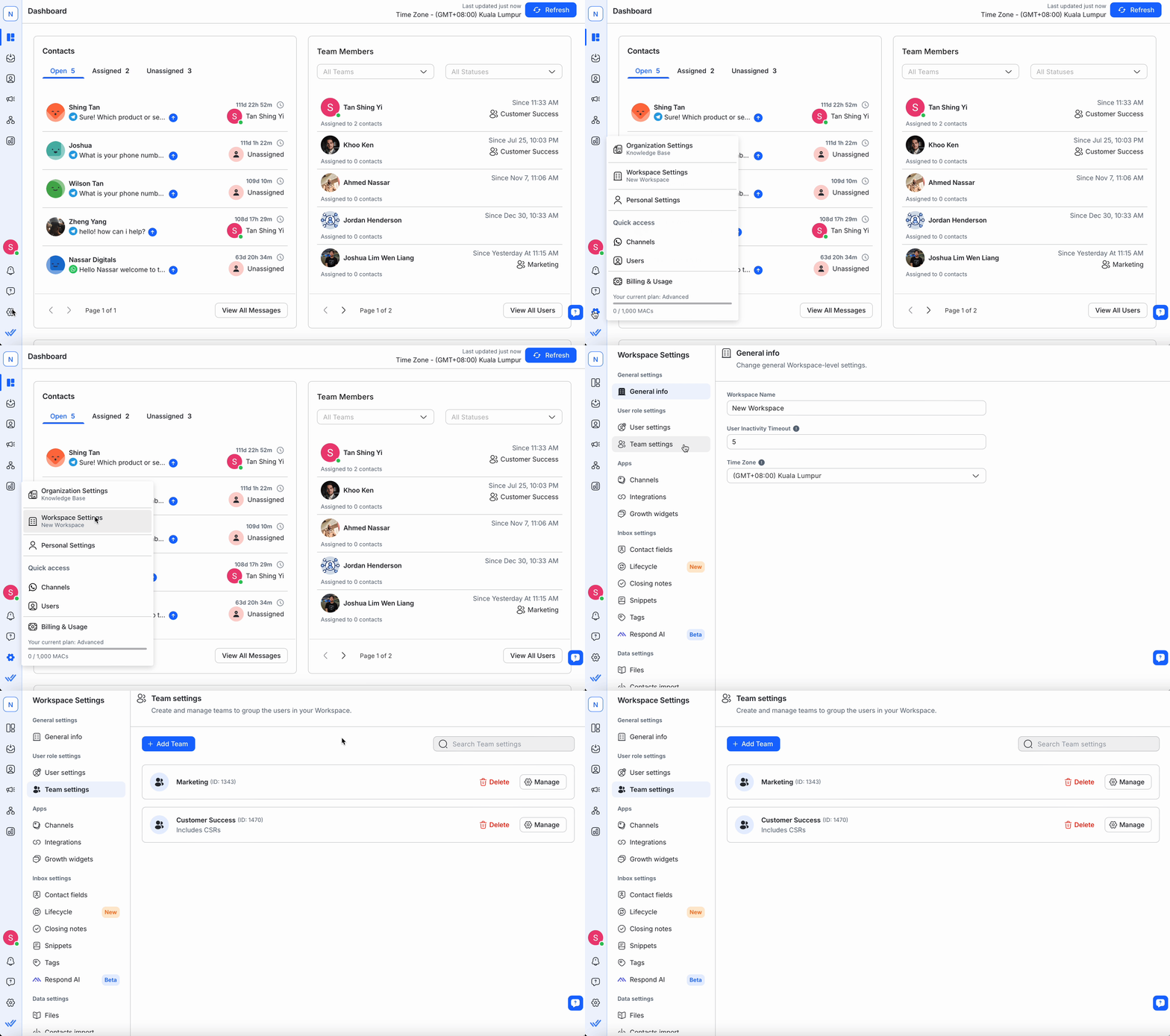
Team Overview
A Team is a collection of Users that can be used for resource sharing and Contact assignment.
Team Name
The name used to identify the Team.
Team Description
A short description of the team to help you better understand its function.
Actions
There are three possible actions here:
Use the 🔍 at the top to quickly find the Team that you're looking for.
Adding a Team
Step 1: Go to Teams settings
Go to Workspace Settings > Select Team settings.
Step 2: Add Team
To add a Team to your space, click Add Team. The Add Team dialog should open up.
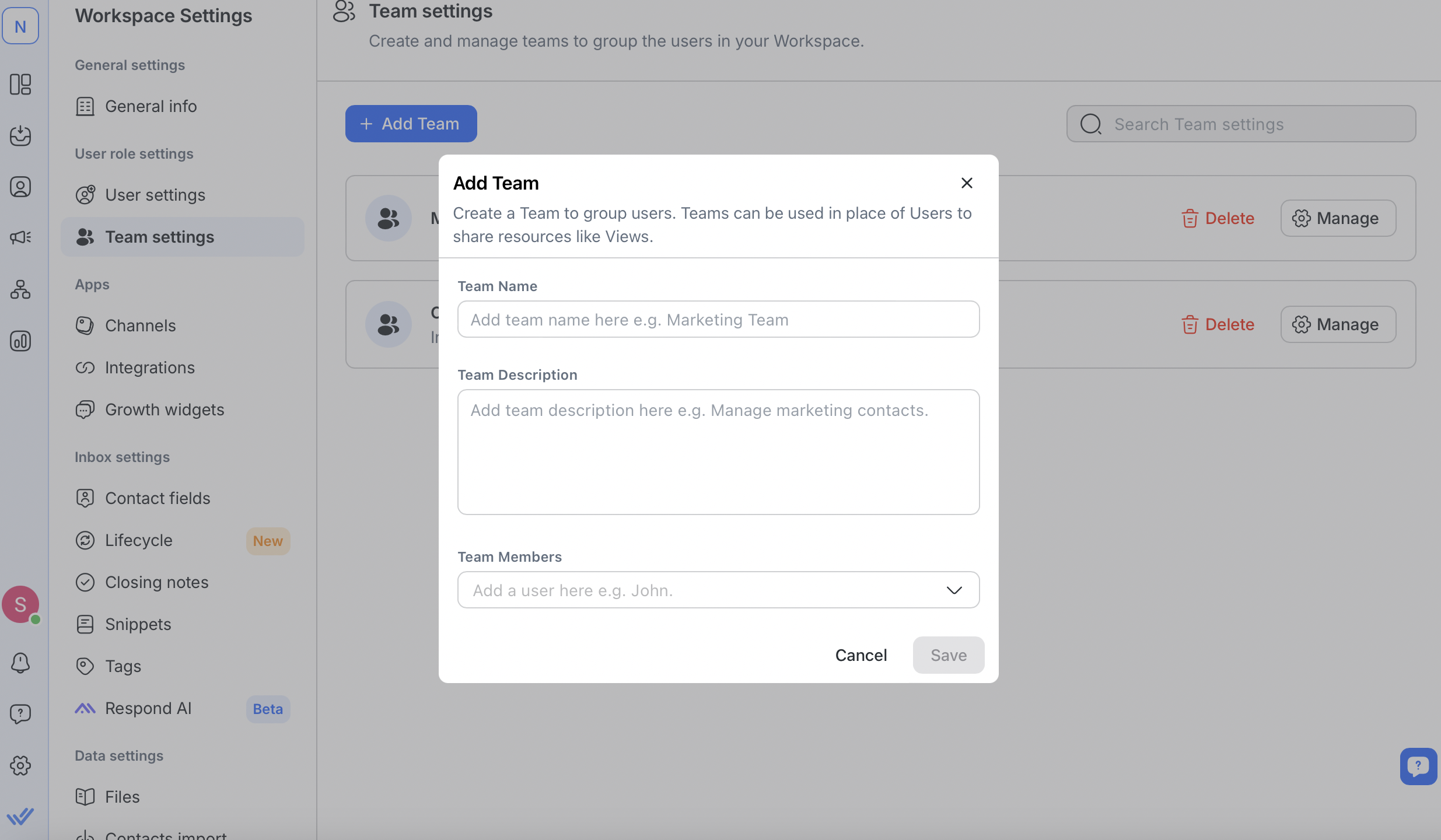
Step 3: Name and describe the Team
Enter a name for the new Team along with a short description. These fields will help you identify the Team easily.
Step 4: Add Team Members
Add Users to the team by typing their names. Suggestions will appear as you type.
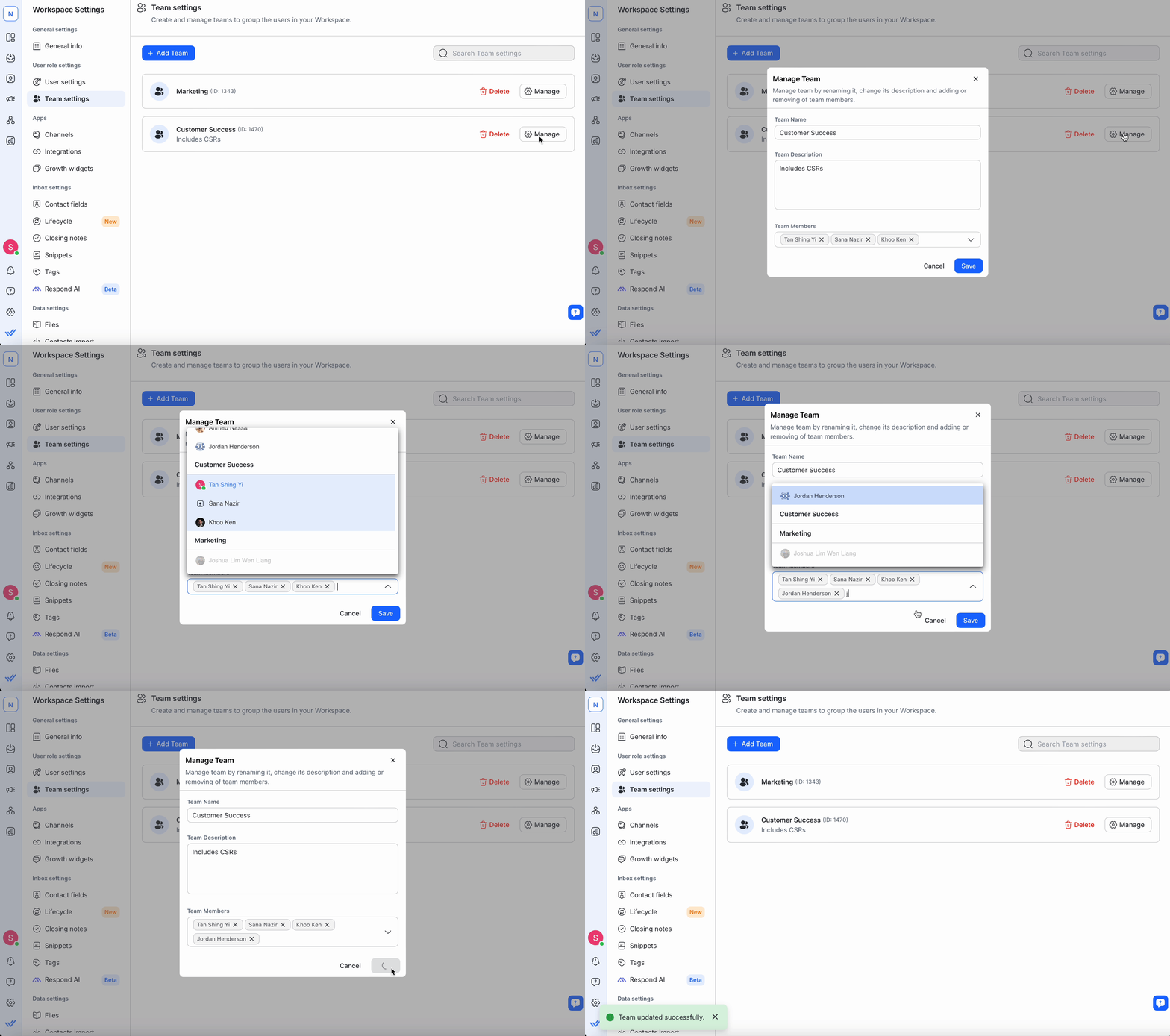
To remove a User, click the ❌ next to their name.
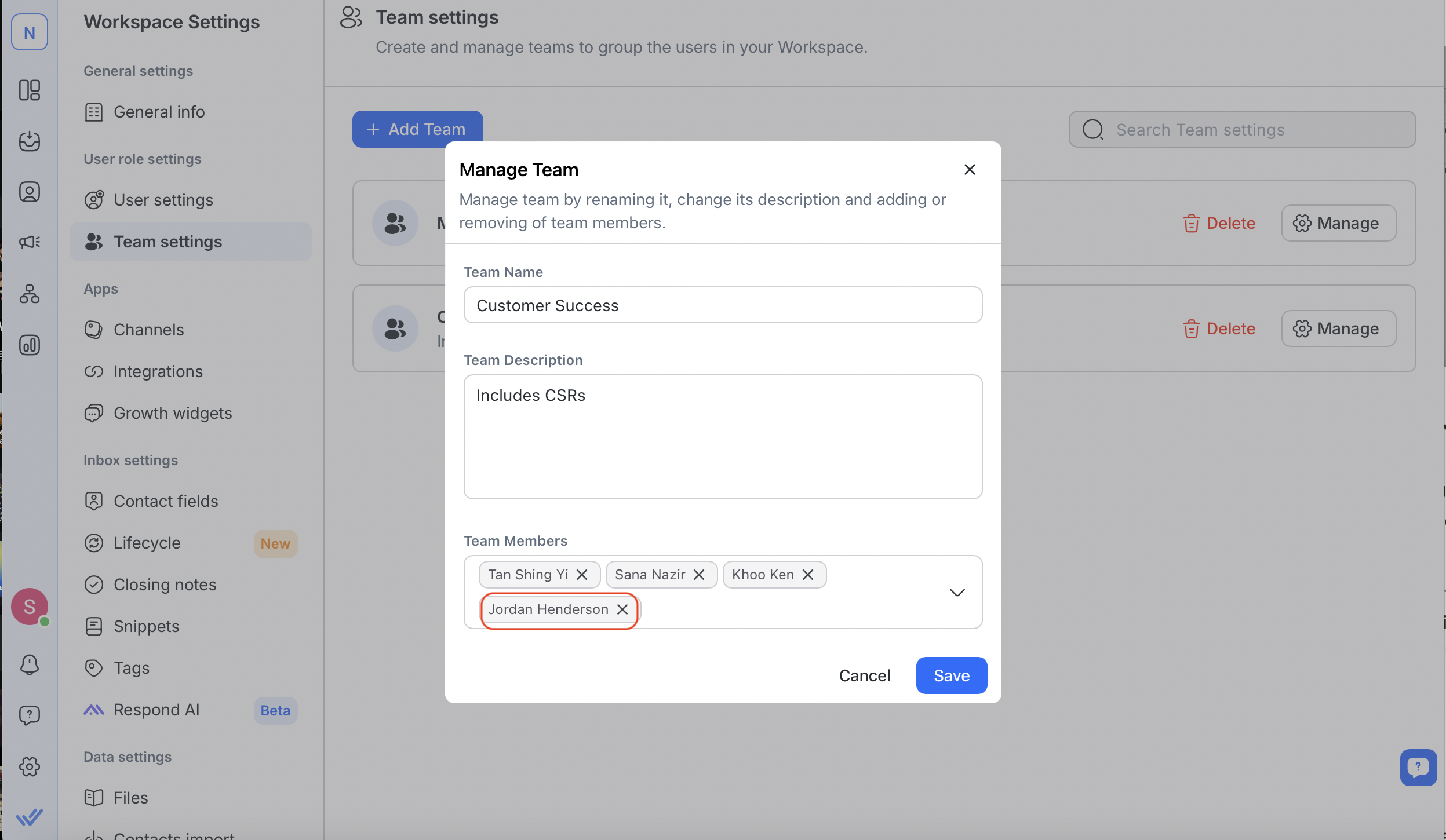
You can add more Users later if your subscription plan allows it. Refer to the FAQ for the maximum Users per Team.
Note: Each User can belong to only one Team. To move a User, remove them from their current Team before adding them to another.
Step 5: Save Team
Review the details and click Save to add the Team.
If you’ve reached your subscription’s Team limit, delete existing Teams to create new ones. Refer to the FAQ for details on Team limits.
Managing a Team
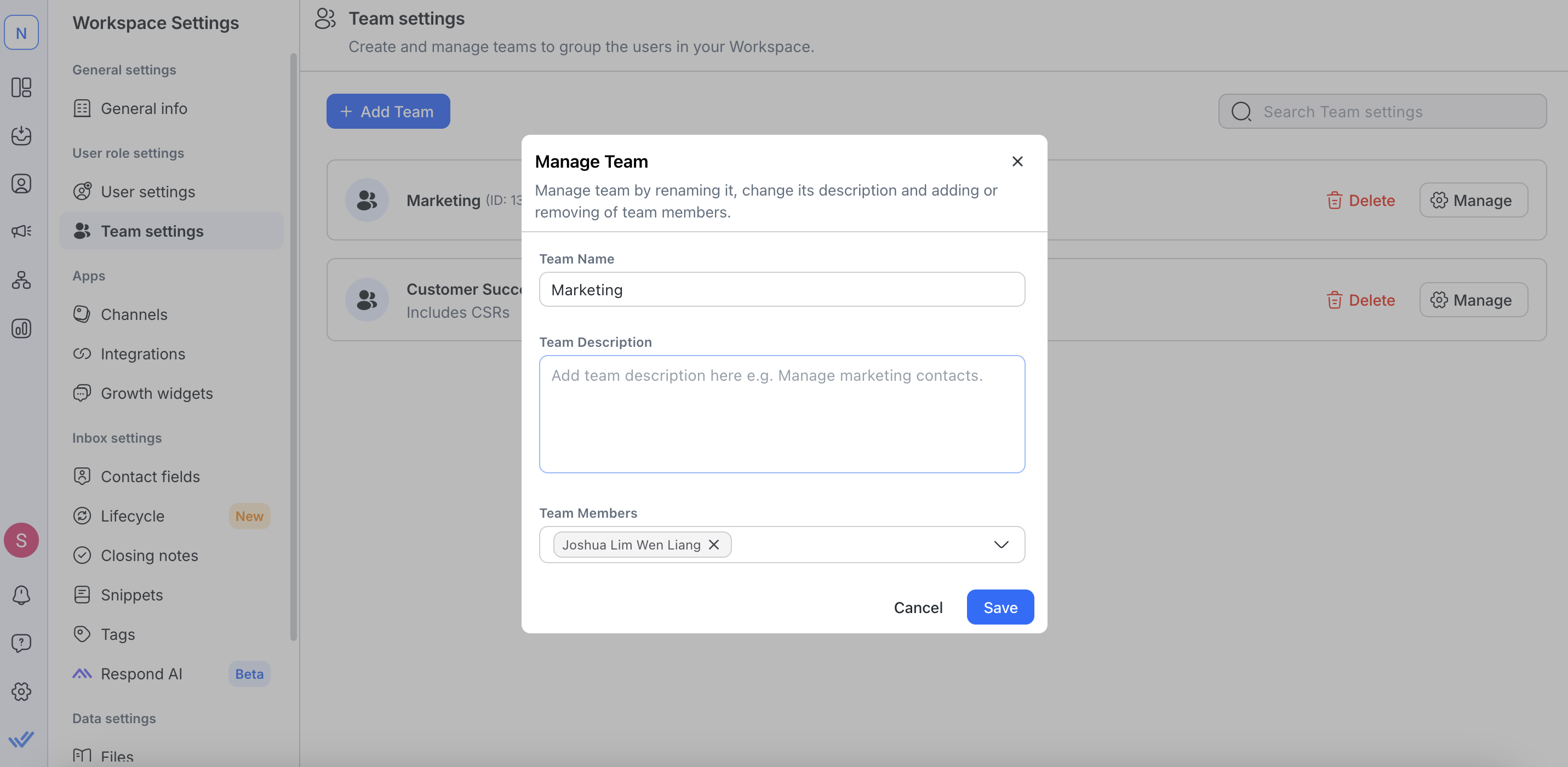
To edit Team details (name, description, members), click Manage next to the Team.
Each User can belong to only one Team.
To move a User, remove them from their current Team and add them to the new one.
Deleting a Team
When a Team is no longer in use, you can delete it from the Workspace. Once deleted, it can no longer be used by anyone else.
Step 1: Go to Teams Settings
Go to Workspace Settings > Select Team settings.
Step 2: Delete the Team
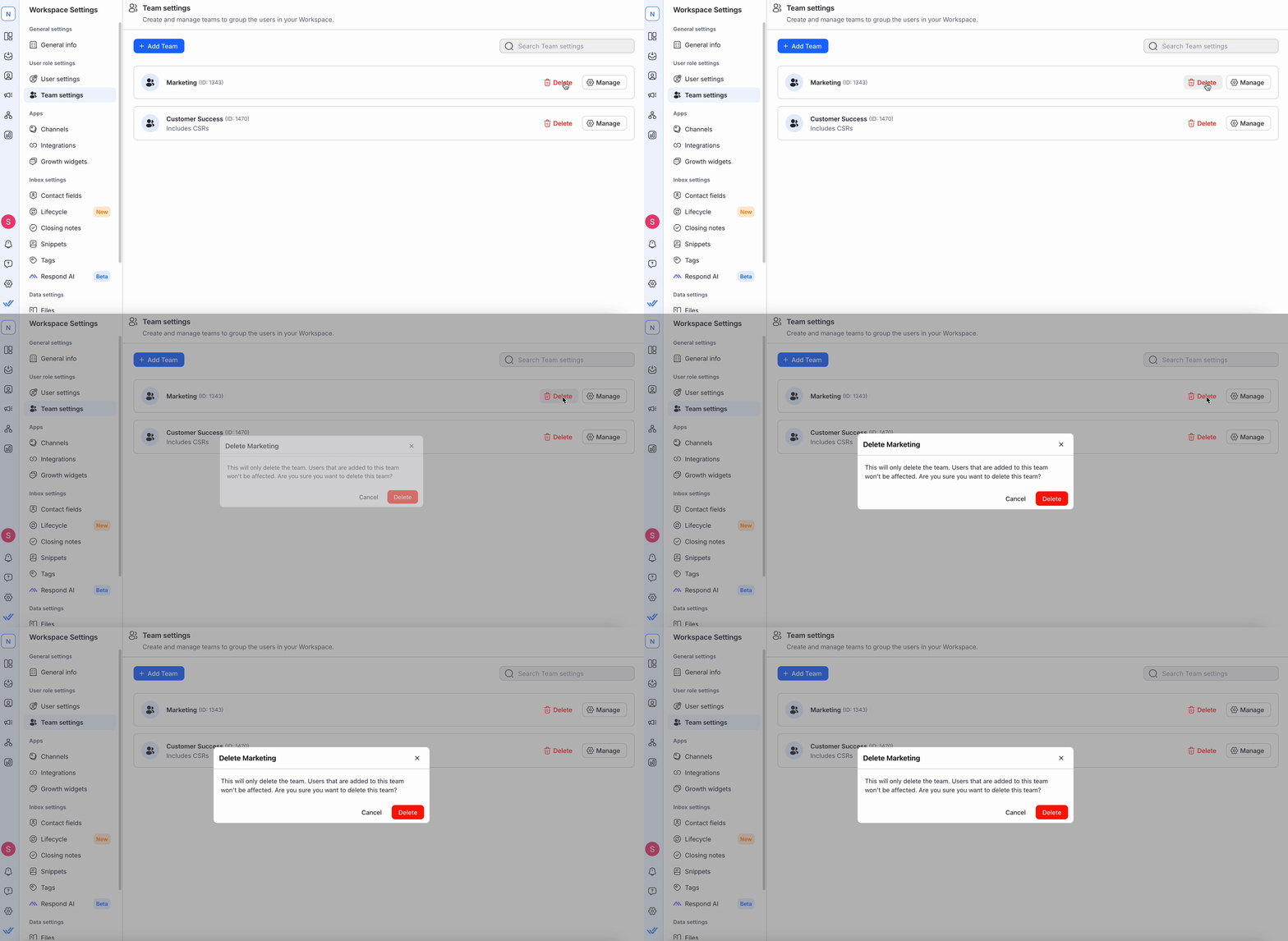
Click Delete next to the Team name and confirm in the dialog box.
Deleting a Team does not remove its Users; they remain unassigned.
This action is irreversible, so proceed with caution.
FAQ and Troubleshooting
How many Teams can I create?
You can create as many teams as necessary, with a maximum limit of 200. However, each team requires at least one user.
Learn more about the subscription plans here.
How many users can I add to a Team?
You can add as many users to a team as necessary; however, each user can only be assigned to a single team.
Learn more about the subscription plans here.


