

Connecting a Channel links a messaging platform to the respond.io Workspace. Once connected, all incoming messages from that Channel appear in the Inbox, allowing the team to respond from one place.
How to connect a Channel
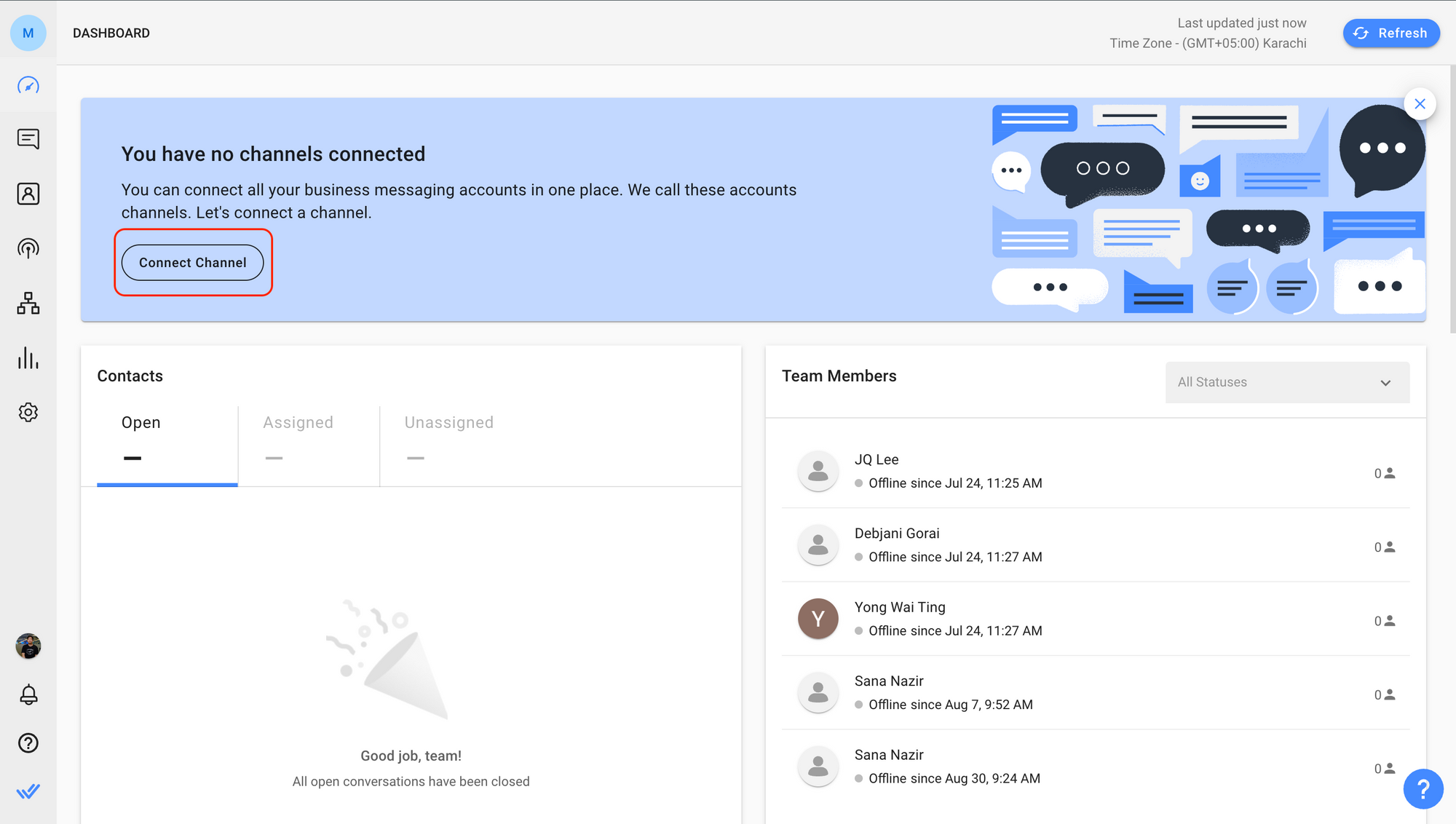
From the Dashboard:
Click the Connect Channel button in the Dashboard.
Select a Channel from the Channel Catalog.
Click Connect.
Follow the Channel-specific connection flow.
From Workspace Settings:
Navigate to Workspace Settings > Channels.
Select a Channel from the Channel Catalog.
Click Connect.
Follow the Channel-specific connection flow.
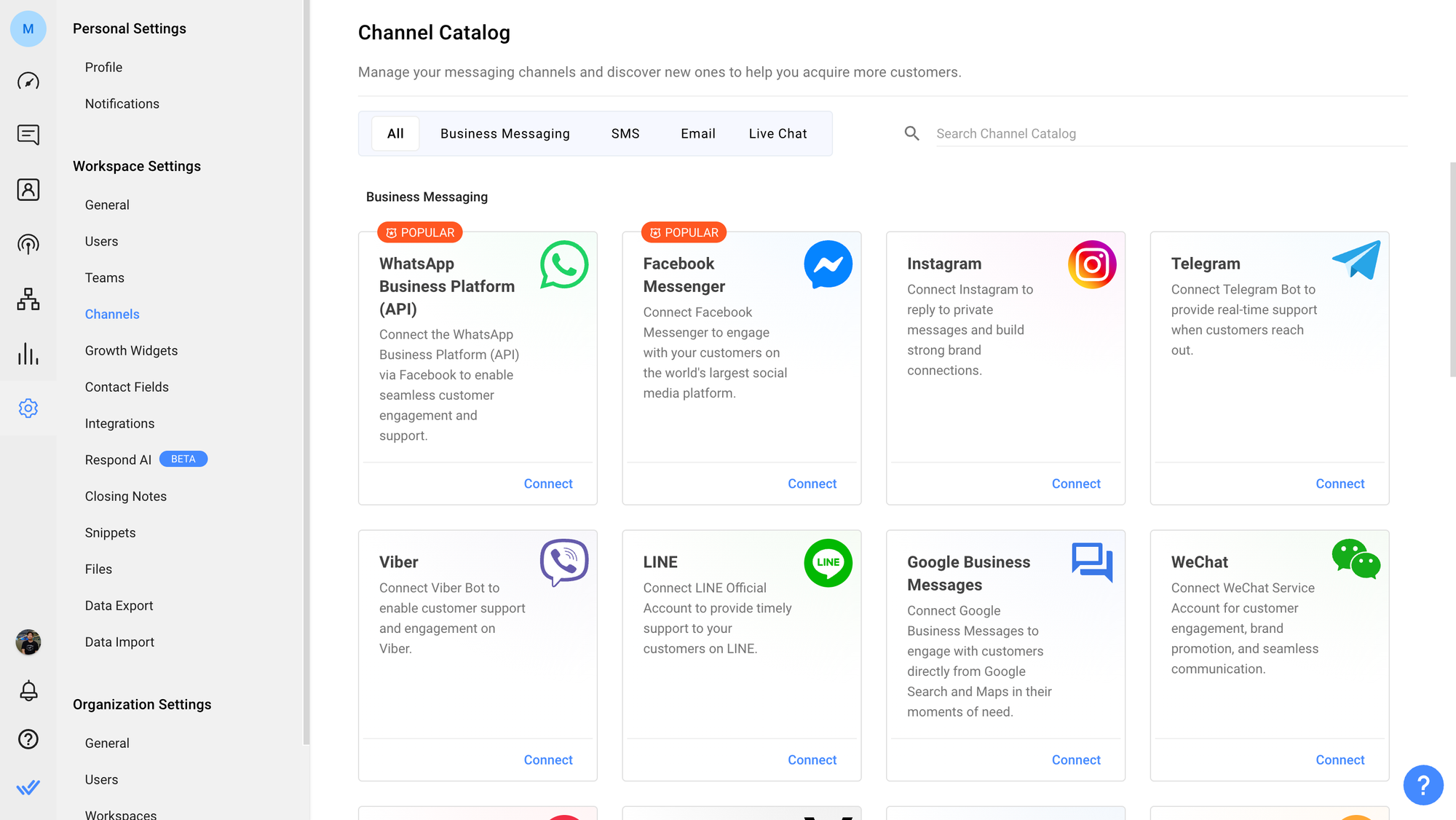
Every Channel has a unique connection flow. View the full list of supported Channels and step-by-step connection guides:
If information in a connection guide appears outdated, report it to the Support team.
What's next?
Let's move on to inviting teammates to the Workspace.
FAQ and Troubleshooting
Why am I encountering an error while attempting to connect a Channel to my Workspace?
The Channel may already be connected to another Workspace. Remove the existing connection first, then reconnect to the desired Workspace. If the respond.io account is inactive, contact Support.
What Channels are not available on respond.io?
The following Channels are not supported on respond.io:
Airbnb
Shopee
Lazada
X (formerly Twitter)
For the full list of supported Channels, refer to the Channels page.


