

Getting here
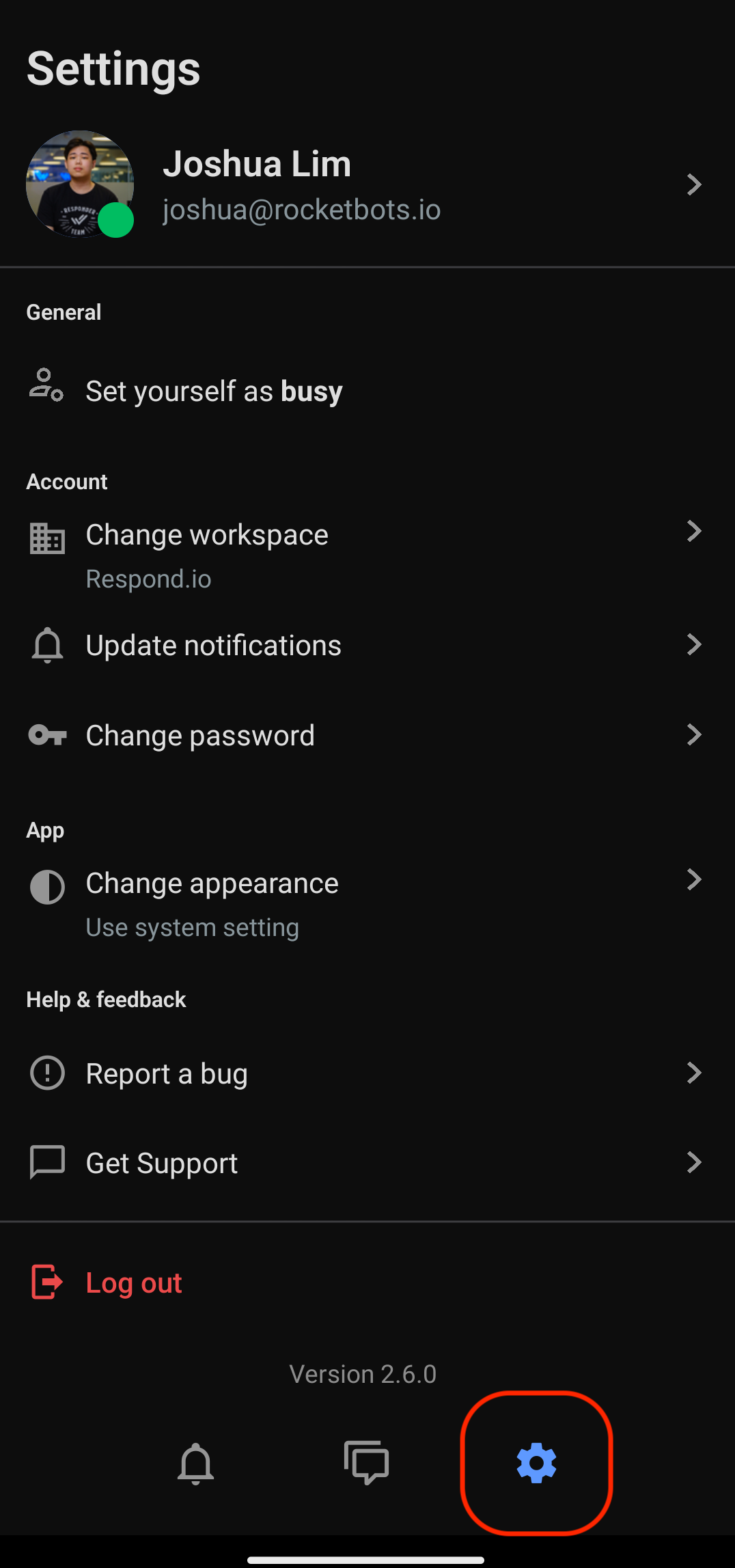
In your mobile app, navigate to the Settings tab.
Overview
The Settings tab provides quick access to manage your profile, preferences, notifications, and other key app configurations, ensuring a seamless and personalized experience.
Profile settings
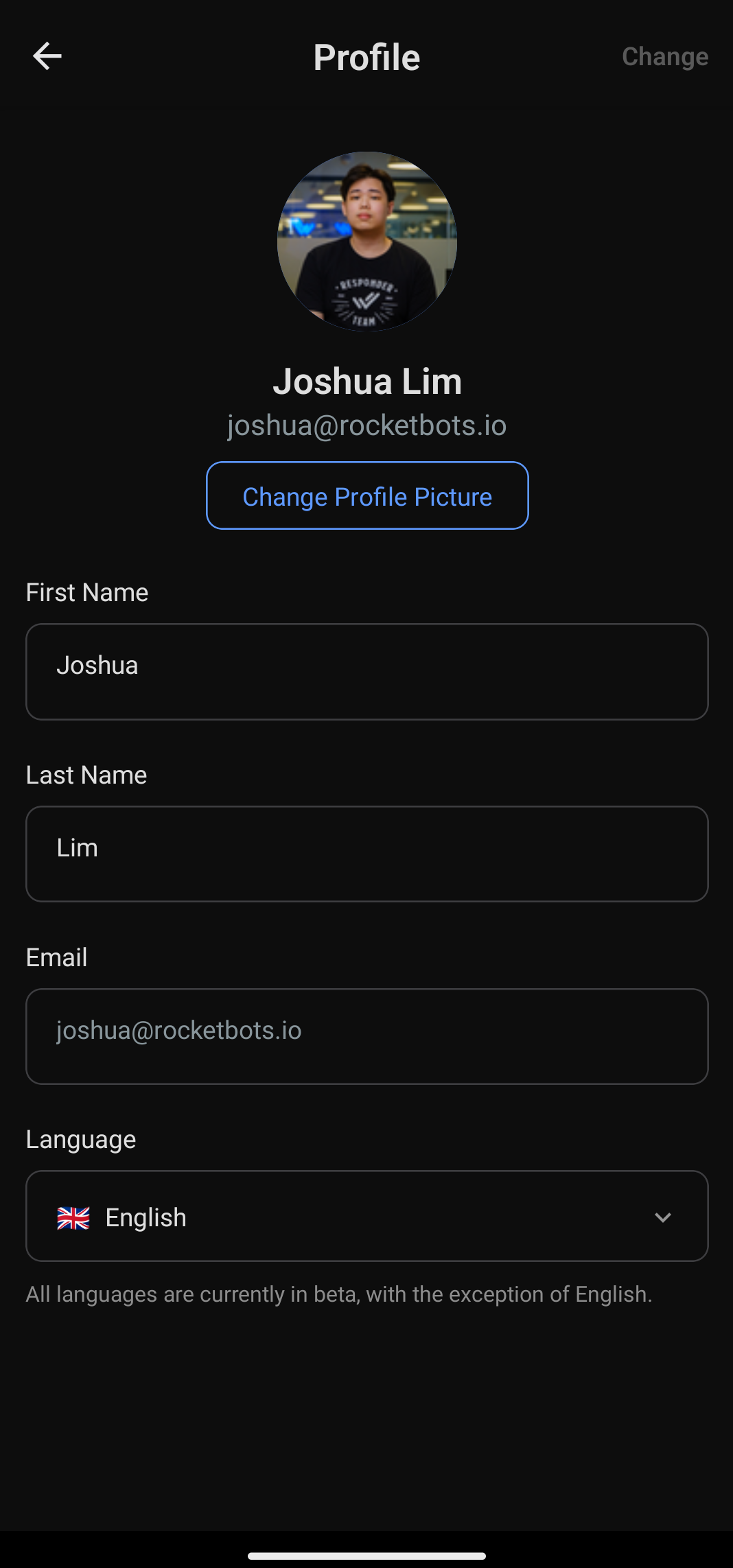
Configure your profile settings here such as profile details, picture, and language.
Edit your profile details
You can edit your first name, last name, and email as needed.
Change your profile picture
To change your profile picture, click on the Change Profile Picture button. Take a new picture from your camera or select a picture from your device gallery.
Tap Change on the top right of your screen to save the changes you made.
Language preferences
You can switch to your preferred language by tapping on the Language selection dropdown.
All languages except English are in beta.
The available languages are:
English 🇬🇧
Spanish (Español) 🇪🇸
Portuguese (Português) 🇵🇹
Arabic (عربي) 🇸🇦
Burmese (မြန်မာဘာသာ) 🇲🇲
Thai (ภาษาไทย) 🇹🇭
Traditional Chinese (繁體中文) 🇹🇼
Simplified Chinese (简体中文) 🇨🇳
Italian (Italiano) 🇮🇹
German (Deutsch) 🇩🇪
Russian (Русский) 🇷🇺
French (Français) 🇫🇷
Japanese (日本語) 🇯🇵
Indonesian (Bahasa Indonesia) 🇮🇩
Turkish (Türkçe) 🇹🇷
Korean (한국어) 🇰🇷
Vietnamese (Tiếng Việt) 🇻🇳
Hebrew (עברית) 🇮🇱
General
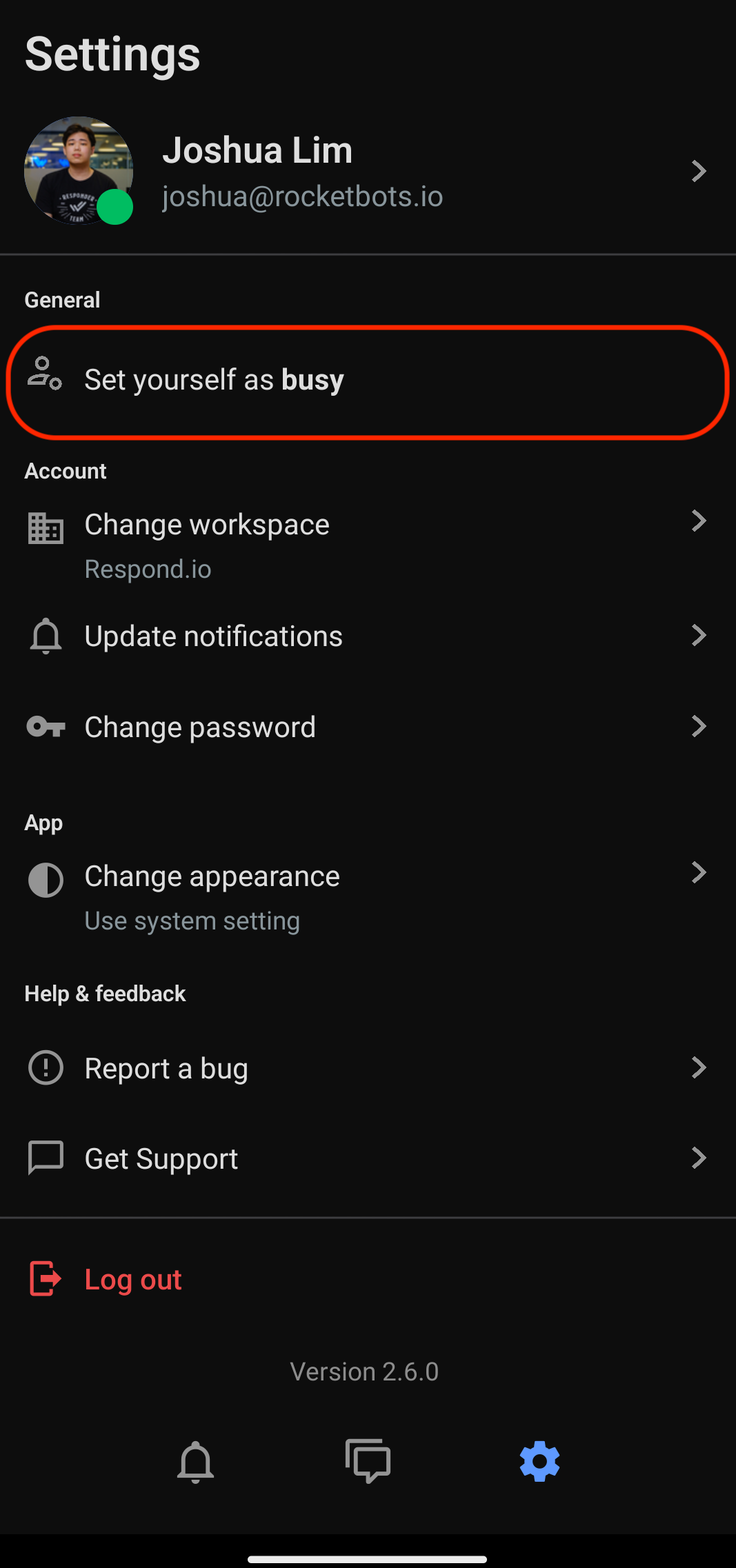
Configure the general settings of your app here such as activity status.
Setting your activity status
When you’re logged in, your default status is set to Active.
Set yourself as busy - Tap this option to indicate that you’re not available on mobile app. A yellow indicator will be displayed on your profile picture.
Set yourself as active - Tap this option to indicate that you’re available on mobile app. A green indicator will be displayed on your profile picture.
Your activity status may automatically change to Offline in certain circumstances. Read more about the Offline status here.
Account
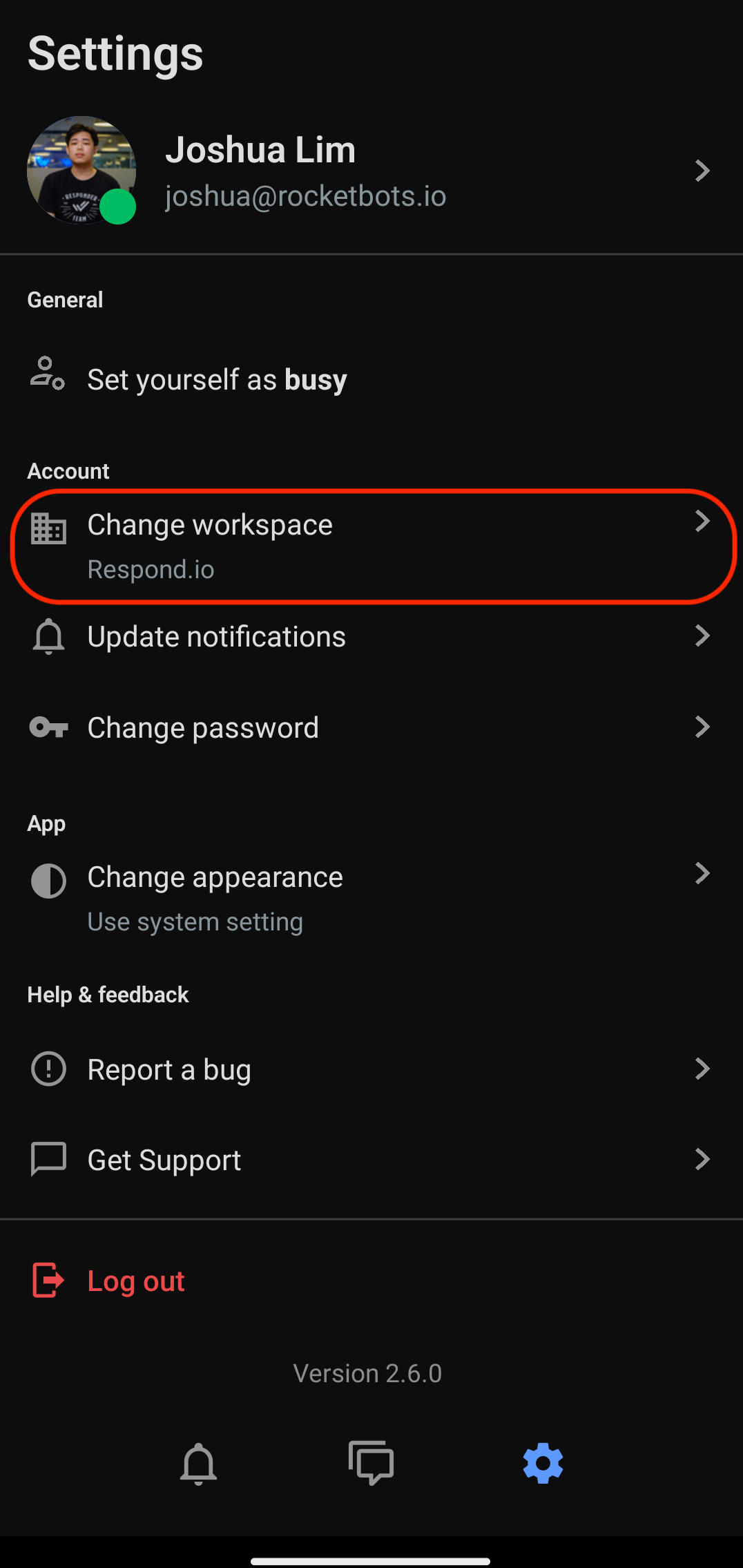
Configure your account here such as changing workspaces, notification settings and password management.
Change workspace
If you have multiple workspaces, you can switch between workspaces by tapping Change Workspace and selecting your preferred Workspace.
Update notifications
Configure sound and mobile push notifications by tapping Update notifications.

Mobile Push Notification
When toggled on, a push notification is sent to your mobile device depending on the option selected:
Preference | Description |
|---|---|
For all contacts and mentions | - When a Contact is assigned to you. |
For the contacts assigned to me, collaborations and mentions | - When a Contact is assigned to you. |
For the contacts assigned to me, collaborations, contacts unassigned and mentions | - When a Contact is assigned to you. |
For mentions only | - When someone mentions you in a comment. |
Only send mobile notifications when I am Offline
Tick the checkbox to receive mobile notifications only when you’re offline.
In-app Call Sounds
When toggled on, a sound will be played when you receive an incoming call:
Preference | Description |
|---|---|
Play for all Contacts | - New incoming call from Contacts assigned to you. |
Play for assigned Contacts only | - New incoming call from Contacts assigned to you. |
Play for assigned Contacts and unassigned Contacts | - New incoming call from Contacts assigned to you. |
In-app Chat Sounds
When toggled on, a sound will be played when you receive an incoming message:
Preference | Description |
|---|---|
For assigned Contacts, collaborations or unassigned Contacts | - New messages from assigned Contact. |
For assigned Contacts and collaborations only | - New messages from assigned Contact. |
Change password
To change your password, follow these steps:
Tap Change password
Enter your existing password > Enter a new password > Confirm the new password
Tap Change on the top right of your screen to save the changes you made.
App
Configure the look and feel of your app.
Change appearance
You can customize your app's appearance with this setting.
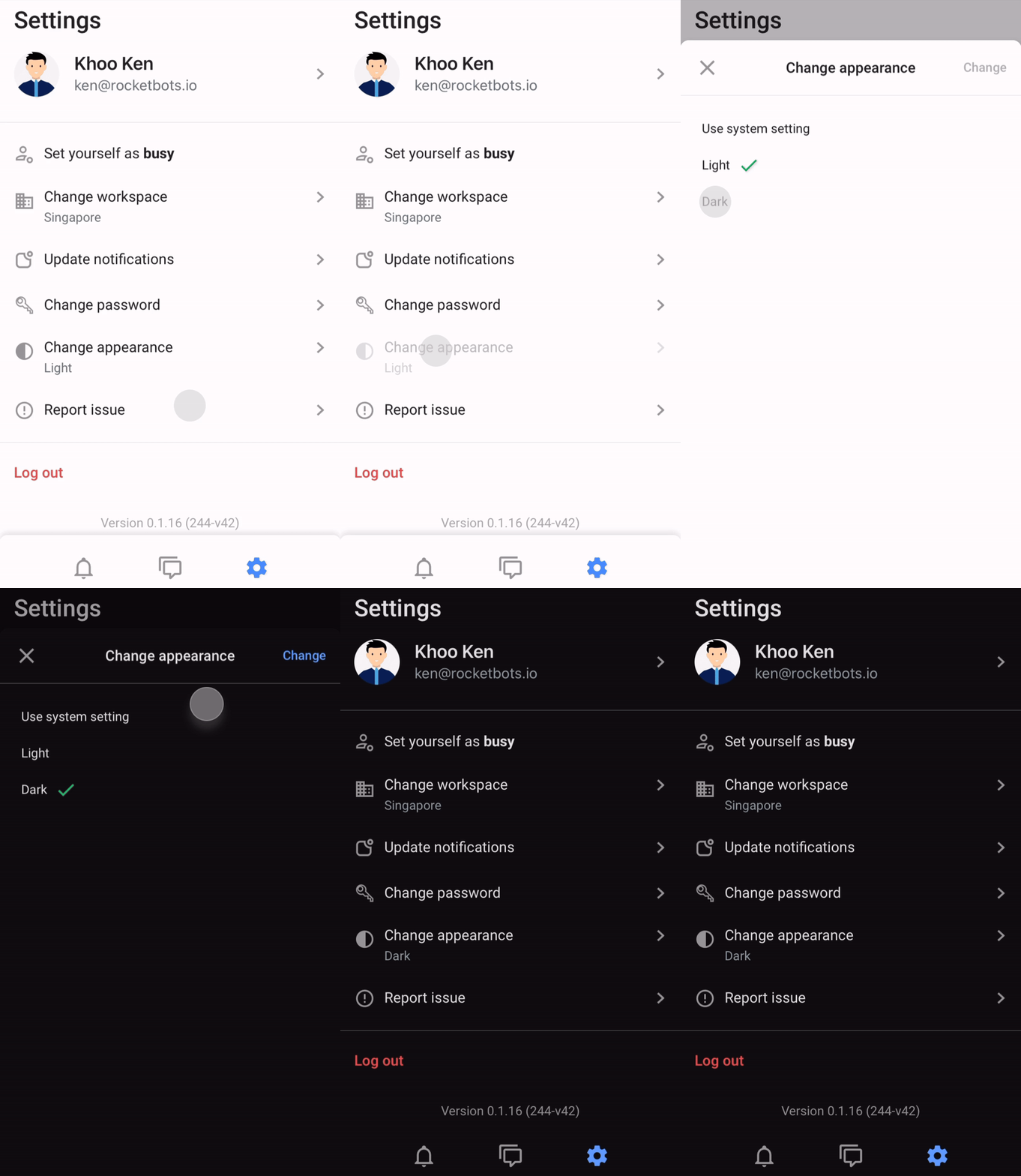
Use system setting (default): Automatically sync the app's appearance with your device's appearance (light or dark).
Light: Sets the app's appearance to light mode.
Dark: Sets the app's appearance to dark mode.
Tap Change on the top right of your screen to save the changes you made.
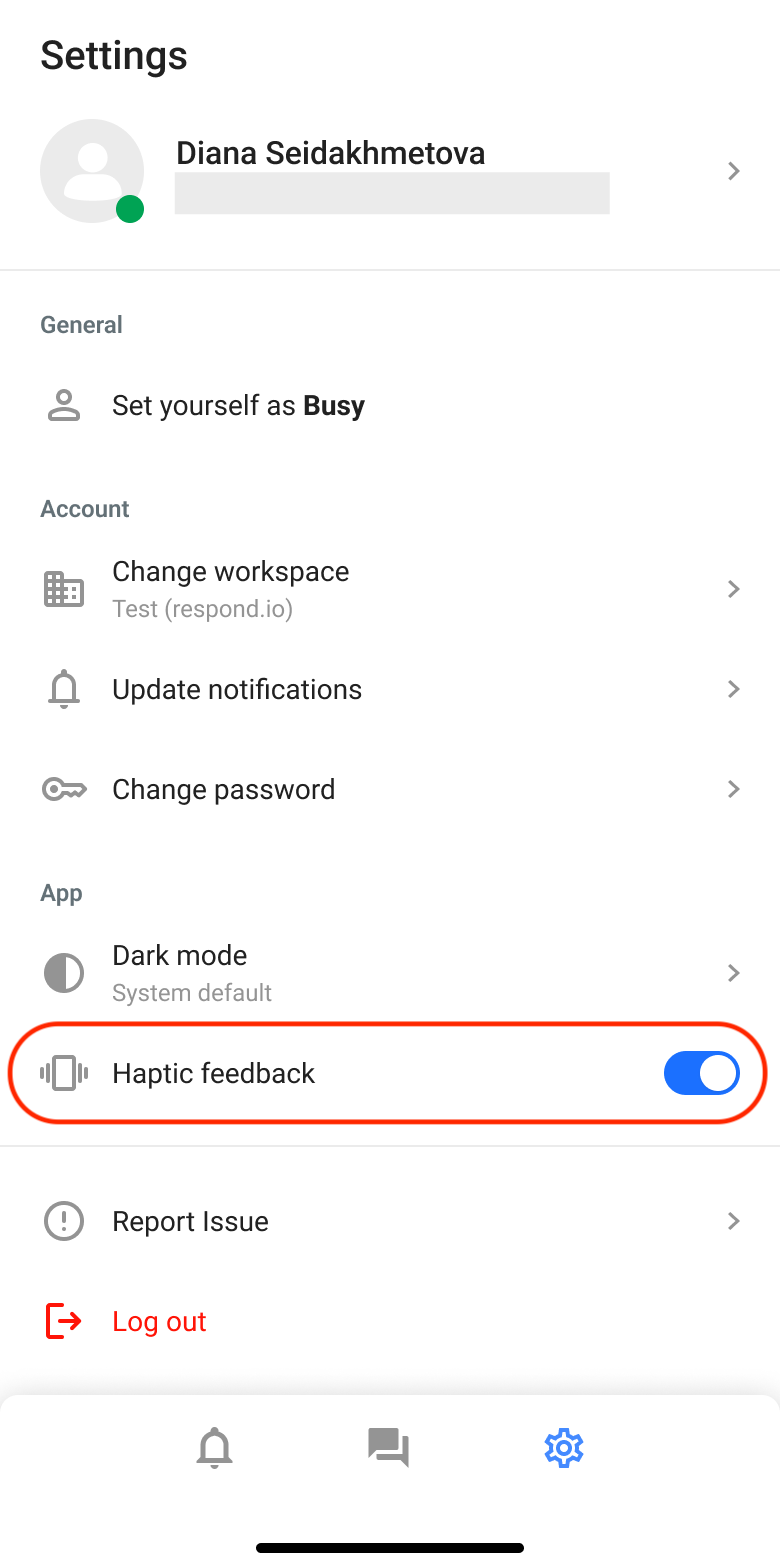
Haptic feedback
Enable this to experience subtle vibrations for actions like swiping, long pressing, or starting and stopping voice recordings.
Help & feedback
Reporting a bug
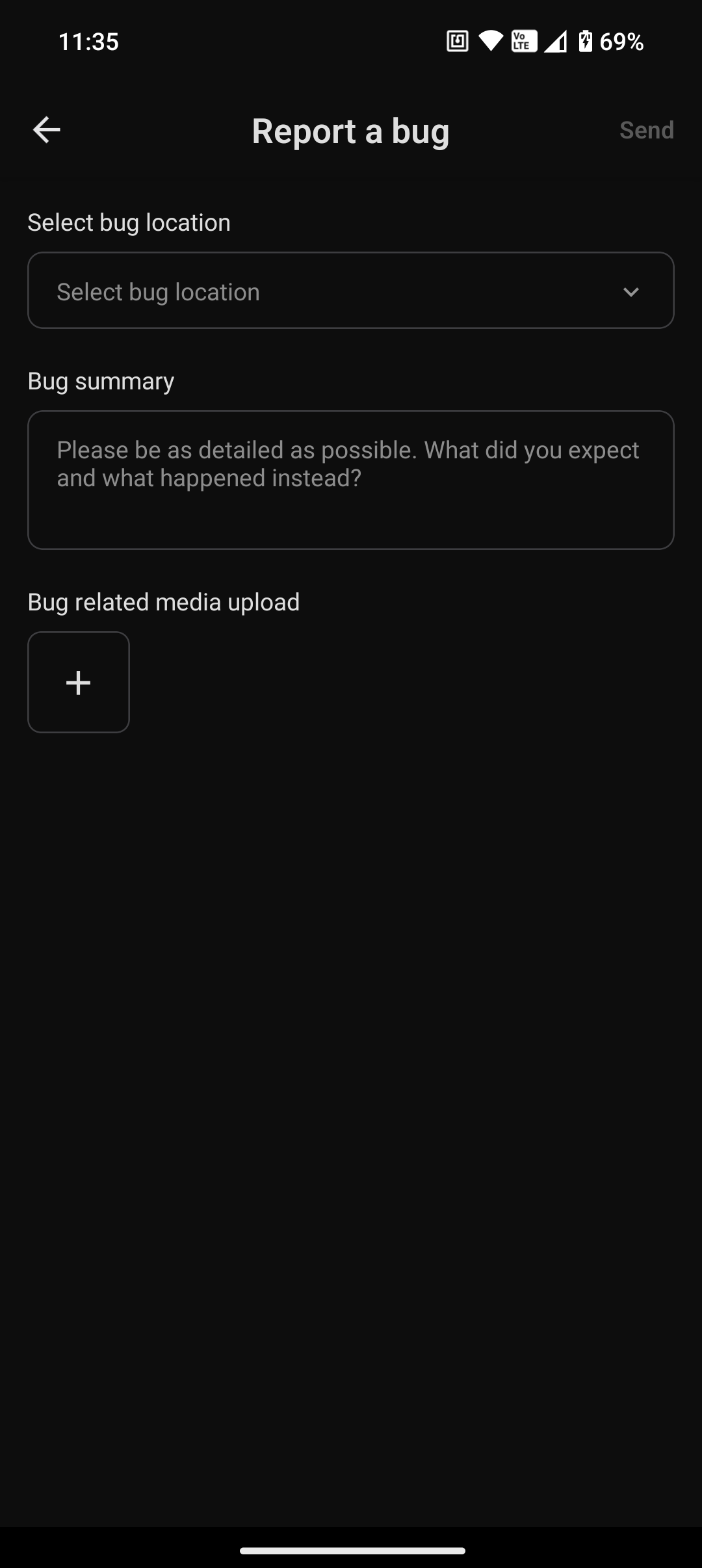
Reach out to us if you're facing any issues while using the mobile app. To report a bug, follow these steps:
Select bug location (Notifications, Inbox, Settings, Other).
Fill in the description of your issue in the Bug summary section.
Upload a screenshot of the issue you are facing to provide better context for our support agents to assist you.
Get Support
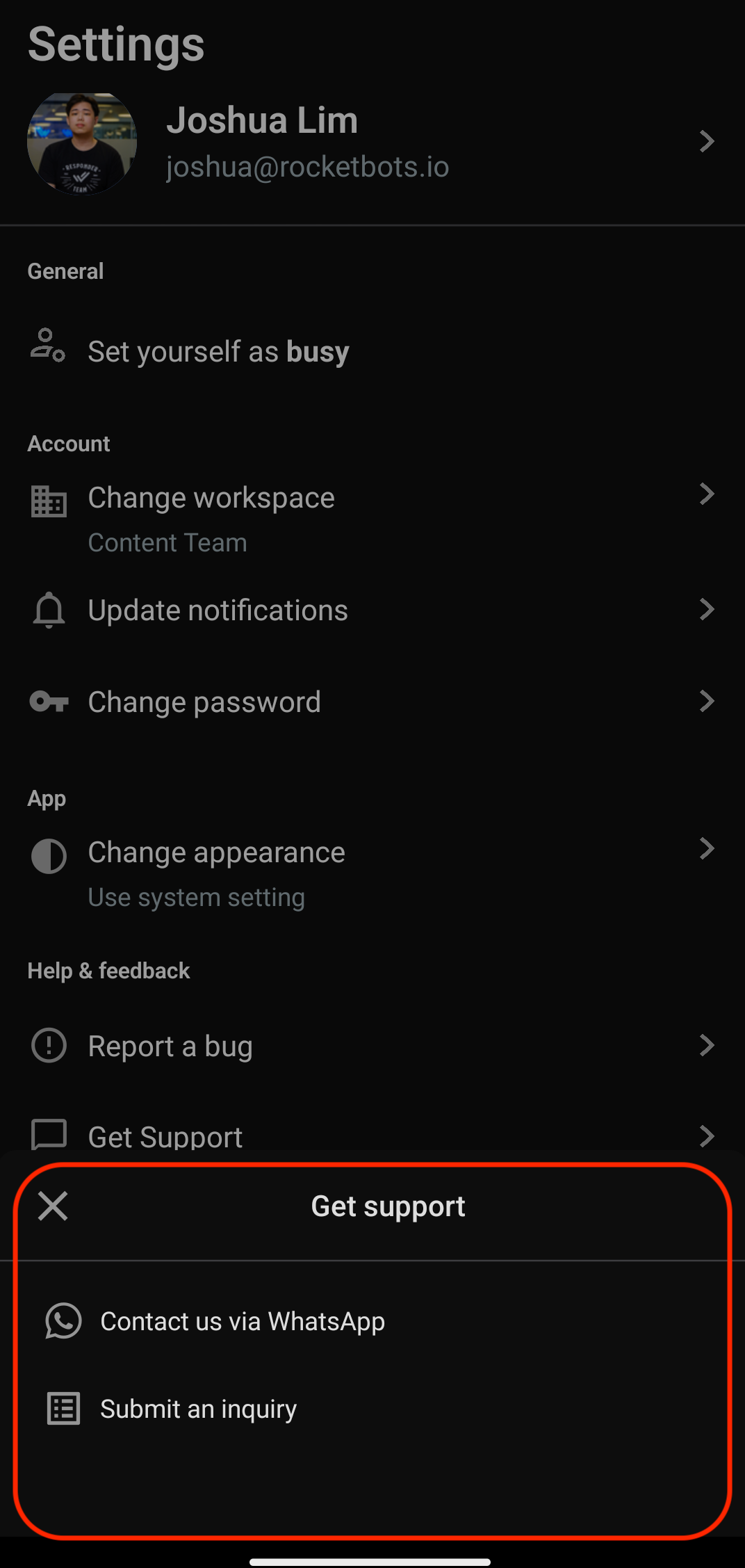
Need help? Tap on Get Support, and you can contact us via WhatsApp chat or submit an inquiry through our website.
Log out
Tap Log out to log out from your account.
You will be automatically logged out of the mobile app after 30 days.


