

Stay connected with your customers even when you’re on the move. The respond.io mobile app now lets you view, manage, and act on VoIP, WhatsApp, and Messenger calls — and see and manage your recent call activities, just like on the web app.
Getting here
To access calling features, open the respond.io mobile app and tap the Calls tab — represented by a phone icon — located right after the Inbox tab at the bottom of the screen.
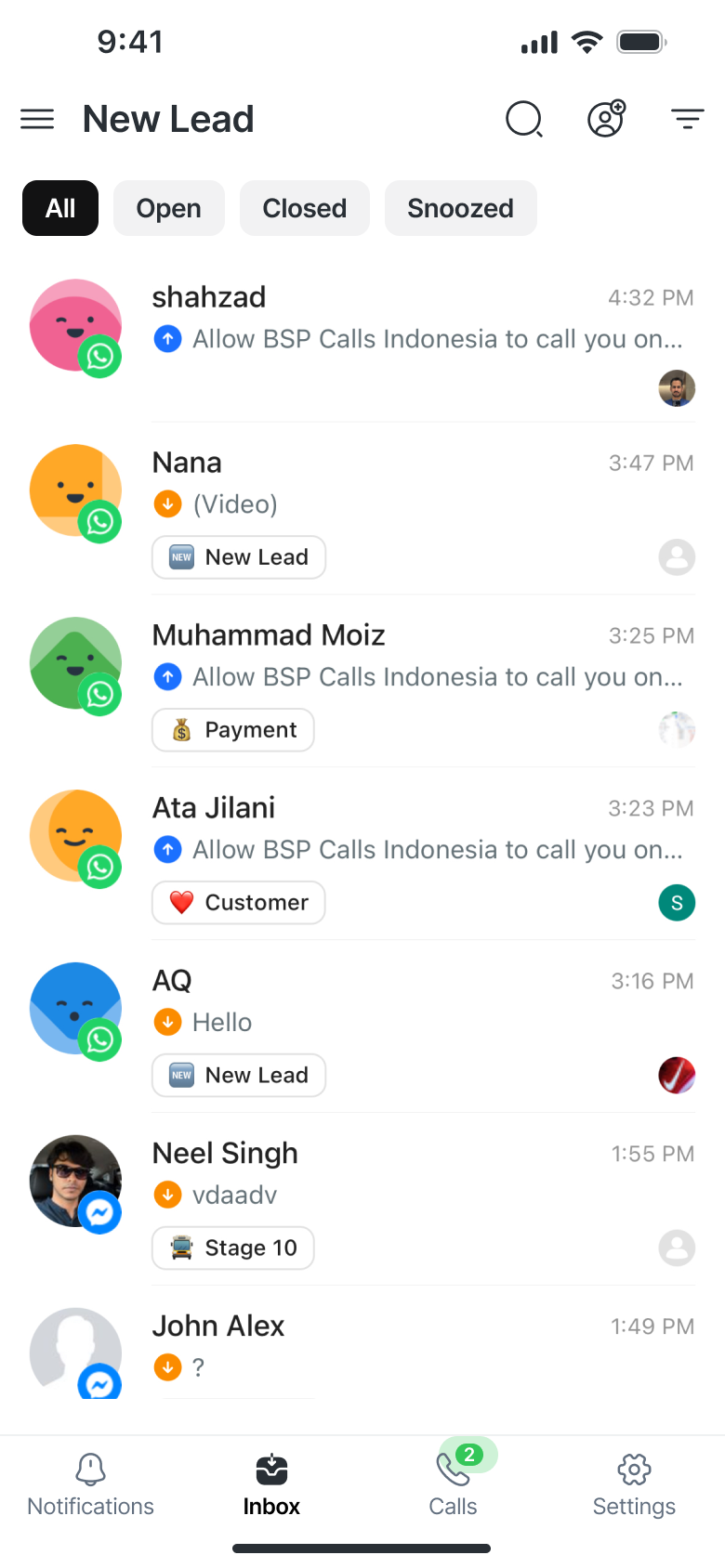
If the tab shows a green badge with a blinking animation, it means there are incoming calls waiting.
In addition to active calls, the Calls tab now shows your recent call activity, including incoming, missed, ongoing, and completed calls.
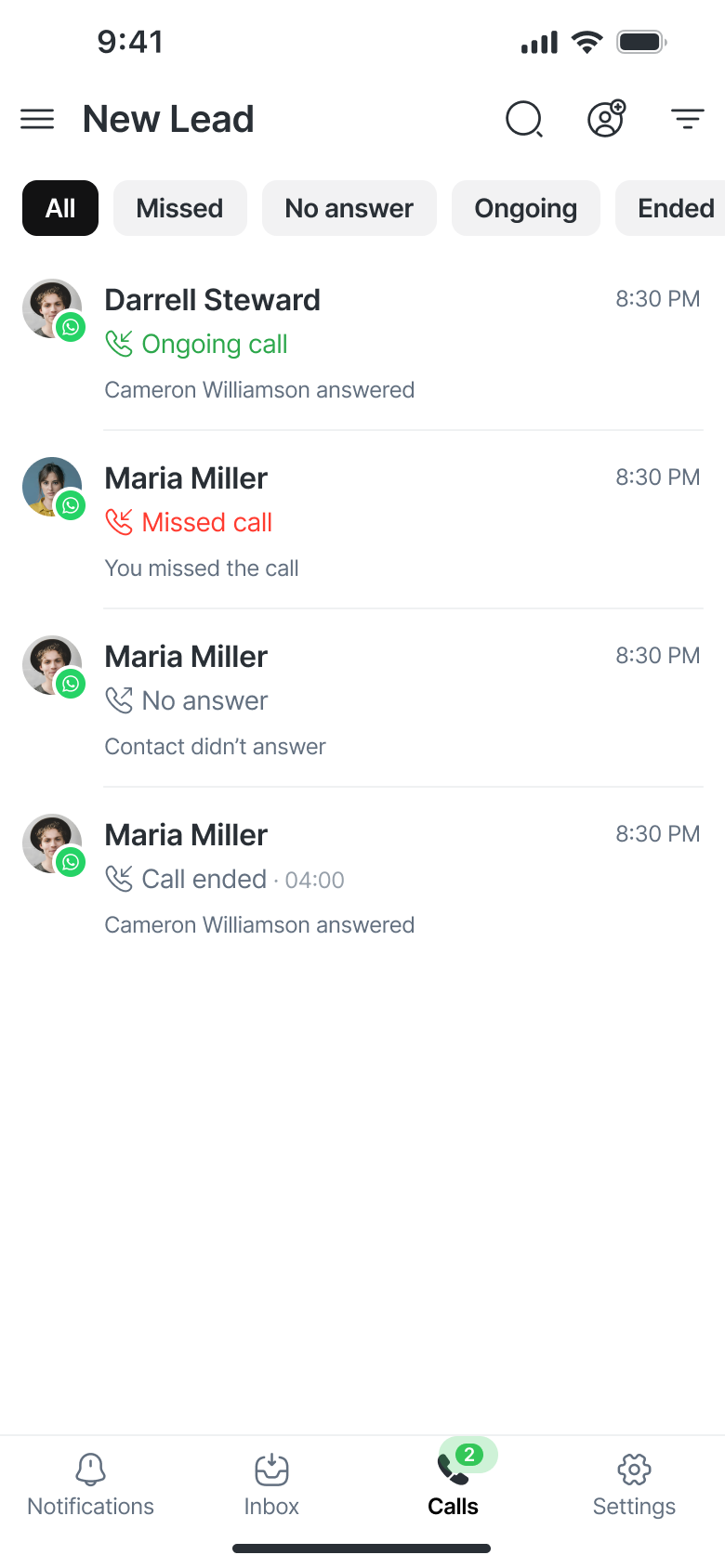
Receiving calls
Calls tab
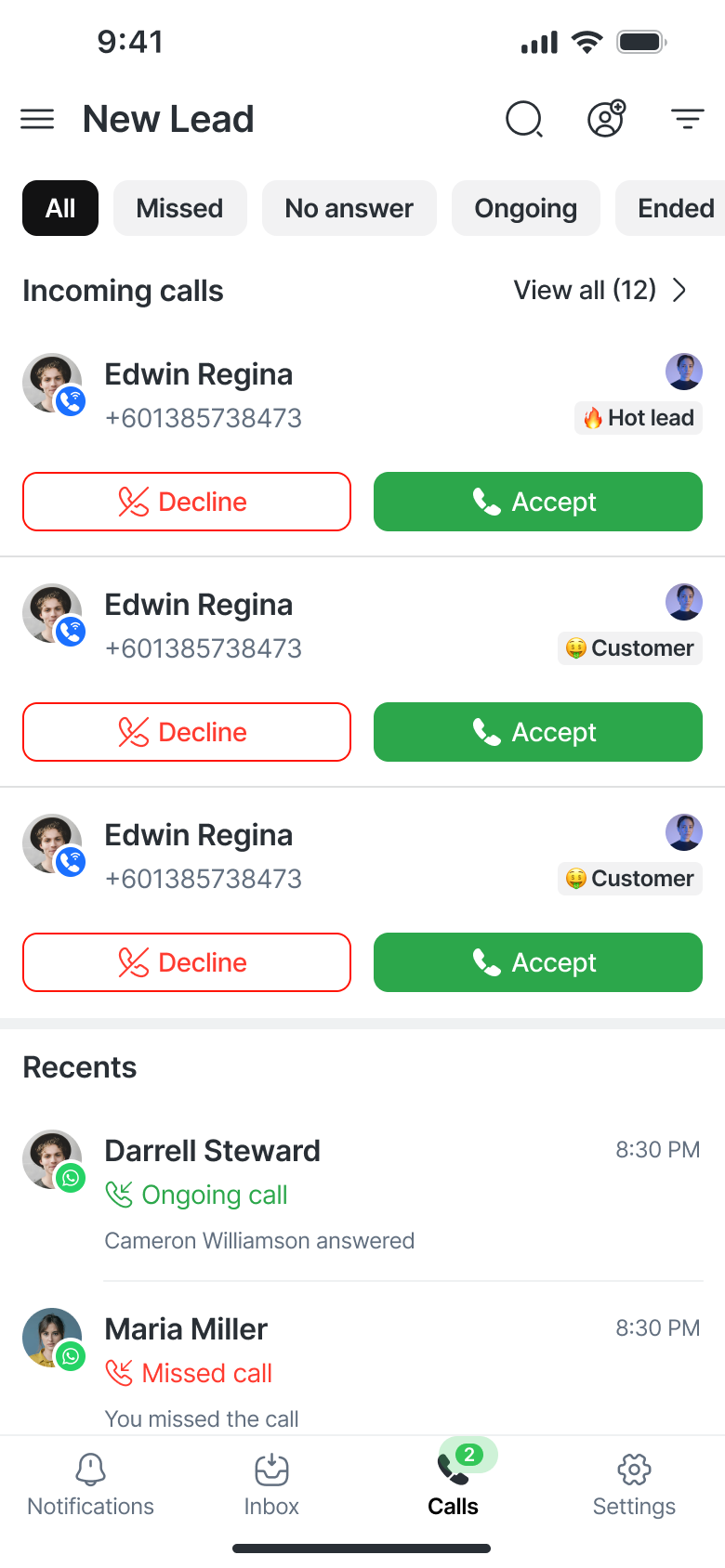
All incoming calls appear as cards in the Calls tab.
Each card includes:
Contact’s name and number
Assigned agent avatar
Current lifecycle stage
Two action buttons:
✅ Accept – Answer the call
❌ Decline – Reject the call
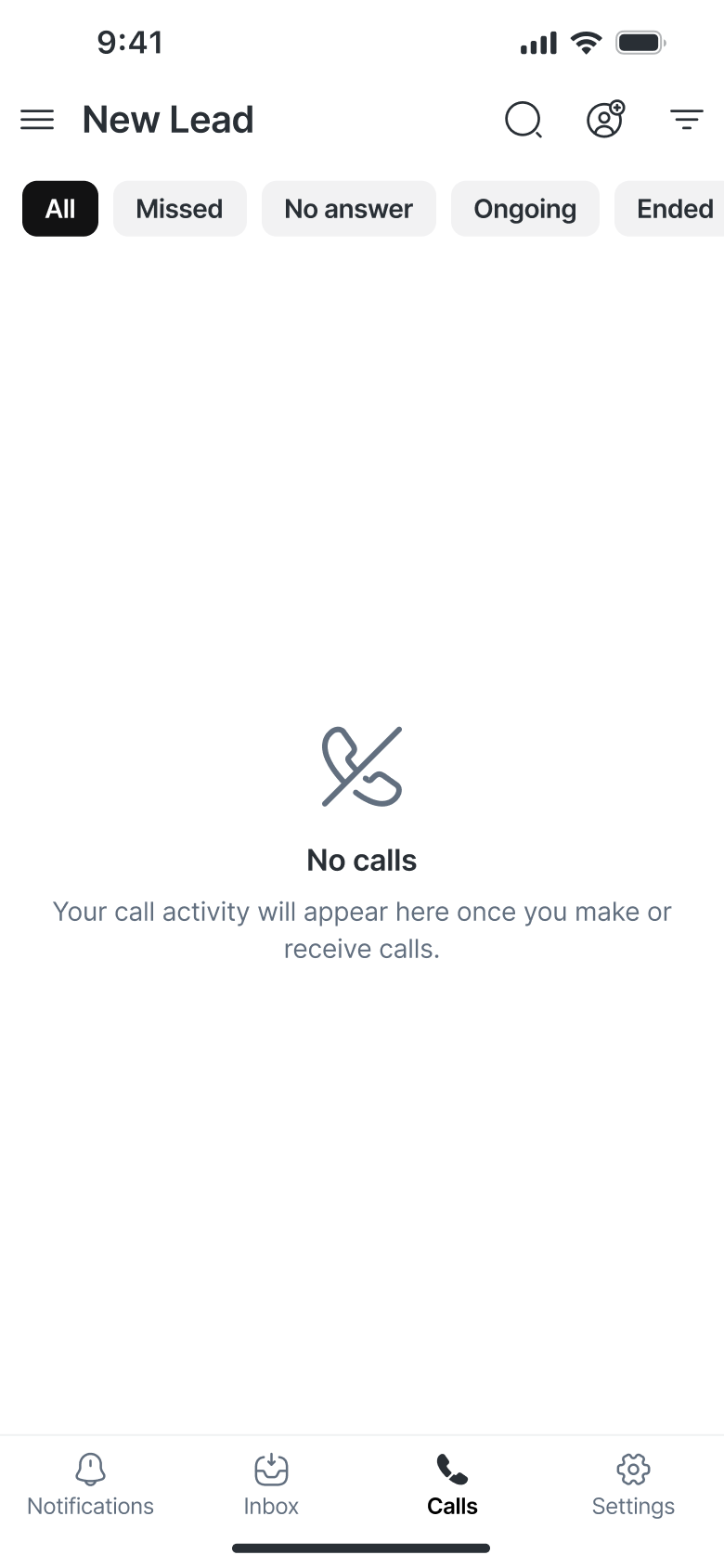
If there are no incoming calls, you’ll see an empty state with the message “No calls.”
In-conversation incoming call cards
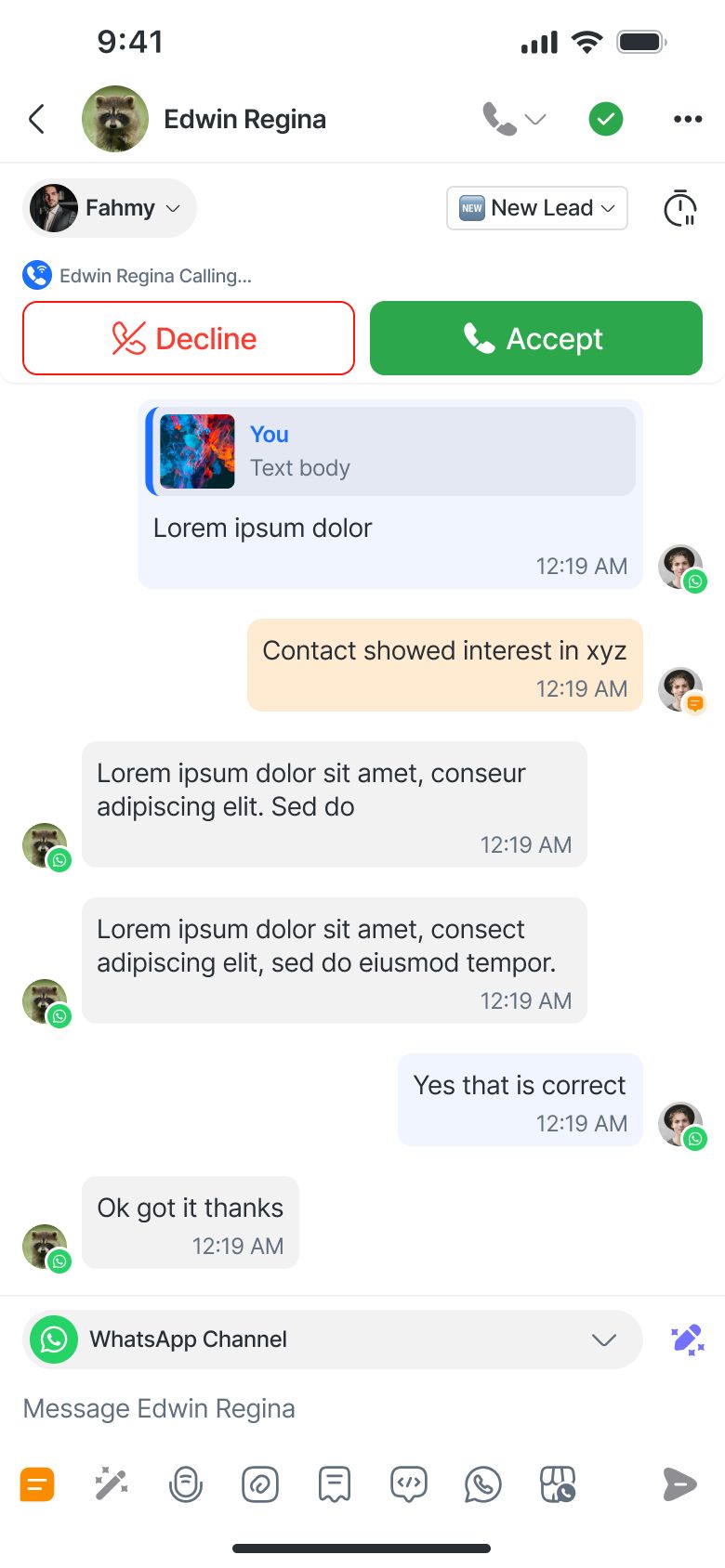
If you’re viewing a conversation with a Contact who is calling, a card will appear directly within the conversation.
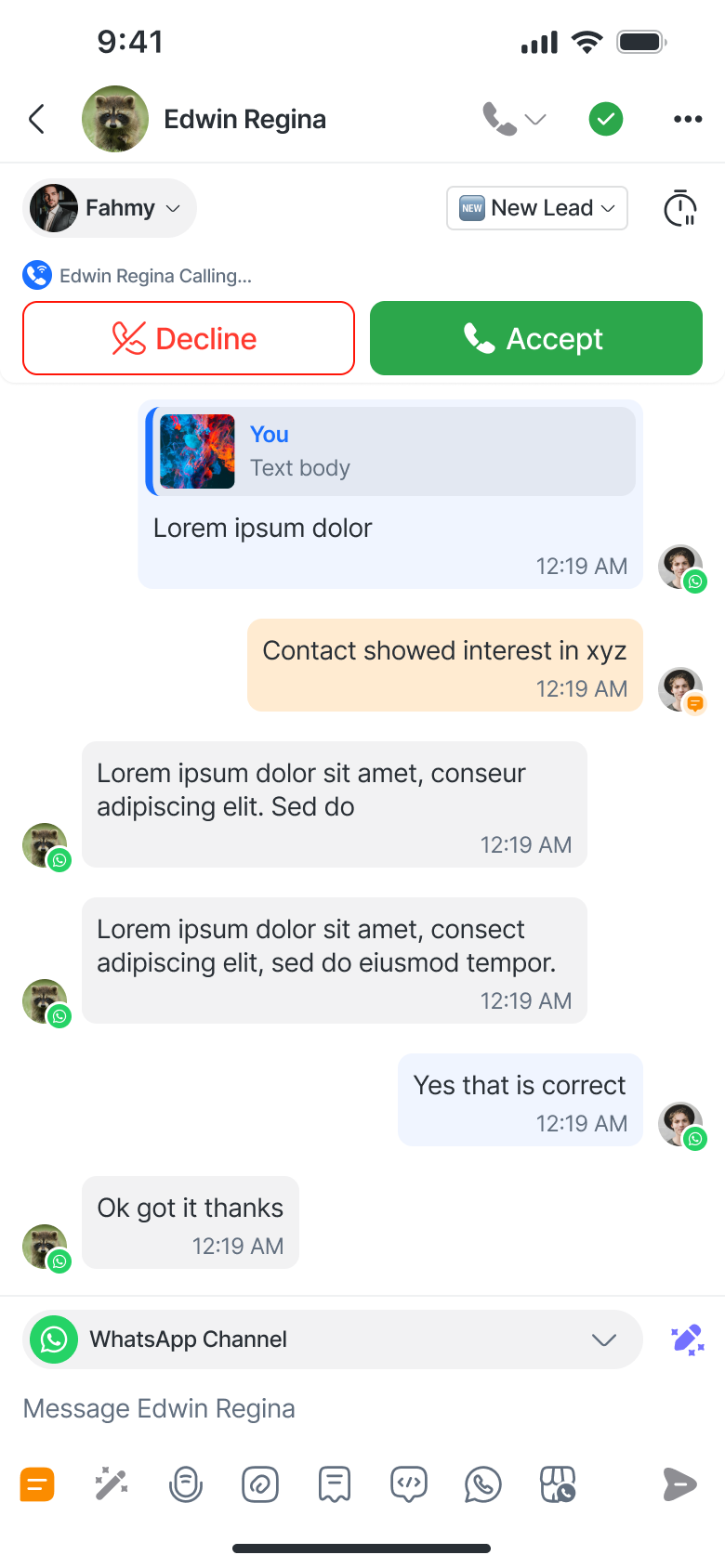
Only shows for that specific contact.
Accept/Decline buttons are visible unless you’re already in another call (in which case they’re disabled).
Making calls
You can make calls from two main screens in the mobile app. The available call options will depend on the Channel connected for the Contact — VoIP, WhatsApp, or Messenger.
VoIP
You can initiate VoIP calls from:
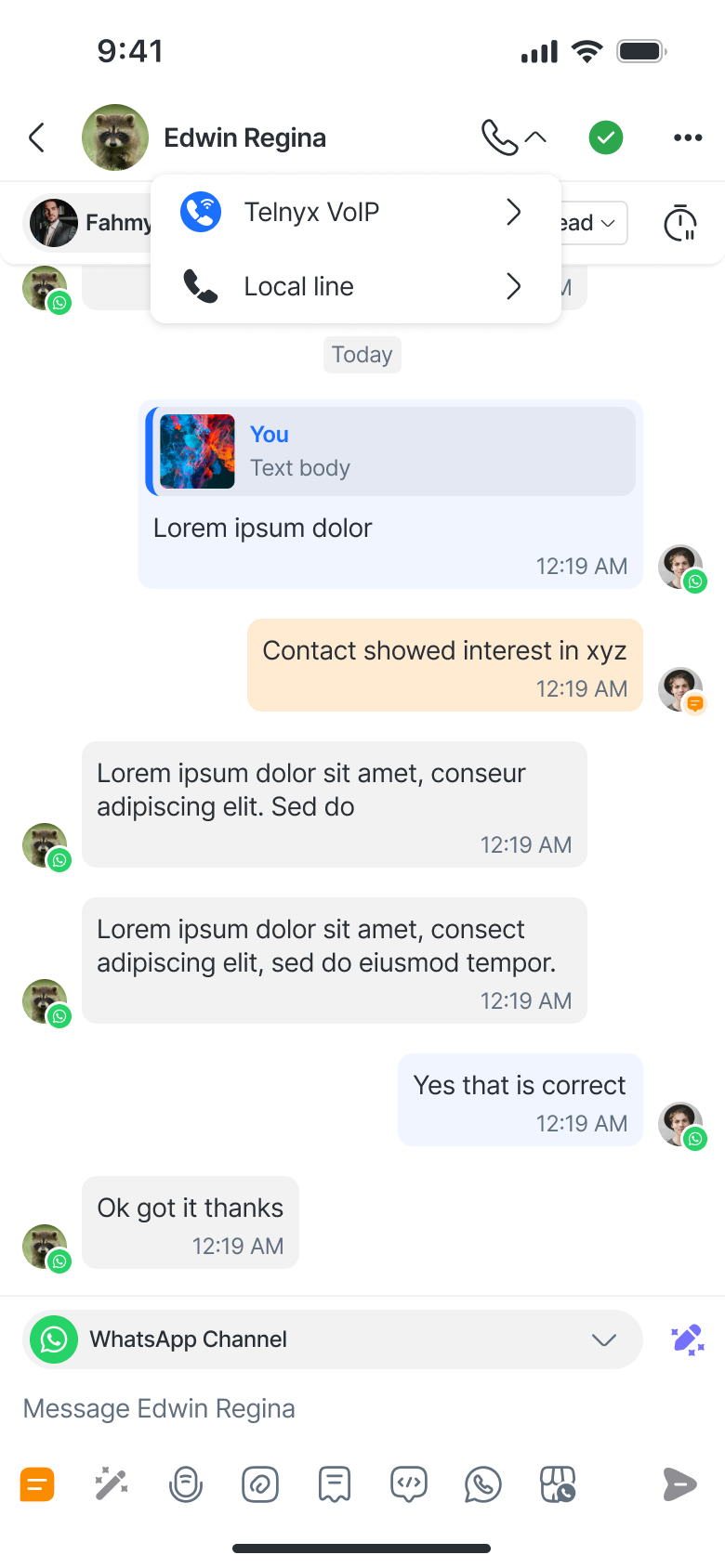
Conversation Screen
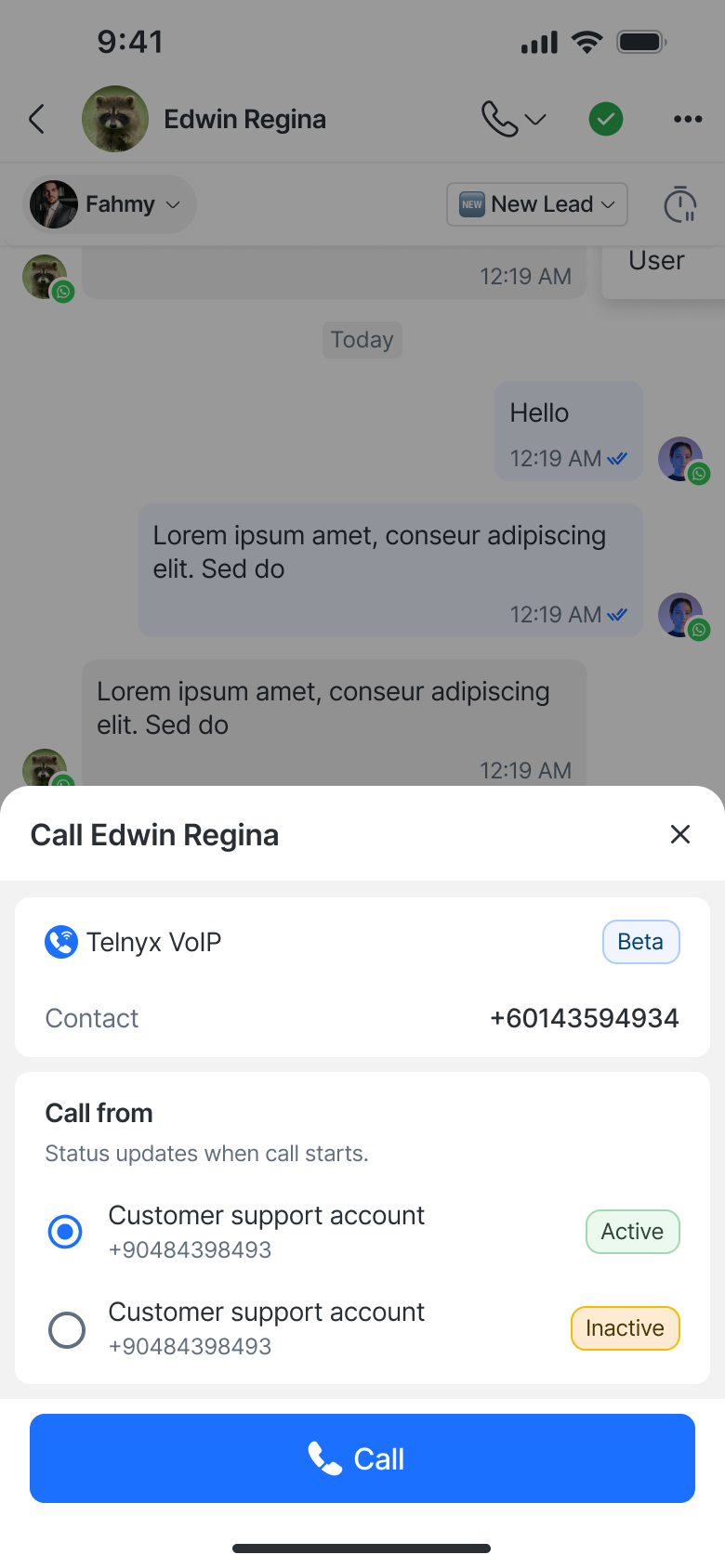
Tap the Call button (phone icon) at the top of the screen.
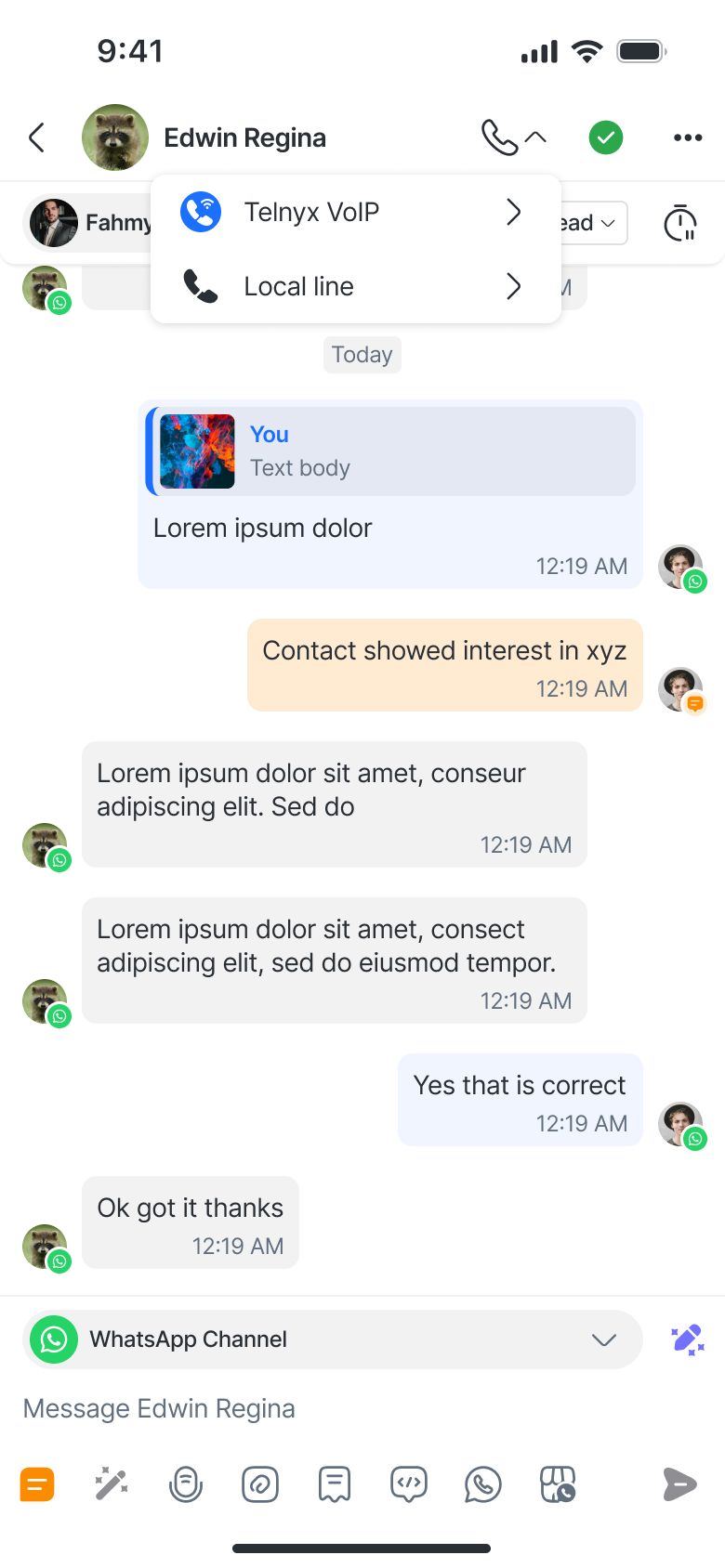
Choose from the available VoIP numbers via the Call Menu.
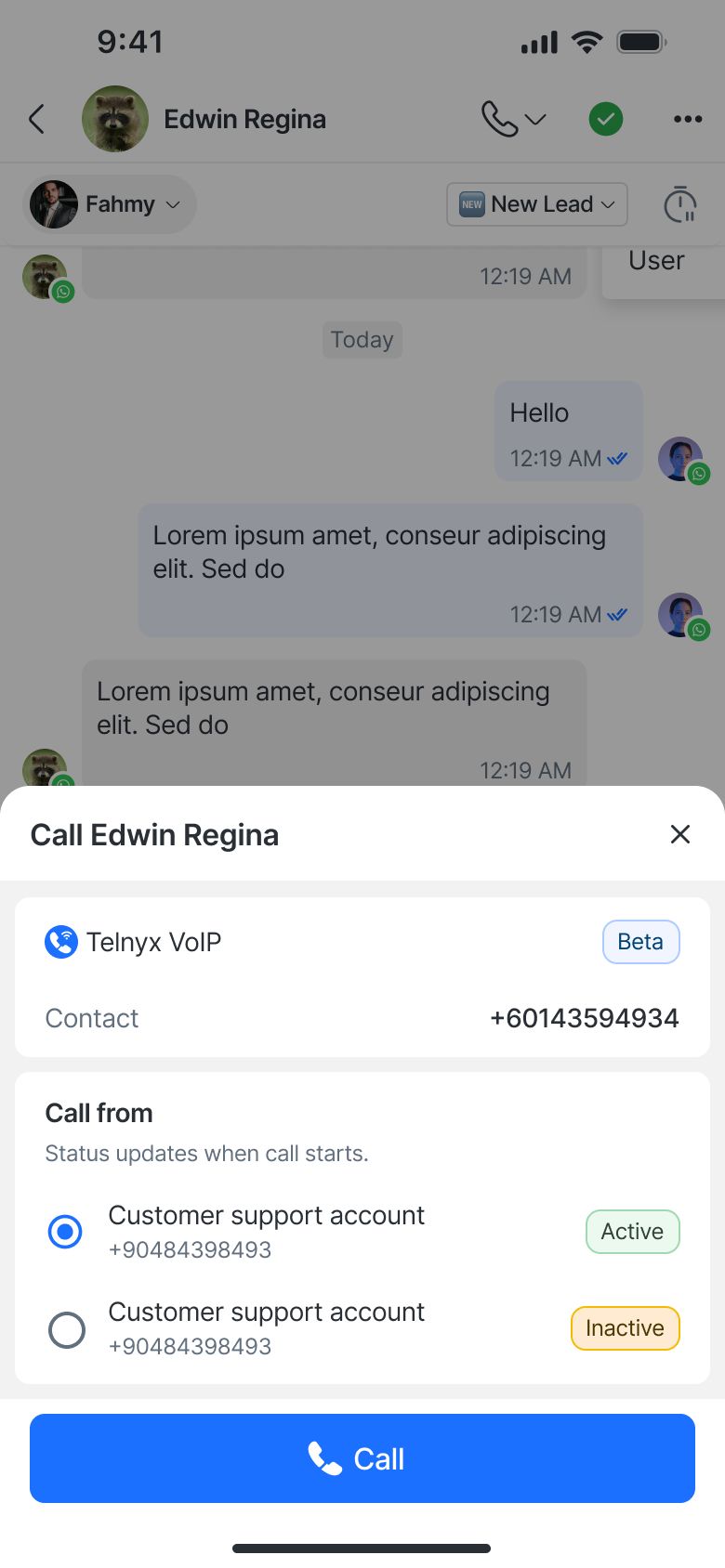
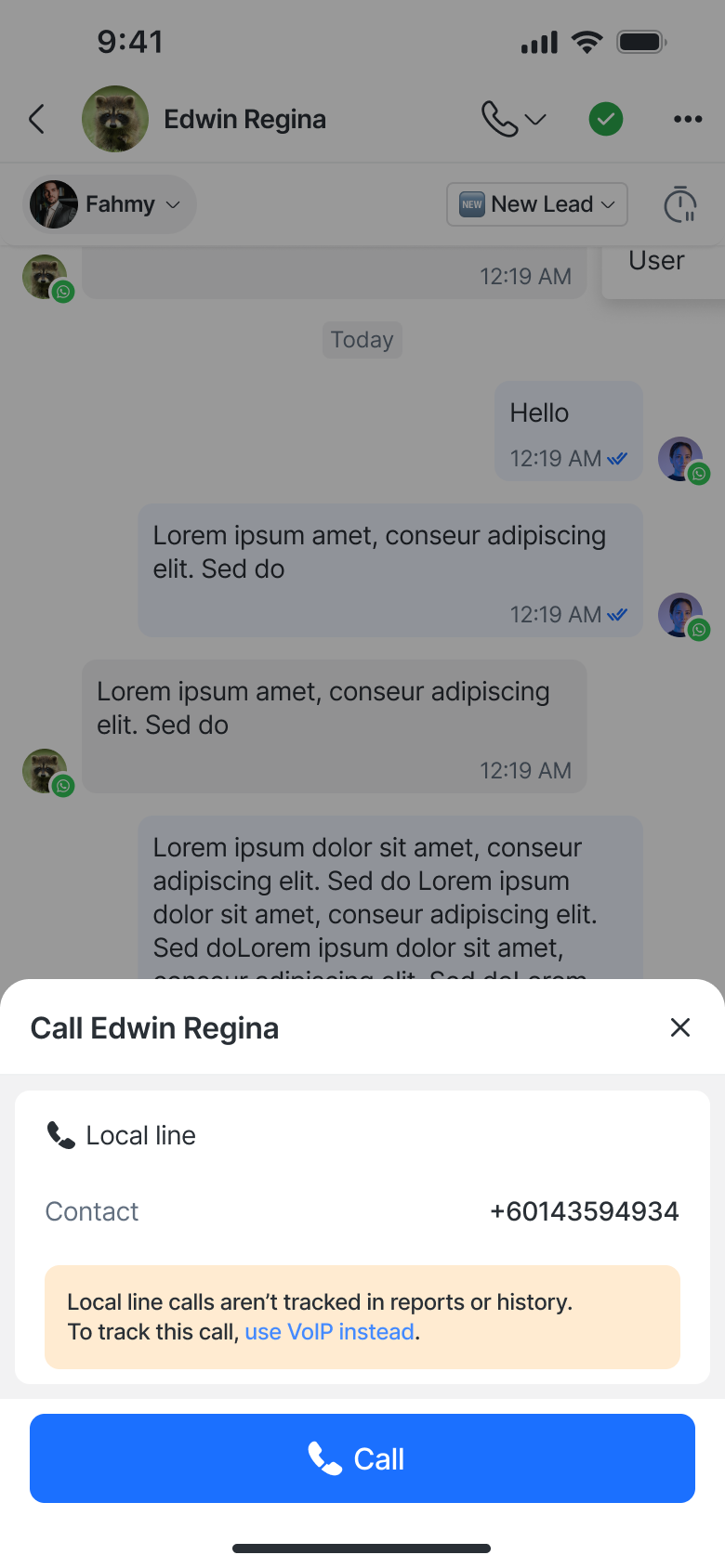
If no VoIP channel is connected, the app will default to a local line call.
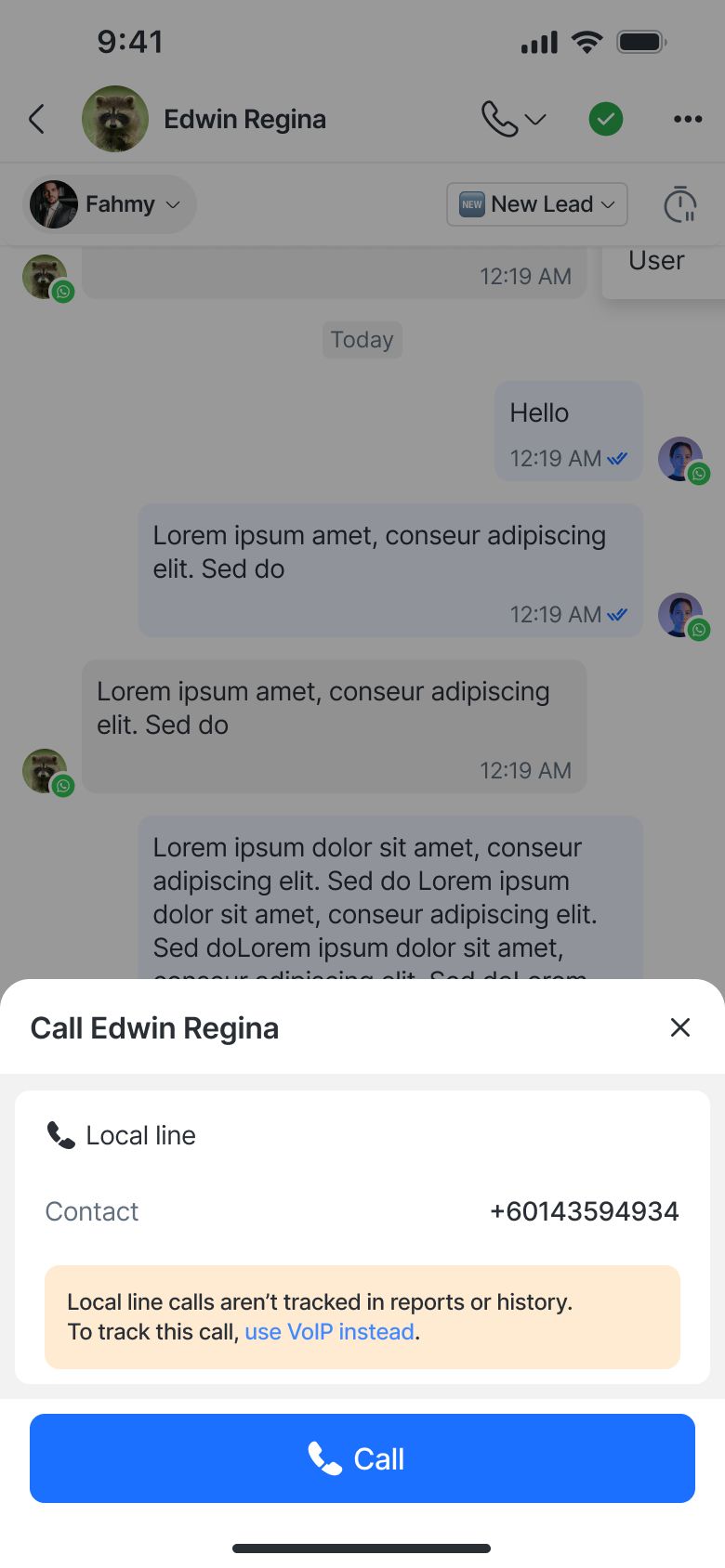
A warning message appears: “Local line calls aren’t tracked in reports or history. To track this call, use VoIP instead.”
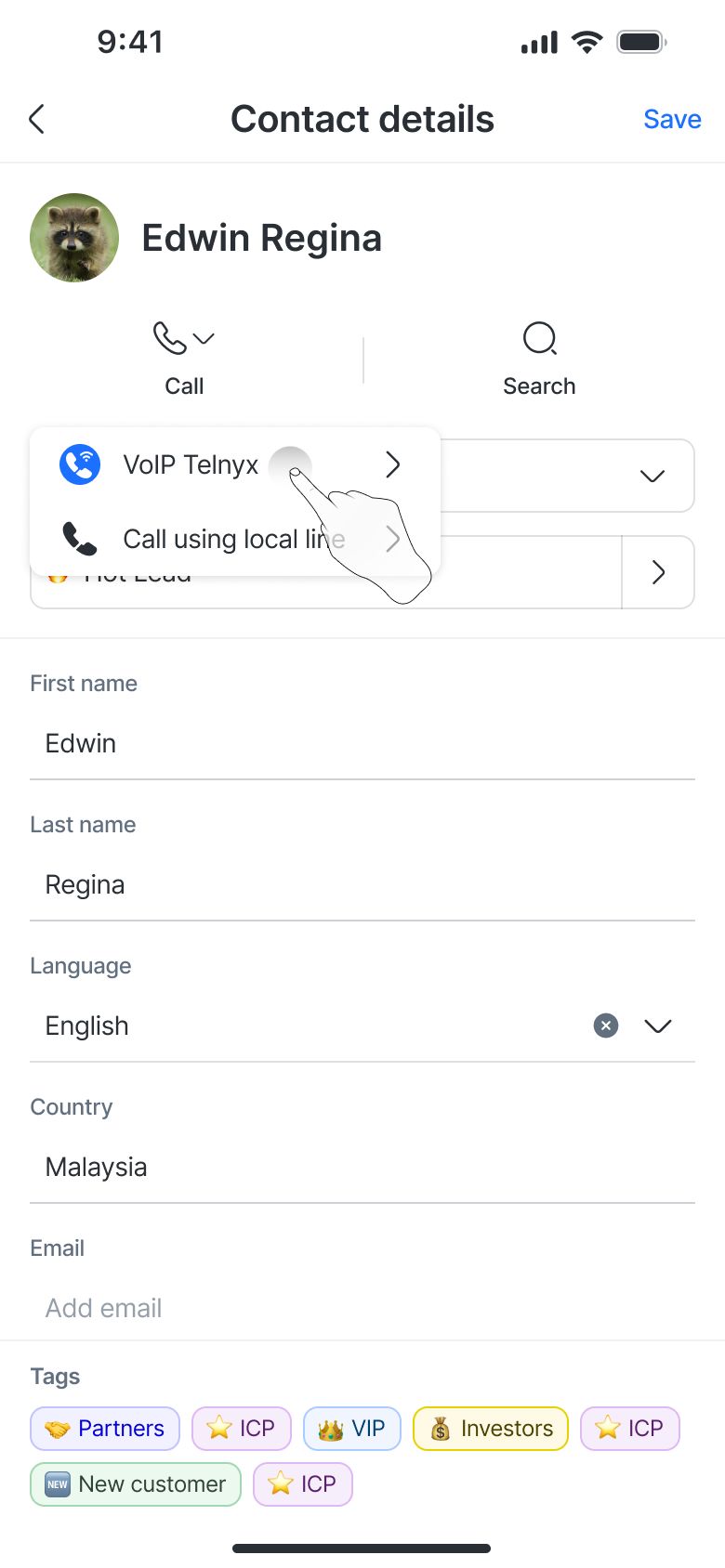
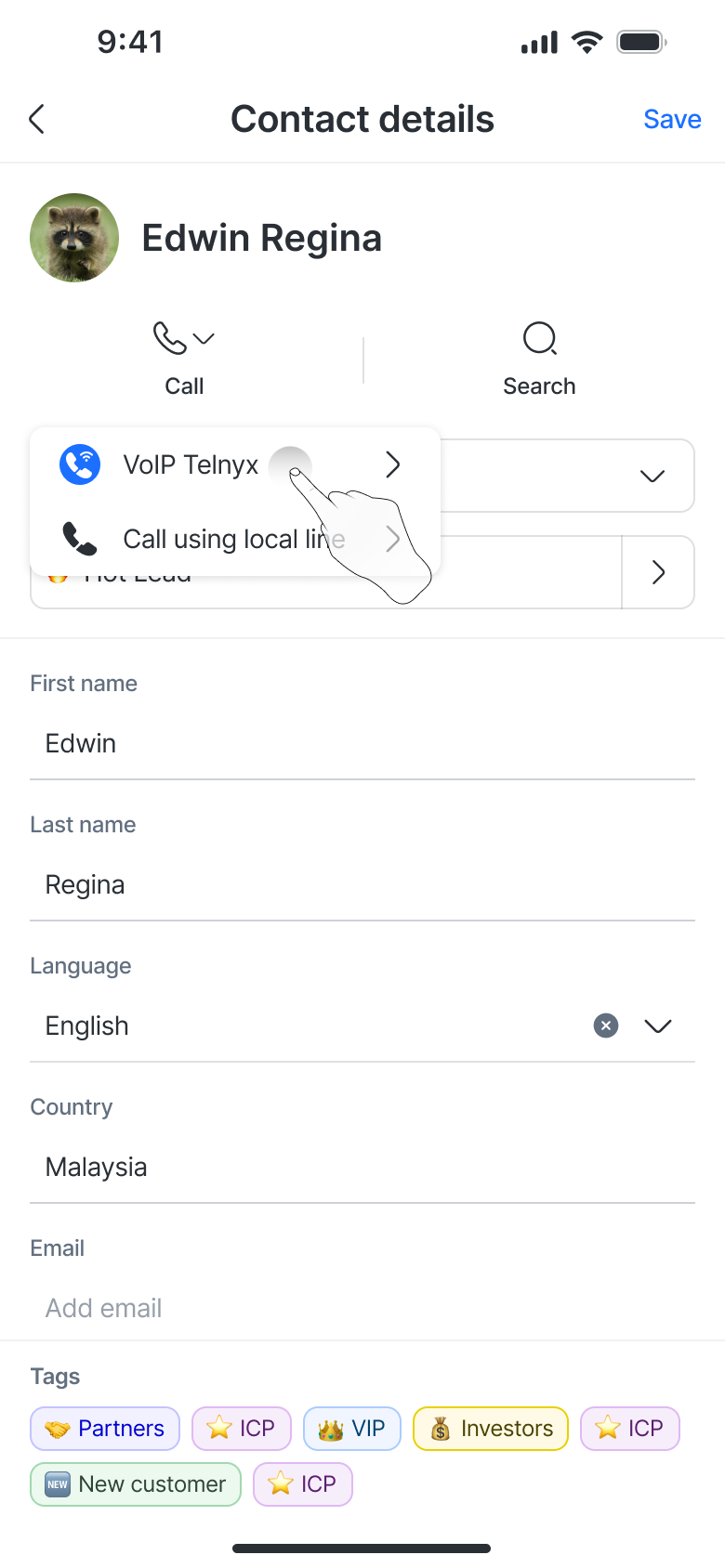
Contact Details Screen
Tap the Call button next to the Contact’s number.
Choose between VoIP or Local Line options via the Call Menu.
If the Contact has no phone number saved, a “+” icon appears to let you add one.
WhatsApp calls are available if a WhatsApp Channel is connected and calling has been enabled for your Workspace.
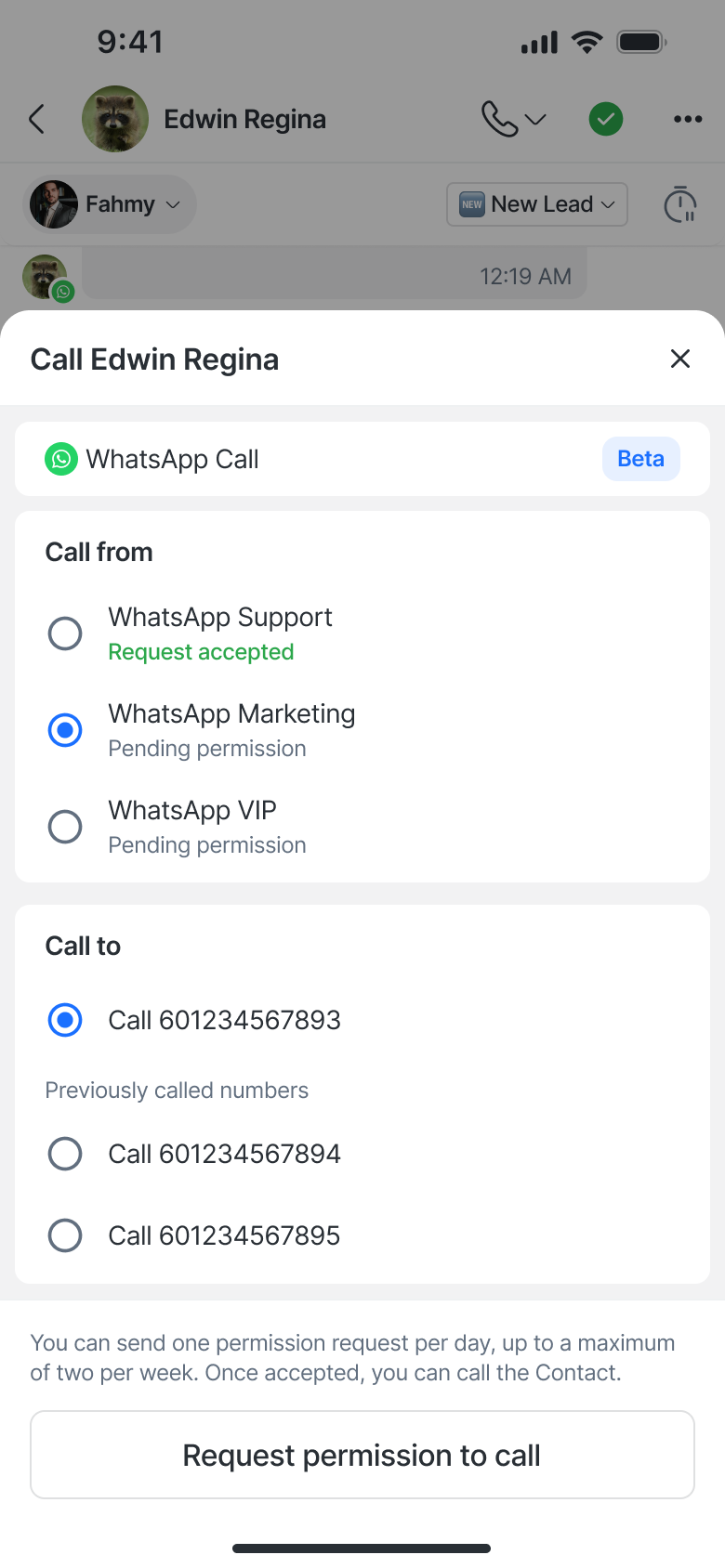
Before placing a call, you must first request permission from the Contact.
Requesting call permission
When you tap the WhatsApp Call option in the Call Menu, a bottom sheet appears.
You must send a permission request to the Contact before calling.
You can send one request per day, up to two per week.
Once the Contact accepts, the Call button becomes available and their permission is permanent unless they revoke it.
If permission is pending, the Call button remains disabled.
If the messaging window is closed, you must send a message template to reopen it before sending the request.
After sending a request, a confirmation toast appears: “Request sent! You’ll be notified when the Contact accepts, and then you can call.”

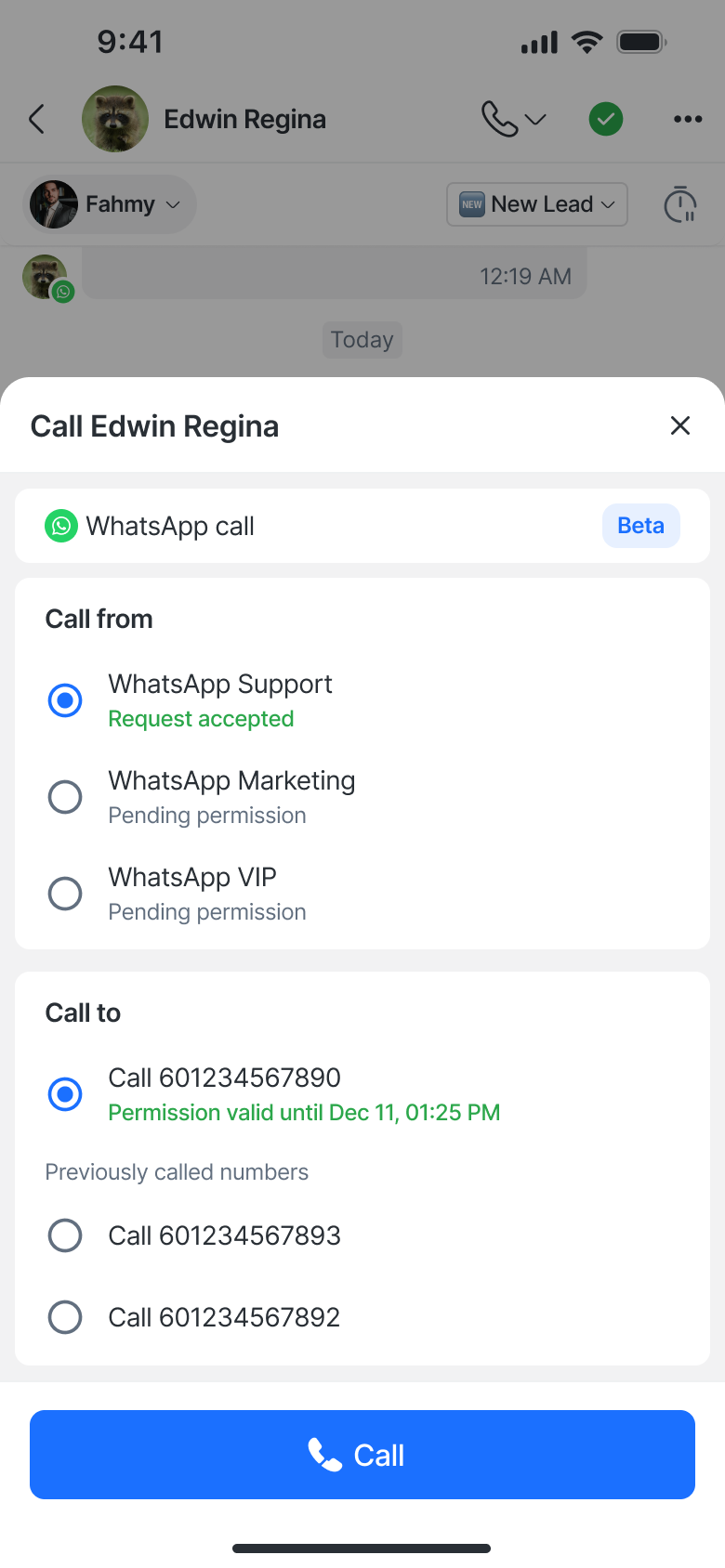
You can access the WhatsApp Call option from:
Conversation screen: Tap the Call button (phone icon) at the top.
Contact details screen: Tap the Call button beside the Contact’s number.
Messenger
Messenger calls are available if a Facebook Messenger Channel is connected and calling has been enabled for your Workspace.

Before placing a call, you must first request permission from the Contact.
Requesting call permission

When you tap the Messenger Call option in the Call Menu, a bottom sheet appears.
You must send a permission request to the Contact before calling.
You can send up to 2 requests per thread per day.
Permission is valid for 7 days from the time it is granted.
A new request is required after permission expires.
If the messaging window is closed, you must send a message template to reopen it before sending the request.
After sending a request, a confirmation toast appears: “Request sent! You’ll be notified when the Contact accepts, and then you can call.”


You can access the Messenger Call option from:
Conversation screen: Tap the Call button (phone icon) at the top.
Contact details screen: Tap the Call button beside the Contact’s number.
Call experience
Ongoing call interface
Once a call starts, a new screen appears showing:
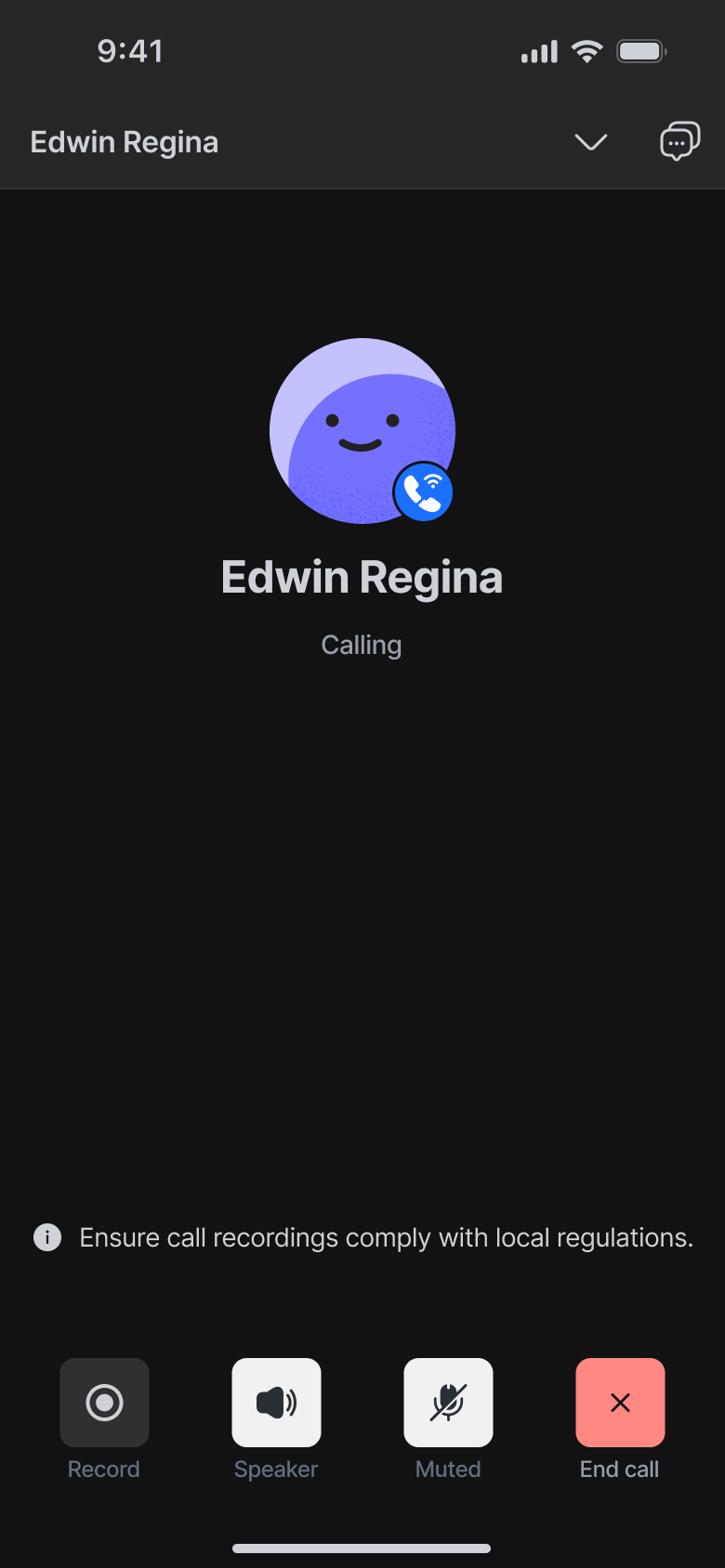
Contact name, avatar, and call status (e.g., Calling… or 00:26)
Call actions:
🎙️ Record button
🔊 Speaker toggle
🔇 Mute toggle
❌ End Call button
If Call recording is enabled, you will see additional controls:
- Manual mode: Record / Pause / Resume buttons
- Automatic mode: A recording indicator appears when the call starts.
Minimized call bar
You can minimize the ongoing call into a floating call bar that remains visible as you navigate the app.
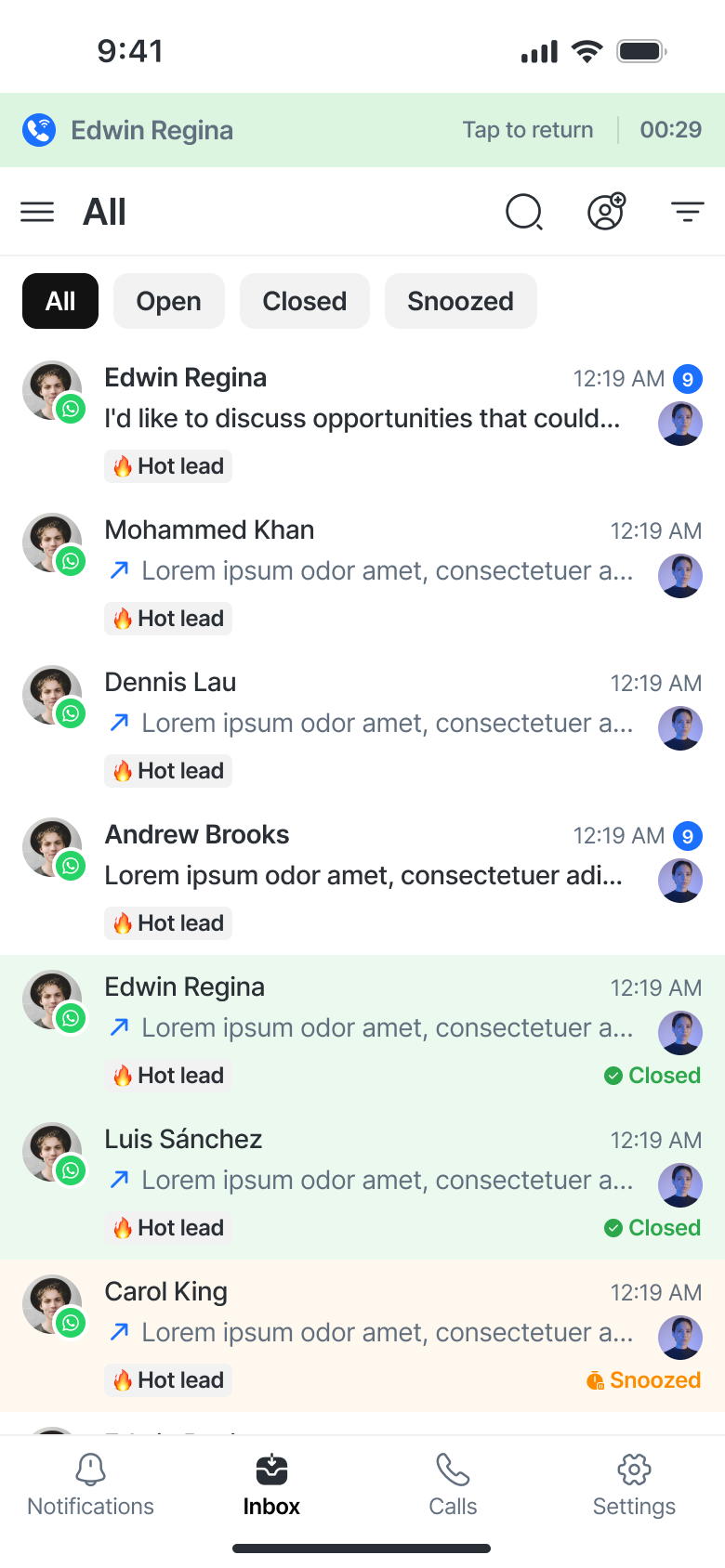
Displays contact name and call duration.
Tap the bar to return to the full call screen.
Call remains active even if the app is minimized or phone is locked (unless interrupted by OS or network issues).
Call transfers
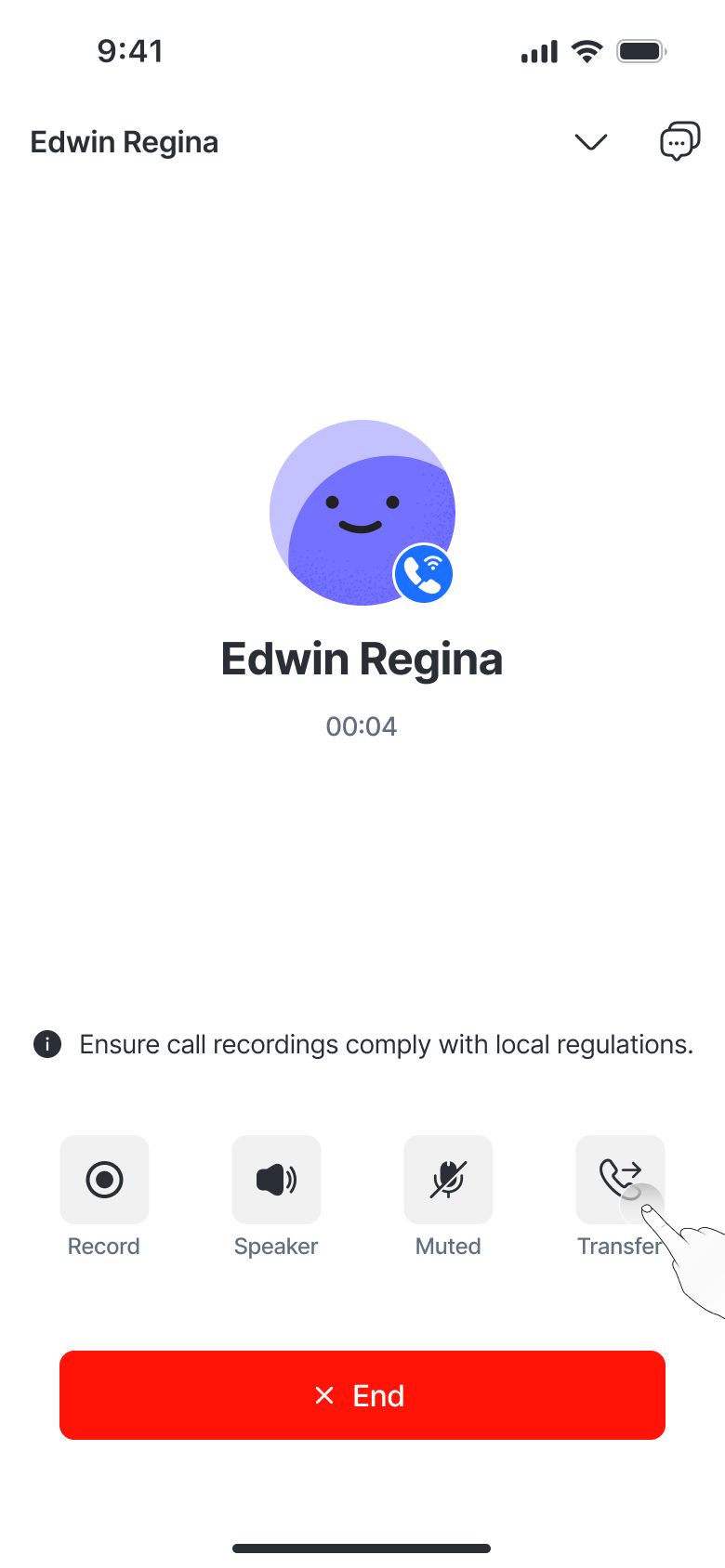
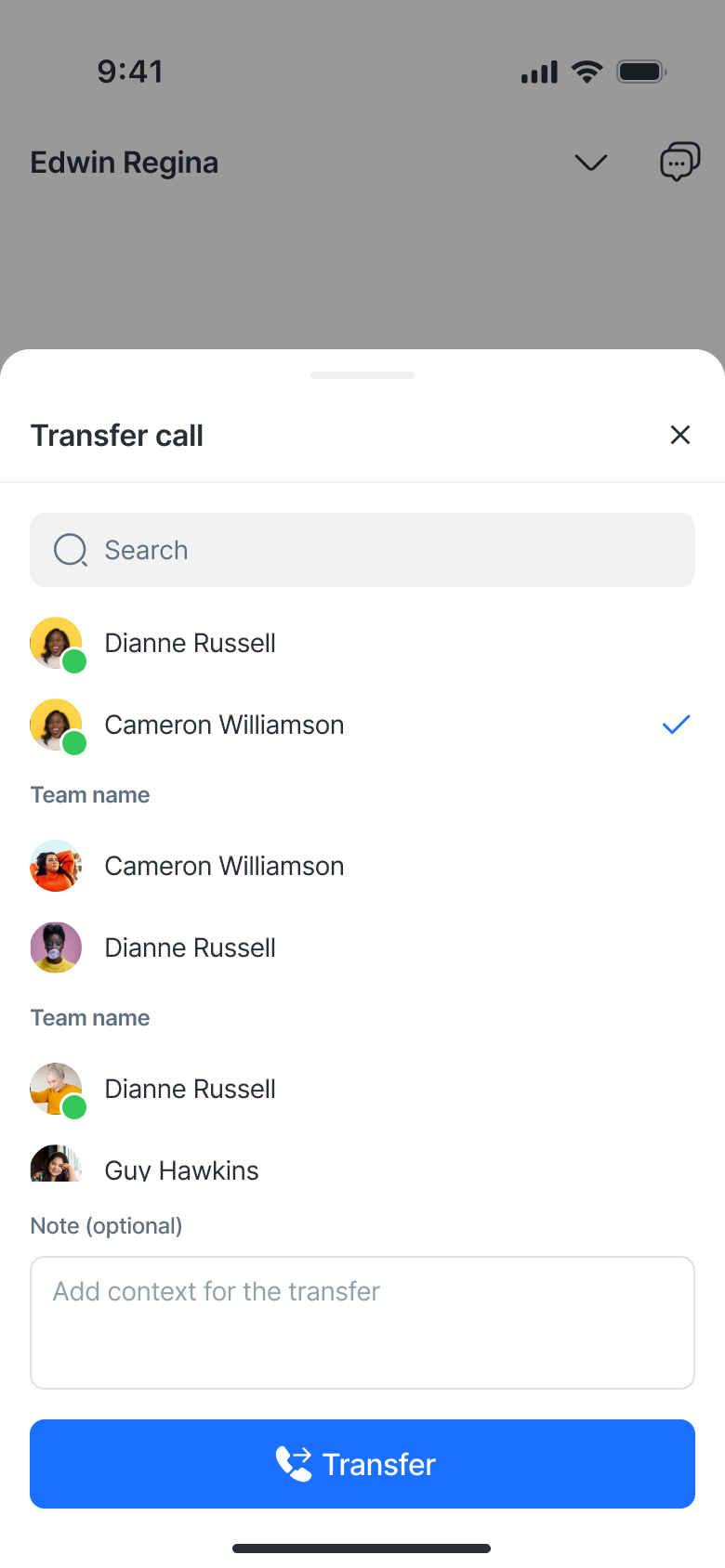
WhatsApp, Messenger, and Telnyx calls support call transfers. This allows agents to transfer an active call to another available teammate in the Workspace.
How to transfer calls
While in a call, tap Transfer
Select the agent you want to transfer the call to.
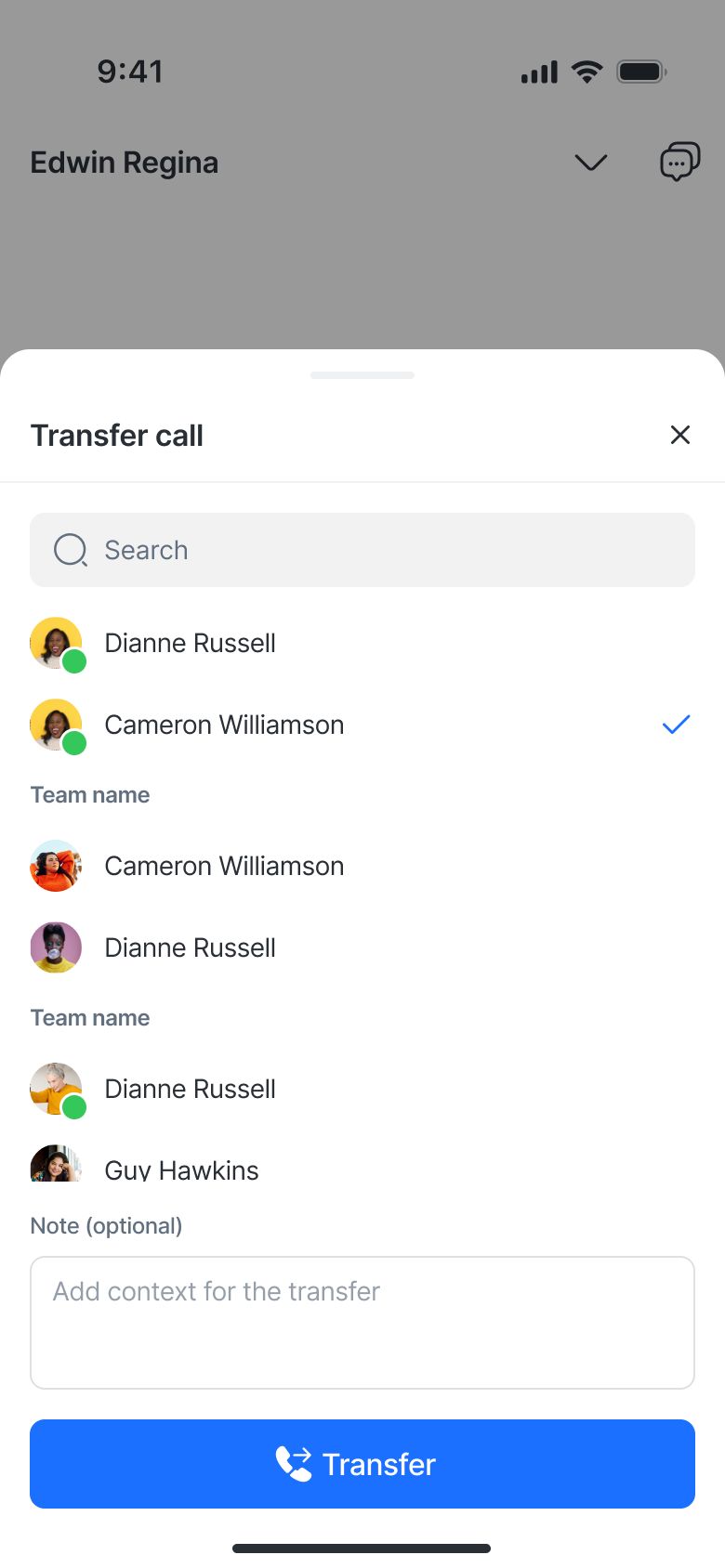
(Optional)Add a note to provide context before transferring.
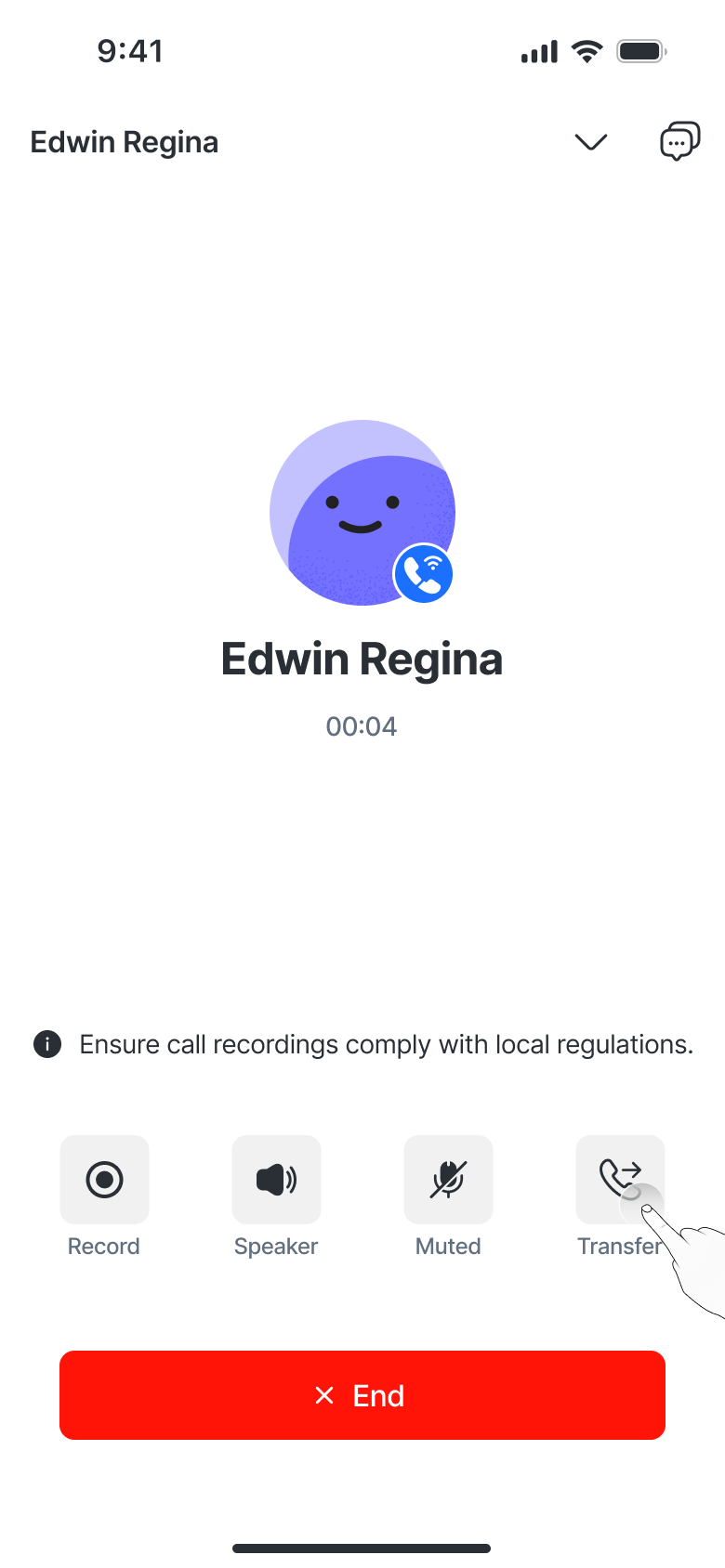
Notes:
Agents with restricted call capabilities won’t appear in the transfer list.
Agents who are already on a call cannot receive a transfer — the initiating agent will see a snackbar notification if the transfer fails.
If the receiving agent doesn’t answer within 30 seconds, the call automatically reverts to the initiating agent.
Call notifications
In-App
Calls from the same contact you’re viewing will trigger an in-app notification card.
The regular Call button is disabled during an incoming call.
Push Notifications
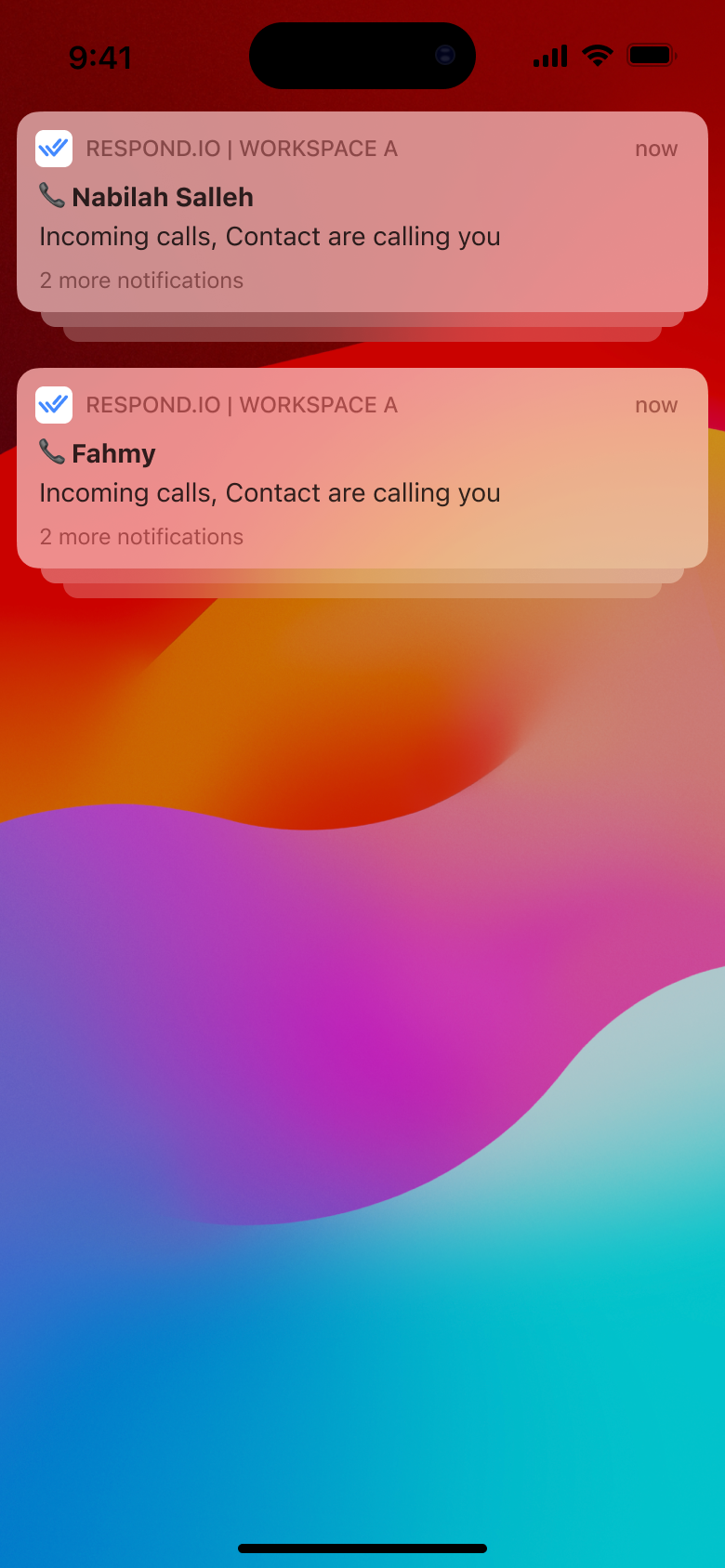
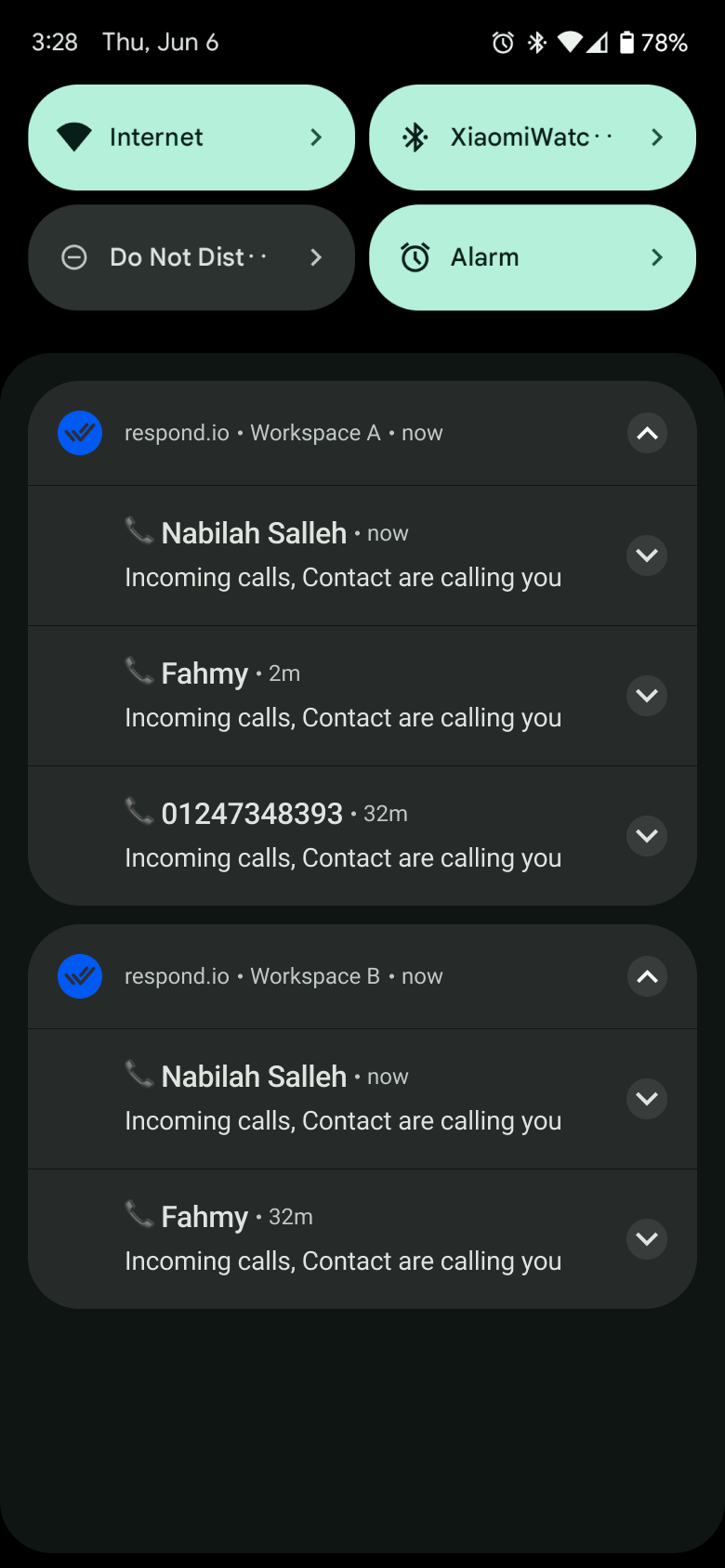
Receive call alerts even when you’re outside the app.
On iOS: Grouped by contact.
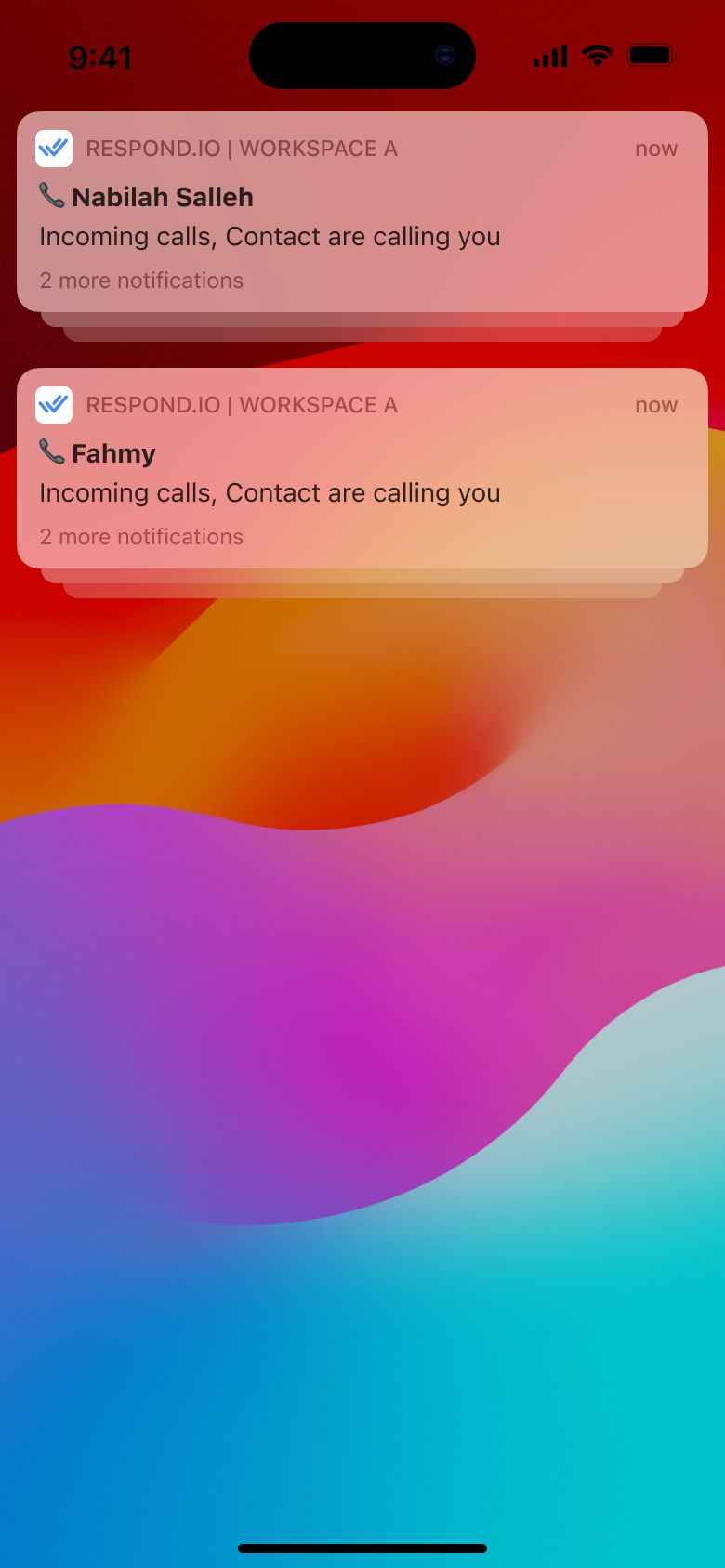
On Android: Grouped by workspace, then contact.
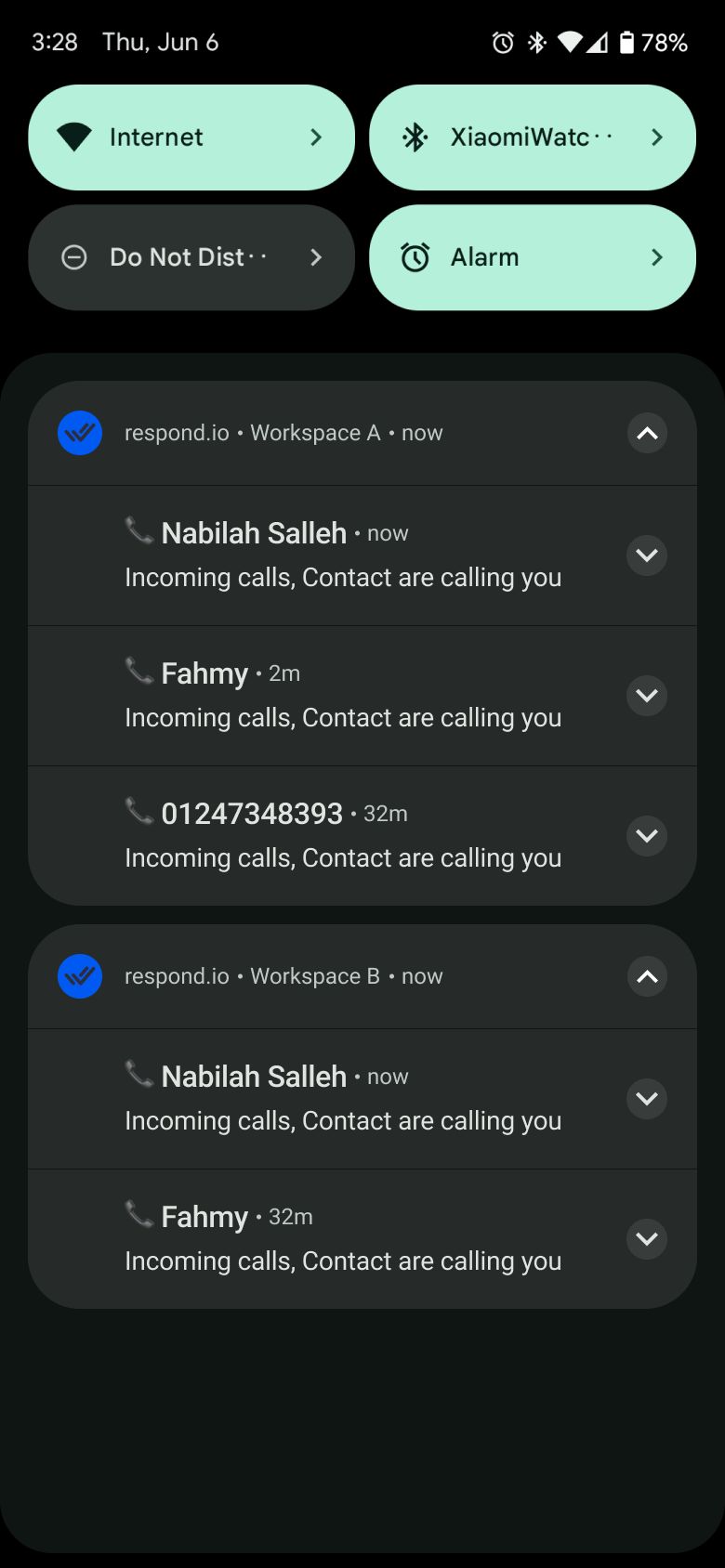
Tapping a notification takes you to the Calls tab.
In-app Call Sounds
From your mobile app settings, go to:
Settings > Update notifications
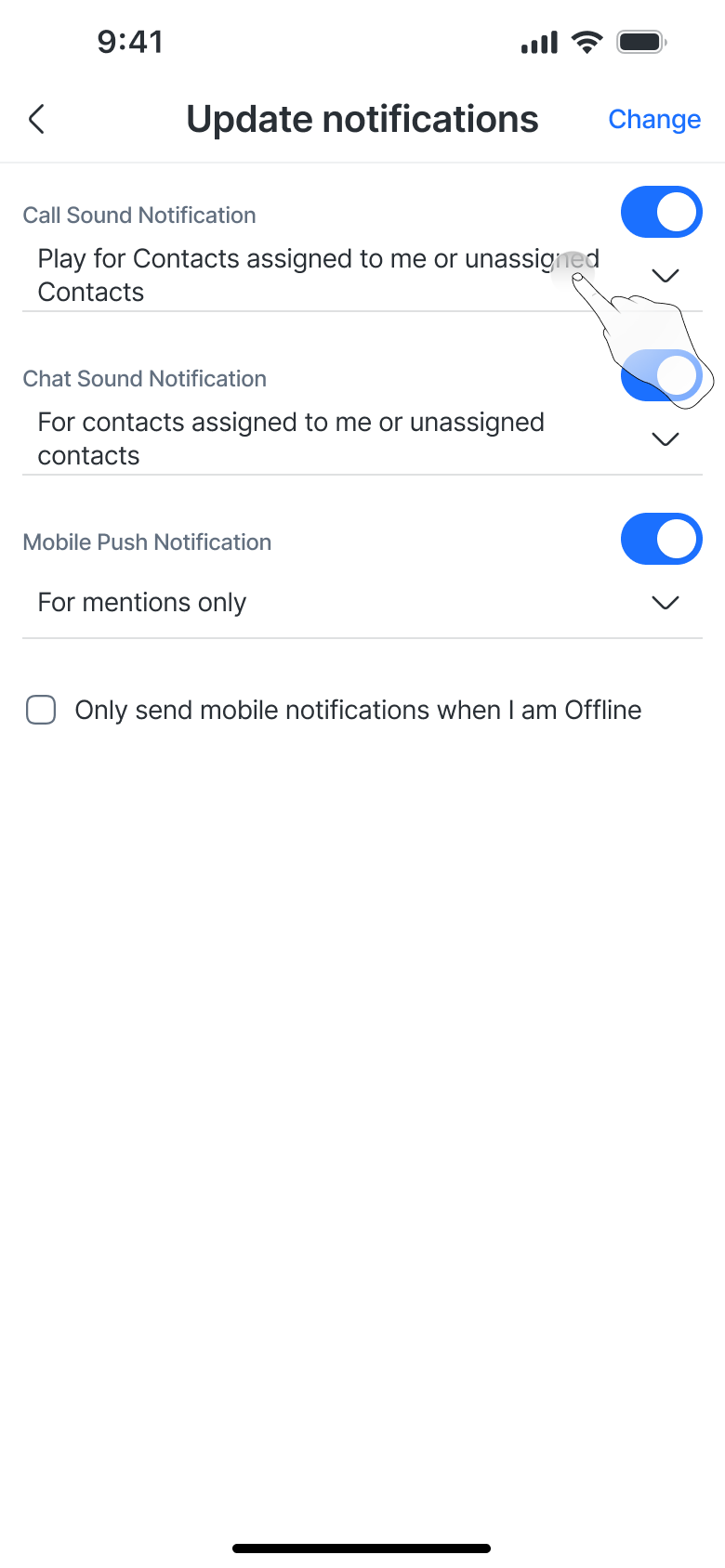
Here, you can configure In-app Call Sounds:
Enabled by default.
Choose who triggers the ringtone:
All Contacts
Assigned Contacts and collaborations only
Assigned Contacts, collaborations and unassigned Contacts
Call Events in Conversation
Call actions automatically generate event logs in the chat history:
Outgoing:
<Agent> started an outgoing <Channel> call.
Contact did not answer the <Channel> call.
Call ended. Duration: 01:20
Incoming:
<Agent> answered an incoming <Channel> call.
You missed a <Channel> call from the Contact.
Contact ended the <Channel> call. Duration: 01:20
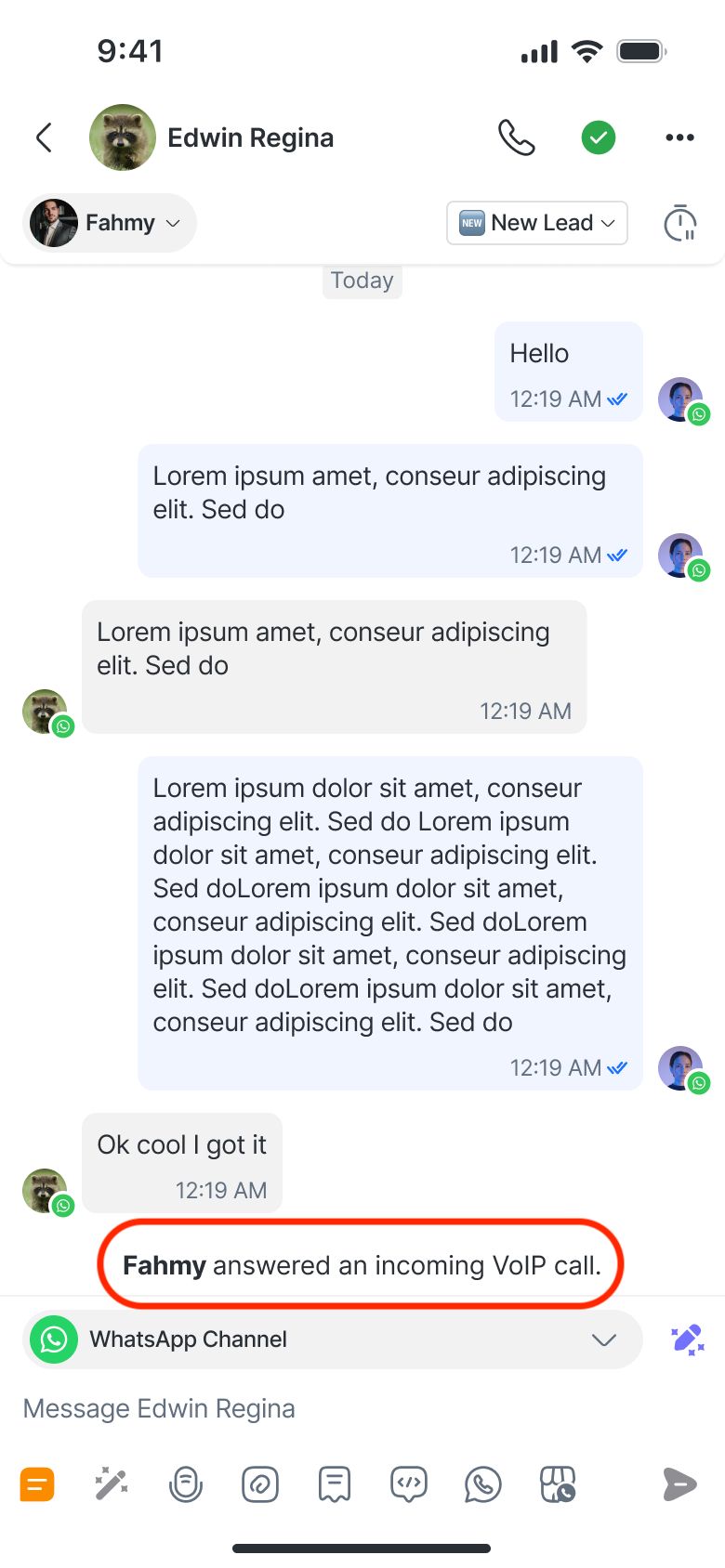
Additional events
Contact has accepted the 📞 WhatsApp call request. (WhatsApp call Channels only)
Contact declined the 📞 WhatsApp call request. (WhatsApp call Channels only)
Contact has accepted the 📞 Messenger call request. (Messenger call Channels only)
Contact declined the 📞 Messenger call request. (Messenger call Channels only)
Call has reached the xx-minute limit. (All call Channels)
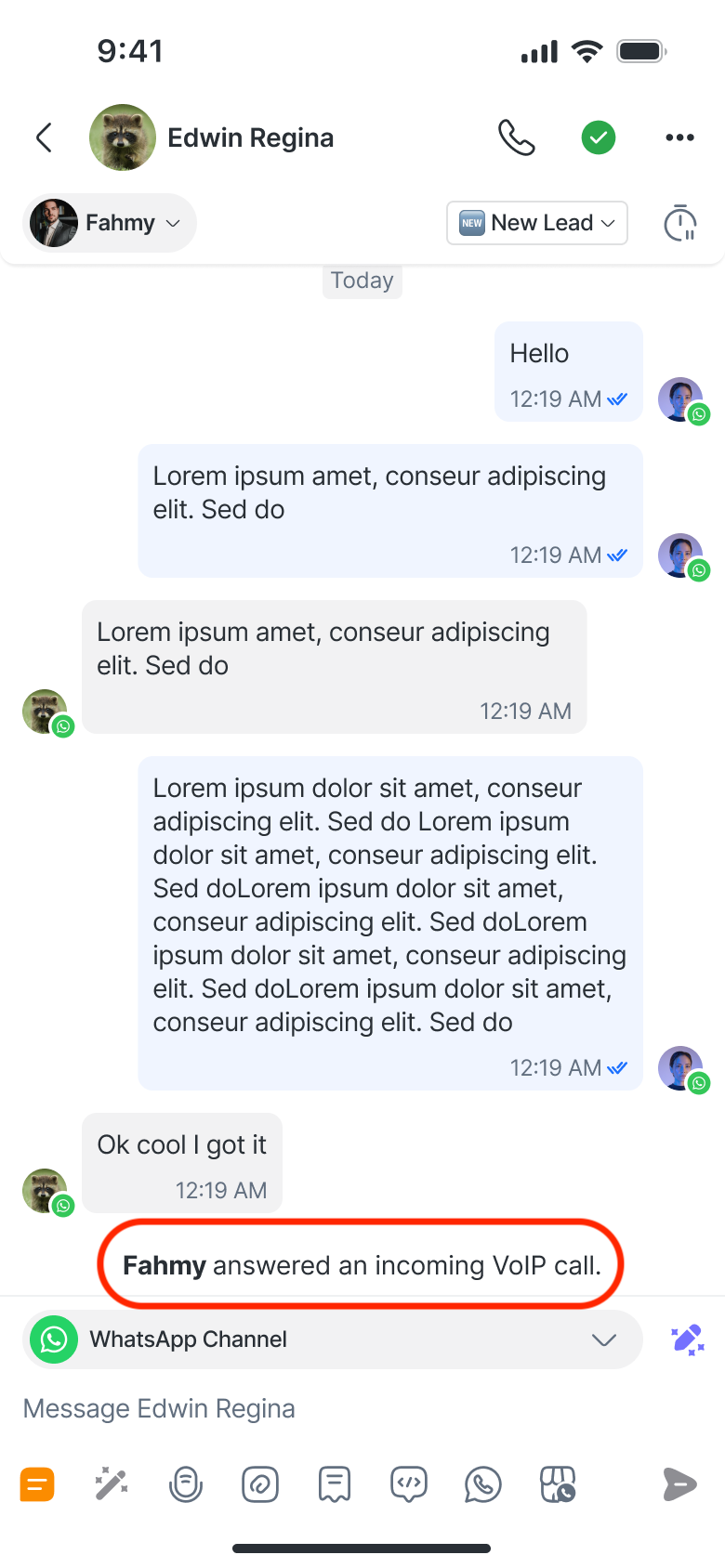
You can view call recordings directly from the Contact event. Each recording is attached to its corresponding event, for example: Fahmy ended an outgoing VoIP call. Duration: 4:25 View recording.
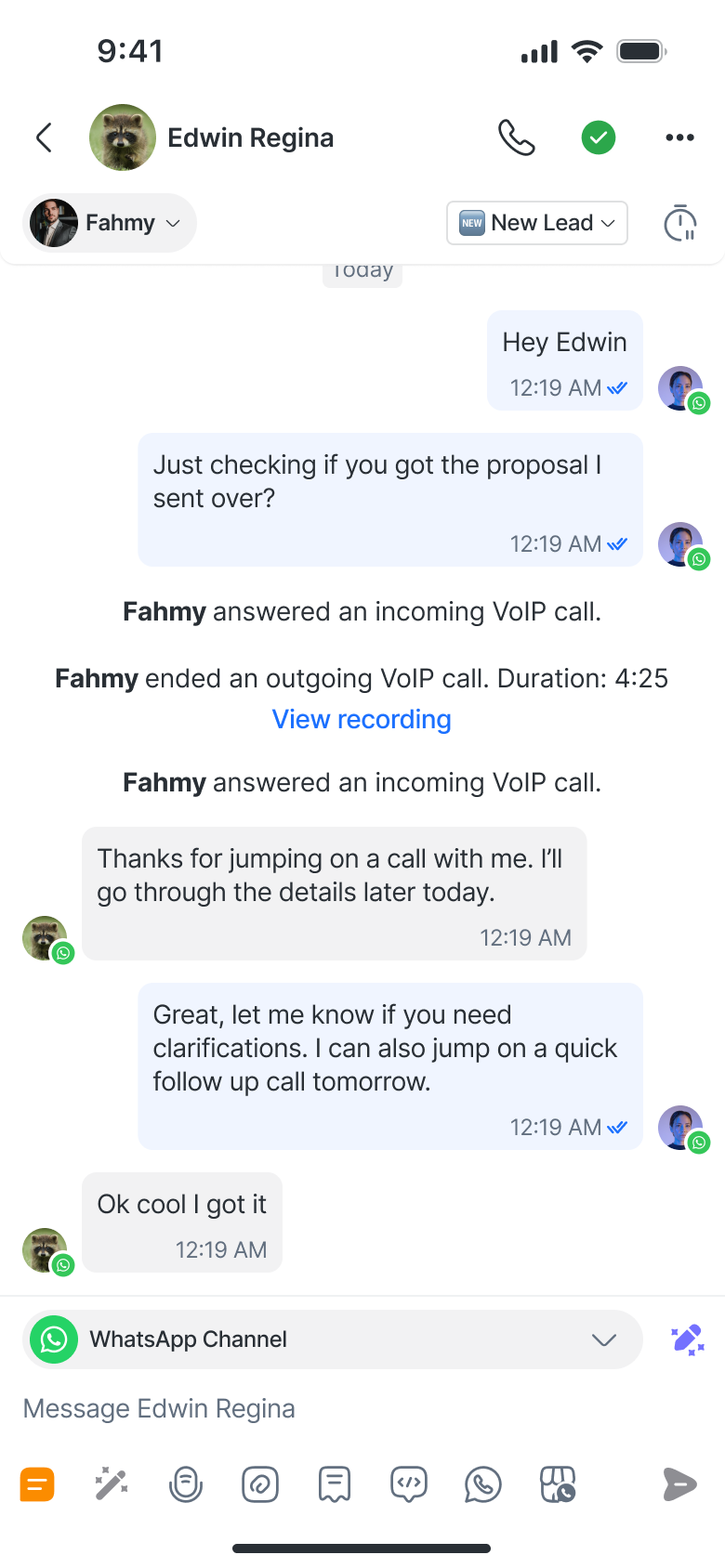
Viewing call transcripts and AI call summary
You can now view, copy, and share transcripts and AI-generated call summaries for recorded calls directly from the Mobile app, just like on the web.
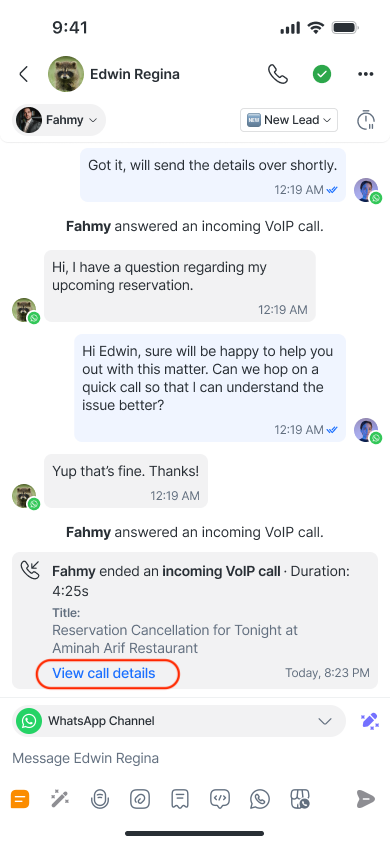
Tap View call details on a recorded call event to open the call content. This shows the call recording, transcript, and an AI-generated summary of the call.
Each line in the transcript includes timestamps, speaker names, and transcribed text.
Tap a timestamp to jump to that point in the recording.
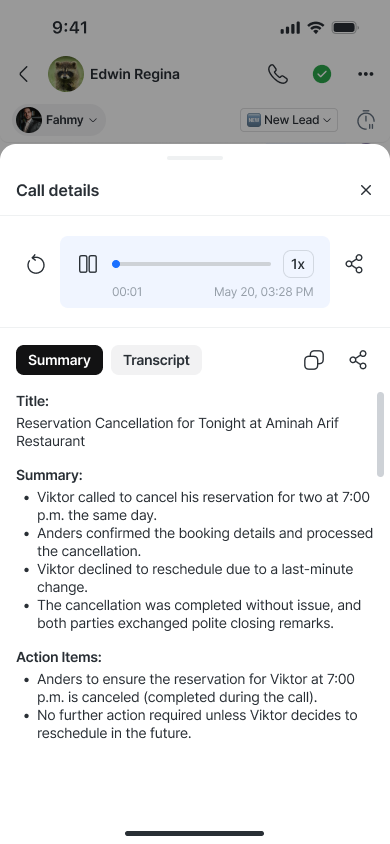
On this screen, you can:
Copy the full transcript to your clipboard
Share the transcript → opens your device’s native share menu
Copy the AI Call Summary to your clipboard
Share the AI Call Summary → opens your device’s native share menu
AI Call Summary and transcripts are only available if Call Recording and Call Transcripts & AI Call Summary are enabled in your Workspace settings. Learn how to do this here.
Call Activity & Call View
With the new Mobile Call View, you can now see and manage your recent call activity on the go:
✅ Incoming, missed, ongoing, and ended calls — all in one place.
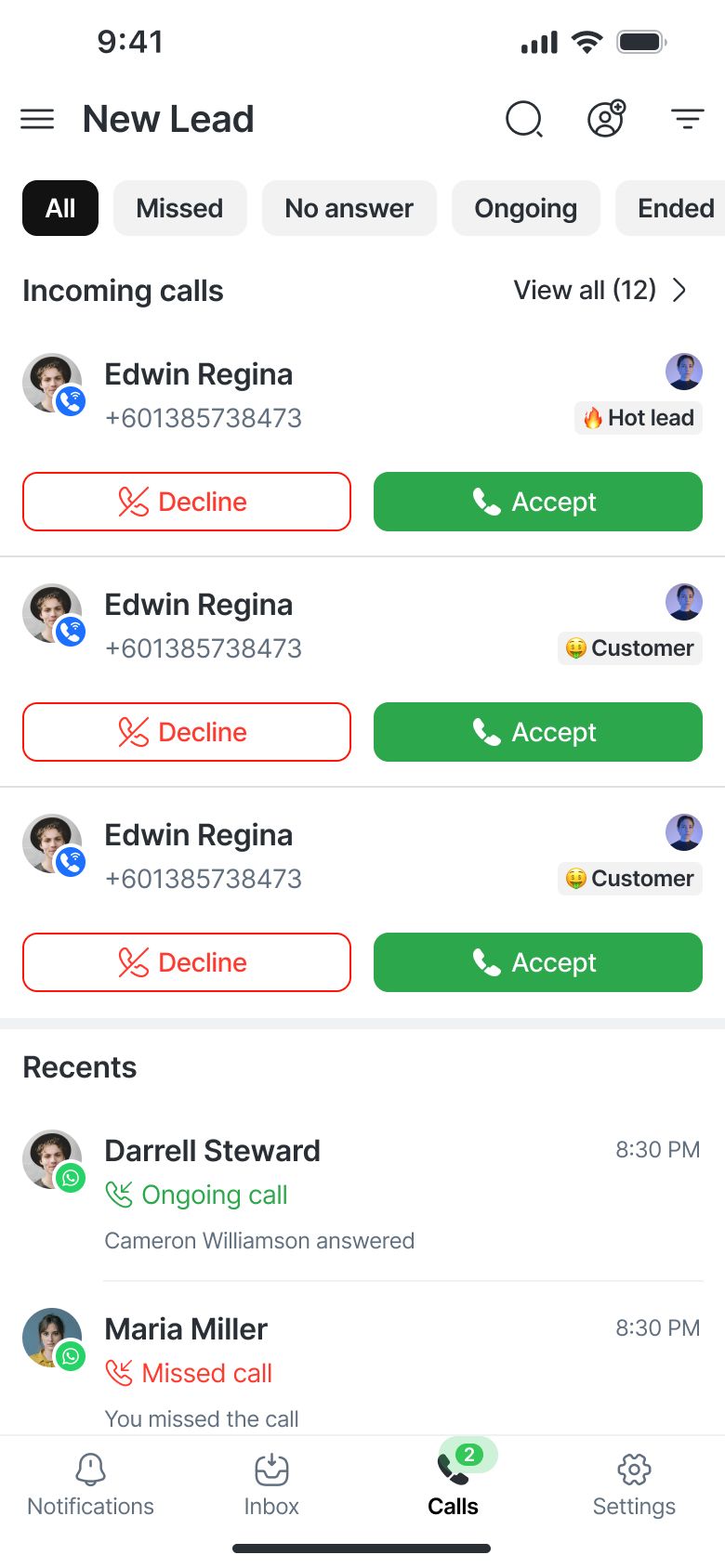
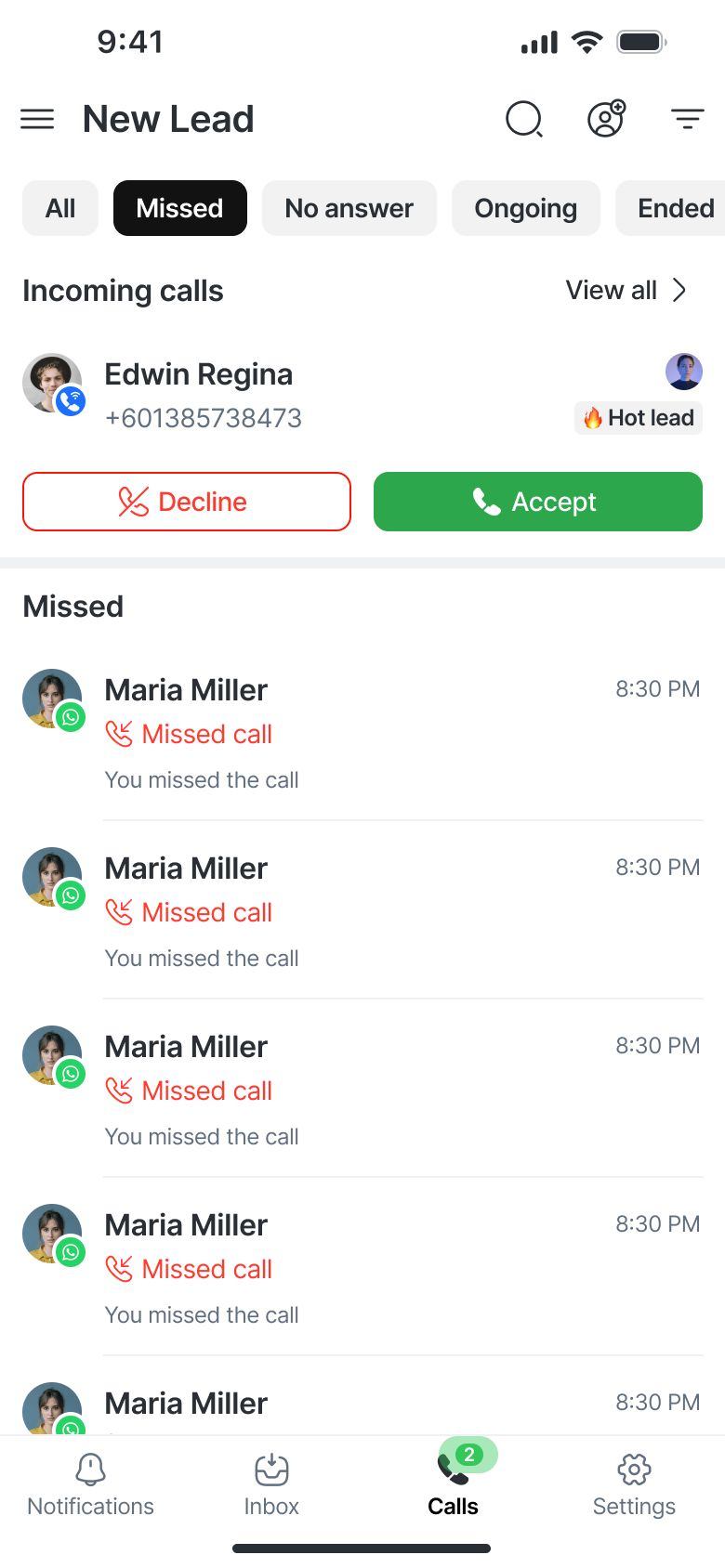
🔎 Filter by call status (e.g., Missed, No Answer, Ongoing, Ended).
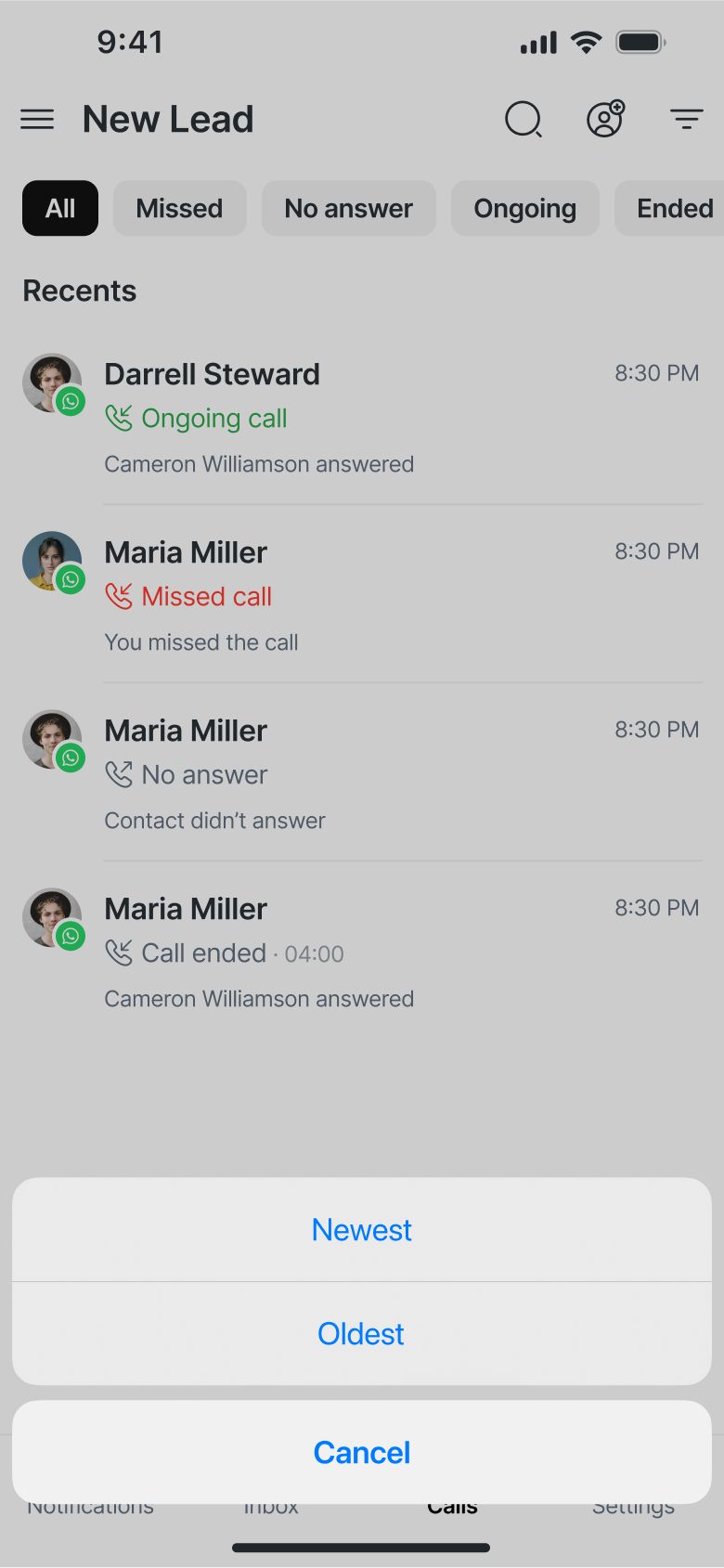
📅 Sort by newest or oldest to quickly find what you need.
🔍 Search by Contact to review specific call interactions.
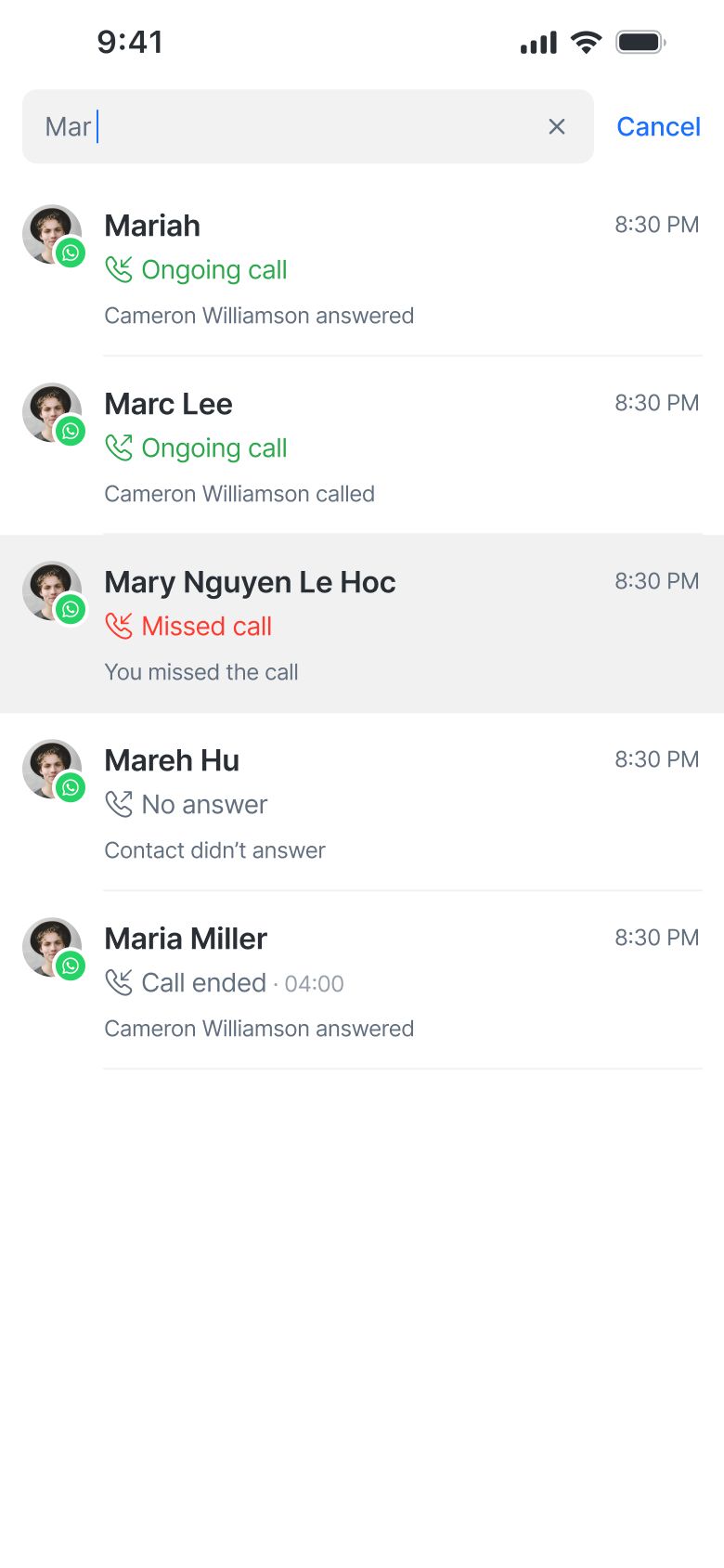
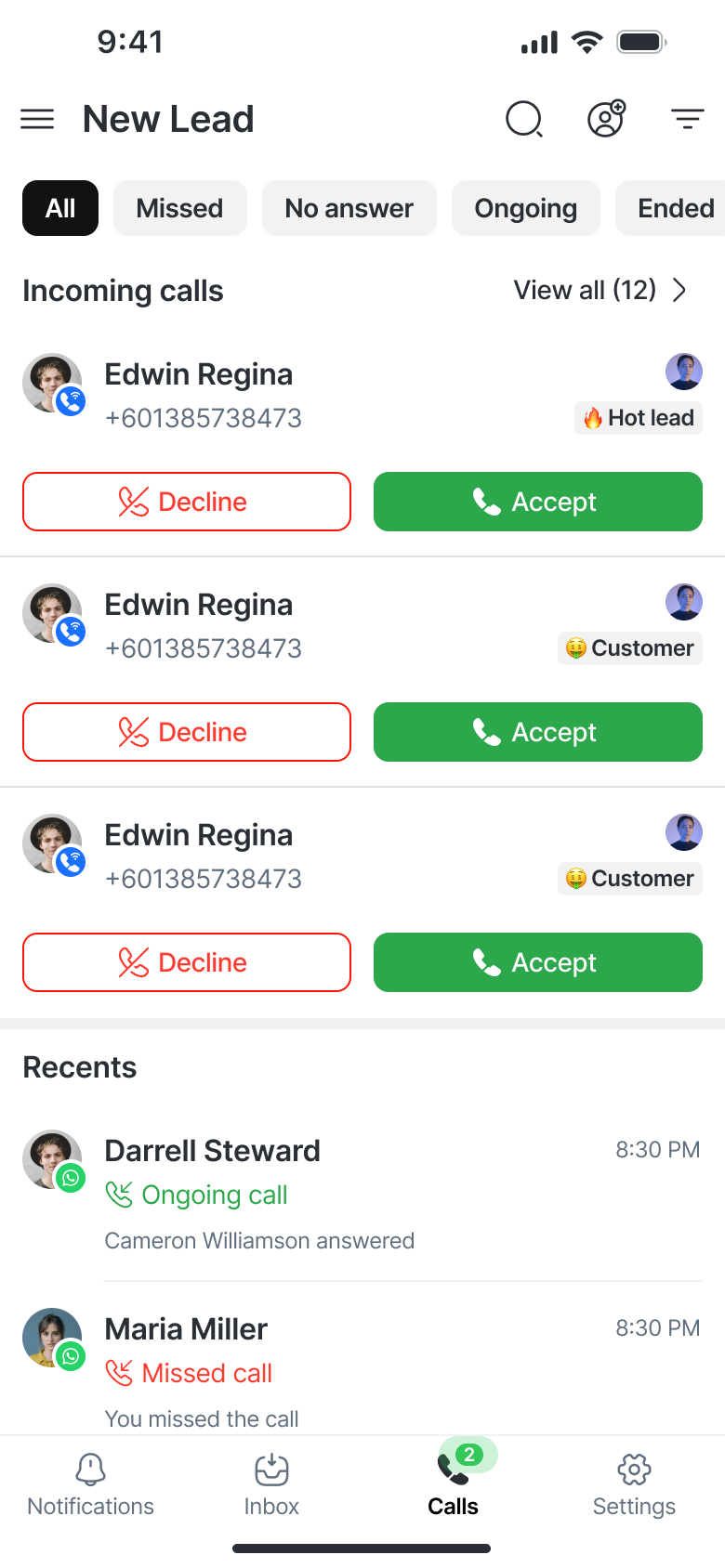
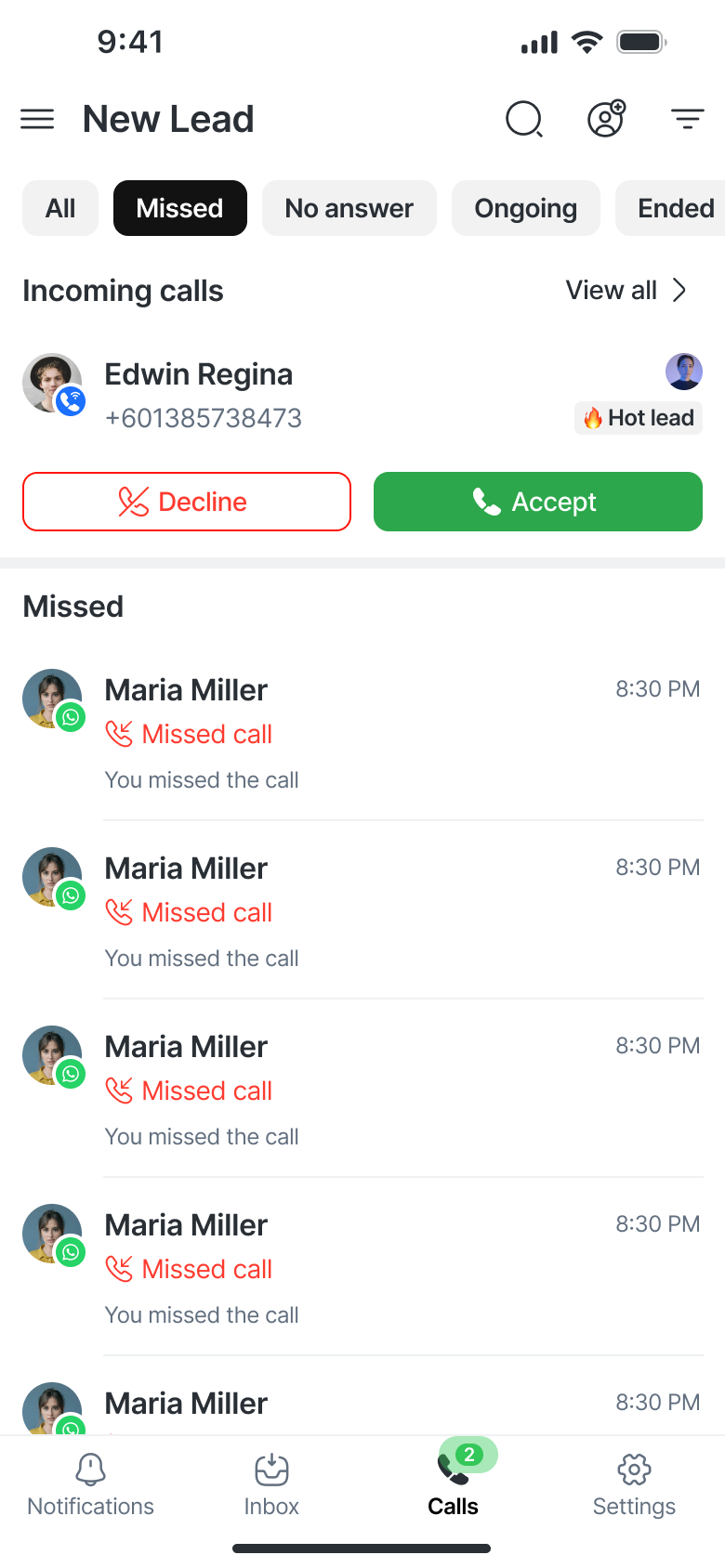
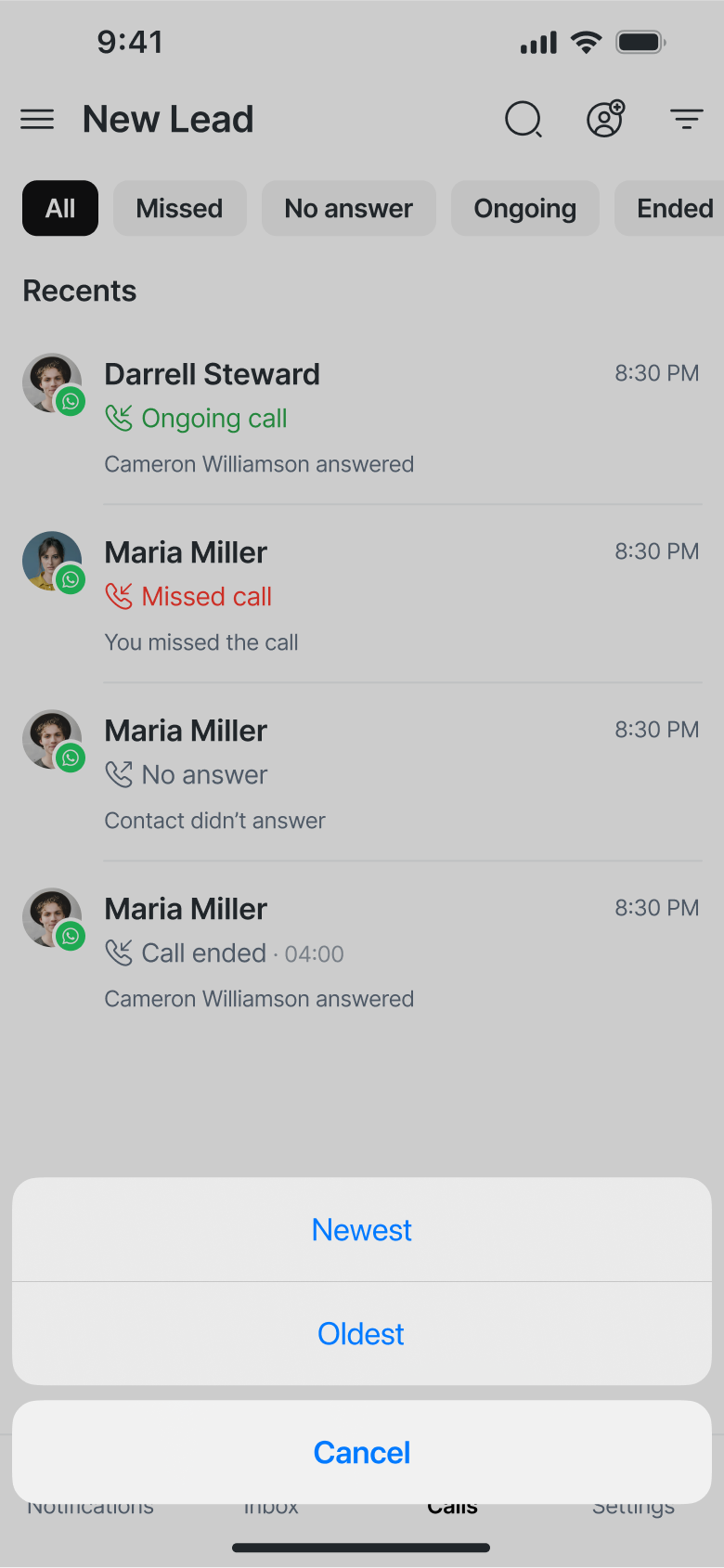
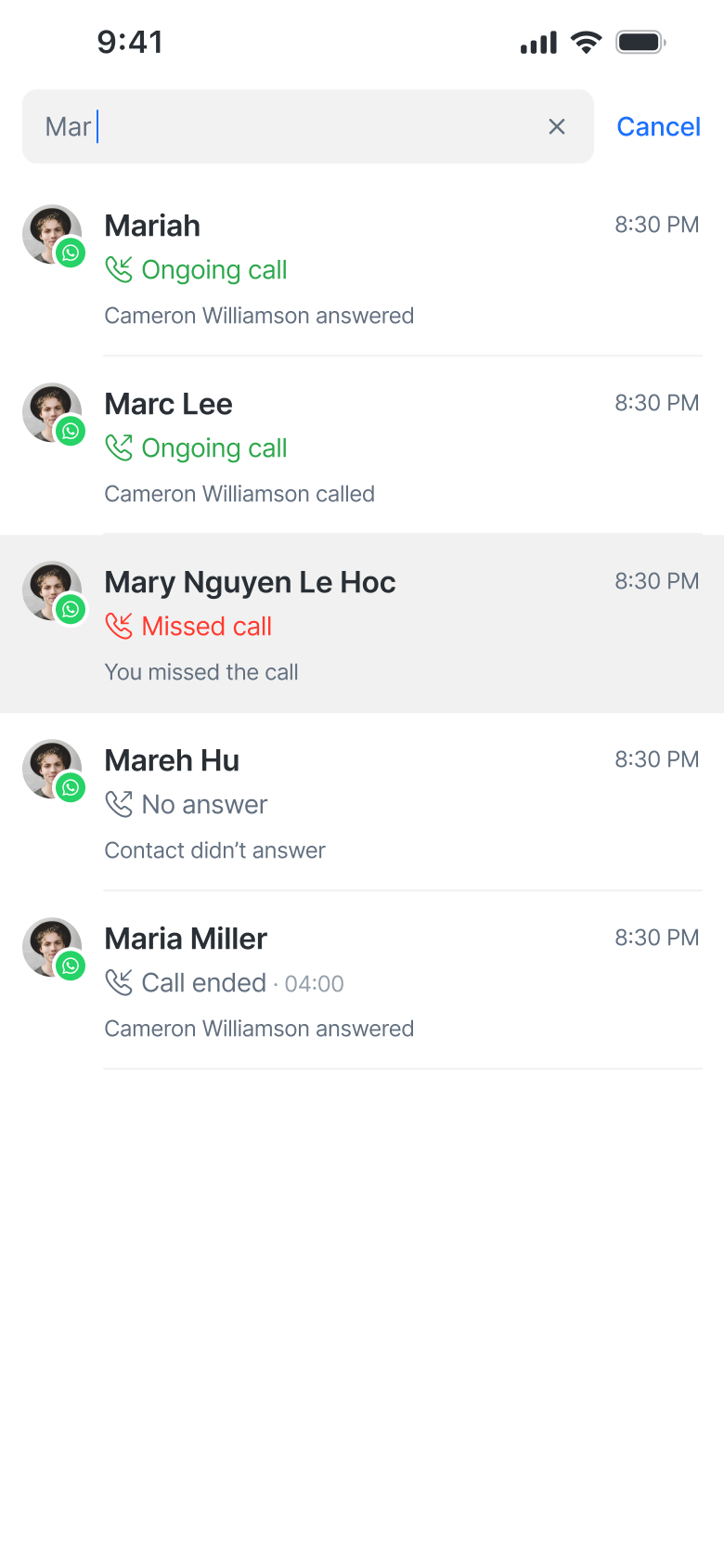
The Calls tab also includes a dedicated Incoming Calls section at the top for active calls, while your full call activity appears below in the Recents section.
To search for a Contact in the Calls log:
Optional: Tap a filter (All, Missed, No Answer, Ongoing, Ended) to narrow down search results.
Tap the magnifying glass icon in the Calls tab.
Type the Contact’s name.
Search automatically begins after entering at least 3 characters.
Recent call entries appear first in the results.
Important:
Search results are limited to the selected filter. For example, if Missed is selected, only missed calls will appear in the search results.
Searching for a Contact in the Calls tab will only display the latest call with that Contact.
Previous calls with the same Contact will not appear in the search results.
Limitations & Permissions
General
If your admin has disabled calling, you won’t be able to place or receive calls. The Calls tab will show an empty state: “Calling isn’t available. Please contact your manager for access.”
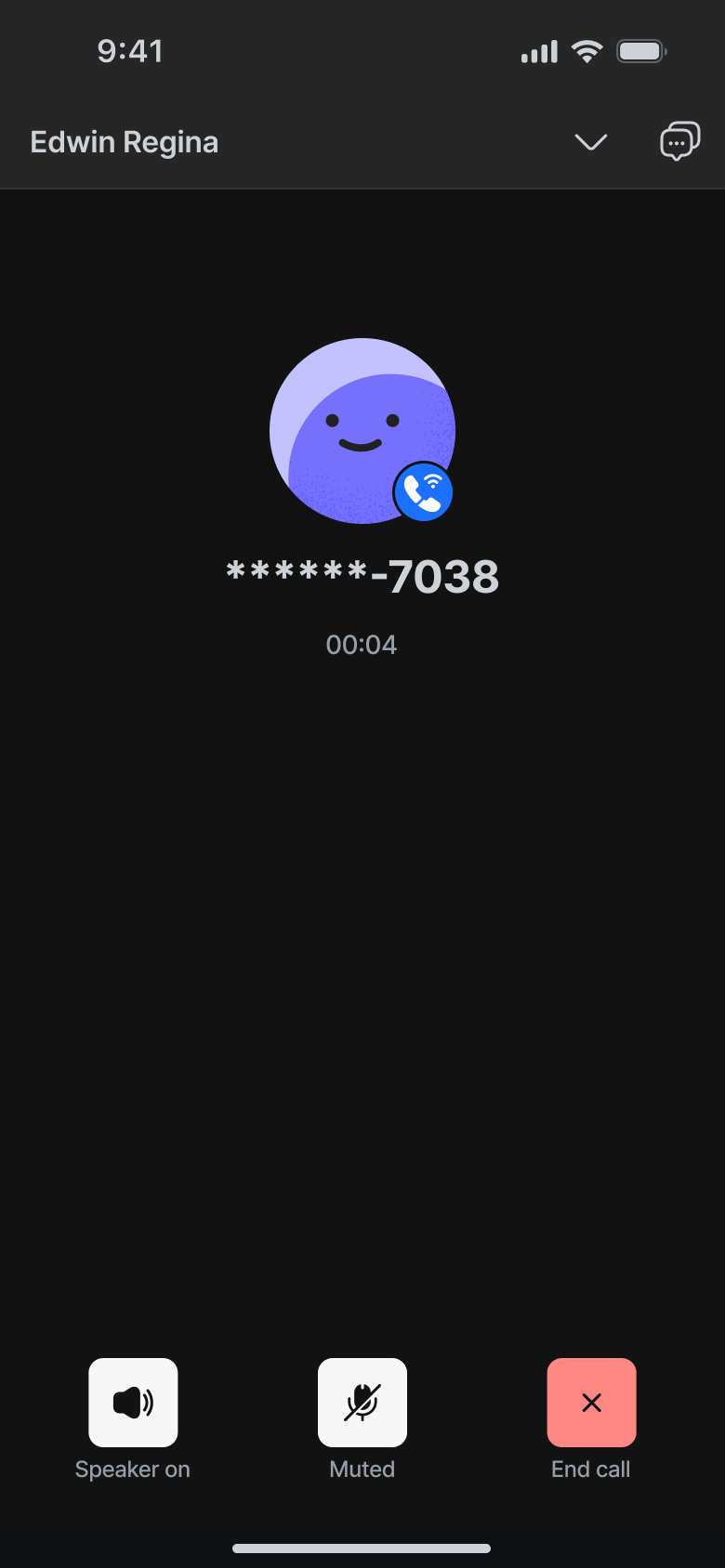
If phone number masking is enabled for your account, phone numbers will appear as: ******-1234.
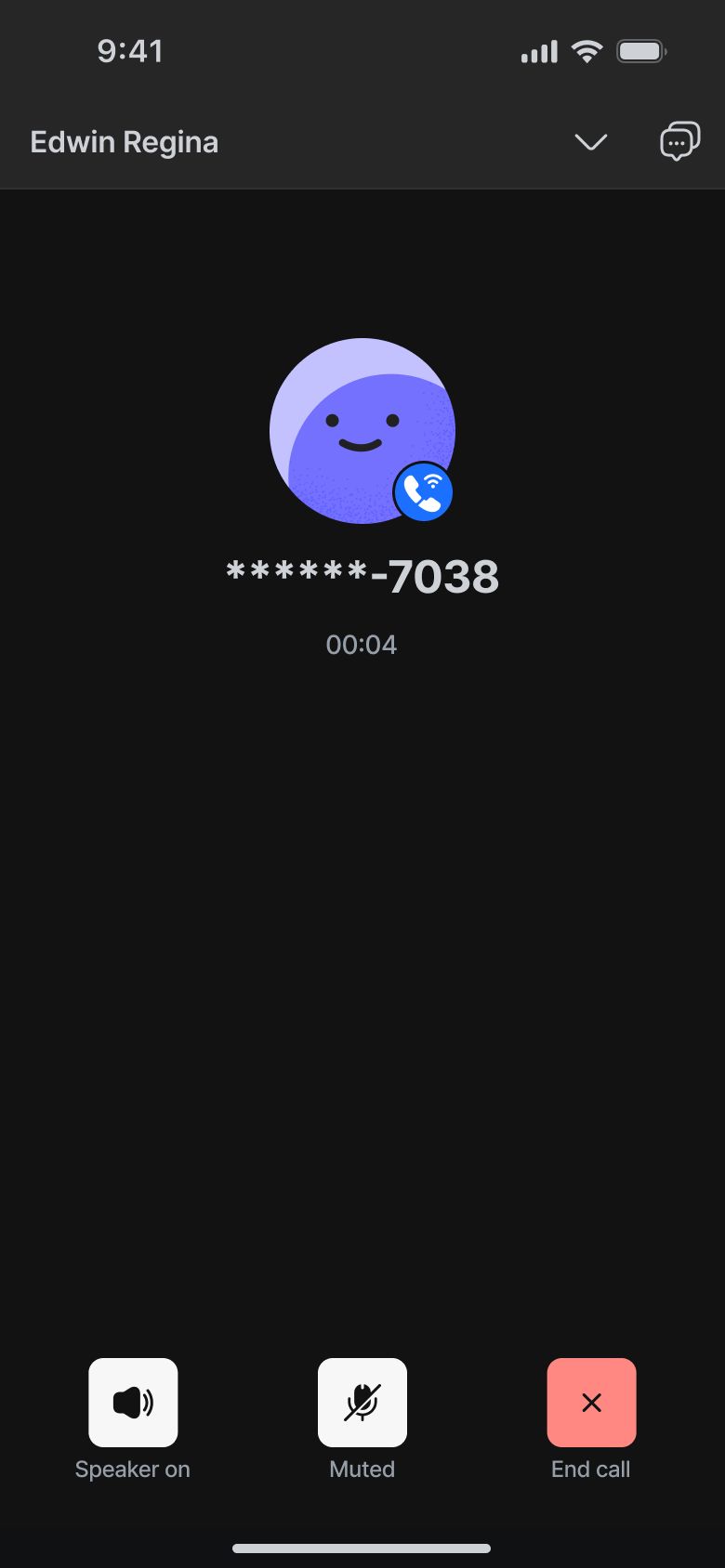
If call recording is disabled at Workspace level, recording controls and playback options will not be shown on mobile.
If Call Transcripts are disabled in Workspace settings, transcript options will not appear in the Call Content view.
Device and System Requirements
Call performance may be affected by device operating system settings and background activity restrictions.
iOS
Calls may be interrupted if Low Power Mode is enabled.
Calls may disconnect if Background App Refresh is disabled for respond.io.
Calls may be affected if the device auto-locks due to inactivity.
Calls may be impacted when Do Not Disturb (DND) mode is enabled.
Unstable network conditions may affect call quality or cause disconnection.
For optimal call stability, enable Background App Refresh, disable Low Power Mode, and avoid locking your device while a call is active in the respond.io app.
VoIP
VoIP calls cannot be initiated with inactive Telnyx numbers. You’ll see an error message if attempted.
The VoIP calling feature is not supported on iOS devices in China due to restrictions on native call UI handling in China. This does not affect other regions.
WhatsApp calls cannot be made without the Contact’s permission.
Calls are not allowed if the messaging window is closed.
The Call button will be disabled if permission is pending.
Messenger
Messenger calls cannot be made without the Contact’s permission.
Calls are not allowed if the messaging window is closed.
Permission is valid for 7 days and must be renewed after expiry.
Messenger calls are available in countries where Messenger business messaging is available. See the full list here.
Helpful Tips
Local line calls use your device’s native dialer and are not tracked in reports.
To ensure proper tracking, use VoIP or WhatsApp Channels when making calls.
WhatsApp, Messenger, and VoIP calls support mute, speaker, and call minimization.


