

The mobile app is designed to provide agents with a convenient way to respond to messages from anywhere. While setup and configuration are still best handled on our web app by Owners and Managers, the mobile experience focuses on delivering fast communication on the go.
In this article, you’ll learn which modules and features are fully supported in the mobile app, as well as those that remain available only on the web app.
Quick overview of mobile vs web app
Here's a quick overview of what modules are available in the mobile app and the web app:
Modules | Mobile app | Web app |
|---|---|---|
❌ | ✅ | |
✅ | ✅ | |
✅ | ✅ | |
❌ | ✅ | |
❌ | ✅ | |
❌ | ✅ | |
❌ | ✅ | |
❌ | ✅ | |
✅ (Personal settings only) | ✅ |
Supported modules and features
Notifications
The Notifications tab is where you can see your notifications to stay up to date.
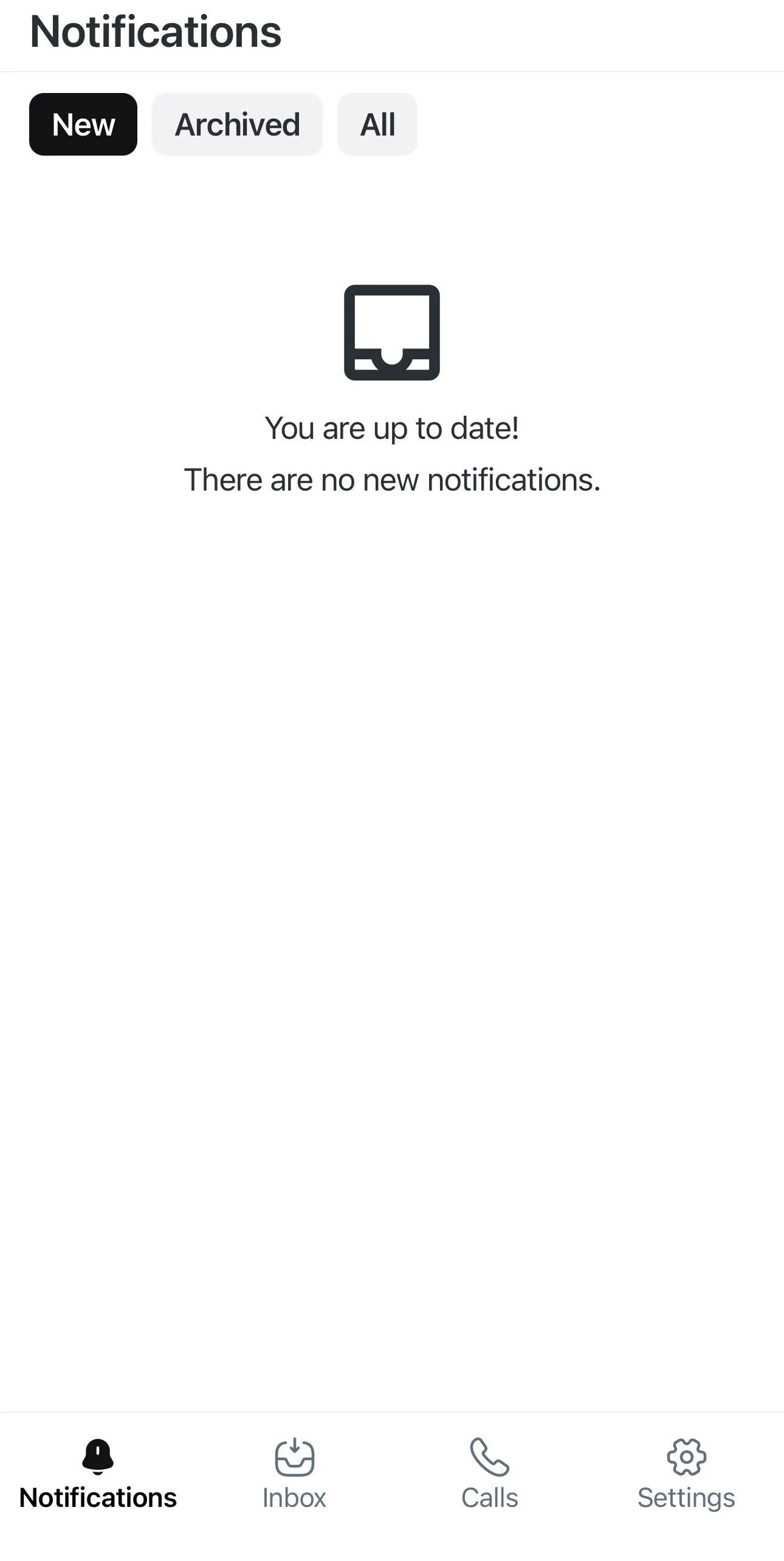
Notification filters:
New: Only shows notifications that were just received.
Archived: Only shows notifications that were archived.
All: Shows all new notifications received regardless of their status.
Inbox
In the mobile app’s Inbox tab, you can access your chats with your Contacts.
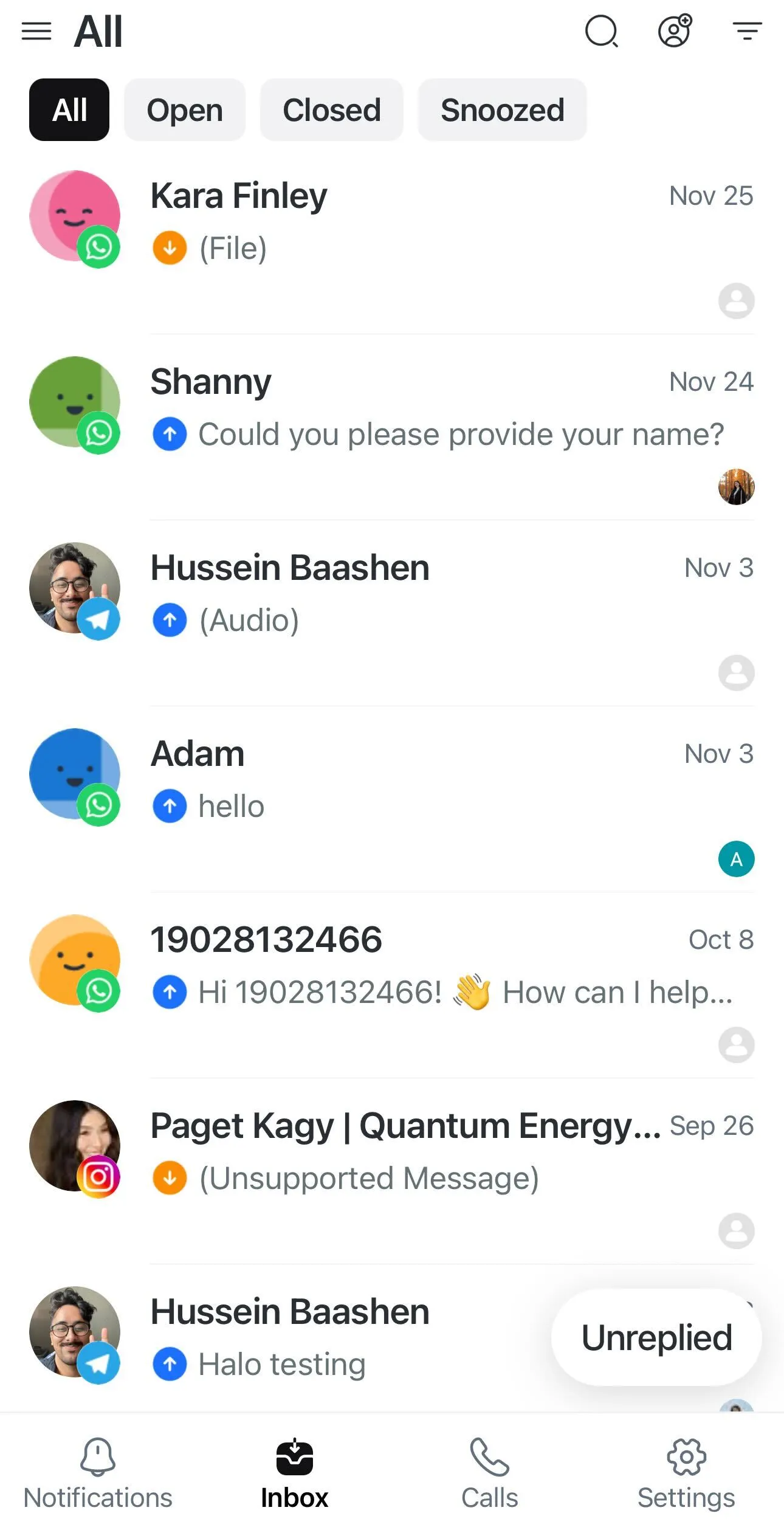
You can view your inboxes such as All, Mine, Unassigned and Blocked Contacts. You can also view Team and Custom inboxes but you can only create them on the web app.
Learn more about the different types of inboxes.
Quick actions menu
Use the quick actions menu to access specific actions for individual conversations in the Inbox.

Long-press a conversation to open the quick actions menu:
Open/Close Conversation: Open or close a conversation.
Select Lifecycle Stage: Add a Lifecycle stage.
Assign User: Assign the conversation to a user or AI Agent.
Collaborators: Add or remove collaborators.
Select Shortcut: Send a predefined Shortcut reply.
Snooze Conversation: Snooze the conversation until a later time.
View Contact Details: See the Contact’s information.
Conversation window
When you open a Contact in the Inbox tab, you are taken to the conversation window, where you can view all incoming and outgoing messages in the chat with that Contact.
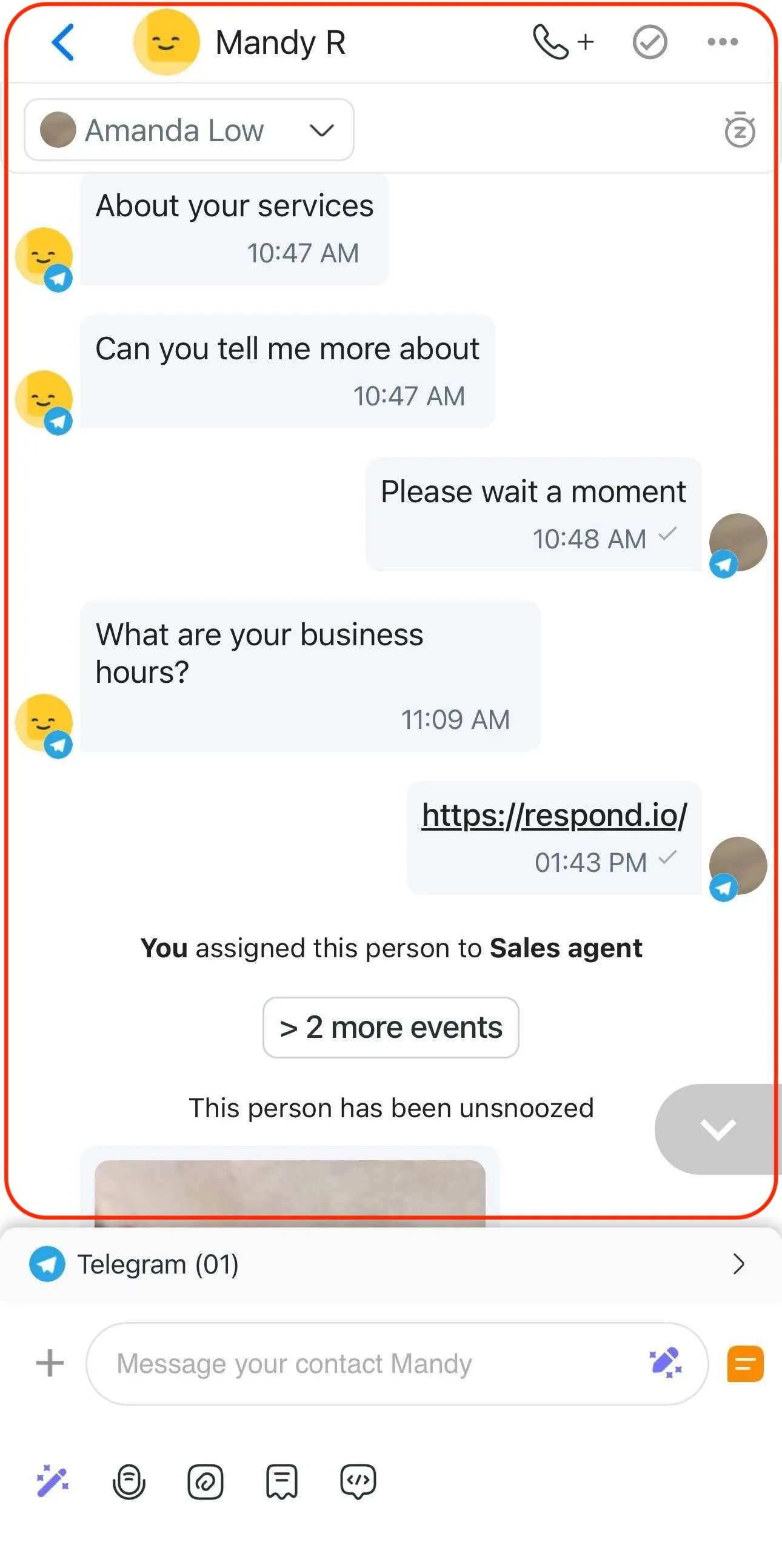
Here’s what you can do in the conversation window:
View conversation events
Download images that were sent or received
Call Contact
Open or Close conversations
Add closing notes
Snooze and unsnooze a conversation
Search for specific messages
Search ongoing Workflows or stop them
Select Shortcut
Block Contact
Queue and automatically retry messages sent while offline
Message actions menu
You can use the message action menu in the mobile app to access specific actions for individual messages in a conversation. To open the message action menu, long-press any message.
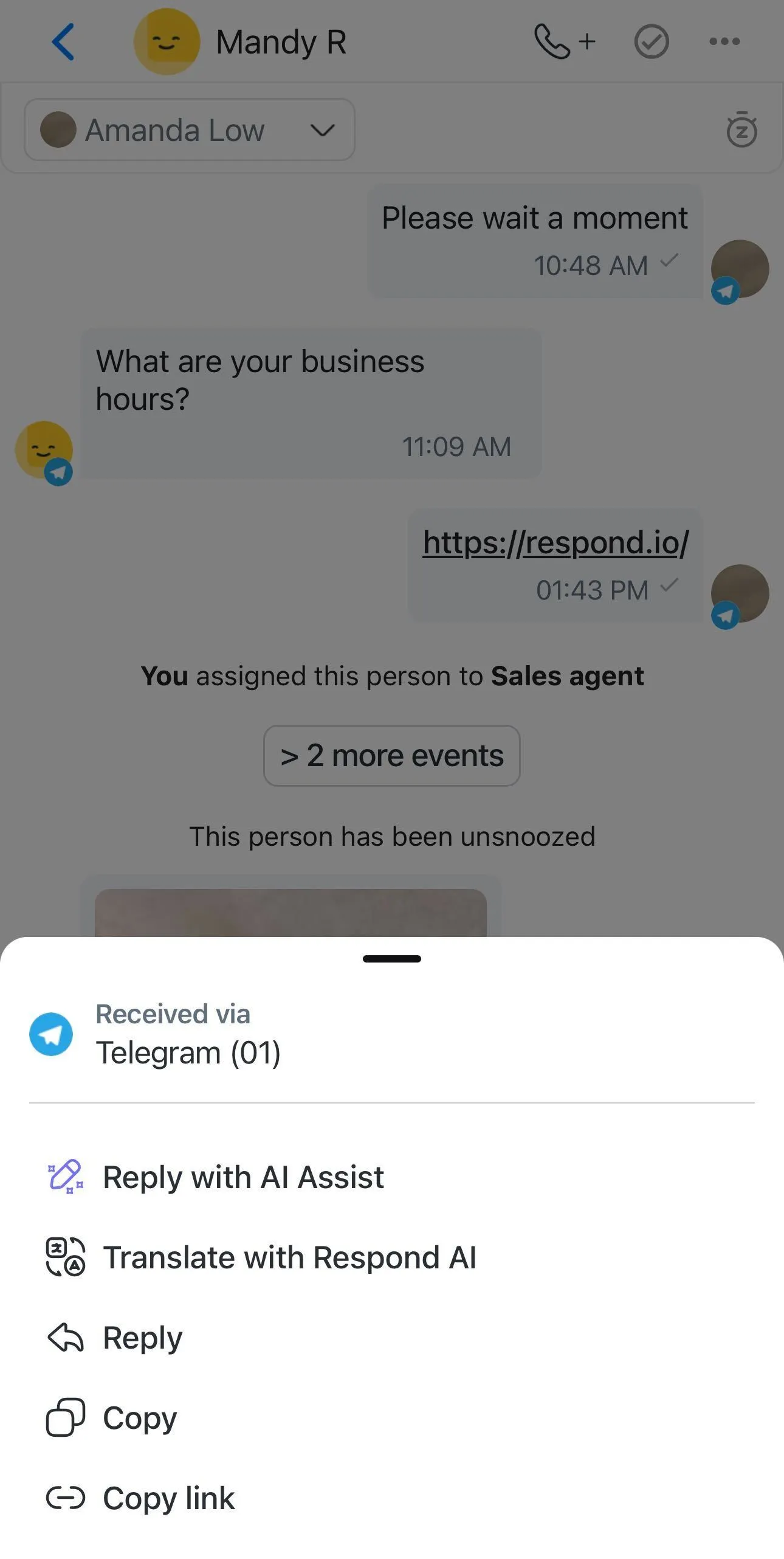
These are the available message actions on mobile:
Reply with AI Assist: Generate a response to a specific message.
Translate with Respond AI: Translate an individual message into another language.
Reply: Respond directly to a specific message.
Copy: Copy the content of a message to your clipboard.
Copy link: Copy a direct link to a specific message in the conversation.
Learn more about message actions.
Message composer
The message composer is where you can draft the messages you want to send to your Contacts.

This is what you can do in the message composer:
Use AI Assist to generate your messages
Use AI Prompts to refine your messages
Record and send voice messages
Upload files, images and videos from your device
Send Snippet
Use Variable
Add comments for internal discussion (not visible to your Contact)
Generate AI summaries of conversations
Use AI prompts to refine internal comments or summaries
For a detailed walkthrough of messaging capabilities, check out messaging from your mobile.
Search Contacts, messages and comments
You can search for a specific Contact, message or comment in All Inbox when you’re in the Inbox tab.

To search:
Tap the magnifying glass icon.
Select Contacts, Messages or Comments button.
Type the word you want to search.
The search automatically begins once 3 characters are provided in the search bar with the recent messages/comments listed first.
Learn more about search behavior for All inbox.
Filter and sort
Use filters and sorting options in your Inbox to stay organized, especially when you’re managing multiple conversations on the go.
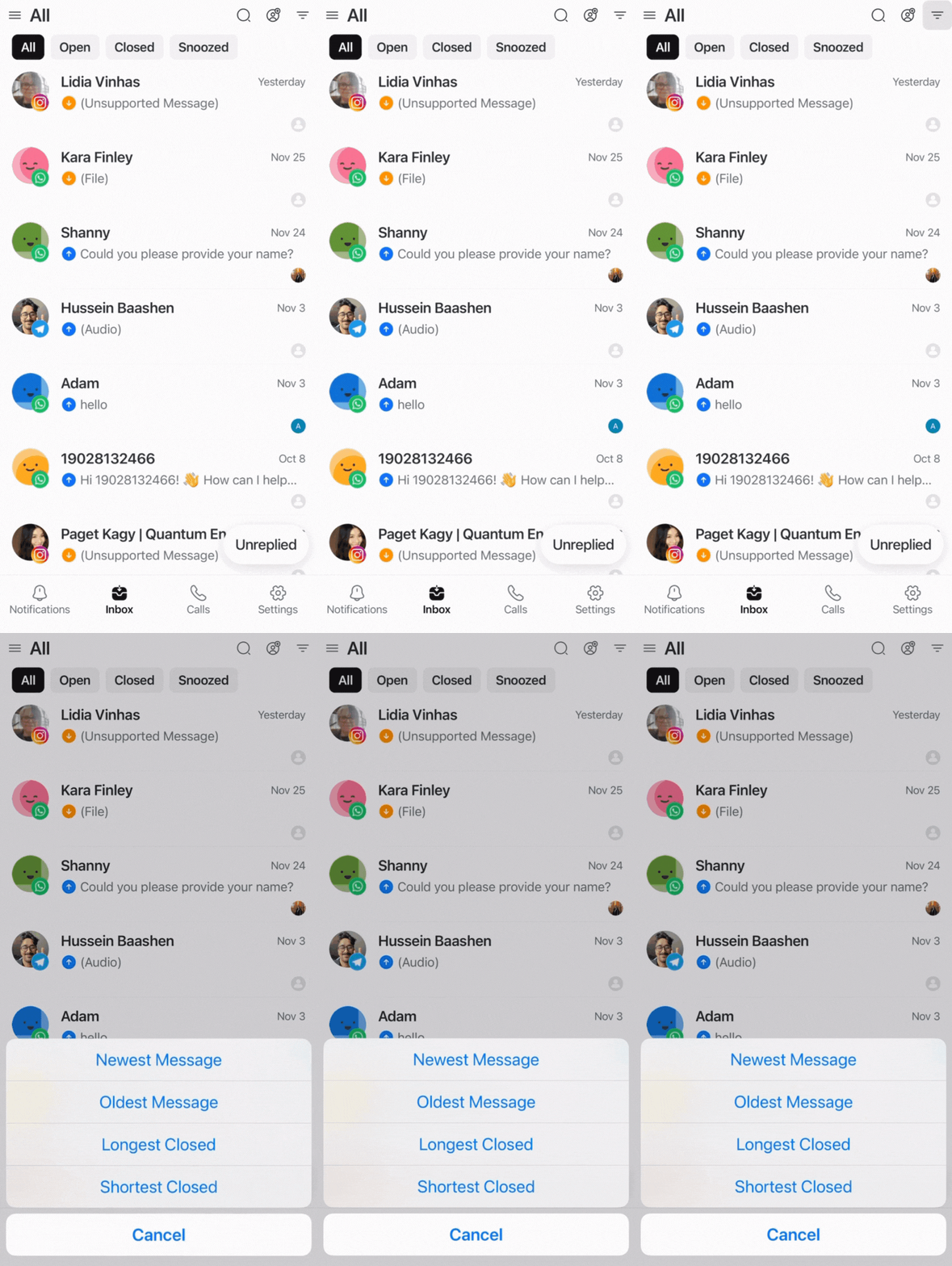
You can manage your conversations with filters:
All: Shows all conversations in the Conversation List of the selected inbox.
Open: Only shows conversations that are open in the Conversation List of the selected inbox.
Closed: Only shows conversations in the selected inbox that are closed.
Snoozed: Only shows conversations that are snoozed in the Conversation List of the selected inbox.
Unreplied: Shows only conversations that you or your team have not yet replied to.
You can also sort your Contacts by:
Newest Message: Sort Contacts by newest to oldest messages.
Oldest Message: Sort Contacts by oldest to newest messages.
Longest Closed: Sort Contacts by the longest length of time the conversation has been opened, closed or snoozed (from longest to shortest duration).
Shortest Closed: Sort Contacts by the shortest length of time the conversation has been opened, closed or snoozed (from shortest to longest duration).
Learn more about filter and sort.
Add Contact
When you're in the Inbox or Calls tabs, you can see the add Contact icon at the top right of the screen.
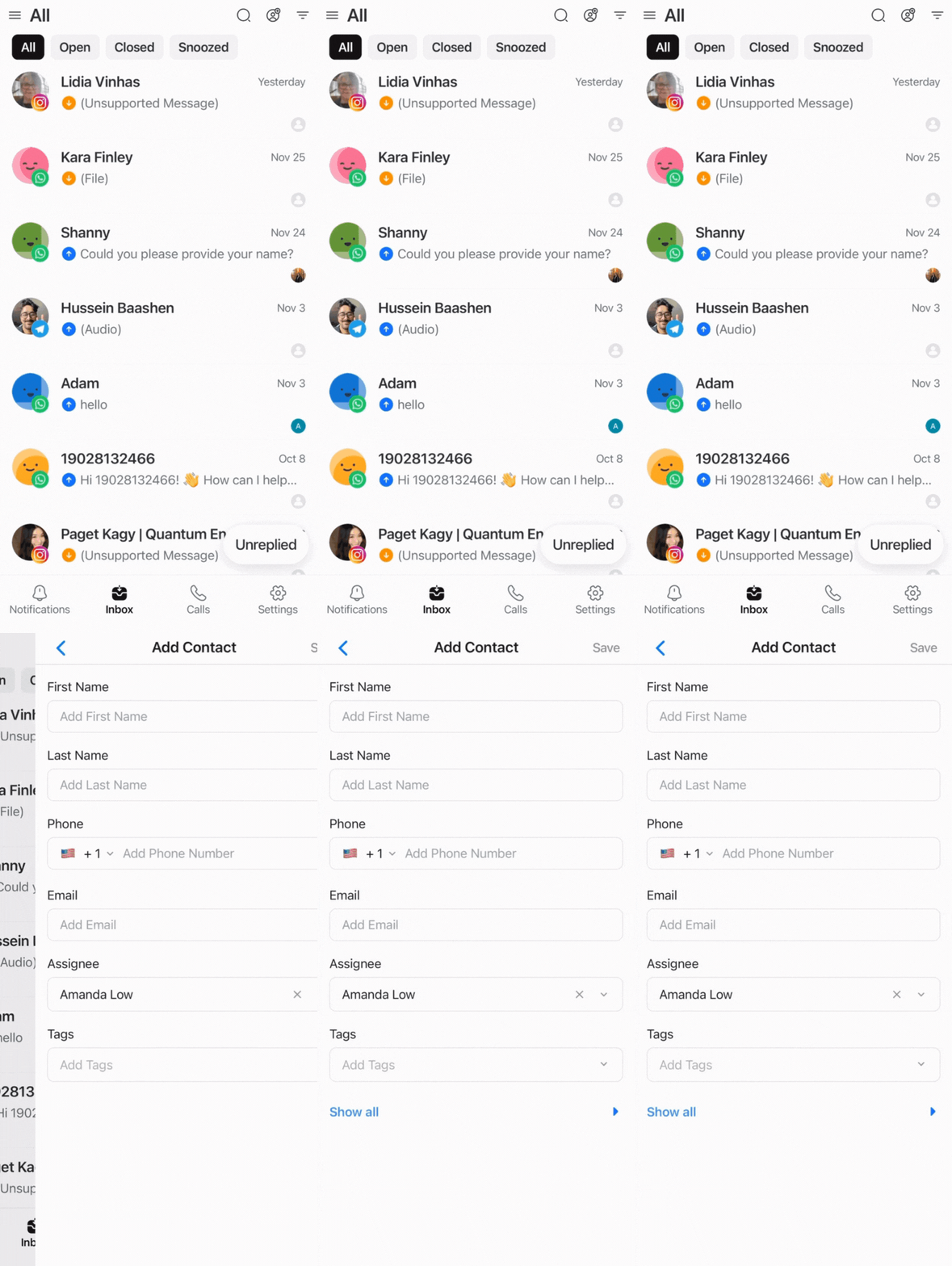
Follow these steps to add a Contact:
Click the add Contact icon.
Fill in the Contact’s information in the form provided.
Review the information and click Save.
You can manually add individual Contacts, but importing Contacts is not supported on the mobile app.
Calls
The Calls tab is where you can see a log of your calls with your Contacts.
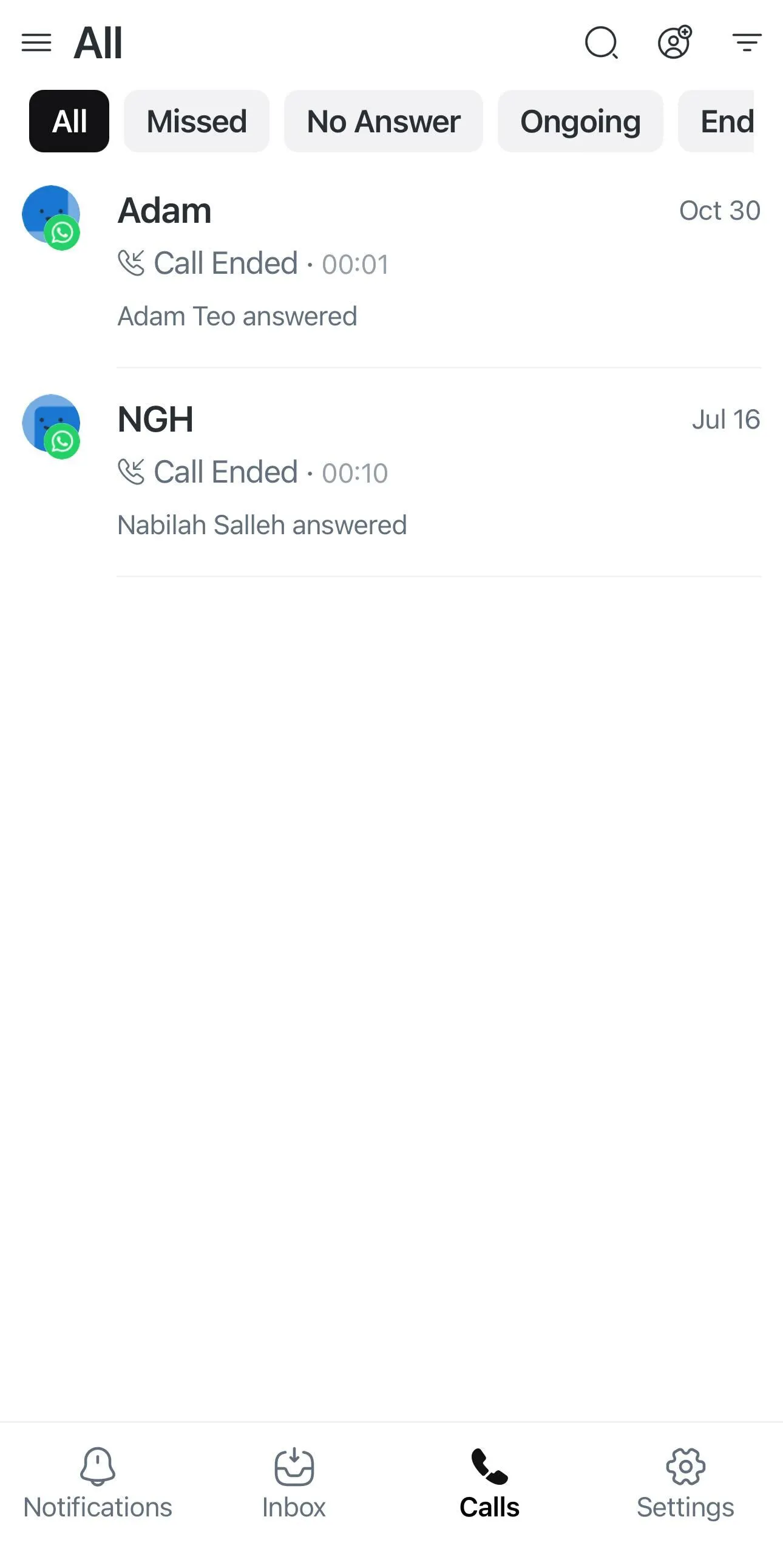
You can also sort your calls with the filters:
All: Shows all calls regardless of their status.
Missed: Only shows all the calls that were missed.
No Answer: Only shows all the calls that weren’t answered.
Ongoing: Only shows the calls that are currently being handled by Agents.
Ended: Only shows the calls that just ended.
Learn more about calling from your mobile.
Search Contacts
You can search for a specific Contact that was in the Calls log recently.
To search for a specific Contact:
Tap the magnifying glass icon.
Type the name you want to search.
The search automatically begins once 3 characters are provided in the search bar with the recent messages/comments listed first.
Settings
You can edit your personal settings in the Settings tab.
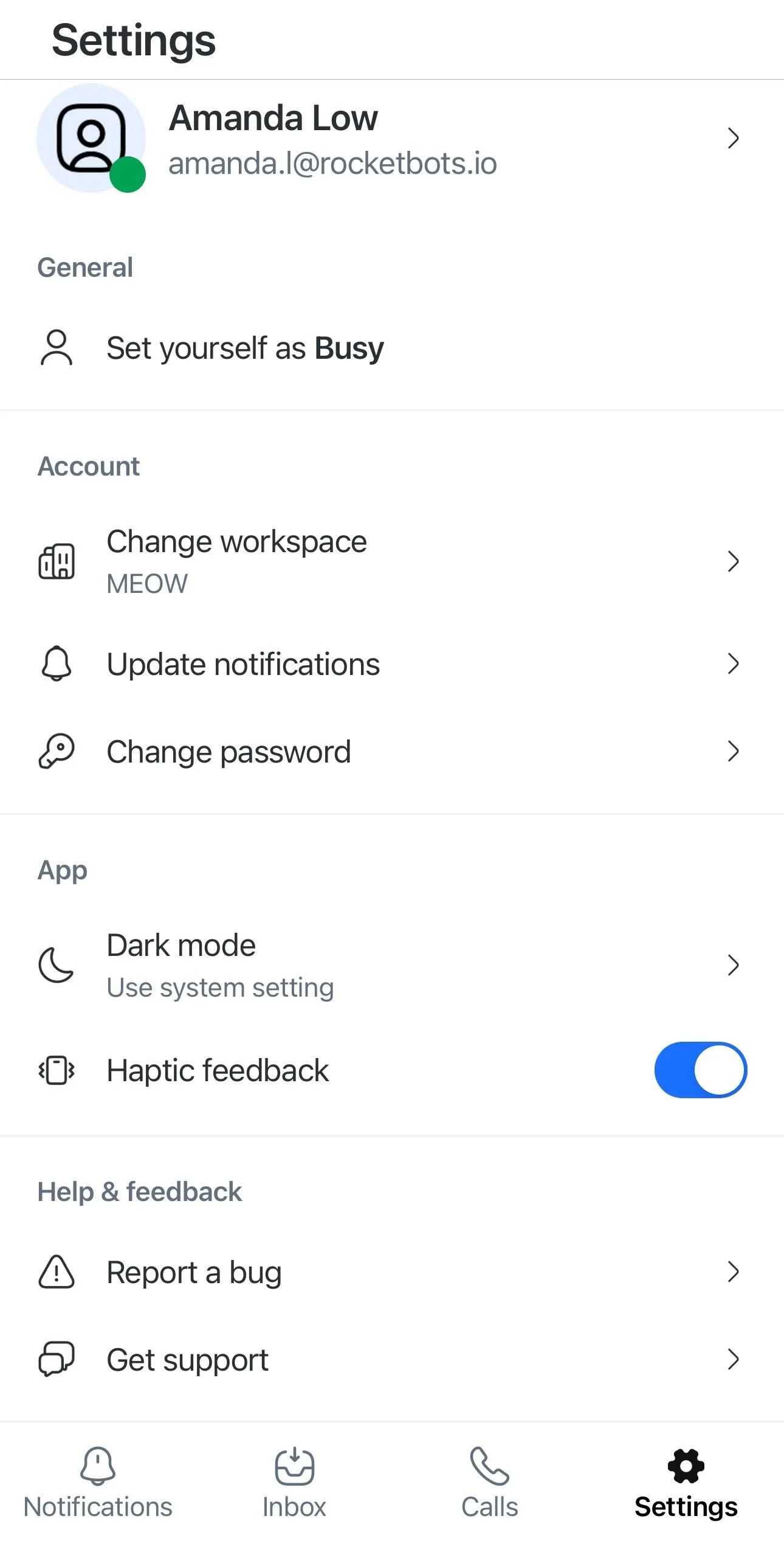
Personal settings:
Set yourself as Busy or Online: Indicate whether you are Busy so you’re temporarily unavailable on the platform or Online so you’re available on the platform to answer messages.
Change workspace: This is where you can change between the Workspaces you’re in.
Update notifications: You can decide whether to toggle or un-toggle mobile push notifications, in-app call sounds and in-app chat sounds on your device.
Dark mode or use system setting: You can decide whether the mobile app is using dark mode, light mode or follows your system setting.
Haptic feedback (mobile app-only): Toggle this for your device to vibrate whenever there is activity on the platform.
Organization settings and Workspace settings are not supported on the mobile app.
Limitations
Here’s a table outlining the mobile app’s module limitations:
Module | Availability | Limitations |
|---|---|---|
Dashboard | ❌ | You cannot see Lifecycle, Contacts that are Open, Assigned or Unassigned and your Team Members. |
Contacts | ❌ | You cannot import or export Contacts. |
Inbox | ✅ (Partial) | You cannot create Team or Custom inboxes, and you cannot access advanced filters or Contact’s activities. |
AI Agents | ❌ | You cannot create, edit, publish or delete AI Agents. |
Broadcasts | ❌ | You cannot create, edit, publish or delete Broadcasts. |
Workflows | ❌ | You cannot add, import, export, create, edit, publish or delete Workflow. |
Reports | ❌ | You cannot see any Reports. |
Settings | ✅ (Partial) | You cannot access Organization settings, Workspace settings, Channels and Billing & usage. |
FAQ and Troubleshooting
Why is the mobile app different from the web app?
The mobile app is designed for quick, on-the-go messaging, so it focuses on essential actions for convenience. This means you may need to switch between views like the conversation and Contact details.
The web app offers a more optimized and efficient workspace. With a larger screen, you can see more information at once, as well as access all configuration and management features.
Why is the performance of push notifications or calls affected on iOS?
On iOS, the Background App Refresh setting affects the performance of push notifications and calls for the respond.io mobile app.
What you can do
Go to Settings > Apps > respond.io.
Turn on Background App Refresh.


