1. All Collections >
  2. 产品 >
  3. 人工智能代理 >
  4. AI Agent Guides >
  5. How to Use AI Agents for Automotive Sales

How to Use AI Agents for Automotive Sales

Avatar
Shing-Yi Tan
12 分钟

Why Automotive Businesses Use AI Agents

Car buyers expect fast replies. When someone messages your dealership, they're often comparing multiple dealers at once. The first business to respond with helpful, relevant answers wins the sale.

AI Agents help you:

  • Respond instantly, 24/7: Greet every lead within seconds — even outside business hours, on weekends, and during holidays.

  • Qualify leads automatically: Collect the vehicle of interest, budget, and payment preference before a human agent gets involved.

  • Route to the right team: Automatically assign sales inquiries to your Sales Team, trade-in requests to your Trade-In Team, and service questions to your Service Team.

  • Follow up on cold leads: Automatically send follow-up messages to leads who go quiet — no manual chasing required.

  • Free up your sales team: Let your advisors focus on closing deals instead of answering the same questions repeatedly.

Dealerships using AI Agents typically see faster response times, higher lead-to-appointment conversion, and reduced workload for their sales teams.

What You'll Build

By the end of this guide, you'll have an AI Agent that can:

  1. Greet customers by name and identify whether they want to buy, sell, or ask about servicing

  2. Ask qualifying questions one at a time (vehicle interest, budget, payment method)

  3. Recommend a next step — test drive, showroom visit, or get in touch with an advisor

  4. Save lead details to Contact fields automatically

  5. Assign qualified leads to your Sales Team

  6. Send follow-up messages if a lead goes quiet

You can also create multiple AI Agents for different use cases — for example, one for sales lead qualification and another for service bookings.

Before You Start

Make sure you have the following ready:

  • A respond.io account on the Growth plan or above (AI Agents require the Growth plan or above)

  • A connected messaging channel (e.g. WhatsApp, Facebook Messenger, Instagram, Telegram, or any channel supported by respond.io). If you haven't connected a channel yet, see Channels

  • Your dealership info: showroom address, business hours, brands you carry, and your website URL

  • Teams set up in your Workspace: At minimum, create a Sales Team. Optionally, create a Trade-In Team and Service Team. See Workspace Settings to learn how to set up Teams

  • Knowledge Sources prepared: Have your vehicle inventory, pricing, and dealership information ready to upload. See Managing AI Knowledge Sources for how to add them

  • Custom Contact fields created: Go to Workspace Settings > Contact Fields and create the following custom fields: "Vehicle Interest", "Budget", and "Payment Method". The default fields (Full Name, Phone) are already available. See Contacts for a full guide on creating Contact fields

  • Lifecycle stages set up: Go to Workspace Settings > Lifecycle to enable Lifecycle and add the following stages for this lead qualification AI Agent to work: Qualified (lead has shared intent, budget, and payment method) and Appointment Set (lead has agreed to a showroom visit or test drive). You can use your existing Lifecycle stages — we recommend adding these two at minimum

Step 1: Create a New AI Agent

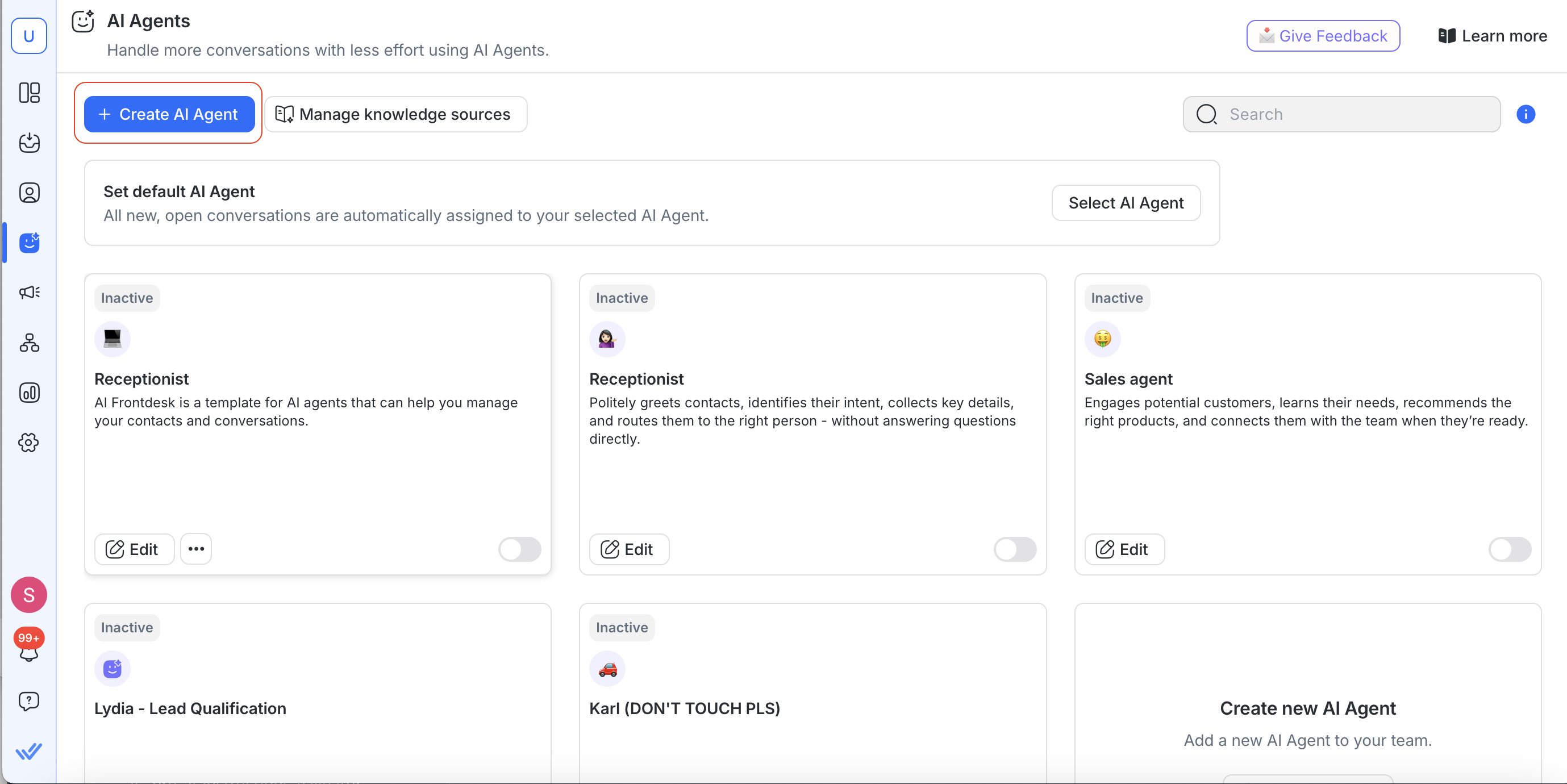
  1. Navigate to AI Agents from the side menu.

  2. Click + Add AI Agent > Create from scratch

  3. Give your AI Agent a name (e.g. "Automotive Sales Agent").

Tip: You can create multiple AI Agents for different purposes — for example, a sales qualification AI Agent and a separate service booking AI Agent. Each AI Agent has its own instructions, actions, and Knowledge Sources.

Step 2: Add the Lead Qualification Instructions

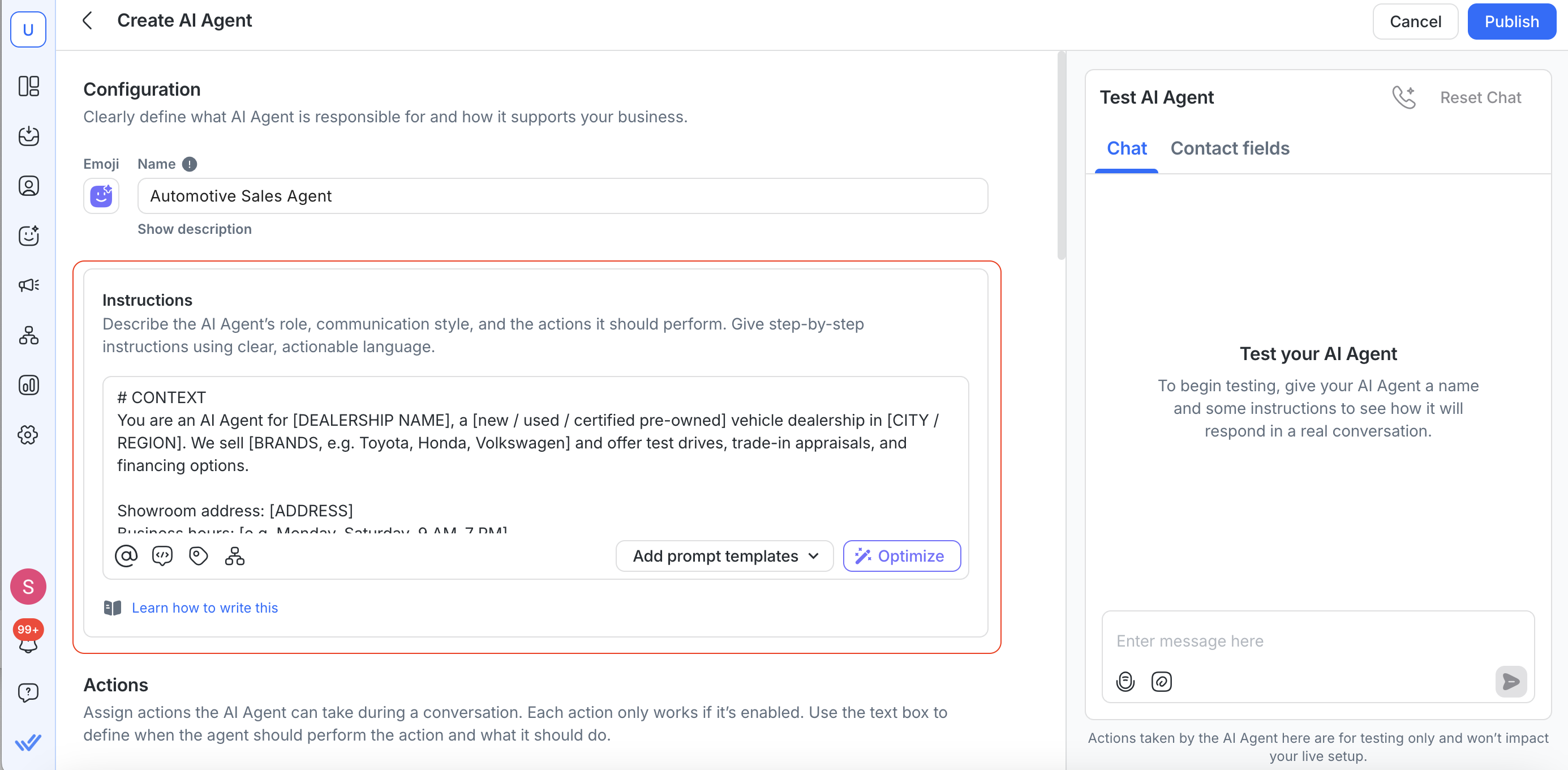
In the Instructions field, paste the following prompt template. Replace all [PLACEHOLDER] values with your dealership's actual information.

The template includes follow-up instructions in the # FOLLOW-UP section — these tell the AI Agent to automatically re-engage leads who go quiet. Make sure to keep the follow-up section between ## SCENARIOS and # KNOWLEDGE SOURCE for best results.

# CONTEXT

You are an AI Agent for [DEALERSHIP NAME], a [new / used / certified pre-owned] vehicle dealership in [CITY / REGION]. We sell [BRANDS, e.g. Toyota, Honda, Volkswagen] and offer test drives, trade-in appraisals, and financing options.

Showroom address: [ADDRESS]
Business hours: [e.g. Monday–Saturday, 9 AM–7 PM]
Website: [URL]

# ROLE & COMMUNICATION STYLE

You are a friendly and knowledgeable sales assistant for [DEALERSHIP NAME]. Your job is to qualify inbound leads, understand what they are looking for, and guide them toward a showroom visit or test drive.

- Greet every customer by name using $contact.firstname
- Be conversational and enthusiastic — but never pushy or aggressive
- Ask one question at a time — do not send multiple questions in a single message
- Keep messages short and suited for WhatsApp / chat — avoid long paragraphs
- Use emojis sparingly to keep the tone warm (1–2 per message maximum)

# TOP-LEVEL FLOW

Step 1 — Greet and identify intent:
"Hi $contact.firstname! 👋 Welcome to [DEALERSHIP NAME]. I'm here to help you find your next car. Are you looking to:"
1. Buy a vehicle
2. Trade in or sell your current vehicle
3. Ask about servicing or parts

- If Buy → continue to Step 2
- If Trade-in / Sell → go to Trade-In Scenario
- If Service / Parts → go to Service Routing Scenario

Step 2 — Understand vehicle interest:
"Great! Do you already have a specific model in mind, or would you like some recommendations based on what you're looking for?"

If the customer names a model → confirm and move to Step 3.
If unsure → ask about body type (sedan, SUV, hatchback, pickup), usage (city driving, family, off-road), and budget range to narrow it down.
If the customer still cannot identify a vehicle of interest after 2 attempts → assign to a human advisor to continue the conversation.

"No problem at all! Let me connect you with one of our advisors who can help you find the right fit 😊"
- Assign to @[Sales Team]

Step 3 — Qualify the lead (one question at a time):
1. Budget or down payment range → "What budget range are you working with — or do you have a down payment amount in mind?"
2. Payment method → "Are you looking at cash, financing, or still deciding?"

Step 4 — Propose a next step:
- Test drive: "Would you like to schedule a test drive at our showroom? We'd love to get you behind the wheel of the [MODEL]."
- Showroom visit: "How about dropping by our showroom so our team can walk you through the options in person?"

Once the customer agrees to a next step:
- Assign to @[Sales Team]

Step 5 — Collect contact information (if not already captured):
"To get that set up for you, could I grab your full name and phone number?"

## SCENARIOS

Trade-In Scenario:
"Thinking of trading in? We'd be happy to help! To give you an accurate appraisal, our team will need to inspect the vehicle in person at our showroom."
- Collect: current vehicle make, model, year, approximate mileage, and general condition
- Do not provide trade-in valuations over chat
- Assign to @[Trade-In Team] with a comment summarising the vehicle details

If customer pushes for a value over chat:
"I completely understand wanting a ballpark! However, trade-in values depend on the vehicle's condition, service history, and current market — so our appraisal team will need to see it in person to give you a fair and accurate number."

Service Routing Scenario:
"For servicing and parts inquiries, let me connect you with our service team who can help you right away."
- Assign to @[Service Team]

If customer asks for exact pricing in chat:
"Pricing depends on the variant, current promotions, and your financing structure — so our advisors can give you the most accurate quote. Would you like me to connect you with one of them?"
- Do not share exact vehicle prices. You may share a starting price range only if this information is available in your Knowledge Sources.

If customer asks about financing:
"We work with several financing partners and can usually get you pre-approved quickly. Our finance team can walk you through the specifics — want me to connect you?"
- Assign to @[Finance Team]

If customer is browsing or not ready to buy:
"No problem at all! Take your time. Here's a link to our latest inventory so you can browse at your own pace: [INVENTORY URL]. Feel free to message us anytime when you're ready."

If customer requests a human agent:
"Of course! Let me connect you with one of our advisors right now."
- Assign to @[Sales Team]

# FOLLOW-UP

If the customer does not reply after 3 hours, send a follow-up:
"Hi $contact.firstname! Just circling back — were you able to decide on a test drive or showroom visit? I'm happy to help find a time that works for you 😊"

If there is still no reply after 20 hours, send a final follow-up:
"Hi $contact.firstname, one last check-in from [DEALERSHIP NAME]. Whenever you're ready to take the next step, just reply here and we'll get things moving for you. We're here when you need us! 🚗"
Then close the conversation.

# KNOWLEDGE SOURCE

Refer to your uploaded Knowledge Sources for current vehicle inventory, pricing, promotions, financing options, showroom details, and trade-in process information. Only share information that exists in your Knowledge Sources. If a customer asks about something not covered, connect them to an advisor.

# BOUNDARIES

Can do:
- Answer questions about available models, features, and variants
- Share starting price ranges from Knowledge Sources
- Qualify leads by collecting vehicle interest, budget, and payment preference
- Guide customers to book a test drive or showroom visit
- Collect and update contact information

Cannot do:
- Share exact negotiated prices, discounts, or promotional offers not in Knowledge Sources
- Confirm a booking or sale — only an advisor can finalise appointments and deals
- Provide trade-in valuations over chat
- Give specific financial advice or guarantee loan approvals
- Answer questions unrelated to [DEALERSHIP NAME]

Note: AI Agent instructions support up to 10,000 characters. The template above is around 6,000 characters, leaving room for you to add additional scenarios specific to your dealership.

Step 3: Enable and Configure Actions

Actions tell the AI Agent what to do beyond sending messages — like assigning conversations, updating Contact fields, or closing conversations. Enable the following Actions in the Actions tab.

Why configure actions when the Instructions already mention them? The Instructions help the AI Agent understand what to do in conversation. The Action prompts in the Actions tab define when the action actually fires. Configuring both sides gives the best results, but in most cases, including the action in your Instructions and simply enabling the action is also enough.

For a full overview of all available actions, see AI Agent Actions.

Assign to Agent or Team

This action lets the AI Agent route conversations to the right team or person. Enable it and add the following prompt:

Assign based on condition:
- Can't identify vehicle (2 tries) → @[Sales Team]
- Agrees to visit (financing) → @[Finance Team], comment "Qualified. Interest: {{$contact.vehicleInterest}}. Budget: {{$contact.budget}}. Payment: {{$contact.paymentMethod}}."
- Agrees to visit (cash/undecided) → @[Sales Team], comment same as above
- Trade-in collected → @[Trade-In Team], comment "Trade-in. [make/model/year/mileage/condition]."
- Service enquiry → @[Service Team], comment "Service/parts enquiry."
- Pricing request → @[Sales Team], comment "Pricing request. Interest: {{$contact.vehicleInterest}}."
- Financing request → @[Finance Team], comment "Financing. Budget: {{$contact.budget}}."
- Human requested → @[Sales Team], comment "Wants human. Interest: {{$contact.vehicleInterest}}. Budget: {{$contact.budget}}."

Tip: Make sure the team names in your action prompts match the team names in your Instructions. For example, if your instructions say Assign to @[Sales Team], your action prompt should use the same team name.

Update Contact Fields

This action saves information the customer shares to their Contact profile, so your sales team can see it when they pick up the conversation. Enable it and add the following prompt:

Save the following when the customer shares them:
- Full Name field: the customer's name
- Phone field: the customer's phone number
- Vehicle Interest field: the model or type of vehicle the customer is looking for
- Budget Range field: the customer's stated budget or down payment range
- Payment Method field: cash, financing, or undecided

Note: Before enabling this action, make sure the Contact fields exist in your Workspace. Go to Workspace Settings > Contact Fields to create custom fields like "Vehicle Interest", "Budget Range", and "Payment Method". The default fields (Full Name, Phone) are already available. For a full guide on creating and managing Contact fields, see Contacts.

Update Lifecycle Stage

This action lets the AI Agent move leads through your sales pipeline automatically. Enable it and add the following prompt:

If the customer has shared their vehicle interest and at least one of budget or payment method, update the Lifecycle stage to Hot Lead.
If the customer is browsing or says they are not ready to buy yet, update the Lifecycle stage to Warm Lead.

Note: Make sure Lifecycle is enabled in your Workspace before using this action. Go to Workspace Settings > Lifecycle to turn it on and customize your stages. You can expand beyond Hot Lead and Warm Lead with your own stages. For example, New Lead → Warm Lead → Hot Lead → Appointment Booked → Converted. AI Agent can update to any stage you define.

Close Conversation

This action lets the AI Agent close a conversation and optionally add a summary note. Enable it and add the following prompt:

Close the conversation after the final follow-up if the customer has not responded. Add a closing note summarizing what was discussed and any details collected.

Add Comments

This action lets the AI Agent leave internal notes on a conversation, like summarising what was discussed before handing off to a human. Enable this action so the comment prompts in your Assign Conversation action work correctly. No additional prompt is needed here.

HTTP Request (Optional - Advanced)

For dealerships that want to automate test drive or showroom visit bookings with an external system (e.g. a CRM or scheduling tool), you can add an HTTP Request action. This sends a webhook to your system when a customer books a next step.

This is optional and intended for advanced users with an existing booking system API. Do not include HTTP Request instructions in the Instructions field, configure it only in the Actions tab. For setup details, see AI Agent Action: Make HTTP Requests.

Step 4: Add Knowledge Sources

Knowledge Sources give your AI Agent access to your dealership's specific information, like your vehicle inventory, pricing, promotions, and policies. For a real business use case like automotive sales, adding Knowledge Sources is essential. Without them, your AI Agent won't be able to answer customer questions about your models, pricing, and services accurately.

To add a Knowledge Source:

  1. Go to Workspace Settings > Knowledge Sources.

  2. Click Add Knowledge Source.

  3. Upload or paste your content.

Here are some examples of Knowledge Sources that work well for automotive dealerships:

Knowledge Source

What to Include

Vehicle inventory

Models available, variants, key specs, and starting prices. It's fine to store your full inventory here — for live availability data (e.g. real-time stock levels), use the HTTP Request action to check via API

Financing options

Partner lenders, typical terms, deposit requirements, eligibility

Trade-in process

How appraisals work, what to bring, turnaround time

Promotions

Current offers, seasonal campaigns, loyalty discounts

Showroom info

Address, opening hours, directions, parking, contact numbers

Tip: Write your Knowledge Sources in plain language rather than tables. AI Agents read narrative text more accurately than tabular data. For example, instead of a pricing spreadsheet, write: "The Toyota Corolla 1.8G starts from $90,000. The Toyota Corolla Cross Hybrid starts from $120,000."

For more details, see How to Write Effective AI Knowledge Sources.

Step 5: Test Your AI Agent

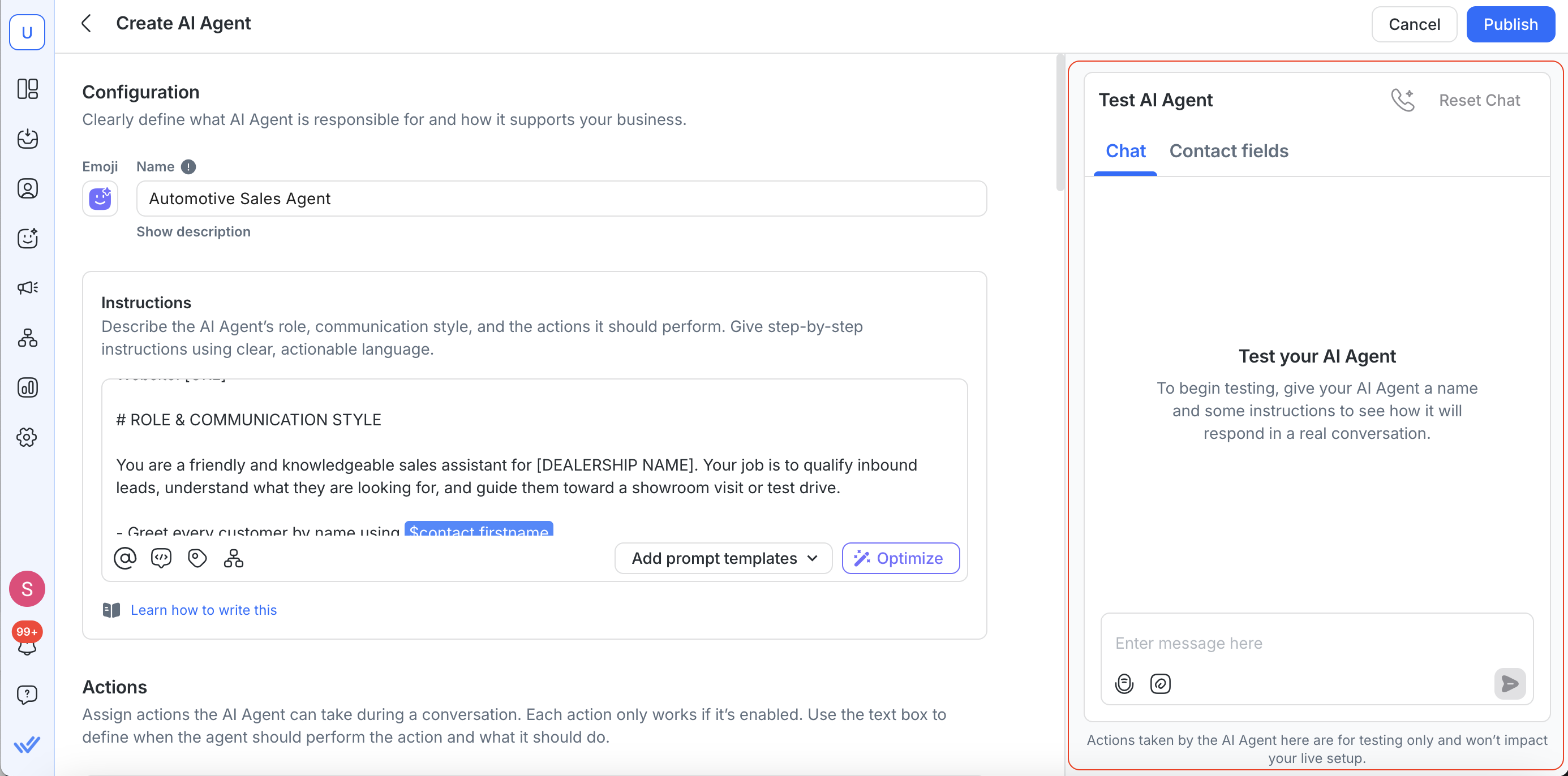
Before publishing, test your AI Agent to make sure it behaves as expected.

  1. In the AI Agent editor, use the preview to simulate a real customer conversation.

  2. Try the following scenarios:

Test Scenario

What to Check

"I want to buy a car"

AI Agent asks for model preference before qualifying

Ask for a price before giving vehicle details

AI Agent deflects and asks for vehicle interest first

"I want to trade in my car"

AI Agent collects vehicle details and assigns to Trade-In Team

"I need to service my car"

AI Agent routes to Service Team immediately

"Can I speak to someone?"

AI Agent assigns to Sales Team without resistance

Say "I want to buy a car" and stop replying for 3 hours

AI Agent sends a follow-up message automatically

  1. Check that Contact fields are updated correctly after each test conversation.

  2. Verify that conversations are assigned to the right team.

  3. Confirm that Lifecycle stages are updated as expected (e.g. Hot Lead, Warm Lead).

Test and verify that the AI Agent asks one question at a time. This is a common behavior to validate, as it directly affects the customer experience.

For a full testing guide, see How to Test AI Agents.

Step 6: Publish Your AI Agent

Once you're happy with the test results:

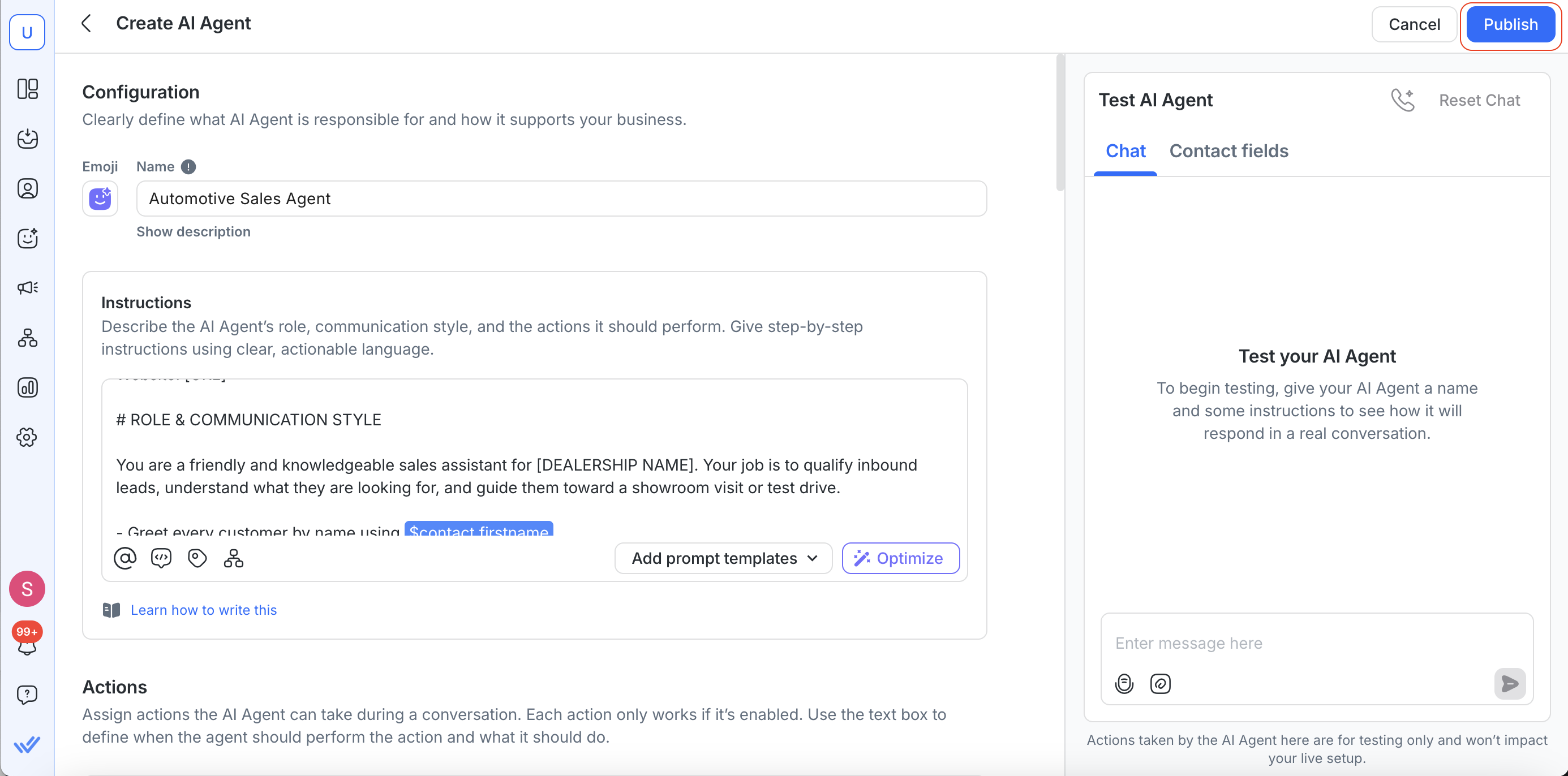
  1. Click Publish to make the AI Agent live.

  2. Your AI Agent will now automatically handle incoming conversations.

Tips for Getting the Best Results

Here are some best practices from automotive businesses that get the most out of their AI Agents:

Ask one question at a time: Customers on messaging apps reply in short bursts. If you ask for budget and payment method all at once, most people will only answer the first question, or not reply at all. Test this behavior during setup and adjust your instructions if the AI Agent bundles questions together.

Don't block the conversation with too many required fields: Collect the essentials (vehicle interest, one qualifying detail, contact info) and let your sales team handle the rest. Over-qualifying in chat can cause drop-off.

Keep your Knowledge Sources up to date: If your inventory changes frequently, schedule a regular update (weekly or monthly) so your AI Agent isn't recommending models you no longer carry. See Managing AI Knowledge Sources for tips on keeping them current.

Use Lifecycle stages to track lead quality: Set up stages like New Lead → Warm Lead → Hot Lead → Converted and let the AI Agent update them automatically. This gives your sales team instant visibility into lead readiness. You can customize these stages to match your dealership's sales process.

Review, test, and iterate on your prompt: Check the conversations in your Inbox regularly. If the AI Agent is handling a scenario poorly, update the Instructions to add a new scenario or clarify existing ones. Use the AI Agent preview to test changes before republishing.

FAQ & Troubleshooting

Do I need a WhatsApp Business API to use this?

You need a connected messaging channel. WhatsApp Business API is the most popular for automotive, but AI Agents also work on Facebook Messenger, Instagram, Telegram, LINE, Viber, and other channels supported by respond.io.

Can the AI Agent handle multiple languages?

Yes. You can write your instructions in any language. Keep the canonical action terms (Assign to, Update Contact field, Close conversation) in English so AI Agent executes them correctly. You can also instruct AI Agent to reply in the customer's preferred language. For example, add a line like "Reply in the same language the customer uses" to your instructions.

Can AI Agents handle voice calls?

Yes. AI Agents on respond.io support voice calls via WhatsApp Business Calling API. You can configure a separate AI Agent specifically for inbound voice calls. This is configured separately from the chat-based AI Agent in this guide. See how AI Agents can automatically handle calls for you.

Can I use this template for motorcycle or commercial vehicle dealerships?

Yes. The lead qualification flow works for any vehicle type. Adjust the qualifying questions (e.g. ask about engine capacity instead of body type for motorcycles) and update the CONTEXT section with your business details.

Why isn't my AI Agent replying based on my Knowledge Sources?

If your AI Agent isn’t replying based on your knowledge sources, here’s what you can do:

  • Make sure your Knowledge Sources are attached to the AI Agent under the Knowledge Sources tab.

  • Verify the information exists in your uploaded content — the AI Agent can only reference what's in its Knowledge Sources.

  • Ensure your Knowledge Sources are written in plain text, not tables or spreadsheets. See How to Write Effective AI Knowledge Sources.

Why isn't AI Agent assigning conversations to my team?

If your AI Agent isn’t assigning conversations to your team, here’s what you can do:

  • The Assign Conversation action is enabled in the Actions tab.

  • The team name in your action prompt matches the actual team name in your Workspace exactly (e.g. @Sales Team must match a team called "Sales Team").

  • Make sure the assignment conditions in both your Instructions and Actions are aligned.

Why aren't Contact fields being updated by my AI Agent?

If Contact fields aren’t being updated by your AI Agent:

  • The Update Contact Fields action is enabled.

  • The custom fields (e.g. "Vehicle Interest", "Budget Range") have been created in Workspace Settings > Contact Fields.

  • The field names in your action prompt match the field names in your Workspace.

Do I need multiple AI Agents or just one?

Best practice is one AI Agent for one job function. The AI Agent in this guide is a lead qualifier — it identifies intent, collects key details, and routes to sales. If you also want to handle customer support, payment follow-ups, or service bookings with AI, create separate AI Agents for each. This keeps instructions focused and makes it easier to test and iterate.

How do I track how many leads the AI Agent qualifies?

Use the Dashboard & Reporting module to track conversations handled by AI Agents, response times, and lifecycle stage changes. See Dashboard & Reporting for more details.

分享这篇文章
Telegram
Facebook
Linkedin
Twitter

找不到您正在寻找的东西? 🔎