

Facebook Message Templates replace Message Tags on the respond.io platform. This article explains how Message Templates work on respond.io — including how to create your own custom templates and submit them to Meta for approval.
Templates ensure:
Compliance with Meta messaging policies
Consistent and structured outbound communication
Clear separation between promotional and non-promotional use cases
Messages that are promotional in nature are not permitted within Message Templates.
What is a Facebook Message Template?
A Facebook Message Template is a pre-approved message format provided by Meta's template library. These templates are intended for utility messages such as:
Account updates
Transaction confirmations
Post-purchase notifications
Customer support follow-ups
Templates must not include promotional content such as:
Deals
Offers
Coupons
Discounts
If there is uncertainty, the message should be reviewed to ensure it meets Meta's utility messaging requirements.
When do I need a Facebook message template?
You need a Facebook message template when sending a message outside the 24-hour messaging window that follows a Contact's last incoming message.
Message templates are required when:
The last message from the Contact was sent more than 24 hours ago
You need to send a utility or account-related message
Facebook message tags are no longer available for use
If the messaging window is still open, you can continue the conversation without using a message template.
Where Facebook message templates are used
Message templates affect modules and features that send outbound Facebook messages outside the standard messaging window.
This includes:
Workflow-driven messages
Manual messages sent after the 24-hour window
Webhooks — Facebook Message Templates trigger the New Outgoing Message webhook event. You can filter by this message type when configuring the webhook.
Extended messaging window using the Human_Agent tag
In addition to message templates, Meta provides the Human_Agent tag to extend the messaging window.
How it works
Standard messaging window: 24 hours from the last customer message
With the Human_Agent tag: Extended to 7 days
On the respond.io platform, the Human_Agent tag is automatically applied to eligible outgoing messages.
This extended window is especially useful for:
Complex customer issues
Ongoing support conversations
Scenarios that realistically take more than a day to resolve
How Facebook message templates are sourced
Facebook message templates come from two sources:
Meta's template library — pre-approved, synced via Sync Templates;
Custom templates — Create in respond.io, submit to Meta for approval (~24 hours), then available in Inbox, Workflow, and Broadcast.
All templates are governed by Meta's Messenger platform policies.
How to obtain Facebook message templates
Existing Facebook Channel connections
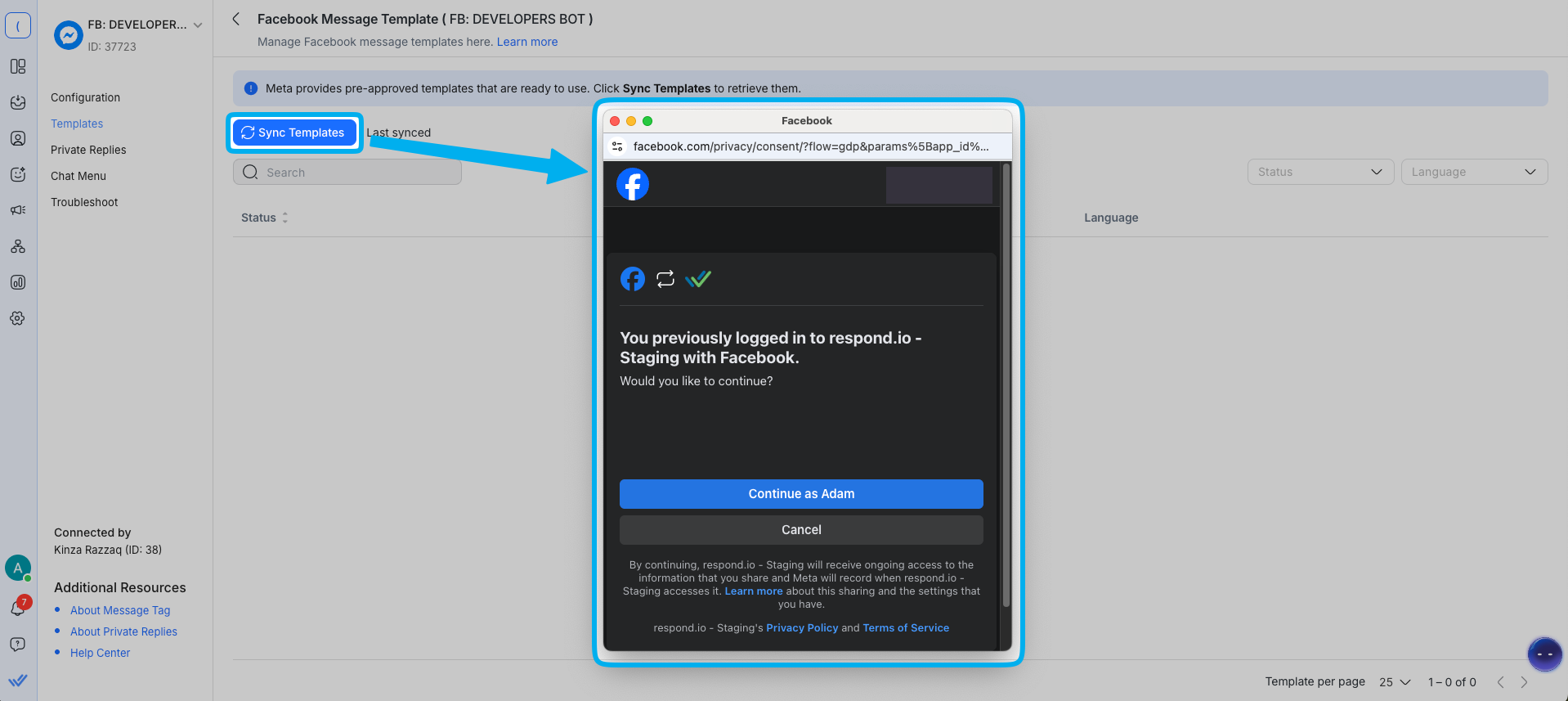
Existing Facebook Messenger Channels must refresh their permissions to access message templates. This is required due to updated Meta permissions tied to templates.
Steps to sync message templates
Navigate to your Workspace Settings > Channels.
Locate the Messenger Channel > click Manage.
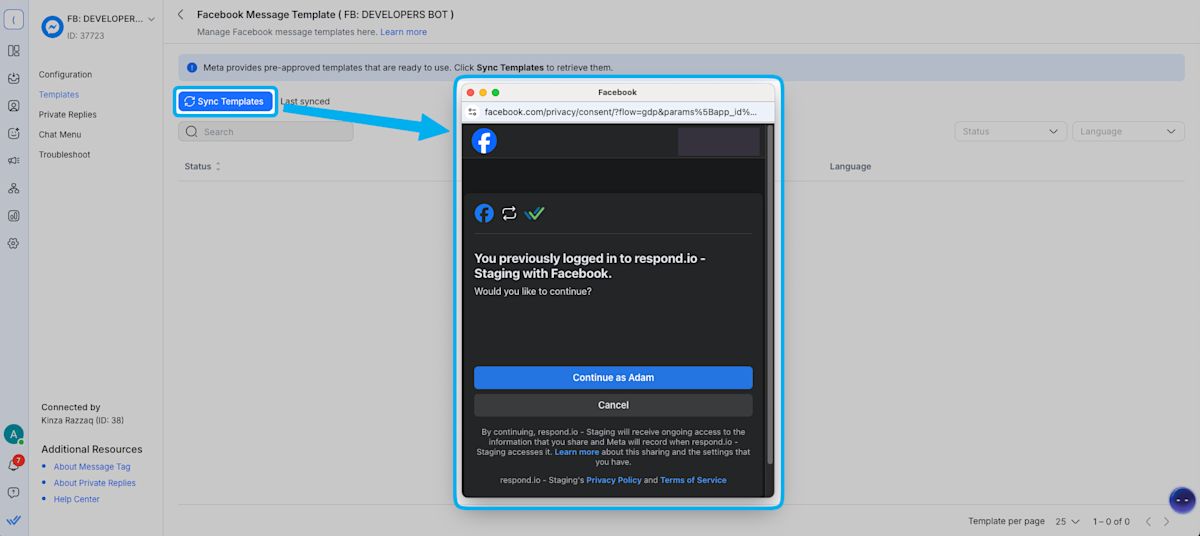
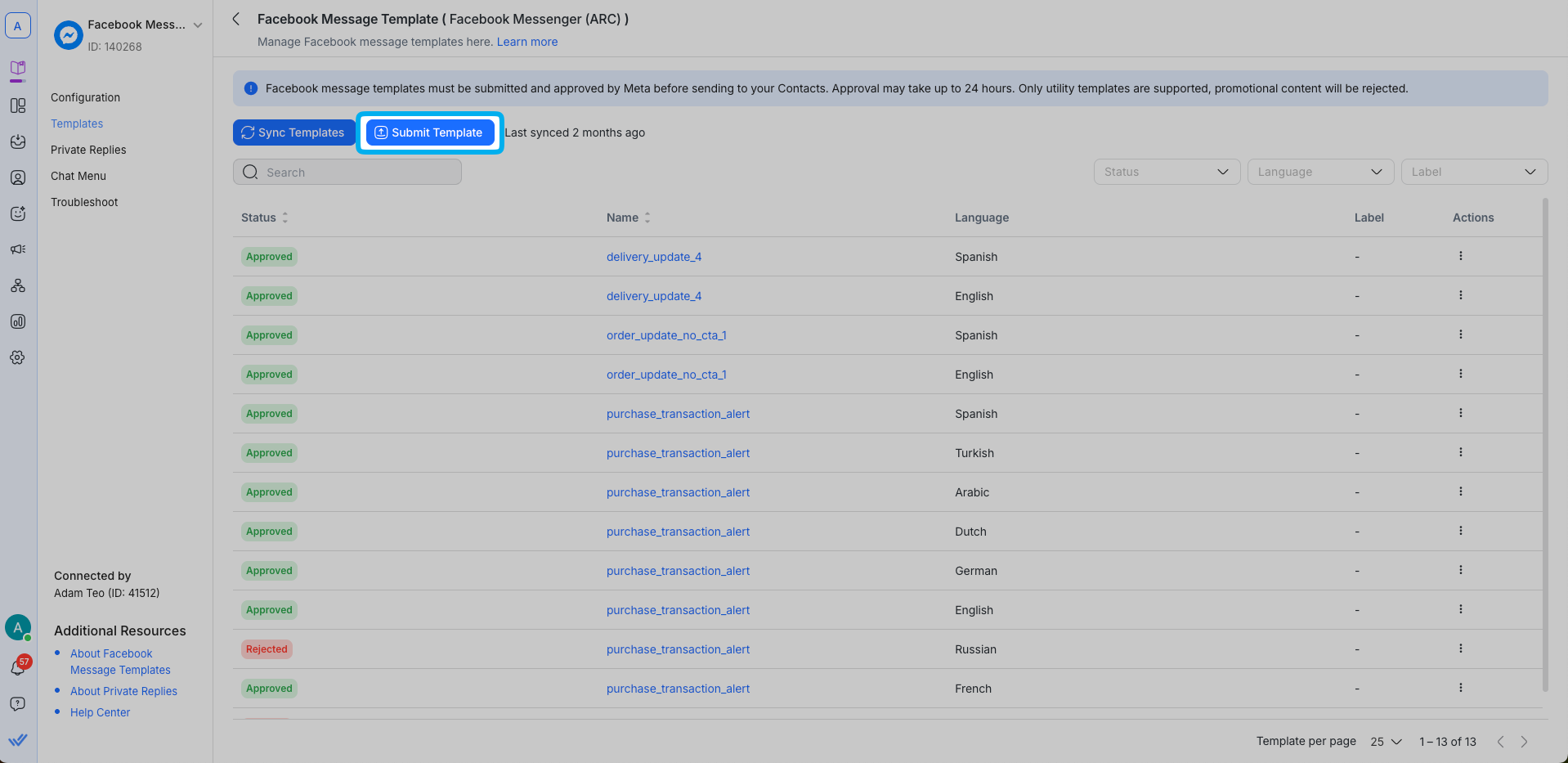
In the Channel configuration page, click Templates > Sync Templates to begin the syncing process.
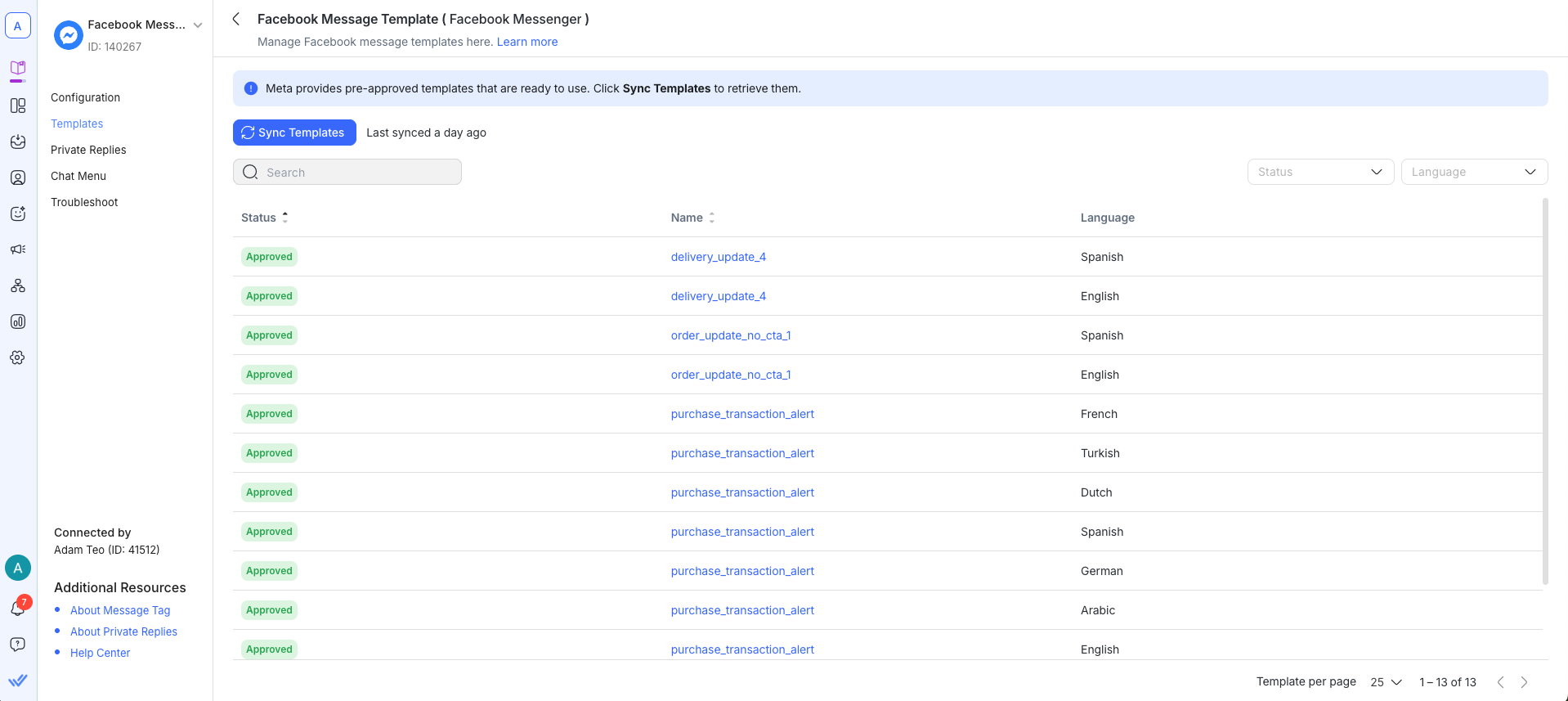
When syncing is complete, the message templates will be listed with the "approved" status.
New Facebook Channel connections
Newly connected Facebook Messenger Channels will automatically receive available message templates during the connection process.
Facebook message template fields overview
The following is a description of what each column represents:
Field | Description |
|---|---|
Status | Indicates the current Status of the Template |
Name | Indicates the Name of the Template |
Language | Indicates the Language of the Template |
Label | A label applied to categorize and filter your templates. |
Creating a custom message template
You can create and submit your own Messenger templates directly in respond.io. Once Meta approves them, they're available to send in Inbox, Workflow, and Broadcast.
Go to Settings > Channels and click Manage on your Messenger Channel.
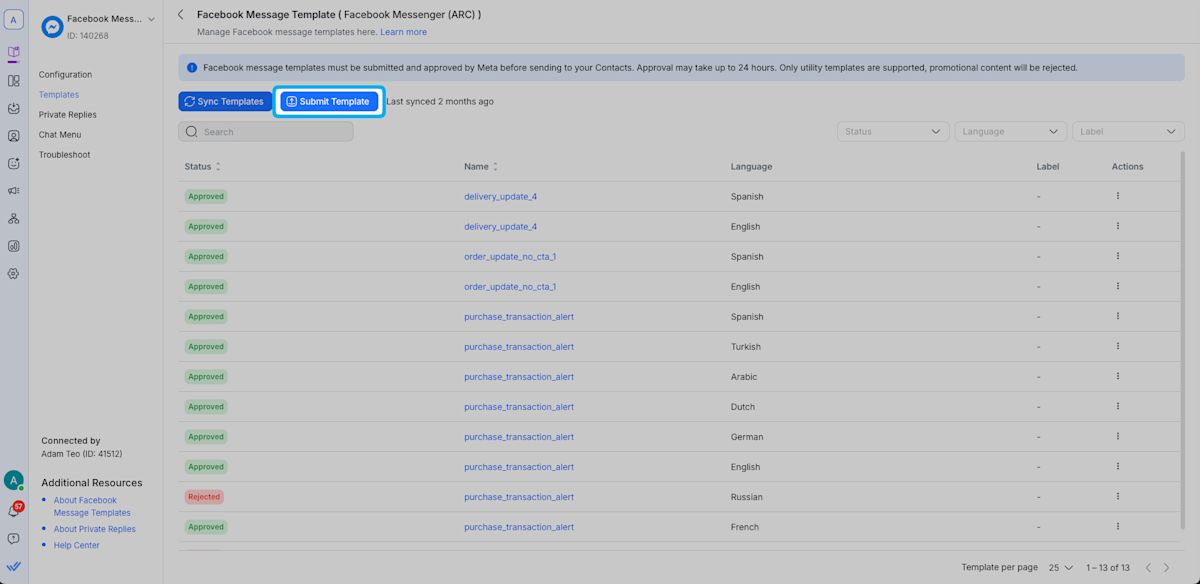
In the Templates tab, click Submit Template.
Fill in: Template name, Language, Label (optional).
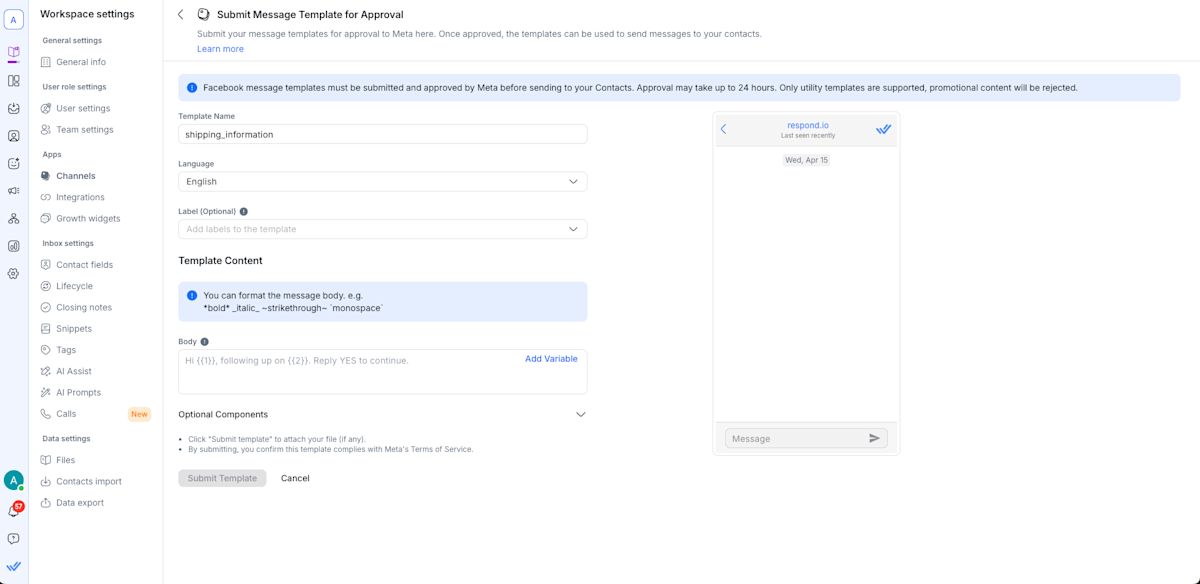
Add Body text and variables using the Add variable button (e.g. {{1}}, {{2}}).
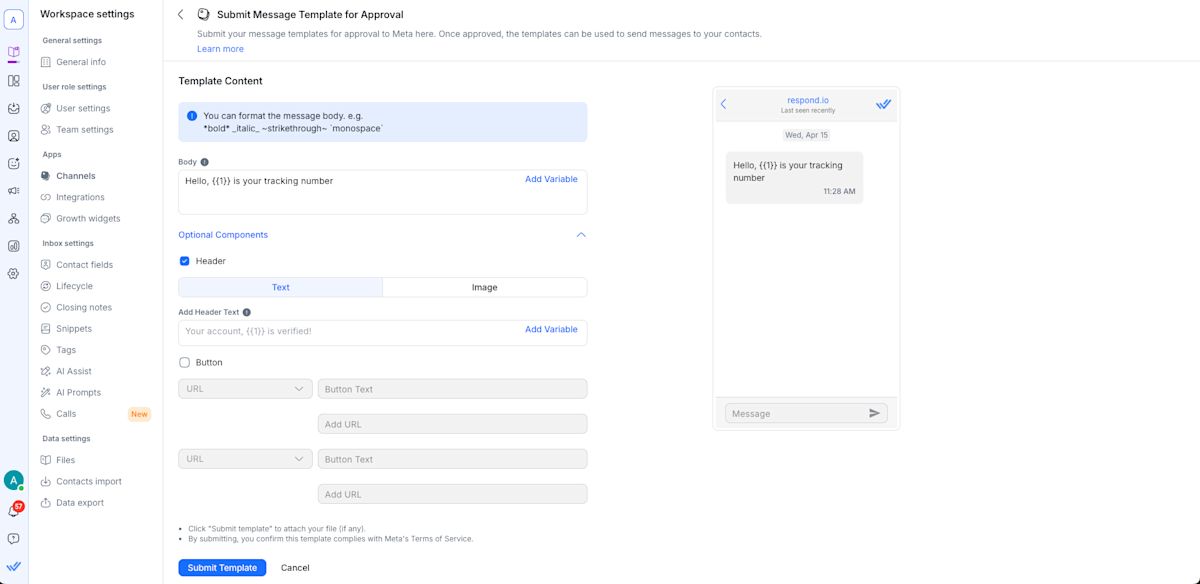
Optionally enable: Header (text OR image and text), URL Button.
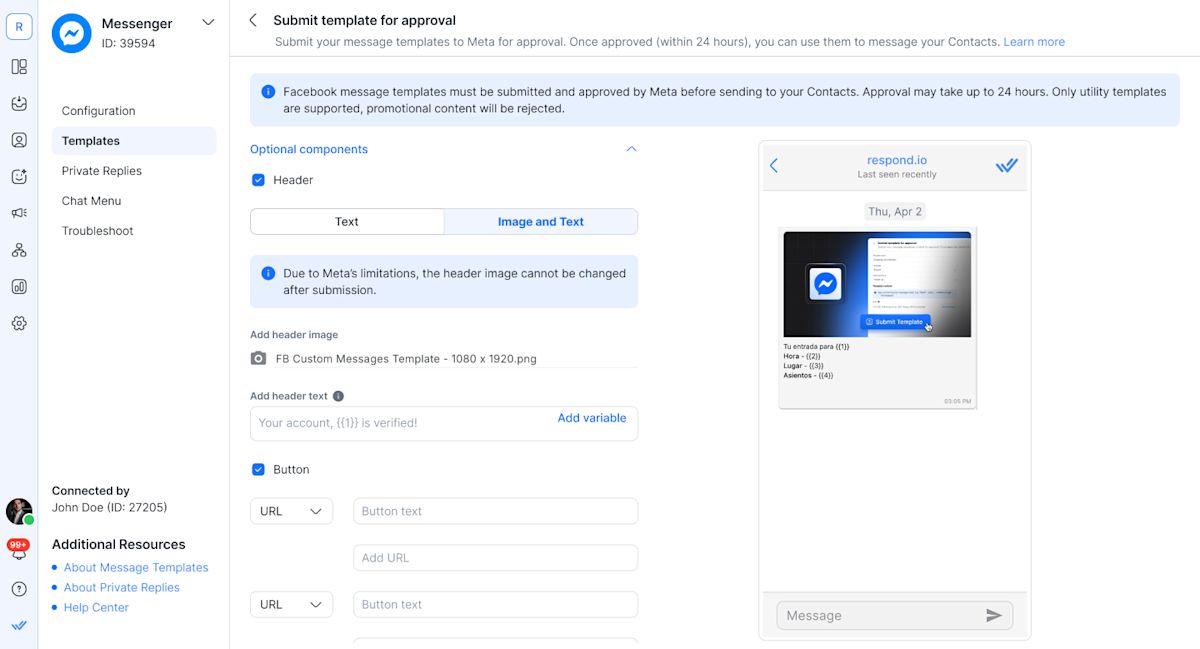
Review the live preview, then click Submit Template.
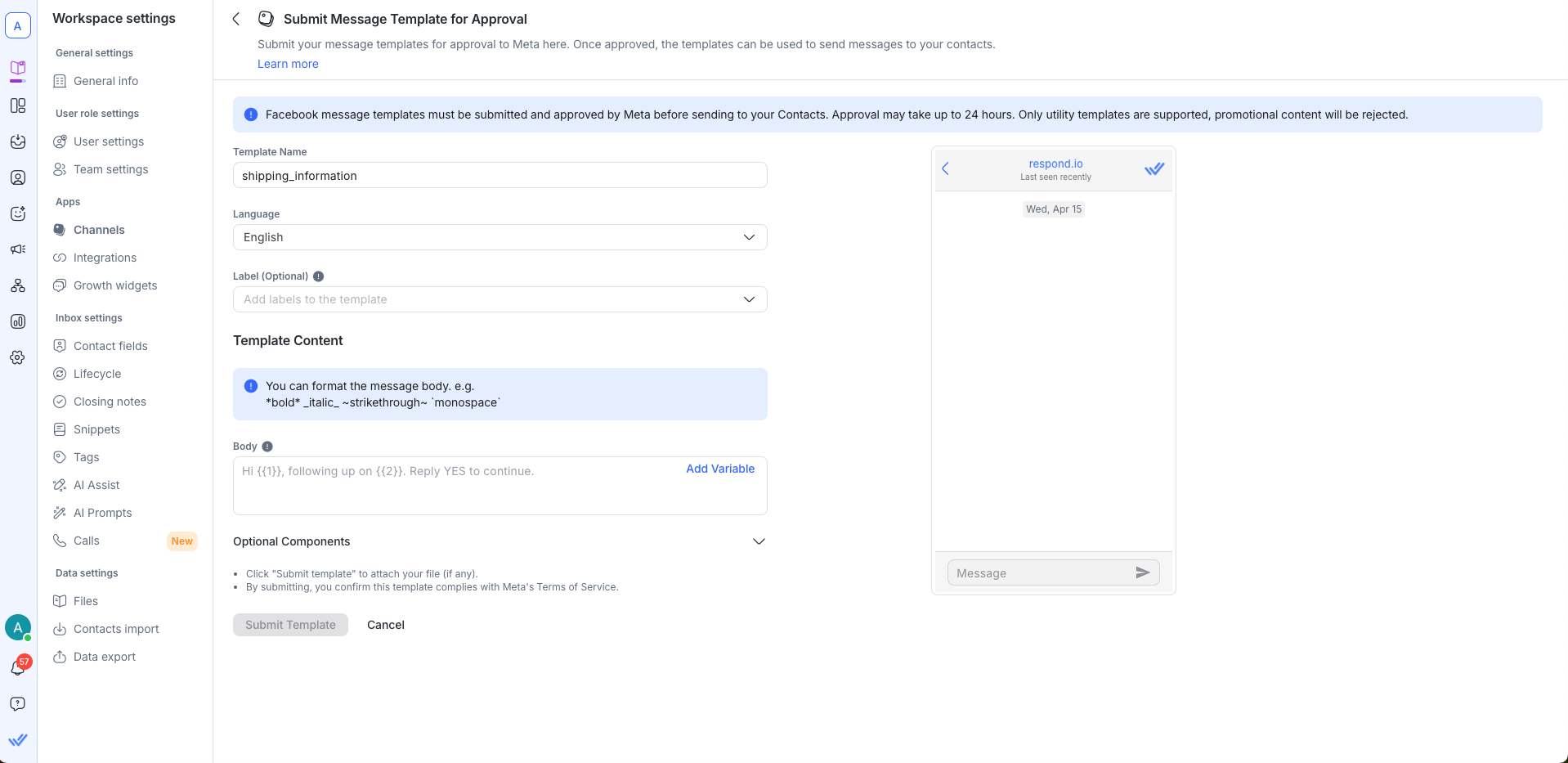
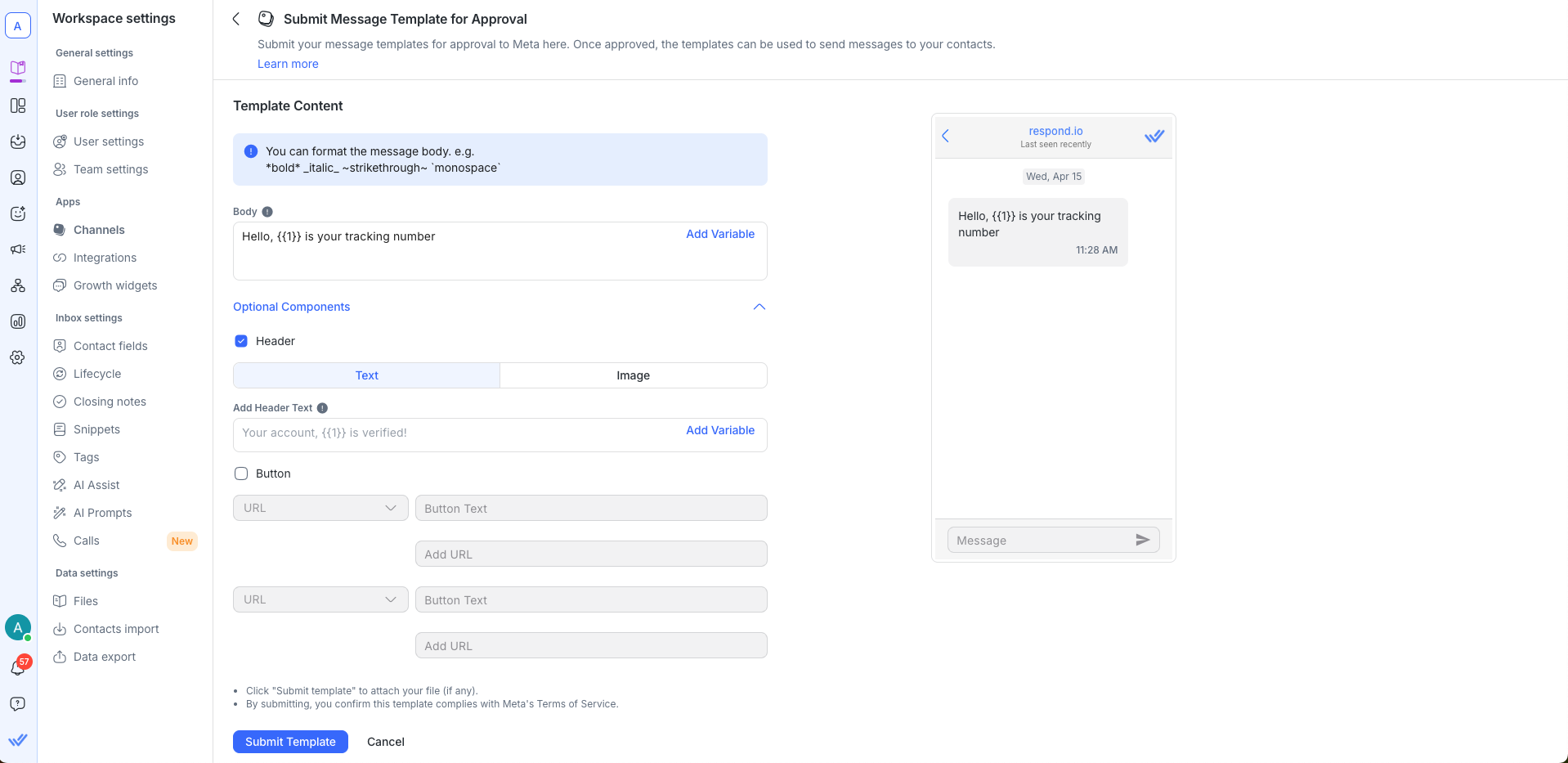
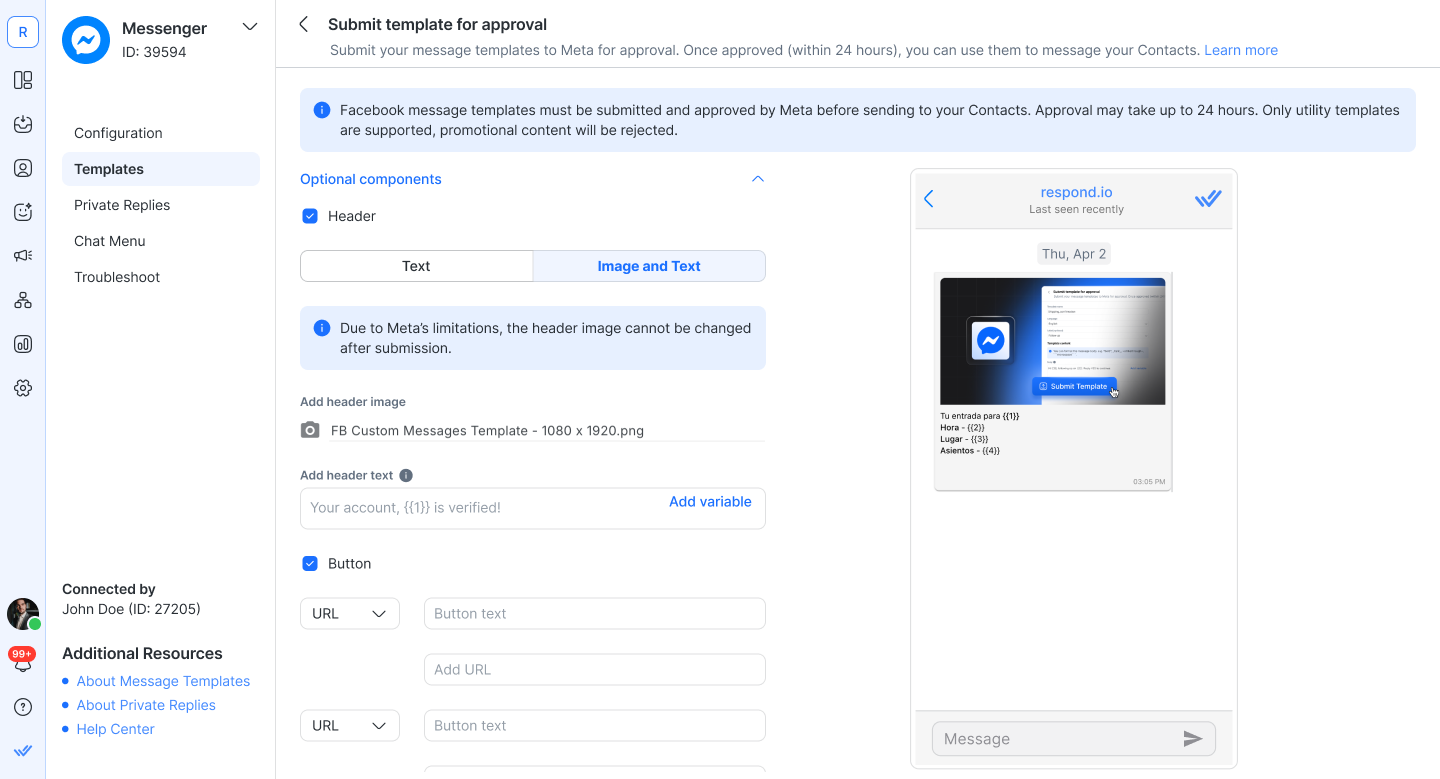
Due to Meta's limitations, the header image cannot be changed after submission.
Building Block | Description |
|---|---|
Body | The Body contains the most important text of your template. Only text is supported. You may use markdown to format the content of this block. |
Header | The Header is optional and serves as the title or header of your template. It supports the following: Text, Image (.jpeg, .jpg, .png). |
Button | The Button component is optional and adds interactivity to your template. There is one button type: Call to action button — used to direct Contacts to a website. The URL button can include a parameter for personalization. |
Once submitted, approval may take up to 24 hours. Once approved, the template shows an Approved status. Check your template status by navigating to Settings > Channel > your connected Messenger Channel > Templates. Then, sync your template to get the latest status update.
Limitations: Utility templates only. Submissions are final and cannot be edited. Use labels to keep things organized.
Sending message templates
Steps to send message templates
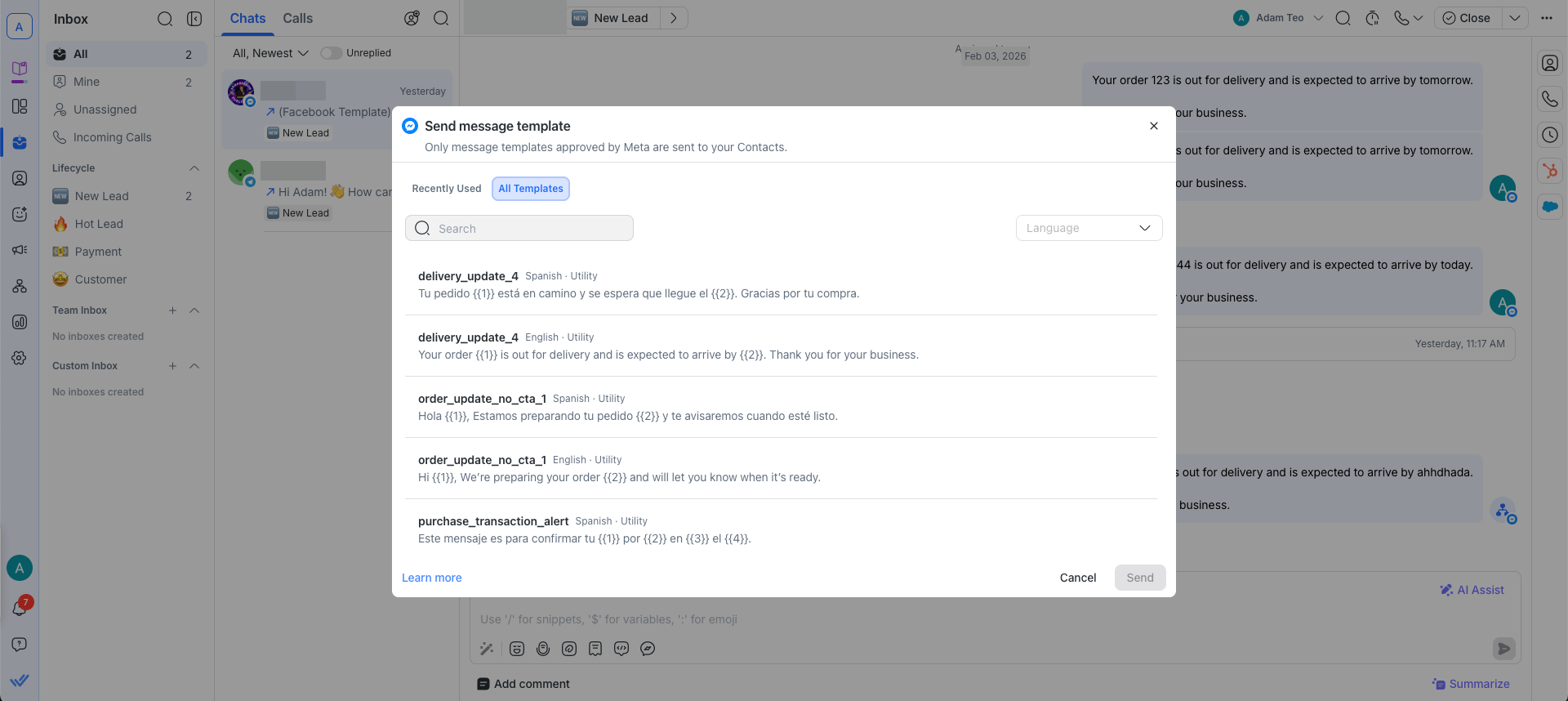
Click the Message template icon in the messaging bar.

To send a message template after the customer service window has expired, click the Send Message Template button at the bottom of the Inbox Module.
Select the template to send to your Contact.
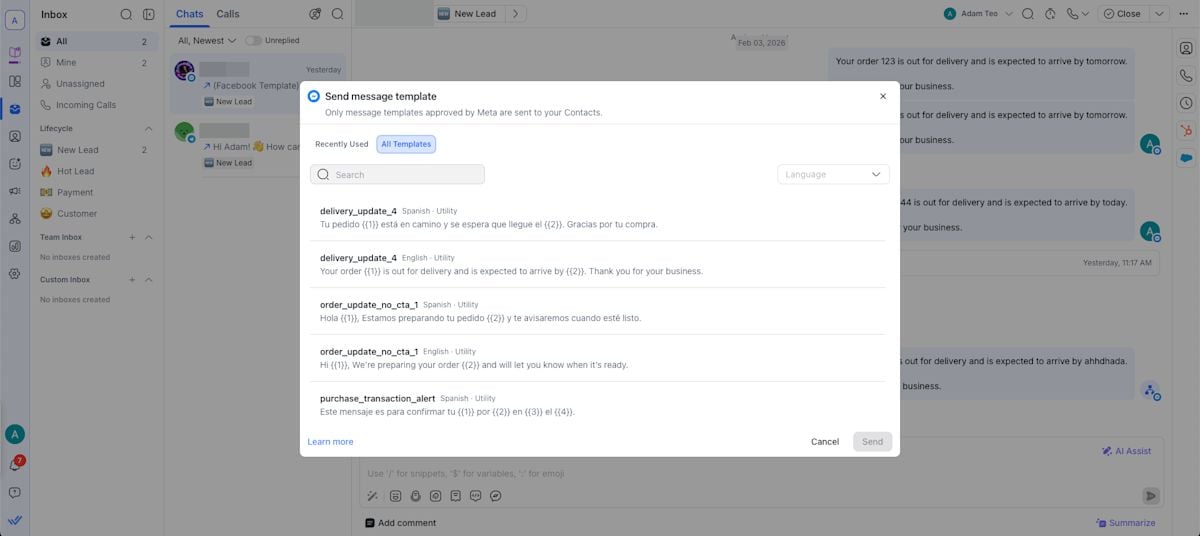
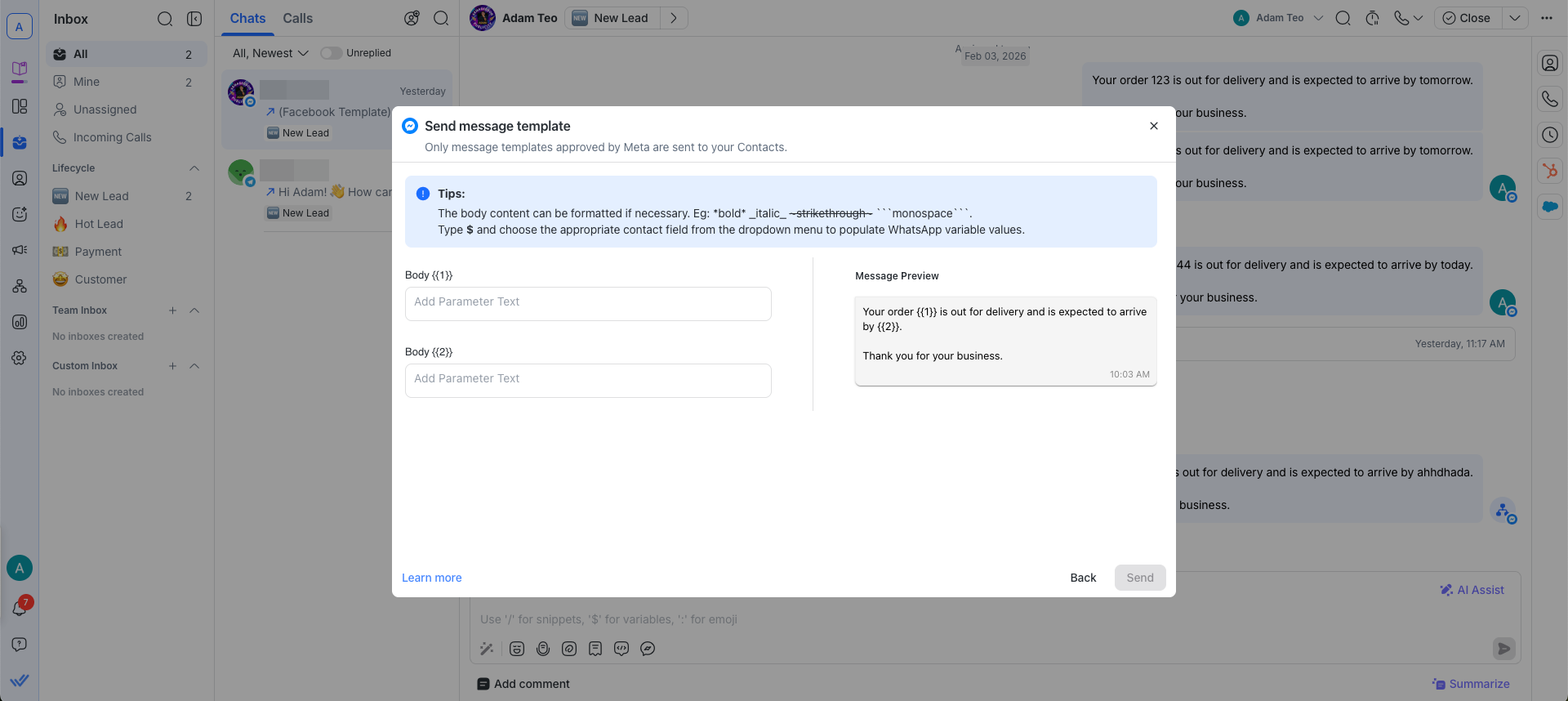
Personalize the message and specify the parameters for the template. You may use Dynamic Variables to fill in the required fields i.e. the values for {{1}}, {{2}}, etc. When a user is typing the values for the parameters, the parameters in Message Preview will be replaced with the values for users to review before sending it to the Contact.
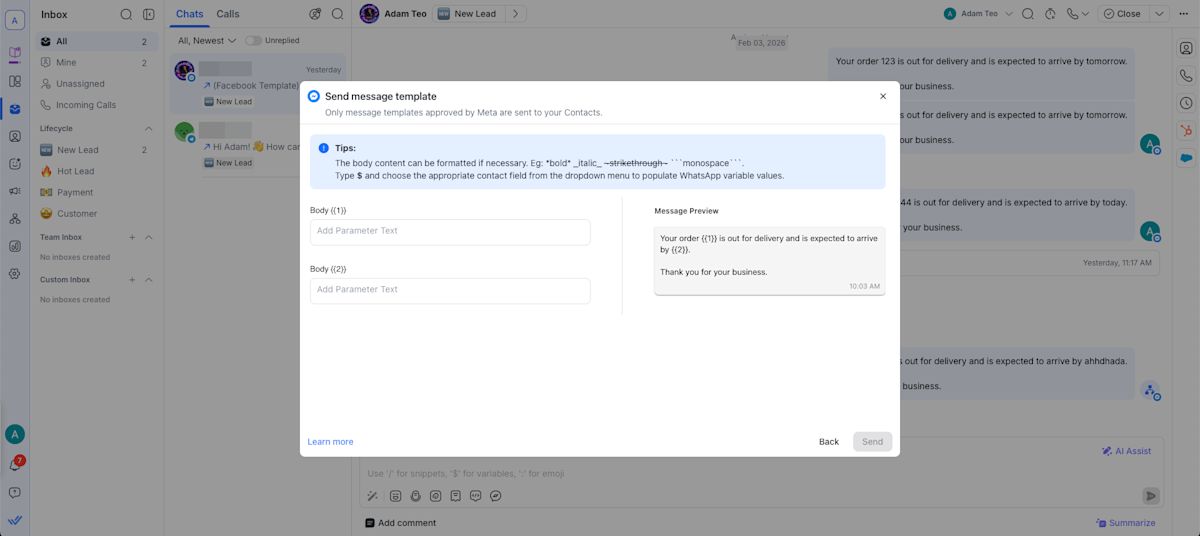
Review the information and click Send.


FAQs and troubleshooting
I don't see any templates after refreshing my permission or connecting my Messenger Channel. What should I do?
Templates may take a few minutes to fully sync to the platform. If you still don't see any templates after an hour, contact Support.
Why do I see the "Insufficient permissions to sync templates" error after syncing templates?
This happens when your Facebook Messenger Channel permissions are outdated. Go to the Channel's Troubleshoot settings and click Refresh Permission to reauthorize access and try syncing your templates again.
Can I create and manage custom Facebook utility message templates on respond.io?
Yes. You can now create and submit custom utility templates directly in respond.io. Go to your Messenger Channel settings, click the Templates tab, and select Submit Template to get started. Keep in mind: only utility templates are supported, and templates can't be edited after submission.
Why is message formatting not displayed correctly on the recipient’s side?
Due to a Meta limitation, bold, italic, strikethrough, and monospace formatting are not supported when optional components are included in the message.


