

Auto Private Replies for Instagram automatically send private messages to people who comment on your Instagram content. Whether the comment is on a post, reel, ad or live story, this feature helps you proactively engage potential customers and convert commenters into leads.
How Auto Private Replies work
Auto Private Replies are automated Instagram Direct messages triggered when someone comments on your:
Posts
Reels
Ads (that appear on Instagram)
Live stories (only during the live session)
Configure these replies to send across all content or only on specific posts and reels.
Note: A Contact is only created in respond.io after the user replies to your private message.
How to configure Auto Private Replies
Go to Settings > Channels.
Select your Instagram Business Account.
Open the Private Replies tab.
Choose how to configure your automatic replies.
This reply will be delivered in the person’s Inbox folder if they follow your Instagram Professional account, or in their Message Request folder if they do not follow your account.
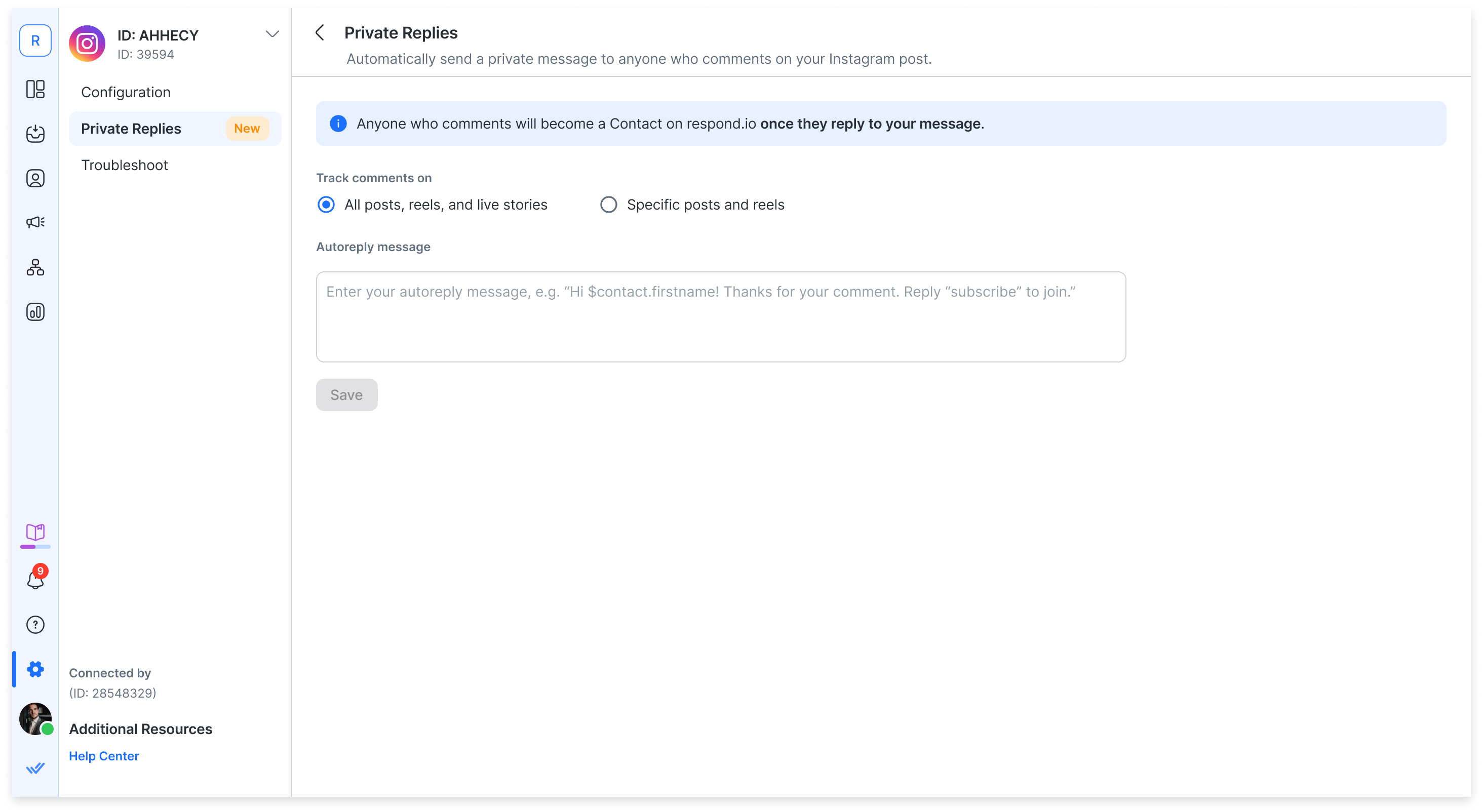
Reply to all posts, reels, and live stories
Send the same reply to every comment across your Instagram content.
Select the option “All posts, reels, and live stories”

Enter your message in the Autoreply message text box
Example: “Hi $contact.firstname! Thanks for your comment. Let us know how we can help.”
Click Save. This reply will be automatically sent to all new comments.
Tip: You can use Contact variables like
$contact.firstnameand$contact.name.
Reply to specific posts and reels
Set up unique replies for selected Instagram content.
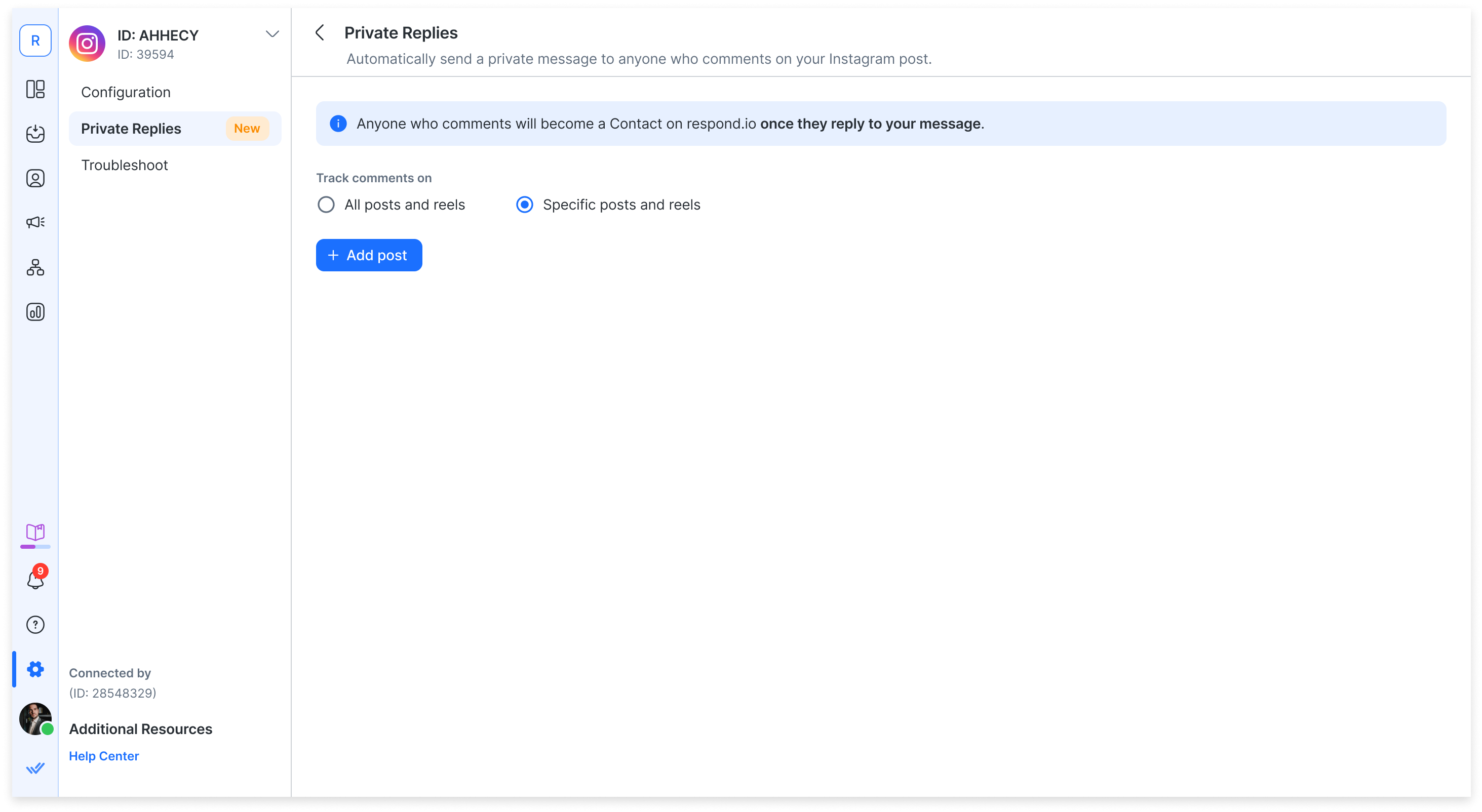
Select the option “Specific posts and reels” to customize replies for each item.

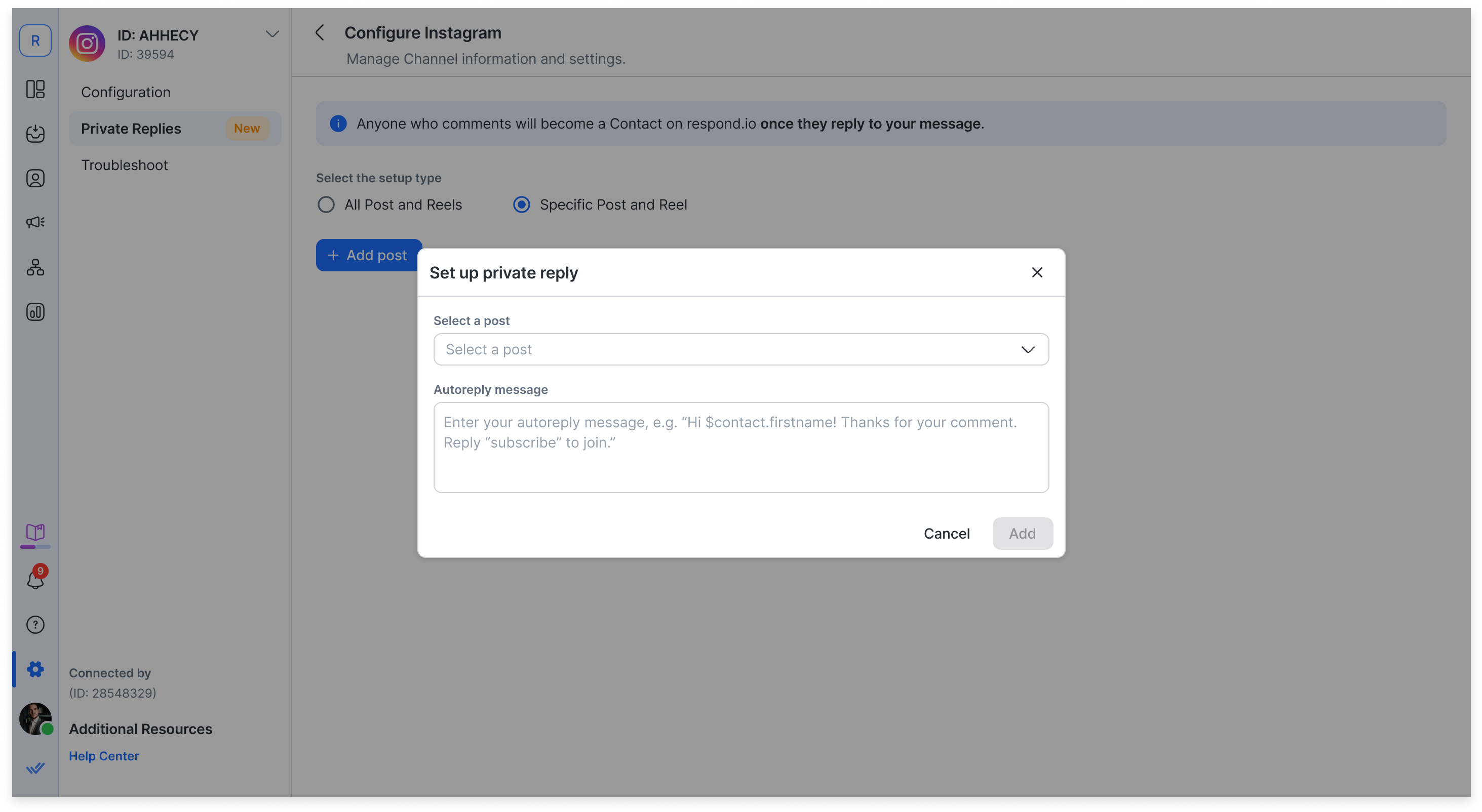
Click + Add post. A dialog will open to configure your reply for a specific post or reel

Select a post or reel from your published content in the dropdown. Posts and reels are labeled.
Enter your message in the Autoreply message text box
Example: “Hi $contact.firstname! Thanks for your comment. Let us know how we can help.”
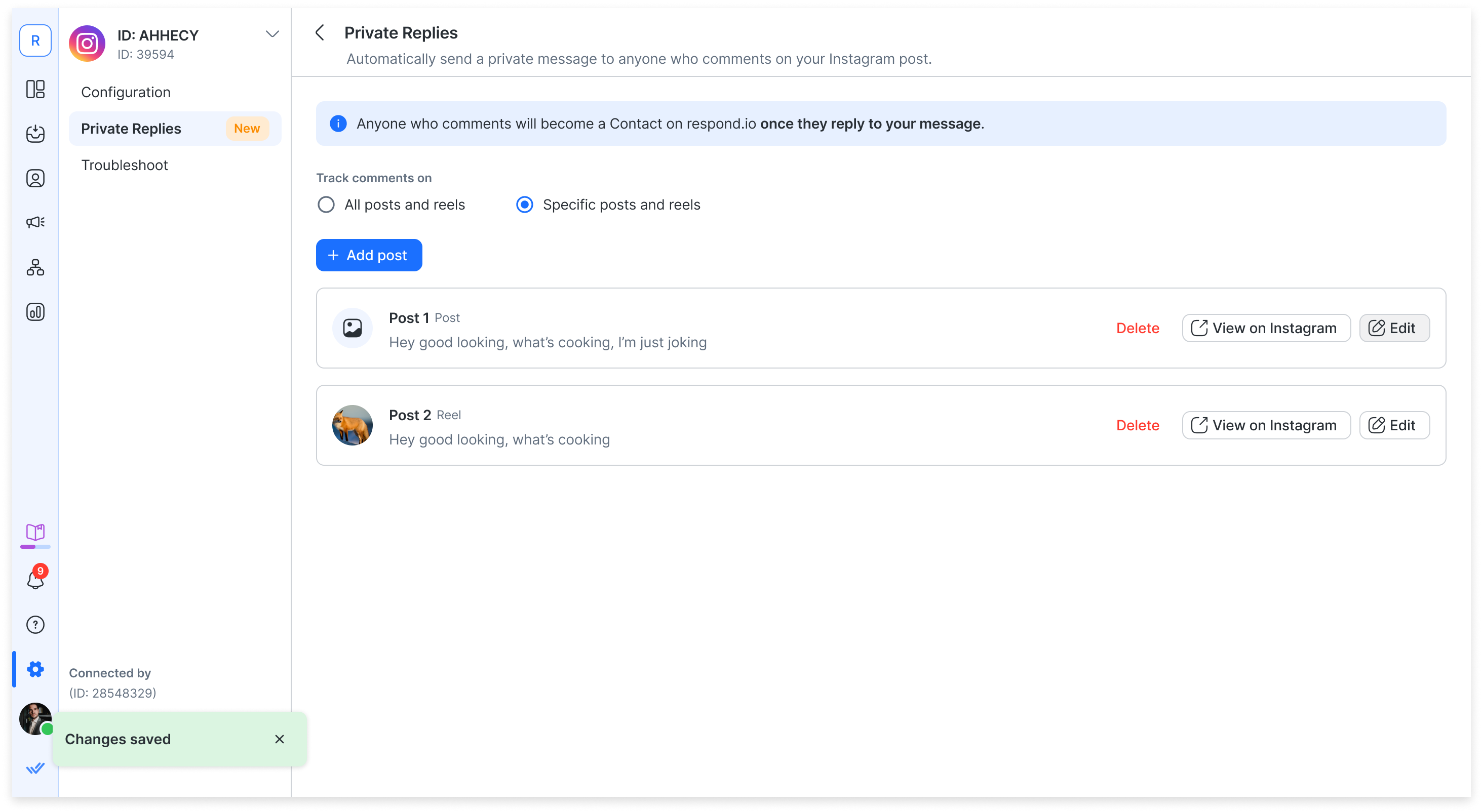
Click Add. The configured item will appear in a list below.
View on Instagram or click Edit next to any item to modify its message. (Optional)

Viewing the original post
When a Contact replies to an Auto Private Reply, the Contact event in the Inbox shows a COMMENTS hyperlink. Click it to open the original Instagram post.

Note: The COMMENTS hyperlink only appears on Auto Private Replies set up after this feature was released. Existing Auto Private Replies won't show it.
Limitations
Limitation | Details |
|---|---|
One-time Message | Only one private message can be sent per comment. |
Message Window | Replies must be sent within 7 days of the comment. |
Live Stories | Replies only work while live, not after. |
IGTV Comments | Not supported. |
Contact Creation | User must reply to your message to become a Contact on respond.io. |
Contact Variables | Supports: |
FAQ and troubleshooting
Why isn’t my message sending?
You tried replying to a live story after it ended.
Your Instagram Channel token is invalid — reconnect the Channel.
Why can’t I find a post or reel in the dropdown?
That post/reel is already configured in your Private Replies.
Your account might not have eligible content fetched — try refreshing Channel permissions.
What happens if I switch between All Posts and Specific Posts?
Your current setup will be deleted.
This action is irreversible — you’ll need to manually reconfigure your previous setup.
Can I use Contact variables in my messages?
Yes. Supported variables are:
$contact.name
$contact.firstname


