

The Update tag action allows your AI Agent to add or remove existing Contact tags based on the instructions you provide. This is useful for automating segmentation, triggering tag-based Workflows, and keeping Contacts organized without manual tagging.
When to use
Use this action when you want the AI Agent to apply tags based on conversation context, such as:
Tag leads based on intent (e.g. %Interested, %Pricing Request)
Tag customers by support topic (e.g. %Refund, %Technical Issue)
Tag contacts once key details are confirmed (e.g. %Demo Booked)
Best practices
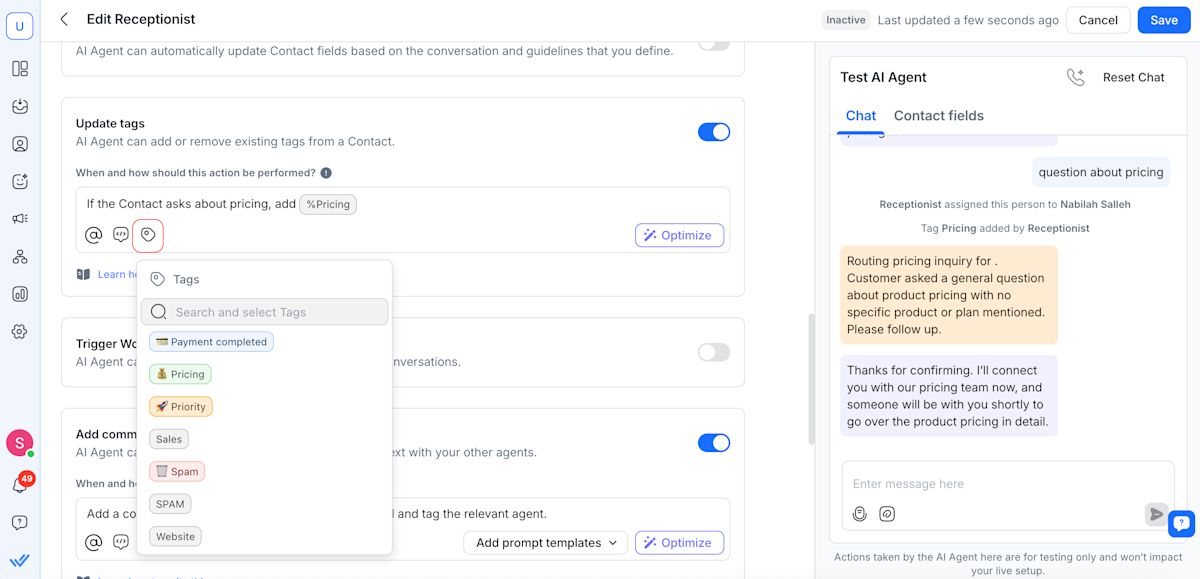
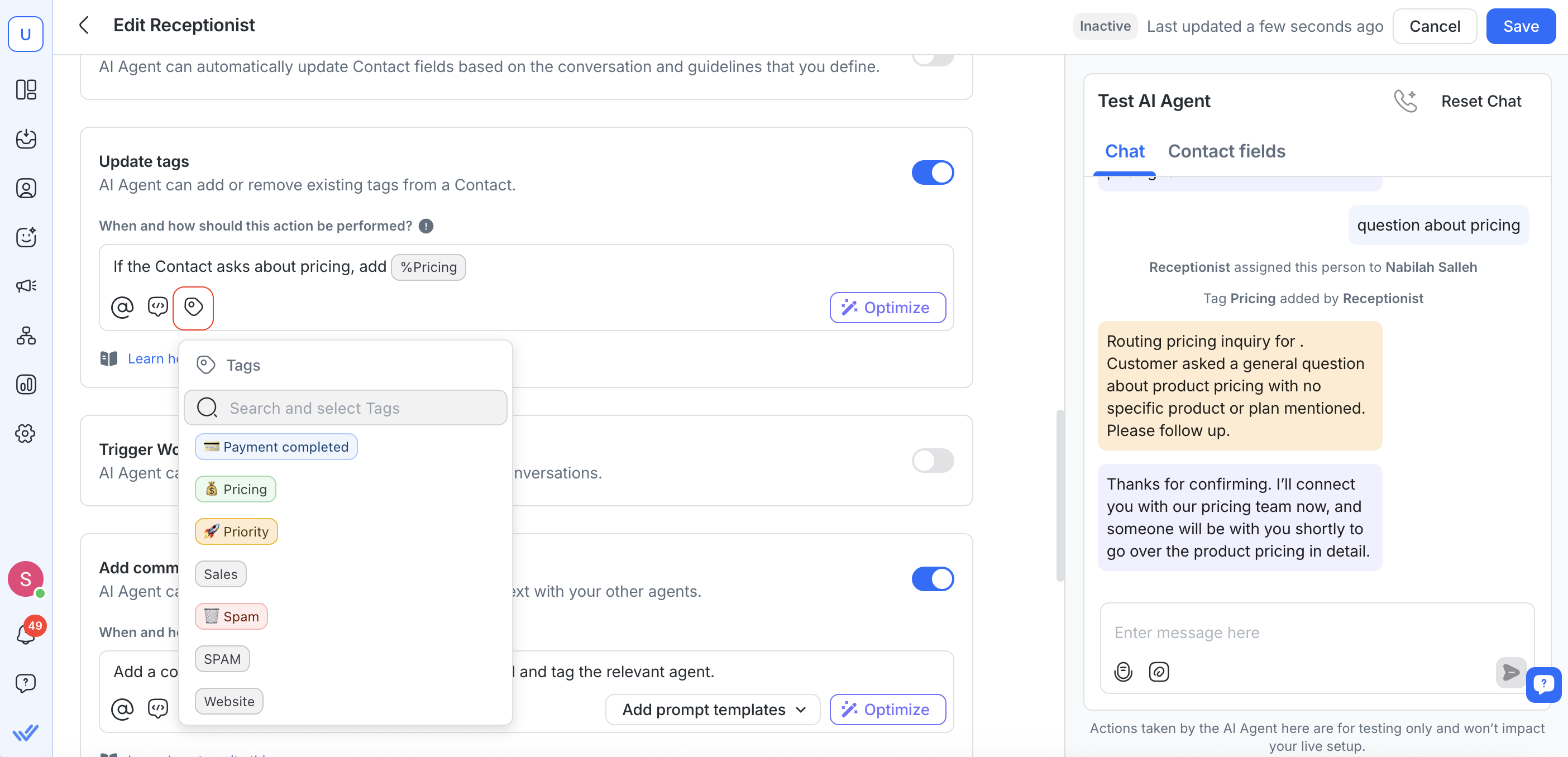
Use % to reference the exact tag name in your instructions. For example:
If the Contact asks about pricing, add %Pricing.If the Contact says they are no longer interested, remove %Interested.You can also view and select from your tags list by selecting the “Tags” icon in the Update tags instruction section.
Keep your instructions short and unambiguous to reduce tagging errors.
Tags added by AI Agents can be used by human teams and Workflows. For example, a Workflow can start when an AI Agent adds a tag to a Contact.
Limitations
AI Agents can only add or remove existing tags to a Contact — they cannot create or delete tags.
AI Agents cannot read a Contact’s existing tags, meaning:
They cannot check whether a tag is already applied in the past (before the current conversation)
They cannot use tags to decide conversation logic (e.g. “If they already have %VIP, do X”)


