


The Other Email Channel uses Simple Mail Transfer Protocol (SMTP) to send emails from respond.io. An email forwarding rule brings incoming emails from your mailbox into respond.io.
SMTP is an email protocol used to send emails from a local client to a recipient's address. SMTP uses a Mail Transfer Agent (MTA) to send your communication to the right computer and email inbox.
Before Connecting Other Email
If you wish to connect Gmail and Yahoo, it will require an additional step for authorization. Please refer to the following guides on how to do so.
Connecting Gmail
Watch the video below for a step-by-step guide on How to Connect Gmail to respond.io.

Step 1: Navigate to Settings > Workspace Settings > Channels > Click Add Channel
Step 2: Locate the Gmail Channel > Click Connect
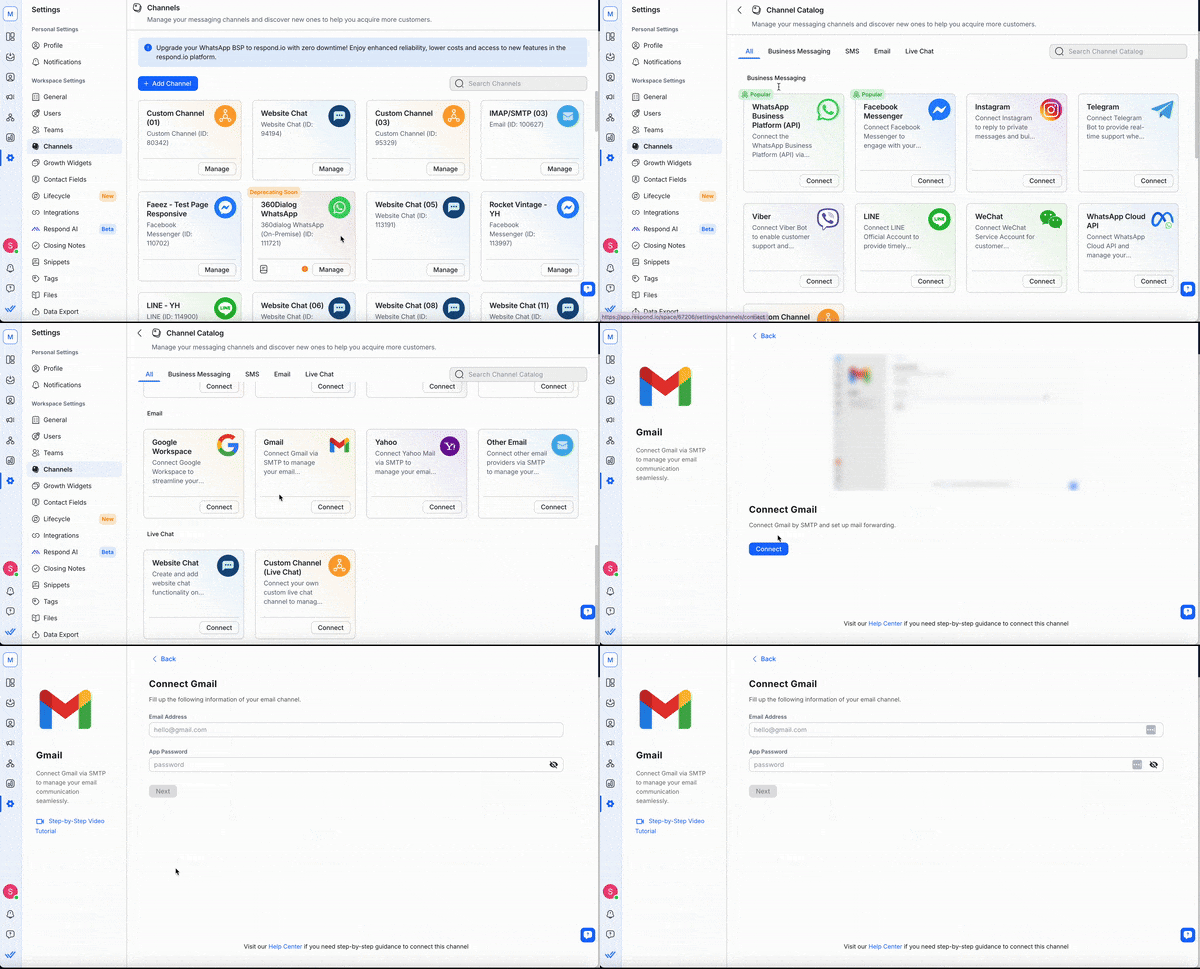
Step 3: Click Connect > Sign in with your email and app password
The app password is NOT the same as your login password. Learn how to create and use your app password for Gmail here.
Connecting Yahoo
Watch the video below for a step-by-step guide on How to Connect Yahoo to respond.io.

Step 1: Navigate to Settings > Workspace Settings > Channels > Click Add Channel
Step 2: Locate the Other Email Channel > Click Connect
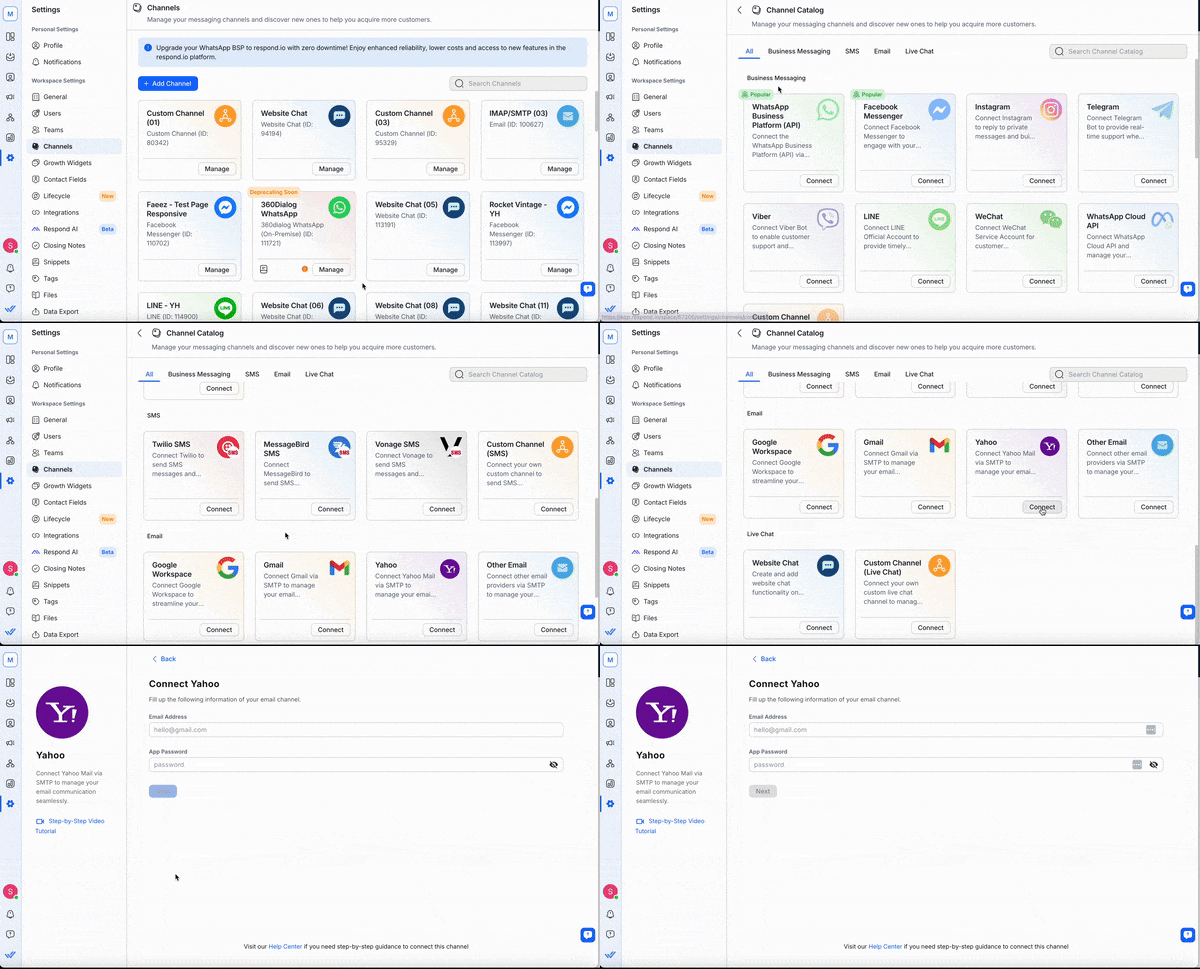
Step 3: Click Connect > Enter your email and password credentials
The app password is NOT the same as your login password. Learn how to create and use your app password for Yahoo here.
Upgrade to Yahoo paid account to access its email forwarding feature. Learn more about the Yahoo email forwarding feature here.
Connecting Other Email
Watch the video below for a step-by-step guide on How to Connect Other Email to respond.io.

Step 1: Navigate to Settings > Workspace Settings > Channels > Click Add Channel
Step 2: Locate the Other Email Channel > Click Connect
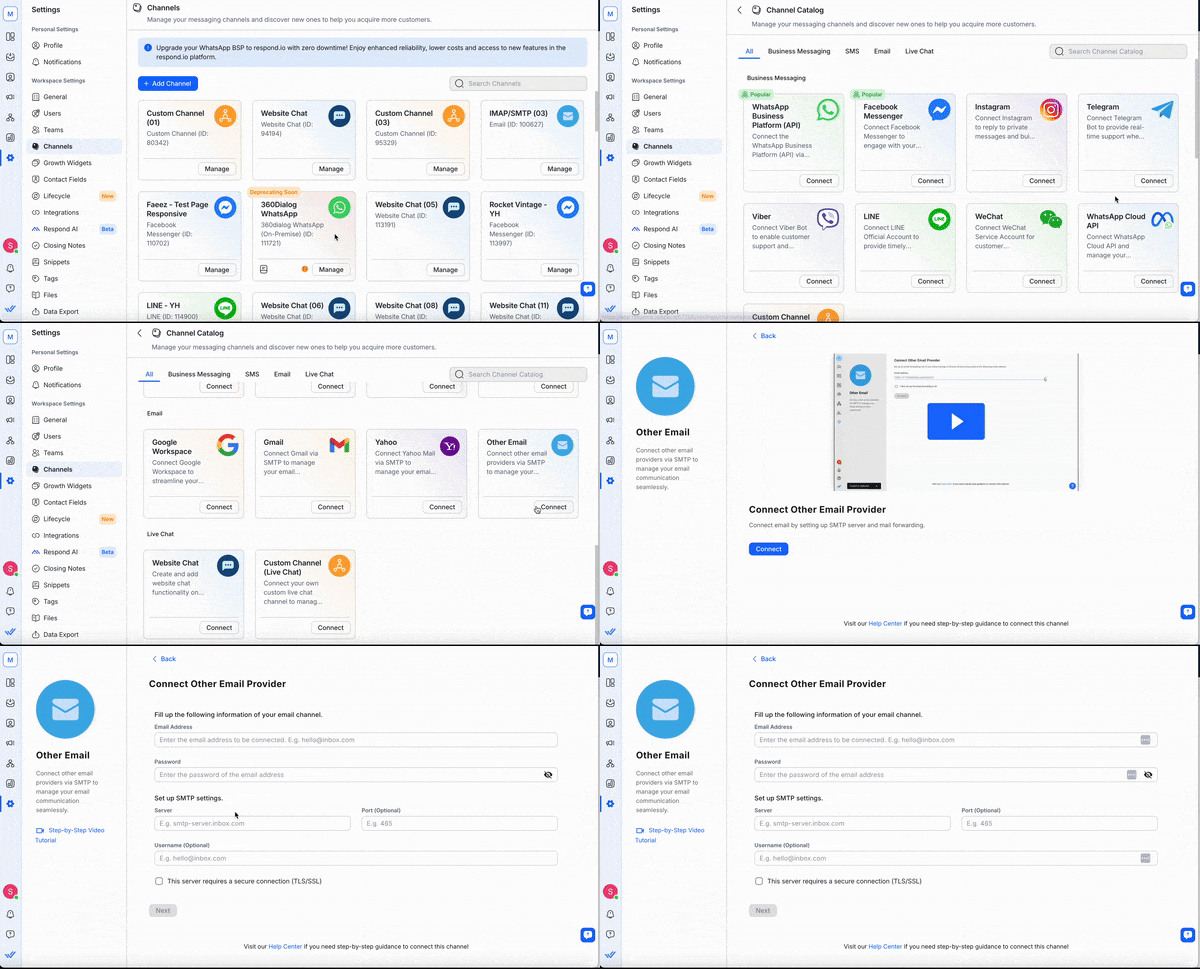
Step 3: Click Connect > sign in with your credentials and set up the SMTP settings.
Set up Email Forwarding
Once you've filled in the required information, click Next. A forwarding email address will be provided and it needs to be set up in the email inbox settings.
Refer to the following providers on how to set up the Email Forwarding rule:
Once you've completed the setup, all incoming emails can be received in your Workspace. Do note that emails sent directly from the email provider will not be reflected in the platform.
Channel Configuration
Email channel can be configured with a unique channel name.
Note: The ability to hide the respond.io branding is only available to organizations with subscriptions.
Step 1: Navigate to Settings > Workspace settings > Channels and click Manage on your Other Email Channel.
Step 2: Make the necessary configuration
You can configure the following:
Channel Name - Name used internally to identify the account.
Sender Name - The sender name is what your customers will see in their inbox as the sender of the email. By default, the sender name includes the name of the agent assigned to the conversation (using our variables) and the name of the company.
Workflow Sender Name - The sender name is what your customers see in their inbox as the sender of the email when it is sent through the workflow. By default, the sender name is set as the name of the company.
Signature - You have the option to create your own signature that will be automatically added to all your outgoing emails. If desired, you can choose to hide the signature by unchecking the checkbox. By default, the signature will be in the following format:RegardsThe first and last name of the assigned agent (using our variables)Company name
In addition, you have the ability to include an image and customize your signature using our rich text editor to create your desired format. By default, this signature will be applied to customers who are connecting a new email channel. For existing users, your previous settings will remain in effect until you modify your configurations.
Hide respond.io branding in reply - Option to hide the respond.io branding in replies to your Gmail contacts (Available to organizations with subscriptions).
Default Copied Email Address: When this option is selected, respond.io adds the addresses entered here to every outgoing email from the Channel. It adds them as carbon copy (CC) recipients, so Contacts can see them.
HTML Background: This option enables or disables the HTML background in the emails that are sent out.
Additional Settings - Respond.io uses your email credentials and SMTP settings to send emails. Incoming emails arrive through the email forwarding rule.
Step 3: Click Done to update the Channel configuration.
FAQ and Troubleshooting
Why are messages not arriving in the platform?
Incoming emails reach respond.io only through the email forwarding rule in your mailbox.
To find your forwarding address, navigate to Settings > Workspace settings > Channels and click Manage on your Other Email Channel. Make sure your mailbox's forwarding rule uses the address in Forwarding Email Address.
Why are email Contacts not receiving replies?
Step 1: Check the email credentials and SMTP settings
If your Contacts are not receiving replies, there may be issues with the credentials used to set up. Be sure to cross-check all the information and if your mail server requires a secure connection, make sure to check the This server requires a secure connection (TLS/SSL) checkbox.
Why do my emails fail to send with the error "Invalid login: 535 Authentication Failed"?
This error means your email provider rejected the SMTP sign-in. To fix it, check your SMTP settings:
Navigate to Settings > Workspace settings > Channels.
Click Manage on the affected email Channel.
Click Additional Settings.
Make sure your email address, password, and SMTP port match your email provider’s settings.
Check your email account for recent security changes, such as two-factor authentication (2FA).
If 2FA is on, generate an app password from your email provider. Use it instead of your regular password.
If your email provider needs only a password to sign in, remove the username from your SMTP settings.
If the error continues, contact the support team.
Why don't emails sent from respond.io appear in my mail server's Sent folder?
Respond.io sends your emails through Simple Mail Transfer Protocol (SMTP). It doesn't save a copy to your mail server's Sent folder.
To keep a copy of every outgoing email:
Navigate to Settings > Workspace settings > Channels.
Click Manage on your Other Email Channel.
Select Default Copied Email Address.
Enter a mailbox address in the address box that appears.
Click Done.
Respond.io adds that address as a carbon copy (CC) recipient on every outgoing email, so Contacts can see it. The emails arrive in that mailbox's inbox, not its Sent folder.
Why can’t I access the email forwarding feature in Yahoo?
Automatic forwarding of emails in free Yahoo Mail accounts has been discontinued. Read more to understand the limitations of the email forwarding feature in free Yahoo mail.
You need to upgrade to Yahoo Mail Plus or subscribe to Access + Forwarding to use the email forwarding feature in your Settings.
Can I connect an Outlook email account on respond.io?
Yes, but not through the Other Email Channel.
To connect a Microsoft 365 or personal Outlook account, use the Microsoft 365 and Outlook Channel. Refer to Microsoft 365 and Outlook Quick Start for setup instructions.


