

Only Organization Admins and Billing Admins can access this page.
Go to Organization Settings > Billing & Usage.
This is where you manage everything related to your subscription: plans, billing details, invoices, payment methods, usage, and cancellations.
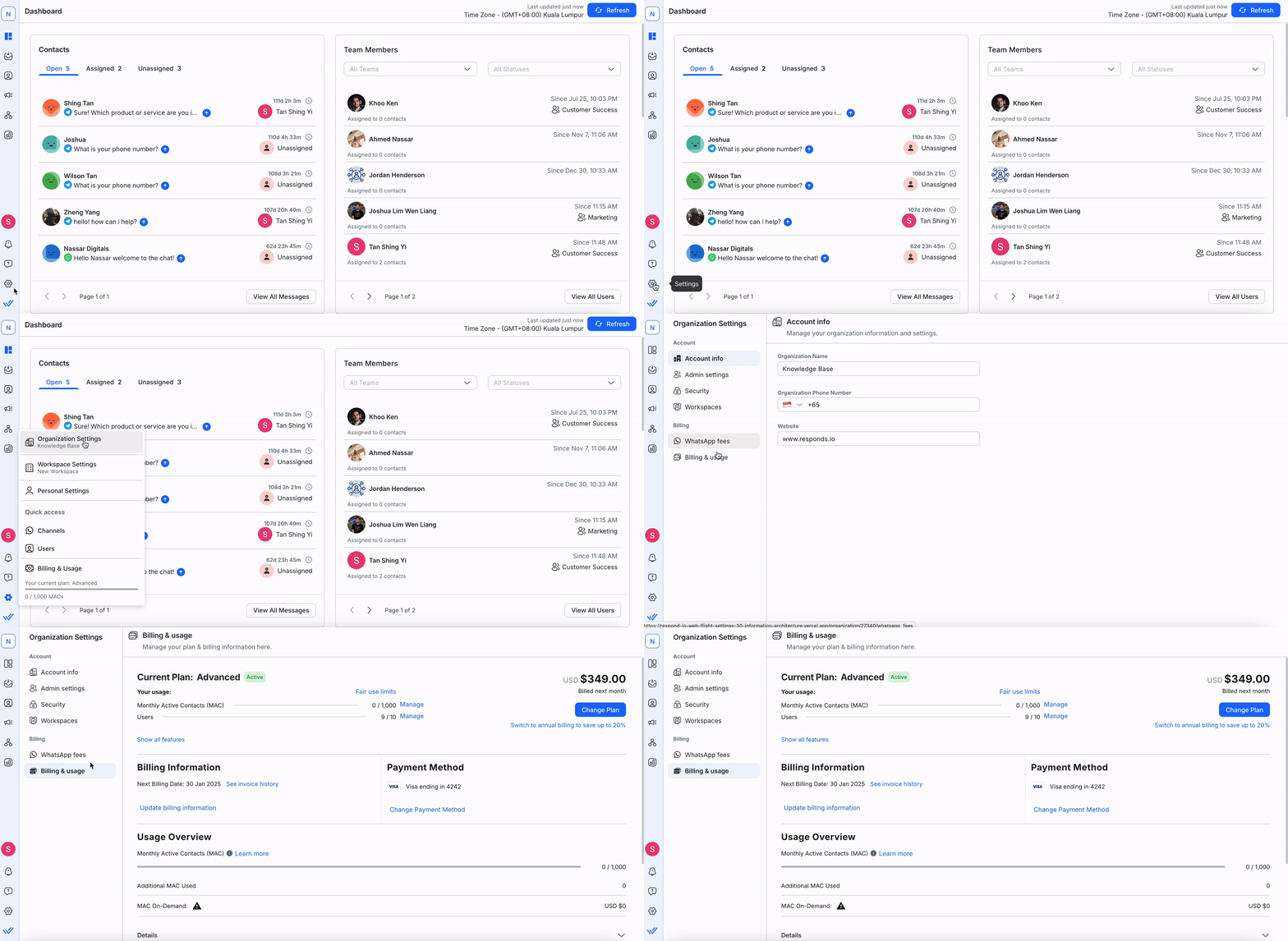
Current plan
At the top of the page, you’ll see:
Your current plan
Subscription status
Current usage under Your Usage
Subscription statuses
Status | Meaning |
|---|---|
TRIAL | You are currently on a trial plan. |
TRIAL ENDED | Your trial has expired. |
ACTIVE | You are subscribed to a paid plan. |
DOWNGRADING | Your plan will downgrade at the end of the billing cycle. |
CANCELING | Your subscription will end at the end of the billing cycle. |
PENDING PAYMENT | You have an overdue invoice. Immediate payment is required. |
FROZEN | Your organization is frozen due to unpaid invoices. |
CANCELED | Your subscription is no longer active. |
Subscribing to a plan
If you’re on a trial:
Click Subscribe to Plan
You’ll be redirected to the pricing page
Select your desired plan
For full plan comparisons, visit our pricing page.
Changing your plan
Click Change Plan to upgrade or downgrade. You’ll be redirected to the pricing page to select a new plan.
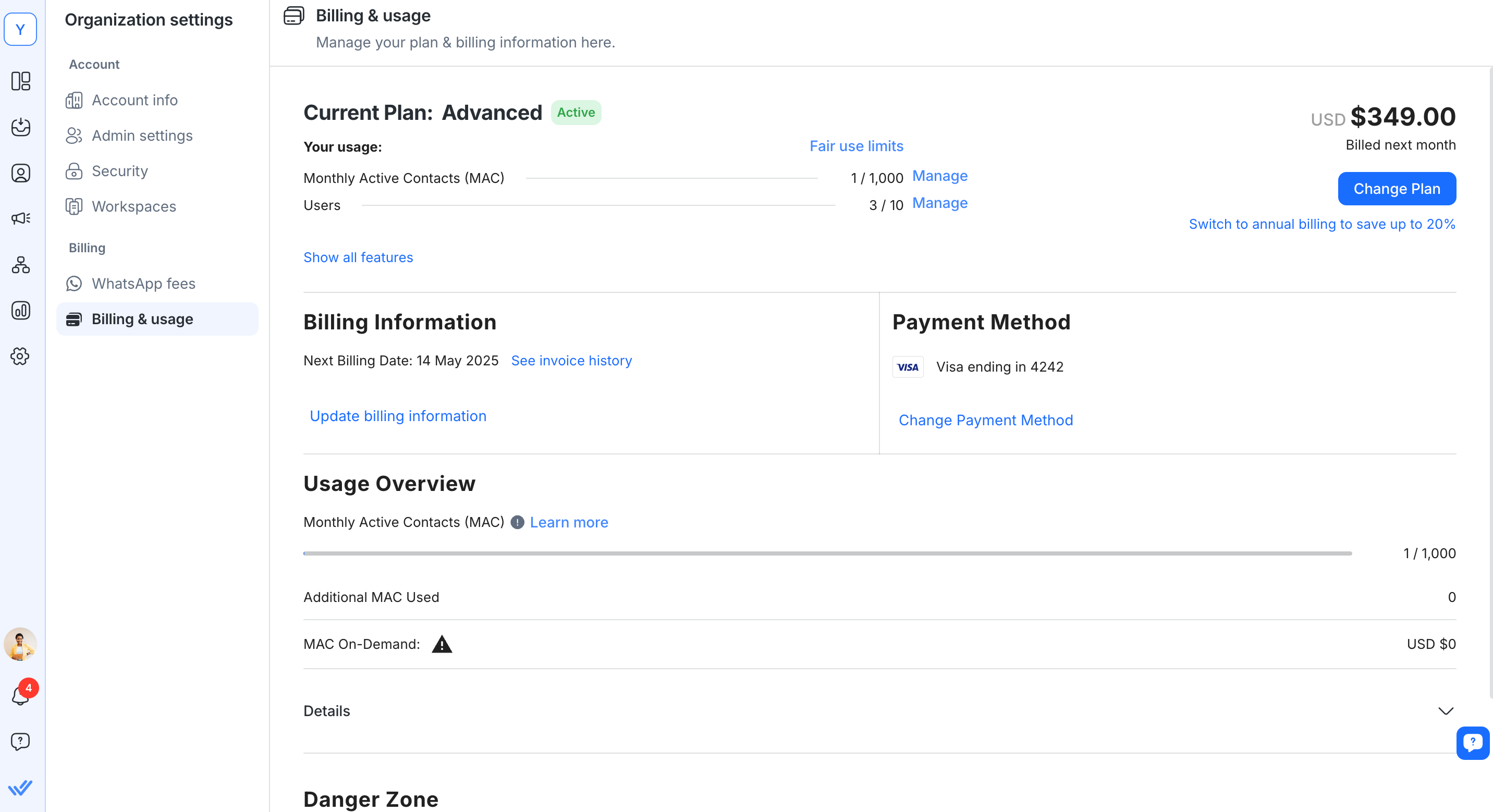
A confirmation dialog will show:
New pricing breakdown
Any required adjustments before the change
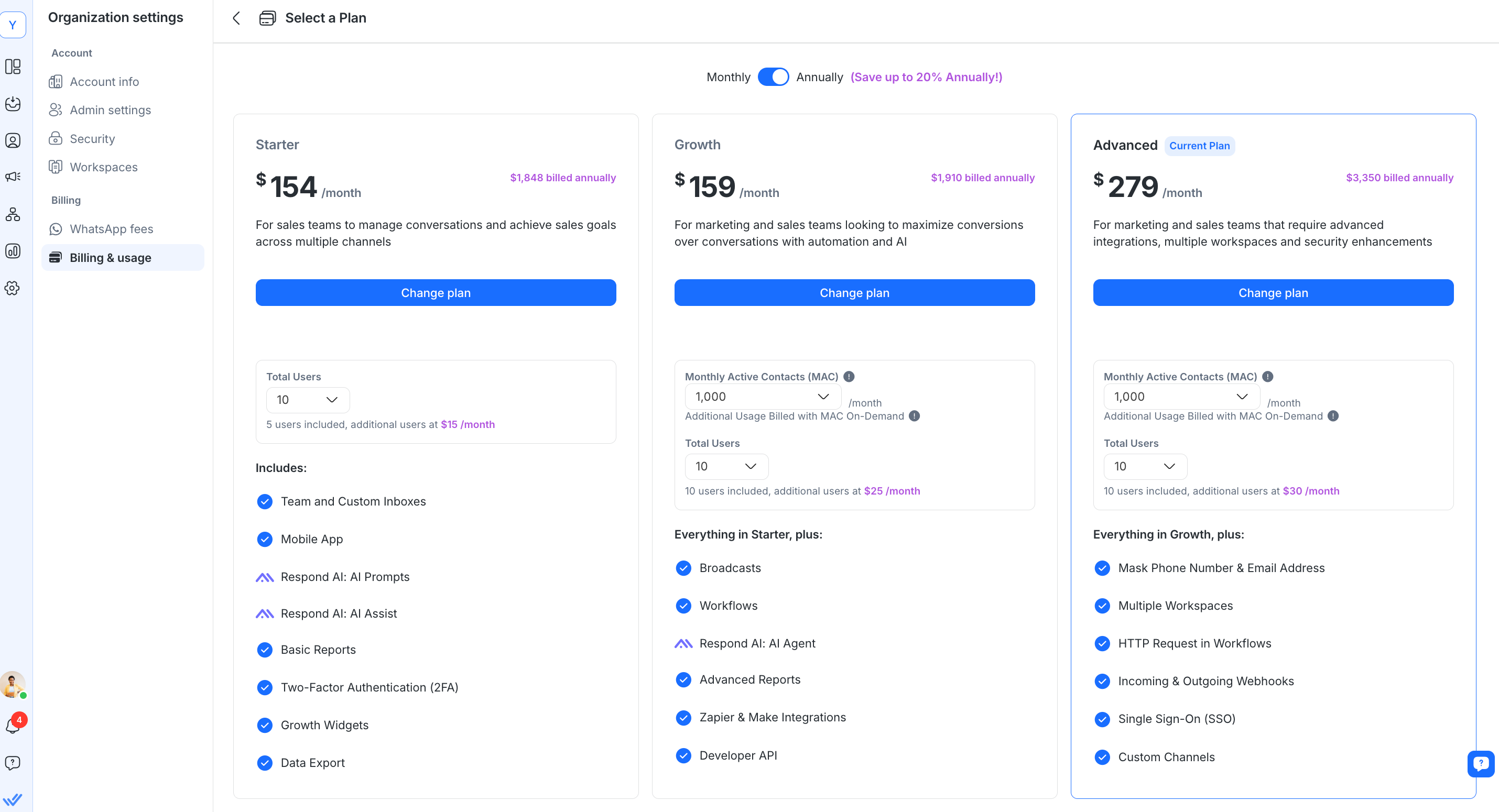
Important:
Upgrades take effect immediately.
Downgrades take effect at the next billing cycle.
You can switch to annual billing to save up to 20%.
Note: The in-app pricing page may show older plans. View our website for the latest pricing.
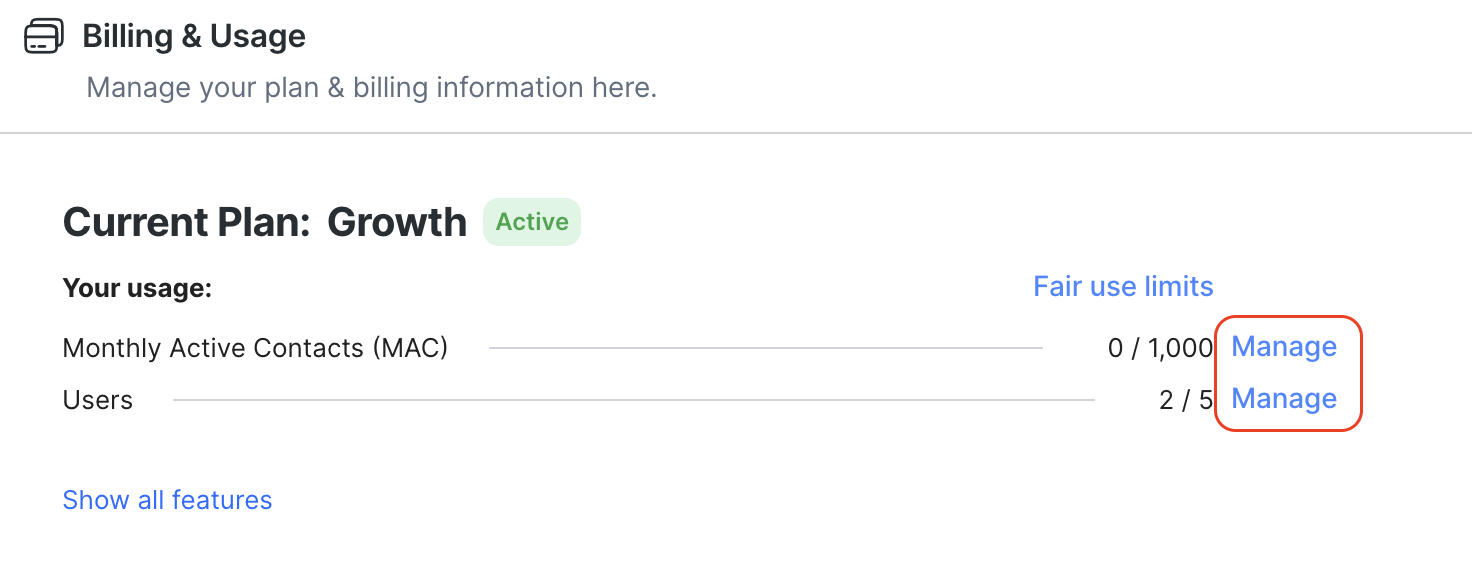
Adjust Monthly Active Contacts (MAC) and users
Organizations on the new pricing plan can modify:
Number of Monthly Active Contacts (MAC)
Number of Users
Click the respective Manage links in the Billing & Usage section.
Billing information
This section shows:
Your next billing date
Invoice history
Payment status
A new invoice is generated at the start of each billing cycle.
Your saved payment method is automatically charged.
How to download your invoice and receipt
To download your invoice and receipt, follow these steps:
Go to Settings > Billing & usage.
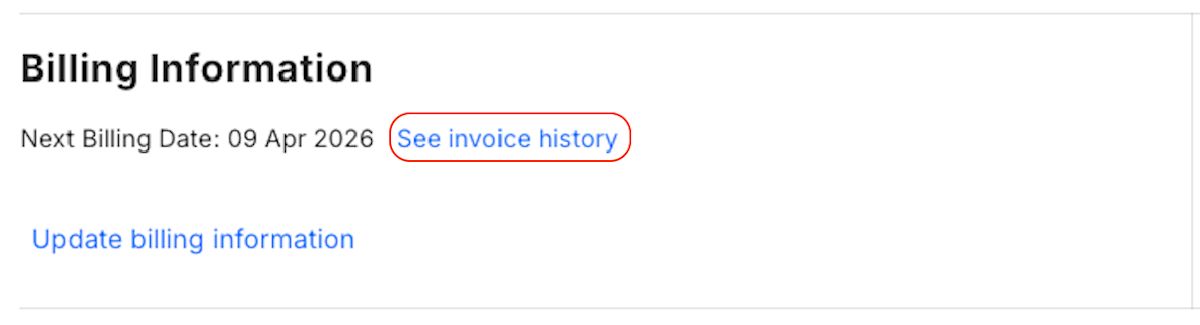
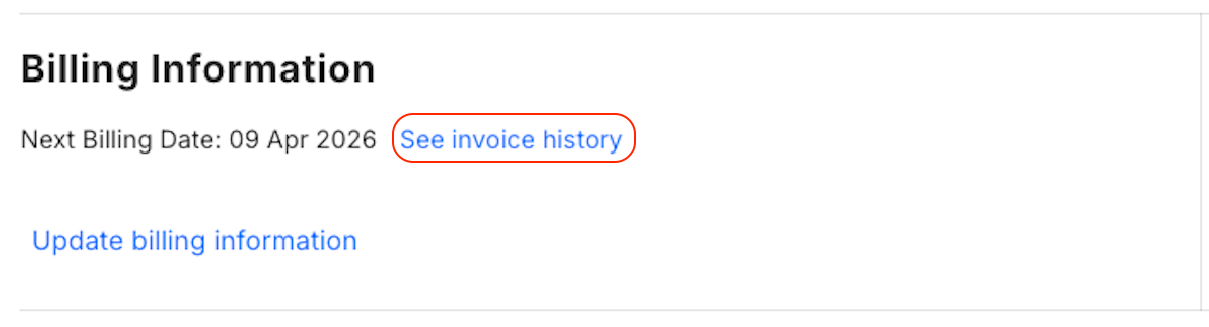
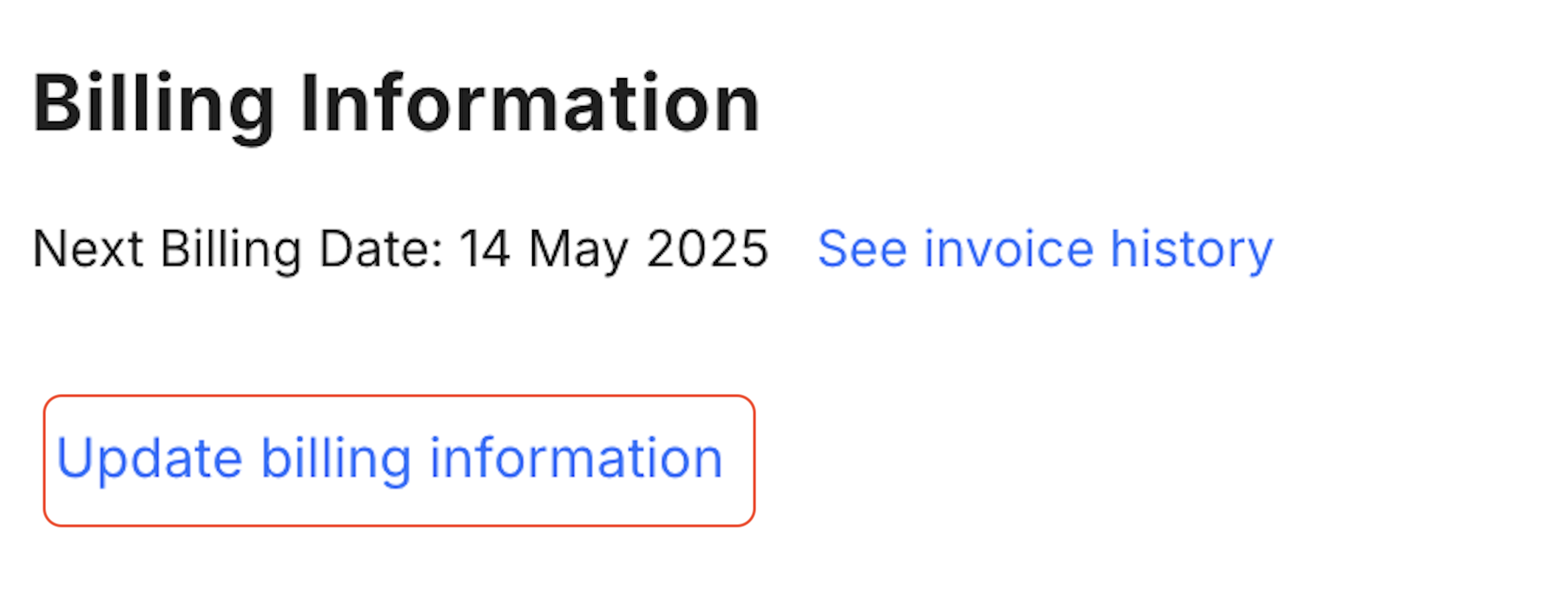
Navigate to Billing Information.
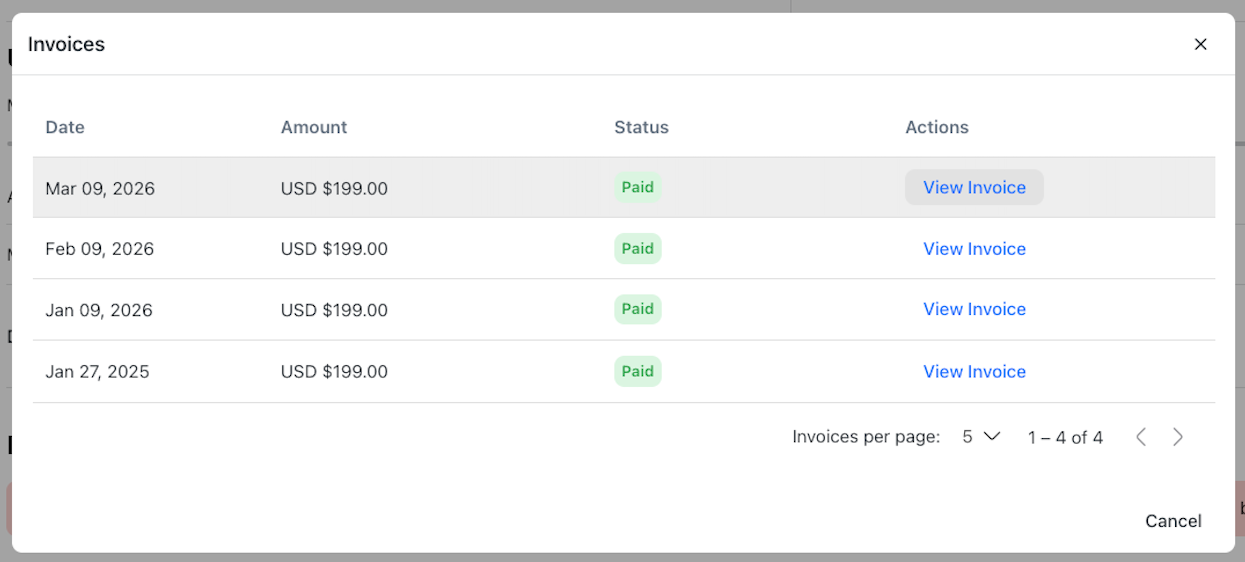
Click See invoice history.
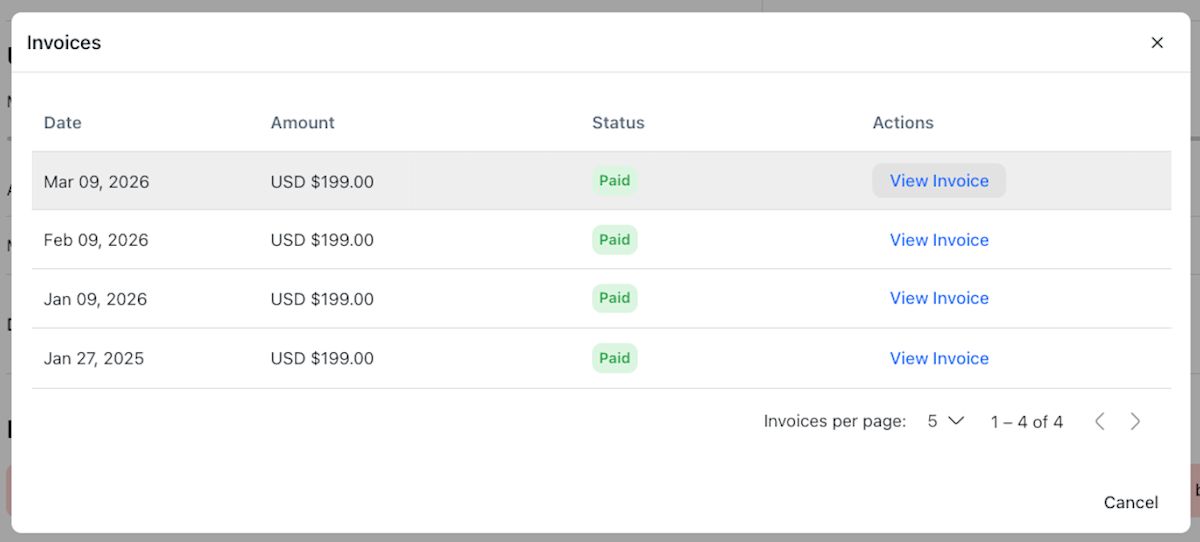
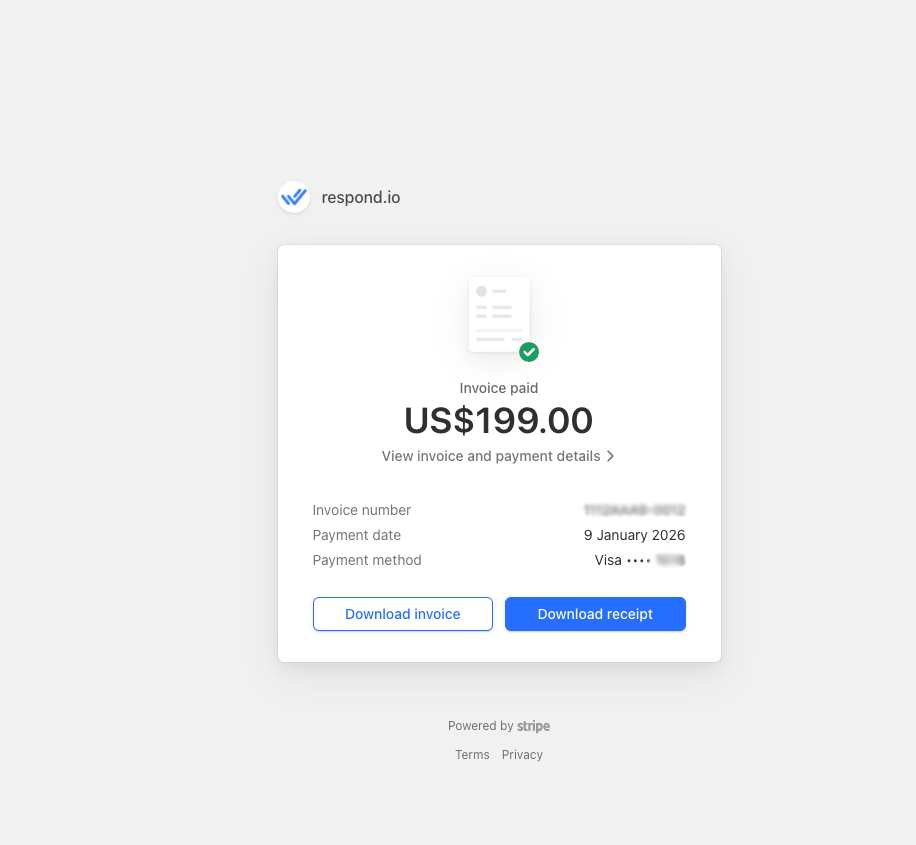
Once the Invoices pop-up appears, find the invoice you want and click View Invoice.
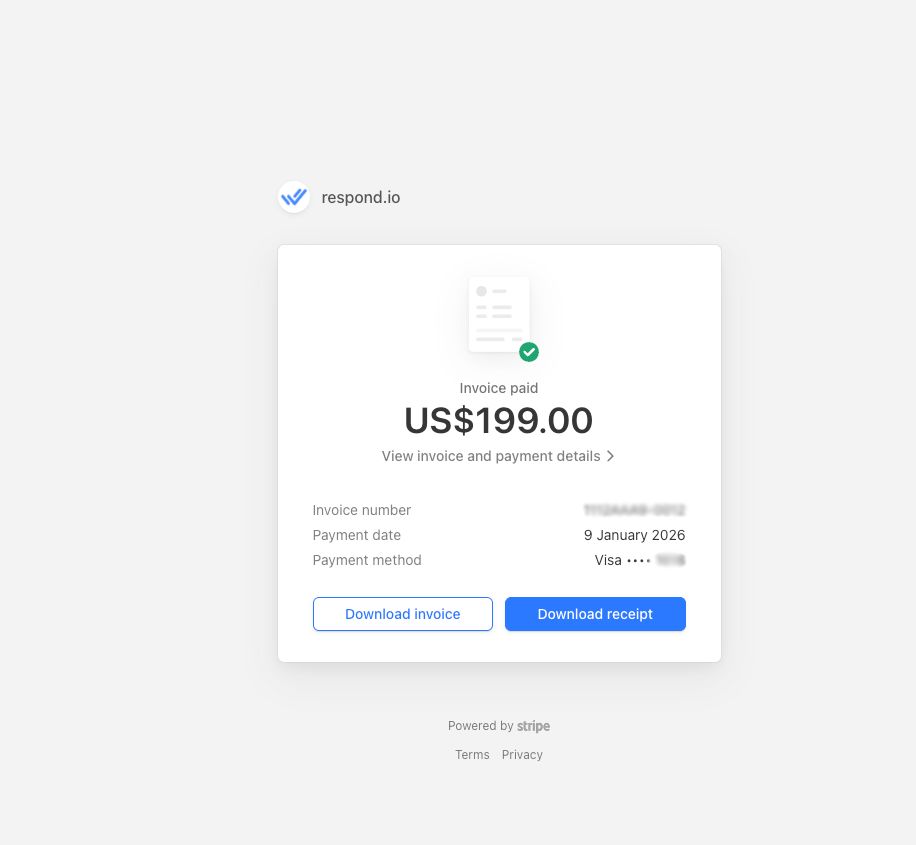
Click Download invoice to get the invoice, or Download receipt to get the receipt once payment is completed.
Invoice statuses
Status | Meaning |
|---|---|
Paid | Invoice has been paid. Receipt available. |
Refunded | Invoice fully refunded. |
Partial Refunded | Invoice partially refunded. |
Open | Overdue invoice. Payment required. |
Uncollectible | Overdue invoice. Payment required. |
Void | Invoice canceled. |
Draft | Upcoming invoice. |
How to update billing information
You can update billing details for your invoice like your company name, billing email and billing address.
Note: This updates your own business's billing information only. Respond.io's company billing address and details cannot be changed.
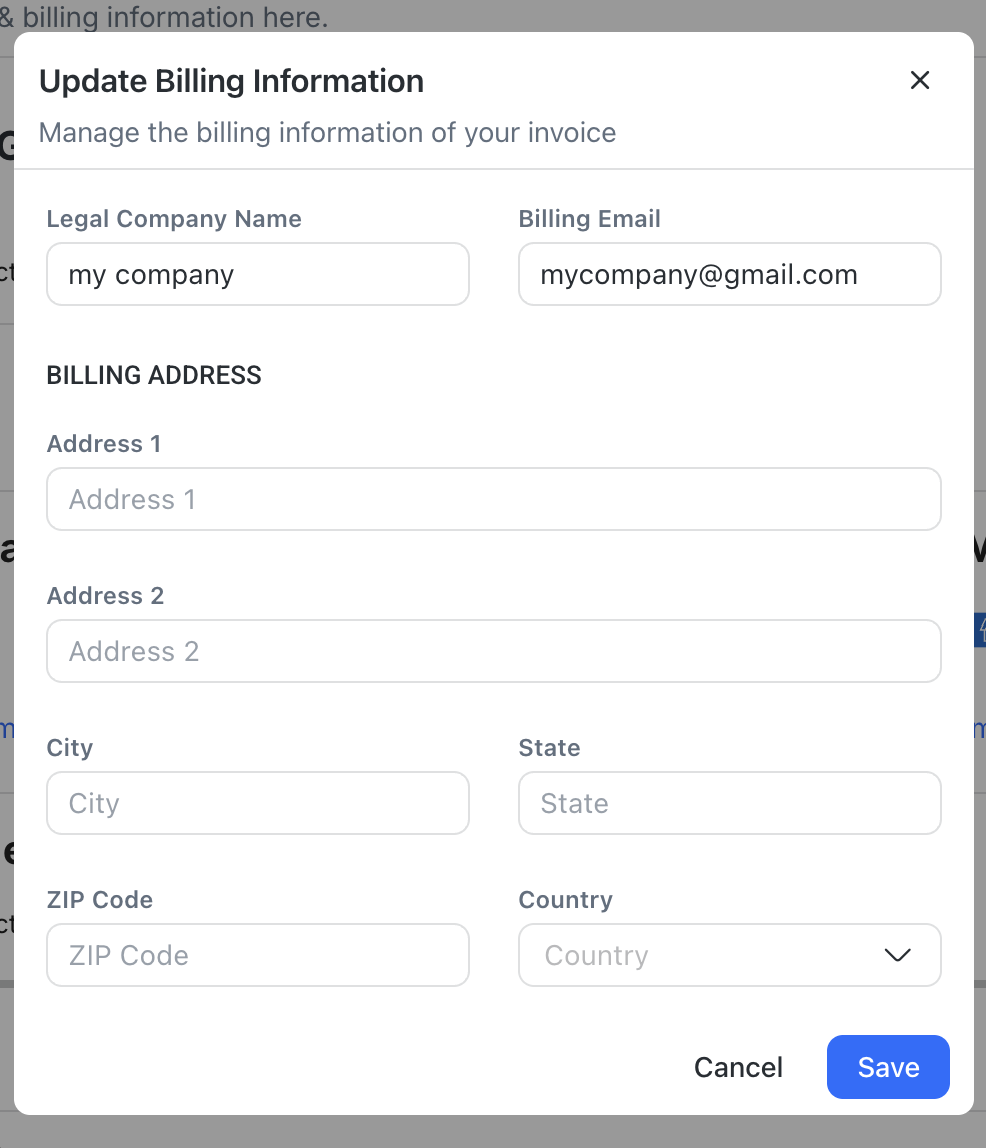
To do this, click Update billing information.
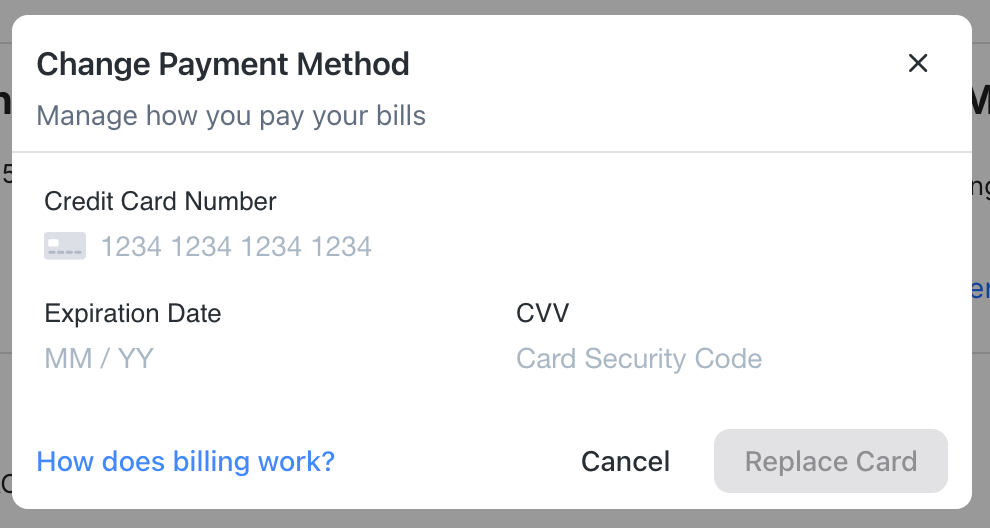
Payment method
You can:
Add a new payment method
Replace your existing card
Click:
Add payment method to add a card
Change payment method to replace a card
All payments are securely processed by Stripe.
If a payment fails, note the error and contact support.
Screenshots or screen recordings help us resolve issues faster.
Usage overview
This section shows your usage for:
Monthly Active Contacts (MAC)
AI Credits

Monthly Active Contacts (MAC)
This section shows your Monthly Active Contacts (MAC) usage.
What counts as a MAC?
A Contact who:
Sends or receives a message (excluding broadcasts), or
Makes or receives a call during the billing month.
Note: Outbound messages that fail to send to Contacts still count as MAC, except for broadcasts.
MAC resets at the start of each billing cycle.

MAC On-Demand
If you exceed your plan limit, MAC On-Demand allows you to continue messaging and calling without upgrading.
Billed per block of 100 additional MACs
Admins receive alerts at:
90% usage
100% usage
If additional charges apply, the billing date and amount will be shown.
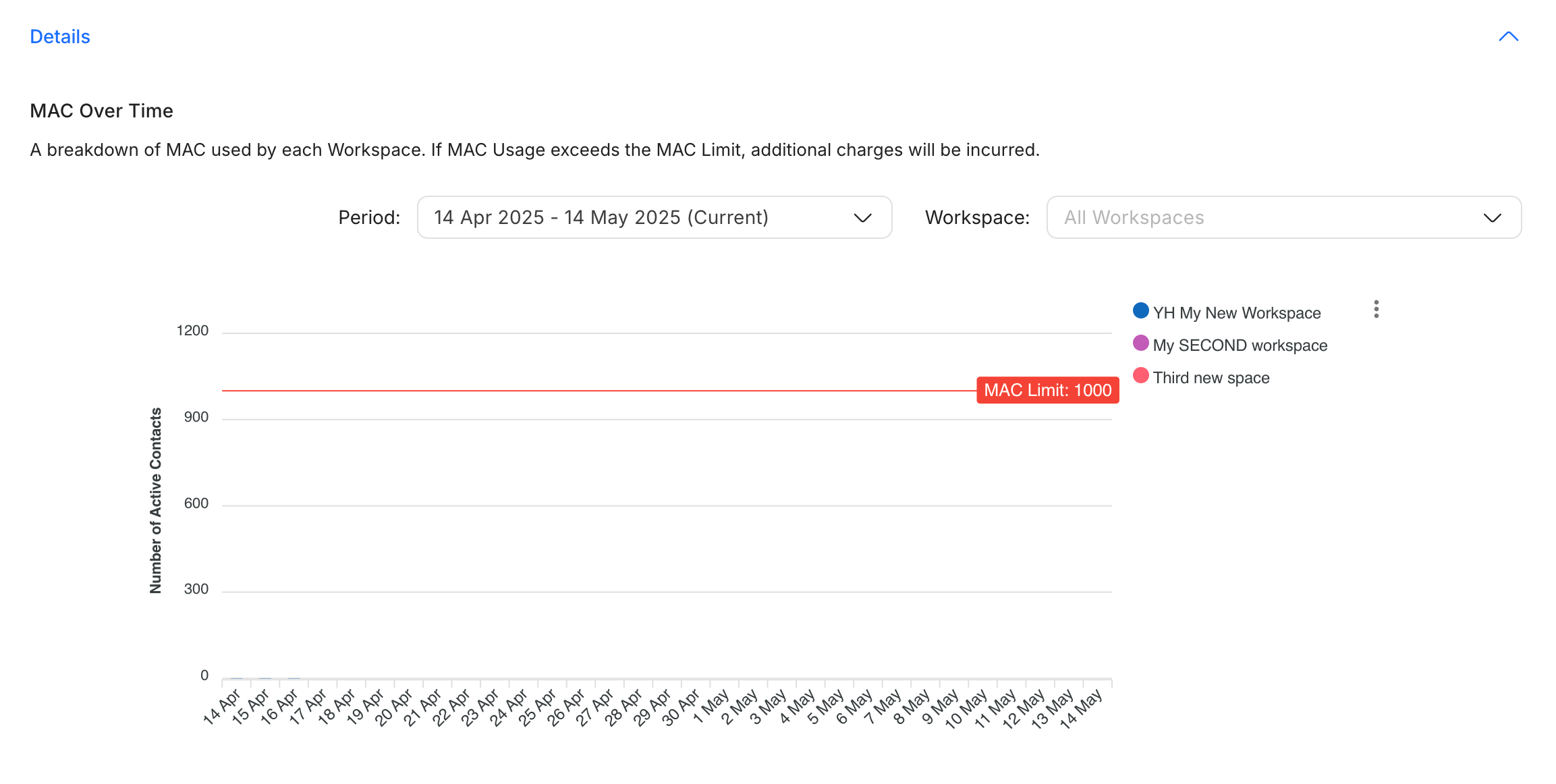
MAC Breakdown
Click Details to:
View MAC usage by Workspace
Switch between billing periods
Filter by specific Workspace
Download the MAC graph (via the three-dot menu)
AI Credit Usage & On-Demand

This section shows your AI Credit usage for the current billing cycle.
AI Credits are used by AI features such as AI Agents, AI Assist, AI Prompts and AI Summary.
If you exceed your included AI Credits, AI Credit On-Demand allows AI features to continue running on current paid plans.
Billed per block of 1,000 additional AI Credits at USD $15 per block
Blocks are rounded up. If you use 1 additional AI Credit, one full block is charged.
Charged at the start of your next billing cycle
Appears on the same on-demand invoice as MAC On-Demand, if applicable
Available only on current paid plans
AI Credit On-Demand is capped at 200% of your total AI Credit allowance. When the cap is reached, AI features pause until the next billing cycle.
Note: AI Credit On-Demand is not available for trial accounts or legacy plans. AI features pause when these organizations reach their AI Credit limit.
For more information about AI Credits, see AI Credits.
AI Credit On-Demand examples
Included AI Credits | AI Credits Used | Additional AI Credits | Blocks Charged | On-Demand Charge |
|---|---|---|---|---|
10,000 | 10,001 | 1 | 1 | USD $15 |
10,000 | 11,500 | 1,500 | 2 | USD $30 |
10,000 | 20,000 | 10,000 | 10 | USD $150 |
AI Credits Over Time
Click Details to:
View AI Credit usage over time
Switch between billing periods
Filter by specific Workspace
Download the AI Credit graph

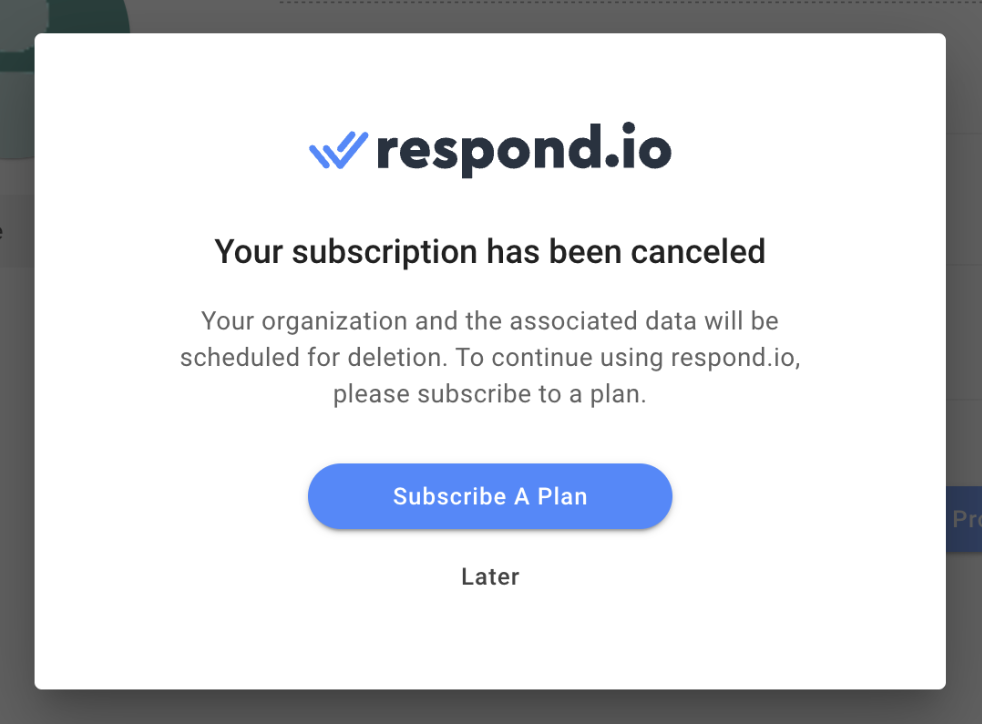
Cancel subscription
Only an Organization Admin can cancel a subscription.
To cancel:
Scroll to the bottom of Billing & Usage
Click Cancel Subscription
Provide a cancellation reason
Confirm
What happens next?
Cancellation takes effect at the end of the current billing cycle.
Overdue invoices must be paid to avoid account freeze.
If unpaid beyond the next billing cycle, the account is canceled.
During cancellation:
Incoming messages are not stored
Workflows stop running
The organization is flagged for deletion after 30 days
Before canceling, we’d love to hear how we can improve.
FAQ and Troubleshooting
Why did my subscription status change to PENDING PAYMENT and what do I need to do?
When your subscription status changes to PENDING PAYMENT, it means you have an overdue invoice (potentially due to a failed payment). You are required to make the payment within 5 days. If your overdue invoice is not paid after the 5 days grace period, your subscription status will change to FROZEN.
Please pay your overdue invoice as soon as possible to avoid having your subscription frozen.
Why did my subscription status change to FROZEN and what do I need to do?

Your subscription status changes to FROZEN if you have an overdue invoice that exceeds the 5 days grace period. In the FROZEN status, access to the respond.io platform will be blocked until you settle all your overdue invoices. Although incoming messages will still be received and stored in this status, Workflows cannot be triggered and outgoing messages cannot be sent. If the overdue invoice is not paid by the end of your billing cycle, your subscription will be canceled.
Please pay your overdue invoice as soon as possible to avoid having your subscription frozen.
Why does my invoice status say Uncollectible?
An uncollectible invoice indicates an issue with your payment that has been discussed with our Customer Support team. The invoice is still pending payment. Please pay your overdue invoice as soon as possible to avoid having your subscription canceled.
How do I pay an overdue invoice?
Open your invoice history on the Billing & Usage page and click the PAY NOW button. It will direct you to our payment processor (Stripe) to make your payment. Once you have successfully paid, please refresh the respond.io page to see your payment reflected on our platform. The update might take a few minutes.
Why do I receive two invoices every month?
There are two invoice types. The first is for your subscription plan and will be issued at the beginning of each billing cycle.
The second invoice is for on-demand usage. It applies if you exceed your MAC allowance, including calls and messages, or your AI Credit allowance during the month.
AI Credit On-Demand and MAC On-Demand appear on the same on-demand invoice.
We highly recommend you upgrade to a higher MAC plan or a higher plan tier if you persistently exceed your included limits. If you are not sure which plan you should upgrade to, please do not hesitate to contact us.
I am on an annual subscription plan. Why do I still receive invoices every month?
If you are on an annual billing plan, you will receive your subscription invoice once a year at the start of your billing cycle. However, you may receive a monthly on-demand invoice if you exceed your MAC allowance or AI Credit allowance during the month.
We highly recommend you upgrade your plan if you persistently exceed your included limits. If you are not sure which plan you should upgrade to, please do not hesitate to contact us.
What is AI Credit On-Demand?
AI Credit On-Demand keeps AI features running when current paid plan organizations exceed their included AI Credits.
Additional usage is billed in blocks of 1,000 AI Credits at USD $15 per block. Blocks are rounded up, and charges appear on your on-demand invoice at the start of your next billing cycle.
AI Credit On-Demand is capped at 200% of your total AI Credit allowance. When the cap is reached, AI features pause until the next billing cycle.
Learn more about AI Credits here.
Is AI Credit On-Demand available on all plans?
No. AI Credit On-Demand is available only on current paid plans.
It is not available for trial accounts or legacy plans. For these organizations, AI features pause when the AI Credit limit is reached.
How will I be charged when I upgrade my plan?
When you upgrade your plan, your billing cycle will reset on that same day and you will be billed a pro-rated amount for your usage. After your payment is successful, your subscription will be updated to reflect your new plan.
If you have exceeded your MAC limit at the time of your upgrade, including additional MAC usage from calls, you will be billed for the MAC On-Demand immediately.
How will I be charged when I downgrade my plan?
When you downgrade your plan, your subscription status will change to DOWNGRADING until the end of your billing cycle. At the end of your billing cycle, your subscription will change to your new selected plan and you will be billed the new amount.
I am not able to change my plan due to payment failure. What do I do?
If you encounter a payment failure, it might be because the 3D Secure authentication has failed or you have entered an invalid credit card.
Please make sure your credit card is valid. Otherwise, please update your payment method with a valid credit card and try again.
How to update the billing information on my invoice?
To update your billing address and details, an Organization Admin or Billing Admin user can change the information from the Billing & Usage page by clicking on Update billing information.
Note that the changes will take effect on your next invoice but won't affect previous ones.
Why am I getting the "A processing Error Occurred" message when making a manual payment on the Billing page?
This means that the payment was declined by the issuing bank and the error is from Stripe, our payment gateway.
Please contact your bank or try again using a different payment method.
Can I subscribe to the platform using a bank card issued in Russia?
Unfortunately, bank cards issued within Russia cannot be processed through our payment gateway, Stripe. To subscribe, please use a card issued outside of Russia.
Can I recover my data after my trial ended?
No. When a trial ends, the organization is scheduled for permanent deletion after 30 days. Once that deletion occurs, all organization data is permanently removed and cannot be recovered.
To avoid deletion, subscribe to a paid plan before the 30-day window expires. Organization Admins and Billing Admins can do this from Organization Settings > Billing & Usage > Subscribe to Plan. View our available plans to compare options.
If your organization has already been deleted, you will need to create a new account and set up a new organization.
Why did my trial end early?
Your trial can end early if your organization reaches 100% of its MAC limit.


