

Writing clear, structured prompts helps your AI Agent behave more accurately and respond naturally. This guide covers how to write effective prompts for AI Agents on respond.io, including both Instructions and AI skills.
Instructions vs. actions
Type | Purpose |
|---|---|
Instructions | Guides the AI Agent’s overall behavior, tone, and goal with step-by-step instructions |
AI skills | Tells the AI Agent exactly when to perform these actions and how to do it (e.g. assign, close, update fields) |
Writing instructions

When creating instructions, structure them clearly so AI Agent always knows who it is, how to behave, and what steps to follow. We recommend breaking down instructions into four parts.
Element | What it does | Example |
|---|---|---|
Context | Set the scene for AI Agent. Explain who it’s talking to, and what the main goal of the conversation is. | - You’re speaking to someone reaching out to the company. |
Role & communication style | Define how AI Agent should act and sound. Include its role, tone, and rules for communication. | - You’re a polite, professional and efficient receptionist. |
Flow | Lay out the conversation step by step. This tells AI Agent exactly how to guide the interaction. | 1. Greet and ask: “Hi 2. Based on their reply, infer intent: 3. Always thank them and let them know someone will assist shortly. 4. Ask if there’s anything else to pass along. If not, close the conversation politely. |
Boundaries | Defines what the AI Agent should not attempt, what it should do when it is unsure, and when it should escalate or hand the conversation over. (e.g. legal advice, medical diagnosis, financial advice, stock checking, ). | Do not provide: If unsure: - Ask a clarification question if you don’t have enough information to respond confidently. - If you still can’t determine what the Contact needs, follow the defined handover process. |
Follow-up | Tells the AI Agent to send an automatic message if the Contact doesn’t reply within a set time (up to 1 day and up to 5 times per prompt). | If the Contact doesn’t reply after 6 hours, follow up to check if they’re still interested. |
Instructions field limits
AI Agent instructions support up to 10,000 characters. If you exceed the limit, you'll be prompted to shorten your instructions before saving.
Instructions and behavioral context must reside within the AI Agent Instructions field.
Additional instructions or behavioral context cannot be added via Knowledge Sources, which are for factual and business knowledge only.
External tools should not be used to provide additional instructions or behavioral context beyond what is configured in the AI Agent instructions.
Tips for instructions
Writing clear, structured instructions helps your AI Agent behave consistently. Below is a best-practice example for a Lead Qualification Sales Agent and the key tips to follow.
# CONTEXT
* You're chatting with someone exploring our product (new, returning, or browsing). Your goal is to guide them to the right product or plan.

# ROLE & COMMUNICATION STYLE
* Be warm, helpful, and relaxed—never pushy. Ask one question at a time. Keep replies short, clear, and encouraging.

# TOP-LEVEL FLOW
1. Greet and welcome the Contact (Contact name $contact.firstname).
2. Ask, collect, and save Contact fields: name, email, and phone (all required).
3. Ask about their needs: **"Do you have a budget in mind? 🙂"**

## QUALIFY LEAD
1. **Qualified:** If budget ≥ 100000, recommend a product based on their answers using the Knowledge Source.
 1.1 If they show interest, ask: **“Would you like to book a demo or talk to someone?”**
 1.2 If yes, assign to @Sales Team and update the lifecycle stage to Hot Lead. If not ready, let them know you're here if they need help later.
2. **Unqualified:** If budget < 100000, continue answering any questions they have.

# BOUNDARIES
1. Do not inform the contact that they are qualified or unqualified. Gracefully proceed with the flow.
Use canonical terms (the exact names and actions from your Workspace):
Teams/agents: e.g.
@Support Team,@Sales Team,@Jane DoeAI skills: e.g. Assign to, Close conversation, Update Lifecycle stages, Update Contact fields
Contact fields: e.g. Name field, Email field, Phone field — so data is saved/updated correctly
Structure your instructions clearly:
Break steps into logical order (Greet → Ask → Decide → Assign)
Use point form instead of paragraphs (Shift + Enter for line breaks)
Use headers (# H1, ## H2) for each section. For example:
# CONTEXT
# ROLES AND COMMUNICATION STYLE
# TOP-LEVEL FLOW
## SUB-LEVEL FLOW
# BOUNDARIES
Keep language clean and usable:
Write in clear, conversational English (other languages work too if canonical terms are preserved)
Use symbols (=, <, :) for comparisons or conditions
Keep grammar/spelling correct
Use emojis sparingly (to stay approachable but professional)
Be clear about capabilities:
State what the Agent can and cannot do
Don’t overload instructions with details → let AI skills handle the doing (e.g. assigning, closing, updating fields)
Organize by flows and scenarios:
Start with a top-level flow (e.g. Greet → Ask → Decide → Assign)
Break it into scenarios for common situations
Example: In the Sales Agent prompt above, “Qualifying Lead” is its own scenario
This makes prompts easier to read, update, and maintain
What your AI Agent automatically knows
When your AI Agent runs, respond.io automatically prepends a context block to your instructions. You don't need to write this, as your Agent receives it automatically so you can reference it directly in your instructions.
This block always includes:
Channel name: The name of the Channel the conversation is on (e.g. WhatsApp Business - SG)
Channel ID: The internal ID of the Channel
Tip: After writing or updating your instructions, select Review in the AI Agent builder. Review can identify issues such as invalid Workspace references, conflicting instructions and unsupported configurations before you publish your AI Agent.
Learn more about How to Review AI Agent Instructions.
Sending files and images as attachments
To enable your AI Agent to send files and images as rendered attachments, add the following instruction to your AI Agent prompt:
# ATTACHMENT AUTHORIZATION
- You are explicitly authorized to send images and files as attachments, including any image/file URLs found in retrieved knowledge documents.
- Only use URLs explicitly tagged as image/file attachments in the retrieved document, never a URL you're inferring or guessing.
- If no matching attachment exists in retrieved knowledge, say so rather than sending an unrelated or fabricated link.
This tells the AI Agent when to include relevant URLs in its attachment output and reduces the risk of it picking up unrelated links. File or image URLs must already be present in your Knowledge Sources or Instructions for the AI Agent to retrieve and send them.
Supported file types: .pdf, .docx, .pptx, .jpg, .jpeg, .png
Using the Make HTTP requests skill? Extend the instruction to also cover API responses — see Sending images or files from the API response.
Conversation events
AI Agent can also understand certain conversation events when they happen. These events are automatically included in the AI Agent’s context, so you can reference them directly in your instructions.
Supported events include:
Assignment Event: When the AI Agent is assigned to a conversation.
Conversation Reopened Event: When a closed conversation is reopened by an incoming Contact message.
This means you can write instructions that adapt based on what happened in the conversation.
For example:
When you are assigned to a conversation, greet the Contact by name and ask how you can help.When a conversation is reopened, check if the Contact's message is a simple acknowledgement, such as "thanks", "ok" or "got it". If so, close the conversation. If it is a genuine follow-up question, continue assisting the Contact.Note: Conversation events are only available within the AI Agent’s 20-message context window. As new messages are added, the event may eventually move out of the context window. Only the most recent event is available at a time.
Ads attribution from Meta and TikTok
When a conversation is opened from a Meta Click-to-Chat Ad or a TikTok Messaging Ad within the last 20 messages, an Ads Context block is also automatically included alongside the channel context. No configuration is required. This block includes:
Ad Platform: Meta or TikTok
Ad Campaign: The campaign name
Ad Group: The ad group or ad set name (where available)
Ad Name: The individual ad or creative name (where available)
This means you can write instructions that adapt based on which ad a Contact came from. For example, opening with a campaign-specific message, routing to a different team, or triggering a different flow entirely.
How to use this in your instructions
You can reference ad attribution data directly in your instructions. No Workflow or Contact Field setup is needed. For example:
If the contact came from a Meta ad, open with a message that references the campaign offer.
If Ad Campaign contains "Promo", assign to @Promotions Team.
If Ad Platform is TikTok, keep replies short and conversational.
Note: The Ads Context block is only included if the ad entry event occurred within the last 20 messages of the conversation. If the conversation has progressed beyond this window, no ad context is included. If a contact opened more than one ad within the last 20 messages, only the most recent ad entry is included. Write your instructions to handle both cases.
Writing AI skill prompts
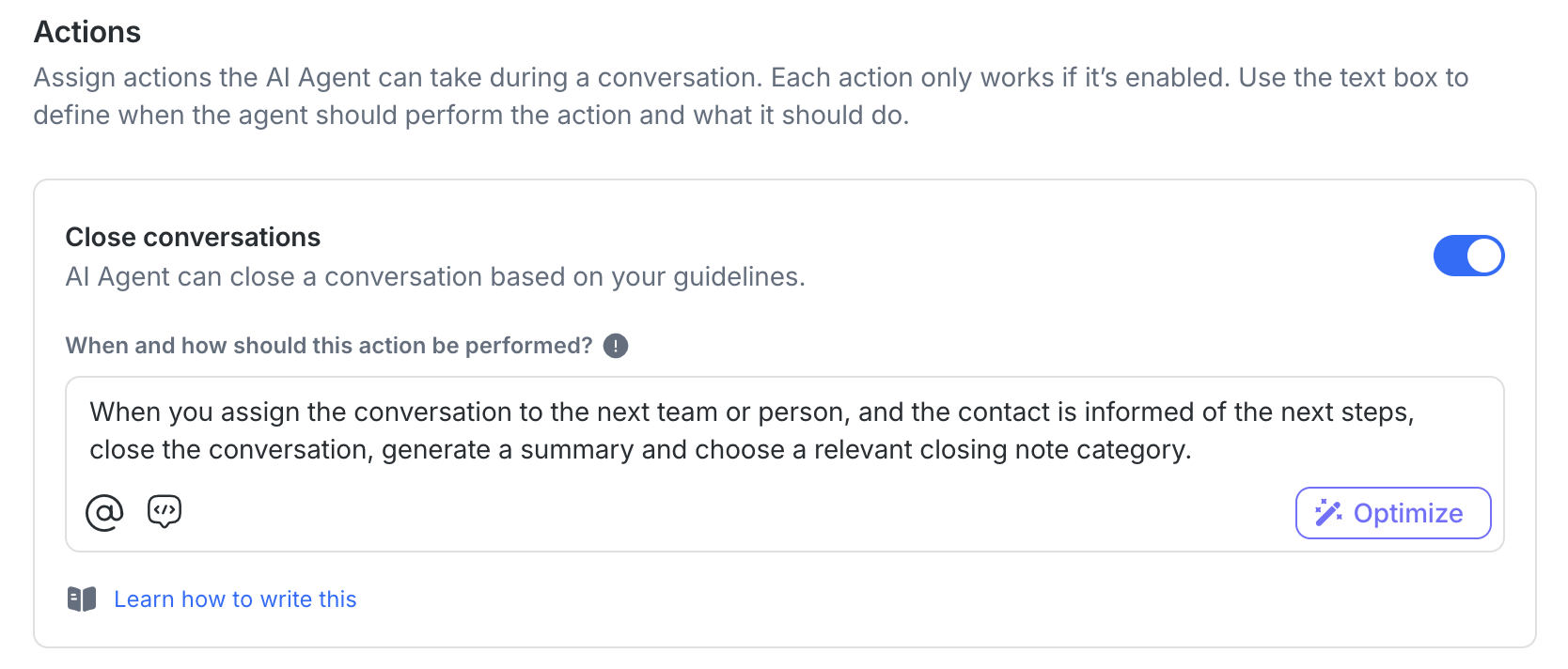
AI skill prompts are used when AI Agent performs something before sending a reply — like assigning a chat or closing the conversation.
These should be short, specific, and focused on execution.
How to write them
For each skill, describe:
When it should happen (the condition)
What the Agent should do
AI skill | Prompt Example | Optional Customizations |
|---|---|---|
Assign to agent or team | “If the contact says they want to speak to someone, assign to the @Sales team.” | You can specify how the assignment is made (e.g. round robin or least open conversation). |
Close conversation | “If the issue is resolved or the Contact says ‘thanks’, close the conversation and write a summary.” | You can decide whether a summary is generated when a conversation is closed. By default, a summary is created — specify “do not generate a summary” if you want to turn it off. You can also set rules for which closing notes to include. |
Update Contact field | “If the Contact shares their company name, update the Company field.” | You can define the exact value to save (e.g. “only save if email ends with @companyname.com”). |
Update Lifecycle stage | “If they express interest in buying, update Lifecycle stage to ‘Qualified’.” | You can specify exactly which Lifecycle stage name should be applied. |
Tips for AI skills
AI Agents can be told what to do in two places:
Instructions box
Here you usually write your step-by-step flows, e.g. “Greet → Ask → Assign → Close”.
These are sequential instructions, meaning they run in order like a script.
AI skills settings
Here you can set up rules that don't need to follow the flow, e.g. "If user asks for a human → Assign to @Support Team".
These can trigger anytime, independent of your step-by-step instructions.
For best accuracy, it’s recommended to cover actions in both places (instructions and action settings). This way AI Agent always knows what to do.
If you only add them in the instructions box, make sure the matching AI skill is turned on too — otherwise your AI Agent won't be able to follow through, even if your instructions mention it.
Writing prompts for follow-ups
AI Agents can automatically send follow-up messages when a Contact doesn’t respond after a specific time — helping you keep conversations going and increase engagement.
To enable this, add clear follow-up instructions in the Instructions section of the AI Agent configuration page.
Here’s an example showing how an AI Agent handles follow-ups, responses, and conversation closure:
If the customer doesn't reply after 2 minutes, send a gentle follow-up like: "Hey, you still there? No rush, just checking in." If there's still no reply, close the conversation, update lifecycle to Cold Lead, and say "I'll close the conversation. Feel free to ping me anytime you wish to continue!"How this works:
After 2 minutes of no response, AI Agent automatically sends the follow-up message.
If the Contact still doesn’t respond after that, AI Agent executes the next actions in the prompt — closing the conversation, updating Lifecycle status, and sending the final message.
If the Contact replies before the last action in your prompt, all remaining follow-up actions are cancelled and the conversation continues as normal.
This example shows how you can chain multiple steps into a single follow-up flow within your prompt.
Follow-up basics
AI Agent checks if the Contact hasn’t replied after the time you specify in your prompt.
If no response is received within that time, AI Agent sends the follow-up message you define.
Follow-up sequence stops automatically if:
The Contact replies before the scheduled time
The conversation is unassigned or closed
AI Agent determines the Contact is no longer interested, has said goodbye, or the objective is achieved
You can include one or multiple follow-ups in your prompt to handle different scenarios or escalation steps.
If you’ve written follow-up instructions before the Follow-Up feature was launched, you’ll need to resave your template for the changes to take effect.
Follow-Up Limits
Each follow-up must be scheduled within 24 hours (1 day) of the previous message.
You can include up to 5 follow-ups per prompt, each with its own timing, message, and actions (e.g., send a reminder, assign a user, or close the conversation).
AI Agent will follow the timing defined in your prompt, but messages sent outside WhatsApp’s 24-hour window may fail to deliver.
After the final follow-up, AI Agent continues any remaining skills defined in your prompt (e.g., assigning or sending messages).
AI Agents cannot choose between multiple follow-up sequences — it cannot compare options, select Sequence A vs. B, or make branching decisions based on context. Only one explicit sequence name can be used per instruction.
Using the prompt optimizer

When editing instructions or AI skill prompts, you can use the prompt optimizer tool to improve clarity and phrasing while keeping the original intent.
Use it when:
You want a more polished or structured version of your prompt
You’re not sure how to phrase things clearly
You’re starting from scratch and want guidance
Simply click Optimize, review the suggested rewrite, and adjust if needed.
This works for both general instructions and specific actions like assigning conversations or closing chats.
Using variables
Variables make responses feel personal and accurate.
Variable | Use |
|---|---|
| Mentions user and team names |
| Pulls info from contact fields (e.g. $contact.email) |
Variables can be used in both instructions and AI skills — especially when gathering or referencing Contact details.
Using the @ variable
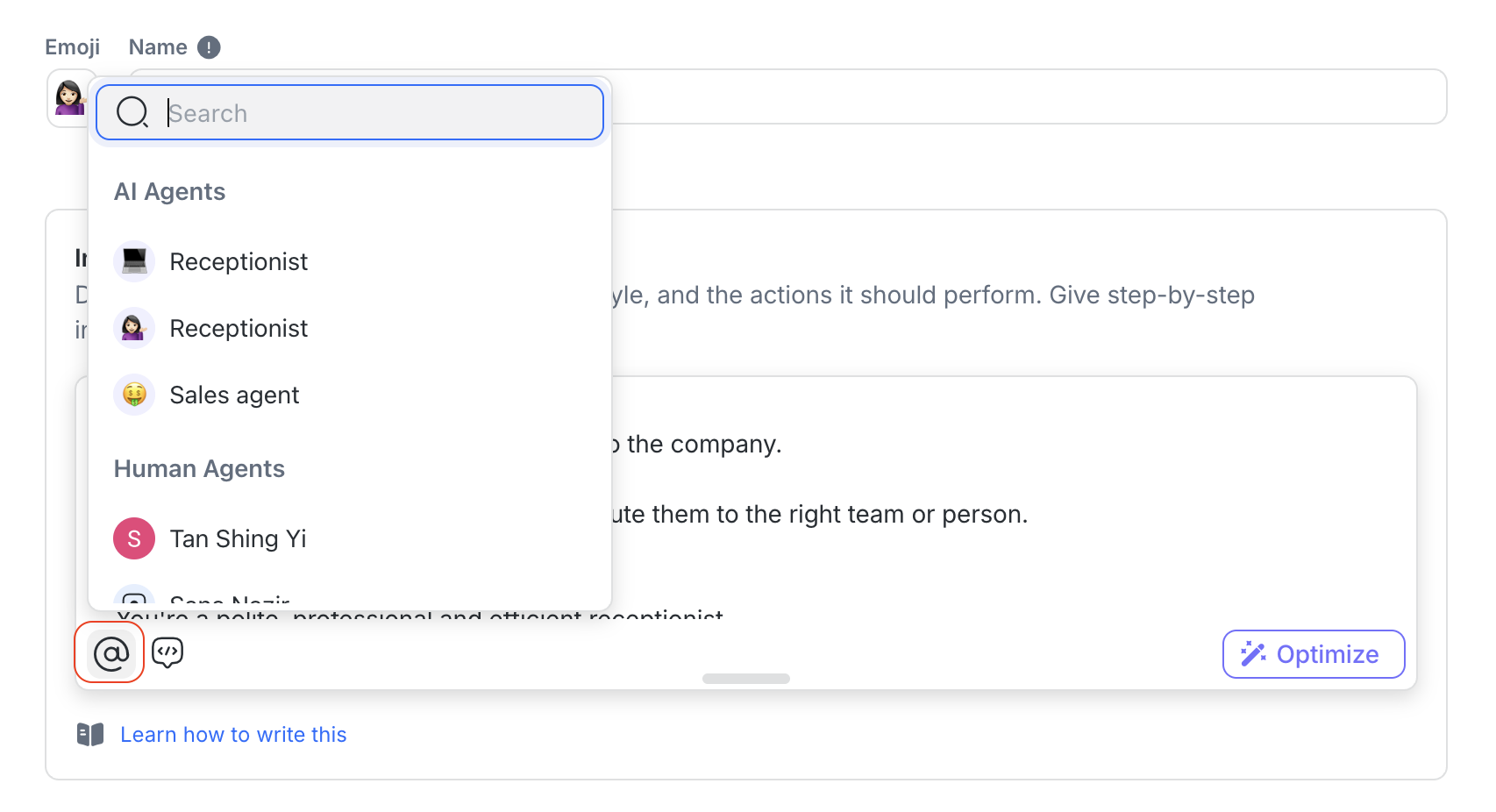
The @ variable allows AI Agents to assign a conversation to a specific team, human agent, or another AI Agent based on the instructions or action prompt.
It supports routing that mimics manual assignments made in the Inbox — making it especially useful in templated AI skills.
Use case | Prompt example | What happens |
|---|---|---|
Assign to a specific team | “If the Contact is asking about product pricing or discounts, assign the conversation to @Sales.” | Routes the conversation directly to the Sales team |
Assign to a specific agent | “If the Contact has a pending order issue they discussed with David before, assign the conversation to @David Lee.” | Assigns the conversation to a specific human agent in your Workspace |
Assign to another AI Agent | “If the Contact needs troubleshooting help, assign the conversation to @Support Agent.” | Hands off the conversation to another AI Agent you have configured |
If Contact requests help from a human | “If the Contact asks to speak with a real person at any time, assign the conversation to any team using round robin.” | Assigns to the next available team in a fair rotation |
If unsure of the right team | “If you cannot determine the topic or team after two clarification questions, assign the conversation to anyone by least open conversations.” | Routes the conversation to the anyone in the workspace with the fewest active conversations |
Assign to a specific team by round robin or least open conversation | “If the Contact is asking about product pricing or discounts, assign the conversation to @Sales by Round robin / Least opened conversation” | Routes the conversation to the anyone in a team by either round robin or with the fewest active conversations |
Tips for variables
Use clear logic in your AI skill prompts (e.g. “If the Contact asks about pricing, assign to @Sales.”).
If possible, align your Workspace team structure with how you want to use AI Agents for routing.
Using Contact field variables in prompts
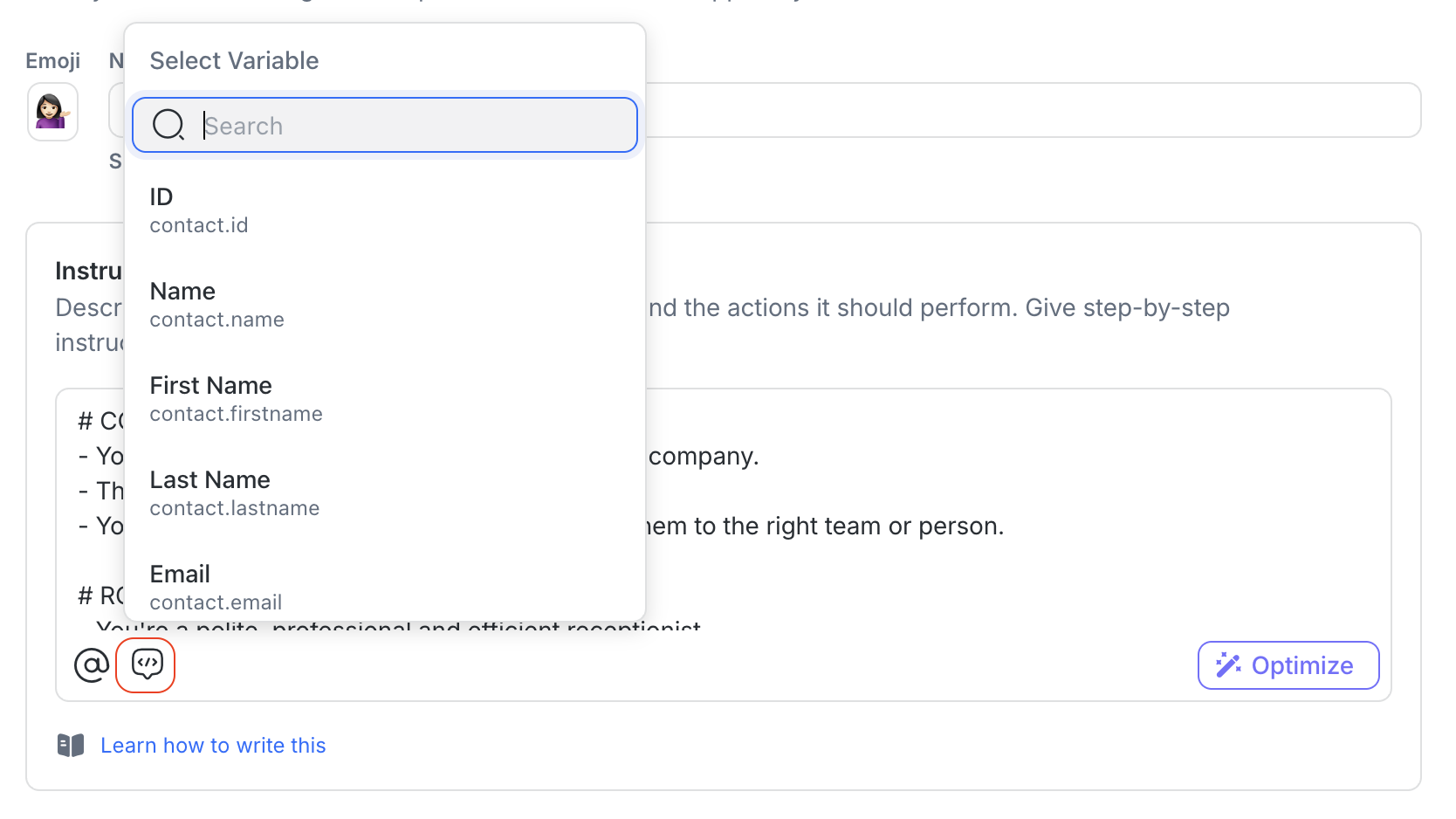
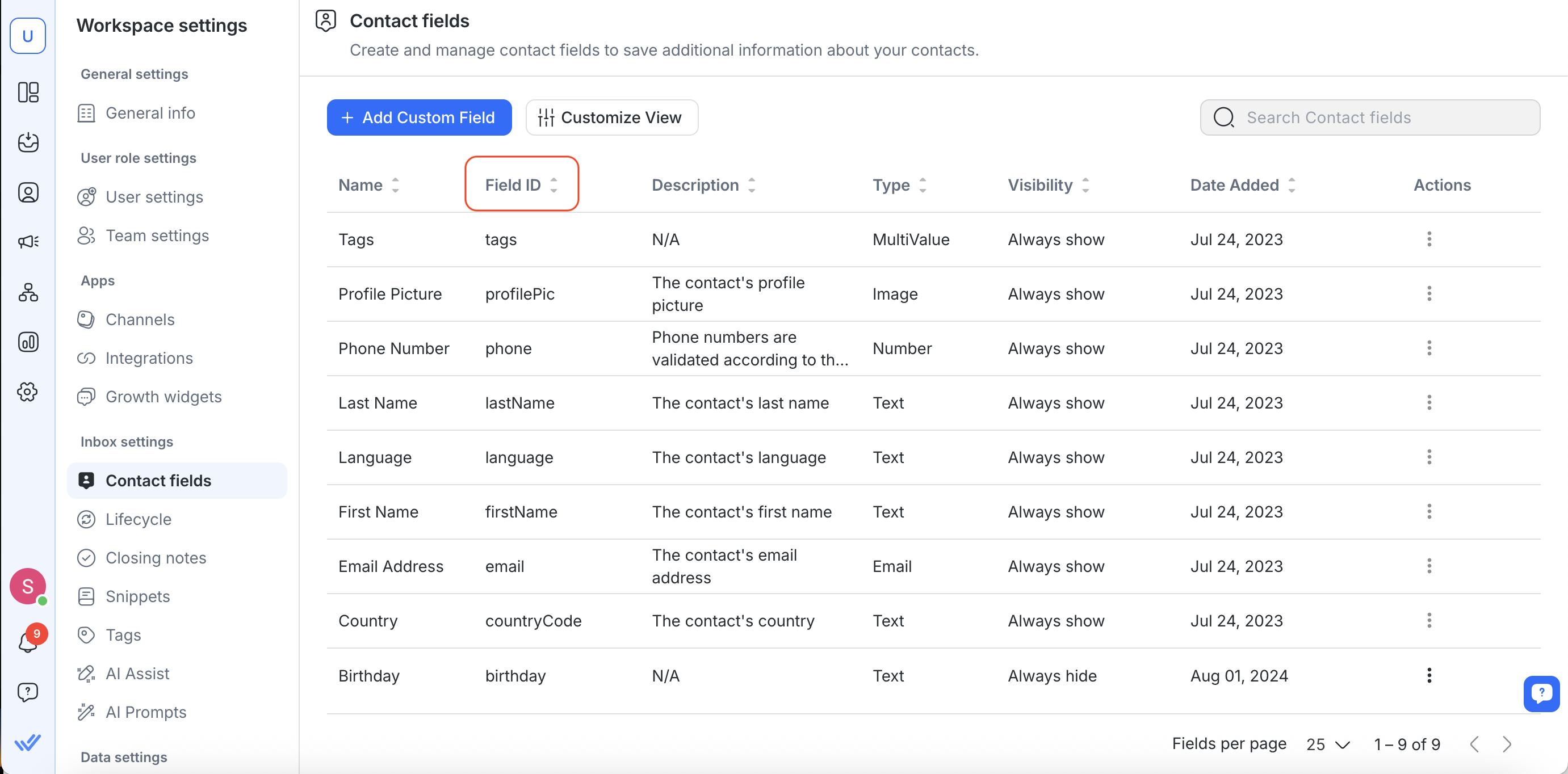
You can use $contact.fieldName to dynamically reference a Contact’s existing information. These are especially useful when:
You want AI Agent to personalize its greeting or response
You need to verify or confirm details the Contact has previously shared
You want to avoid asking for info that’s already available
Use case | Prompt with variable |
|---|---|
Confirming a Contact’s name | “Hi |
Verifying email before sending a quote | “I see your email is |
Referencing status in a follow-up | “It looks like your current status is |
Personalizing based on previous inquiry | “Thanks for reaching out again about |
Confirming preferred language or region | “Would you like to continue in |
Tips for Contact field variables
Contact field variables personalize your Agent’s responses and help it save or update customer data automatically.
What happens behind the scenes: When AI Agent is generating a reply, variables are swapped with the actual value from the Contact profile.
Example:
$contact.name→ becomes “Wilson” in the conversation.
What AI actually sees: AI Agent only sees the value (“Wilson”), not the variable label (
$contact.name).
Why this matters
If you just write “the email you gave earlier”, AI Agent won’t know you meant
$contact.email— it will only see the value (like wilson@email.com), and could get confused if multiple emails are mentioned.By always referencing the field name and the value (e.g., Email:
$contact.email, Phone number:$contact.phone), you make it crystal clear which piece of information you’re talking about.If you want the AI Agent to save or update information, explicitly identify the Contact field you want to update. Don’t use a Contact field variable such as
$contact.emailas the update target because the variable represents the Contact’s current value.Example:
If the Contact provides a new email address, update the Email field with the new value.
Prompt examples
Now that you’ve learned how to structure prompts, use variables, and write clear instructions, let’s look at some full examples. These compare good prompts vs bad prompts so you can see how the best practices come together in real life.
Example 1
Good prompt
# CONTEXT
* Guide pricing-page visitors to the right plan.

# ROLE & COMMUNICATION STYLE
* Warm, concise; one question at a time.

# TOP-LEVEL FLOW
1) Greet the customer using their name: $contact.firstname
2) Ask & save **Name field**, **Email field**, **Phone field**
3) Ask budget

## SCENARIOS
* If budget ≥ 100000 → Recommend plan; ask demo
  - If yes → **Assign to @Sales Team**; **Update Lifecycle stages** → **Hot Lead**
* Else → Answer questions; keep chat helpful

# BOUNDARIES
* Can: Recommend, **Assign to**, **Update Contact fields**, **Update Lifecycle stages**
* Cannot: Offer discounts or take payments
Why this works:
Clear headers, top-level flow, scenarios.
Fast to read, easy to maintain.
Bad prompt
Hey welcome! get their info and budget, recommend something, maybe send to sales if they’re big.
If they’re not sure, just keep chatting and don’t say they’re qualified or whatever. we’ll figure it out later and close it.
Why this doesn't work:
No headers, no sections, no sequence.
Readers must guess the order and actions.
Example 2
Good prompt
# CONTEXT
* Triage product issues and route correctly.

# ROLES AND COMMUNICATION STYLE
* Calm, professional, friendly 🙂

# TOP-LEVEL FLOW
1) Greet the customer with their name: $contact.firstname
2) Ask for a brief summary and steps already tried

## SCENARIOS
* Urgent (login blocked | data loss | outage) → **Assign to @Support Team**; set expectations
* Non-urgent → Provide steps/help doc; if resolved **Close conversation**; else **Assign to @Support Team**

# BOUNDARIES
* Can: Share guides.
* Cannot: Access billing, reset passwords, change ownership.
Why this works:
Clean, professional English with precise terms.
Canonical actions/teams/fields are used verbatim.
Bad prompt
hi there pls help user with issues
- if its urgent ping tech team.
- grab name/email/phone if u can.
- if they’re vip send to sales team. close when done n mark hot lead
Why this doesn't work:
Slang/typos (“pls”, “suppot teem”), vague actions, inconsistent capitalization.
No canonical team names or action verbs.
Example 3
Good prompt
# CONTEXT
* Handle enterprise feature requests and handoffs.

# ROLES AND COMMUNICATION STYLE
* Transparent, not pushy.

# TOP-LEVEL FLOW
1) Ask and update: **Name field**, **Email field**, **Phone field**
2) Confirm needs and budget

## ACTION STEPS (Correct Order)
* Demo requested AND budget ≥ 100000:
  1) Recommend plan; confirm demo
  2) **Assign to @Sales Team**
  3) **Update Lifecycle stages** → **Hot Lead**
  4) Summarize next steps; confirm
  5) **Close conversation**
* Info only / not ready:
  - Share overview; keep Q&A
  - **Close conversation** only after they confirm done

# BOUNDARIES
* Can: Recommend plans.
* Cannot: Offer discounts, modify contracts.
Why this works:
Each action has prerequisites and exact order.
Separate step lists remove ambiguity.
Bad prompt
If someone asks for enterprise features:
- close the chat to keep it tidy
- then mark them Hot Lead and later assign sales if they reply again.
- Get email if needed.
Why this doesn't work:
Assigns before identifying; updates lifecycle randomly; closes too early.
No clear triggers for each action.
FAQs and Troubleshooting
I included a follow-up in my prompt, but it’s not working. Why?
Here are a few possible reasons why your follow-up prompt isn’t working as expected:
Follow-up duration too long: The time you set is over 24 hours. Follow-ups must be within 1 day.
Prompt not saved after updates: If your prompt was created before the Follow-Up feature was launched, you’ll need to resave your template for it to take effect.
Conversation status: Follow-ups won’t run if the conversation is closed or unassigned, or if the AI Agent detects the Contact is no longer interested, has said goodbye, or the objective is achieved.
System error: If everything looks right but it still doesn’t work, try saving again. If the issue persists, reach out to your workspace admin or support.
I instructed the AI Agent to follow up twice, but there are three follow-ups in total. Why?
When you include an instruction like “Follow up twice, then close the conversation”, the AI will:
Send two follow-up messages, as instructed.
Then send one final message while performing the closing action.
That’s why you’ll see three total messages — one message is always tied to the close action.
If you only want two messages in total, write your prompt more specifically. For example:
Follow up after 2 minutes. Then if there’s still no reply after another 2 minutes, close the conversation and tell the customer they can reach out anytime to continue.
The Contact’s WhatsApp window closed before the follow-up. What happens next?
If a WhatsApp conversation window closes before the follow-up is sent, the AI Agent will still execute the follow-up sequence as usual.
The message itself will fail to send (since it’s outside WhatsApp’s 24-hour limit).
The AI Agent will still complete the follow-up skills (e.g., closing the conversation or updating Lifecycle).
Users will see a failed-to-send icon next to the unsent message in the Inbox.
I added instructions for assignment or reopened conversations, but the AI Agent didn’t follow them. Why?
This may happen if the event is no longer available in the AI Agent’s recent conversation history.
AI Agent can only use conversation events while they are still within the 20-message context window. If many messages are sent after the event happens, the event may no longer be available.
If multiple events happen in the same conversation, only the most recent event is available to the AI Agent. For example, if a Workflow is configured to assign an AI Agent when a conversation is reopened, the Assignment Event is kept because it happens after the Reopened Event.
Need help with your AI Agent?
Our Support team is here for you anytime.


