

Before you publish your AI Agent, it’s important to make sure it behaves as expected. With the Test AI Agent feature, you can simulate full conversations within the AI Agent setup flow—no live Contacts or workarounds required.
How to Test Your AI Agent

Go to AI Agents > Create (or Edit)
On the right panel, select the Chat tab
Type a message to simulate a customer query
Watch how the AI Agent responds in real time
If your AI Agent uses knowledge sources to generate a reply, you’ll see a “{#} sources” label under the response. This shows how many knowledge sources were used for that specific reply. Click the label to review the sources in detail.
You’ll also see logs of any AI skills the AI Agent takes.

Reset & Update the Test Contact
You can reset the conversation at any time by selecting Reset Chat. This clears the chat history so you can start fresh.

You can update the test Contact’s name, email or other fields in the Contact fields tab to see how the AI Agent responds to different inputs.

These changes won’t affect your real Contacts—they’re only used for testing purposes.
Test AI Agent with Files
You can also test how your AI Agent reads and processes both text and files — just like real customer conversations.
To do this, select the file icon in the Test AI Agent panel and upload a file from your device or file library.

What you can upload
Supported file types: .pdf, .jpg, .png, and other common formats
Maximum file size: 20 MB per file
Files can be added from your device or the in-app file library
How it works
You can send text, files, or both in a single message.
Hover over a file to remove it if needed.
Once sent, files appear in the chat just like in the Inbox composer.
The AI Agent will analyze up to 5 most recent files per request (additional files can still be sent but won’t be processed).
View knowledge sources used in a test reply
When testing your AI Agent, you can review which knowledge sources were used to generate a response.
If a reply uses knowledge sources, a “{#} sources” label appears below the message.

Clicking this label opens a knowledge sources panel where you can:
View the knowledge source name
Open the file or webpage link
Review the content snippets used for the reply
You can also click Manage to go directly to the knowledge sources settings and make updates if needed.
Knowledge sources added before this update may show missing names or links. To fix this, reupload file-based sources or resync website-based sources.
Test AI Agent with Audio Messages
You can now test how your AI Agent understands and responds to audio messages — just like in real customer conversations.
To do this, select the microphone icon in the Test AI Agent panel and record a voice message.

How it works
You can send audio messages, text messages, or both during testing.
If you type a text message while recording, the text and audio will be sent as separate messages (matching Inbox behavior).
Important notes
Transcripts will not be displayed in the Test AI Agent dialog. This is because audio processing is not real-time, and the test dialog does not support refresh to retrieve and display transcripts.
Test AI Agent with calls
If your AI Agent is set to Handle calls, you can now simulate call behavior directly in the Test AI Agent panel. This helps you confirm how your AI Agent greets callers, responds, and ends calls before publishing.
To test:
Make sure Handle calls is added under AI skills.

In the Test AI Agent panel, click the phone icon.

The system will simulate an incoming call and show a Connecting state.

Once active, your AI Agent will speak using your configured instructions, voice, and greeting.
End the simulation anytime by clicking End test call. You will see Contact events. For example:
If ended by AI Agent: "Sales AI Agent ended an incoming call. Duration: 00:25"
If ended by Contact (human agent): "Contact ended an incoming call. Duration: 00:30"
If a transfer is triggered: "[AI Agent Name] transferred the call to [Receiving Agent Name]"
If no receiving agent is configured in your instructions, the event will display "John Doe" as a placeholder.


Note: Call transfers are simulated in test mode and are not fully executed. When the AI Agent reaches a transfer decision point, it will verbally indicate the transfer (e.g., "Let me transfer you to our available agent...") and the call will end instead of ringing a real human agent. Actual transfers only occur during live calls.
Test calling best practices:
Keep your call instructions short and natural.
Test different greetings or voices to ensure they sound right.
Reset between test calls to avoid overlapping instructions.
Test both chat and call scenarios to confirm your AI Agent behaves consistently across channels.
Test AI Agent with Tags
You can test how your AI Agent adds or removes Contact tags during a conversation — so you can confirm your tagging instructions work before publishing.
To test:

Make sure Update tags is enabled under AI skills.
In the Test AI Agent panel, send a message that should trigger tag changes based on your instructions (for example: “Can I get pricing?”).
Watch for tag updates in the Chat tab and Contact fields tab.
How it works

During testing, the AI Agent may add or remove tags depending on your configured tagging instructions.
These updates appear as Contact events so you can verify when and why tags were changed.
When Update tags is triggered, the Chat tab will show a Contact event such as:
Tag {tag name} added by {AI Agent Name}
Tag {tag name} removed by {AI Agent Name}
In the Contact fields tab, you’ll also see a Tags section at the bottom of the panel, where updated tags will appear.
Tagging best practices
Use clear conditions in your tagging instructions (e.g. “If the contact asks about pricing, add %Pricing”).
Test with different messages to confirm tags are applied consistently.
Test AI Agent with wait time
If you’ve configured a wait time in Advanced settings, you can preview the exact behavior in Test AI Agent before publishing.
To test:
Click the gear icon to open Advanced settings.
Set a wait time.
In the Test AI Agent panel, send a test message.
Watch for the AI Agent's reply — it only sends after your configured wait time has passed.
How it works:
You may notice that the AI Agent will take longer than the wait time you’ve configured to reply. That’s because the total reply time includes the wait and processing time.
The test panel delays the AI Agent's reply for your configured wait time, mirroring what a real Contact would experience in a live conversation.
Best Practices
Use natural, realistic inputs: Simulate messages the customer would actually say to test how well the AI Agent understands them.
Reset between runs: Clear the chat before each new test to avoid unintended context from earlier responses.
Edit Contact fields to explore logic branches: Try different languages, names, phone numbers and more to ensure your conditions and actions respond correctly.
Tweak prompts in small steps: After each test, revise only one prompt block at a time. Save and test again to isolate what works.
Monitor action logs: Check for expected behavior (e.g., “assigned to @Rachel”) to verify prompt logic and setup.
Test tone and personality: Review whether the responses match your configured tone (e.g., friendly, professional).
Check “{#} sources” under test replies to confirm the AI Agent is using the correct knowledge sources.
FAQ and Troubleshooting
Why don’t I see sources under my AI Agent reply?
The “{#} sources” label only appears when the AI Agent uses knowledge sources to generate a reply. If no knowledge sources are used, the label won’t appear.
If you expect sources but don’t see names or links, the knowledge sources may have been added before this update. Reupload file-based sources or resync website-based sources to ensure they display correctly.
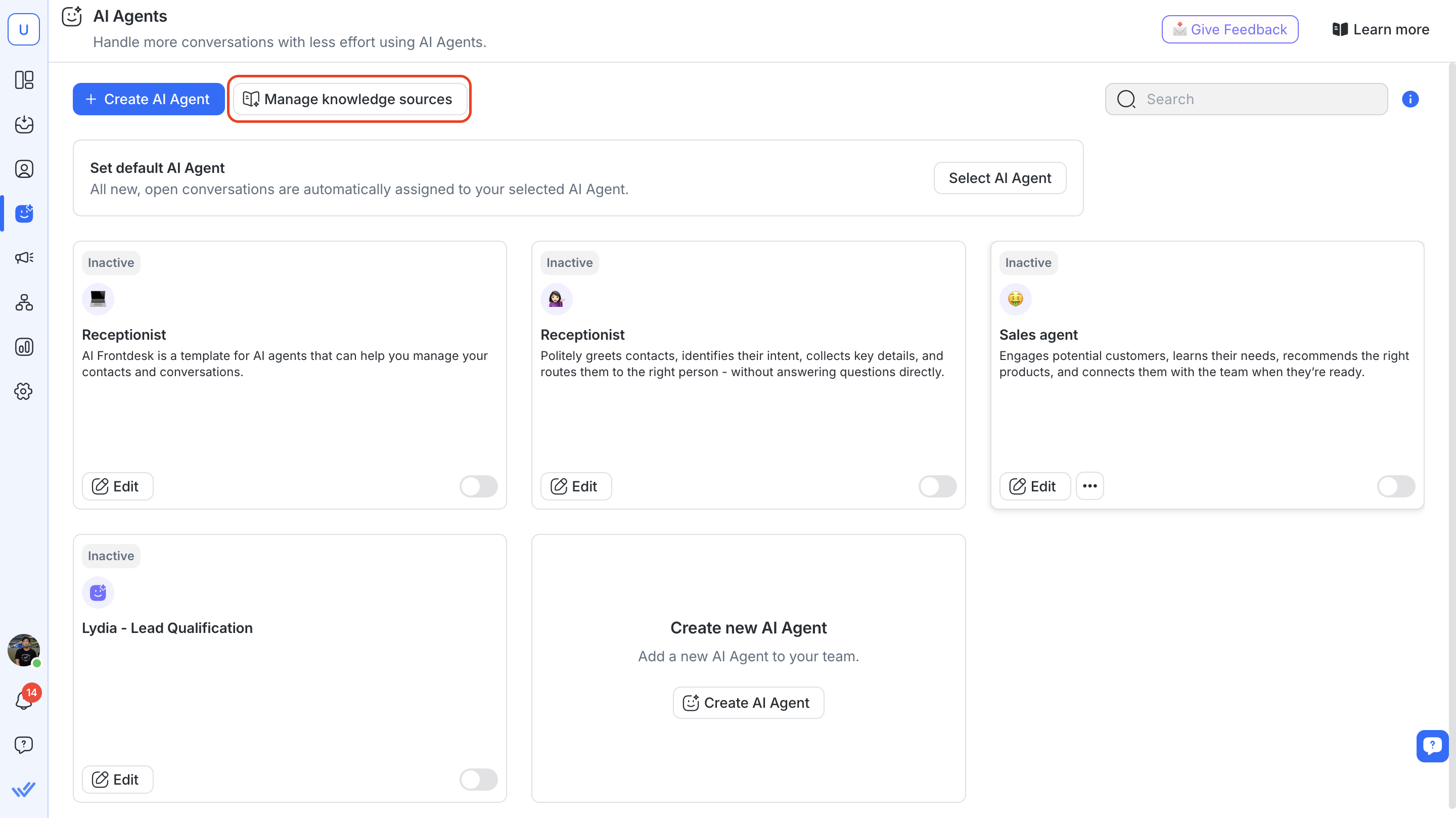
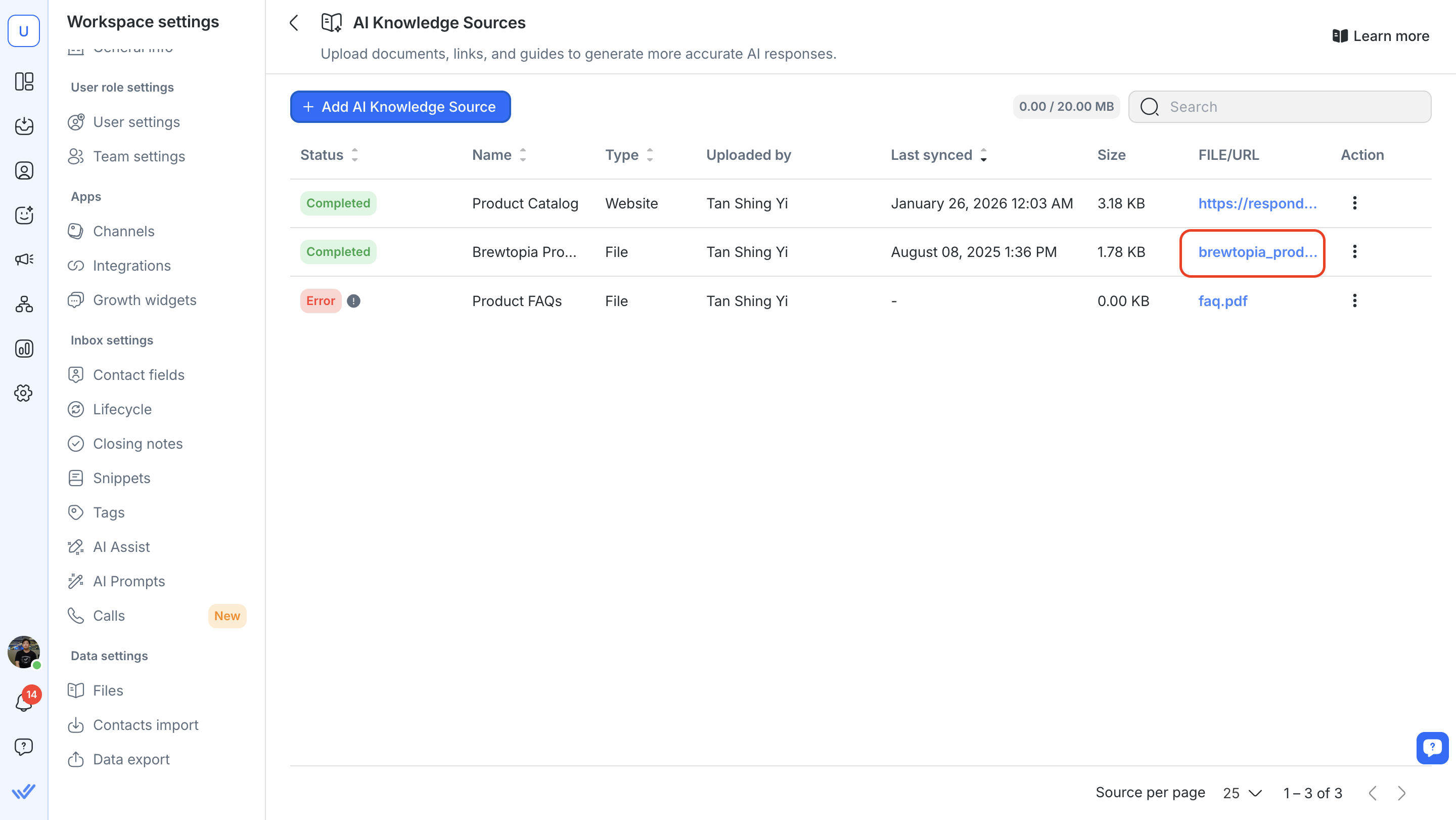
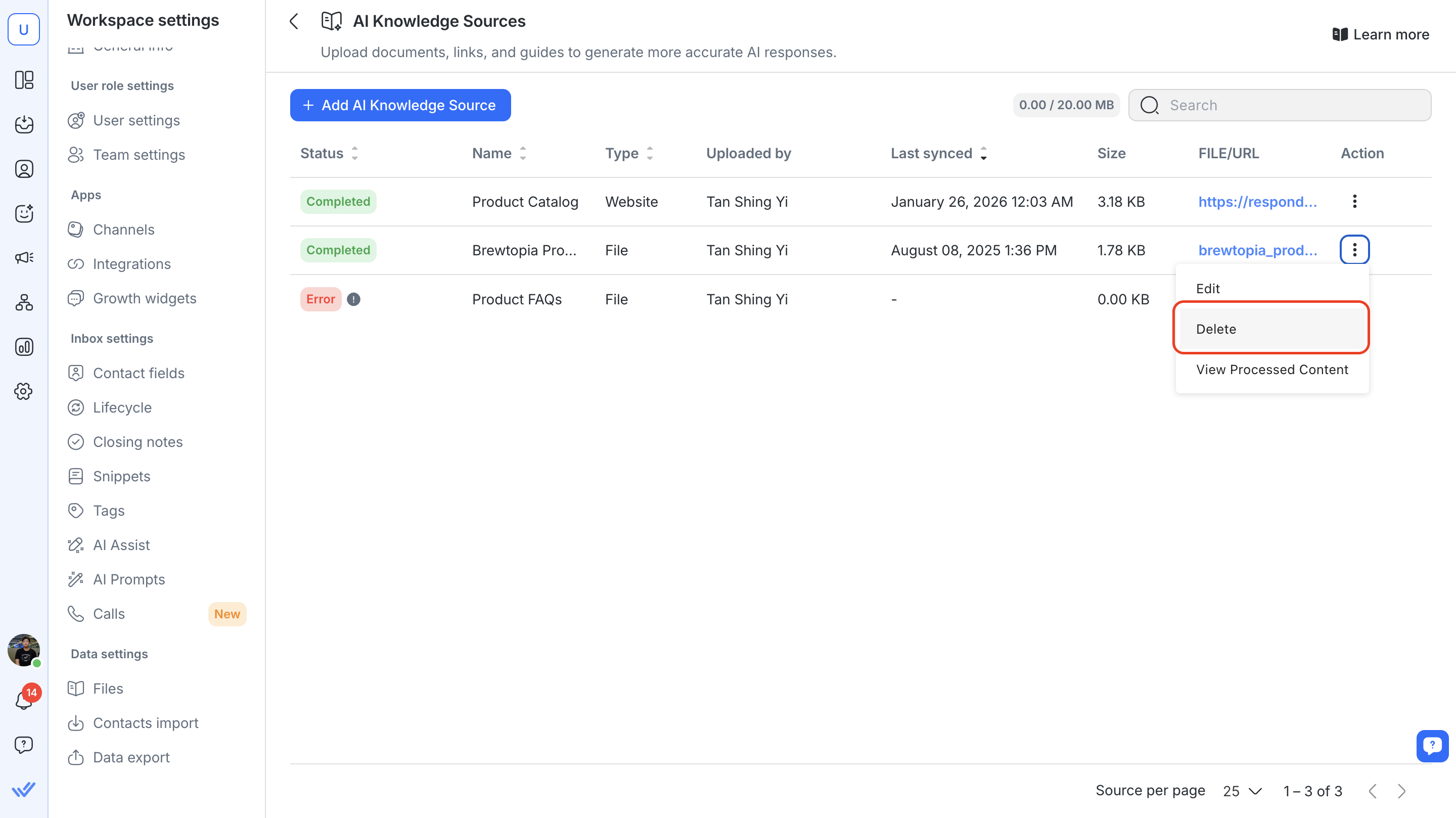
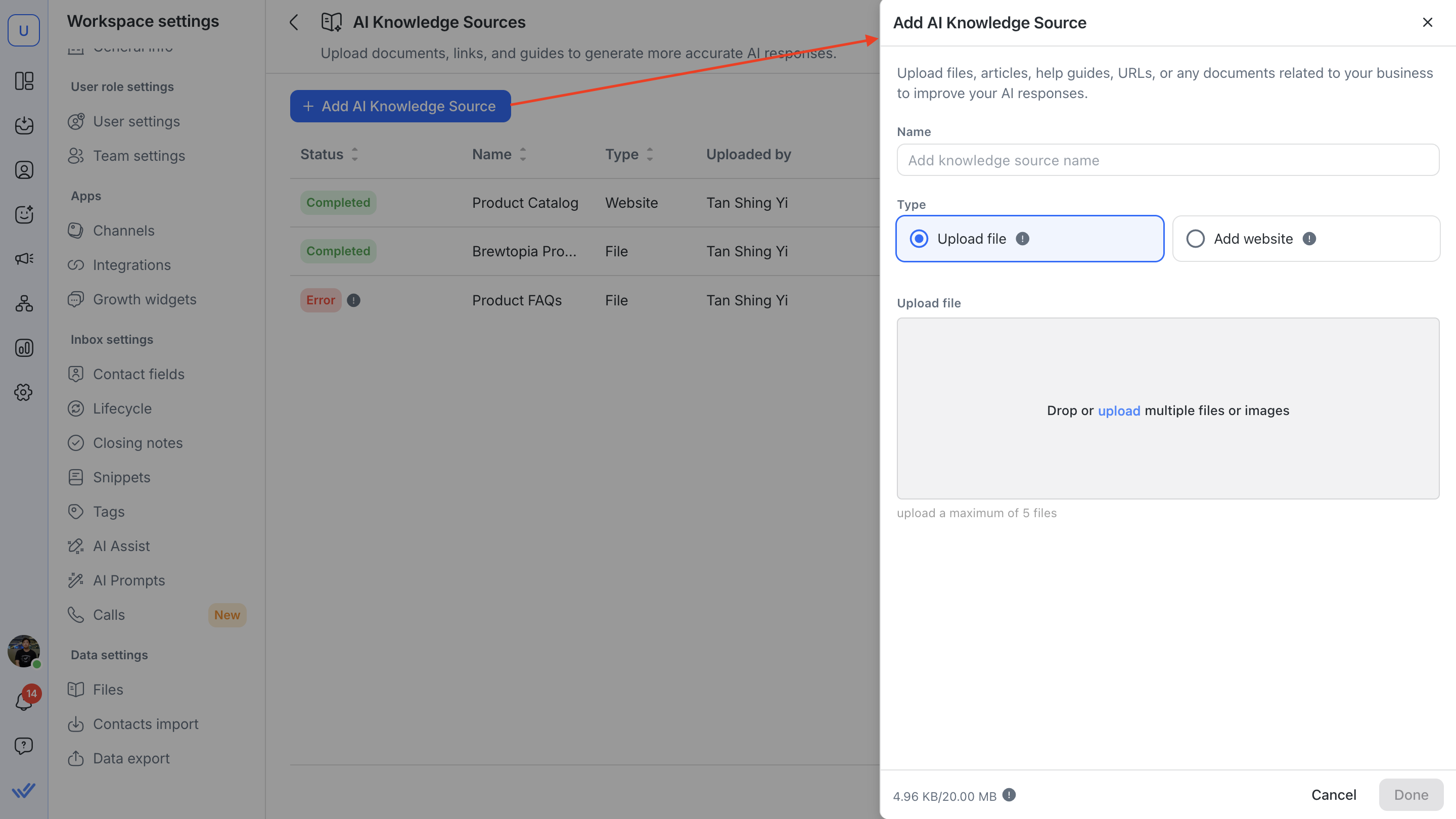
Steps to reupload a knowledge source file
Navigate to AI Knowledge Sources in AI Agents > click Manage knowledge sources
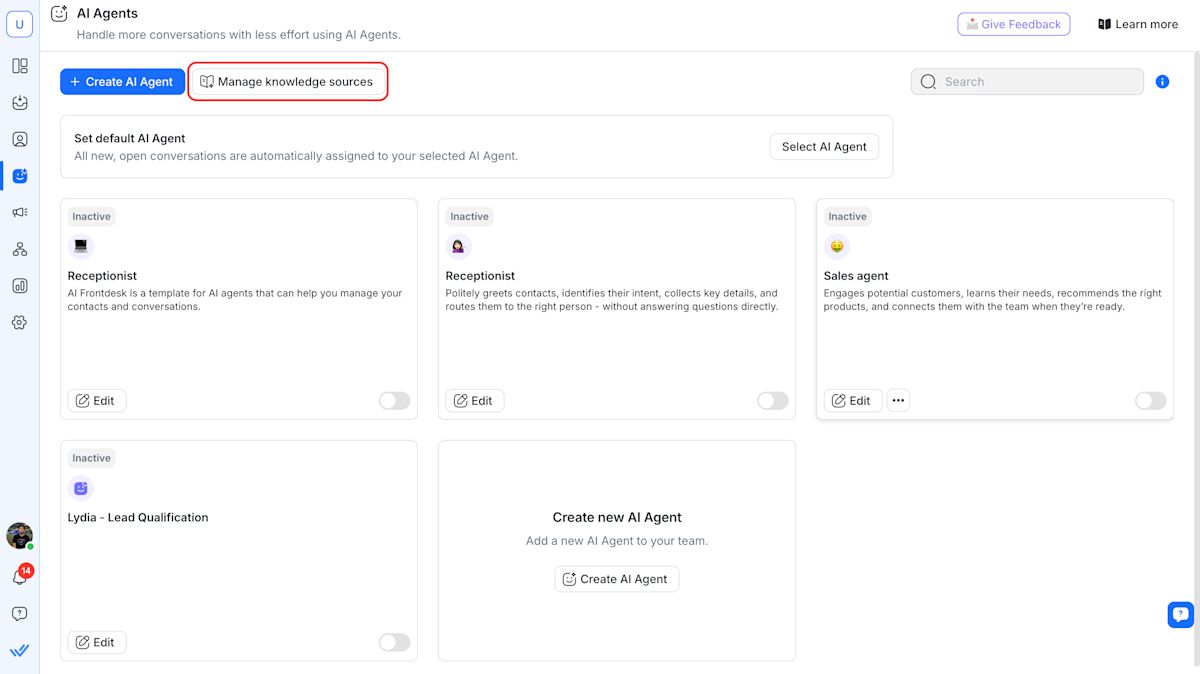
(Optional but recommended) Click the File URL to download a copy for safekeeping.
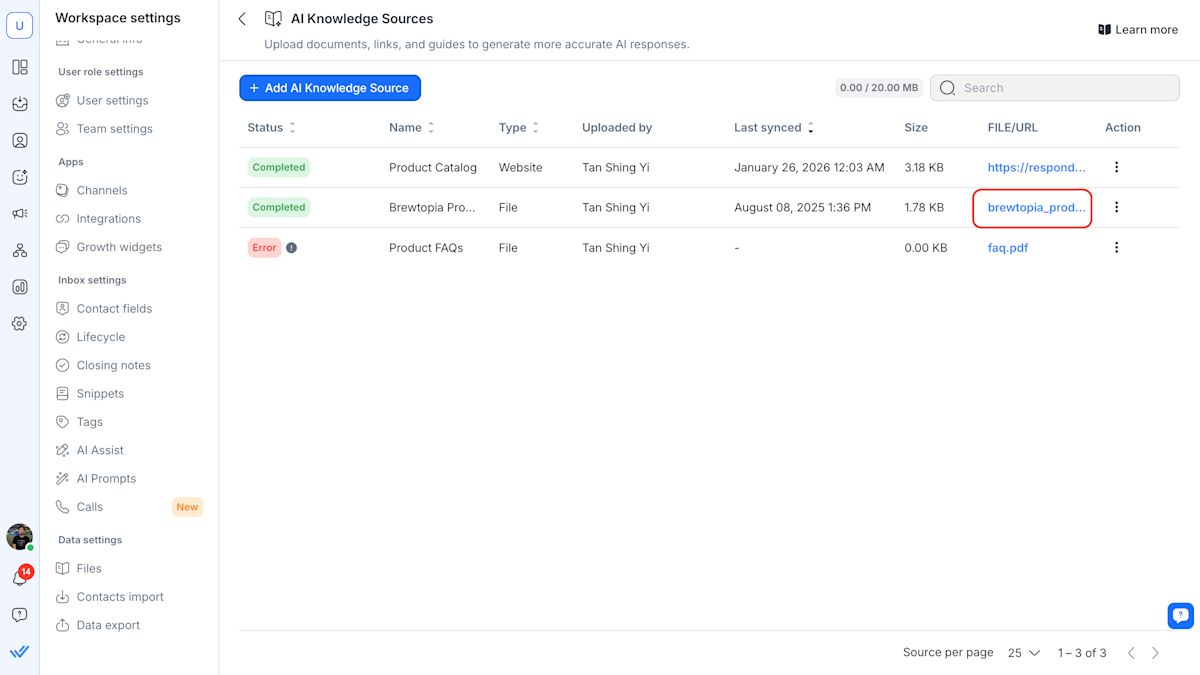
Locate the file you want to replace and click the Action button > Delete
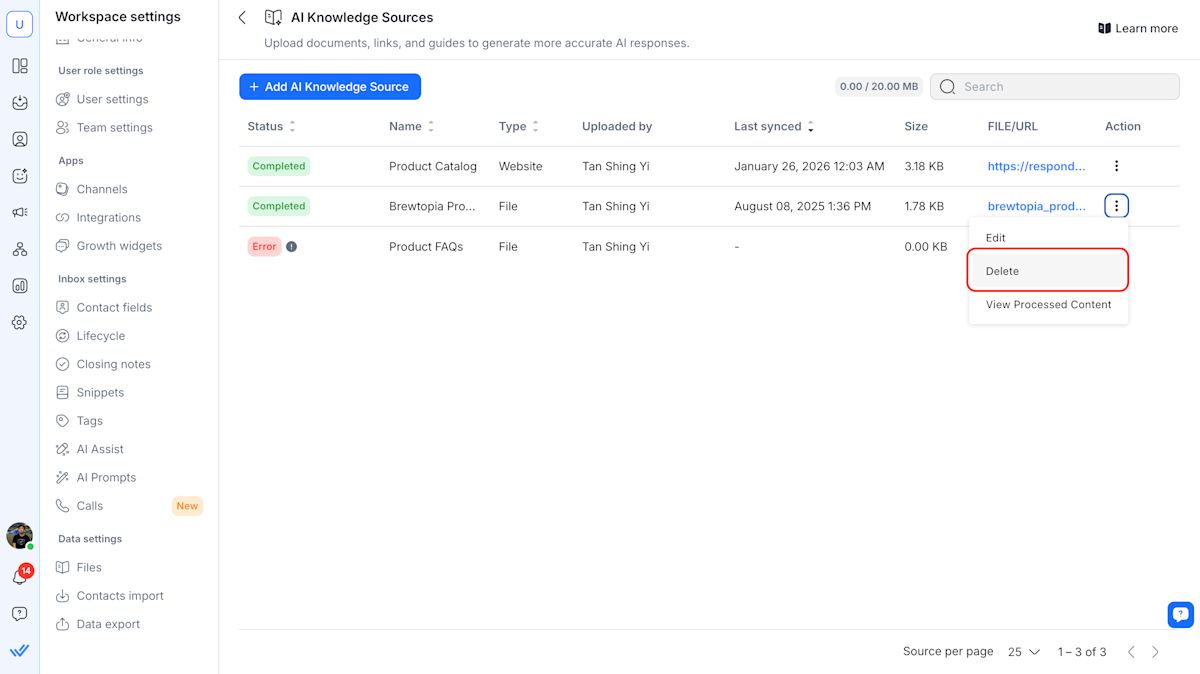
Click Add AI Knowledge Source > Enter a name > reupload the file.
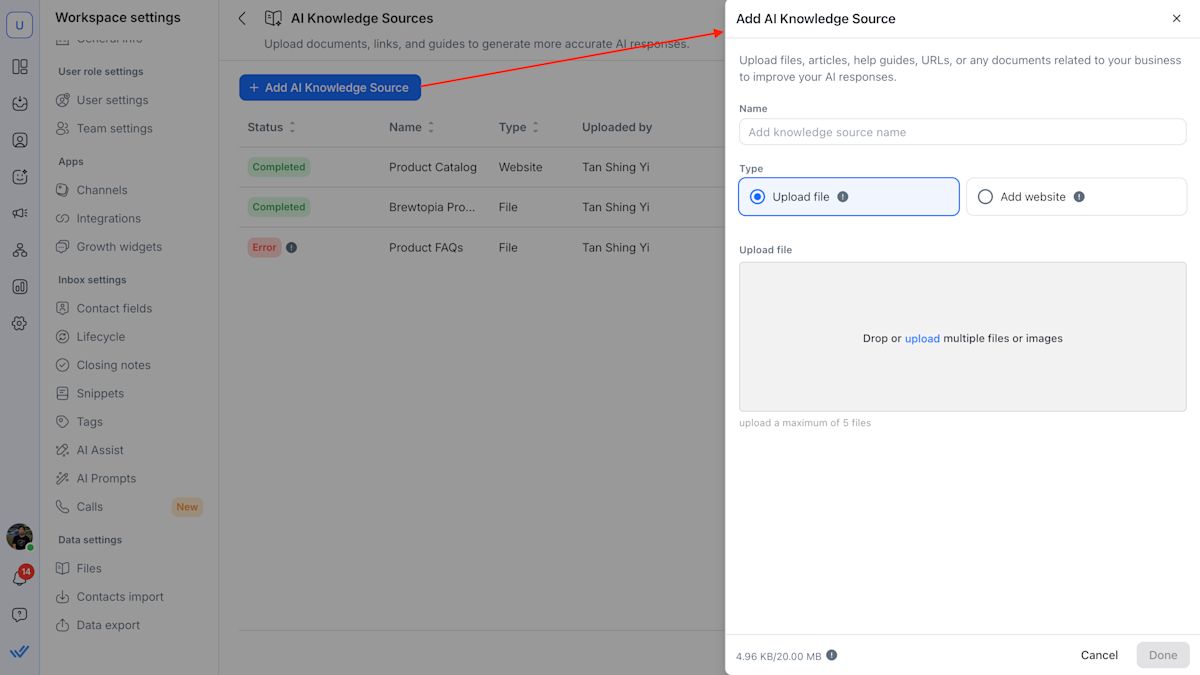
Click Done.
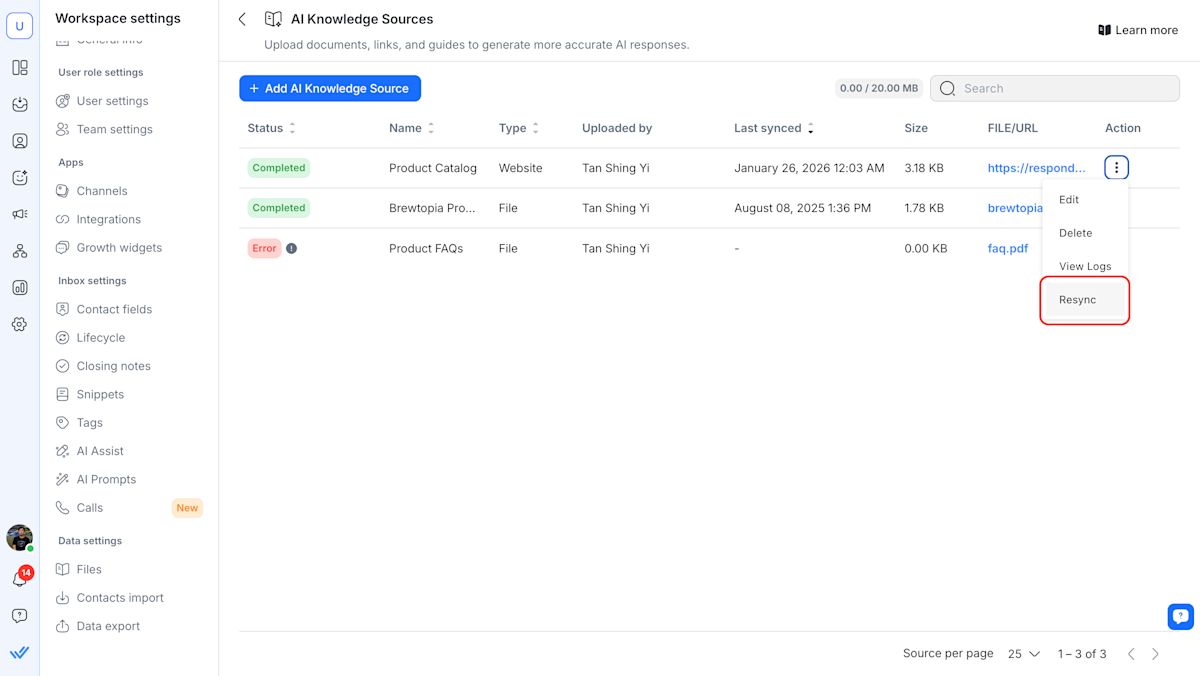
Steps to resync a website knowledge source
Navigate to AI Knowledge Sources in AI Agents > click Manage knowledge sources
Select the website knowledge source you want to refresh. Click the Action button > Resync.
Are test conversations visible in the Inbox module?
No, simulated chats are separate from real conversations and do not appear in the Inbox module.
Can I test Workflow triggers?
The test panel doesn’t execute Workflows, but it will show if your AI Agent is set to trigger one. You’ll see the Workflow name in the action log beneath the AI Agent’s response.
Will this affect my real Contact data?
No. The test panel uses a simulated Contact that doesn’t impact your live data.
Can I test unpublished AI Agents?
Yes. You can safely test and iterate before publishing your AI Agent.
How are team assignments shown in the test panel?
Currently, the test panel shows team assignments based on the first person listed in round robin or least open conversations. If online-only assignment is also specified, it assigns to the first person in round robin or least open conversations who is currently online. This is just how testing works at the moment, so you can still confirm that the assignment logic is being triggered correctly.
When the AI Agent is published, it will follow your Workspace’s real team assignment rules.
Why didn’t my Follow-up instruction run when testing my AI Agent?
This is expected. Follow-ups cannot be executed when testing an AI Agent, because follow-up timing depends on a real Contact session and Inbox conversation. Since testing is a simulation and does not start a live conversation, the system cannot track idle time or trigger follow-up messages.
Why didn't my call transfer execute during testing?
This is expected. Call transfers are simulated in test mode and are not fully executed. The AI Agent will verbally indicate that a transfer is happening, and a transfer event will appear in the chat, but the call will end instead of routing to a real human agent. To test a live transfer, publish your AI Agent and make a real call.
Can I test Assignment Events or Conversation Reopened Events in the test panel?
Not fully. The Test AI Agent panel simulates a conversation, but it does not start a live Inbox conversation or trigger real conversation events.
This means event-based instructions may not behave exactly the same during testing.
For example, instructions like these should be tested in a live conversation:
To test these scenarios, publish your AI Agent and use a test Contact in the Inbox. Then assign the conversation to the AI Agent or reopen a closed conversation with a new incoming Contact message.


