

AI knowledge sources help our AI features such as AI Agents and AI Assist respond accurately using your business content—FAQs, documentation, and help guides. This guide explains how to add, manage, and optimize knowledge sources for better agent performance.
Supported file types and link formats
You can add structured and unstructured content as knowledge sources.
Supported formats include:
Documents: .pdf, .txt, .md, .csv, .docx, .pptx, .ppsx
Images: .jpeg, .png, .bmp, .webp, .tiff
Links: Public webpage URLs
Note: For AI Agent attachment delivery, only .pdf, .docx, .pptx, .jpg, .jpeg, and .png URLs are supported. Other file types can be added as knowledge sources but will not be sent as rendered attachments.
Adding knowledge sources
Knowledge sources are the primary data used by AI Agents and AI Assist to generate helpful, context-aware responses. These are indexed automatically and typically ready to use within a few minutes.
You can add or manage knowledge sources from these locations:
AI Agents > Manage knowledge sources
AI Agents > Select a template or start from scratch > Add knowledge sources
Workspace Settings > AI Assist > Manage knowledge sources
From any of these locations, you can:
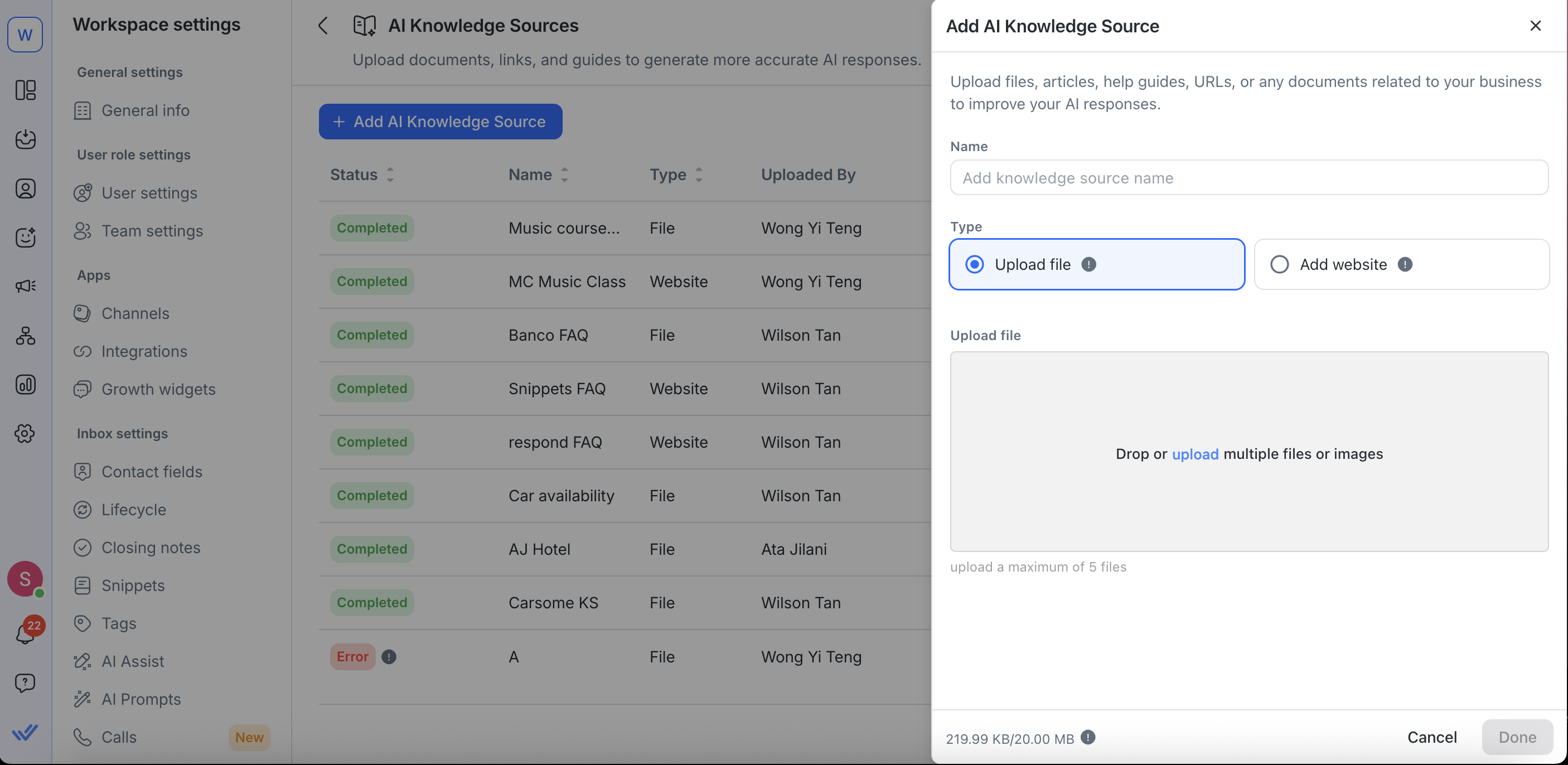
Upload files
Drag and drop multiple supported files: .pdf, .txt, .md, .csv, .docx, .pptx, .ppsx, and image formats (.jpeg, .png, .bmp, .webp, .tiff).
You can upload up to 5 files at a time, with a maximum of 100 file-based knowledge sources per workspace.
File size limits: 20MB per file.
Important: Trial plans have a 1MB per file size limit while paid plans allow up to 20MB per file.
Add website URLs
Paste any public webpage URL in the Website URLs field.
By default, the crawler goes 3 levels deep but can be adjusted up to 100 levels.
You can add up to 5 additional URLs under one website knowledge source.
Click Resync to refresh content or set an automatic sync schedule to keep it updated.
You can upload up to 3 knowledge sources in parallel (files or website URLs) — no need to wait for one to finish before starting another.
Monitor status
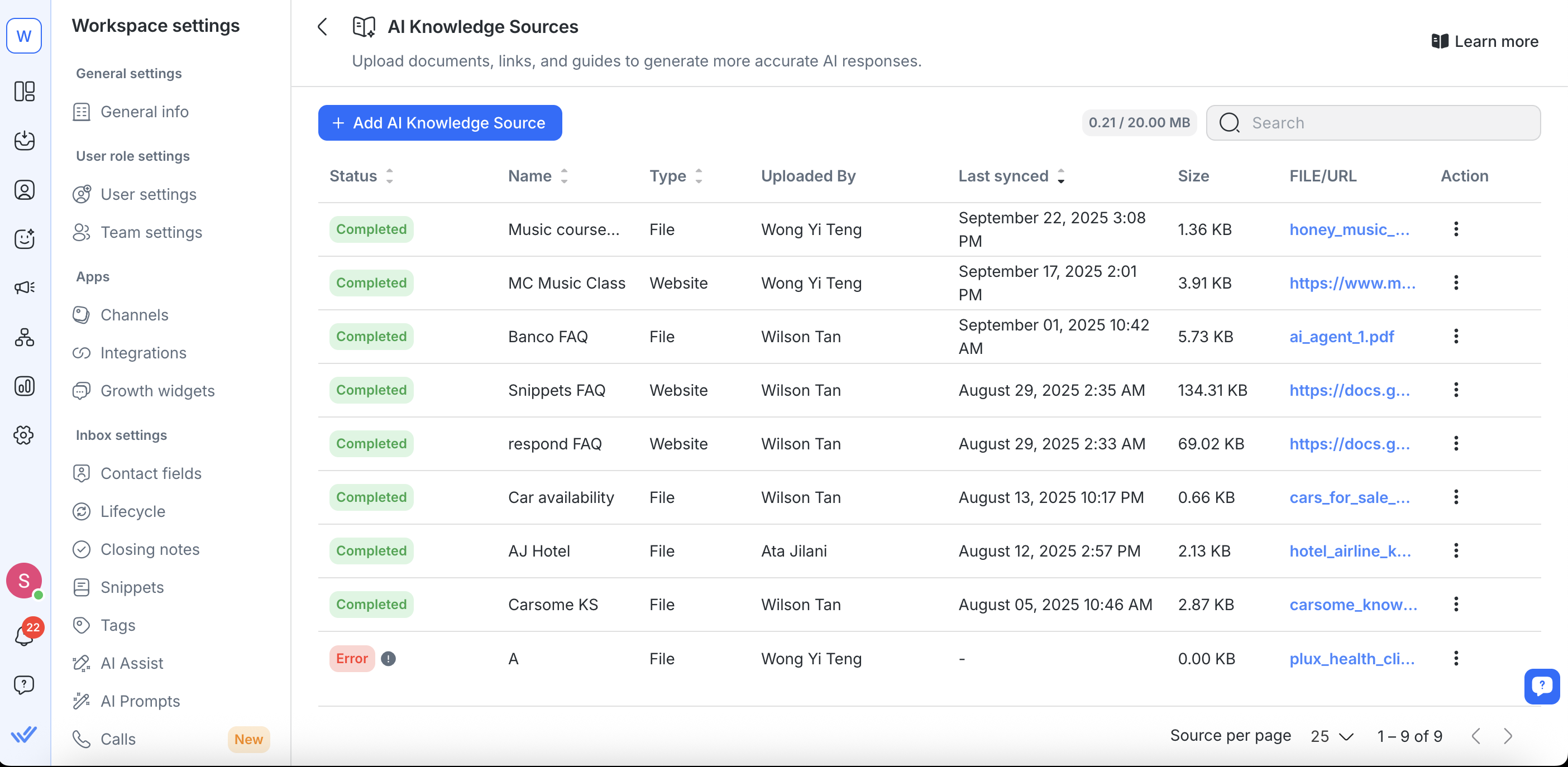
Each knowledge source displays a status:
Completed – Ready to use
In Progress – Processing or indexing
Error – Needs fixing (e.g., file unreadable, crawl blocked)
Partially Completed – Some content saved, but the processing hit a limit or timed out
Learn more about using knowledge sources with AI Assist here.
Advanced settings (for website knowledge sources)
When adding or editing a website knowledge source, you can fine-tune crawling behavior in Advanced Settings:
Include URLs from sitemap
This is enabled by default. Use it if you’d like to crawl more URLs, including pages not linked from your added website URLs.
You can also add a sitemap manually as a URL (e.g., https://example.com/sitemap.xml).
Pages from sitemaps start at a crawl depth of 1, and large sitemaps may take longer to crawl.
Additional URLs (optional): Add up to 5 more entry points.
Max crawling depth
Set how many link levels to follow. For example, 0 means only the provided URL is crawled and 1 includes directly linked pages.
Higher values allow deeper crawls. Crawl depth is set to 3 by default.
Include URL globs (optional):
Specify URL patterns for pages you want the crawler to include.
This applies only to links found on pages — not the Website URLs you’ve entered. To ensure a specific page is crawled, add its URL directly under Website URLs.
Exclude URL globs (optional):
Use this to exclude certain URLs from being crawled.
This applies only to links found on pages — not the Website URLs, which are always crawled.
What are URL globs?
A glob is a pattern you can use to tell the crawler which pages to include or skip, without listing every single URL one by one.
*(single asterisk) covers just one level of pages.**(double asterisk) covers all levels, including deeper subpages.
Include globs
Correct examples:
https://example.com/docs/*→ Includes only pages directly under/docs/(like/docs/page1), but not deeper paths.https://example.com/help/**→ Includes everything under/help/, including subfolders and nested pages (like/help/tutorials/page1).
Incorrect examples:
https://example.com/*help*→ Won’t work as intended. Single * only matches inside one path segment, not across folders.example.com/**→ Missing the https:// protocol, which the crawler may reject.
Exclude globs
Correct examples:
https://example.com/docs/*→ Skips only the immediate pages under/docs/(like/docs/page1), but won’t skip deeper ones.https://example.com/archive/**→ Skips everything under/archive/, including nested folders and subpages.
Other correct examples:
https://example.com/**?foo=*→ Skips any URL onexample.comthat contains the query parameterfoo.
Incorrect examples:
/*?foo=*→ Too broad; could unintentionally skip pages across all domains. Always include your domain (e.g.,https://example.com/**?foo=*).https://example.com/ (without/**) → Excludes only the homepage, not subpages.
Why use globs?
Globs are particularly useful when your website contains a mix of helpful and unhelpful pages for AI training. They give you more control to:
Save time: Instead of adding dozens of similar URLs one by one, include them all with a single pattern.
Reduce noise: Exclude irrelevant sections (e.g., marketing pages, blog archives, or login pages) so the AI focuses only on support-related content, for example.
Handle complex sites: For large help centers or multi-domain setups, globs ensure coverage of relevant sections without oversyncing unrelated material.
Prevent errors: By excluding problematic or irrelevant URLs (like staging environments or outdated archives), you reduce crawl failures and improve AI answer quality.
Tips for writing effective globs
Be specific but not too narrow:
https://example.com/help/**is better thanhttps://example.com/**, which might crawl too much irrelevant content.Use exclude globs for cleanup: If your support pages contain mixed content, use exclude patterns (e.g.,
*/promo/**) to filter out marketing material.Avoid overlapping globs: Overlapping include and exclude rules can cause confusion. Always double-check patterns to ensure you’re not unintentionally skipping important pages.
How AI Agents use knowledge sources
When setting up an AI Agent—whether you’re starting from a template or building one from scratch—you can connect relevant knowledge sources right away. You can also manage them later by going to AI Agents > Manage Knowledge Sources.

Knowledge sources are used to:
Answer product questions accurately
Provide help content in context
Avoid hallucinations or guesswork when AI Agents respond
When creating or editing an AI Agent, you'll find the Knowledge sources section right below Instructions:
Up to 4 enabled knowledge sources show, while the rest appear under Show more.
Click Manage (shown once at least one knowledge source is enabled) to Add new knowledge source, Select from library, or Go to Library.

Selecting from your library
Selecting from the library opens a panel where you can:
Search across all your workspace's knowledge sources
Select individual sources, with a counter that shows how many you've selected
See each source's name, icon (file or website), and status
Click Manage to go to the Knowledge Sources module, or Save to confirm your selection.
Once enabled, the AI Agent uses these sources to inform its replies to Contacts.

Knowledge sources sync status
When selecting knowledge sources for a specific AI Agent, you might also see the following statuses:
Failed – Couldn't be processed. Delete and re-upload it from Knowledge Sources.
Partially processed – The workspace file size limit was reached, so only part of this knowledge source was processed. Remove some knowledge sources, then try again.
Resync failed – The last resync didn't complete, so content may be incomplete or outdated. Your AI Agent can still use it, but resync from Knowledge Sources to update it.
In-progress – Still processing.
To improve accuracy and response quality:
Use topic-specific sources: Avoid lumping many topics into one file.
Limit noise: Remove branding footers, disclaimers, or unrelated info before upload.
When testing an AI Agent, replies may display a "{#} sources" label. This allows you to verify which knowledge sources were used to generate a response. Click the label to review the sources, or select Manage to update, resync, or replace knowledge sources directly.
Tip: To have your AI Agent send images, brochures, or documents as attachments, paste the file's URL into your Knowledge Sources or Instructions — don't upload the file itself. Learn more about sending files and images as attachments.
Managing existing knowledge sources
You can update, replace, resync, or remove knowledge sources via the AI Knowledge Sources page.
Limitations:
AI Agents cannot prioritize or choose knowledge sources. They cannot determine which document is the “best” or most relevant source. To ensure accurate replies, you must guide the AI by telling it exactly what keywords to search for within your knowledge sources.
AI Agents cannot search by document title, only by keywords inside the content. Referencing a document by name (e.g., “check the Pricing Guide”) will not work. Instead, instruct the AI to search for a specific term or concept within the document (e.g., “search for the keyword ‘pricing options’”).
Edit a knowledge source
For editing files, you can:
Rename your knowledge source
Replace the uploaded file (e.g., swap a PDF with a .txt version)
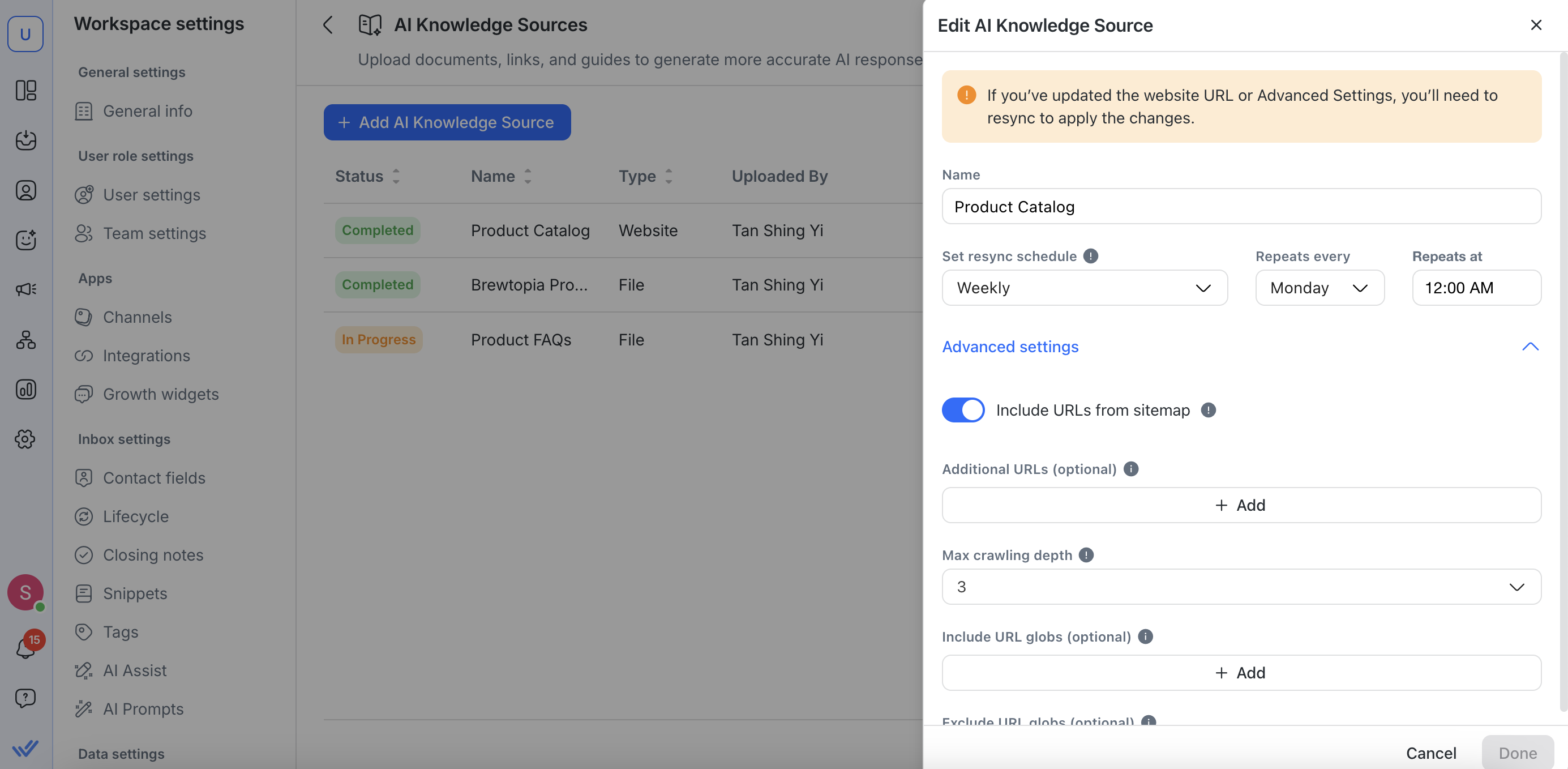
For editing website URLs, you can:
Rename your knowledge source
Update your Website URL
Set or adjust resync schedules
Make further configurations in Advanced Settings
If you update the website URL or make changes in Advanced Settings, you’ll need to resync the knowledge source again for the changes to take effect.
Delete a knowledge source
Remove unused or outdated files or URLs to stay within limits and keep your AI features updated with the most accurate information.
Click Actions > Delete
Deleted knowledge sources will no longer be used to generate replies
View logs (for web URLs)
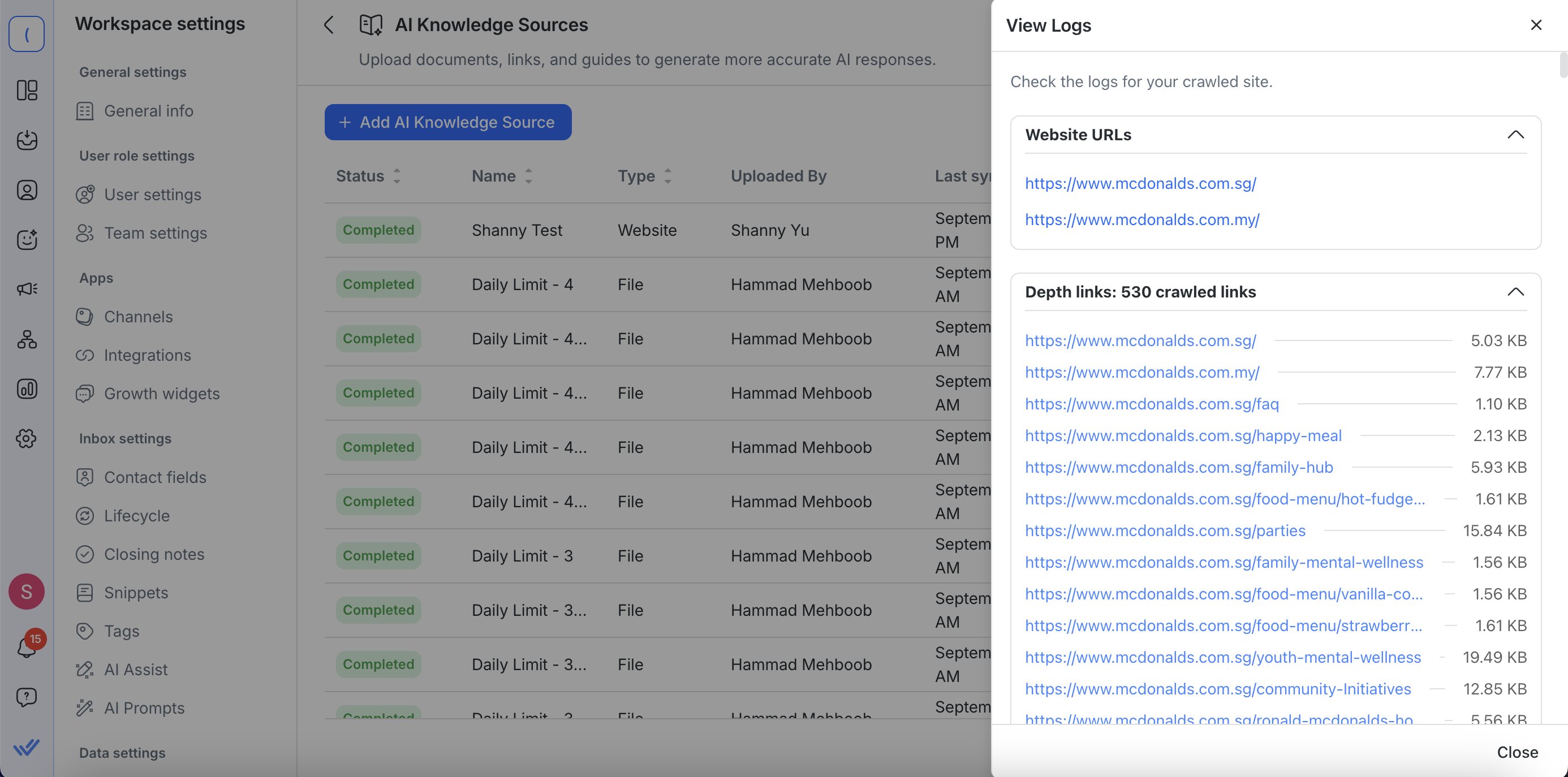
Click Actions > View Logs to review the details of a website knowledge source crawl. The logs give you full visibility into what was captured:
Start and additional URLs – See the website URLs you entered along with any extra URLs added in Advanced Settings.
List of all crawled links – Every URL visited is shown.
Clickable links — Each crawled link opens in a new tab so you can view the crawled content directly.
Extracted content size – Check how much text was pulled from each page, displayed in KB or MB.
This makes it easier to confirm that important pages were included, identify missing or irrelevant content, and troubleshoot any crawl issues.
Resync website sources
To refresh outdated web content:
Click Actions > Resync next to a website source
When you click Resync, the process starts immediately and an icon appears to show it’s in progress.

You’ll be notified if the resync doesn’t finish fully, such as:
Hitting the character limit: the source will show as Partially Completed, and all content crawled up to the limit is saved
Timeout or connection errors: the crawl may stop early (after up to 1 hour), with partial content preserved where possible.
Resync is disabled when a knowledge source is actively syncing.
Workspace limits for AI knowledge sources
To keep things running smoothly, there are limits on how many knowledge sources you can add and how much content can be stored. Here’s a simple breakdown:
Total storage size: Up to 20MB per workspace
Number of files: Up to 100 file-based knowledge sources per workspace
Add/edit actions: Up to 50 changes per day (adding or editing sources)
Crawl depth: Website crawls go 3 levels deep by default, but you can increase this up to 100 levels
Extra website URLs: You can add up to 5 additional URLs per knowledge source
If you hit any of these limits, syncing and adding new sources will pause until space is freed up or limits reset.
Google Sheets limitation
Google Sheets is not supported as a website knowledge source. Adding a Google Sheets URL may lead to inaccurate or unreliable AI responses.
What you can do
Download the Google Sheet as a .csv file.
FAQs and Troubleshooting
Why does my knowledge source status still show “In Progress”?
Large websites or deep link structures take longer to crawl. If it remains unchanged for hours, check URL accessibility (robots.txt, login walls) or reduce crawl depth.
For file uploads, very large files or corrupted documents can also cause delays. If the file is difficult to process, try re-uploading a cleaner version in plain text or another supported format for faster indexing.
Why did my knowledge source status show “Error”?
Errors usually occur due to corrupted files, unsupported formats, blocked websites, or server timeouts. To fix this, try re-uploading the content in a supported format (e.g., .pdf, .docx, .csv), check the website’s accessibility, or retry the crawl.
Can I upload private or internal links?
No, only public URLs are supported. For private content, export it as a supported file type (e.g., PDF, TXT) and upload the file.
Do AI Agents automatically use all knowledge sources?
When you create or edit an AI Agent, you choose which knowledge sources to enable from your workspace's library — only those selected sources are used to generate replies to Contacts. Up to 4 enabled knowledge sources show at once on the configuration page, with the rest available under Show more or via Manage.
Can I use Snippets as a knowledge source for AI Agents?
No, Snippets are not supported as a knowledge source for AI Agents at this time. If you’d like to see this feature in the future, you can vote for it here.
How often should I resync website sources?
Resync frequently updated sites on a schedule (e.g., weekly or monthly). For static content, manual resyncs are enough.
How can I prevent outdated or irrelevant answers?
Replace or delete outdated sources, exclude archived pages using globs, and schedule recurring resyncs for frequently updated content.
Why am I seeing a "Too Many Requests" error when crawling a knowledge source?
This can happen when a knowledge source has been crawled and deleted more than 50 times within a single day, triggering a rate limit. Wait for 24 hours, then attempt to crawl the knowledge source again.
To avoid hitting the rate limit, avoid repeatedly adding, deleting, and re-adding the same knowledge source in quick succession.


