

Managing chats and calls in the Inbox is key to staying organized and responsive across every Channel. This article covers how to handle incoming and outgoing messages, use message actions and conversation events, and track call activity.
Conversation list
The conversation list displays all conversations with your Contacts according to the inbox you’re currently viewing. You can also switch between Chats and Calls view using the tabs above the conversation list.
Selecting a conversation
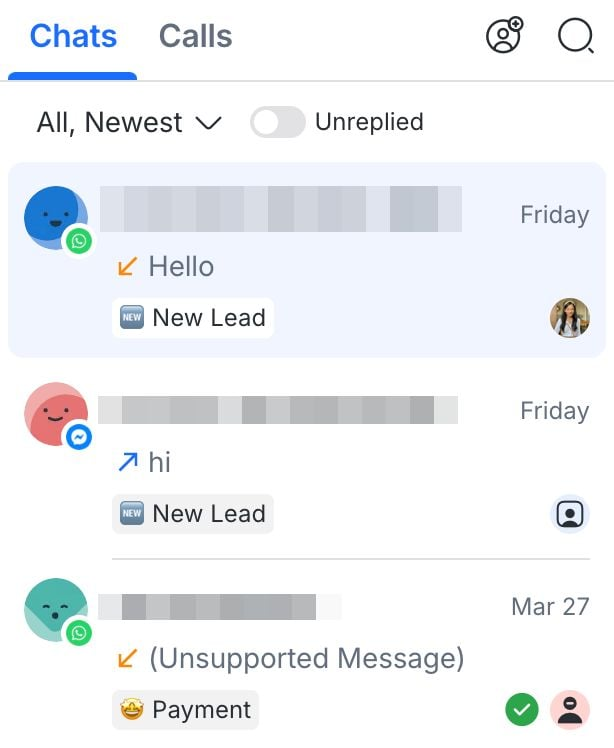
By default, the conversation list is filtered by “All” and sorted by the newest messages first. Selected conversations are highlighted in blue.
Conversation indicators
Conversation indicators show key details that help you understand each conversation at a glance.
The following conversation indicators are available:
Conversation status
Channel
Unread count
Last message
Conversation status
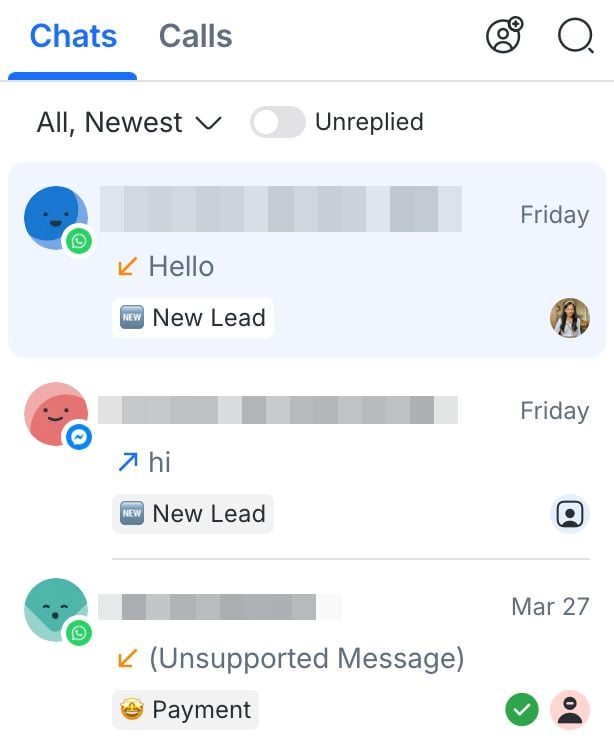
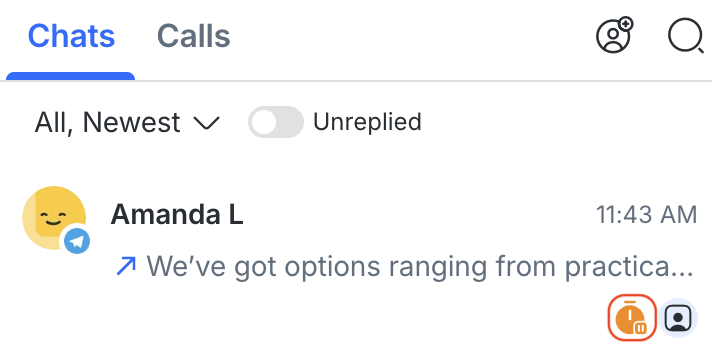
The conversation status shows whether the conversation with a Contact is Closed or Snoozed. This label is displayed on the bottom left of each conversation in the conversation list. No label is shown if the conversation is open.
Closed status:
Snoozed status:
Channel
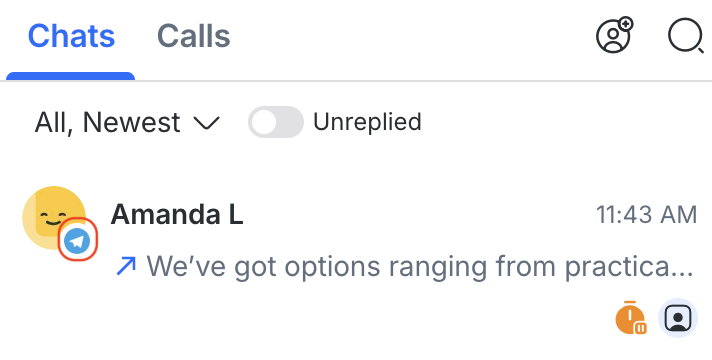
The Channel icon shows which messaging Channel the Contact is messaging from. This is displayed at the bottom right of the Contact’s profile icon.
Unread count
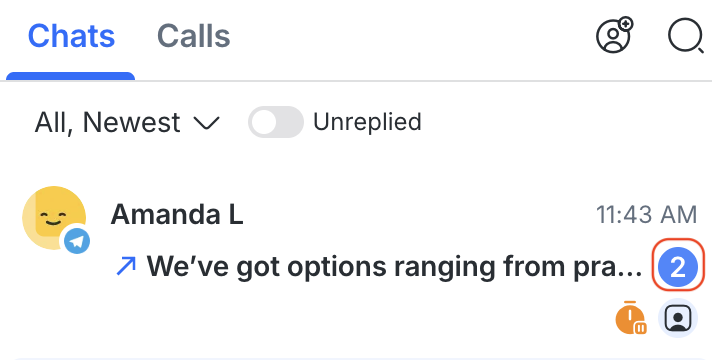
The unread count shows if you have unread messages from Contacts. If there are unread messages, it will be displayed as a number count highlighted in a blue circle at the right of the conversation.
Important:
Unread counts in the Inbox are stored as a cached indicator to improve performance.
If a Contact does not send any new messages for an extended period, the unread count may automatically expire and disappear after 90 days of inactivity.
This does not delete any messages or conversation history.
The unread count should be treated as a helpful indicator, not a permanent record of unread activity.
Last message
The last message shows the latest message in the conversation. Here’s what it includes:
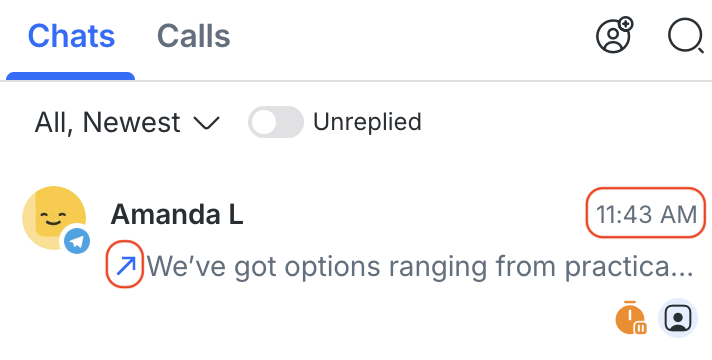
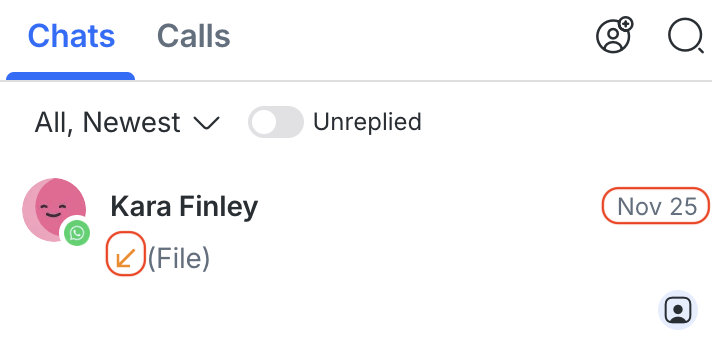
A timestamp that shows the time for recent messages and the date for older messages.
An arrow that indicates who sent the message.
Outgoing messages are sent by you or your team, while incoming messages are sent by the Contact.
If the last message was sent by you or your team, a blue arrow appears pointing to the top right.
If the last message was sent by the Contact, an orange arrow appears pointing to the bottom left.
Quick actions
You can use quick actions to manage and organize conversations more efficiently.
With quick actions, you can:
Close a conversation
Close with notes to close the conversation with a summary
Snooze ongoing conversations
Select predefined Shortcuts
Assign conversations to team members or AI Agents
Add or remove Collaborators
Add or remove a Lifecycle stage

Conversation window
The conversation window is where you can view your entire chat with a Contact, including sent and received messages. It also includes the message composer, where you can draft messages to communicate with Contacts.
Receiving messages
New messages will appear in the Contact list of the Inbox module. New Contacts will be unassigned by default.
Typing indicators
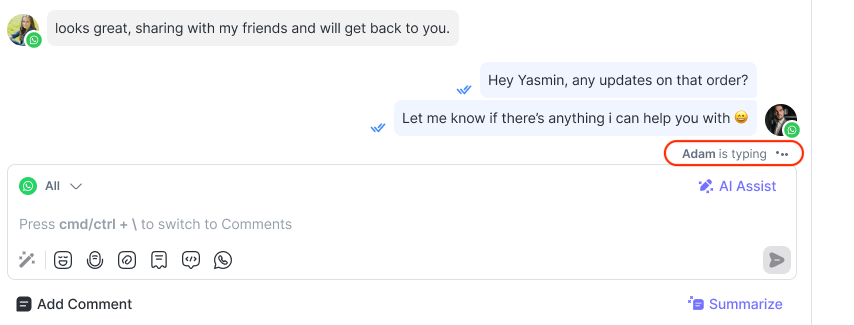
Typing indicators show when someone is actively typing a message in a conversation.
For Contacts
When a human agent or AI Agent starts typing, a typing indicator is shown to the Contact. This reassures them that a reply is on the way and encourages them to stay engaged in the conversation.
Supported Channels (for Contacts):
WhatsApp
TikTok
Telegram
For users (agent-to-agent)
Agents can also see when another human agent or AI Agents is typing a reply to the same Contact. This helps teams avoid duplicate responses. Typing indicators for users are available across all Channels.
Sending messages
When you receive a message from a Contact, you can reply directly in the message composer by clicking the text box and typing your response.
You can also use AI Prompts to refine or enhance your reply, or use AI Assist to generate a response before sending it.
Learn more about using AI Prompts to refine replies and AI Assist to generate responses.
To streamline your replies, use shortcuts in the conversation window to quickly access emojis, send voice messages, attach a file, and insert snippets or variables.
Learn more about responding to messages.
Important:
Some messaging channels have a limited messaging window.Be sure to plan your replies accordingly to ensure your messages are delivered. Refer to the overview page of the respective Channel to learn more about that channel’s messaging window.
You cannot send messages to blocked Contacts. The message composer will be disabled for blocked Contacts.
Message actions menu
You can use the message actions menu to access actions for individual messages in a conversation.

The message actions menu consists of these options:
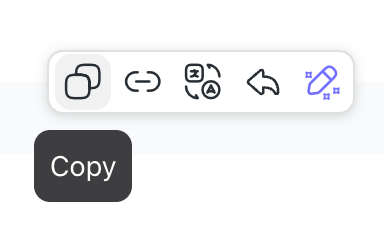
Copy (to copy a message)
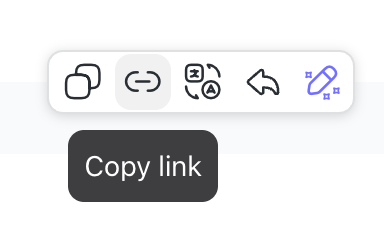
Copy link
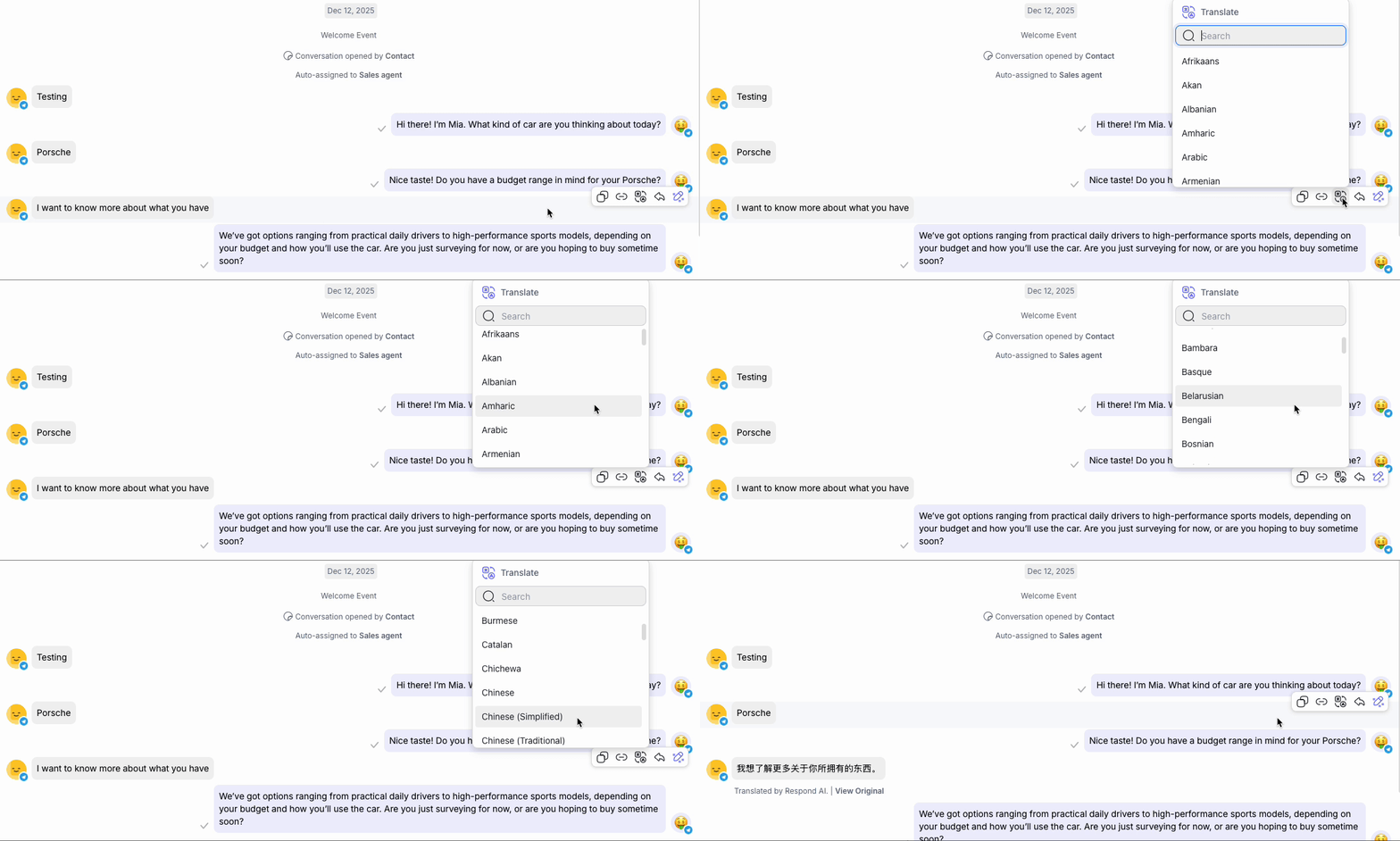
Translate
Reply
Reply with AI Assist
Copy
Use the Copy option in the message actions menu to quickly copy the content of any message to your clipboard.
This is especially helpful when you need to:
Share a specific message with teammates for context.
Reference a Contact’s message in notes or comments.
Quote part of a conversation in external documentation or follow-ups.
Simply click Copy, and the full text of the message will be available for pasting wherever needed.
Copy link
You can copy a direct link to any message in a conversation using the Copy link option in the message actions menu.
This is useful when you want to:
Share a specific message with teammates for context.
Refer back to key messages during internal discussions or troubleshooting.
When someone clicks the link, they’ll be taken directly to the Contact’s conversation with the referenced message automatically highlighted, making it easy to locate in long threads.
Translate
You can translate individual messages into another language using the Translate option.
Reply
The reply-to context feature is available for both incoming and outgoing messages.
You can respond directly to a specific message using the Reply option:
Reply to incoming message: You can select Reply on a message sent by the Contact to respond directly to that message.
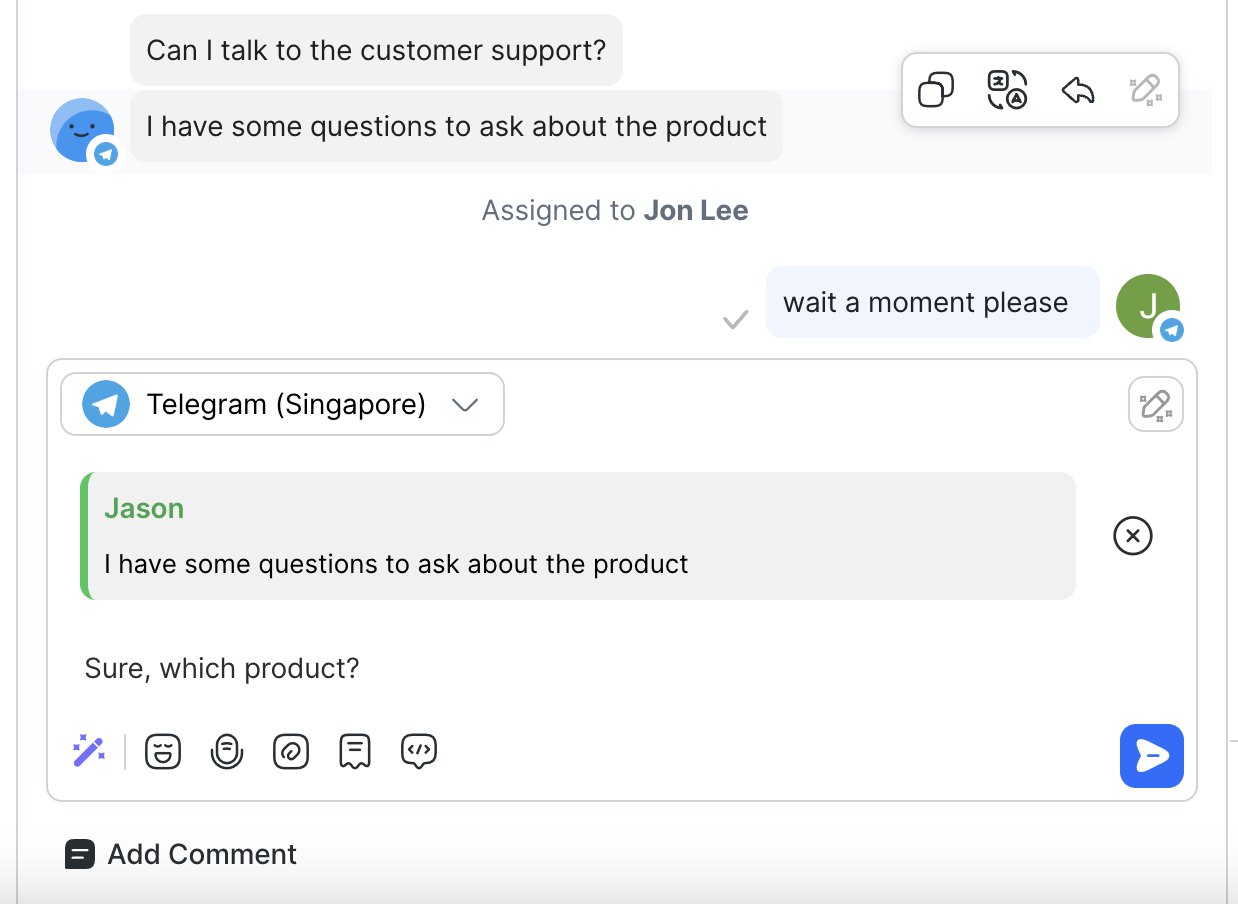
Reply to outgoing message: You can select Reply on a message you sent to respond directly with context.
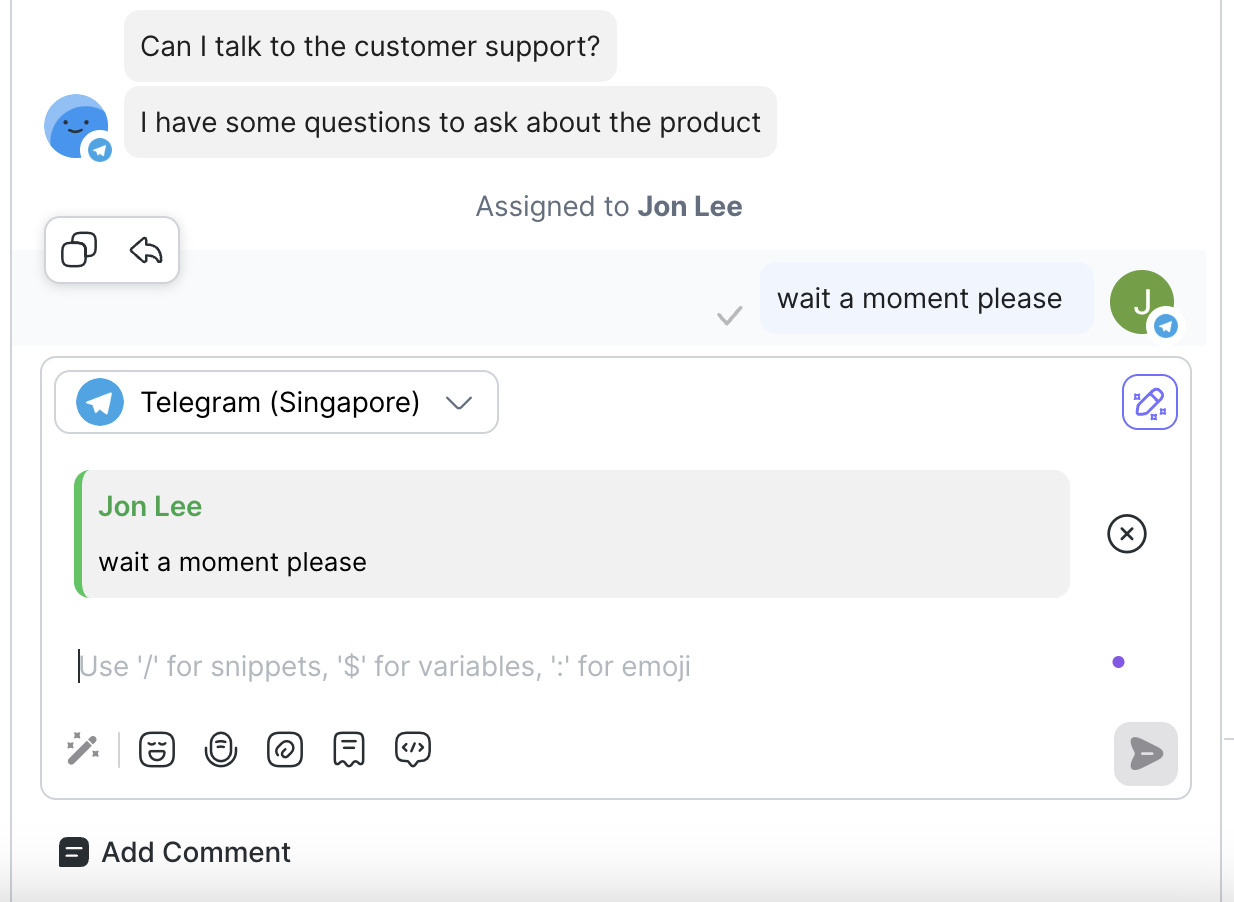
This feature is only available for selected Channels such as: WhatsApp Business Platform (API), WhatsApp Cloud API, and Telegram
Email Channels have different menu action items. These are the Reply and Show original email actions. Learn more in email overview.
Reply with AI Assist
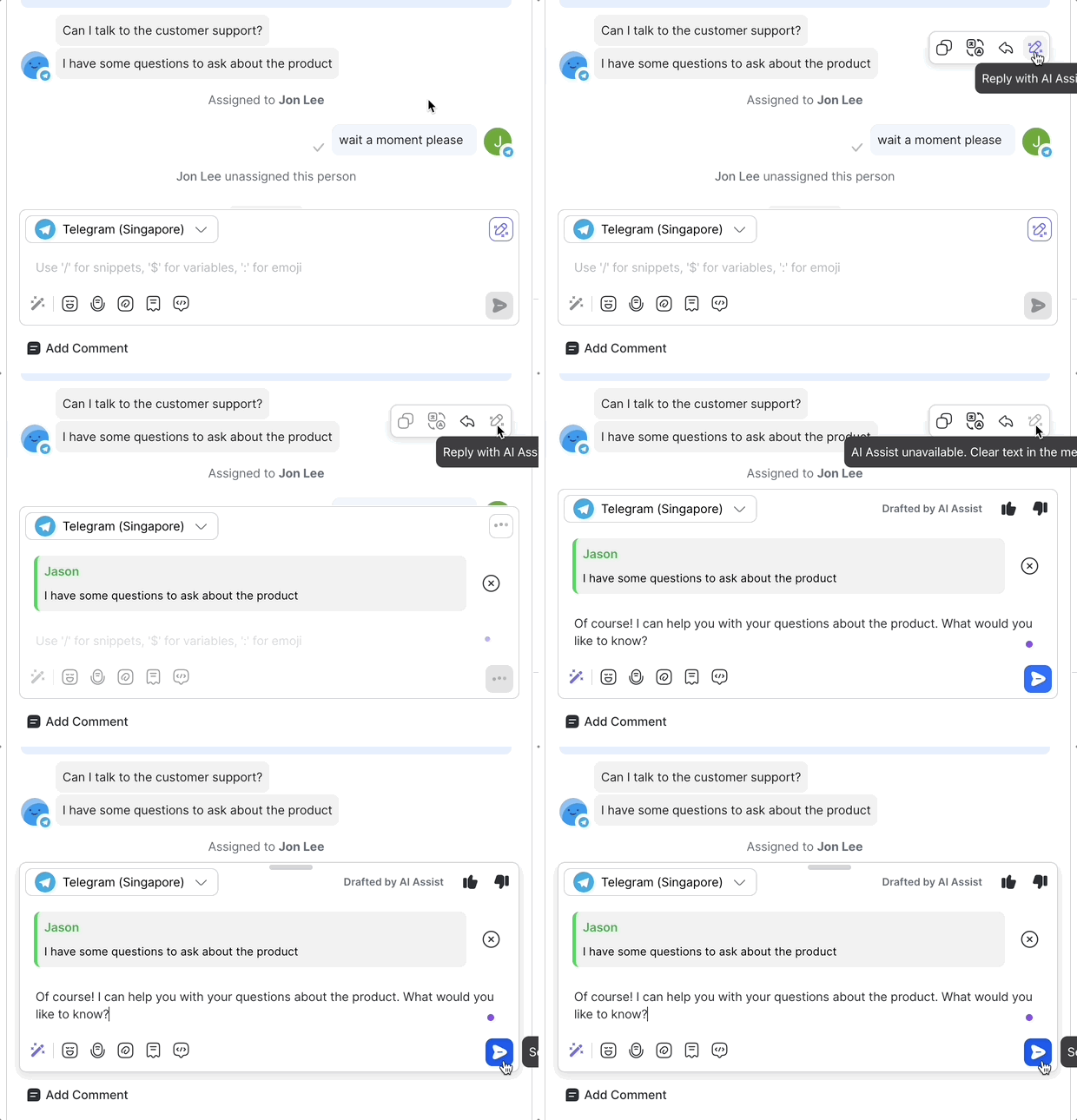
You can select Reply with AI Assist to generate a response to a specific message.
Transcribe audio
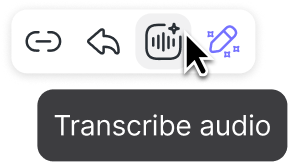
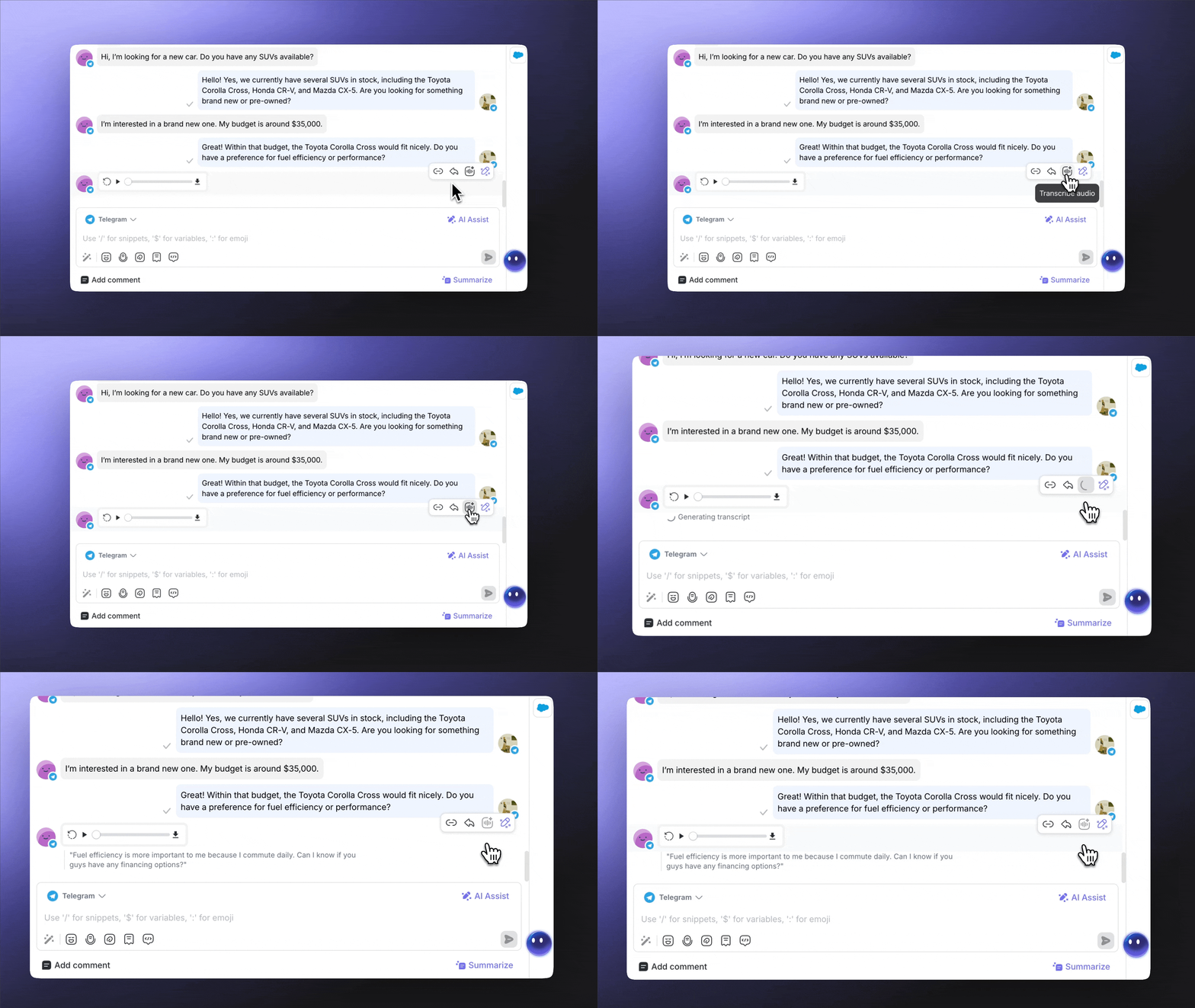
You can transcribe audio messages from your Contacts into text by clicking on the “Transcribe audio” icon.
The transcript will be displayed under the audio message, and all agents in the Workspace can see it.
Message status
Message status indicates the delivery state of messages you send to a Contact. When you send a message, a status indicator appears next to it that shows its delivery status.
These are the available message statuses:
Status | Icon | Description |
|---|---|---|
Sent | Single grey check | The message has been successfully sent. |
Delivered | Double grey checks | The message has been successfully delivered. |
Read | Double blue checks | The message has been read. |
Failed | White exclamation mark in a red circle | There was a failure in sending the message. |
If a message fails to be sent to a Contact, hover over the message to view the error message from the platform or the Channel source.
Message status is only available for messages sent within a Channel’s messaging window.
Some messaging Channels have limited coverage of message statuses. Refer to the overview page of the respective Channel to learn more about the availability of message statuses for the Channel.
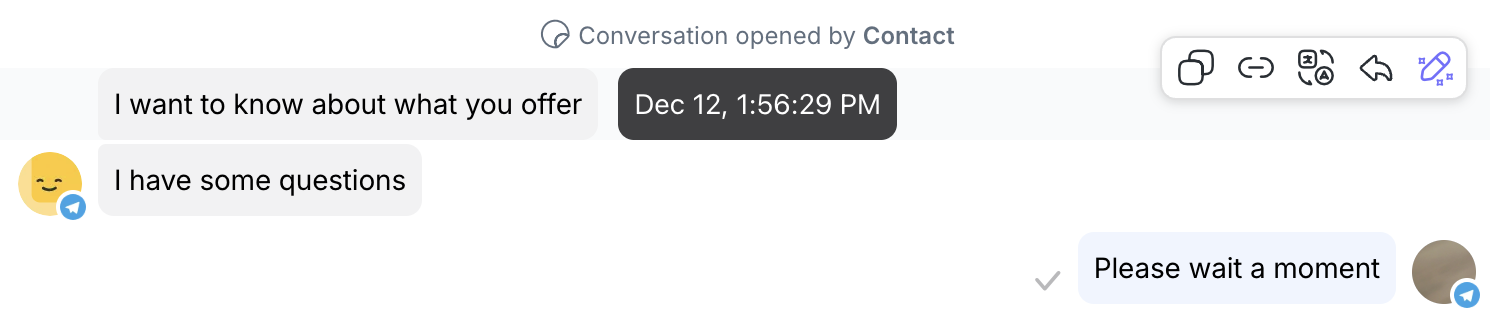
When you hover over a message, its timestamp appears, showing the date and time. You can view timestamps for both your messages and messages sent by the Contact.
Outgoing message timestamp: Shows the date and time for a message you sent.

Incoming message timestamp: Shows the date and time for a message sent by the Contact.
Link previews
The link preview feature lets you send links with a preview in your messages. The preview includes an image, title, description, and the website link associated with the URL.
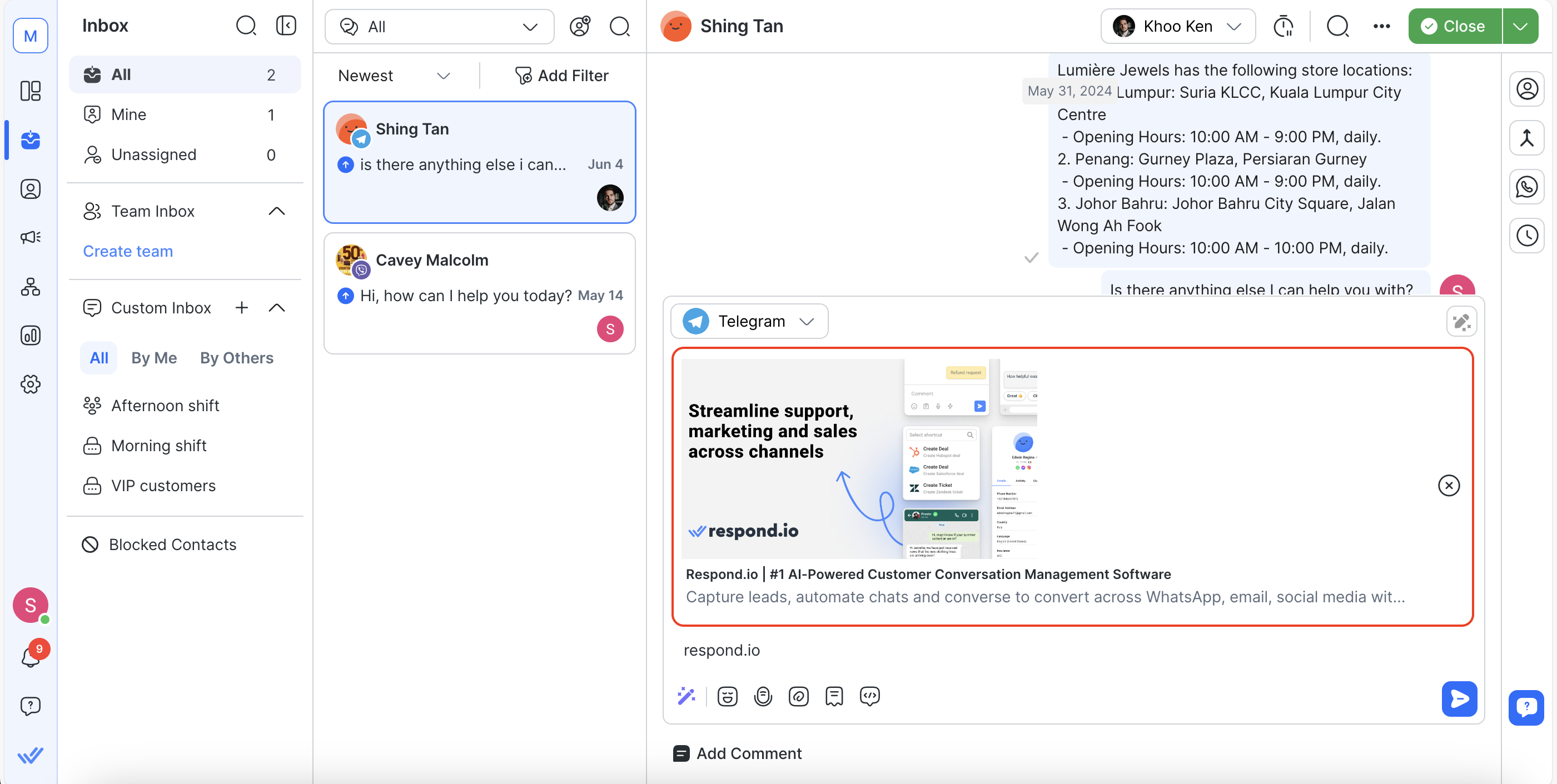
Link Previews are available for the following Channels: All WhatsApp Channels (except Vonage), Instagram, Telegram and LINE.
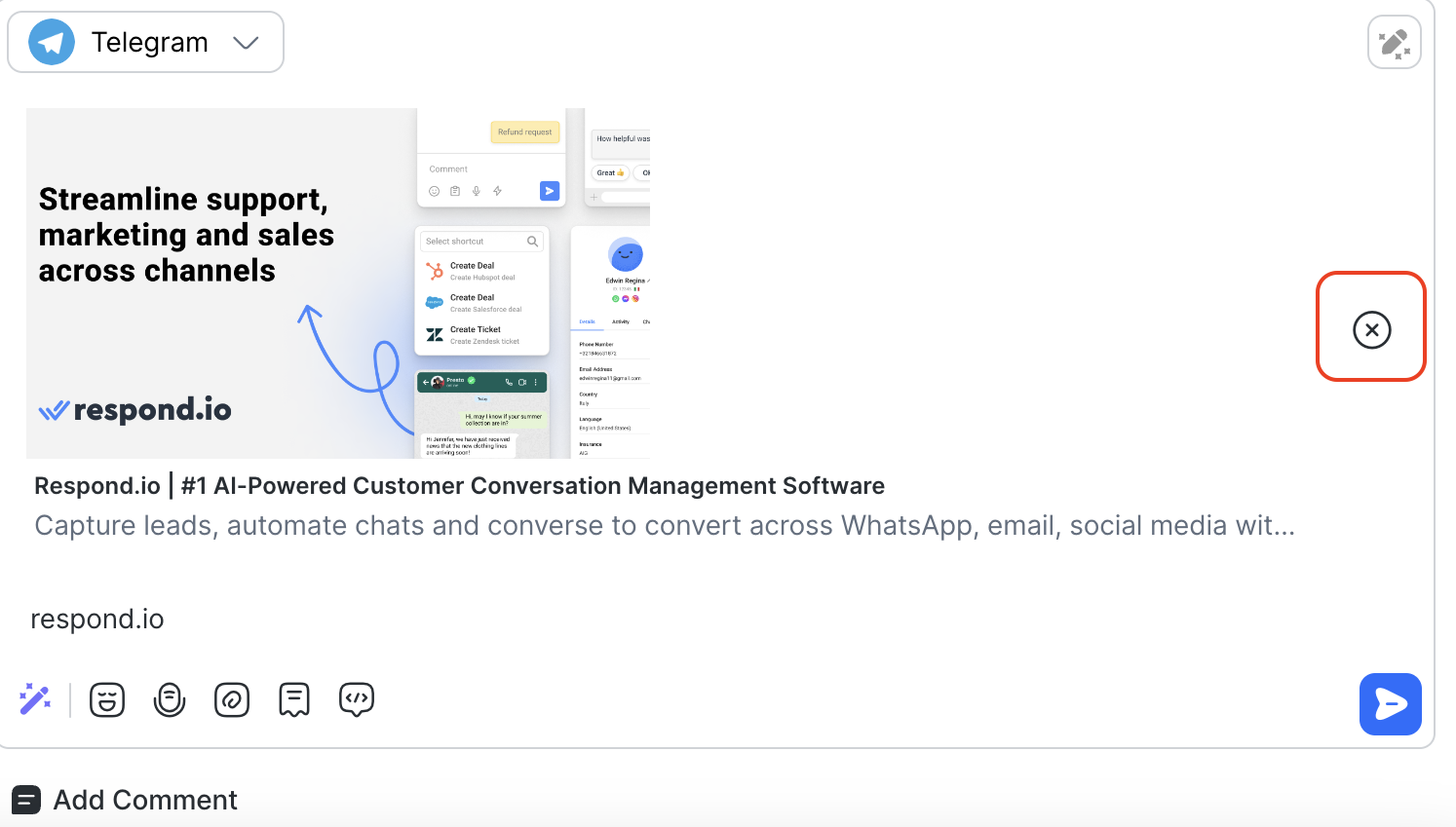
Remove link preview in the message composer
You can remove link previews in the message composer before you send it to a Contact. To remove a link preview, click the X button.
Link preview behavior
Link previews behave differently depending on whether the message is incoming or outgoing.
Incoming message:
Link previews will be displayed for incoming messages that contain URLs.
Outgoing message:
If you sent a message with a link preview, the Contact will receive the message along with the link preview, provided the Channel supports it.
If you have removed the link preview, it should not be displayed in the messaging console.
The Contact will receive the message without the preview if it was removed by the sender.
Only one link preview will be shown per message. When multiple URL links are present in a message, the preview of the first URL will be displayed.
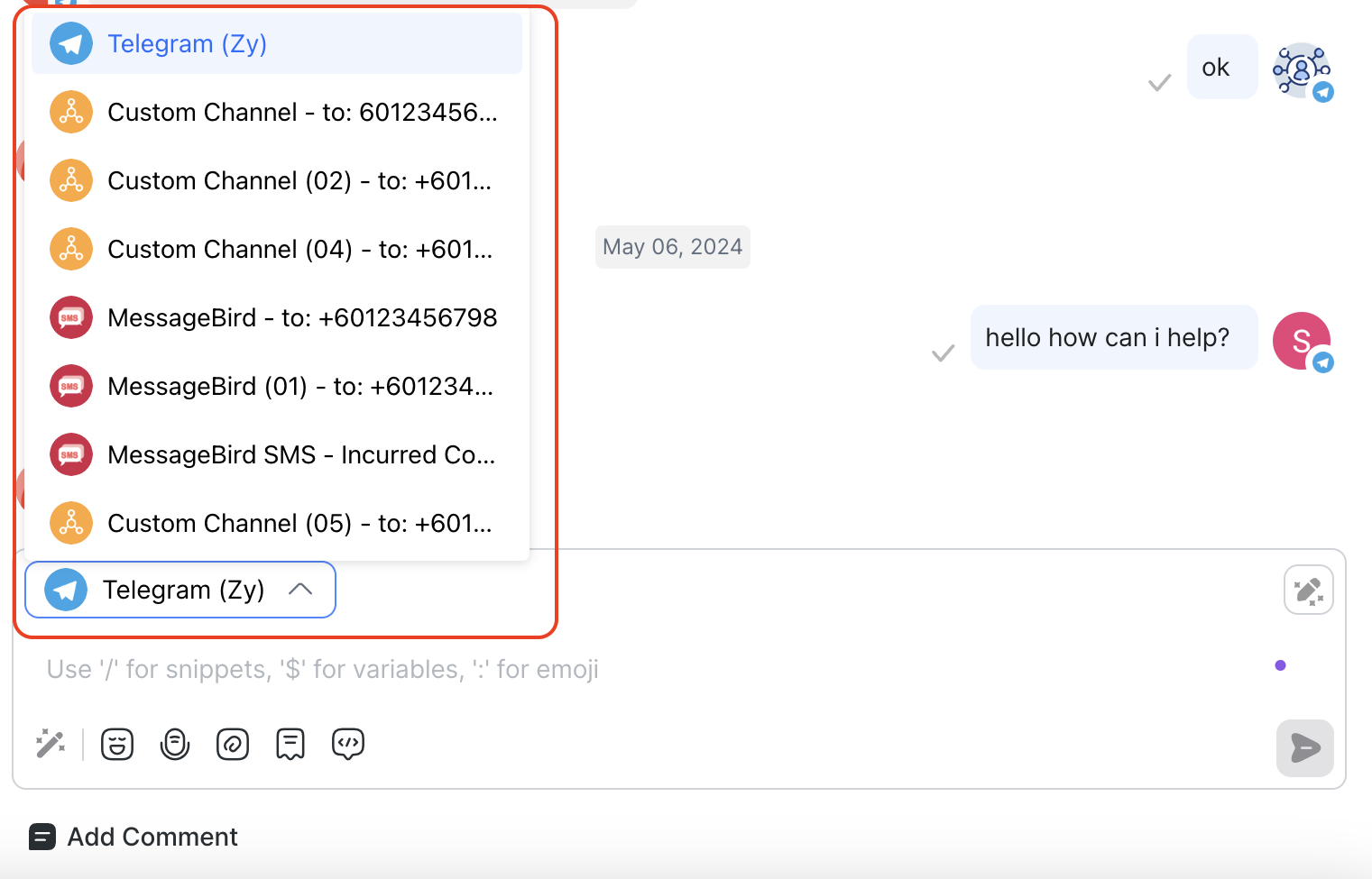
Channel switcher
Connect with Contacts across multiple Channels. Use the Channel switcher in the message composer to switch between Channels to maintain your interactions with Contacts.
Unsupported messages & custom payload
Messages that are not supported will have a fallback display with Unsupported Message or Custom Payload text and Type (if available). Click Show More to view the JSON payload of this message.
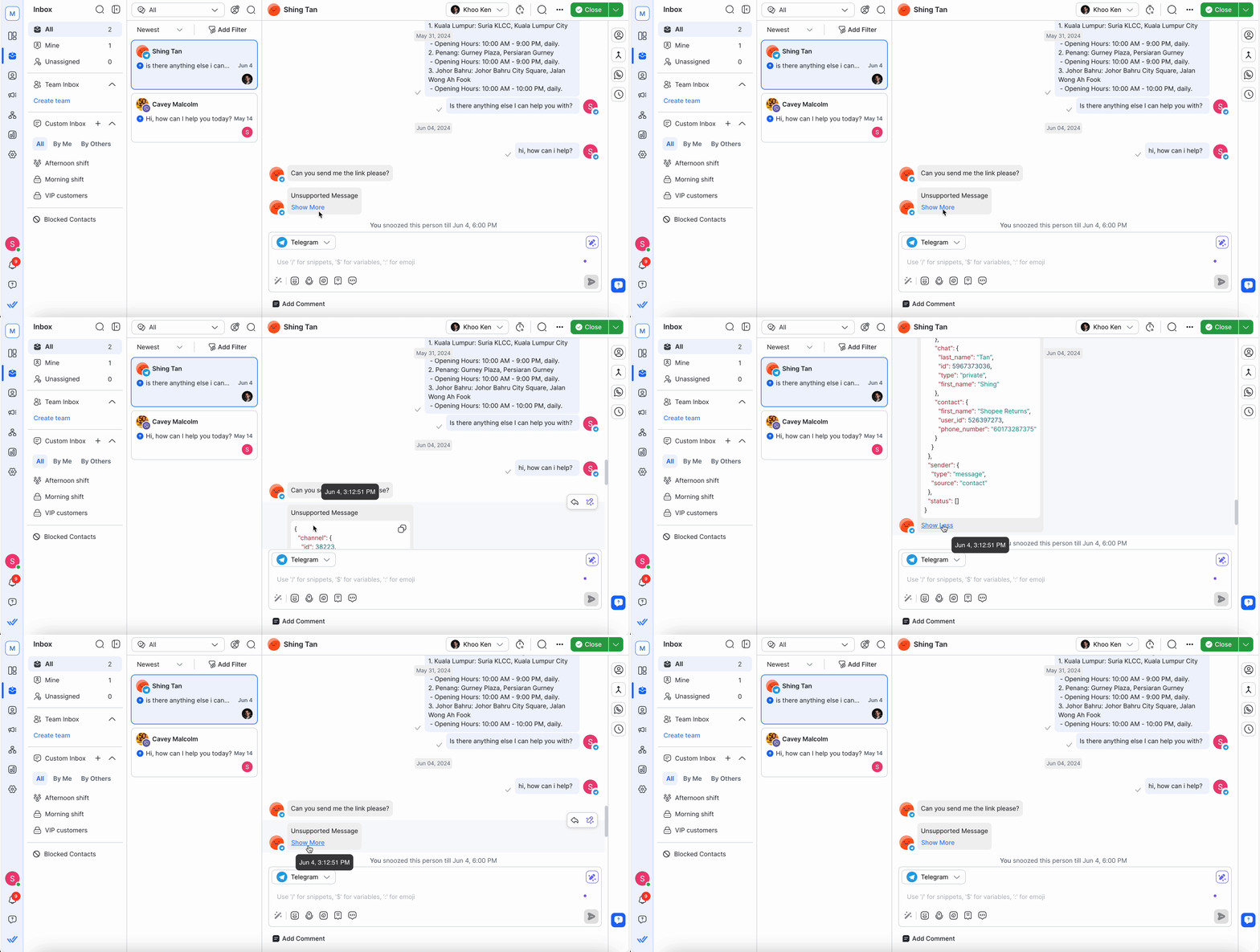
Examples of unsupported messages are:
Contacts
Ads Events
Line Flex Message
Instagram Profile
Instagram Avatar
Telegram Poll
FAQ and Troubleshooting
How do I delete sent messages?
You cannot delete sent messages because this capability is restricted by Channels. Meta-supported Channels such as Facebook, WhatsApp, and Instagram do not allow message deletion after sending.
Why do captions not appear with files in the conversation?
When sending a file along with a message via WhatsApp, only the file is visible in the conversation, but the associated text message does not appear.
Currently, our platform supports displaying files sent through WhatsApp, but due to limitations with WhatsApp's API, captions or text messages sent along with files are not displayed in the conversation. This is a known restriction of the WhatsApp Business API.
For more details on file messaging limitations, you can visit the Meta documentation for WhatsApp Cloud API.
For error references, see the Meta documentation on WhatsApp On-Premises errors.
How do I turn off the Dialogflow Bot?
You can turn off the Dialogflow Bot manually from the Inbox module with the Dialogflow Bot toggle at the conversation action bar for each Contact.
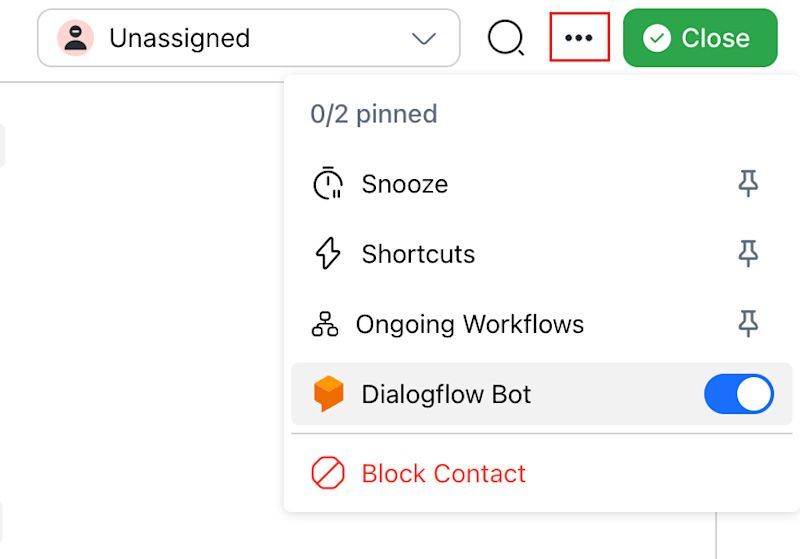
The Dialogflow Bot toggle is visible only when Dialogflow is connected.
Choose this method to turn off your Dialogflow Bot in any of the following cases:
If you want to talk to a Contact directly
If your automated conversation is not going in the correct direction or
Your automated conversation has gone wrong
Check out the alternate ways to turn off the Dialogflow Bot from the Workflows module and by using the Bot Status Parameter.
Next steps
You’ve explored how to manage conversations across chats and calls in the Inbox, from navigating messages to reviewing key activity. With these essentials in place, you’re ready to learn about managing emails in Inbox.


