

Inbox supports email conversations alongside other Channels, so you can handle emails in the same place as your other messages. This article explains how to send, reply to, and review emails in Inbox, including using the email composer, quick actions, and email timestamps.
Requirements
Before you can send emails to Contacts in Inbox, you must connect a valid email account to the platform.
Learn how to connect:
Email composer
For email Channels, Inbox includes additional functionality in the message composer to help you format and send emails to Contacts.
This composer only applies to emails and will not be shown if you switch to other Channels.
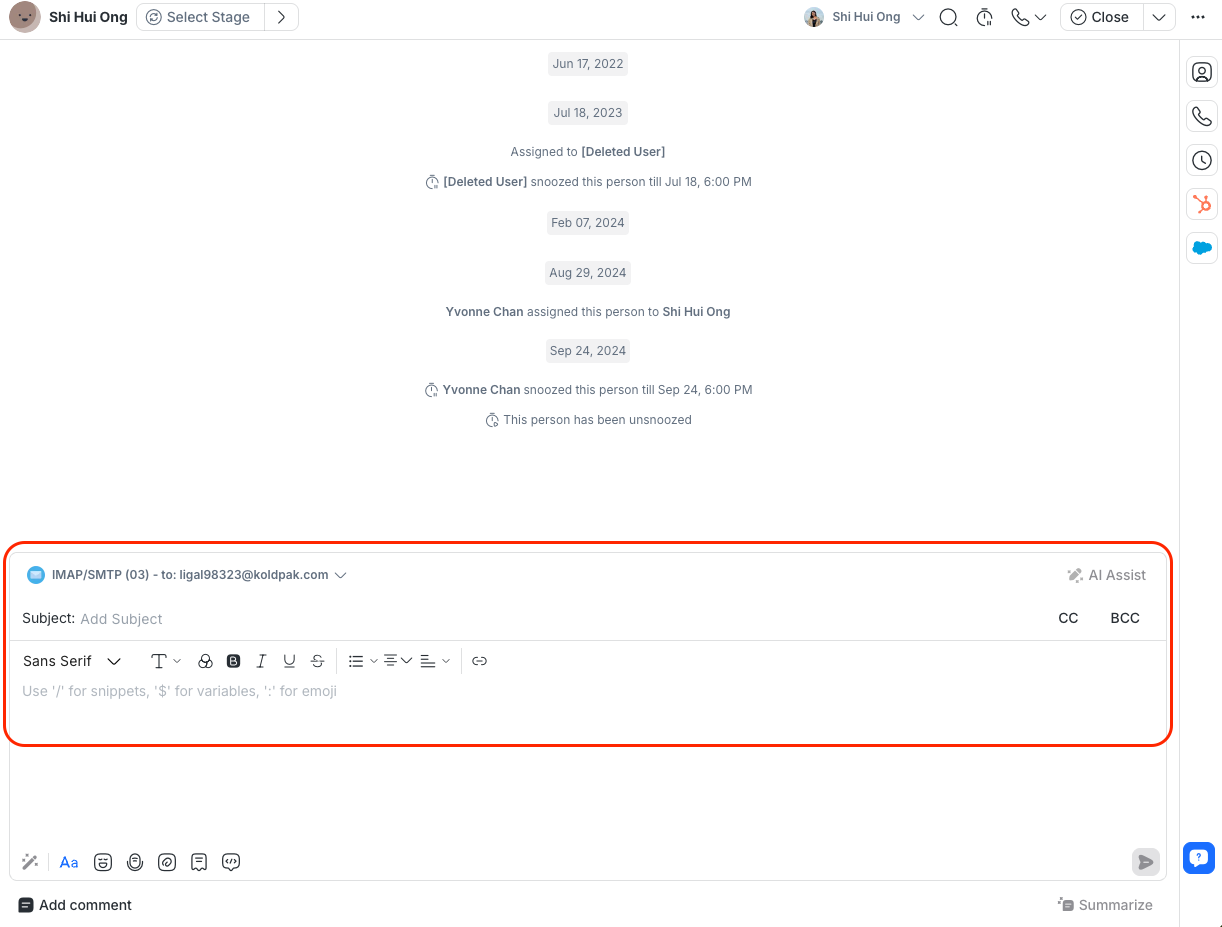
The email composer includes:
A rich text editor for formatting your message content. It includes text styling and paragraph formatting.
A subject field for outgoing emails. A subject is required when composing a new email, but you can receive and reply to emails from Contacts that don’t have one.
CC and BCC fields for adding additional recipients. Adding your existing Contacts in CC or BCC does not create a new conversation.
A hyperlink tool for adding links. You can customize the link text and URL.
Send an email
To send an email, type your message in the email composer and click Send Message.
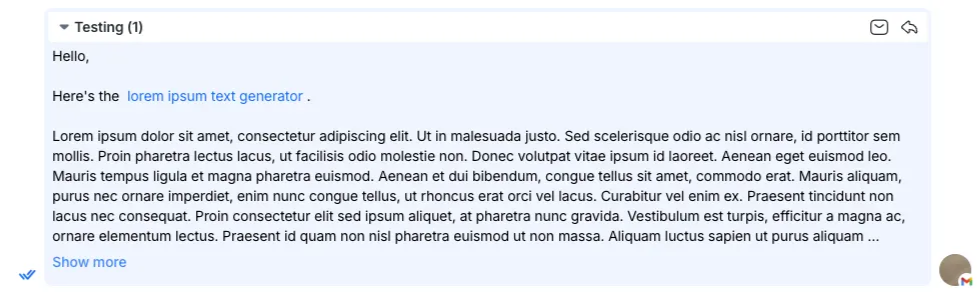
Once it’s sent, you can see your sent email in the conversation window.
Quick actions
Email quick actions let you quickly view, reply to, or expand email content directly from an email in the conversation. These actions apply to emails you send and receive.
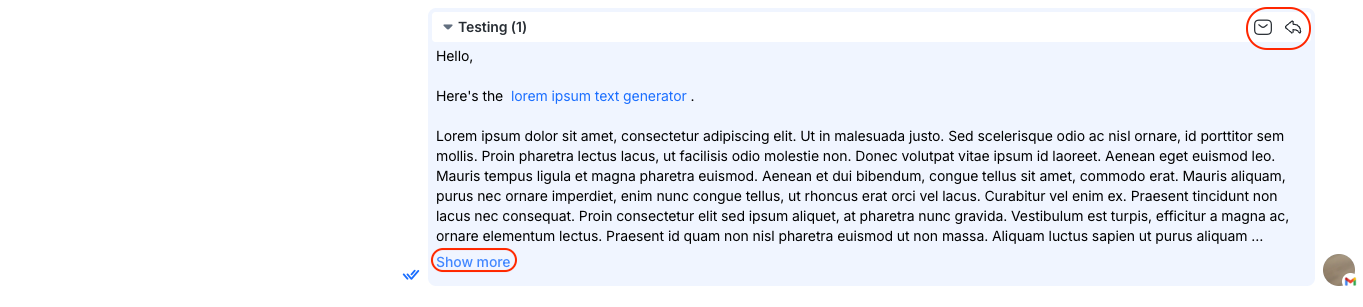
The following quick actions are available:
Show original email
You can view the original email, including its formatting, by clicking the Show original email button on a message.
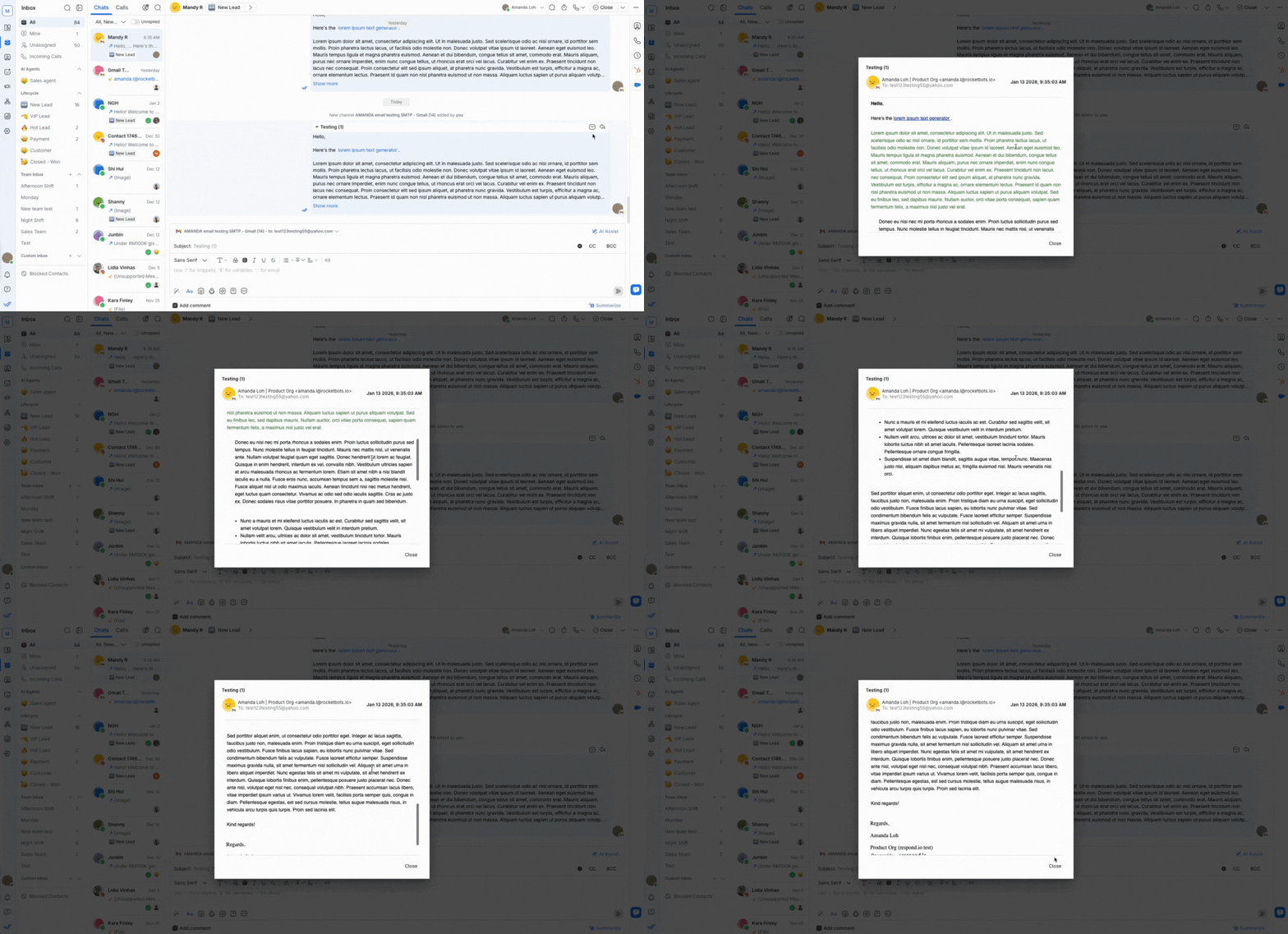
Here’s what you can see in the original email:
Sender email address
Recipient email address
The date and time the email was sent
Rich text formatting
Hyperlinks
Email signature
Note: HTML emails may disappear or fail to render correctly in the original email view. This is a known platform limitation. View the content in the conversation or use Show more to expand it instead.
Learn how to add a custom email signature for Gmail or other email providers.
Reply email
You can reply to a specific email within a conversation by clicking the Reply email button on the message.
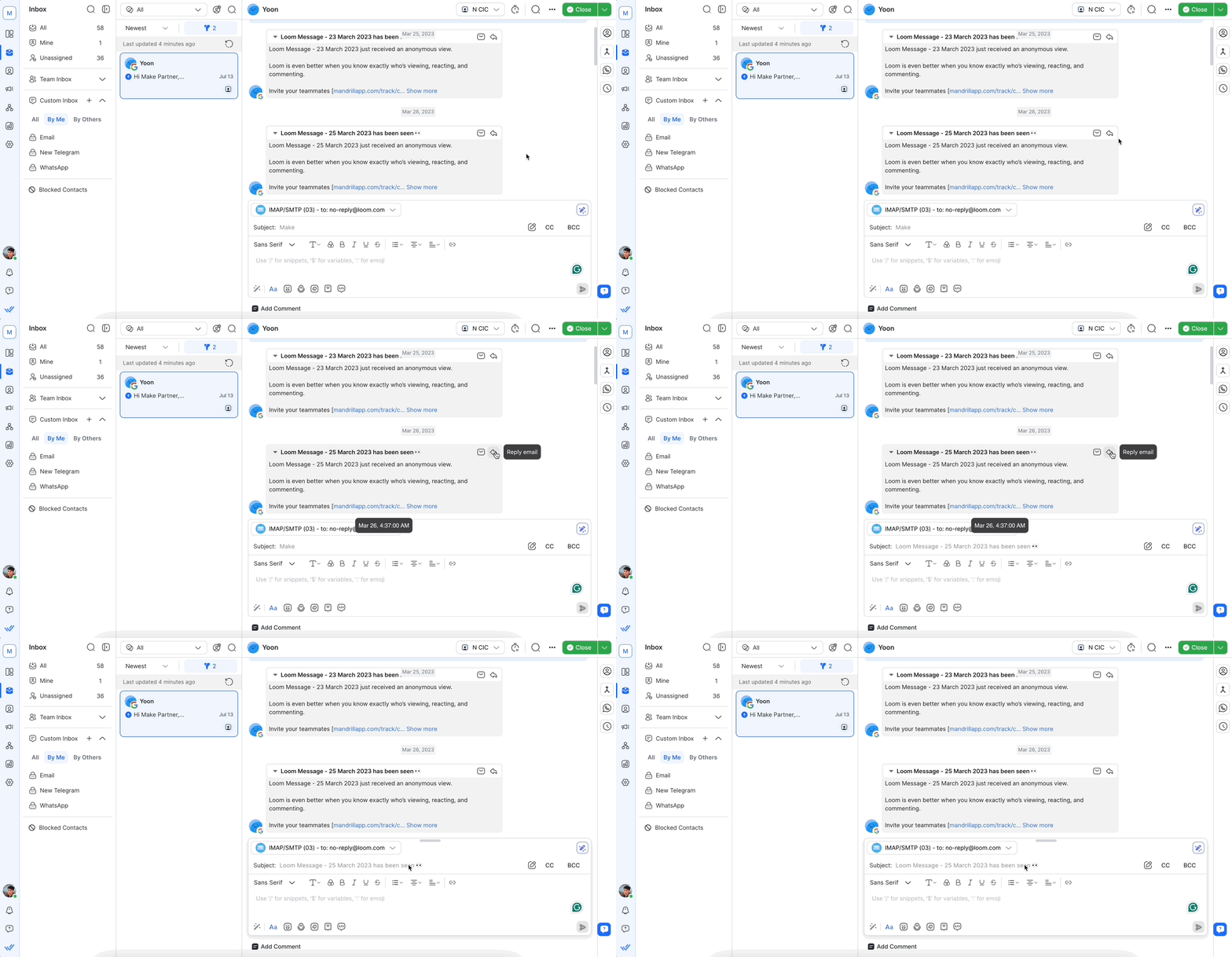
Check the subject line to confirm you’re replying to the correct email.
If you edit the subject of the message you are replying to, it becomes a new email.
Show more
If the email content is long, click Show more to see the rest of the email.
Show more shows the full email content and hyperlinks but not the formatting.
Email timestamp
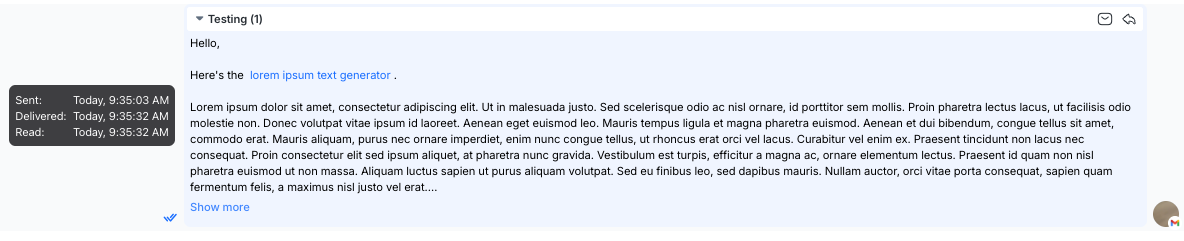
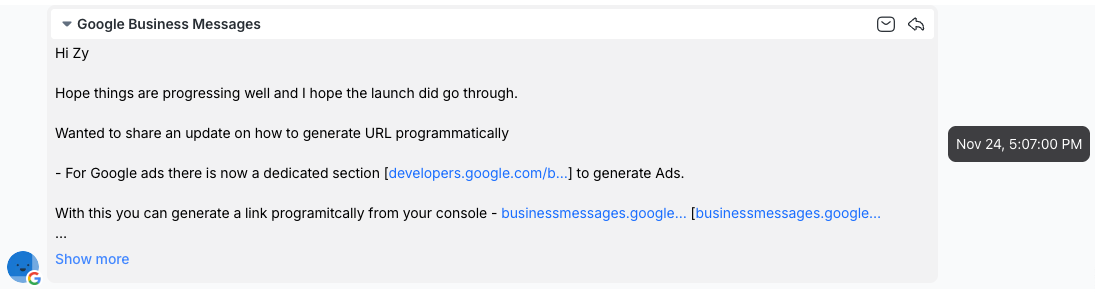
You can hover over sent or received emails in a conversation to view the timestamp. This helps you see when an email was sent or received.
Sent email timestamps include the date and time the email was sent, delivered, and read.
Received email timestamps include the date and time.
Next steps
You’ve learned how to manage email conversations in Inbox. Next, explore how to filter and sort conversations in Inbox to better manage high volumes of messages across Channels.


