

Learn how to automatically handle replies to your broadcasts. When you send bulk messages, responses can flood your Inbox. Use a Workflow to detect broadcast replies, then hand each Contact off to an AI Agent for a natural conversation or send a static reply. This keeps large response volumes organized and segments each Contact by what they replied.
Benefits of handling broadcast replies
Use a Workflow to:
Separate broadcast responses from other messages
Segment Contacts according to their responses
Handle a large response to broadcasts with ease
Methods for detecting a broadcast reply
Method 1: Send a broadcast to make an announcement and set up an automatic response.
Method 2: Send a broadcast with a multiple-choice question and set up an automatic response based on replies.
Both methods use a Workflow to detect the reply. Once the reply is detected, choose how to respond in Setting up automatic responses to broadcast replies.
Method 1: Send a broadcast to make an announcement
Method objectives
Set up an announcement as a broadcast to the Contacts.
Automatically check if the message received is a response to a broadcast.
Set up an announcement as a broadcast to the Contacts
Tip: Learn how to set up a broadcast.
Step 1: Go to the Broadcast module and set up a broadcast. For message content, select Add Content > Text Message and provide an announcement to send as a broadcast.
Step 2: Set up the Workflow with a Trigger condition and a Branch condition to filter responses.
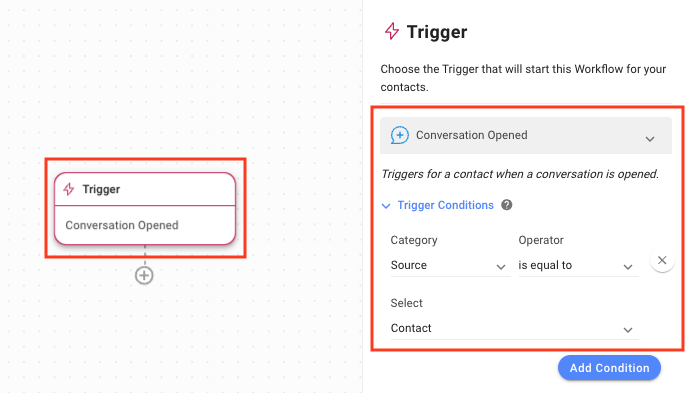
Setting the Workflow Trigger for when a conversation is opened by a Contact
Tip: Learn how to configure Workflow Triggers.
Expand the Trigger Conditions menu and select Source from the Category dropdown list to start the Workflow with the Conversation Opened Trigger.
Select is equal to from the Operator dropdown list.
Select Contact from the Select dropdown list.
Setting Branch options to check the message source and content
Add a Branch to the Workflow and select Last Outgoing Message Source from the Category dropdown list.
Select is equal to from the Operator dropdown list.
Select Broadcast from the Select dropdown list.
Click Add Condition to add another condition.
Click the And operator.
Select Last Outgoing Message from the Category dropdown list.
Select contains from the Operator dropdown list.
Enter the message sent in the broadcast in the Value field to signify which broadcast message this response is for.
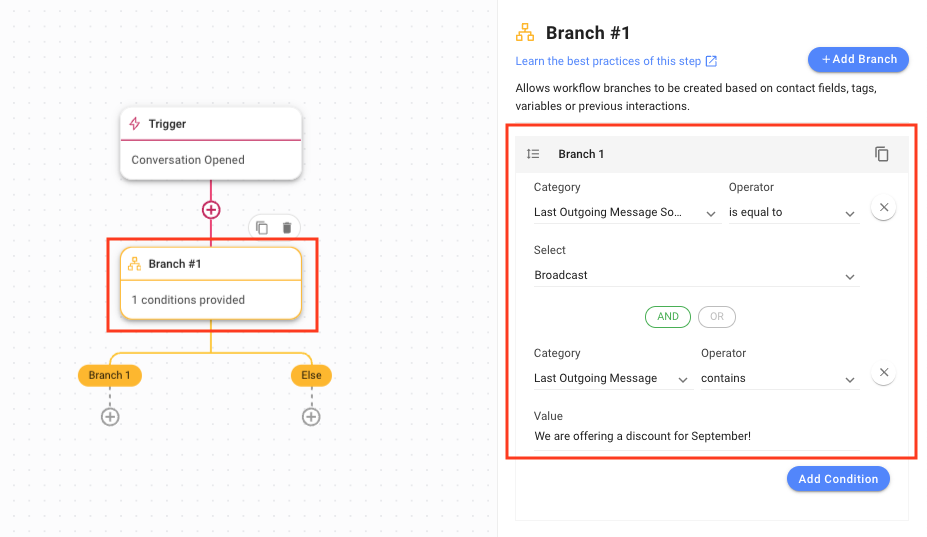
Automatically check if the message received is a response to a broadcast you sent
When a message is received from a Contact, this Workflow checks if the message is a response to a broadcast you sent. If yes, it checks what the broadcast message was. If the text matches the one you set the response for, the Workflow proceeds. If not, it ends.
Method 2: Send a broadcast with a multiple-choice question
Method objectives
Send a multiple-choice question or a question with limited responses as a broadcast to the Contacts.
Automatically check if the message received is the response to your broadcast.
Send a multiple-choice question or a question with limited responses
Step 1: Go to the Broadcast module and set up a broadcast. Under Content, select Multiple Choice to ask a multiple-choice question. You can also use Text Message to ask a simple yes or no question.
Tip: Learn how to set up a broadcast.
Tip: For WhatsApp template messages, use Quick Replies.
Step 2: Set up the Workflow with a Trigger condition and a Branch condition to check if the last sent message was a Broadcast.
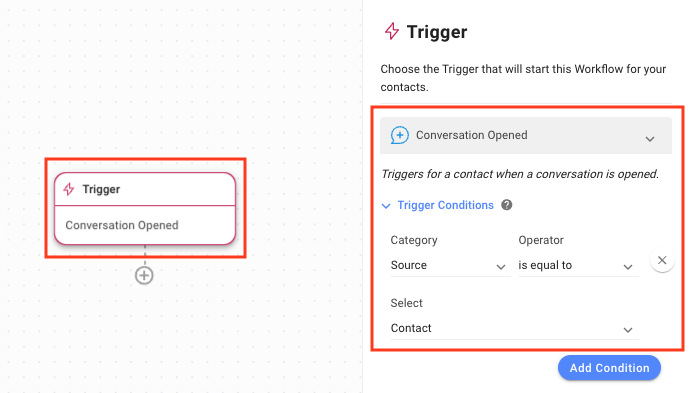
Setting the Workflow Trigger for when a conversation is opened by a Contact
Tip: Learn how to configure Workflow Triggers.
To start the Workflow with the Conversation Opened Trigger, ensure the Conversation Opened trigger is selected.
Expand the Trigger Conditions menu and select Source from the Category dropdown list.
Select is equal to from the Operator dropdown list.
Select Contact from the Select dropdown list.
Setting Branch options to check the message content
Tip: Learn how to use the Branch step.
Add a Branch to the Workflow for each choice and select Last Outgoing Message Source from the Category dropdown list.
Select is equal to from the Operator dropdown list.
Select Broadcast from the Select dropdown list.
Click Add Condition to add another condition.
Click the And operator.
Select Variable from the Category dropdown list.
Select conversation.first_incoming_message from the Field dropdown list.
Select is equal to from the Operator dropdown list.
Enter the text of the first choice of the multiple-choice question in the Select field.
Once done, create a new Branch for the next option until all choices are handled.
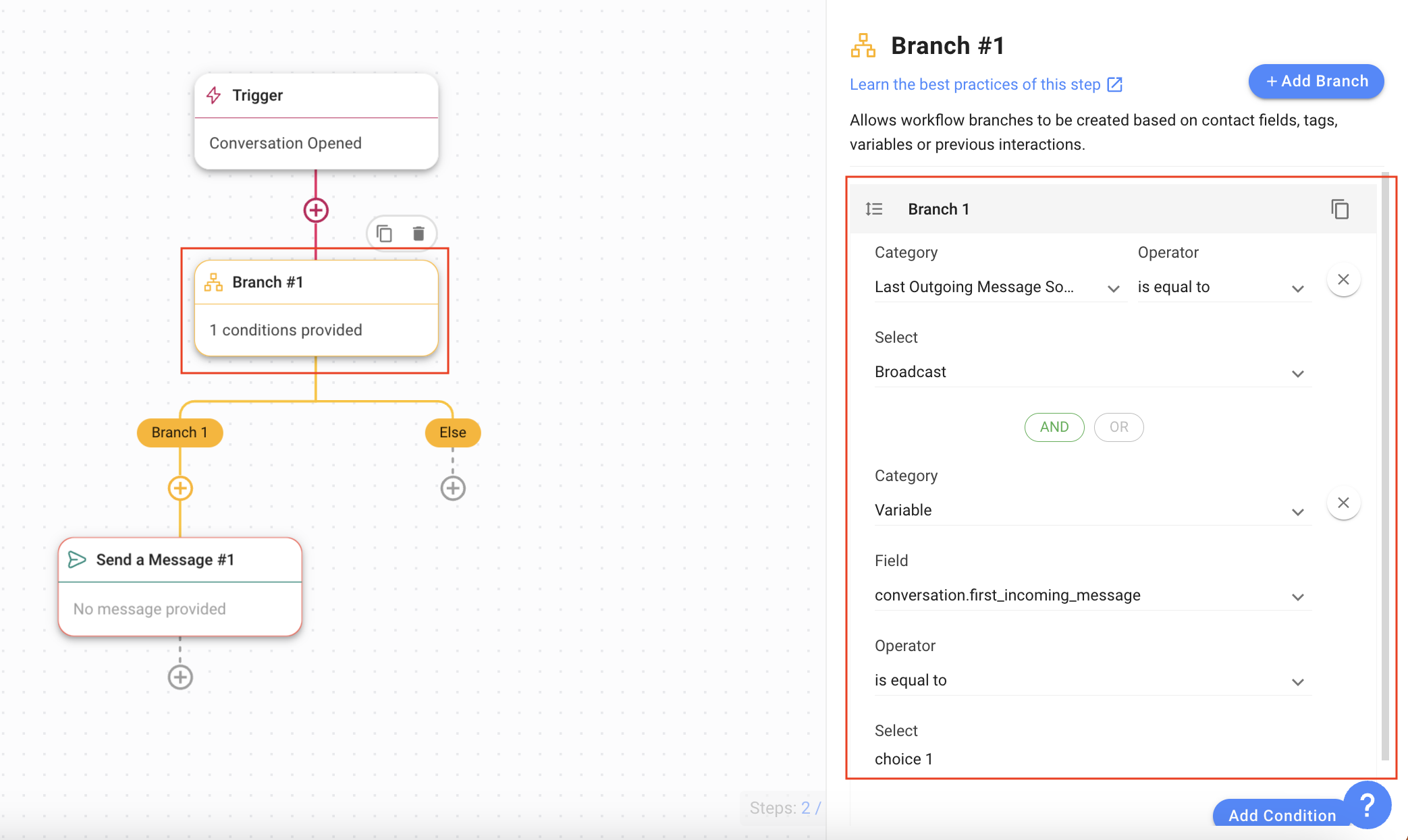
Automatically check if the message received is the response to your broadcast
When a message is received from a Contact, this Workflow checks if the message contains one of the options from the multiple-choice question sent via broadcast. If yes, the Workflow proceeds. If not, it ends.
Setting up automatic responses to broadcast replies
After the Workflow identifies the broadcast reply, choose how to respond. Use an AI Agent for a natural, back-and-forth conversation, or send a static message for a simple fixed action.
Respond with an AI Agent
To let the conversation continue naturally after a Contact replies, hand the Contact off to an AI Agent. The Workflow identifies the broadcast reply and its content, then assigns the Contact to an AI Agent with the right campaign context. An AI Agent cannot see the full broadcast or message template, so the Workflow handles detection and the AI Agent handles the conversation.
When to use an AI Agent for broadcast replies
Use this when Contacts should have a natural conversation after replying to a broadcast or campaign. For example:
A Contact clicks I'm interested and should be guided to the next step
A Contact clicks Book Appointment and the AI Agent collects booking details
Different campaign replies need different AI Agent behavior
Set up an AI Agent for a broadcast CTA
Create a separate AI Agent for the campaign or call-to-action (CTA) flow instead of using your main AI Agent for all conversations. The AI Agent needs campaign context before it can continue the conversation. Give it:
The campaign message that was sent
The CTA buttons offered
What each CTA means
What the AI Agent should do after the Contact replies
Step 1: Create an AI Agent that continues the conversation based on the CTA the Contact selected. Add instructions and a Knowledge Source if the AI Agent needs to explain the campaign, product, promotion, pricing, terms or FAQs.
Step 2: Under the AI Agent Context section, add the campaign details. For example:
# CONTEXT
- The contact received a broadcast campaign about a June facial treatment promotion.
- The campaign asked if they are interested in learning more or booking an appointment.
- The CTA options were: "I'm interested" and "Book appointment".
- The contact was assigned to you after replying to this campaign with one of the 2 options.
Step 3: Under Top-level flow, add the steps the AI Agent should take. For example:
1. Identify the CTA and continue accordingly
- If the contact replied "I'm interested"
  - Explain the promotion from the knowledge source and ask if they would like to book.
- If the contact replied "Book appointment"
  - Collect their preferred date, time, branch, name, and phone number. Then assign to a Human Agent (use @ to select the Human Agent).
Step 4: Set the Workflow Trigger to Conversation Opened, then add a condition to check the last outgoing message was sent from a Broadcast.
Step 5: In the same Branch, add a condition to check the Contact's first reply matches one of the CTA buttons.
Step 6: Assign the conversation to the AI Agent you created.

Note:
-An AI Agent may not understand replies like "I'm interested" or "Yes" without campaign context. Always add campaign context to the instructions.
- The AI Agent does not need the full broadcast message, only the meaning of the campaign and the expected CTA replies.
- Use different AI Agents for different campaigns.
- Do not use an AI Agent when the broadcast reply only needs a simple fixed action.
Respond with a static message
Tip: Learn how to use the Send a Message step.
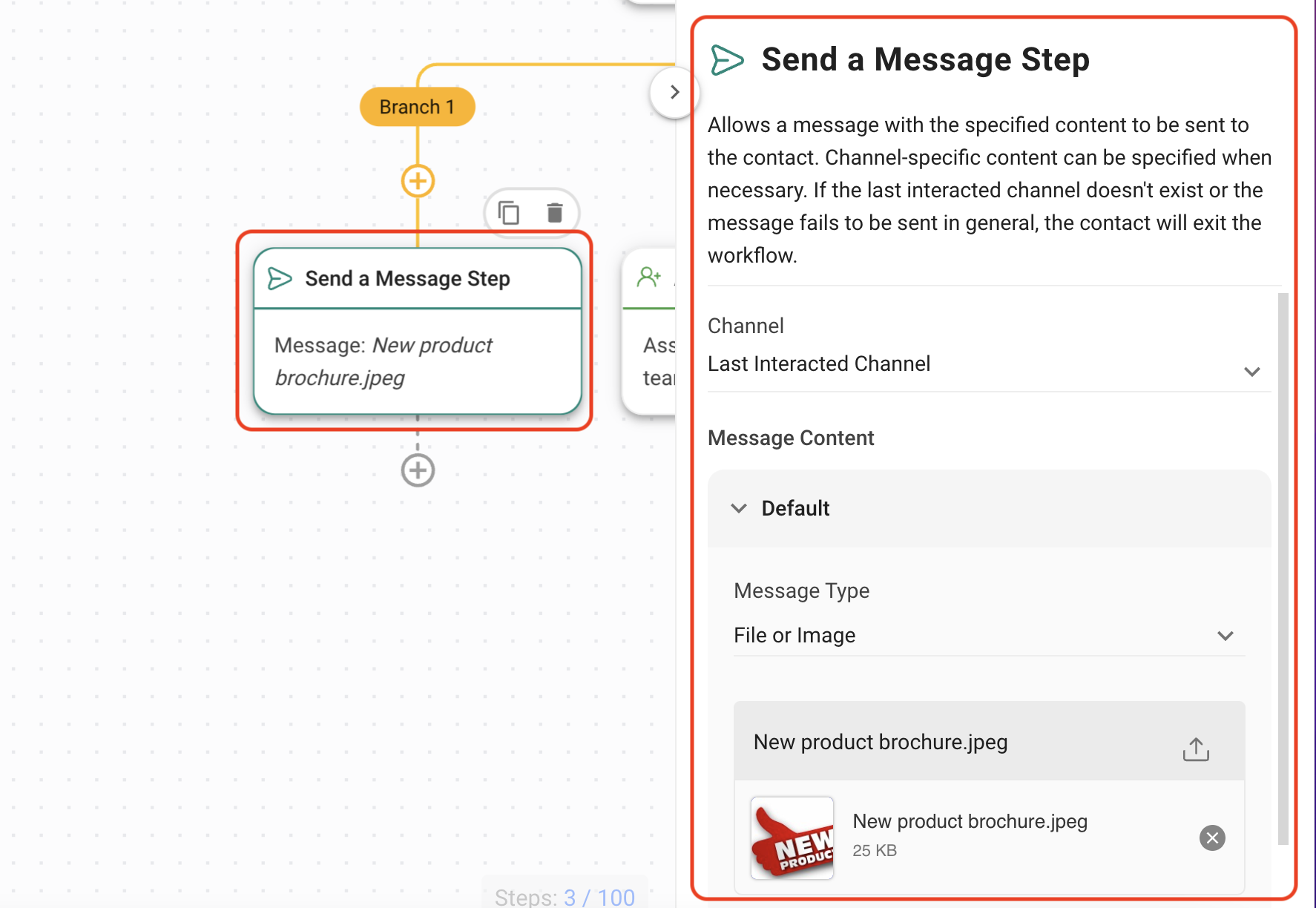
For this example, send a new product brochure to a Contact interested in it.
Add the Send a Message step to the relevant Branch.
Select File or Image from the Message Type dropdown list.
Select a file or image.
Tip: Another option for certain replies is routing leads.
What's next?
Get started with AI Agents to build the AI Agent that handles your broadcast replies.
Write effective AI Agent prompts to craft the Context and Top-level flow instructions.
Send a simple broadcast to set up the campaign your Contacts reply to.


