

WhatsApp message templates are pre-defined messages that businesses use to initiate conversations with contacts. Templates support customer service, notifications, and promotional messaging. All templates require pre-approval from Meta to ensure they abide by WhatsApp’s Business and Commerce Policies, and are charged based on the number of conversations and the template category used. Templates are the only way to send business-initiated messages after the 24-hour customer service window ends.
Learn more about WhatsApp pricing.
Message template categories
Business-initiated conversations use one of three template categories:
Utility Templates: Relate to a transaction, post-purchase notifications, and recurring billing statements.
Authentication Templates: Authenticate customers with passcodes during login, account registration, or recovery. Use copy code or one-tap autofill buttons to deliver a one-time password (OTP).
Marketing Templates: Promote a product or service to contacts who have opted in.
Choose the correct template category during submission to avoid rejection. Learn more about WhatsApp message template categories.
Template updates by Meta
Automatic Category Updates
Effective Date: June 1, 2024
Meta runs a recurring process that automatically identifies and updates the category of miscategorized marketing or utility templates.
Monthly Notifications: On the first day of each month, Meta notifies users of any miscategorized templates that will be updated on the first day of the following month. See Meta’s automatic category update guidelines.
Requesting a Review: Meta offers the option to request a review of affected templates. See Meta’s template review request process.
Per-user marketing message template limits
Effective Date: May 23, 2024
WhatsApp enforces per-user limits on how many marketing templates a person can receive from a business. These limits are designed to maintain a healthy engagement ecosystem and are controlled by WhatsApp (Meta).
These limits apply regardless of how the marketing template is sent — via Inbox, Workflows, Broadcasts, or API-based integrations.
How these limits work:
WhatsApp adjusts marketing template limits based on user engagement.
If a user does not reply to marketing messages, WhatsApp may temporarily block further marketing templates.
These limits apply only to new marketing conversations, not ongoing ones.
If a user replies to a marketing message, a 24-hour customer service window opens.
Important: Once the 24-hour window is open, an unlimited number of messages can be sent (including non-template messages).
WhatsApp Coexistence and linked device behavior are governed by Meta. Learn more in Meta’s documentation.
Template Pacing for Utility Templates
Effective Date: May 2024
Template pacing includes utility messages, requiring real-time user feedback on newly created, unpaused, or non-green quality rated templates for the first 7 days.
Templates previously paused then unpaused, or new templates without a green quality rating, are subject to pacing to ensure high-quality user engagement.
Why marketing templates aren't delivered
A marketing template may not be delivered if:
The contact is in a paused or restricted country (for example, the United States or numbers starting with +1)
WhatsApp has applied a low per-user marketing limit due to repeated messages without engagement
Multiple marketing templates are sent without a user reply
In these cases, the message may fail with the error “This message was not delivered to maintain healthy ecosystem engagement”, or appear as not delivered.
What to do when a marketing template is not delivered:
Wait at least 24 hours before resending, or
Wait for the user to reply, which opens the 24-hour customer service window.
To reduce delivery issues:
Send marketing templates only to engaged users.
Avoid repeatedly messaging users who do not respond.
Setting up message templates
Rules for creating message templates
Follow these rules when creating message templates to improve the chances of approval by Meta.
Content rules — the following content is prohibited:
Threatening content
Data collection
Prohibited services
Contests or quizzes
Content that violates the Meta Commerce Policy (spam, unapproved products or services)
Check out some other reasons message templates get rejected here.
Formatting rules:
Name: Lowercase alphanumeric characters and underscores only. Special characters and spaces are not allowed.
Body: Cannot contain tabs or more than 4 consecutive spaces. Character limit is 1,024 characters, including letters, numbers, special characters, and emojis.
Placeholder: Must be written within double curly brackets: {{1}}. Placeholders support letters, numbers, and special characters.
Learn more about WhatsApp Message Template content and formatting rules.
WhatsApp Message Template fields overview
The WhatsApp Message Template table provides a general overview of each template.
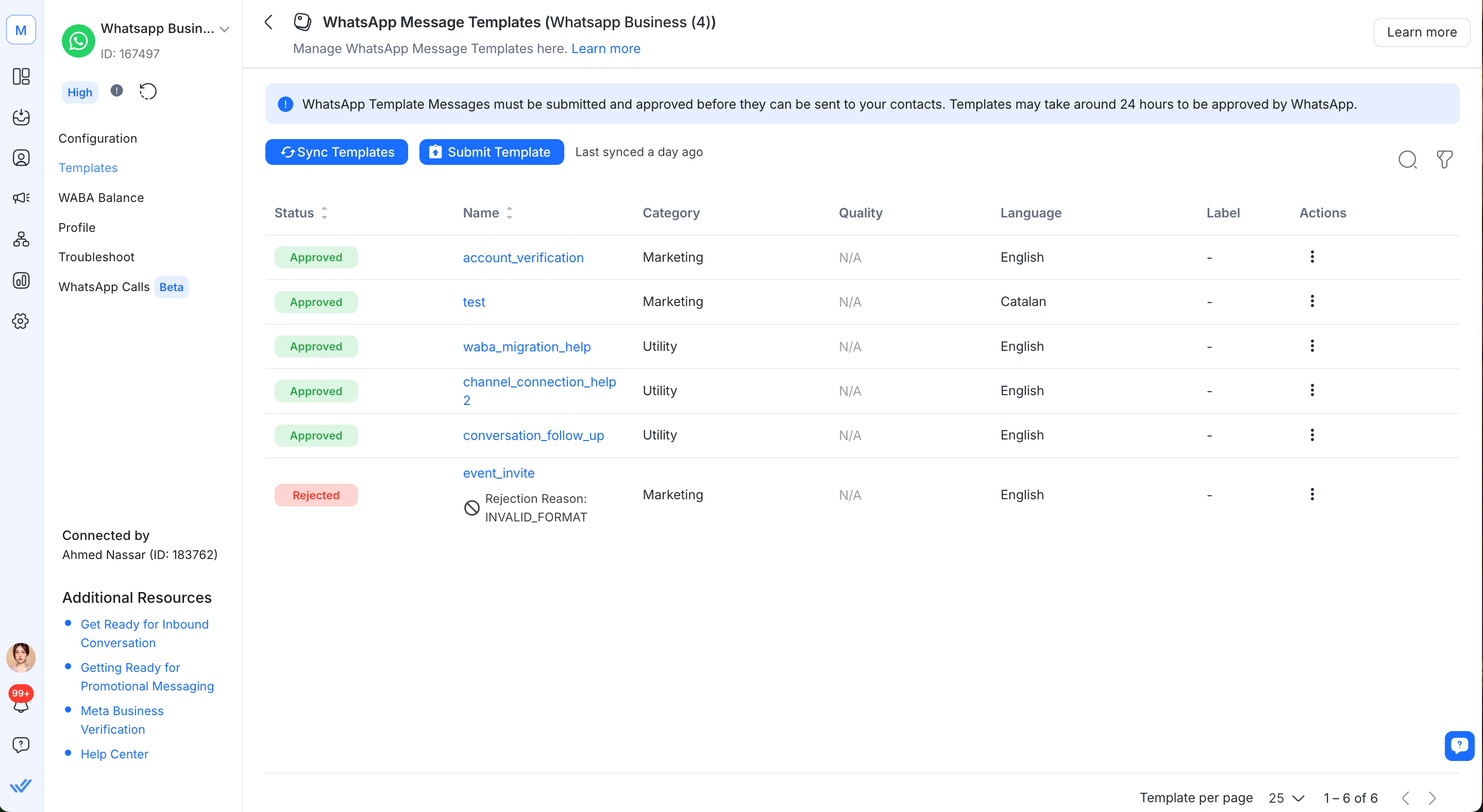
Field | Description |
|---|---|
Status | Indicates the current status of the template. |
Name | Indicates the name of the template. |
Category | Indicates the category of the template. |
Quality | Indicates the quality of the template. |
Language | Indicates the language of the template. |
Label | Indicates the label of the template. |
Actions | Opens the action menu. |
Creating and submitting message templates
Meta assigns categories to message templates submitted for WhatsApp Business Platform (API) and Cloud API channels based on their template guidelines and the content of the templates.
Step 1: Navigate to Settings > Channels.
Step 2: Locate the WhatsApp Business API channel > click the Manage Templates icon. Alternatively, click Manage > Templates.
Step 3: Click Templates > Submit Template in the channel configuration page.
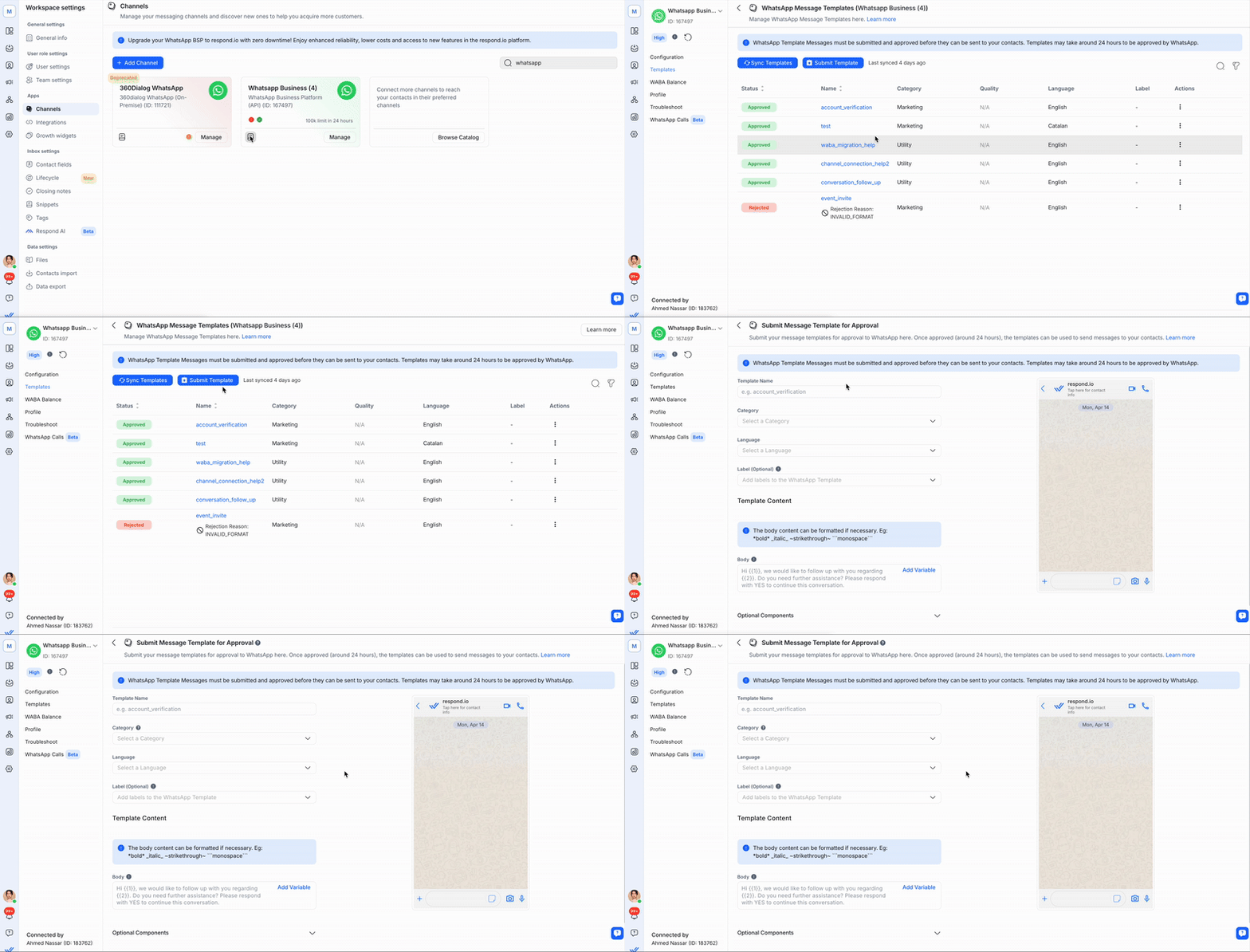
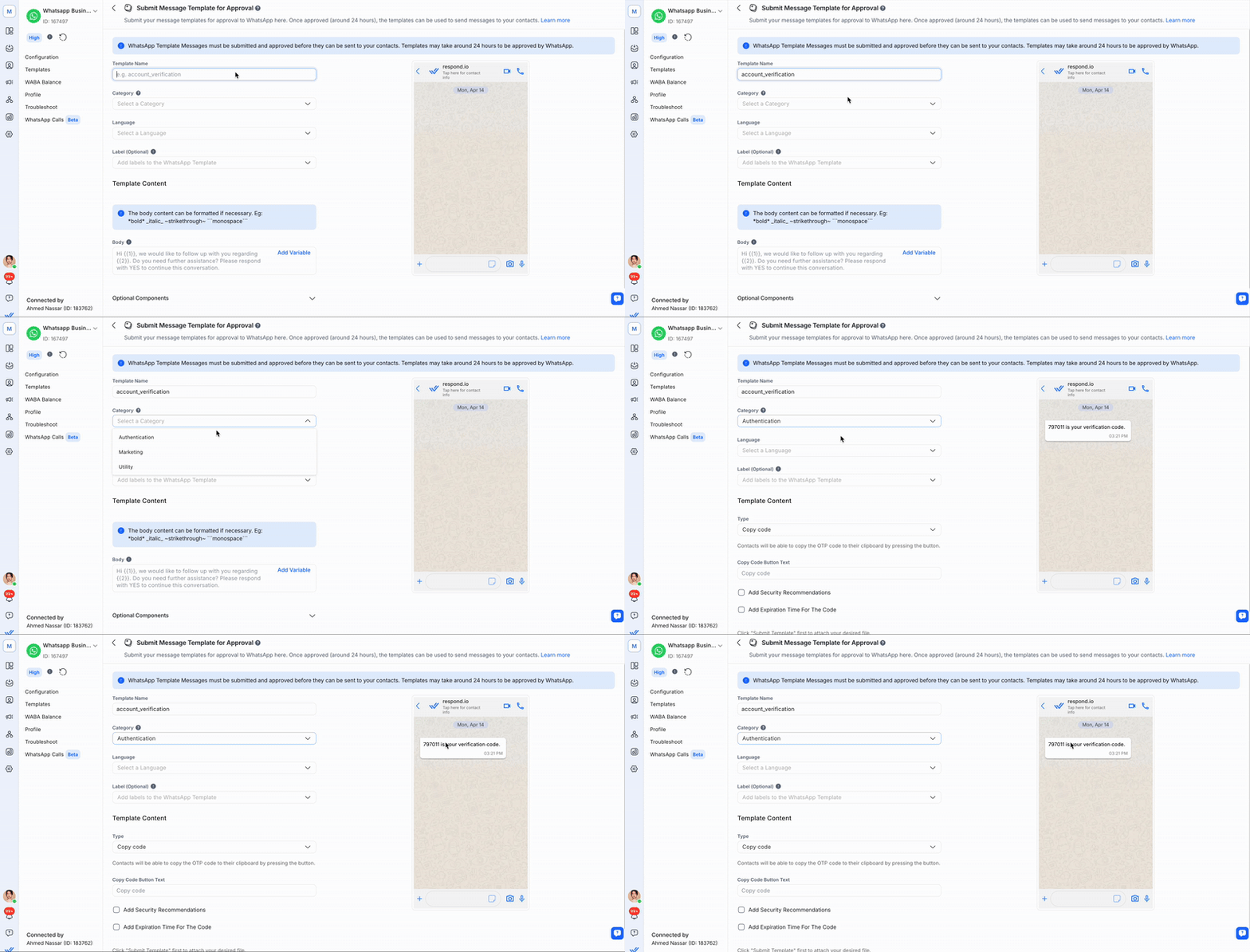
Step 4: Fill in the required information:
Field | Description |
|---|---|
Template Name | Lowercase alphanumeric characters and underscores only. |
Category | The category the message template belongs to. Refer to template guidelines for guidance. |
Language | The language the template is written in. |
Step 5: Create the message by filling in the necessary components, then review the preview.
Building Block | Description |
|---|---|
Body | The most important text of the template. Supports text only. Markdown formatting is supported. |
Header | Optional. Serves as the title of the template. Supports: |
Footer | Optional. Supports text only. Use for supplementary information. |
Button | Optional. Adds interactivity to the template. Available button types depend on the selected category. 5) Request phone number button (Marketing and Utility templates only) — allows Contacts with usernames to share their phone number directly in the conversation. The button label is set as “Share Contact Info” and cannot be customized, as it is enforced by Meta. |
Step 6: Provide sample values for any parameters included in the template content.
Sample values help the WhatsApp reviewer understand the intended message being sent to contacts.
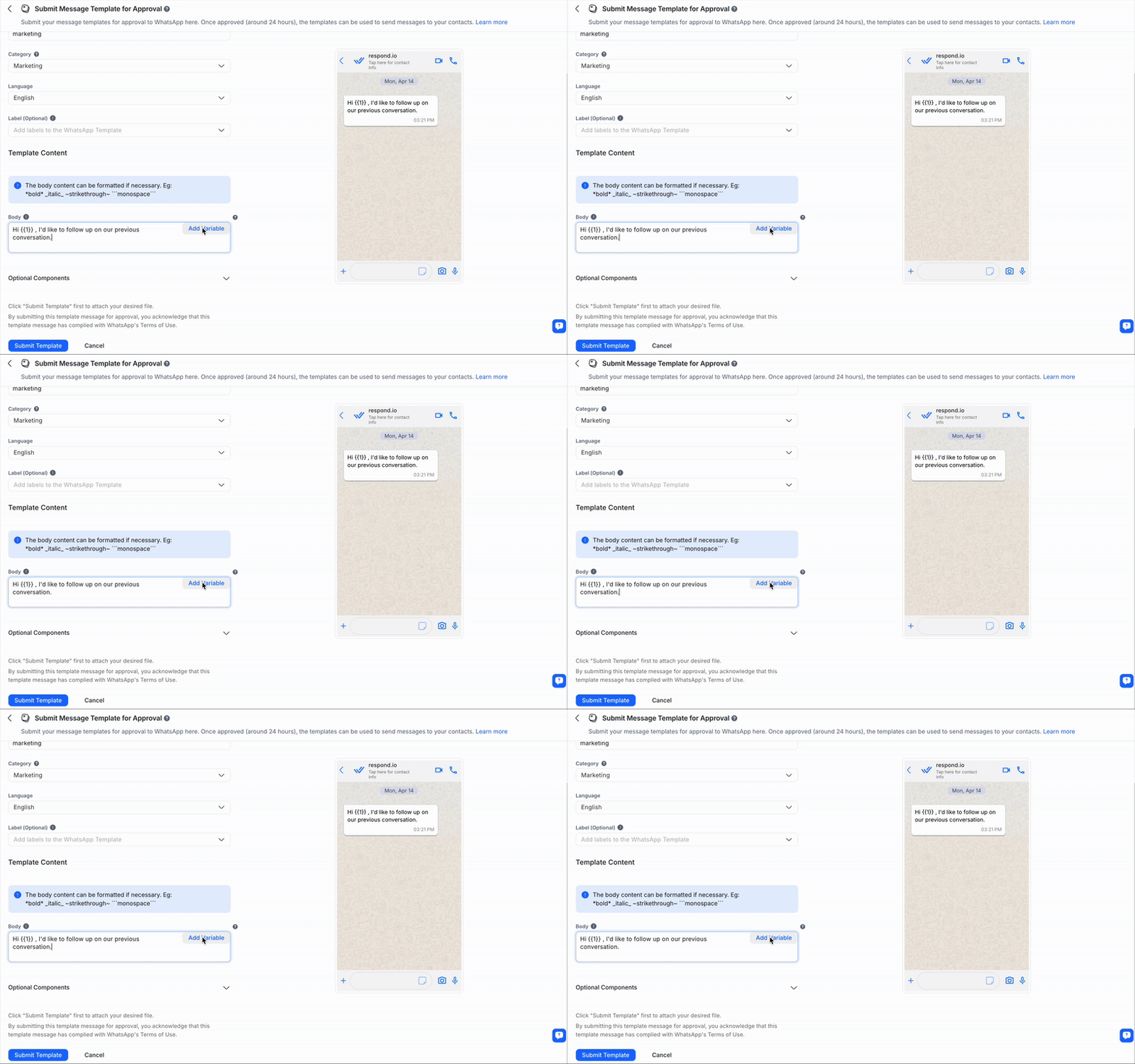
Step 7: Click Submit to submit the template for approval.
After submission, wait approximately 24 hours for the approval process to complete. Check the template status by navigating to Settings > Channel > your connected WhatsApp channel > Templates, then sync to get the latest status update.
Carousel templates
Carousel templates display multiple product cards in a single, scrollable message — so your business can showcase 2-10 products at once instead of sending separate messages.
To create a carousel template, select Marketing as the category, then select Carousel as the subcategory.

You can configure the following:
Field | Description |
|---|---|
Body | Appears above the cards. Maximum 1,024 characters. |
Header type | Choose image or video. This applies uniformly to all cards. |
Buttons | Minimum 1, maximum 2 per card. |
Carousel cards | Minimum 2, maximum 10 per carousel template. |
Card body | Maximum 160 characters per card. |
Syncing message templates
WhatsApp Business Platform (API) and Cloud API message templates are now automatically synced.
Sync message templates to retrieve the latest message template statuses.
Navigate to Workspace Settings > Channels.
Locate the WhatsApp Business API channel > click Manage.
Click Templates > Sync Templates to begin the syncing process.
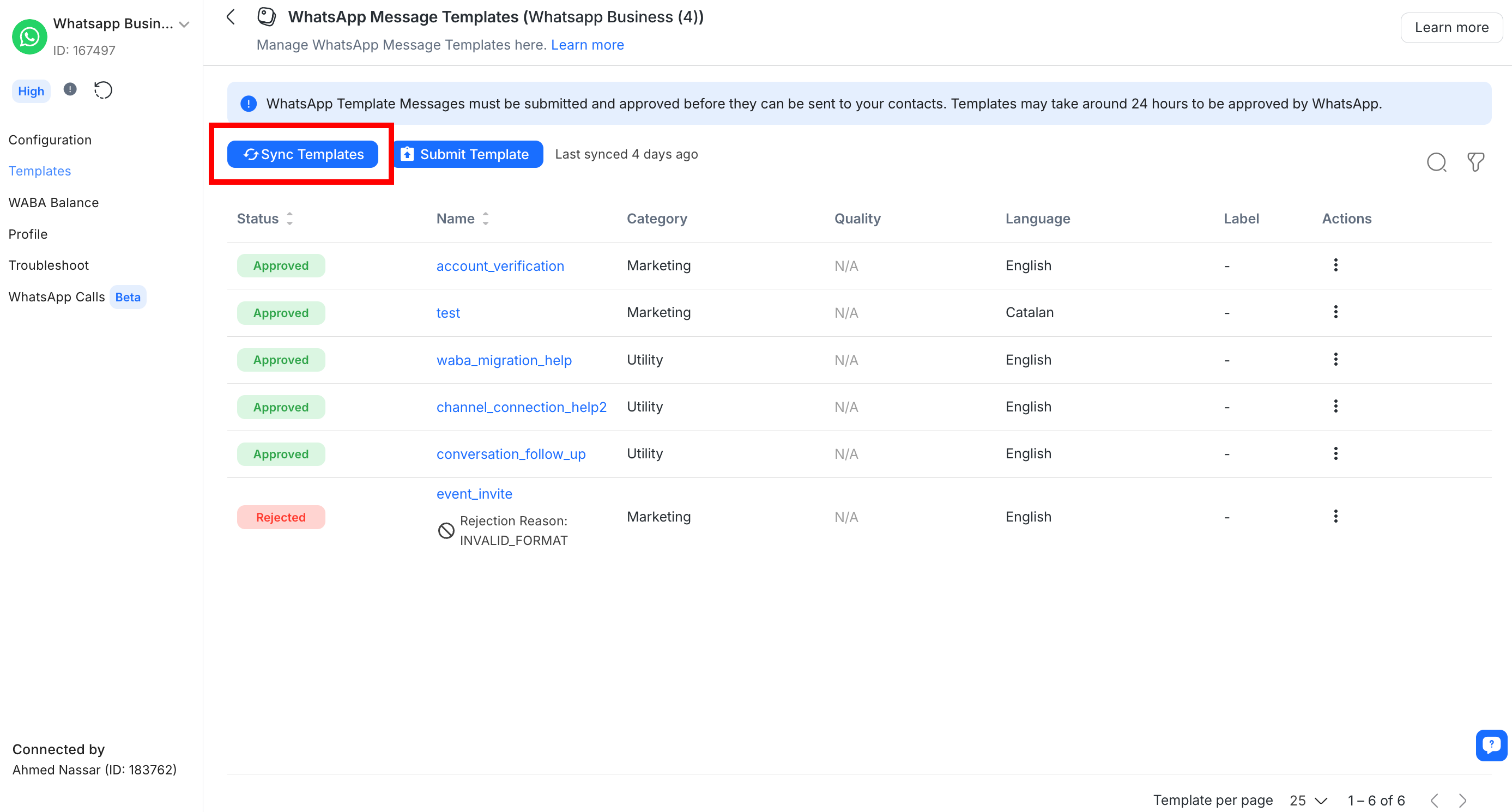
When syncing is complete, message templates are listed with their corresponding statuses, quality ratings, and the last synced date and time. The rejection reason is displayed below any rejected template.
Status | Description |
|---|---|
Processing | The message template is submitted and pending approval. |
Approved | The message template is approved and can be sent to contacts. |
Rejected | The message template is rejected and cannot be used. |
Disabled | The template has been disabled due to recurring negative feedback from customers. |
Appeal | The template is under appeal. |
In Review | The template is still under review. Review can take up to 24 hours. |
Reinstated | The template has been reinstated. |
Flagged | The quality rating is low. This is a warning status. If the quality rating improves to high or medium within 7 continuous days, the status returns to Approved. |
Paused | The template has been paused due to recurring negative feedback from customers. |
Use the search and filter at the top right of the listing to find templates quickly.
Sending message templates
Ensure the message template has been approved and the status is Active before sending.
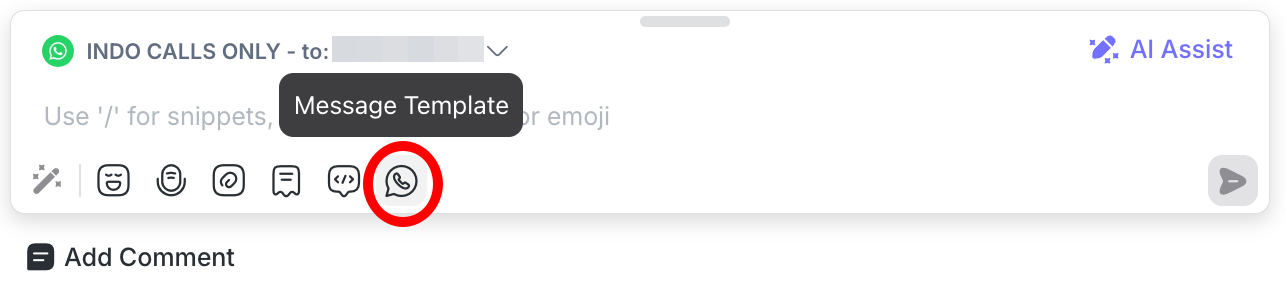
Click the Template Message icon in the messaging bar.

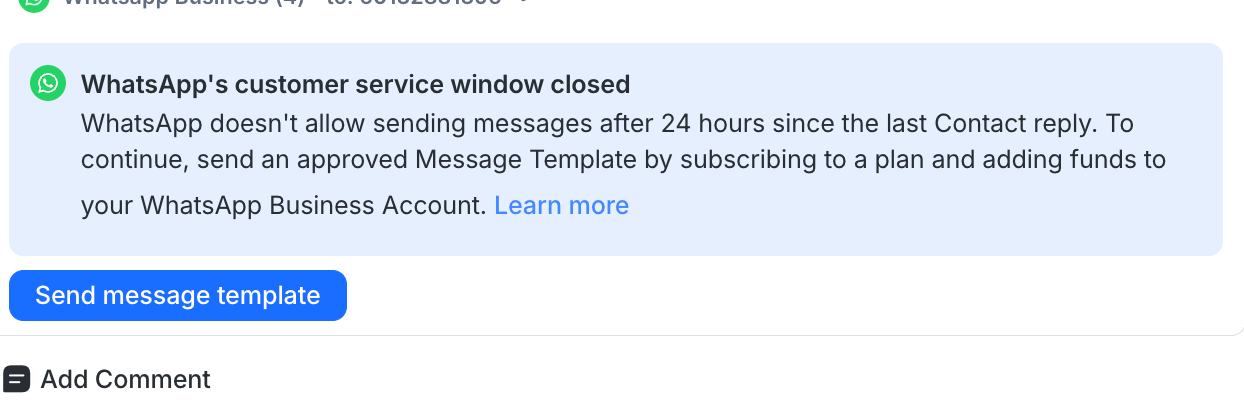
To send a message template after the customer service window has expired, click the Send Message Template button at the bottom of the Inbox module.

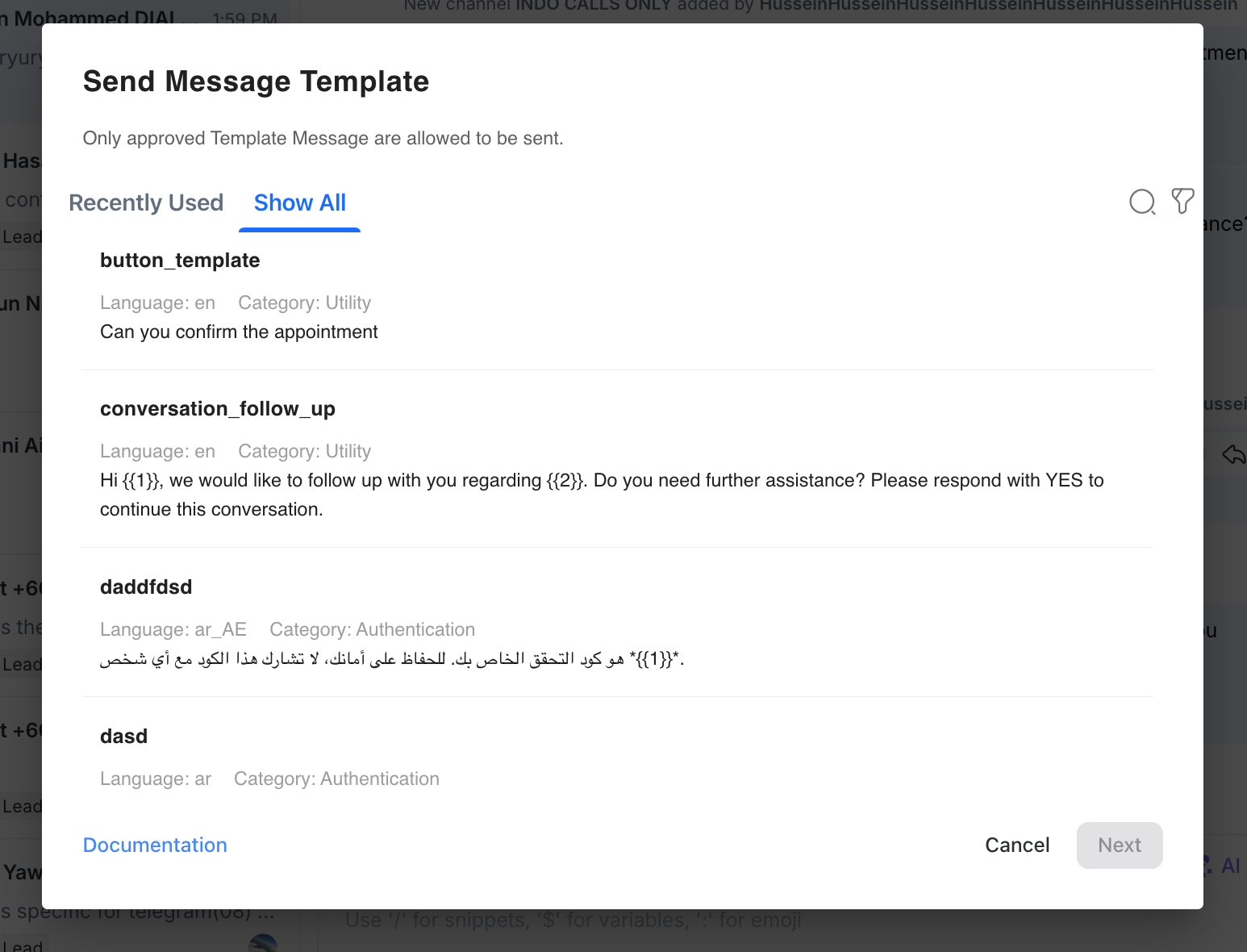
Select the template to send to the Contact.

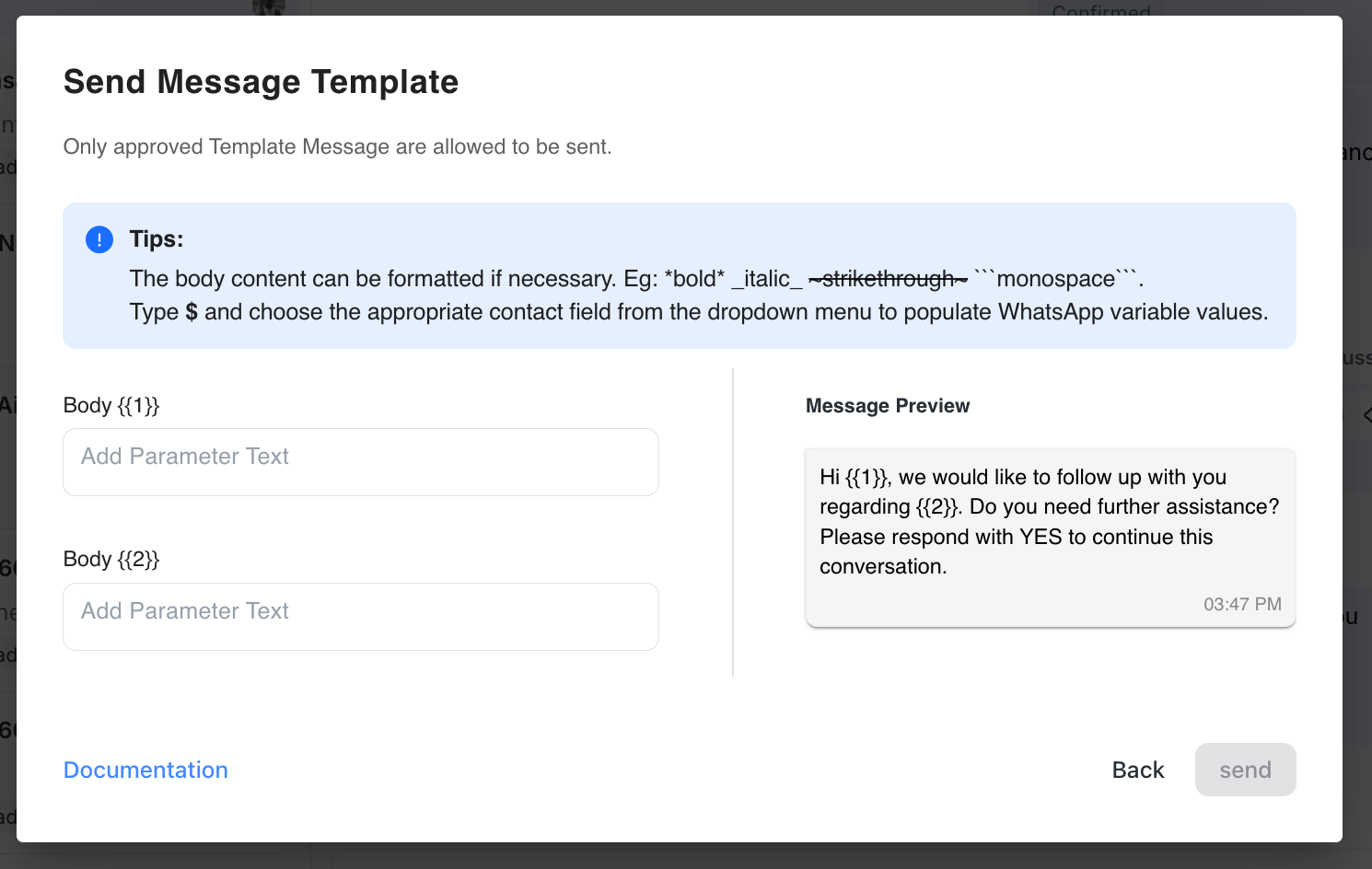
Personalize the message and specify the parameters for the template. Use Dynamic Variables to fill in parameter fields such as {{1}}, {{2}}, and so on. The parameters in the Message Preview update in real time as values are entered, so the message can be reviewed before sending.

Review the information and click Send.
Best practices when sending message templates
Follow these best practices to protect template quality ratings and avoid messages being blocked or reported as spam.
Obtain customer opt-in before sending message templates
Opt-in is a mandatory process where businesses obtain explicit consent from customers to send them messages. Consent is required for marketing, utility, and authentication conversations outside the 24-hour window after a customer’s last message.
Available opt-in methods:
SMS: Request consent through a text message.
Website: Use a consent form or opt-in checkbox.
In a WhatsApp thread: Ask for consent directly in a WhatsApp chat.
By phone: Use an interactive voice response (IVR) flow.
In person or on paper: Obtain written consent via a physical document.
Learn more about getting opt-in.
User preferences for receiving Marketing Templates
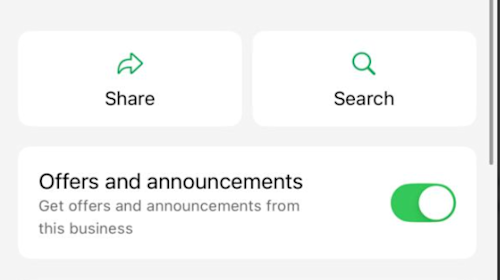
WhatsApp users can manage their preferences for receiving marketing messages from businesses directly in the WhatsApp app.
Meta has introduced a Template User Preferences for Marketing Messages setting:
Users can toggle off marketing message templates from a business.
If toggled off, marketing message templates will not be delivered to that contact — even if they have previously opted in.
This is a WhatsApp platform feature and is not controlled or visible from respond.io.
Learn more in Meta’s official guide.
Always ensure marketing message strategies respect both the opt-in status and user preferences at the contact level.
Learn more about WhatsApp message template best practices.
Sending location message templates
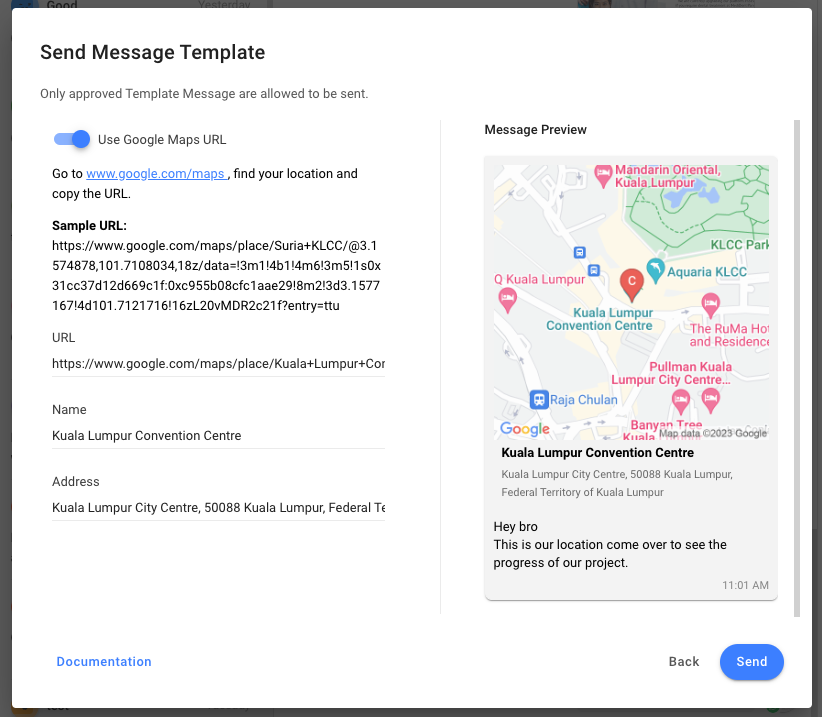
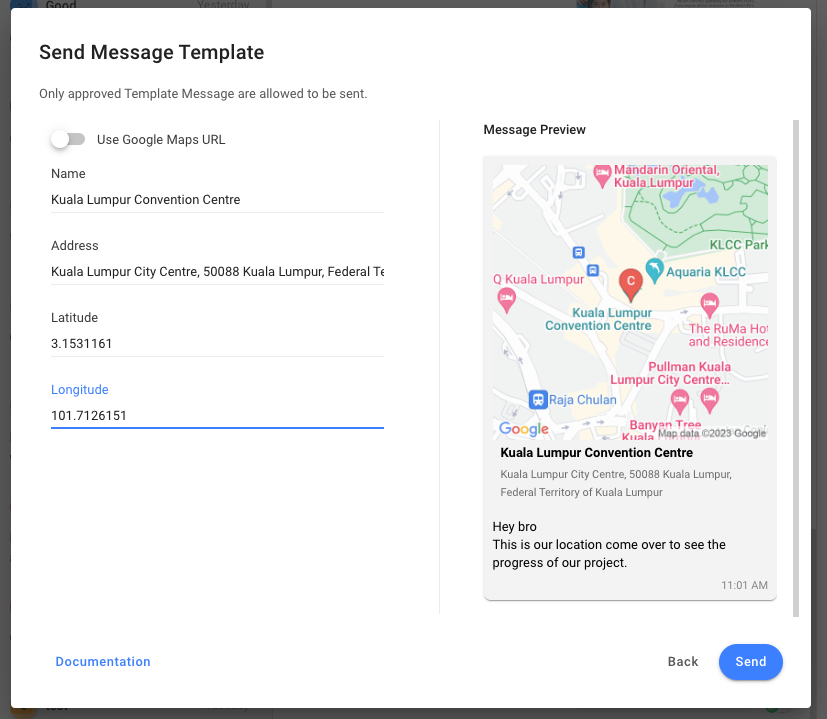
Send a location message template using one of two methods:
Use a Google Maps URL: Copy the Google Maps URL and paste it into the URL field. The fields below are filled in automatically, except the Address field which must be entered manually.

Input address fields manually: Enter the Name, Address, Latitude, and Longitude fields. The accepted format for latitude and longitude is (3.1545313,101.7151839) or {"longitude":3.1545313,"latitude":101.7151839}.

Editing a message template
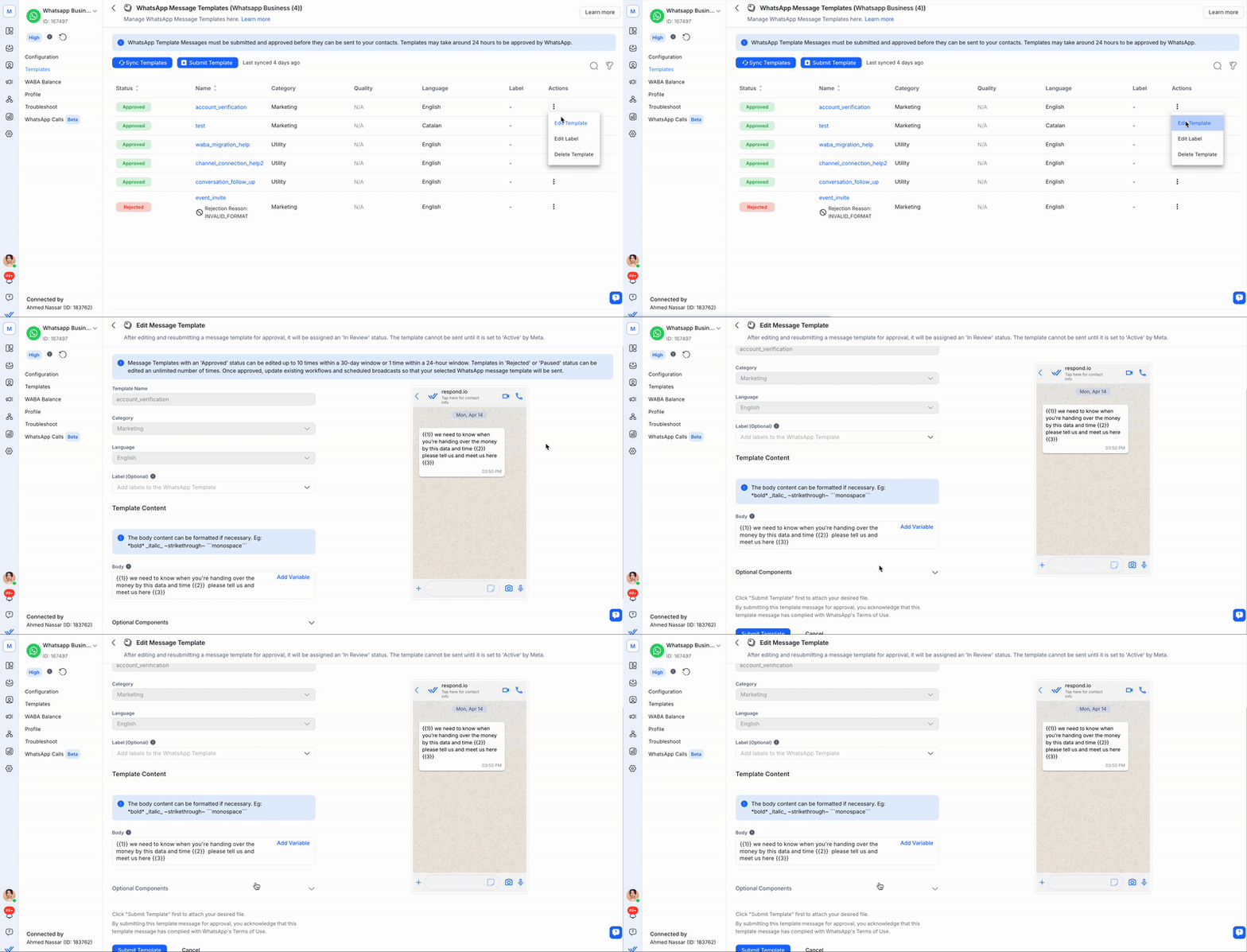
Navigate to Workspace Settings > Channels.
Locate the WhatsApp Business API channel > click the Manage Templates icon. Alternatively, click Manage > Templates.
Click Templates > click Edit Template in the Actions menu.

Edit the content to update.
Click Submit to resubmit the template for approval.
Limitations:
Only templates with an Approved, Rejected, or Paused status can be edited.
The Template Name, Template Category, and Language of an approved template cannot be edited.
Approved templates can be edited up to 10 times in a 30-day window, or 1 time in a 24-hour window. Rejected or paused templates can be edited an unlimited number of times.
Editing a template from the platform is only supported for WhatsApp Business Platform (API) and WhatsApp Cloud API channels.
After editing and resubmitting a template, it is assigned an In Review status.
After an edited WhatsApp template is approved, any active Workflow or Broadcast will continue sending the previous content of the template.
Deleting a message template
Navigate to Workspace Settings > Channels.
Locate the WhatsApp Business API channel > click Manage.
Click Templates > click Delete Template in the Actions menu.

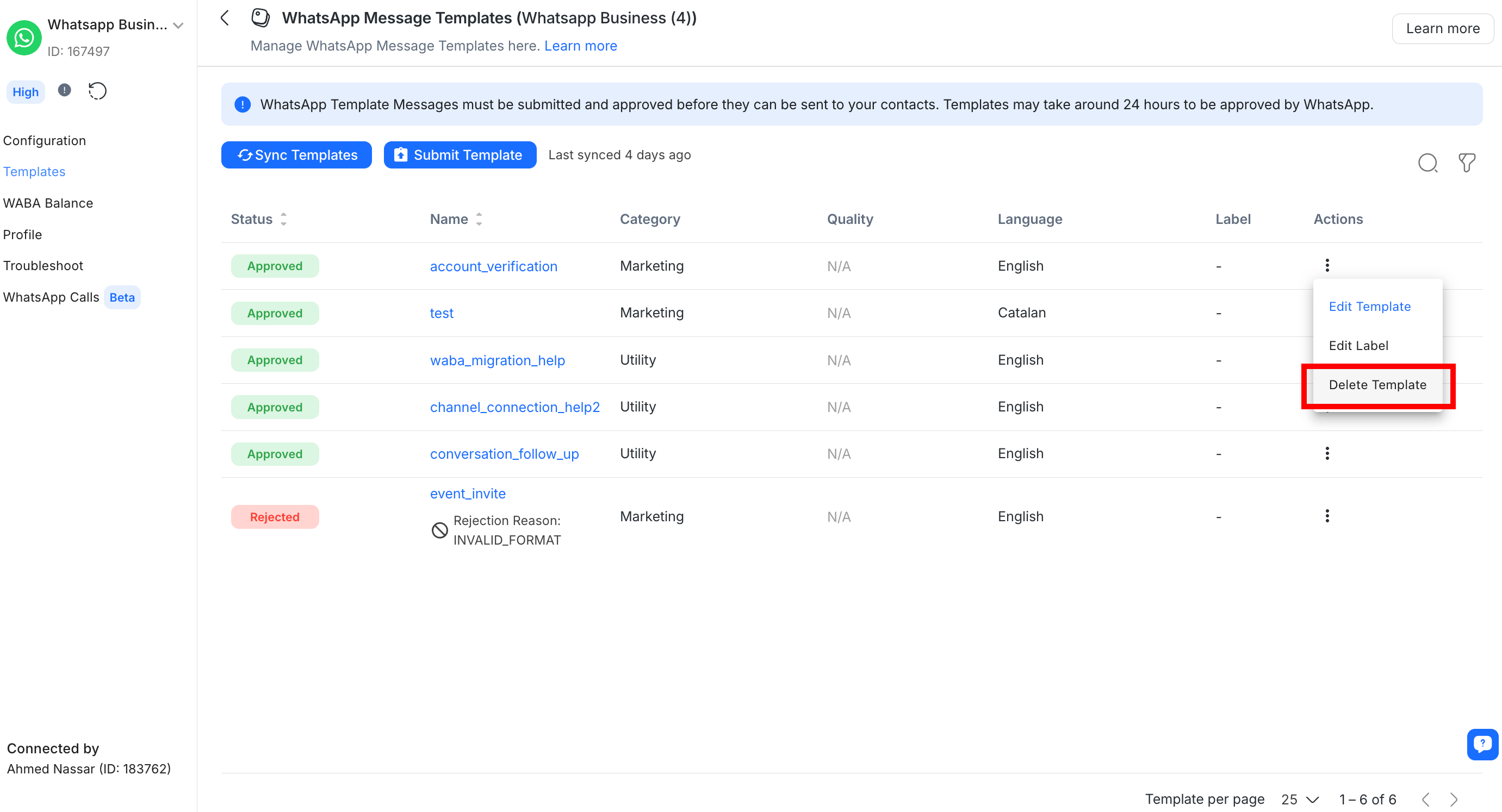
Sample message templates provided by Meta cannot be deleted. The delete button remains visible, but the template persists after clicking delete.
Copying the template API payload
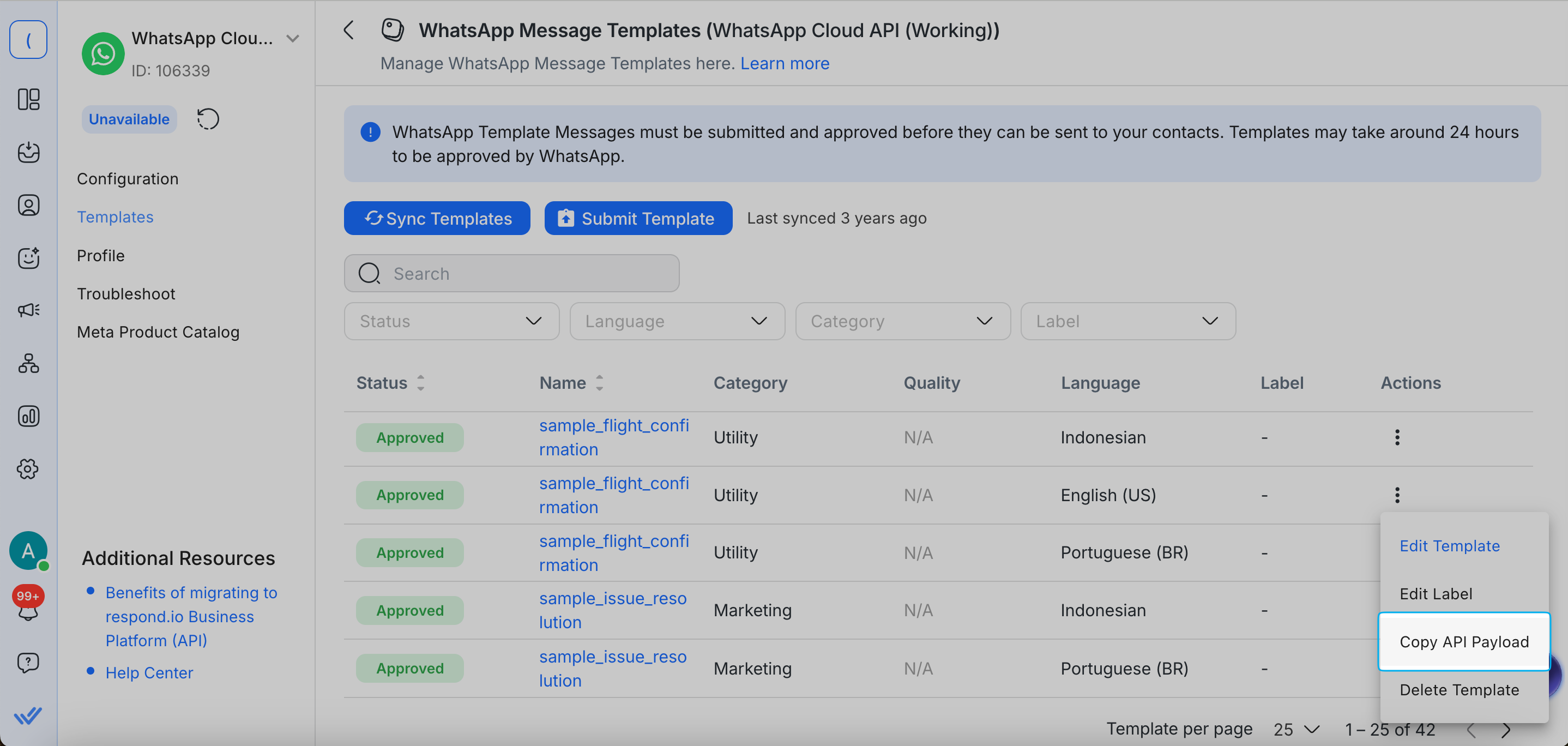
Copy the API payload of an approved WhatsApp message template to use in Developer API requests or external integrations such as Zapier, Make.com, or n8n.
Navigate to Workspace Settings > Channels.
Locate the WhatsApp Business API channel > click Manage.
Click Templates > click Copy API Payload in the Actions menu.
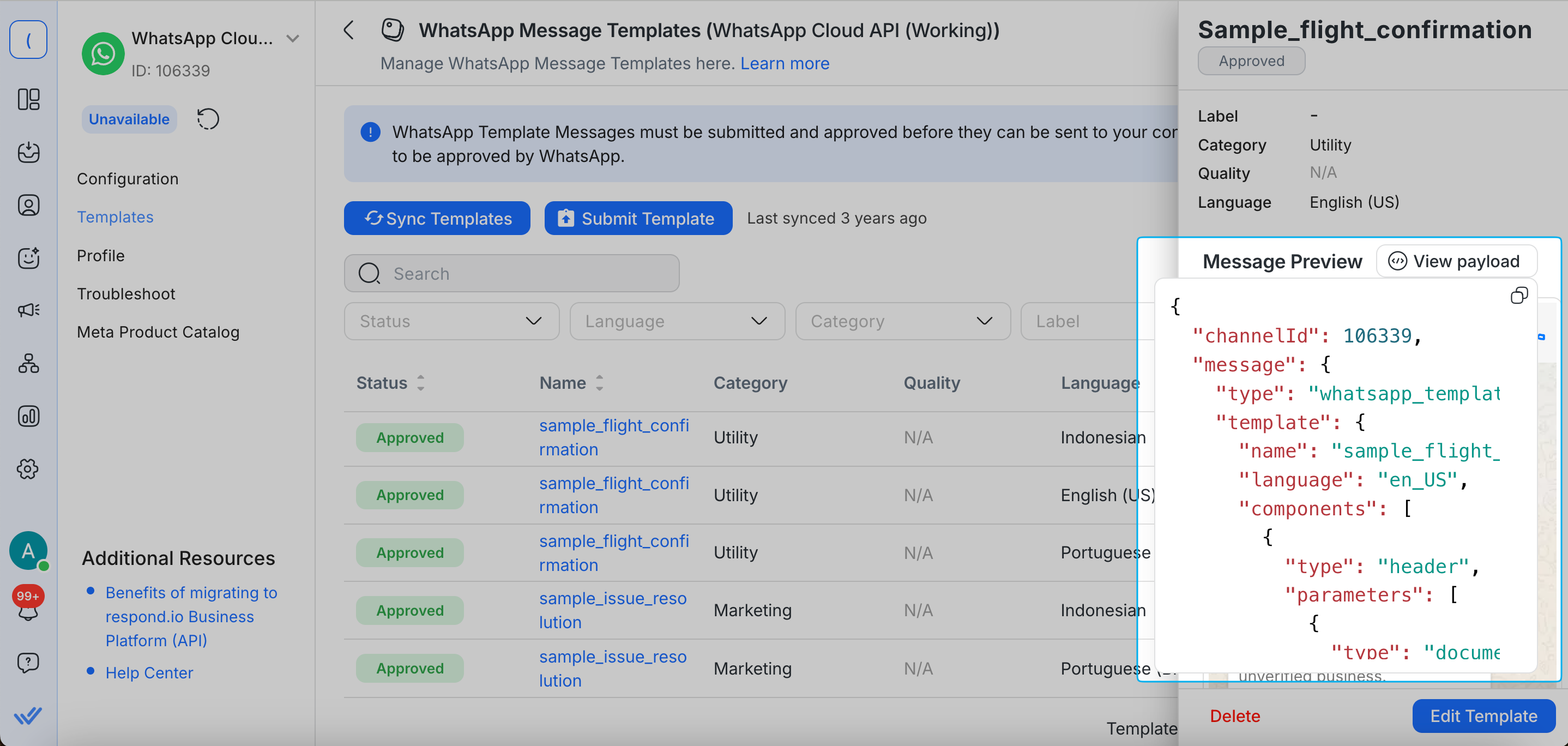
Or:
In the channel configuration page, click the desired template > click View Payload in the message preview > click the copy icon.
FAQ and troubleshooting
Why is my WhatsApp message template taking so long to approve?
The approval process for WhatsApp message templates can vary depending on the content type. This process will take approximately 24 hours. It's important to follow the guidelines closely to avoid any delays or rejections in the approval process. Learn more about the message template approval process and guidelines.
Why is the link I attached in my Template Message displaying as plain text on the Contact's side?
This is due to a limitation from both Android and iOS. The first template message from a business will display the link in the message as plain text. For Android users, the link will turn into a clickable hyperlink after the Contact replies to the business once. However, for iPhone users, the link will remain as plain text until the Contact saves the business' phone number. This is due to a security measure taken by the iOS system.
Workaround solution:
To encourage Contacts to click the link, you can embed the link in a Call-To-Action button in the template message. Follow these steps to create your template with a Call-To-Action button.
Here’s an example of how a message with a Call-To-Action button will look like:
What is the maximum character limit for a WhatsApp template message?
A WhatsApp template message has a maximum character limit of 1024 characters.
How many message templates can my WhatsApp Business account have?
If the parent business is unverified, each WhatsApp Business Account can create up to 250 templates. If the parent business is verified and has at least one account with an approved display name, each account can have up to 6,000 templates.
Why was my predetermined WhatsApp message template rejected?
This is likely because of Meta's inconsistency while reviewing message templates. To get the template approved, you will need to edit the rejected template and re-submit it for approval.
Go to Workspace Settings > Channels
Select your WhatsApp Business Platform (API) Channel > Templates
Select Edit Template in the Actions column
Do not change anything and click Submit Template
Alternatively, edit the template directly in Facebook Business Manager.
How do you categorize message templates that may be both utility and marketing? What about ones with vague content?
Templates with mixed content, such as order updates combined with promotions or offers, are categorized as marketing. The same applies to templates with unclear content, like placeholders or general phrases. These are also classified as marketing.
What can I do if Meta incorrectly rejects my message template, but I believe it’s categorized correctly?
If Meta rejects your message template but you're confident it's correctly categorized, you can request a review via Business Support.
In your Meta Business Manager, select the rejected template.
Click on “Request Review”
Choose “Correct category was rejected” as your reason.
The template’s status will then be updated to “In Review.”
Why am I seeing the error “Generic user error”?
This happens when you send a message template but it fails due to an unknown error with the request parameters or a syntax error.
This can affect message templates sent via:
Message composer in Inbox
Workflows
Broadcasts
Integration tools like Dev API, Zapier, Make.com and n8n
What you can do
Review and resubmit approved message template with correct format.
Submit a new message template with the correct format.
Why am I seeing the error “Media upload error”?
This happens when you send media message templates with an image or video header, but the media file does not meet WhatsApp’s image and video requirements.
What you can do
Convert the media files to meet the supported format.
Resend the template message.
Image requirements:
JPEG or PNG
8-bit, RGB or RGBA
Maximum size of 5 MB
Video requirements:
MP4 or 3GPP
Only H.264 video codec and AAC audio codec supported
Single audio stream or no audio stream only
Maximum size of 16 MB
Learn more about supported media types in the Meta doc.
Why is my messaging window locked, and why can’t I view and select my message templates, even though they are approved and synced?
This issue occurs when your WhatsApp Business API account balance is zero. While your message templates remain approved and are correctly synced with your account, they become invisible and unselectable in the messaging composer. Additionally, a zero balance in your WABA account leads to the messaging window being locked. To resolve this, you need to top up your account balance, which will allow you to view your templates and unlock the messaging window.
Why am I seeing the error “Business Eligibility Payment”?
This happens when you send a template message after connecting the Channel or migrating from a different BSP.
It’s usually caused by one of the following:
Your WABA balance is empty.
The payment method is still associated with the previous BSP.
What you can do
If your WABA balance is empty, top up your WABA balance.
If your payment method is associated with the previous BSP, migrate your phone number to respond.io.
If you’re still experiencing this error, contact Support.
Why did I receive the error “WhatsApp Business API: Receiver is incapable of receiving this message”?
WhatsApp (Meta) is implementing new approaches, starting with consumers in India, to create more valuable experiences and maximize marketing template message engagement. The number of marketing conversations a person receives from any business in a given period will now be limited (starting with a small number of conversations that are less likely to be read). If a marketing template message is not delivered due to the limit, you will receive an error code. For more information on this limit, refer to this link by Meta.
Can I reuse the name of a deleted WhatsApp Business Account (WABA) Message Template?
No, you cannot reuse the name of a deleted WABA Message Template within 30 days of its deletion. According to Meta, the name of a deleted message template is reserved for 30 days, so you will need to use a different name when creating new message templates.
Why did my template fail with the error “This message was not delivered to maintain healthy ecosystem engagement”?
As of September 17, Meta introduced a new WhatsApp API error (Error 131049) that prevents the delivery of certain messages to maintain a healthy engagement ecosystem.
This error occurs when WhatsApp blocks the delivery of a marketing template due to per-user marketing limits or regional restrictions enforced by Meta.
Learn more under Why marketing templates aren't delivered above.
Why is my WhatsApp Marketing Message being cut off with a “Read more” link?
As of October 2024, WhatsApp automatically truncates Marketing Message Templates that exceed 5 lines of text. When this happens, recipients will see a shortened message with a clickable “Read more” link.
This behavior:
Only applies to Marketing templates
Does not affect Utility or Authentication templates
Is designed by WhatsApp to enhance user experience and avoid overwhelming readers
Note: This is a platform-level behavior introduced by WhatsApp and is not a bug or limitation of respond.io.
Why am I seeing the “User number is part of an Experiment” error?
This error means the contact is part of a Meta-led experiment where a small percentage of WhatsApp users can’t receive Marketing Template messages unless:
They’ve messaged you recently (open service window), or
They entered via a free entry point (e.g. ads or QR code).
This limitation is enforced by Meta, with no way to identify affected users, no opt-outs, and no charges for failed sends. Resending won’t work—you’ll get error code 130472. To reach the user, ask them to message you first, or use a Utility Template message, which is not restricted. Learn more in Meta’s official documentation.
I tried sending a WhatsApp message template but received the error “Message undeliverable”. What happened?
A message template can be marked as undeliverable if the Contact is unable to receive WhatsApp messages.
Common reasons include:
The Contact’s phone number is not registered on WhatsApp
The Contact has not accepted WhatsApp’s latest Terms of Service and Privacy Policy
The Contact is using an outdated WhatsApp version
Minimum supported WhatsApp versions:
Android: 2.21.15.15
WhatsApp Business (Android): 2.21.15.15
iOS: 2.21.170.4
WhatsApp Business (iOS): 2.21.170.4
KaiOS: 2.2130.10
What you can do
Reach out via an alternative channel (for example, email or another messaging channel)
Confirm the Contact’s number is active on WhatsApp
Ask the Contact to accept WhatsApp’s latest Terms of Service
Ask the Contact to update WhatsApp to the latest version
Why am I seeing the error “Re-engagement message”?
This error occurs when a free-form message is blocked due to WhatsApp’s 24-hour messaging window rules.
It can happen if:
A free-form message is sent after the 24-hour window has passed since the Contact last replied, including messages sent via automation tools such as Workflows.
A free-form message is sent within the 24-hour window, but fails due to a known Meta bug.
What you can do
Send an approved template message to re-engage the Contact.
Why am I seeing the error “Parameter text cannot have new-line/tab characters or more than 4 consecutive spaces”?
This error occurs when you send a message template using any supported method, and the message fails due to invalid formatting in a template parameter. It happens when you include a line break, tab, or extra spaces inside a pre-approved template placeholder, such as {{1}}.
What you can do
Remove any line breaks, tabs, or extra spaces inside the template placeholder {{1}}, then resend the message template.
Why am I seeing the error “User’s number is part of an experiment”?
This error occurs when you send a marketing message template using any supported method via respond.io. It happens because Meta runs experiments where a small percentage of WhatsApp users are restricted from receiving marketing message templates unless one of the following conditions is met:
A customer service window is open between the user and the business.
An open free entry point window exists between the user and the business.
Learn more about this experiment in Meta’s documentation.
What you can do
Contact the user through a non-WhatsApp Channel and ask them to message you on WhatsApp, then resend the message within an open customer service window.
Can I create WhatsApp Flows in respond.io?
WhatsApp Flow creation is not supported in respond.io. However, WhatsApp Flow templates created in your Meta Business Portfolio can be synced to respond.io and sent as a message template.
What you can do
Create your WhatsApp Flow template in your Meta Business Portfolio.
In respond.io, navigate to Settings > Channels > your connected WhatsApp Business Platform (API) Channel > Templates.
Click Sync Templates.
Select your WhatsApp Flow template, fill in the required details and send.
Can I use Google Drive links as the media URL in a WhatsApp message template?
No, Google Drive links are not supported as media URLs for WhatsApp message templates. Meta requires all media files to be hosted on a reliably and publicly accessible URL that meets its hosting requirements.
Google Drive links do not meet these requirements and will cause the template message to fail.
What you can do
Host your media files on a publicly accessible hosting service. Supported options include:
Amazon S3
Google Cloud Storage
Dropbox
Traditional hosting providers (e.g., Bluehost, HostGator, SiteGround)
Once hosted, use the URL of your media file as the media URL in your message template.
Why do forwarded message templates appear incomplete?
This is a known limitation on Meta’s side. When a message template is forwarded, the original template may not be fully preserved.
What you can expect
Forwarded via WhatsApp Business App: Parts of the message template content may be missing.
Forwarded via WhatsApp Business Platform (API) / WABA: The original message template format may not be preserved.
Why does a template message sent via API appear empty in the Inbox?
When a template message is sent through an API integration such as the Developer API, Zapier, Make.com, or n8n, the message may be successfully delivered to the contact but appear as an empty bubble in the respond.io Inbox.
This usually happens when the template payload structure doesn’t exactly match the approved template format — including parameters, components, or both.
To resolve this, review the payload and ensure its structure matches the approved template exactly. Compare it against the approved template configuration in the Template Manager.
Navigate to Workspace Settings > Channels.
Locate the WhatsApp Business API channel > click Manage > Templates.
Find the relevant template > click Copy API Payload in the Actions menu to get the correct payload structure.
Use this payload as the reference when building your API request in your integration.
Why am I seeing the error "WhatsApp Business API: Unable to deliver the message. This recipient has chosen to stop receiving marketing messages on WhatsApp from your business"?
This happens when a Contact toggles off marketing message templates — WhatsApp blocks you from sending further marketing templates to that Contact. Only utility templates, authentication templates, and free-form messages are unaffected.
Learn more under User preferences for receiving Marketing Templates above.
What you can do
Avoid resending marketing templates to this Contact, as they'll continue to fail.
Only the Contact can reverse this by re-enabling marketing messages from their end as there's no option for businesses or respond.io to control this.
Continue sending utility templates, authentication templates, or free-form messages as needed.


