

This article covers how to migrate a WhatsApp Business phone number from another Business Solution Provider (BSP) to respond.io's WhatsApp Business Platform (API). The migration preserves your display name, quality rating, messaging limits, and approved templates — with no downtime and no impact on existing Workflows or Broadcasts.
Important: If WhatsApp accounts and Messaging accounts appear as separate items under Accounts in Meta Business Suite > Settings, your account is on WhatsApp Account Model Evolution (WAME). Phone number migration isn't available for these accounts. Follow Add respond.io to a WhatsApp number connected to another partner instead.
Benefits of migrating to respond.io WhatsApp Business Platform (API)
Migrating to respond.io's WhatsApp Business Platform (API) provides businesses with a wide range of benefits such as:
Lower costs and transparent charges with our intuitive WhatsApp Fees module.
Support for the latest features of WhatsApp Business Platform (API).
Faster message delivery through respond.io BSP than those sent through an on-premise solution.
Reliable service and connection with minimal interruptions to your WhatsApp Activities.
Zero Impact on your existing workflows and broadcasts upon successfully migrating to respond.io.
What migrates with the number
Migrated | Not Migrated |
|---|---|
✅ Display name | ❌ Low-quality, rejected, or pending message templates |
✅ Phone number quality rating | |
✅ Messaging limits | |
✅ Official Business Account status (Blue Tick) | |
✅ High-quality approved message templates |
Before you begin
Review and confirm all of the following before starting the migration:
You have a Meta Business Manager account with an admin access role to sign up for a WhatsApp Business Account (WABA) under respond.io. Your business must be verified, and the phone number display name and WABA must be approved (
name_statusisAPPROVED). Phone numbers with pending display name change requests cannot be migrated.Your phone number display name is approved.
Turn off two-step verification on your WhatsApp number in Meta Business Manager. If you used the classic sign-up method, contact your current BSP to turn it off.
Your respond.io WhatsApp Business Account has sufficient phone number slots to accommodate the number you're migrating. If not, remove a phone number or verify your business to add more slots.
You have access to the phone number being migrated in order to receive a one-time password (OTP) via SMS or phone call.
Register the phone number to pass through the Interactive Voice Response (IVR) system, if required.
Pop-ups are allowed on your browser. Enable pop-ups in Google Chrome if needed.
You are using the same business account in Meta Business Manager that is currently linked to your WhatsApp BSP account.
Ensure your WABA/MBM currency is set to USD. This is required to avoid issues with sending business-initiated conversations despite having sufficient credits.
Migration limitations
Test numbers — test business phone numbers issued by WhatsApp cannot be migrated.
Cloud API only — migrated phone numbers can only be registered for the Cloud API, not the On-Premises API.
Message history and media — message history and uploaded media will not be migrated if the source WABA is on the On-Premises API.
Template quality ratings — migrated templates start with an UNKNOWN rating, updated after 24 hours if sufficient data is available.
Migrating the phone number
Watch the video below for a step-by-step walkthrough of the migration process.
Step 1: Begin phone number migration
Go to Workspace Settings > Channels > navigate to WhatsApp Business Platform (API) > click Connect

Select "Connect an existing WhatsApp Business (API) account", then click Get Started.
For a new WhatsApp Business Platform (API) account, follow the standard connection flow or refer to the WhatsApp Business Platform (API) Quick Start guide.

Select "An existing WhatsApp Business Platform (API) account from another BSP", then click Next.

Confirm you have all migration requirements, then click Migrate with Facebook.


Step 2: Connect your Facebook account and select or create a new WABA
Log in with your Facebook account.
Click Continue to grant permissions. This allows respond.io to manage your WhatsApp Business Account and billing.

Select the BSP you are migrating from, then click Next.

Create or select an existing WhatsApp Business Account (WABA) registered under respond.io.
Create a new WhatsApp Business Account to avoid potential issues after migration.


Step 3: Add business details and phone number
Enter your WhatsApp Business account name, WhatsApp business display name and select the category of your business, then click Next.

Add your WhatsApp phone number in E.164 format.

A callout appears indicating the number is associated with another BSP — proceeding will migrate this number to respond.io.
Choose a verification method to receive the OTP via SMS or phone call.
Users with a virtual phone number must have access to it to receive the OTP via SMS or phone call.
Click Next.


Step 4: Verify your phone number
Enter the 6-digit code received via SMS or phone call.

Click Next > Finish

Step 5: Select the Channel you are migrating from
Select the Channel you are migrating from, then click Save.


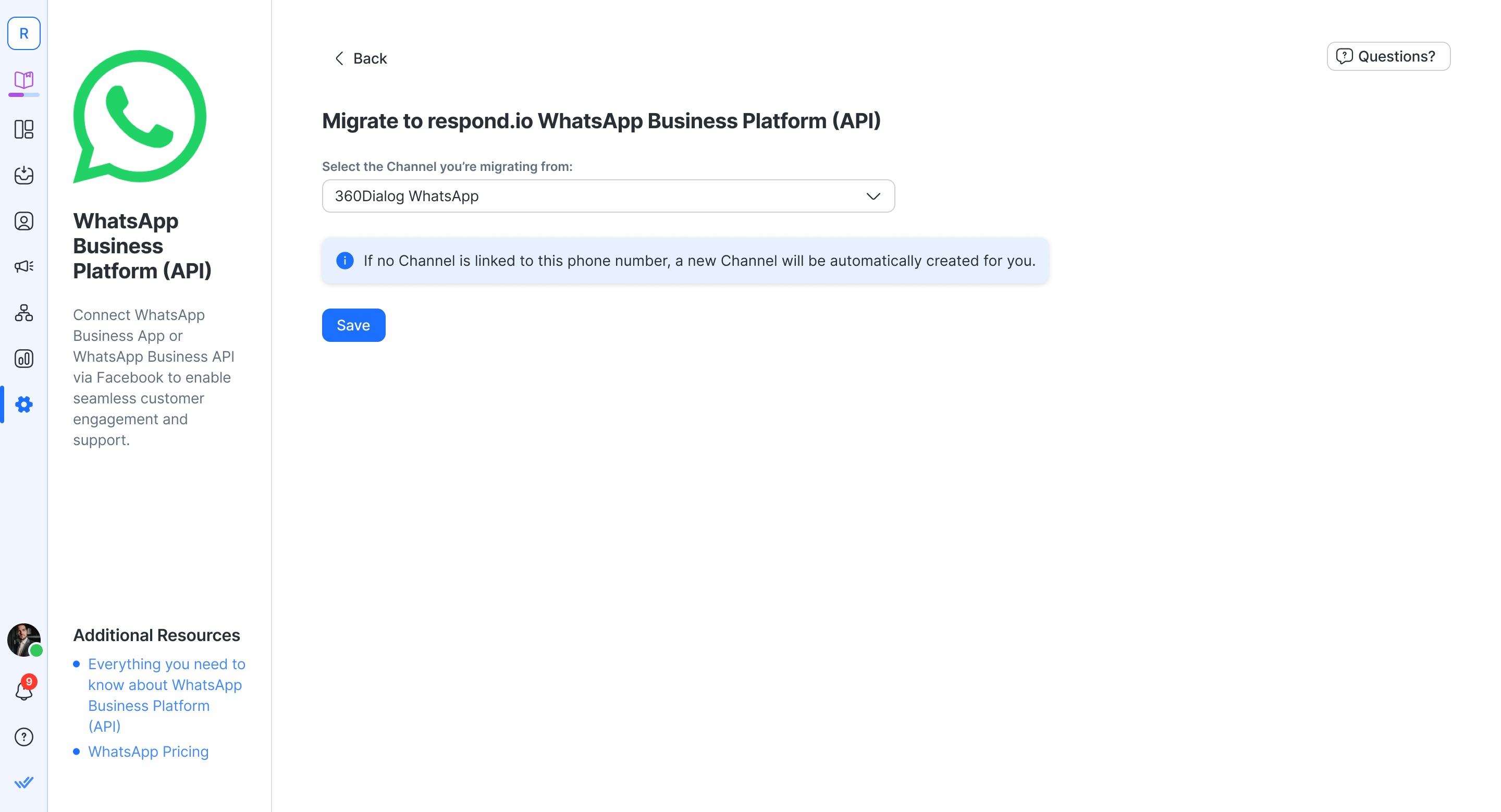
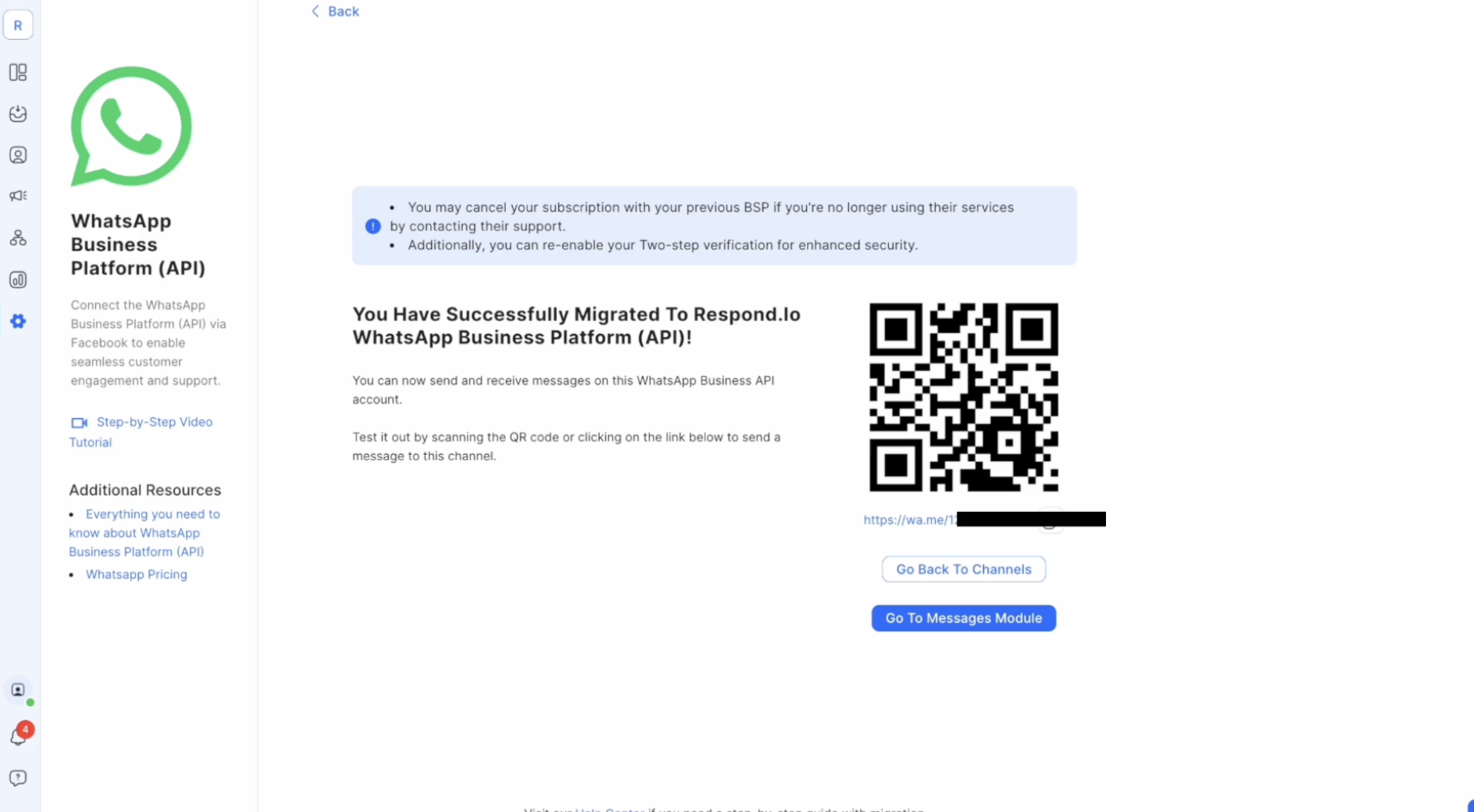
After saving, the migration is complete. Here's what happens next:
If no previous Channels exist, a new Channel is created automatically.
Configure the Channel and access the WhatsApp Fees module to manage your balance and send and receive messages.
Broadcasts and Workflows previously set up for your old WhatsApp Channel are automatically reconfigured to work with the newly connected respond.io WhatsApp Business Platform (API) Channel.
To prevent future charges, cancel your subscription with your old BSP once you've successfully migrated to respond.io's WhatsApp Business Platform (API).
FAQ and troubleshooting
Can I migrate from any other WhatsApp Business Service Provider?
Yes. Migrate your phone number to respond.io WhatsApp Business Platform (API) from any other WhatsApp Business Service Provider, whether or not it is listed as a WhatsApp Channel on respond.io. Two methods start the migration process:
Open the migration page to start the migration.
Go to your Workspace Settings > Channels > + Add Channel > WhatsApp Business Platform (API) > Next > migrate now
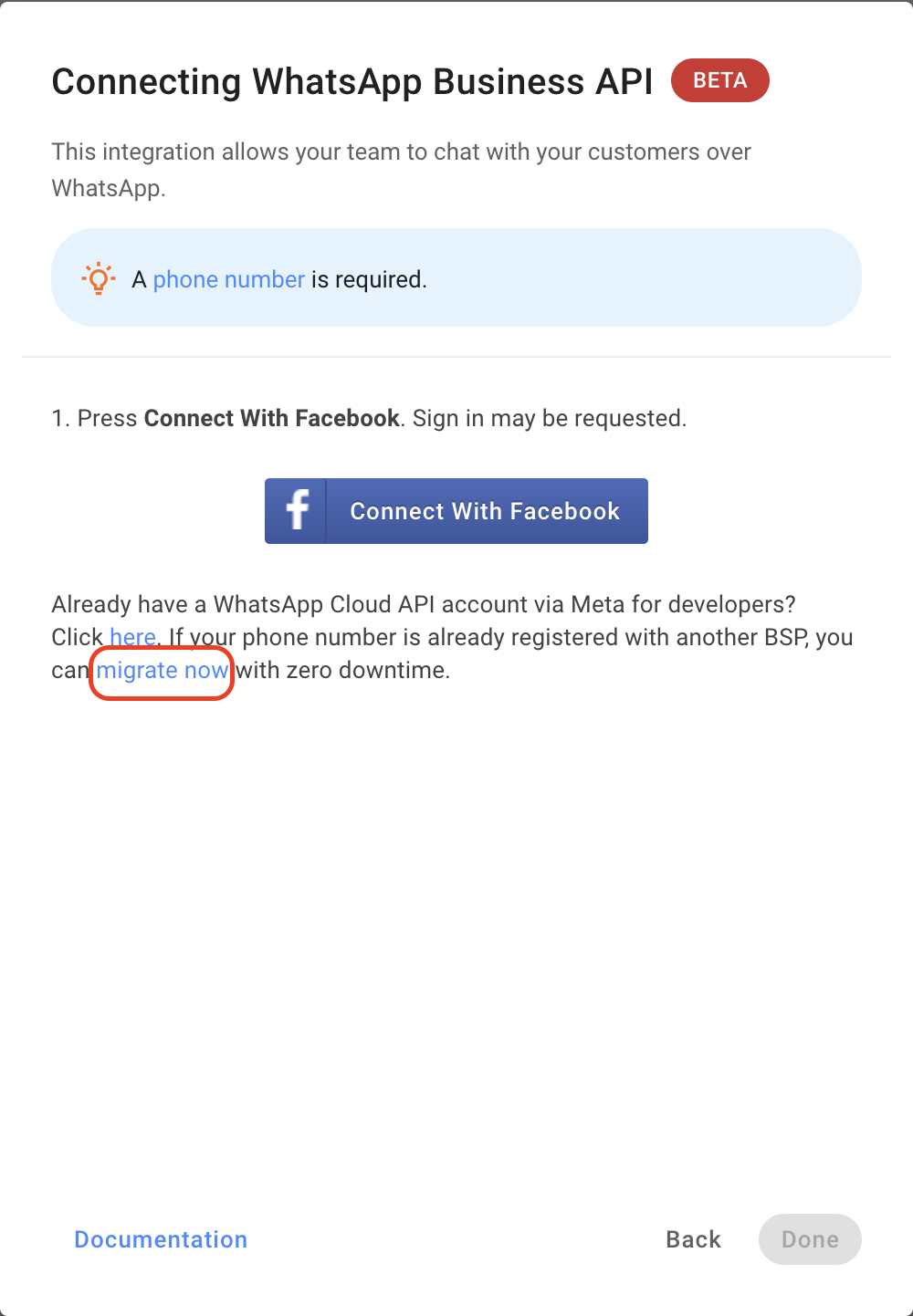
If you are having trouble with migration, contact support.
Will the conversation window remain open after I migrate my phone number?
Yes. Ongoing conversation windows are retained after migrating your phone number to the respond.io WhatsApp Business Platform (API). If you were previously in a conversation using a previous WhatsApp Channel, you still have access to it after switching to respond.io. The conversation window timer is not reset during migration, so any remaining time still applies.
How long will the migration process take?
The migration flow completes within 5 minutes.
Is there any downtime during the migration process?
No. The migration process has no downtime, and any messages sent to your phone number are received once the migration completes.
What is the impact of migration on WhatsApp Billing?
Messages sent before the migration are charged to the previous WhatsApp provider, while messages sent after the migration are charged to respond.io. Any messages sent that are not delivered before the migration are still charged to the previous provider when they are delivered. In cases where overcharges are identified, the overcharged amount is refunded to your wallet at the end of the billing cycle. Billing for all conversations under the respond.io WhatsApp Business Platform (API) Channel can be managed in your platform's organization settings under WhatsApp Fees.
I have created workflows and broadcasts using my previous WhatsApp BSP Channel, will they still work after migrating?
Yes. Your Broadcasts and Workflows previously set up for your WhatsApp BSP Channel are automatically reconfigured to work with the newly connected respond.io WhatsApp Business Platform (API) Channel.
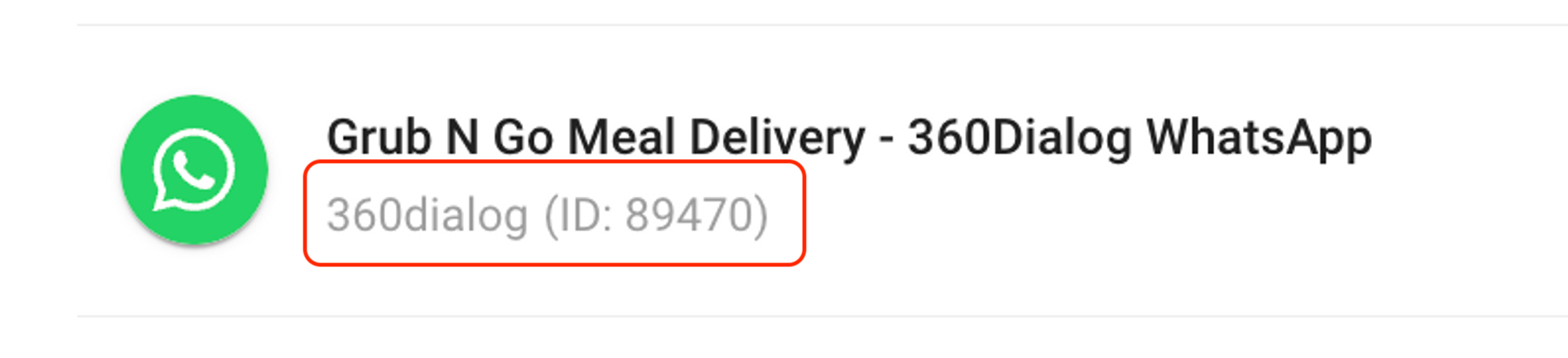
Where can I find my Channel ID?
Go to Settings > Channels > navigate to your Channel.
The Channel ID is displayed below your Channel Name.
I am receiving an error saying “Phone numbers count exceeded limit per business. You have already linked the maximum number of phone numbers allowed for this business account.” What should I do?
You have added too many phone numbers to your WhatsApp Business Account, surpassing the limit.
Unverified Meta Business Manager (MBM) accounts can register up to 2 phone numbers. Verifying your business raises this limit — typically to 5, with the option to request a higher limit directly from Meta if you need more. Learn more about Meta Business Verification.
To fix this, either:
Verify your business to increase your phone number slot limit, or
Delete a phone number from a WABA you no longer use before adding a new one.
I am receiving an error saying “Cannot migrate phone number. Please add this phone number in your WhatsApp account.” What should I do?
The number you entered is not registered under any WhatsApp account. Make sure you input the correct number you wish to migrate. If the number is not registered, register it directly with respond.io's WhatsApp Business Platform (API) using the WhatsApp Business Platform (API) Quick Start guide.
I am receiving an error saying “Invalid number of WABA accounts shared.” What should I do?
You have selected two or more WABAs to migrate to, whereas the migration process only allows migration to a single WABA. To resolve this, reconnect with Facebook and close the first dialog using Meta. Then, in the second dialog, click Edit settings and ensure you have selected only one WABA — the one you intended to migrate to or the one you created.
I am receiving an error saying “Unknown Error. Please contact support.” What should I do?
If you have encountered and resolved any issues, you may have received this error from attempting another migration too quickly. To resolve this, wait at least a day before attempting to migrate again.
I am receiving an error saying “Code couldn't be sent. Please try again in some time" when attempting to obtain the OTP code. What should I do?
Retry after an hour. If the issue persists, contact support for assistance.
How can I revoke rocketbots.io credit line in MBM when off-boarding from respond.io to a different BSP?
To revoke the rocketbots.io credit line in MBM when transitioning from respond.io to a different Business Solution Provider (BSP), follow these steps:
Delete the Channel: deleting the Channel associated with respond.io from the platform initiates the off-boarding process.
Deregister the credit line: after deleting the Channel, go to your MBM to deregister and revoke the credit line associated with rocketbots.io, provided no other number under the same business remains connected in the platform.
Deleting the Channel and deregistering alone will not revoke the credit line. The credit line is revoked under the following scenarios:
A Channel is deleted and no more Channels are connected.
The WABA's usage falls below the threshold of USD -10.
If you are deleting a WABA Channel with a positive balance and wish to migrate to a different BSP using the same number, create a new WABA with the BSP and migrate your number to that new WABA and BSP. This ensures a smooth transition and revokes the credit line associated with rocketbots.io.
What happens if I fail multiple migration attempts from my current BSP to respond.io?
If you experience 10 failed migration attempts from your current Business Solution Provider (BSP) to respond.io, Meta enforces a 72-hour waiting period before your next attempt to connect the number. This waiting period can leave you unable to connect your number if you have already canceled with your previous provider.
To avoid this, ensure all prerequisites are met before initiating the migration process. If you encounter issues, contact our support team for assistance to help you through the process and prevent multiple failed attempts.
Can I migrate a phone number between Workspaces or Organizations?
Yes. You can move a WhatsApp number from one Workspace to another within the same Organization, or to a different Organization entirely.
Prerequisites
Ensure all phone migration prerequisites are met before starting.
Do not delete the existing WhatsApp Channel connected to respond.io before migrating — this can cause the phone number to go offline.
What you can do
Create a new WABA in the preferred Workspace or Organization.
Complete the phone number migration.
Your WhatsApp balance doesn't carry over to the new Organization. To request a refund, contact our support team.
If the WhatsApp Channel was already deleted and the number is offline, contact support. They can help submit a request for manual re-registration or escalate directly with Meta.
If your account is on WAME, follow How do I move my number to another respond.io Organization? instead.


