

WhatsApp Business Platform (API) is designed for medium to large businesses that need multi-user access to WhatsApp. Unlike the personal or Business App, it has no built-in messaging interface. Respond.io provides the messaging interface needed to send and receive WhatsApp API messages, along with tools to broadcast to wide audiences and monitor agent and team performance.
WhatsApp API is not free to use and incurs charges based on the number of conversations. Learn more about WhatsApp Pricing.
If you have a WhatsApp API account from another Business Solution Provider (BSP), migrate your phone number to respond.io.
Before you begin
Prepare the following prerequisites before signing up for a WhatsApp Business Platform (API) account:
Eligibility — Check whether your business qualifies to use WhatsApp and review Meta's policy rules before you sign up.
respond.io account — A respond.io account is required to access the sign-up flow.
Phone number — Choose one of three options:
Use your own phone number
Use a Meta-provided virtual phone number
Add a phone number later (not recommended — see below)
Meta Business Manager (MBM) — Required for sign-up. Create one during the embedded sign-up flow if needed.
Phone number requirements
Use your own phone number
The number must be valid and able to receive SMS or a phone call for OTP verification.
If the number is already registered on WhatsApp Personal App or WhatsApp Business App, delete the account first.
The number must not be from any of these restricted countries:
Crimea (+7978)
Cuba (+53)
Iran (+98)
North Korea (+850)
Syria (+963)
Note: If a Contact’s number is from a restricted or sanctioned country, outbound messages may still be delivered to them. However, any replies the Contact sends will not be received in respond.io.
Use a Meta-provided virtual phone number
Important: This number is for testing purposes only — it is not recommended for real business operations.
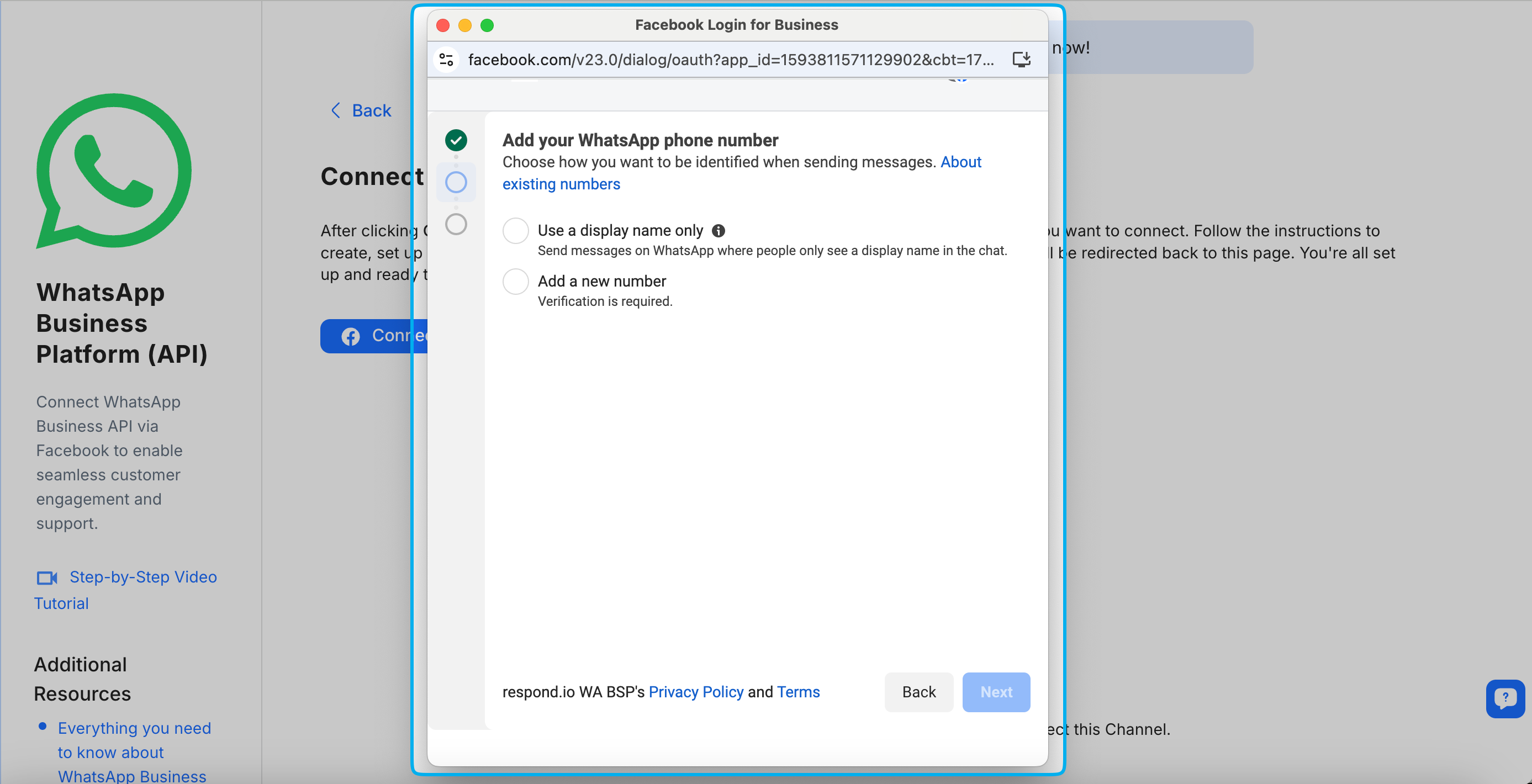
Meta offers free virtual phone numbers (1-555 business phone numbers) during sign-up. Select Use a display name only during setup to receive one.
Benefits:
No need to purchase a new phone number.
Verified automatically — no OTP verification required.
Completes onboarding without additional setup.
Limitations:
Cannot be used for real customer interactions.
Cannot be used for Click-to-WhatsApp ads (CTWA) or buttons.
WhatsApp calls aren’t supported.
Does not have an approved display name.
Business-initiated conversations are not allowed without an approved display name (limited messages can be sent per day).
Cannot be migrated to another provider.
For more details, refer to Meta's documentation.
Add a phone number later
Important: This option is not recommended. Selecting it will prevent the Channel from being connected.
This option may appear if your WhatsApp Business Account already has a phone number attached. To complete setup and start messaging right away, add a phone number during sign-up by selecting either:
Use a display name only — to receive a free virtual phone number from Meta, or
Use a new or existing WhatsApp number — to connect your own number.
Selecting one of these options ensures the WhatsApp Channel is fully set up and ready for messaging once sign-up is complete.
Meta Business Manager
Use an existing Meta Business Manager (MBM) or create one during the embedded sign-up process.
Ensure your business complies with the WhatsApp Business Messaging Policy.
Ensure you have Admin access in your MBM.
Ensure your MBM Business Info lists a valid, publicly accessible business website.
Valid website | Not a valid website |
|---|---|
Viewable and belongs to your business | Personal Facebook pages |
Has a matching email domain and web address | TikTok profiles |
Features your company's name or logo | Other social media pages |
Important: A legitimate, publicly accessible business website is mandatory in your Business Info — without one, your WABA may be disabled. It's also required when applying for Meta Business Verification.
Connecting WhatsApp Business Platform (API)
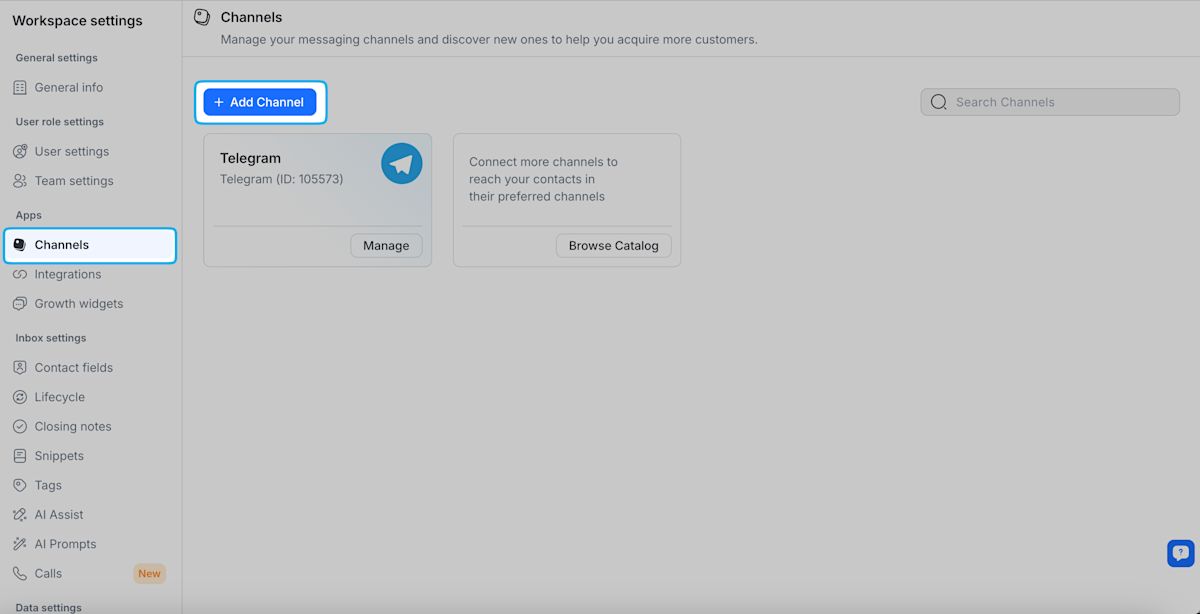
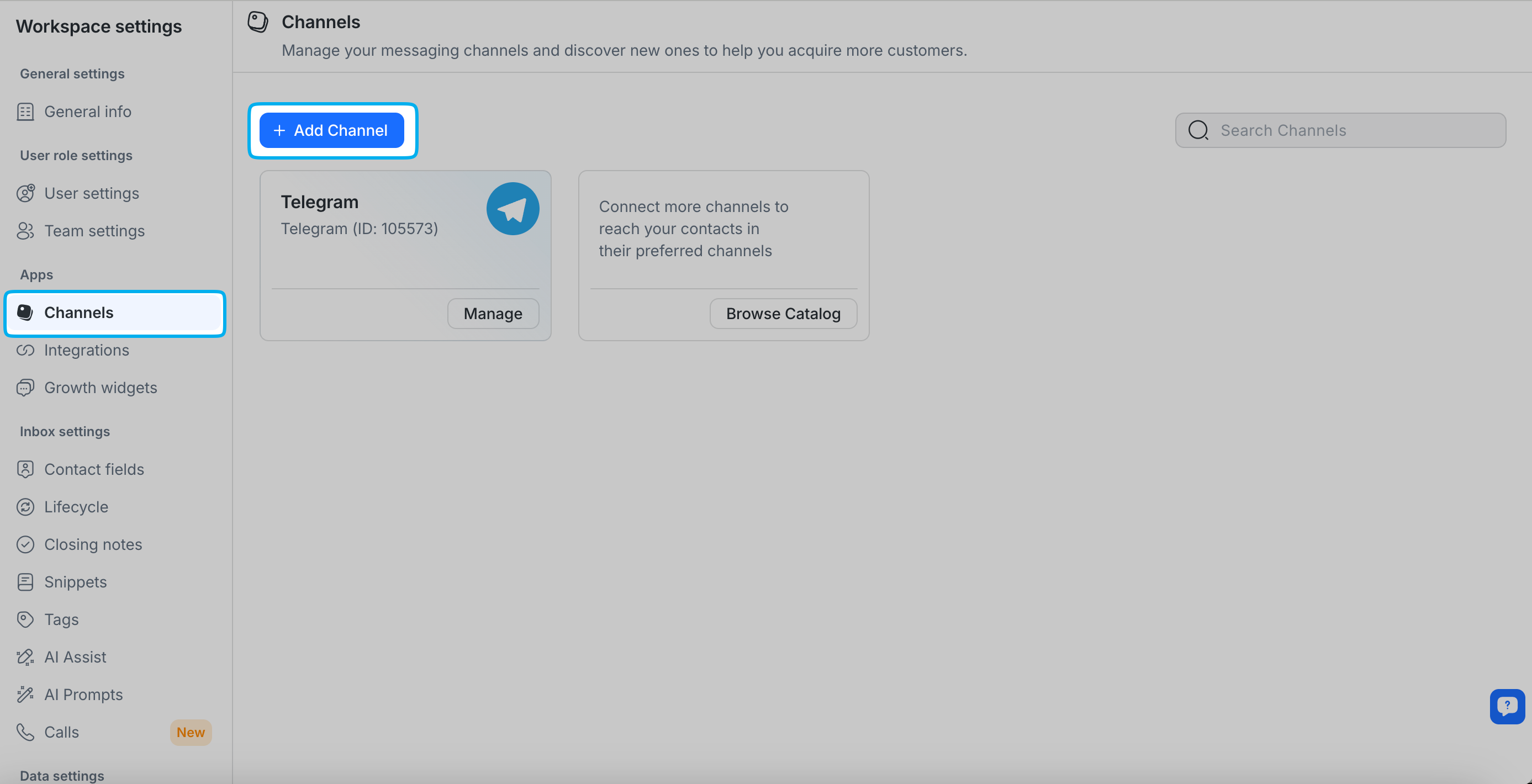
Navigate to Workspace Settings > Channels > click Add Channel.
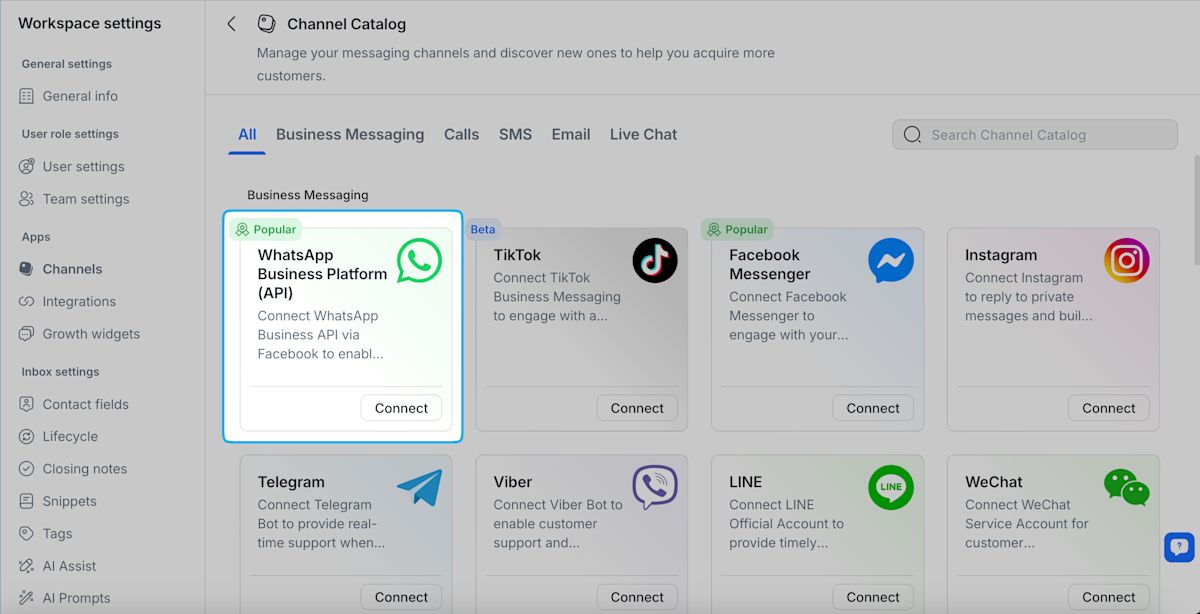
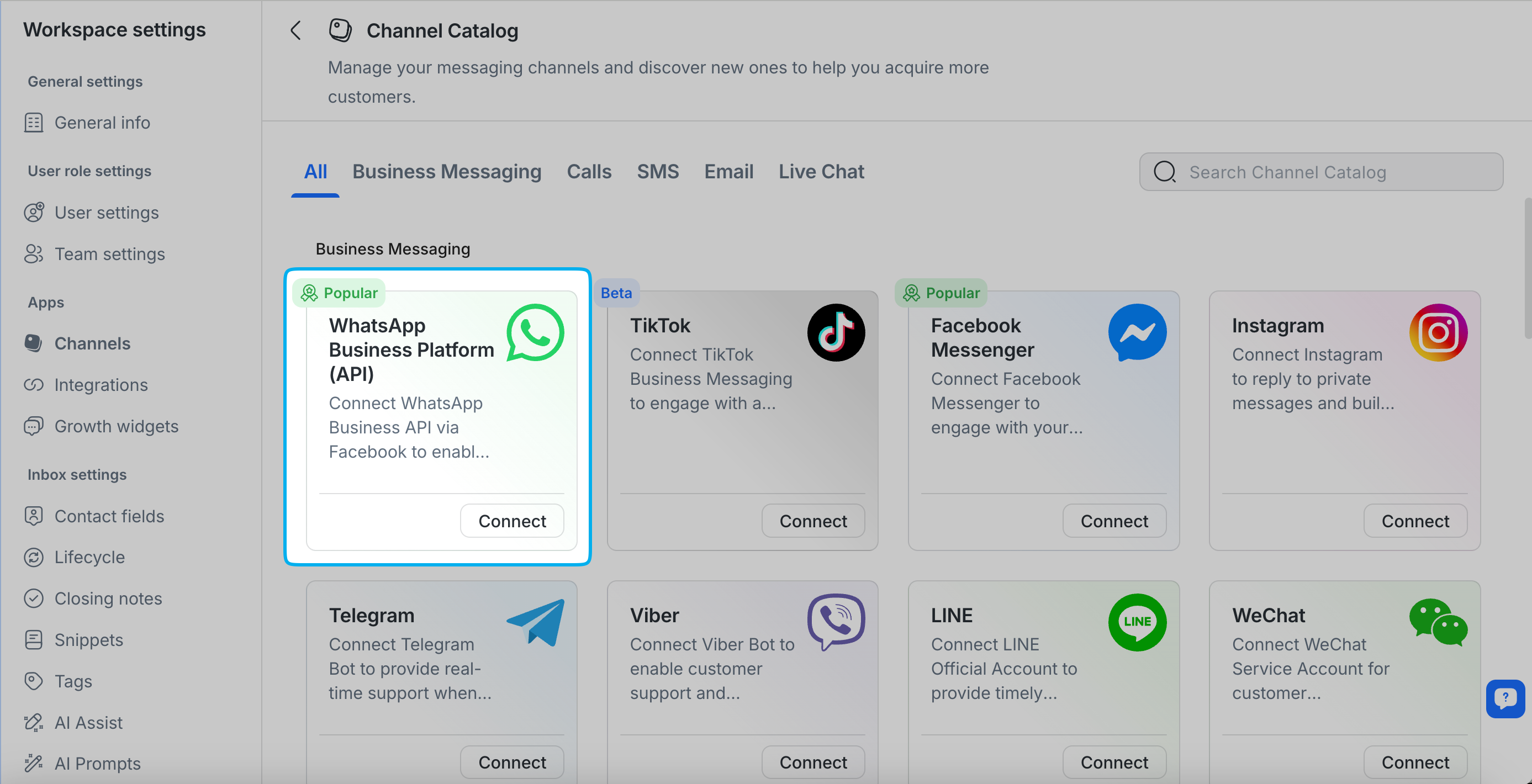
Locate the WhatsApp Business Platform (API) Channel card in the Channel Catalog > click Connect.
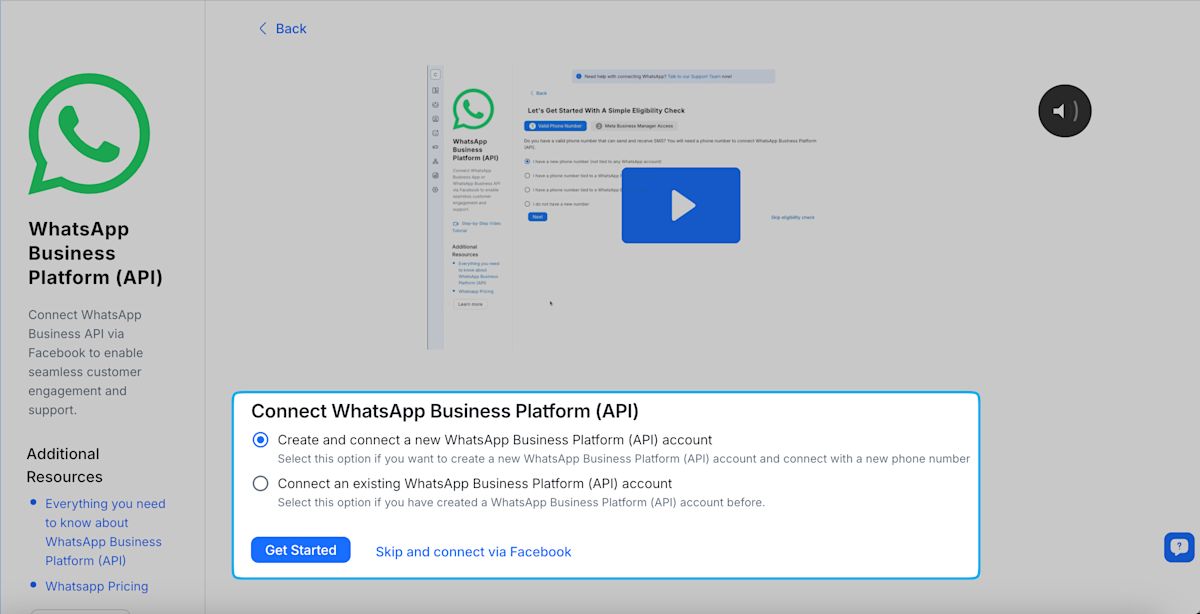
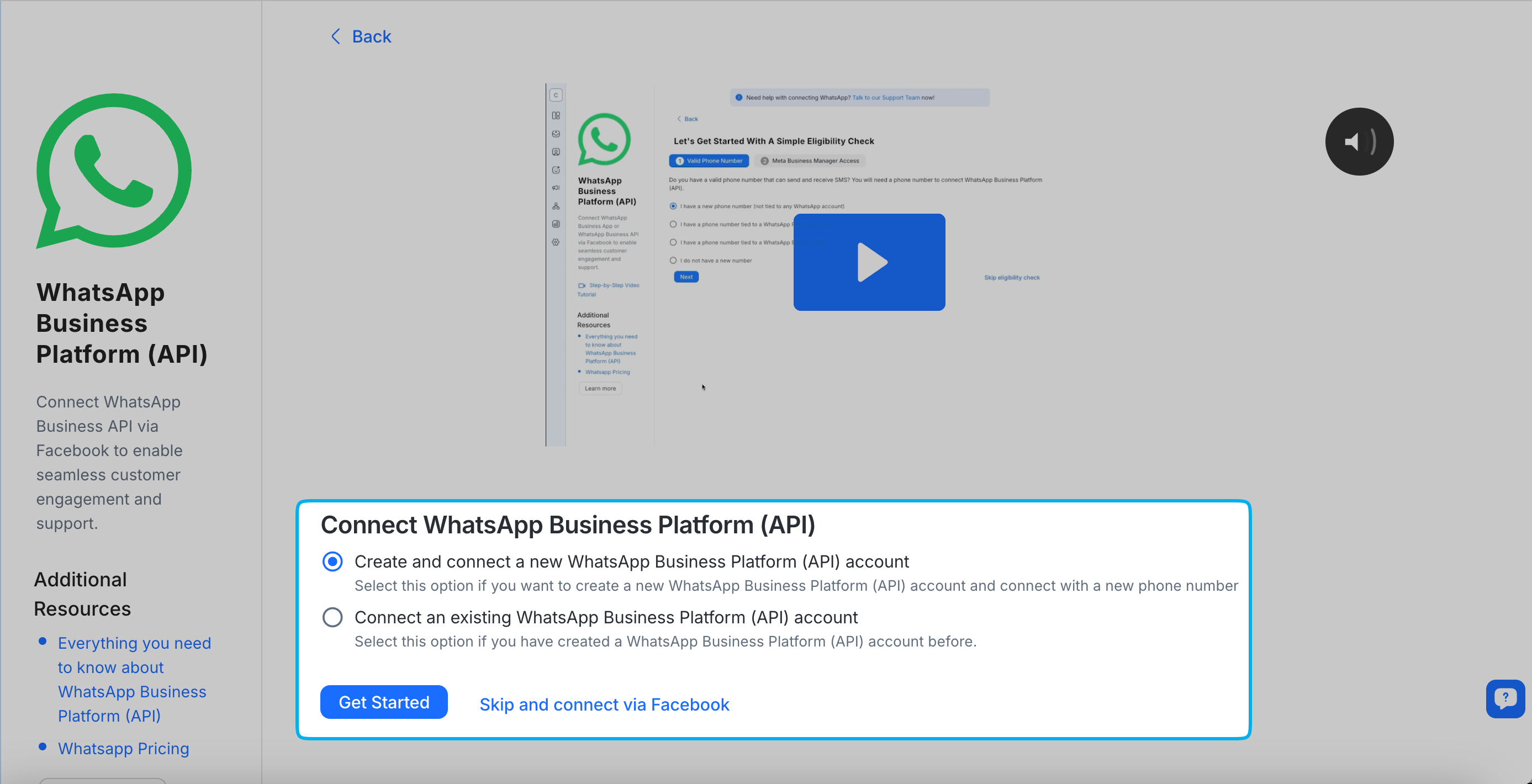
Select your connection method > click Get Started to proceed through the eligibility checks.
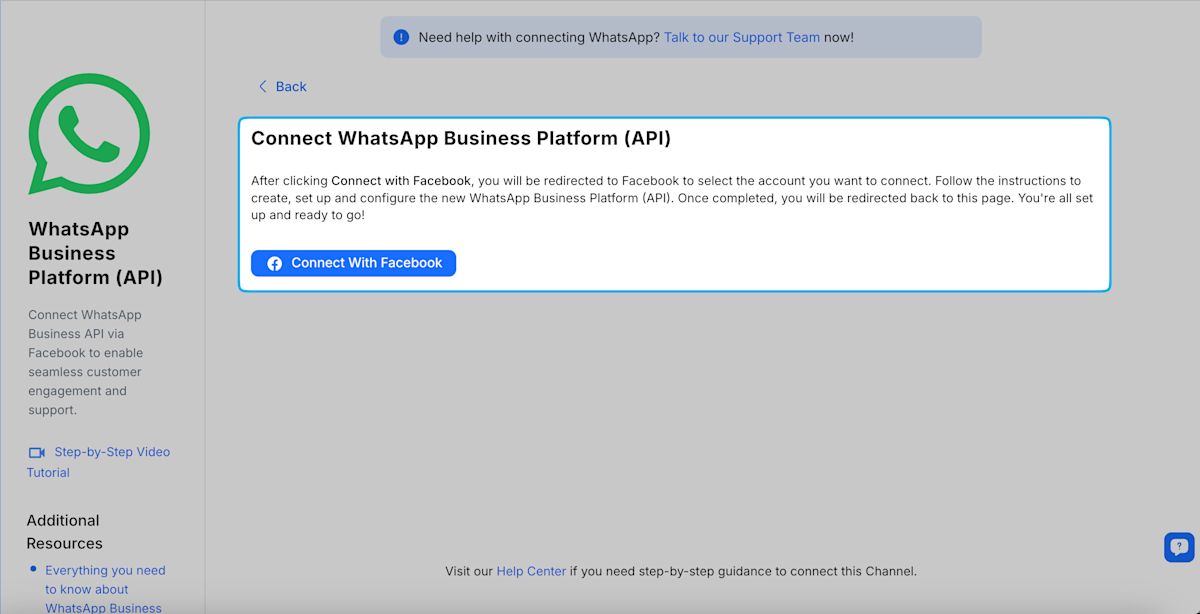
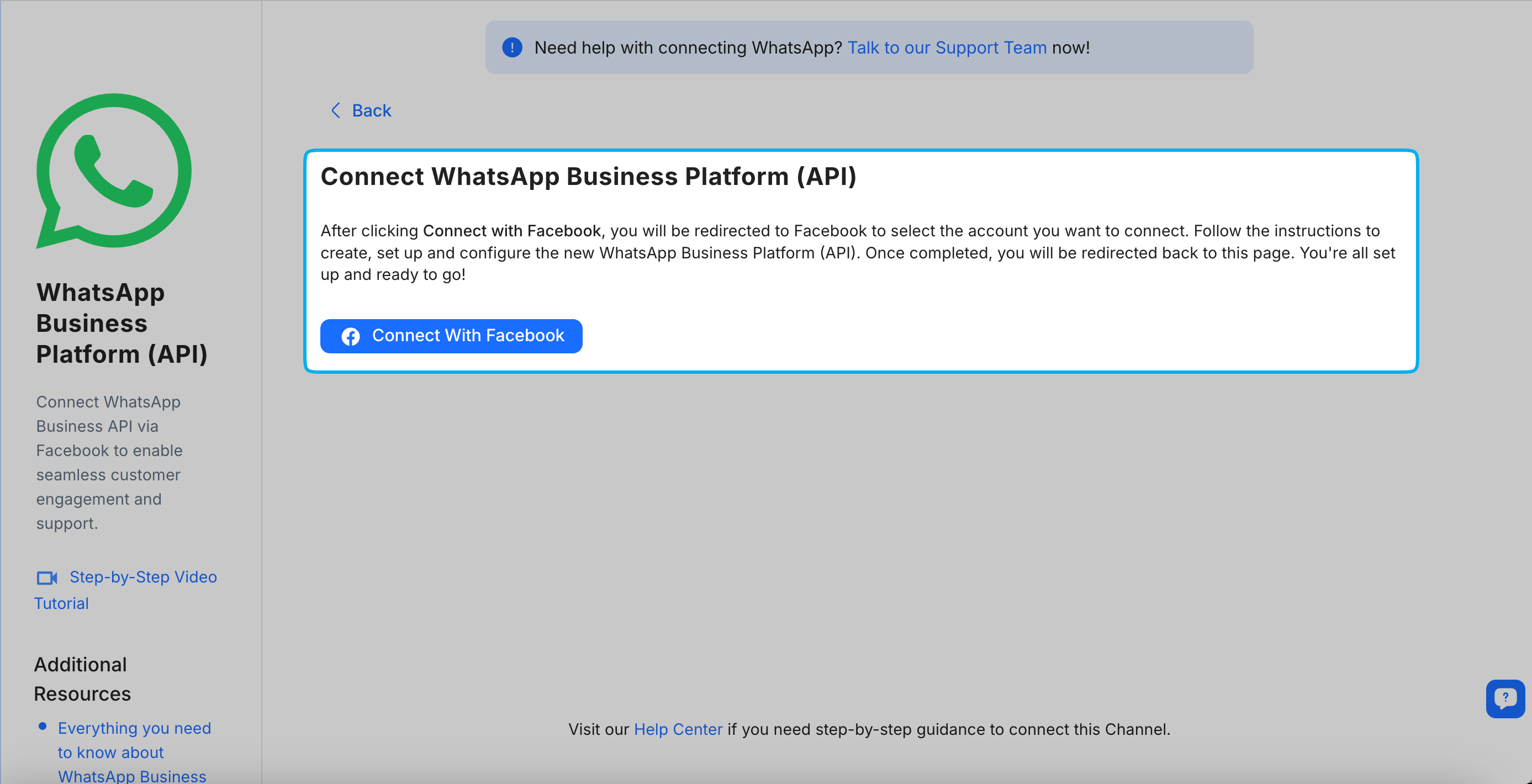
Click Connect with Facebook and log in to your Facebook account.
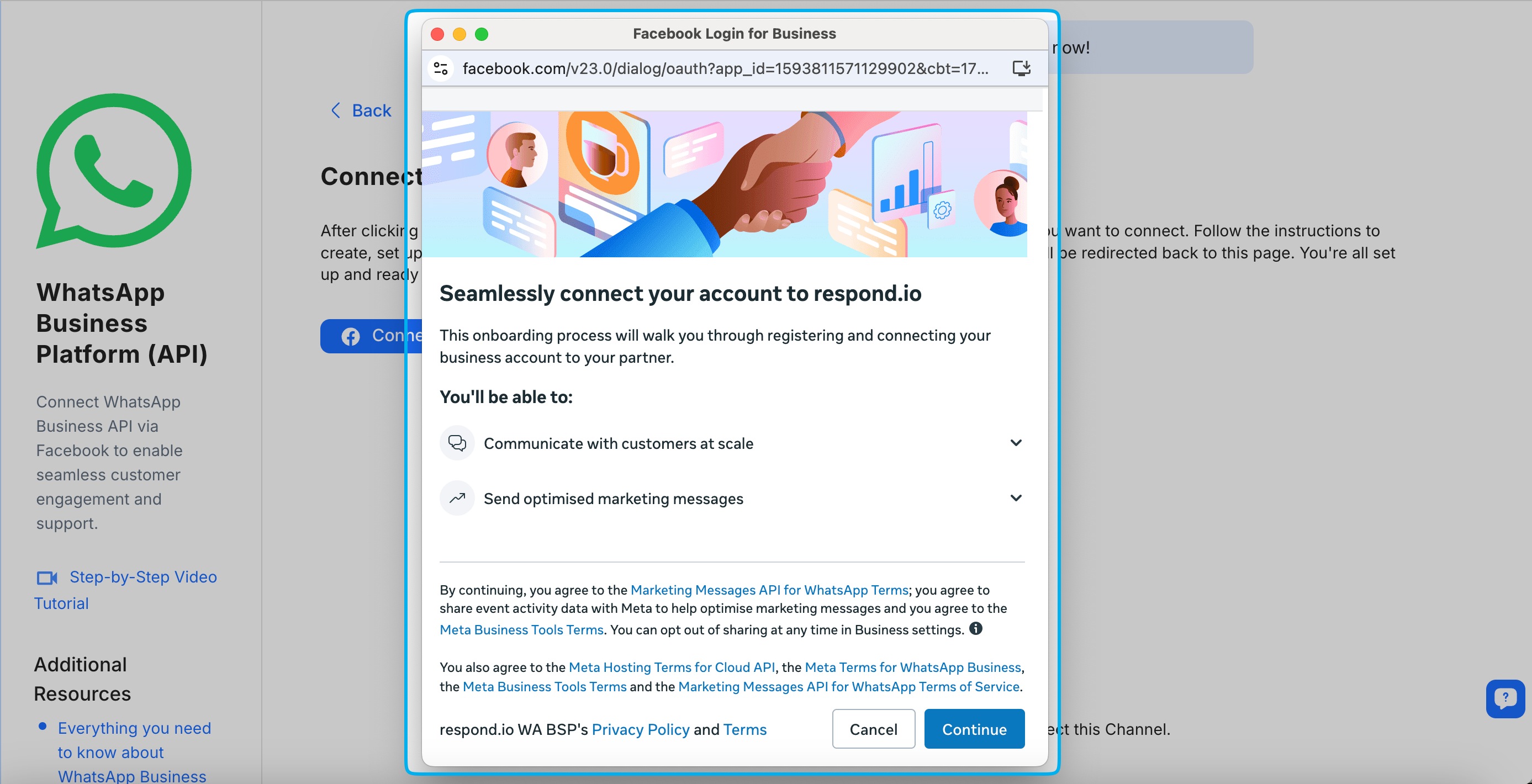
Click Continue to grant permissions for respond.io to manage your WhatsApp Business account and billing.
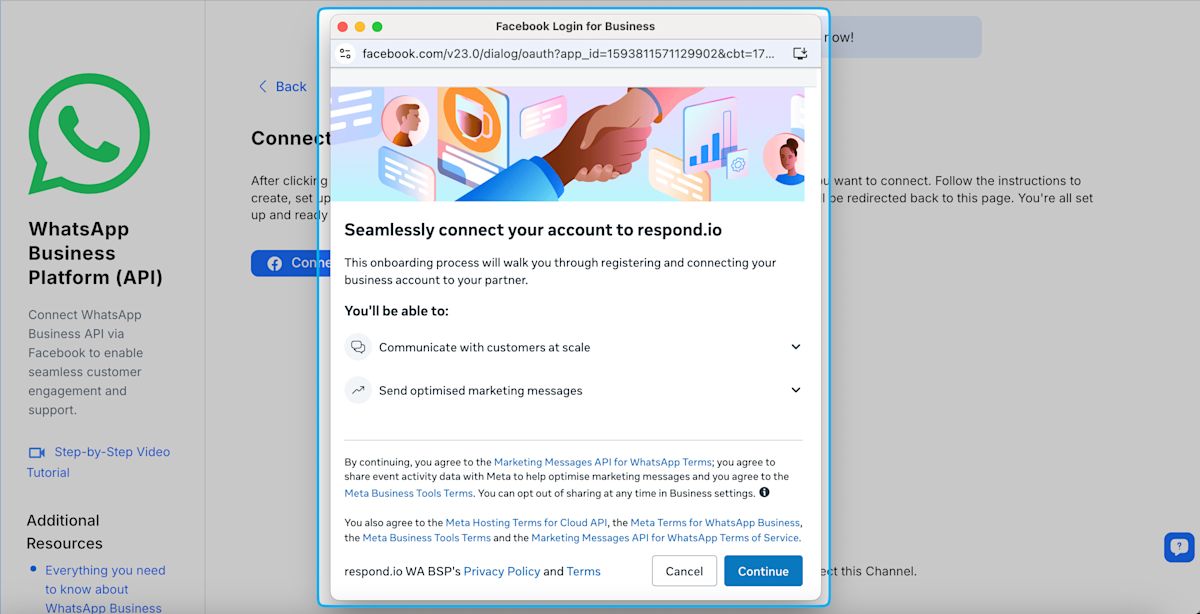
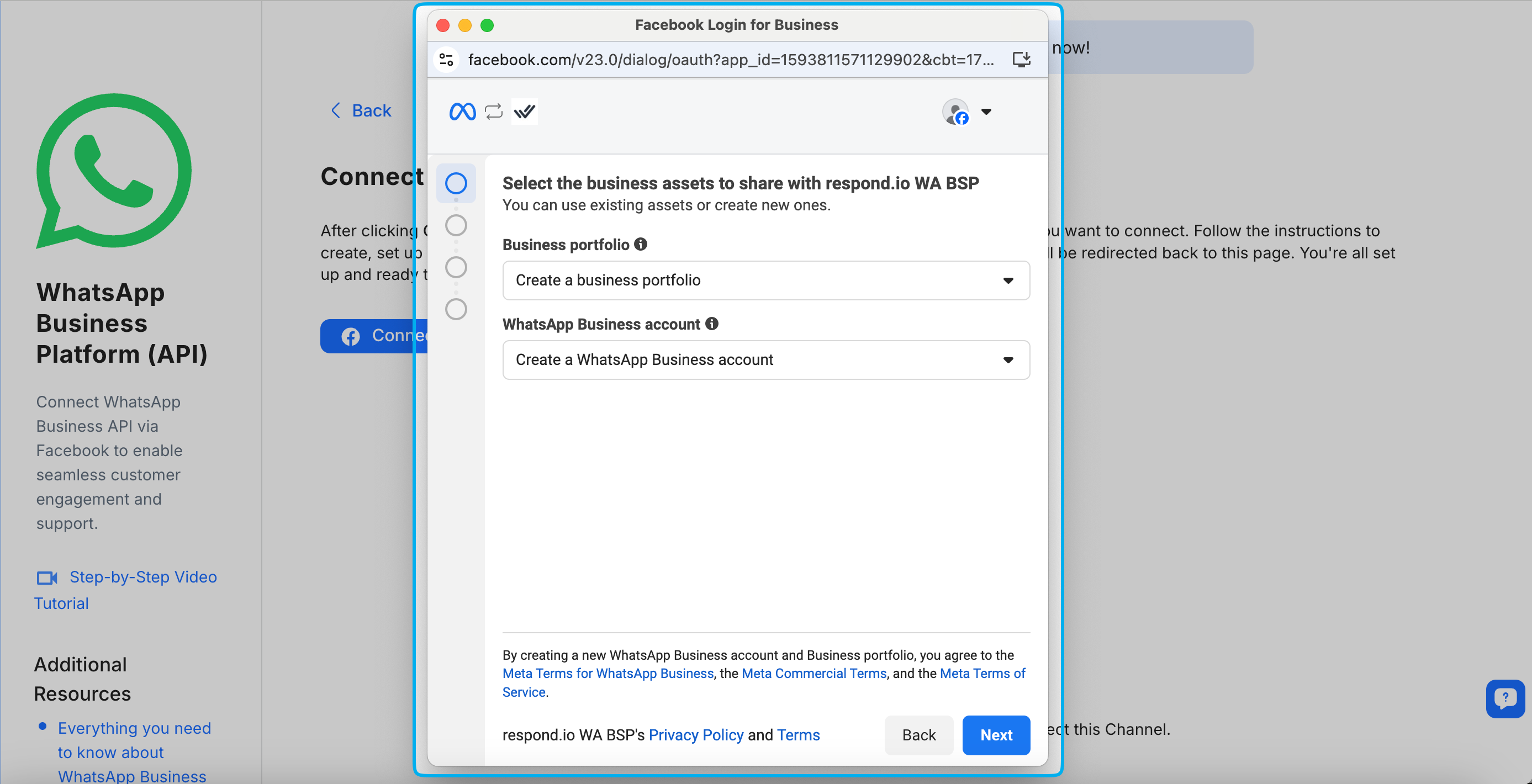
Select an existing Meta Business portfolio and WhatsApp Business Account > click Next.
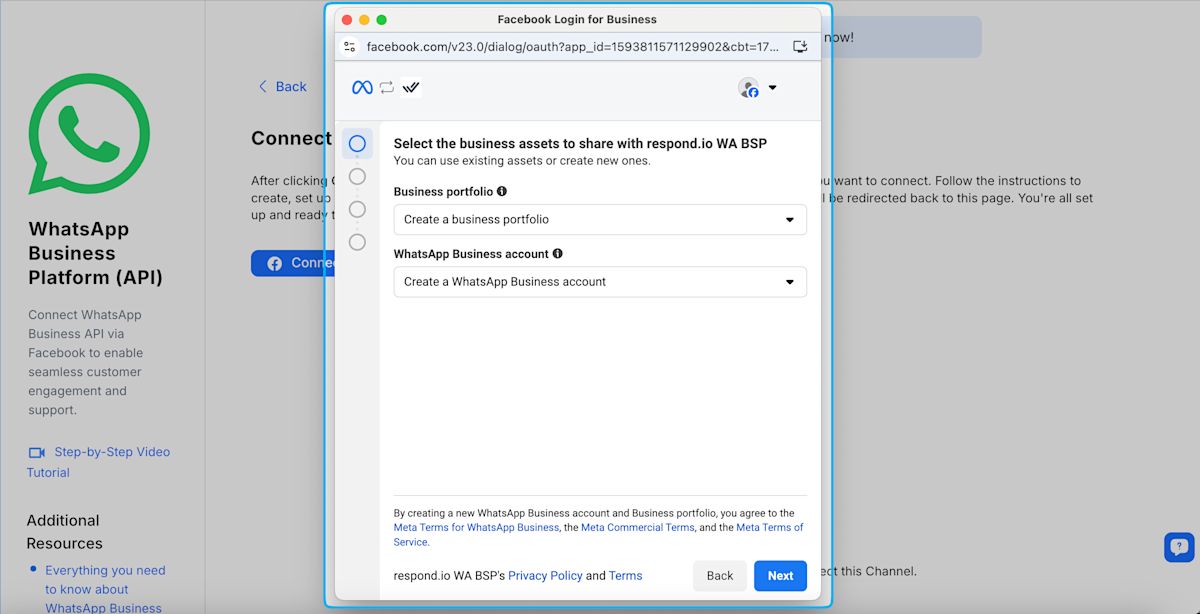
To create a new Business portfolio or WhatsApp Business Account: under Business portfolio, select Create a business portfolio; under WhatsApp Business Account, select Create a WhatsApp Business account. Click Next and follow the prompts.
Add your WhatsApp phone number by selecting Use a display name only for a free virtual phone number from Meta, or Add a new number to connect your own.
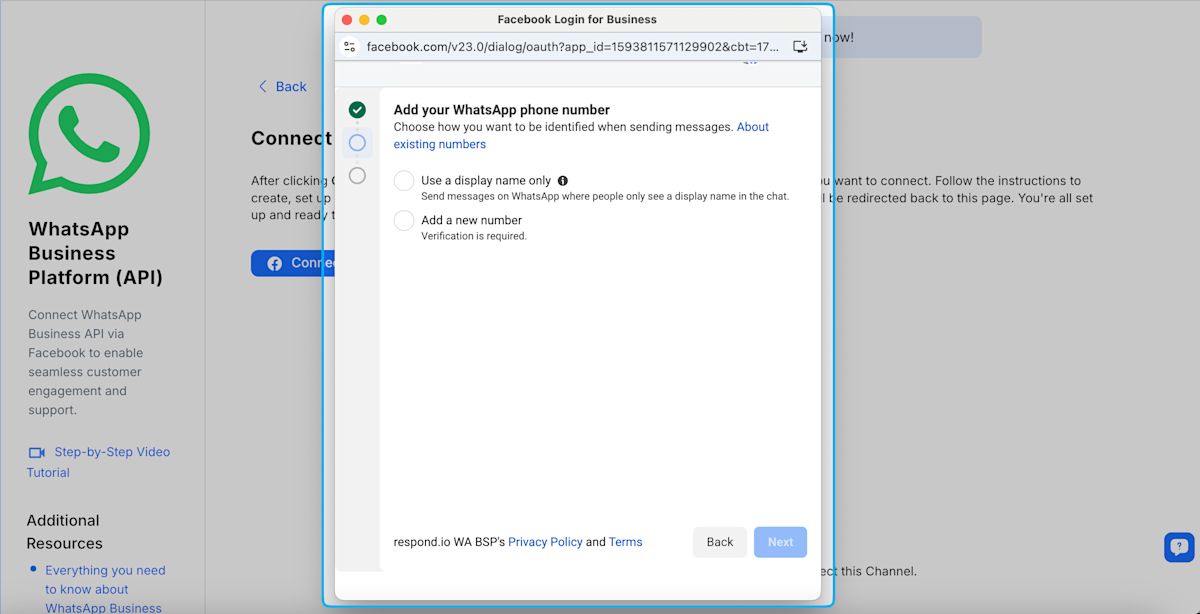
Verify your phone number with the code sent via text message or phone call (if you selected Add a new number) > click Next.
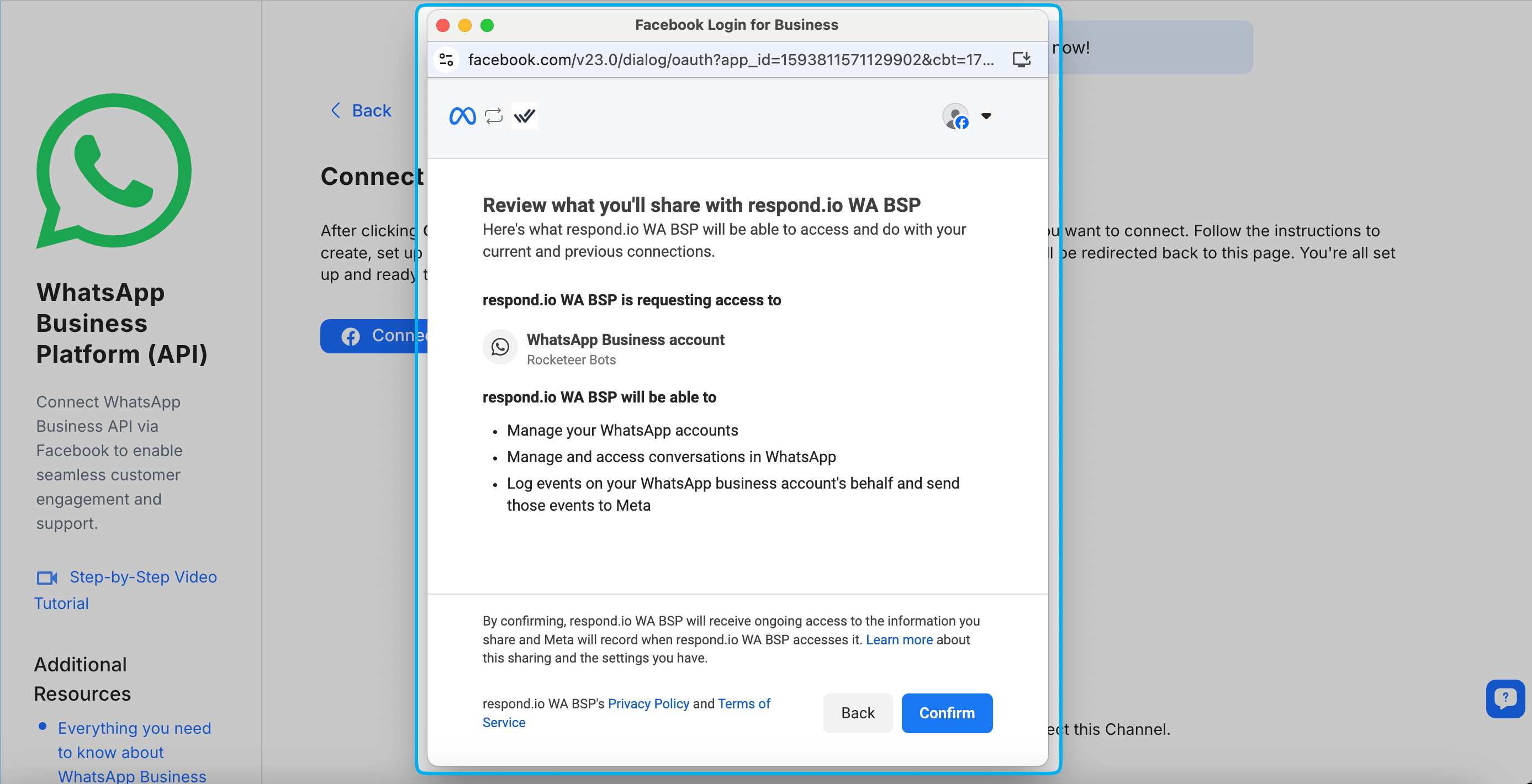
Review what you’ll share with respond.io > click Confirm.
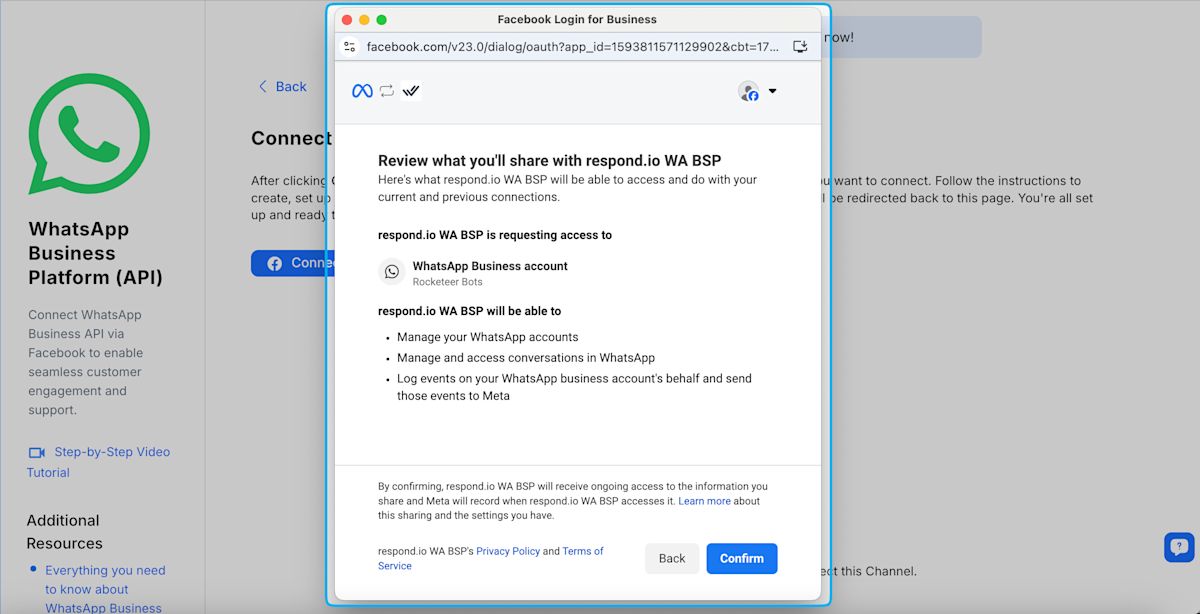
Click Finish.
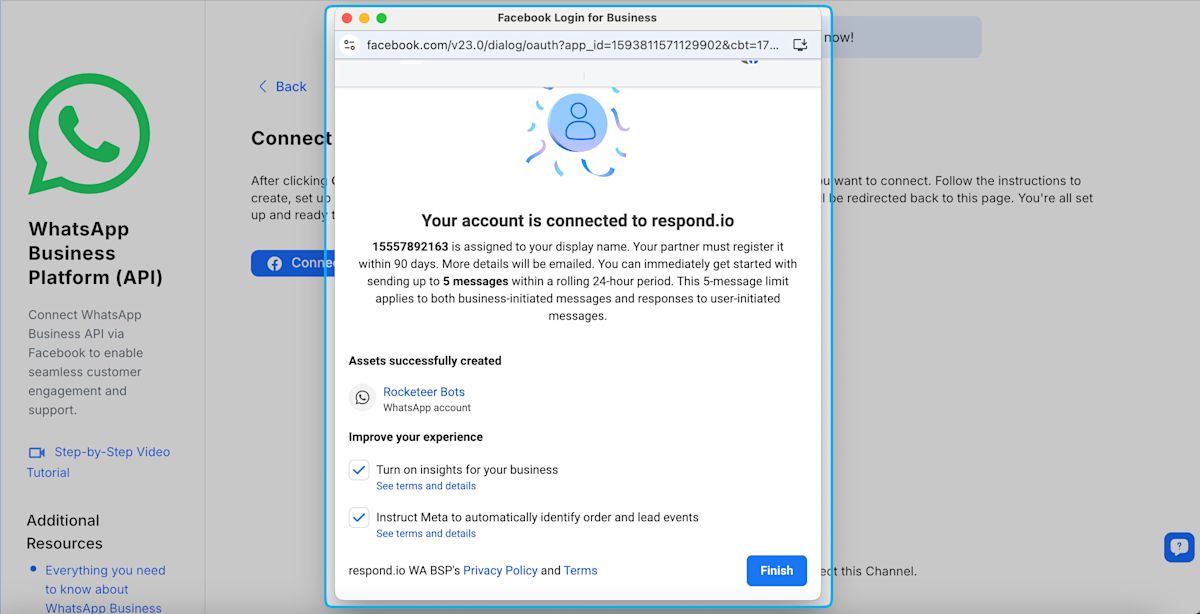
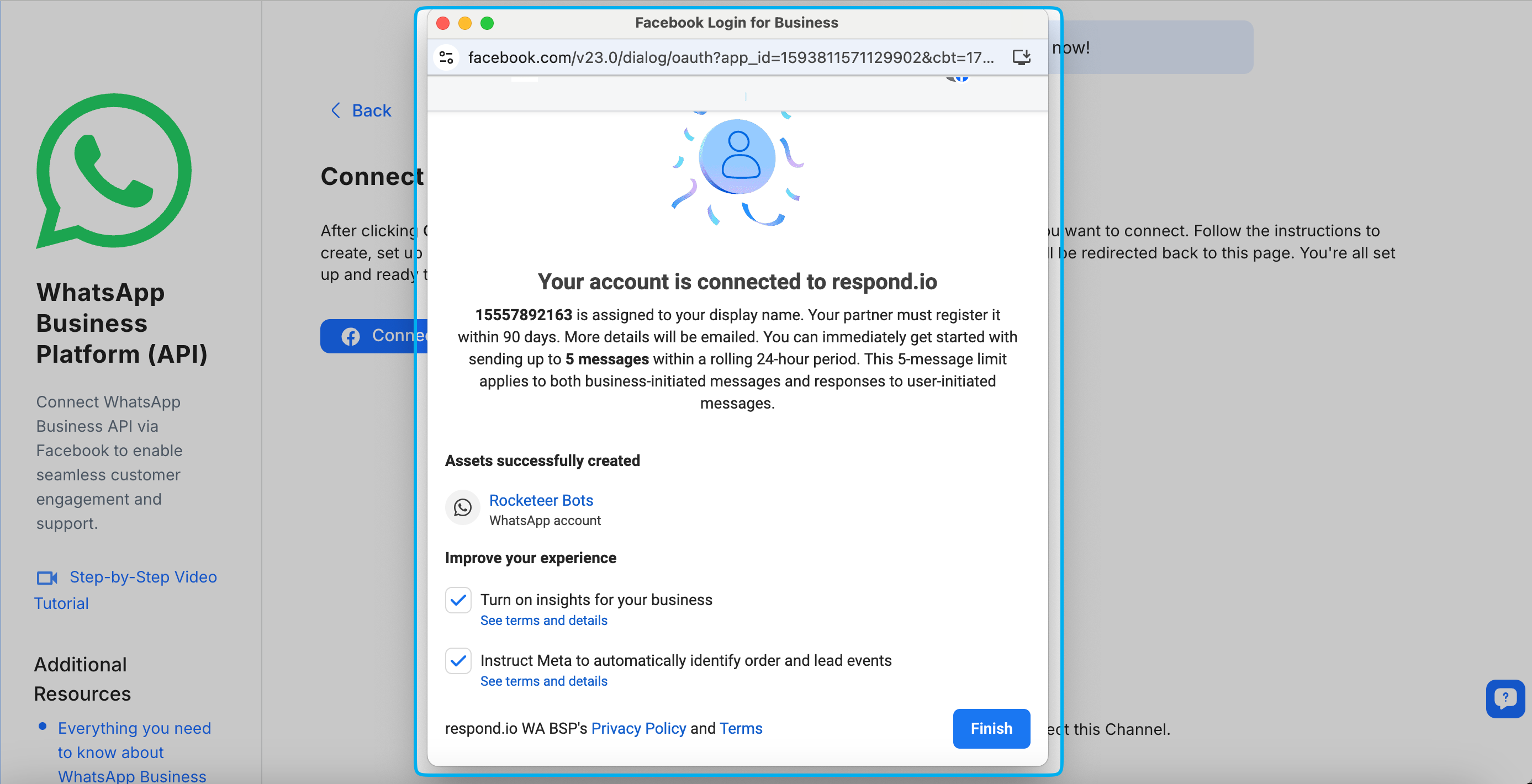
Important: If you see Continue to feature setup instead of Finish, your setup is incomplete. Go to Meta Business Manager > WhatsApp Manager > Setup guidance to check why. See this FAQ below for how to resolve it.
Your WhatsApp Business Platform (API) Channel is now connected to respond.io.
Edit your profile — including profile photo, address, and description — at any time. Learn more about managing your WhatsApp Business Platform (API) profile.
Ensure your WABA/MBM currency is set to USD. This step is crucial to avoid issues with sending business-initiated conversations, even when you have sufficient credits.
Sending a test message
Once the Channel is connected, send a test message to confirm messaging is working.
Send a test message — Use the link https://wa.me/{phoneNumber} to start a conversation with your WhatsApp Business account.
Reply to the test message — Navigate to the Inbox module in respond.io to send a reply.
Use the WhatsApp Link Generator to generate a chat link for your phone number.
FAQ and troubleshooting
How do I offboard a WhatsApp Business Platform (API) number from respond.io?
If you no longer wish to use respond.io as your Business Solution Provider (BSP), follow the steps below:
Step 1: Delete the Channel in respond.io
Go to Workspace Settings > Channels.
Select your WhatsApp Business Platform (API) Channel.
Delete the Channel.
Step 2: Remove respond.io as a partner in Meta (if applicable)
Go to Meta Business Settings.
Select WhatsApp Accounts.
Open WhatsApp Manager.
Remove respond.io as partner.
What happens after I offboard WhatsApp Business Platform (API)?
Messaging through respond.io will stop immediately.
Existing message history remains in your Workspace (unless deleted).
Removing respond.io as a partner does not delete or downgrade your WABA.
Deleting a phone number from your WABA may not take effect immediately, as Meta may require time to process the change.
What happens if my WhatsApp Business Account (WABA) currency is not USD?
WABAs with non-USD currency are not supported on respond.io and will cause issues sending business-initiated conversations, even if you have sufficient credits.
What you can do
Migrate your existing WABA into a new WABA.
If you need assistance, contact our support team.
Note: Creating a new WABA and connecting it manually is possible, but migration is the preferred approach.
Why am I seeing the error "The WhatsApp Business (WABA) you're trying to connect already connected with another organization"?
This error occurs when the WABA ID is already associated with a different respond.io organization. WABA IDs cannot be moved between organizations once connected.
What you can do
The phone number will need to be migrated to a new WABA under the new organization. Contact our support team for guidance on how to handle remaining funds associated with the old WABA.
Why am I seeing "Meta Error (#10): You do not have the necessary permissions required to send messages on behalf of this WhatsApp Business Account"?
This happens when the phone number wasn't fully registered sucessfully and stays in Pending status on the WhatsApp Business Account (WABA), which blocks respond.io from sending messages on its behalf.
What you can do
1. Delete the WhatsApp Business Platform (API) Channel from respond.io.
2. Reconnect the Channel via Embedded Signup.
3. Select the same WhatsApp Business Account (WABA) and phone number.
4. At the phone number step, select the same number showing as Pending.
5. Complete the flow to re-trigger the registration and OTP process and clear the Pending status.
If no verification code arrives to re-register the phone number, contact support for further assistance.
Why am I seeing “Meta Error (#133006): Phone number re-verification needed. Phone number needs to be verified before registering”?
This can happen if the OTP verification step in the embedded sign-up flow was skipped, leaving phone number registration incomplete.
What you can do
Trigger the verification code from Meta.
Verify your phone number using that code.
Complete the Channel connection.
For more information, refer to Meta's documentation on error codes.
Why is my WhatsApp Business display name rejected during sign-up?
This happens when the display name entered in Step 7 doesn't meet Meta's requirements, such as using all uppercase letters.
What you can do
Submit an appeal via Meta Business Support.
Use the exact display name already approved in the WhatsApp Business Account (WABA).
Why do I see “Continue to feature setup” instead of the “Finish” button?
This happens when your phone number wasn't added and verified successfully during sign-up, so your setup is incomplete.
Clicking Continue to feature setup will redirect you to the Setup guidance page. You may see that Connecting phone number to respond.io is shown as incomplete.
WABA restricted: Often due to incomplete business information or an existing asset restriction.
OTP not completed: This can happen if the OTP wasn't received or expired.
Number connected to an incorrect WABA: This usually happens with WhatsApp Coexistence — your number may still be linked to a previous BSP's credit line, which blocks the new connection.
What you can do
Go to WhatsApp accounts to check why it's incomplete:
If your WABA is restricted, submit an appeal via Meta Business Support.
If your OTP wasn't completed, retry connecting your Channel below (Step 2).
If your number is connected to an incorrect WABA, follow the steps to switch to respond.io as your BSP.
Retry connecting your WhatsApp Business Platform (API) Channel.
Need help? Contact our support team.


