

💡 Coming soon: WhatsApp is rolling out usernames in July 2026
When a Contact adopts a username, their phone number will no longer be shared with your business, so WhatsApp is introducing a new Contact identifier, Business-Scoped User ID (BSUID). Respond.io will handle this automatically — conversations will continue as normal and Contact records will remain unaffected.
Here's what's coming:
- Respond.io will support the new Contact identifier, BSUID when no phone number is available.
- Phone number will remain as the primary identifier if it’s present and sending messages via phone number will continue to work as usual.
- A new Request phone number button will be available for Marketing and Utility message templates — letting Contacts share their phone number directly in the conversation.
- For CRM-integrated businesses, BSUID will be available in webhook events and the Developer API, ready to sync with your third-party integrations. This applies to new Contacts created after April 2026.
Need help? Contact support or refer to Meta's documentation.
After connecting your WhatsApp Business Platform (API) Channel to respond.io, use the Channel configuration settings to manage your Channel name, business profile, supported file types, messaging rate limits, and best practices for keeping your WhatsApp Business Account (WABA) in good standing with Meta.
Configuring WhatsApp channel name
Set a unique internal channel name to identify this account within respond.io.
Navigate to Workspace Settings and click Channels.
Locate the WhatsApp Business Platform (API) Channel and click Manage.
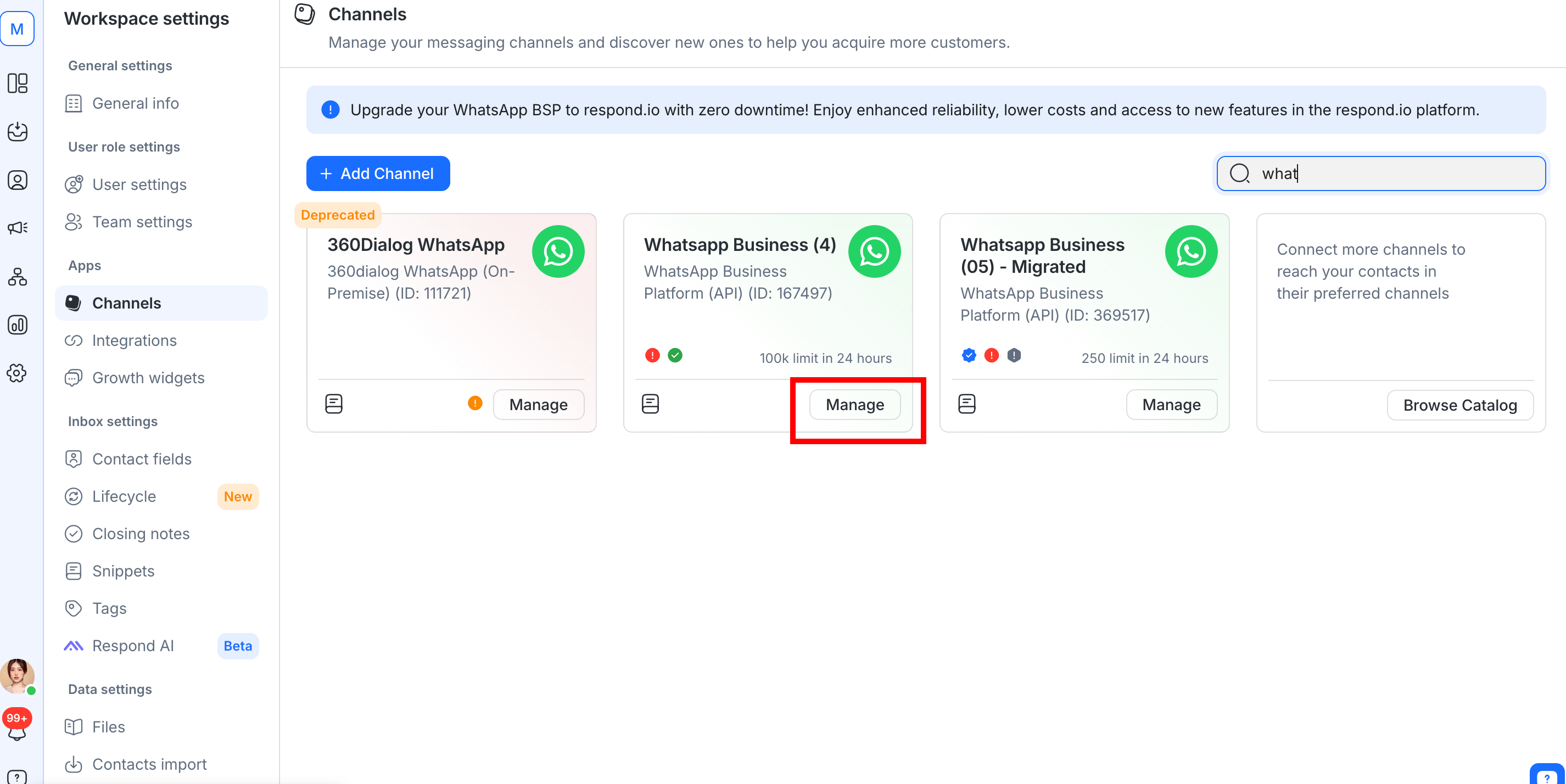
Configure the Channel name, which is used internally to identify the account.
ClickSave Changes to update the Channel configuration.
Managing the WhatsApp Business Profile
Update or review your WhatsApp Business Profile directly from the respond.io platform.
Step 1: Navigate to Workspace Settings and click Channels.
Step 2: Locate the WhatsApp Business Platform (API) Channel and click Manage > Profile.
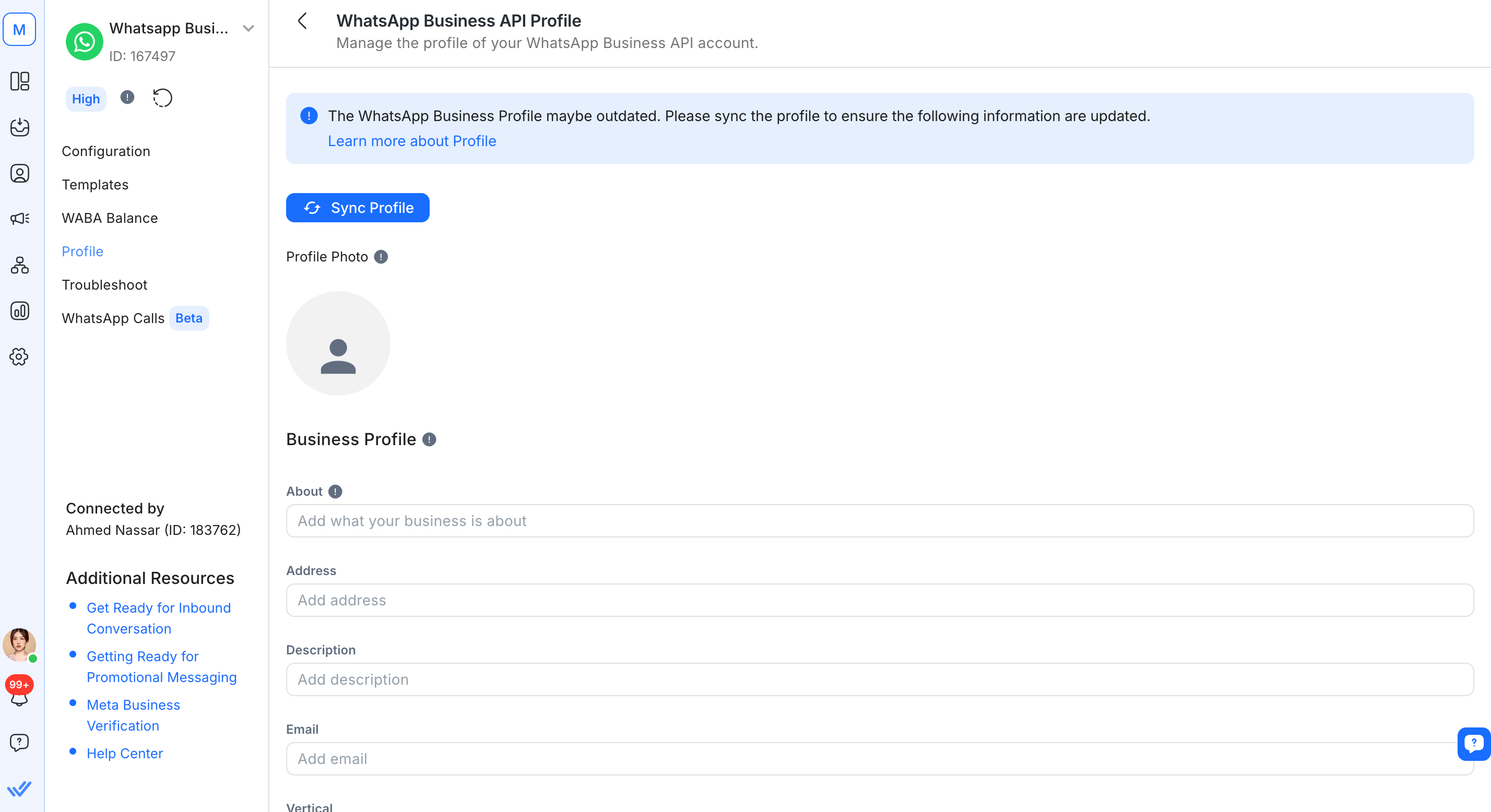
Step 3: ClickSync Profile to pull the latest WhatsApp Business Profile information from WhatsApp.
Step 4: Edit the following fields as needed.
Field | Description |
|---|---|
Profile Photo | Image shown as the profile picture of the WhatsApp Business Account. An image size of 640x640 is recommended. Images smaller than 192x192 may cause issues when resizing during upload. |
About | The business’s About text. Appears beneath the profile image, phone number, and contact buttons. Maximum 139 characters. |
Address | Address of the business. Maximum 256 characters. |
Description | Description of the business. Maximum 512 characters. |
Email address (in valid email format) to contact the business. Maximum 128 characters. | |
Vertical | Industry of the business. Accepted values: Automotive, Beauty Spa and Salon, Clothing and Apparel, Education, Entertainment, Event Planning and Service, Finance and Banking, Food and Grocery, Public Service, Hotel and Lodging, Medical and Health, Non-profit, Professional Services, Shopping and Retail, Travel and Transportation, Restaurant, Other. The business vertical cannot be set back to an empty value after it is created. |
Website | URLs (including |
Step 5: Review the information and click Save Profile.
Note: If your updated profile isn't showing to customers, click Sync Profile to see what WhatsApp currently has saved. If it still isn't correct, contact support.
Metadata received by Channel
Different channels provide different sets of Contact metadata to the respond.io platform. The following Contact data is available from this channel:
Phone number
Phone number ID
Profile name
WhatsApp ID
Business-Scoped User ID (BSUID)
Username
For WhatsApp Contacts who have adopted a username, BSUID and username fields are now available:
- In thechannelarray of the Channel Meta object onNew Incoming MessageandNew Outgoing Messagewebhook events.
- The List Contact Channels endpoint now returns BSUID and username fields. See the API documentation for updated field definitions.
This applies to new Contacts created after April 2026.
Supported file types
Type | Maximum size |
|---|---|
Audio and Video | 16 MB |
Document | 100 MB |
Image | 5 MB |
Sticker | 100 KB |
Unsupported file types or files that exceed the size limit are automatically converted to a URL link on the respond.io platform. Unsupported messages display as “Unsupported Message” or “Custom Payload” with type (if available). Click Show More to view the JSON payload for Custom Payload messages. Examples of unsupported message types for WhatsApp Business Platform (API): Reactions Deleted messages Polls Ephemeral messages
Confirm the file format is supported before sending. Files that are not converted properly may fail to send even when within the size limit. Learn more about supported media types.
Text formatting
Use text or markdown formatting in your messages. Learn more about how to format text in WhatsApp.
Rate limits
A rate limit is the number of API calls an app or user can make within a given time period. Learn more about the rate limits for this channel.
Channel limitations
WhatsApp groups
Group messaging is supported by Meta on the WhatsApp Business Platform (API) but is not yet available on respond.io. Upvote the feature request if this is important to your use case.
Unsupported number types
WhatsApp doesn’t allow Voice over Internet Protocol (VoIP) or toll-free numbers. This includes Google Voice numbers (VoIP) and domestic toll-free numbers, such as the UAE 800 series.
UAE 800 numbers can’t receive international SMS or voice calls, so Meta’s verification code can’t reach them.
Use a number in full international format, starting with + and the country code. The number must be able to receive SMS or voice calls.
WhatsApp Status
WhatsApp Status is not supported by the WhatsApp Business Platform (API). Posting, sending, receiving, or managing WhatsApp Status is not available. If you’re interested in this feature, upvote the feature request.
Meta Business Agent
Meta Business Agent is a separate Meta capability — Meta's own AI agent, set up and managed in Meta's tools for a specific WhatsApp phone number. Connecting or managing a Meta Business Agent from respond.io is not currently supported. Upvote the feature request if this is important to your use case.
WhatsApp Account Model Evolution (WAME)
Meta is gradually moving WhatsApp Business Accounts (WABAs) to a new account model, WhatsApp Account Model Evolution (WAME). It splits each WABA into two accounts:
Account | What it holds |
|---|---|
WhatsApp account | Phone number, business profile, username, and catalog. One per number, owned by your business. |
Messaging account | Message templates, billing, and webhook subscriptions. One per WhatsApp Solution Partner (also called a Business Solution Provider, or BSP). |
To check if your account is on WAME, go to Meta Business Suite > Settings. If WhatsApp accounts and Messaging accounts appear as separate items under Accounts, your account is on WAME.
Existing WhatsApp Channel connections keep working during the rollout. You don't need to reconnect your Channel.
With WAME, one phone number can connect to more than one partner. Each partner has its own Messaging account, templates, and billing. These stay shared across every partner on the number:
Throughput and messaging limits. Adding a partner doesn't increase them.
Quality rating. Every partner's sending affects it.
Any partner connected to your number can deregister it.
To add respond.io to a number that's already connected to another partner, follow Add respond.io to a WhatsApp number connected to another partner.
Set respond.io as the primary responder in Conversation Routing
When more than one partner is connected to your number, Conversation Routing in Meta Business Suite decides which partner receives and replies to incoming messages. By default, Meta routes messages to the first partner that connected to the number. If that isn't respond.io, incoming messages won't reach your respond.io Inbox.
You can change Conversation Routing only when more than one partner is connected to your number. It doesn't apply to WhatsApp Coexistence numbers, which can be connected to only one partner.
To route incoming messages to respond.io:
Go to Meta Business Suite > Settings.
Under Accounts, click WhatsApp accounts, then select your phone number.

Click the Conversation routing tab.

Click Manage.
In Manage who responds to messages, select respond.io in every dropdown:
Customer replies to click-to-WhatsApp ad
Customer sends a message
Calls with customers
Customer replies to a marketing message
Customer replies to a utility message

Click Apply.


Respond.io doesn't support standby mode. Set respond.io as the primary responder for every option, or incoming messages won't reach your respond.io Inbox.
If you remove a partner from your number, check Conversation Routing afterwards. Meta doesn't pick a replacement automatically.
Best practices
To maintain a stable WhatsApp Business Platform (API) setup and avoid unexpected bans or disruptions, follow these best practices.
Avoid WABA disablement
Follow these best practices to avoid WABA disablement.
Use a verified and unique Meta Business Manager (MBM)
Use one MBM per business. Creating multiple MBMs with the same business name, address, or website may be flagged by Meta.
If a previous MBM was banned, avoid using the same business details for a new one — Meta may instantly ban it.
Verify your MBM by submitting official business documents (e.g., business license, matching website).
Control access carefully: Only grant admin rights to real Facebook profiles with consistent activity (posts, friends, etc.).
Enable Two-Factor Authentication (2FA) for all admins.
Manage WhatsApp Business Accounts (WABAs) responsibly
If a WABA is banned, appeal via Meta Support. Do not create a new WABA while an appeal is pending — this may be seen as policy evasion.
Use clear and accurate display names. For example, “Acme Co – California” is better than just “Acme”.
Do not delete and recreate phone numbers frequently (“burning” numbers). Resolve reported issues via Meta instead.
Handle Facebook users the right way
Admins must use authentic Facebook accounts with real history.
Avoid using newly created or duplicate accounts solely for access purposes.
Limit access to essential team members and regularly audit MBM users.
Enforce 2FA to reduce the risk of unauthorized access.
Keep your business aligned across platforms
Ensure your business name, address, website, and other details match across your MBM, WABA, and Ad Account.
This alignment increases trust with Meta and improves your chances of verification.
If your WABA gets disabled
Do not create a new WABA.
Submit an appeal via Meta Business Support.
Gather and provide necessary documentation (e.g., business license, proof of domain ownership).
Review and correct any violations of Meta’s Business Messaging Policy.
Following these best practices helps keep your WhatsApp setup secure, stable, and compliant with Meta’s policies.
CRM or custom integrations
If you are syncing Contacts from respond.io to your CRM or custom integrations, prepare to:
Add a dedicated BSUID field to your CRM. Store BSUID alongside existing identifiers (phone number or email) to map conversations correctly and link history when a phone number isn't available.
Build logic to handle both phone numbers and BSUIDs as identifiers. Your system should fall back to BSUID when a phone number is not available to match Contacts to the right record.
Contact book for WhatsApp
Meta’s WhatsApp Business Manager includes a contact book for WhatsApp that stores user contact information to support messaging thread continuity. It is enabled by default.
If this feature is turned off, respond.io will not be able to match Contacts who use WhatsApp usernames with their existing Contact records when there's been no interaction within a 30-day window. This will result in duplicate Contact entries being created.
To avoid duplicate Contact entries:
Go to Meta Business Suite > Business settings > Business info
Confirm contact book for WhatsApp is toggled on.
Learn more about the contact book and 30-day window.
Set up a WhatsApp business username
Meta is gradually rolling out business usernames to selected regions. In the meantime, you can reserve a username now through Meta Business Suite — Meta holds it for your WhatsApp phone number, so no other business can claim it. Your reserved business username (approved by Meta) will become active once the feature is officially available in your region.
WhatsApp business username is an optional feature that gives your business a unique identifier — for example, @YourBusinessName. Your Contacts can use it to find and message your business without needing your phone number.
Business username is different from the display name:
Your display name doesn’t have to be unique.
Your username must be unique per phone number. If you have multiple phone numbers, each needs its own username.
Here’s how to reserve a username:
Go to Meta Business Suite > Settings.
Click WhatsApp Accounts in the left menu.
Click the phone number you want to create a username for.
Click Phone numbers, then click the pencil icon.
Navigate to Username, then click Create.
Enter the username you want. You can also choose a username from Suggested.
Click Save.
After setting up the business username, both the username and phone number will remain visible on your business profile.
Learn more about business username for WhatsApp in the Meta doc.
FAQ and troubleshooting
What are the requirements for phone number to be used to sign up for WhatsApp Business Platform (API)?
Mobile, virtual, and landline numbers can all be used, as long as the number can receive the OTP verification code via SMS or phone call.
The number can't already be registered on WhatsApp Personal or Business App — delete that account first if it is.
After registering, the number can still be used for other purposes, such as calls and SMS.
Can I view my conversation insights for my WhatsApp Business Account?
Yes. Monitor messaging and spending analytics in real-time in the Insights tab of your Meta WhatsApp Manager. Learn more about WhatsApp Business account insights.
Why do I see duplicate Contacts from the same WhatsApp channel?
WhatsApp passes the Contact's phone number in a format that is different from the E.164 format that respond.io uses. This difference causes Contacts from certain countries to be duplicated. Should this occur, contact support.
How do I get my business name to be shown to my contacts on WhatsApp rather than my business number?
Standard WhatsApp Business Platform (API) Accounts display the business number rather than the name. To display your business name to Contacts even if they haven’t added your business to their address book, you will need a WhatsApp Official Business Account.
Official Business Accounts have a green tick next to the business name, and usually only large, high-profile businesses will be given this status. Learn more about how to apply for a WhatsApp Official Business Account.
Why do I get the error "Business account is restricted from messaging users in this country"?
Meta temporarily blocks WhatsApp numbers from outside Brazil and Indonesia from sending messages to Contacts in those countries. You can still receive messages from them.
To message these Contacts, use a WhatsApp number from the same country. You can also change your business country to Brazil or Indonesia in Meta Business Manager.
What is Meta Product Catalog and how can I use it?
Meta Product Catalog is a feature that allows you to create a catalog of your products and share it with your customers. Learn more about using Meta Product Catalog in respond.io.
Can a subsidiary company or an agency register a WhatsApp Business Account on behalf of another company?
Yes, they can. However, the Meta Business Account and business information used to register the WhatsApp Business Account must belong to an entity that can be verified with the relevant legal documentation. Learn more about Meta Business Verification.
How many WhatsApp phone numbers and Channels can I add, and how do I increase the limits?
Meta phone number limit (per Business Portfolio)
Unverified businesses can register up to 2 phone numbers.
To register more than 2, complete Meta Business Verification for your Business Portfolio.
Verified businesses can increase their limit to 5, then to 20.
If you're stuck at 5 or 20 phone numbers, contact respond.io support to request an increase.
Channel limit on respond.io (per Organization)
Each Organization can connect up to 5 WhatsApp Business Platform (API) Channels.
When connecting a Channel, you may see this error: “You have reached the limit for WhatsApp Business Platform (API) channels. Delete an existing WhatsApp Business Platform (API) channel to add a new one. Talk to our Support for more information.” This error has two possible causes:
Your Organization has 5 Channels connected. Delete an existing WhatsApp Business Platform (API) Channel to add a new one. To connect more than 5, contact respond.io support.
Meta has flagged your WhatsApp Business Account (WABA). If a WABA has been disabled more than 2 times, Meta may flag the account. When this happens, you may be blocked from connecting new WhatsApp Channels to respond.io. To lift the block, contact respond.io support and request a whitelist review.
How can I check my WhatsApp conversation consumption?
To check your WhatsApp conversation consumption, follow these steps:
Navigate to your Meta Business Manager.
Click on Settings > Business Settings > WhatsApp Accounts
Select your WABA and click on Settings > WhatsApp Manager.
Under Account tools, click on Insight.
Why does the message enter as an unsupported message with error code: 131051?
One of the possible reasons is that WhatsApp API accounts are not designed to chat with other WhatsApp API accounts. This is a Meta restriction. Note that the error code: 131051 is used for multiple types of errors related to unsupported message types. If you are unsure about this error, contact support.
Why am I receiving an error message stating “Undefined: Receiver is incapable of receiving this message” when trying to send messages?
This error message is passed by Meta. Here are a few steps suggested by Meta to troubleshoot the issue:
Ensure that the Contact receiving the message:
has an active WhatsApp account.
is using the latest version of WhatsApp.
has accepted the new Terms of Service and Privacy Policy.
is not banned on WhatsApp or from a country where WhatsApp is banned.
I’ve lost credentials for my Meta Business Manager account. What should I do?
To regain access to your Meta Business Manager account, follow Meta’s guide to resetting your password and recovering your email or phone number.
Why was my WhatsApp Business Account disabled?
Your WhatsApp Business API (WABA) account may be disabled for several reasons. Common issues include non-compliance with Meta’s Commerce Policies and listing an invalid website. To appeal this decision, you should take the following steps:
Ensure Compliance with Meta’s Commerce Policies: Review and align your business practices with Meta’s guidelines. This is crucial for a successful appeal.
Ensure you have a Valid Website: Update your business information in the Meta Business Manager (MBM) to include a valid and clear website that showcases the nature and details of your business.
Prepare an Appeal: In the appeal dialogue, explain how your business uses WhatsApp for communication. Highlight that:
Messages are sent only to customers who have opted in.
All communications are relevant to your business and following WhatsApp’s policies.
What should I do to prepare an appeal if my WABA is disabled?
Follow these steps and review the key information to ensure your appeal is well-prepared. If you are appealing through our Customer Support team, please ensure that these screenshots are shared with them as well.
Review your business account quality: Go to Account overview > Click View my accounts
Verify business details: Go to Business portfolio info
Retrieve your MBM ID, WABA ID and phone number quality rating to submit an appeal:
Retrieve your MBM ID from your business info.
Go to WhatsApp accounts and retrieve your WABA ID. Select the correct WhatsApp account and click to copy the WABA ID.
Scroll down and go to your WhatsApp Manager to view your phone number quality rating.
Why did I receive this error “Business eligibility payment issue” when sending a message?
This error may occur when you have recently deleted a Channel and tried to send a WhatsApp message template or start a new conversation using a different WhatsApp Business number. This is due to the credit line being released from your deleted Channel’s phone number and redistributed to your remaining phone numbers. This process can take up to 5 minutes. Wait 5 minutes before sending the message again.
This error will only occur if you have more than one number under the same Business Manager and those numbers are connected to the platform.
Can my WhatsApp API number connected to a WhatsApp Business Account (WABA) registered in Business Suite directly connect to respond.io?
No, it is not possible for your WhatsApp API number that’s connected to a WhatsApp Business Account (WABA) registered in Business Suite to directly connect to respond.io.
Why isn’t my Contact’s profile picture showing?
Due to limitations with the WhatsApp Channel, respond.io cannot display your Contact’s profile picture. WhatsApp does not provide an API to fetch this information.
Does a Contact’s WhatsApp privacy setting change what I see in respond.io?
No. WhatsApp privacy settings such as My contacts control who can see a person’s personal info, like their profile picture, last seen and About. WhatsApp doesn’t share any of these with respond.io, so the Inbox and Contacts module look the same either way. See which Contact data this Channel receives.
What happens when I delete my WhatsApp Channel?
Deleting a WhatsApp Channel will not remove the associated Contacts or chat history.
Chat history is linked to your Contacts, unless you manually delete a Contact from the Contacts module, both the Contact and their conversation history will remain in the workspace.
When you reconnect the same WhatsApp Channel and receive a message from the same number, the Contact will be merged with the existing one.
Why am I seeing “Meta Error (#131057): Account in maintenance mode” on WhatsApp?
This happens when your WhatsApp Business Account is temporarily in maintenance mode, usually during a throughput upgrade. It lasts about a minute, and your number will work again automatically once the upgrade is done.
Why am I seeing “Meta Error (#190): Authentication Error” when sending messages?
This error occurs when your WhatsApp Business channel’s access token has expired or is no longer valid. This can happen after changes to your Meta Business Portfolio.
To resolve this:
Go to Workspace Settings → Channels, select your WhatsApp Business channel, then open Troubleshoot.
Click Refresh permissions. You may be asked to sign in to your Meta account.
Once you see the success message, try sending a message to check that your channel is working.
If permissions can’t be refreshed:
Try again. If the issue persists, contact support.
If you see a message that respond.io no longer has permission to access your channel, complete the Embedded Signup flow again to reauthorize access. If the issue persists, contact support.
If you see Too many requests, you’ve reached the limit of 3 times per day. Try again later. If the issue persists, contact support.
Note: These steps apply only to WhatsApp Business channels connected via Embedded Signup that use a Business Access Token (connected from October 2025 onward). Older connections that use a System User Access Token won’t see Refresh Permission.
Why am I seeing a “Media Upload Error” or “Media Download Error” when sending a template?
These errors occur when the media file attached to your template doesn’t meet Meta’s requirements. Common causes include:
The file format is not supported.
The file type is incorrect.
The media exceeds Meta’s size limits.
These issues originate from Meta’s side and are outside respond.io’s control. You can also refer to Meta’s error codes documentation for more details on specific error responses.
Why can’t my Contact see which message I’m replying to on WhatsApp?
This happens because WhatsApp messages older than 30 days are moved to long-term storage by Meta, so the context of the original message is no longer available. As a result, the “reply-to” bubble does not appear when you reply to those older messages.
This is a Meta limitation with no workaround. The same applies in reverse — if a Contact replies to one of your messages older than 30 days, you won’t see the quoted message either.
Does WhatsApp Business Platform (API) support group chats?
No, it does not support managing or sending messages to group chats. Meta has deprecated the development of this feature.
What happens after I turn on insights for my business or allow Meta to automatically identify orders and lead events before completing the Channel connection?
Once you enable these options, Meta will automatically notify partners about conversions. However, Meta hasn’t fully optimized this feature yet, so enabling these options will not impact your Channel connection. Learn more in the Meta doc.
Why am I seeing the error “Messaging window has been closed for this contact”?
This error appears when a free-form message is sent after WhatsApp’s 24-hour messaging window has expired. After the window closes, only approved message templates can be sent to re-open the conversation.
To resolve this:
Send a WhatsApp message template using the Send a Message step in Workflows.
Handle the failure using a message failure branch in Workflows.
Manually take over the conversation and send a WhatsApp message template from the Inbox.
Learn more about how messaging windows work.
Why did outbound WhatsApp messages suddenly fail with an error while I was actively messaging a contact?
Outbound messages sent via Workflows, AI Agents, or integrations (such as Developer API, Zapier, Make.com, or n8n) may occasionally fail due to temporary disruptions on Meta’s side, even if you were actively communicating with the contact.
This can happen due to:
A short disruption in WhatsApp Cloud API traffic
Message overload, where sending multiple messages at once causes some messages to time out or fail
An unexpected system error during message processing or validation
Retry sending the message after 15 minutes.
If the issue continues after multiple retries, contact our Support team.
Does viewing a conversation in respond.io mark it as read on WhatsApp?
Yes. Viewing a WhatsApp conversation in the Inbox marks it as read in the WhatsApp app. A reply isn't needed for the conversation to be marked as read.
Why is my payment method missing?
This can happen if you selected an existing WhatsApp Business Account (WABA) previously tied to a different BSP, instead of creating a new one. The credit line isn't associated with respond.io ("rocketbots.io"), so the payment method is missing.
This applies whether you're:
What you can do
Create a new WABA instead, and make sure your phone number registers successfully.
If you've already completed the entire flow correctly and the payment is still missing, top up your WABA balance.
What do the "Unavailable," "Pending," and "Offline" statuses mean?
You may see the following statuses when you’re connecting a WhatsApp Business Platform (API) Channel or migrating your number to respond.io:
Unavailable / Pending: The phone number hasn't been successfully registered with Meta yet.
Offline: The phone number was previously registered but is no longer online, and messages stop working.
What you can do
For Unavailable / Pending statuses: Complete the embedded sign-up flow, including OTP verification, to register the number.
For Offline status: Contact support for assistance. If further action is required, you may be asked to complete the embedded sign-up flow again, obtain a new PIN, and verify the phone number using an OTP.
Why did I stop receiving WhatsApp messages in respond.io?
If your account is on WhatsApp Account Model Evolution (WAME), another partner or integration connected to your number may be set as the primary responder. Conversation Routing then sends incoming messages to them instead of respond.io.
To fix this, set respond.io as the primary responder in every dropdown. Follow the steps in Set respond.io as the primary responder in Conversation Routing.
If the issue continues, contact our support team with a screenshot of your Conversation Routing settings.


