

The Meta Product Catalog lets businesses upload and showcase product inventory directly in WhatsApp conversations. Use it to send interactive product catalog cards, run product-focused Broadcasts, and build automated shopping Workflows — all from respond.io.
Supported Channels: WhatsApp Business Platform (API) and WhatsApp Cloud API
Before you begin
Before connecting the catalog in respond.io, link it to your WhatsApp Business Account (WABA) in Meta Business Manager (MBM).
Learn more about linking your catalog to your WABA in MBM.
If your business operates in India, specific legal requirements apply to selling on WhatsApp. Learn more about selling online on WhatsApp Business Platform in India.
Connecting the Meta Product Catalog
Navigate to Workspace Settings > Channels.
Locate the WhatsApp Business Platform (API) Channel > click Manage.
Click Meta Product Catalog > Connect Catalog.
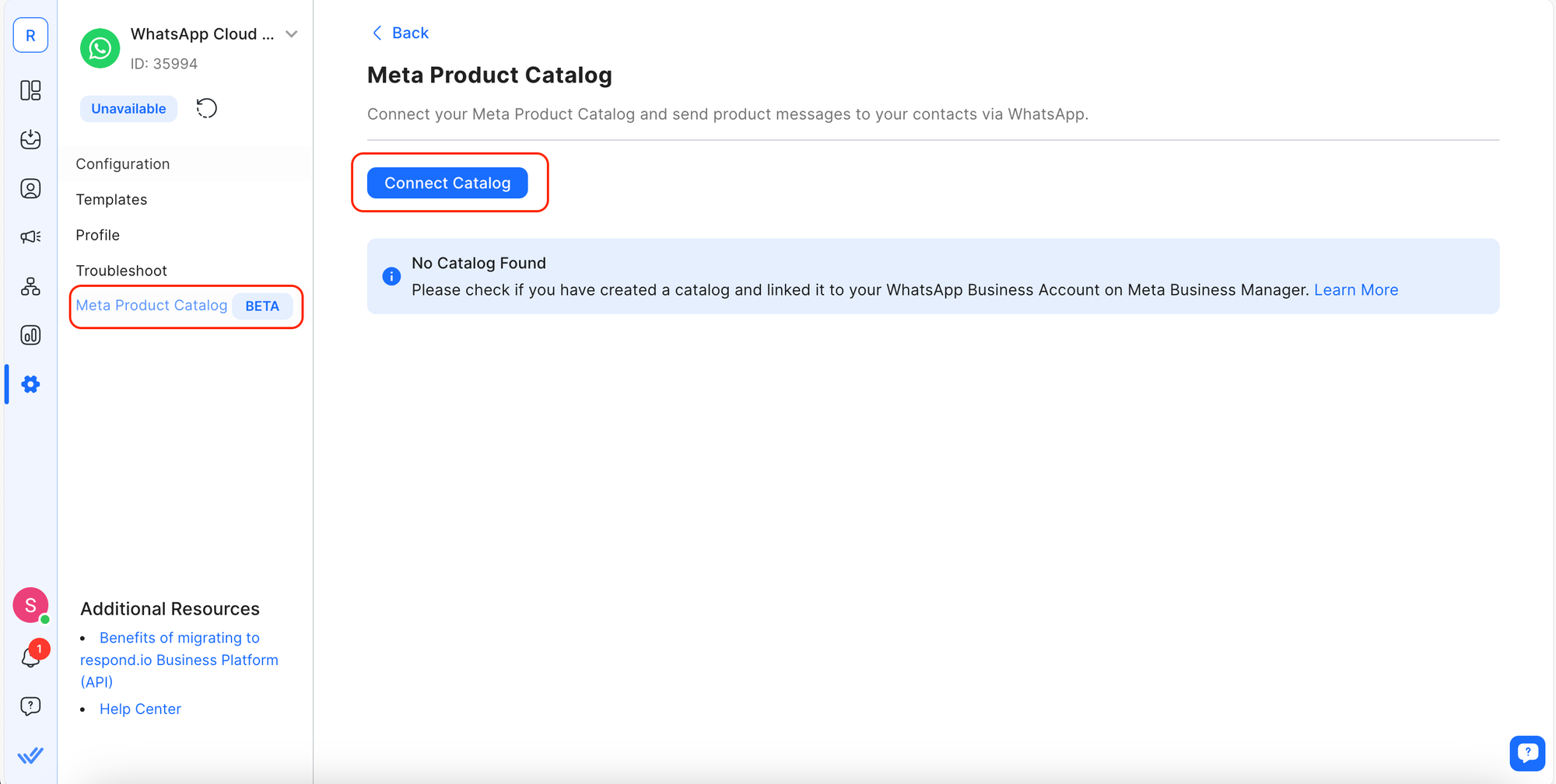
Configuring the Meta Product Catalog
Once connected, configure the following settings:
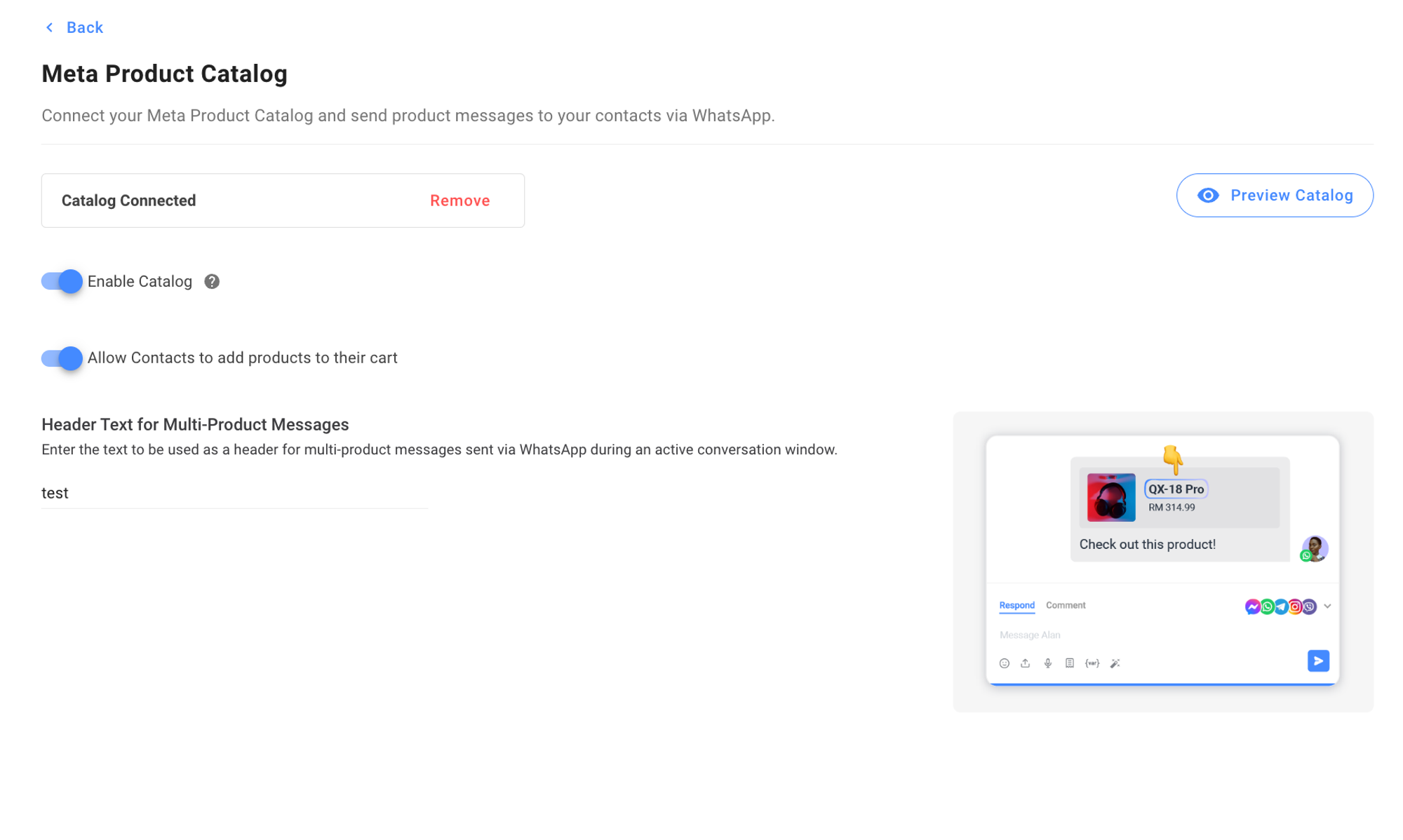
Enable Catalog (toggle): Allows sending product messages so Contacts can access the catalog.
Allow Contacts to add products to their cart (toggle): When enabled, Contacts see the Add to Cart button. When disabled, Contacts can still view products but can't add to cart.
Header Text for Multi-Product Messages (text): Sets the header text displayed when sending multi-product messages.
Preview Catalog: Click Preview Catalog to review and verify catalog contents.
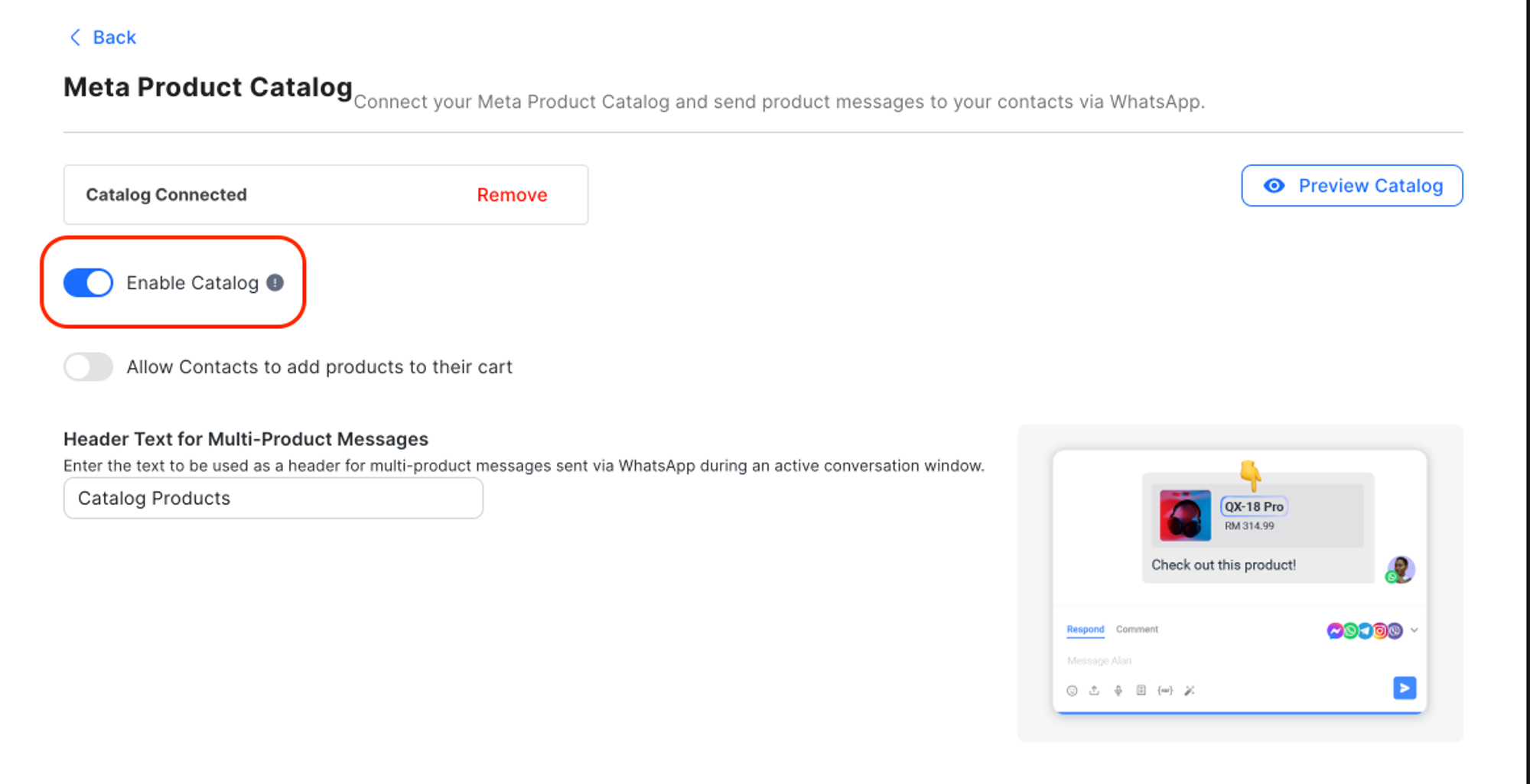
Disabling the catalog won't remove the connection to MBM. The Meta Catalog feature won't be accessible on respond.io, and it won't be visible to Contacts in WhatsApp.
Using the catalog across modules and features
Using Meta Product Catalog with WhatsApp Message Templates
Templates that include the Meta Product Catalog are categorized as Marketing Conversations and sub-categorized as Product Messages.
Create or edit a product message template
Step 1: Navigate to Workspace Settings > Channels.
Step 2: Locate the WhatsApp Business Platform (API) Channel > click Manage.
Step 3: Click Templates > click Submit Template, or select an existing template to edit.
To edit an existing product message, set the Category filter to Marketing to find product messages quickly.
Button text in templates is set by Meta and can't be edited.
Step 4: Select Marketing > Product Message in the Category list.
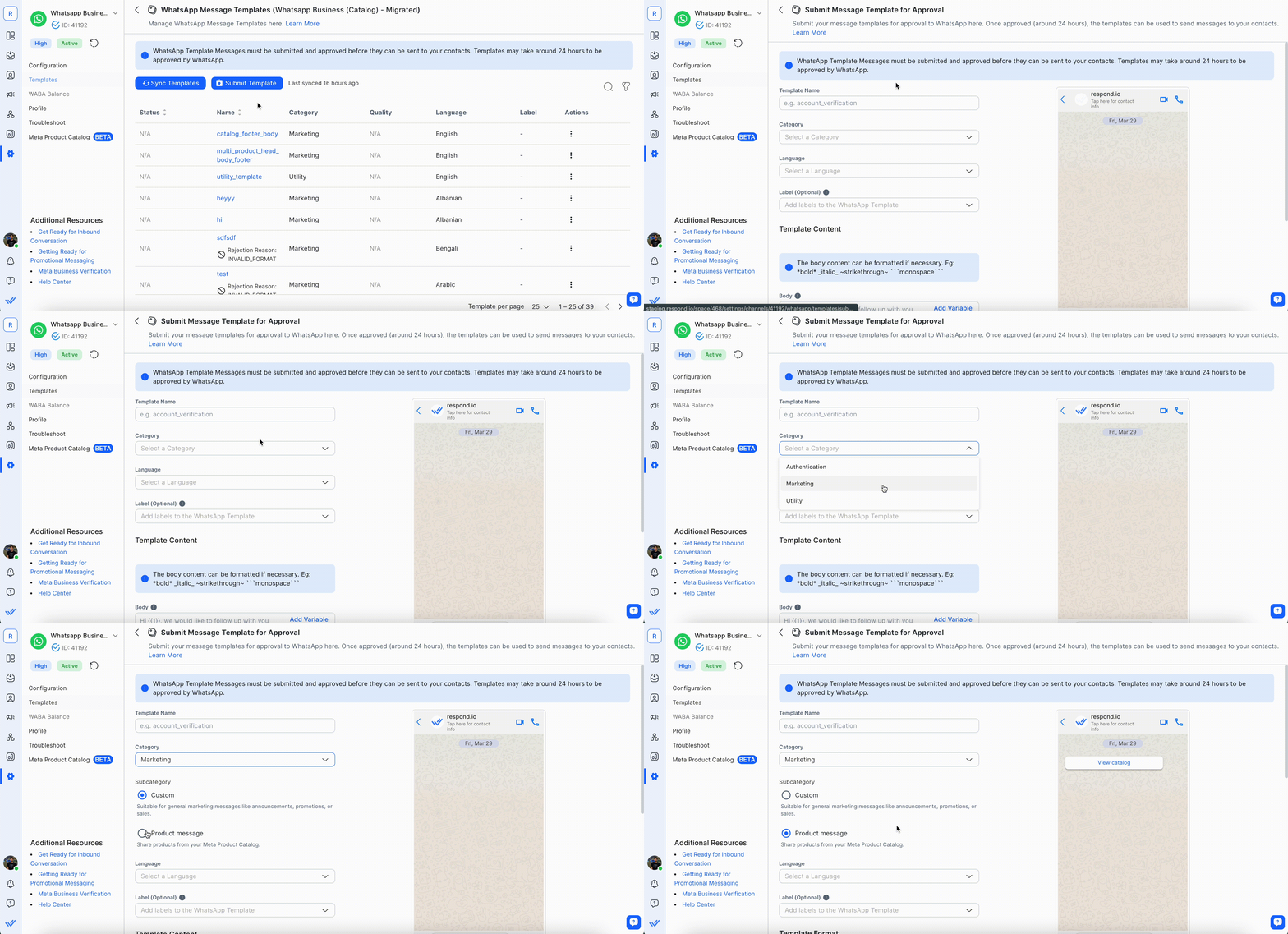
Learn more about submitting a WhatsApp Message Template.
When editing the template, choose a Template Format:
Catalog message: Shares the full catalog when a user clicks the template button. Headers aren't allowed for this format.
Multi-product message: Shares up to 30 selected products when a user clicks the template button. Headers are mandatory for this format.
Learn more about editing a WhatsApp Message Template.
Preview the Product Message Template on the right side while editing.
Step 5: Click Submit Template when finished.
Using Meta Product Catalog in Messages
Access the Meta Product Catalog from the Inbox to send single or multi-product messages, or the full catalog, to Contacts via the integrated catalog browser.
Send a product message
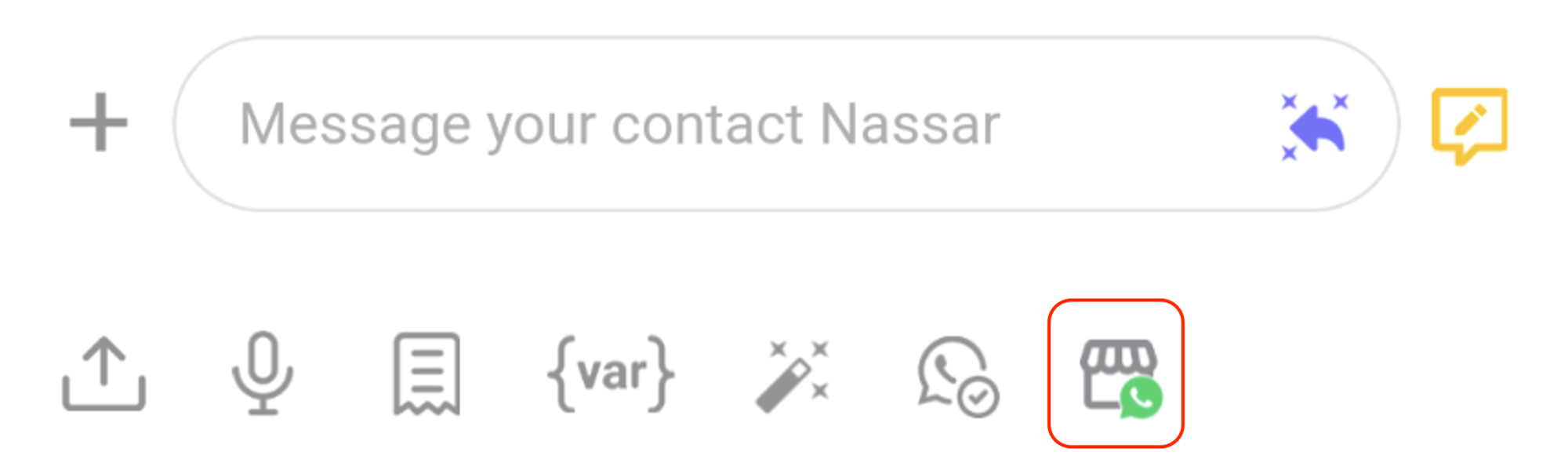
Step 1: Click the Meta Product Catalog icon > select the desired product(s), or click Send Full Catalog.
Step 2: Send the Product Message.
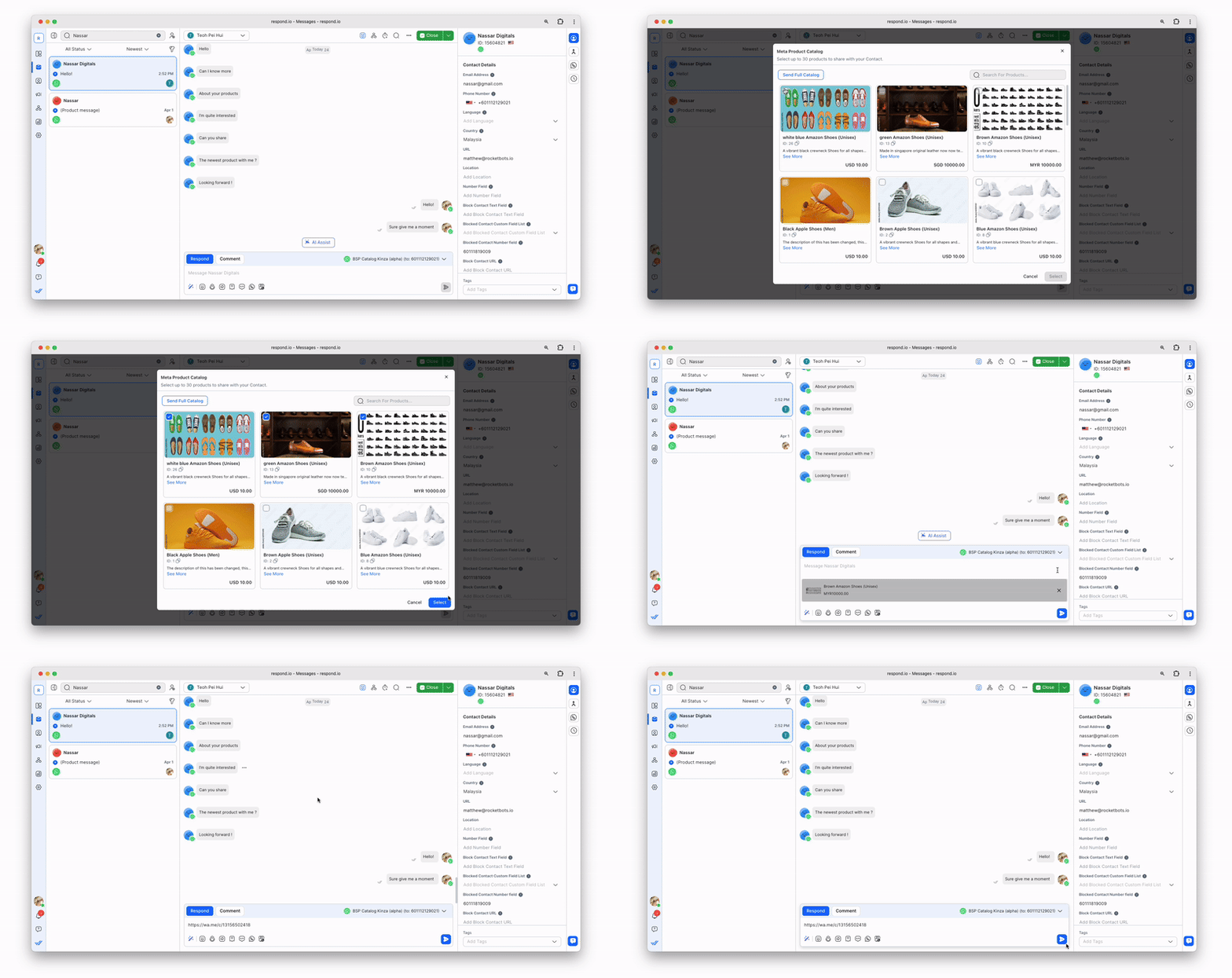
Receive orders with product messages
When a customer places an order via the catalog, an incoming message arrives and the order details become viewable in the Inbox.
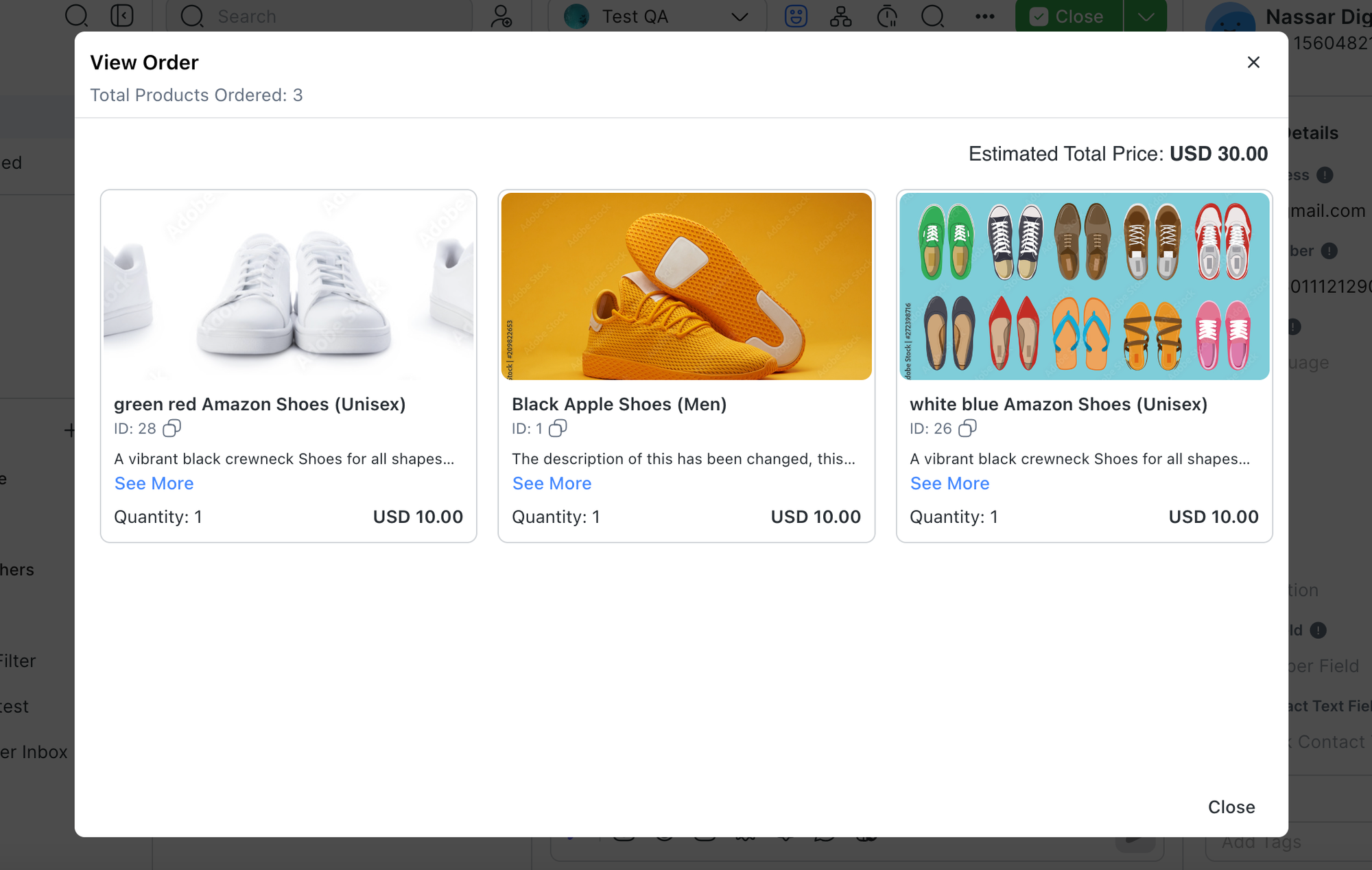
The total estimated cost and quantity displayed reflect values set when the order was placed, regardless of later changes in prices or product availability.
Send product template messages in Workflows
Send Product Template Messages using the Send a Message step in the Workflows module.
Step 1: Add a Send a Message step to the Workflow.
Step 2: Configure the Channel, select WhatsApp Template as the message type, and fill in the Message Content.
Step 3: Click Select Products to choose the desired product(s).
Catalog Message Templates send all products in a single catalog to Contacts. Select a product to feature as the thumbnail.
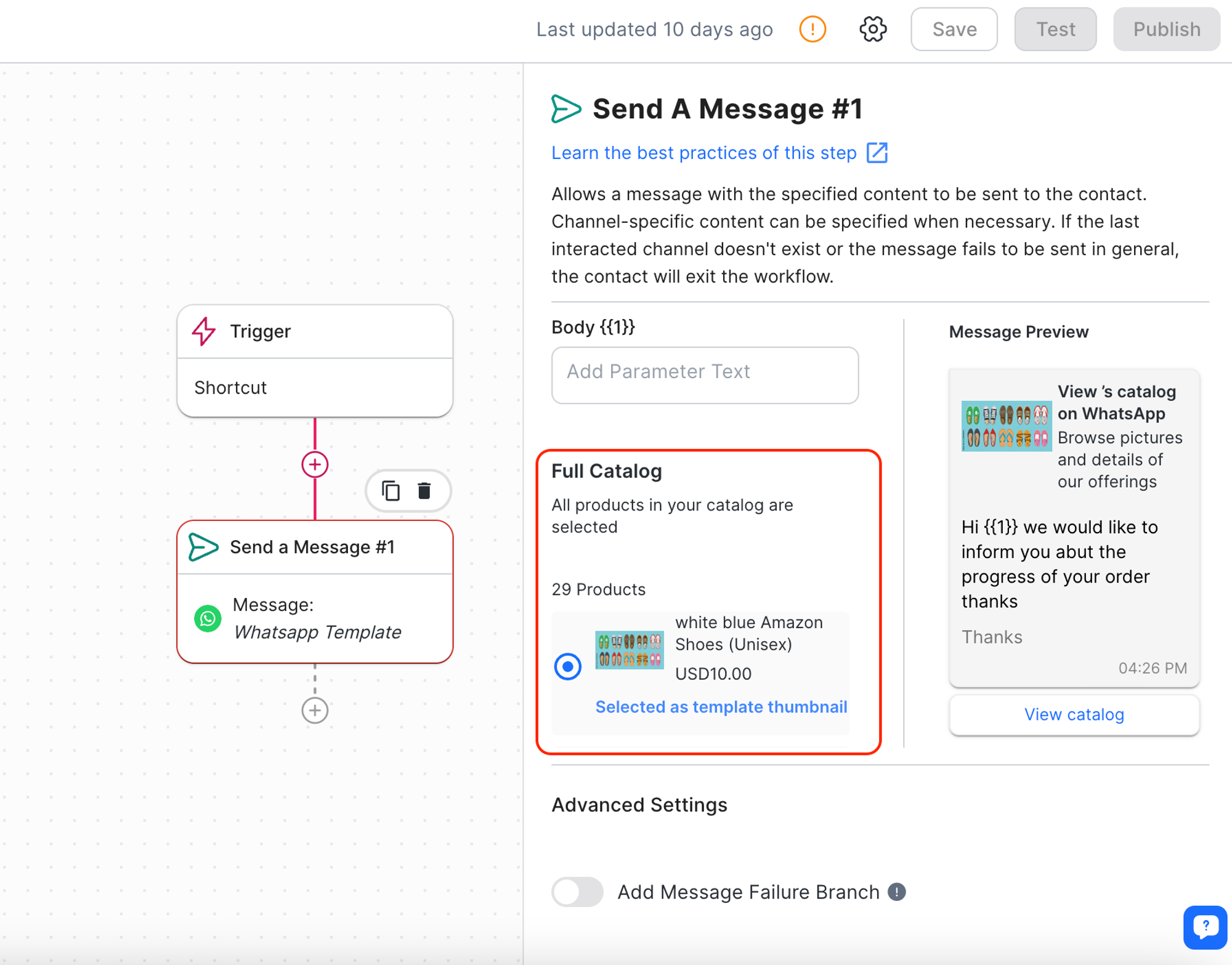
Multi-Product Message Templates support up to 30 products for Contacts to view.
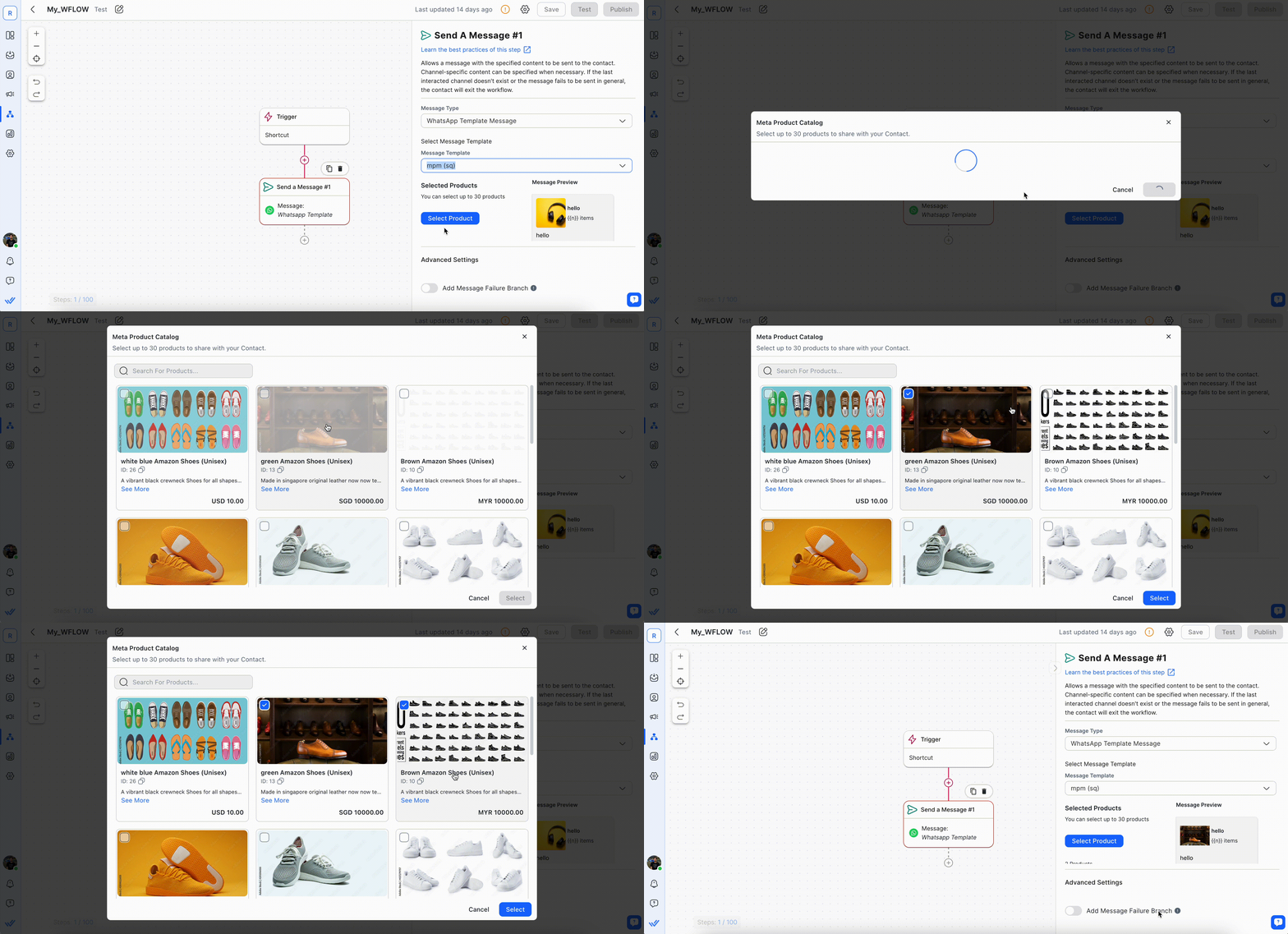
Product Message Templates can also be sent from the Messages module.
Configure a Broadcast to send product template messages
Learn the basics of how to send a Broadcast.
Step 1: Configure the Segment, Channel Type, and Channel > select a Product Message Template from the Message Template list.
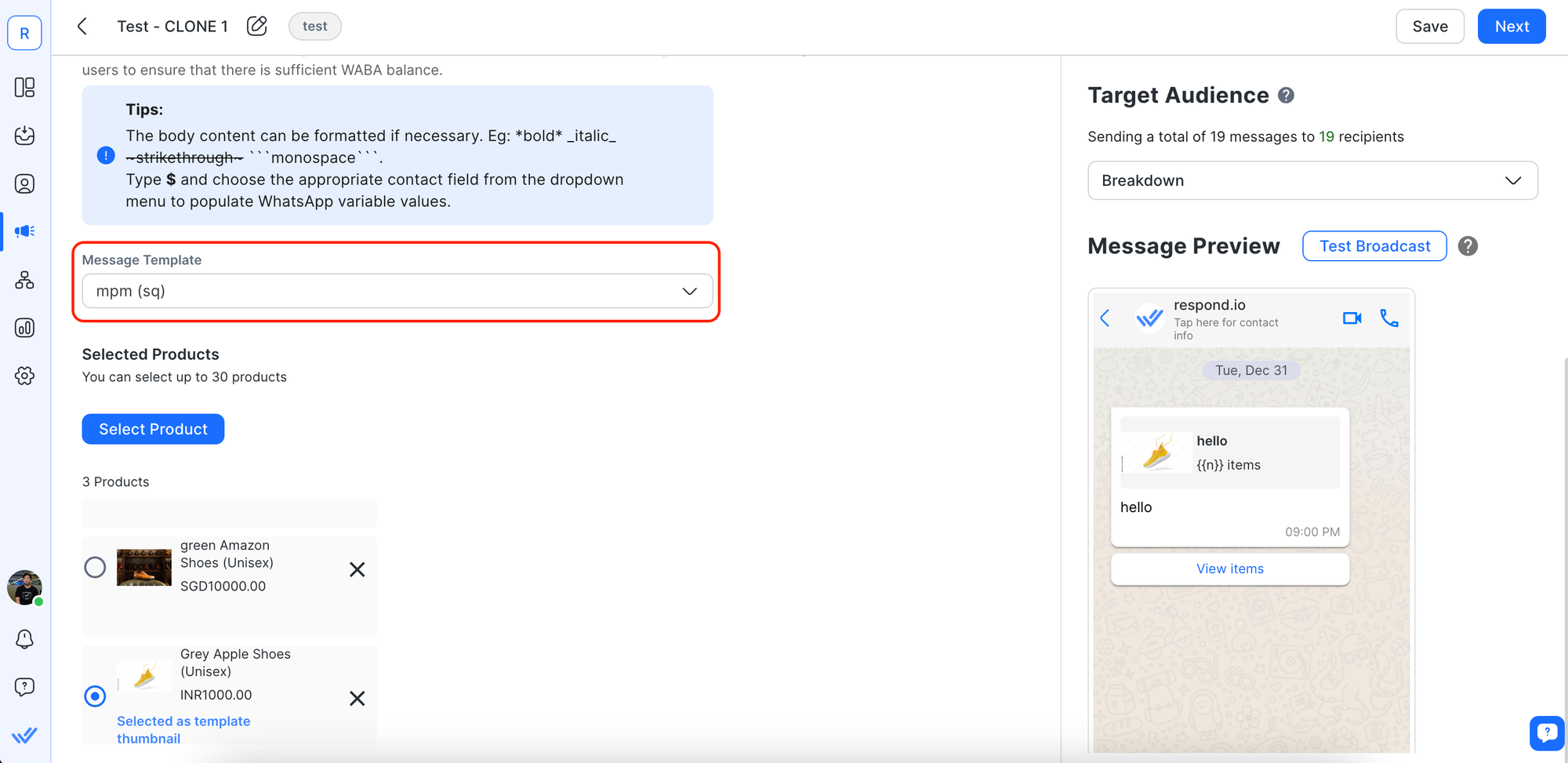
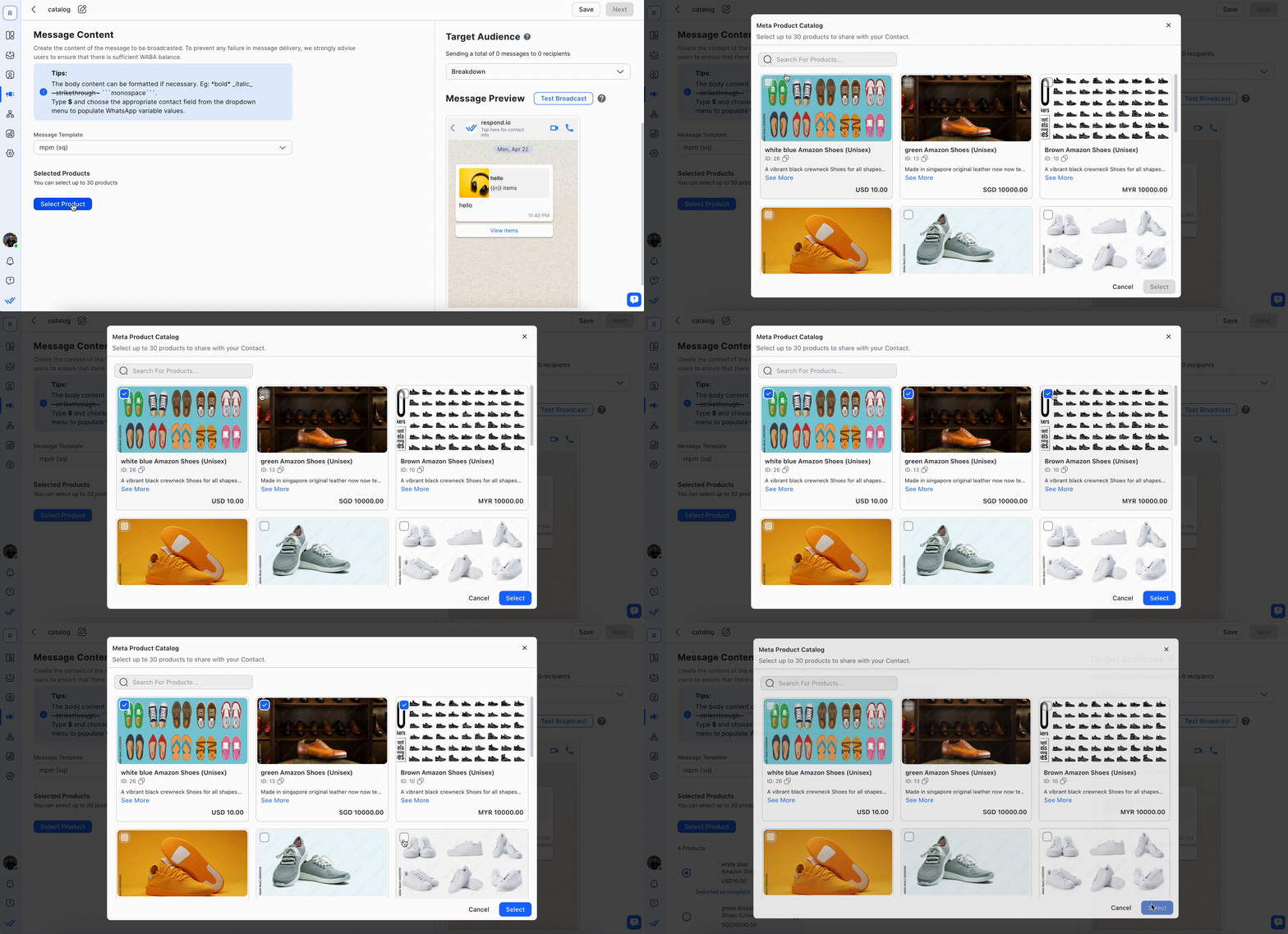
Step 2: Click Select Product > select up to 30 products for the Broadcast using Multi-Product Message Templates.
Send all products in a single catalog using a Catalog Message Template.
Step 3 (Optional): Choose a thumbnail for the Product Message and preview it in the Message Preview section. The first product is used as the thumbnail by default.
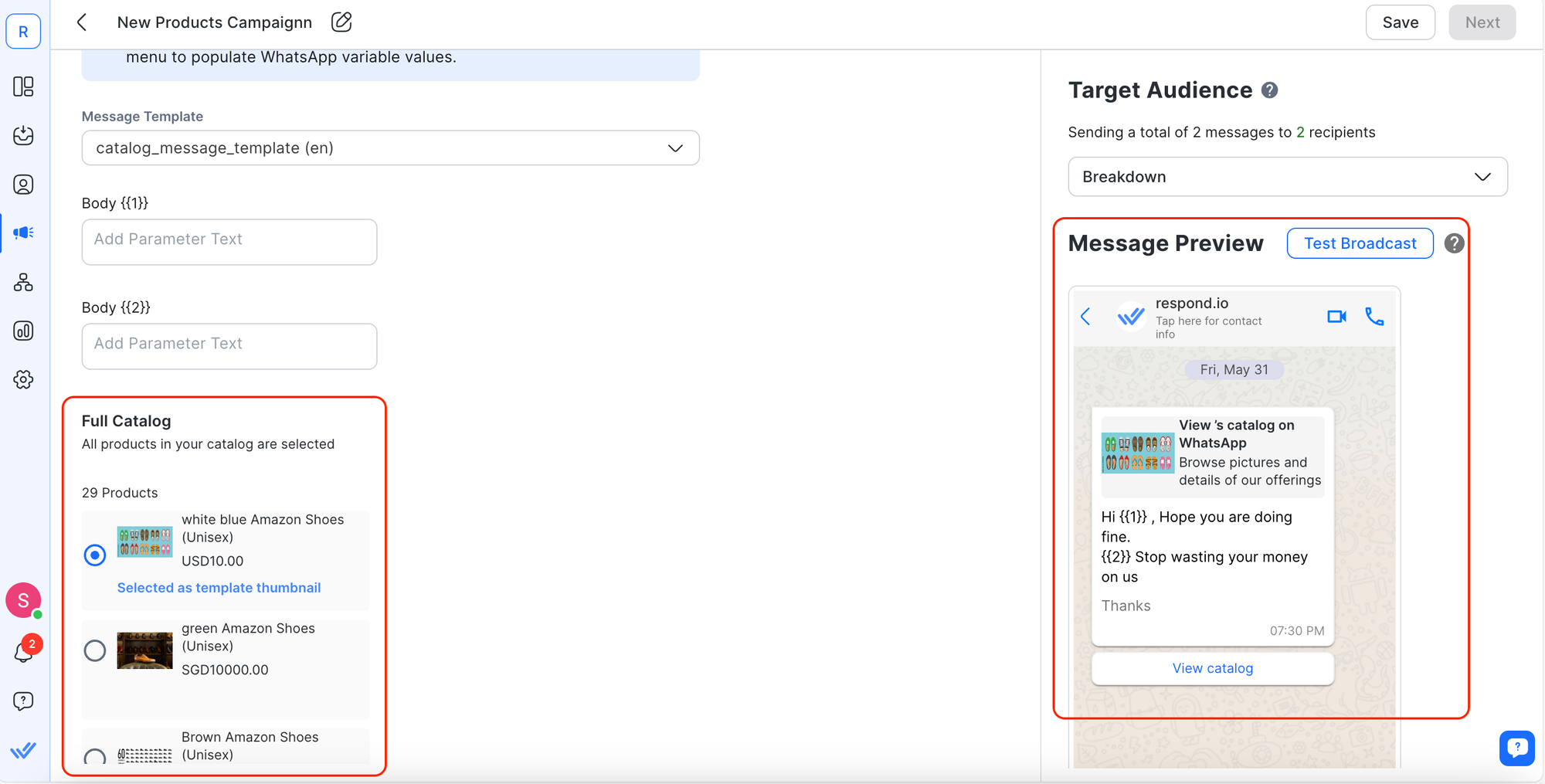
Click Next to schedule the Broadcast once configuration is complete.
Using Meta Product Catalog in the Mobile App
Send a single or multi-product message
Step 1: Tap + > select the Meta Product Catalog icon.
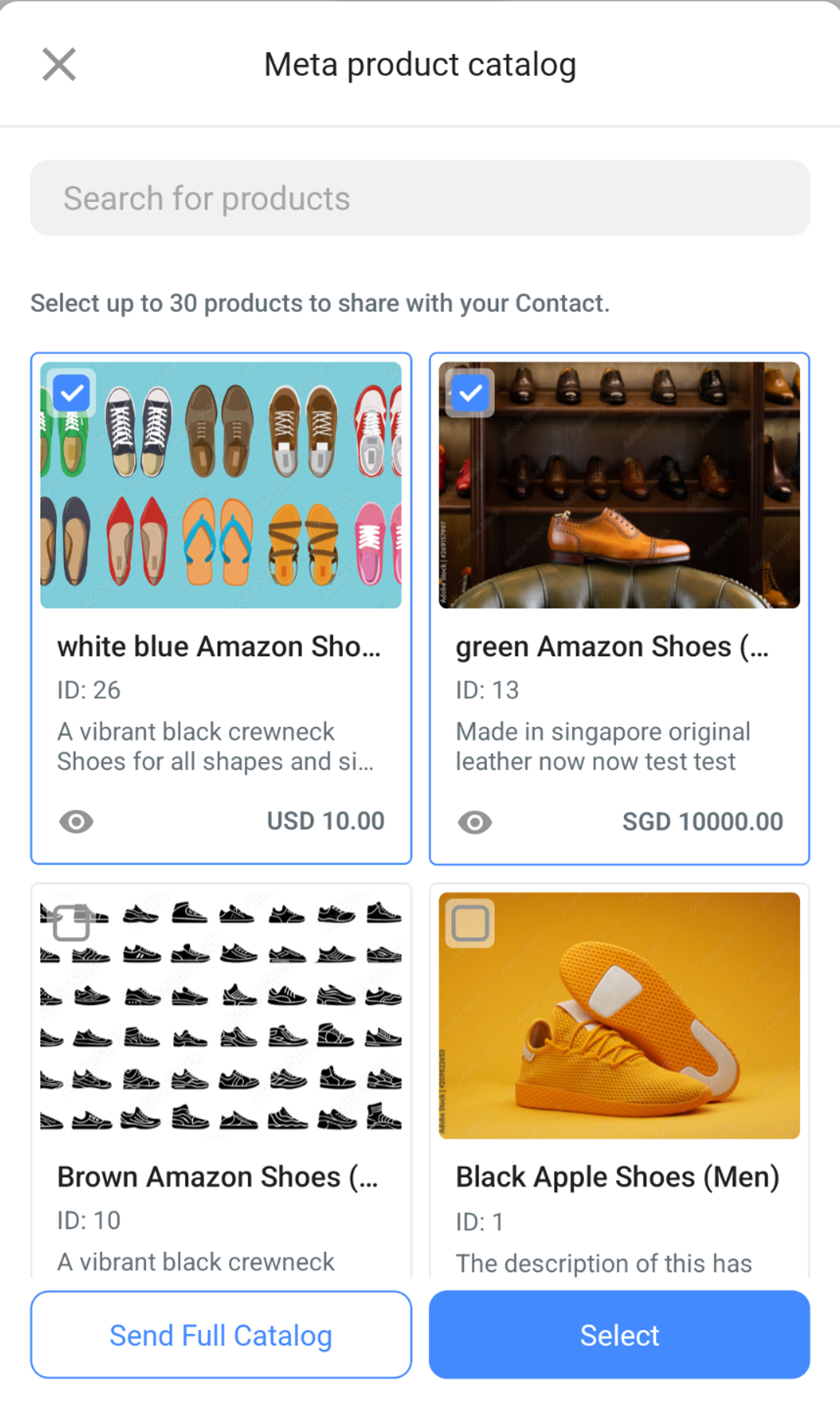
Step 2: Select a single product, multiple products, or the full catalog.
Send product template messages
Tap the message template icon > select from the list:
Single product message template
Multi-product message template
Catalog message template

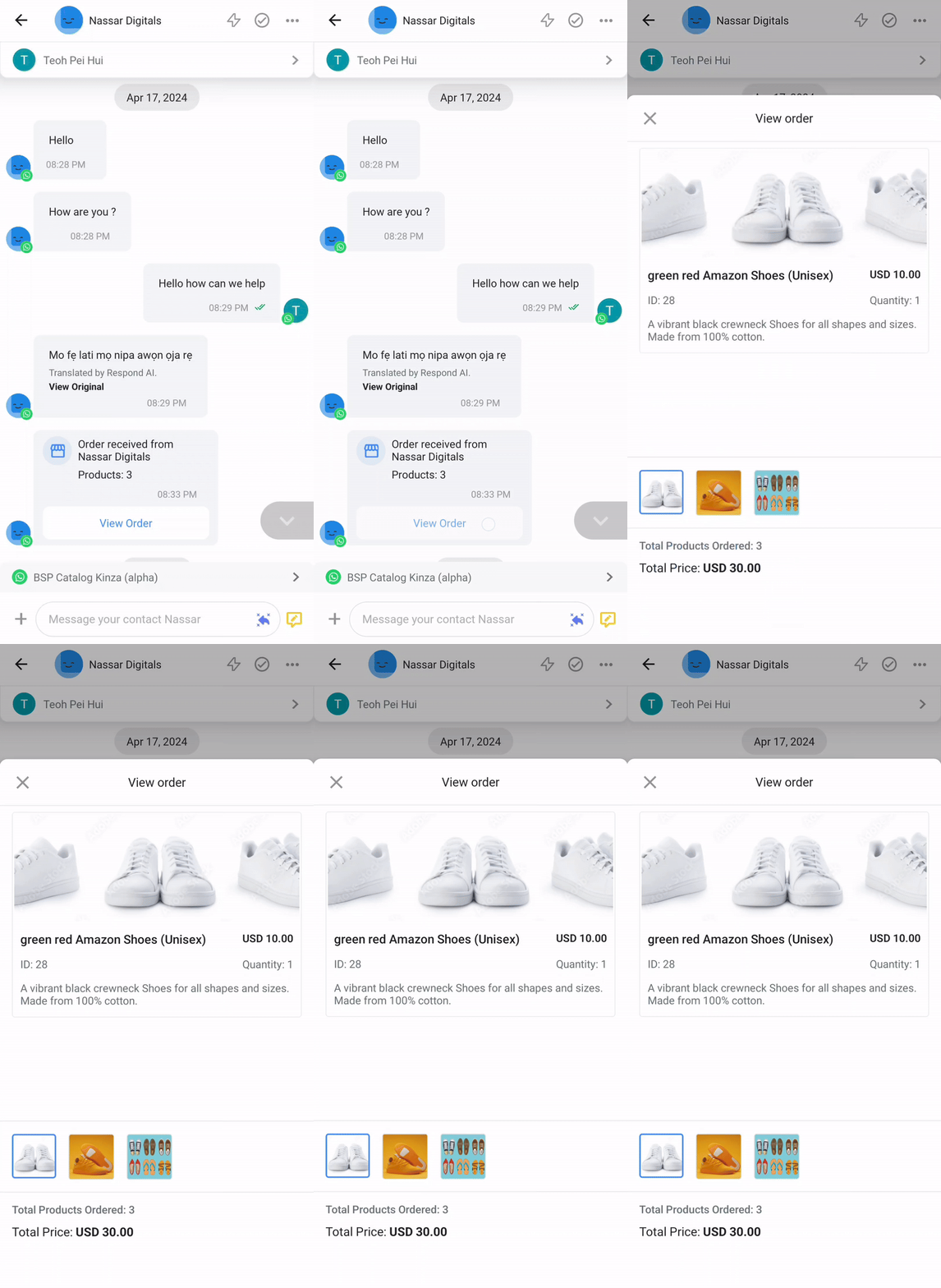
Receive orders
Tap View Order to view incoming order details.
Sending Meta Product Marketing Template messages via integrations
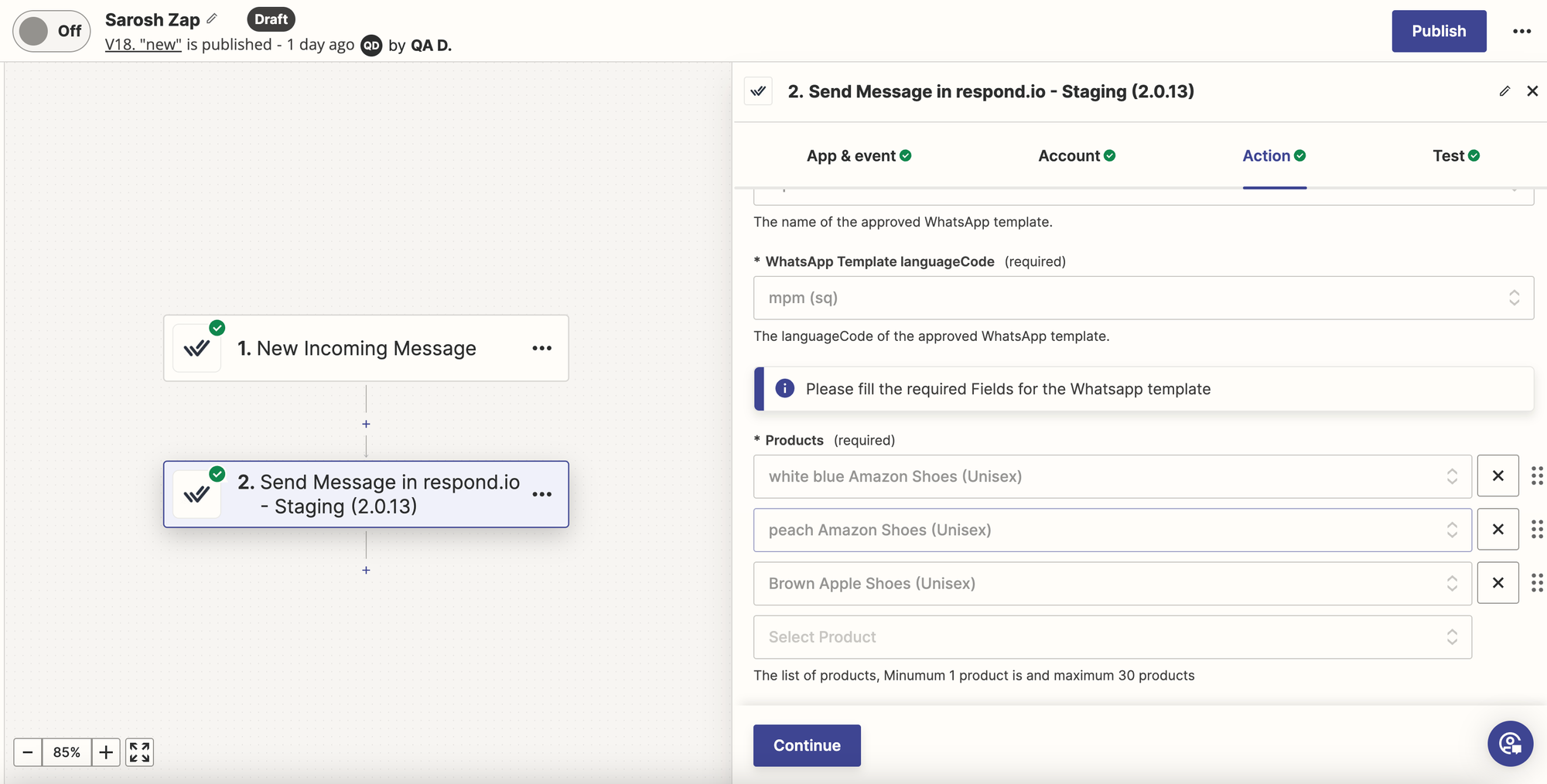
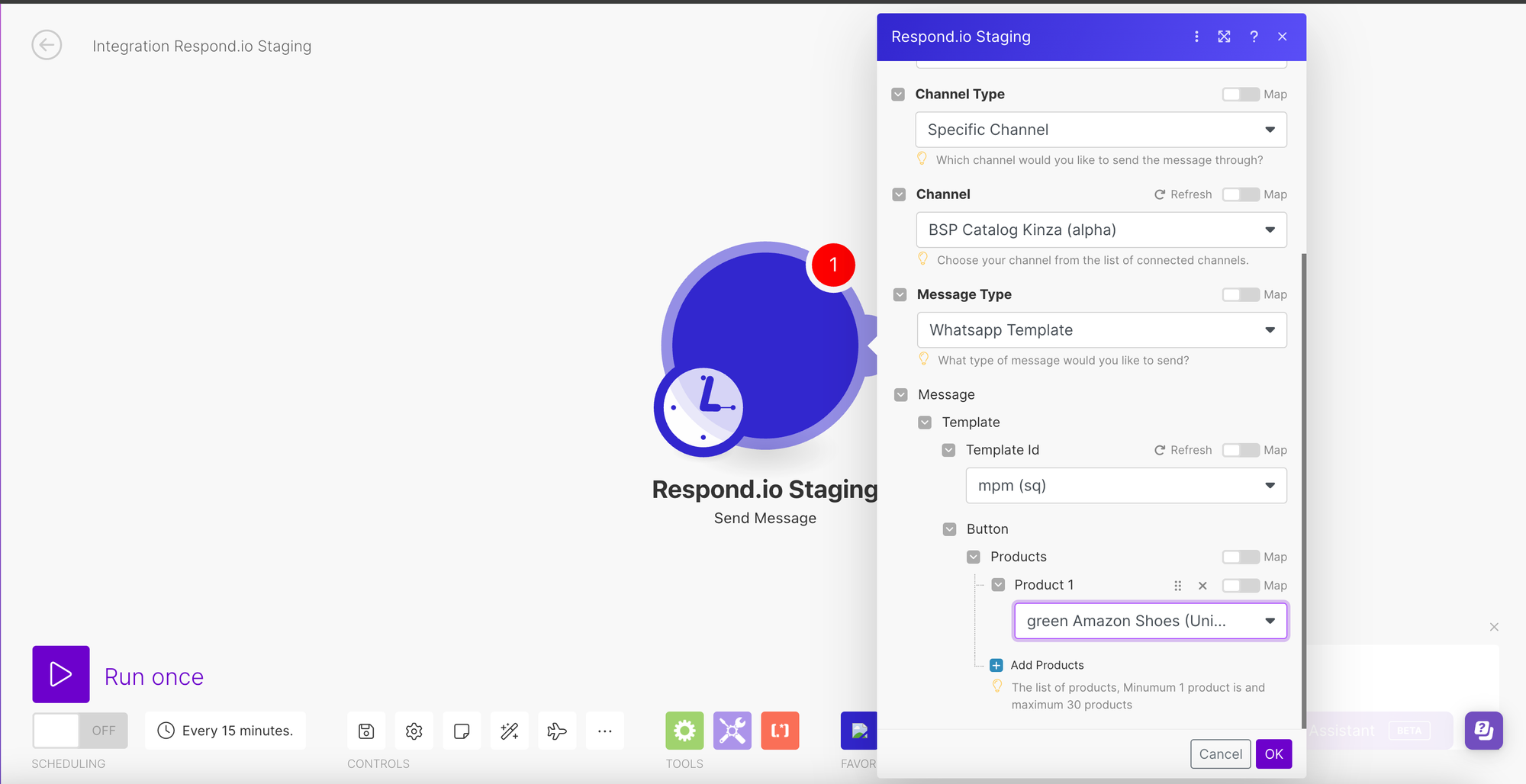
Send Product Marketing Template Messages using the Send a Message action step in Zapier and Make.
Zapier
Choose the Send a Message step.
Select a WhatsApp Channel with a connected catalog.
Select WhatsApp Template as the Message Type.
Select a Product Marketing Template message and configure as needed.
Make
Choose the Send a Message step.
Select a WhatsApp Channel with a connected catalog.
Select WhatsApp Template as the Message Type.
Select a Product Marketing Template message and configure as needed.
Using Meta Product Messages as webhooks
Use Product Messages as webhooks in respond.io, Zapier, and Make.
respond.io
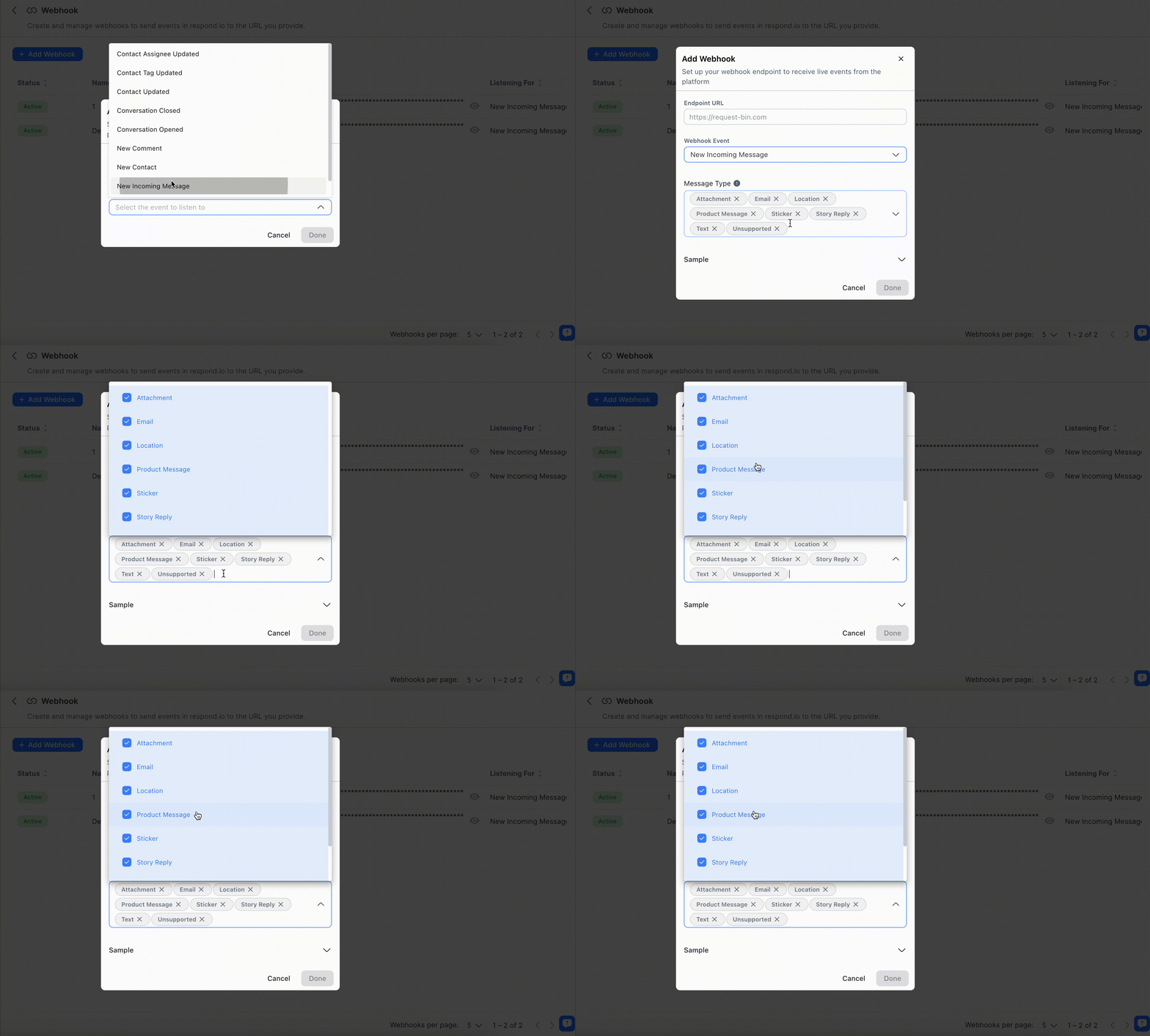
Step 1: Navigate to Settings > Integrations > Add Webhook.
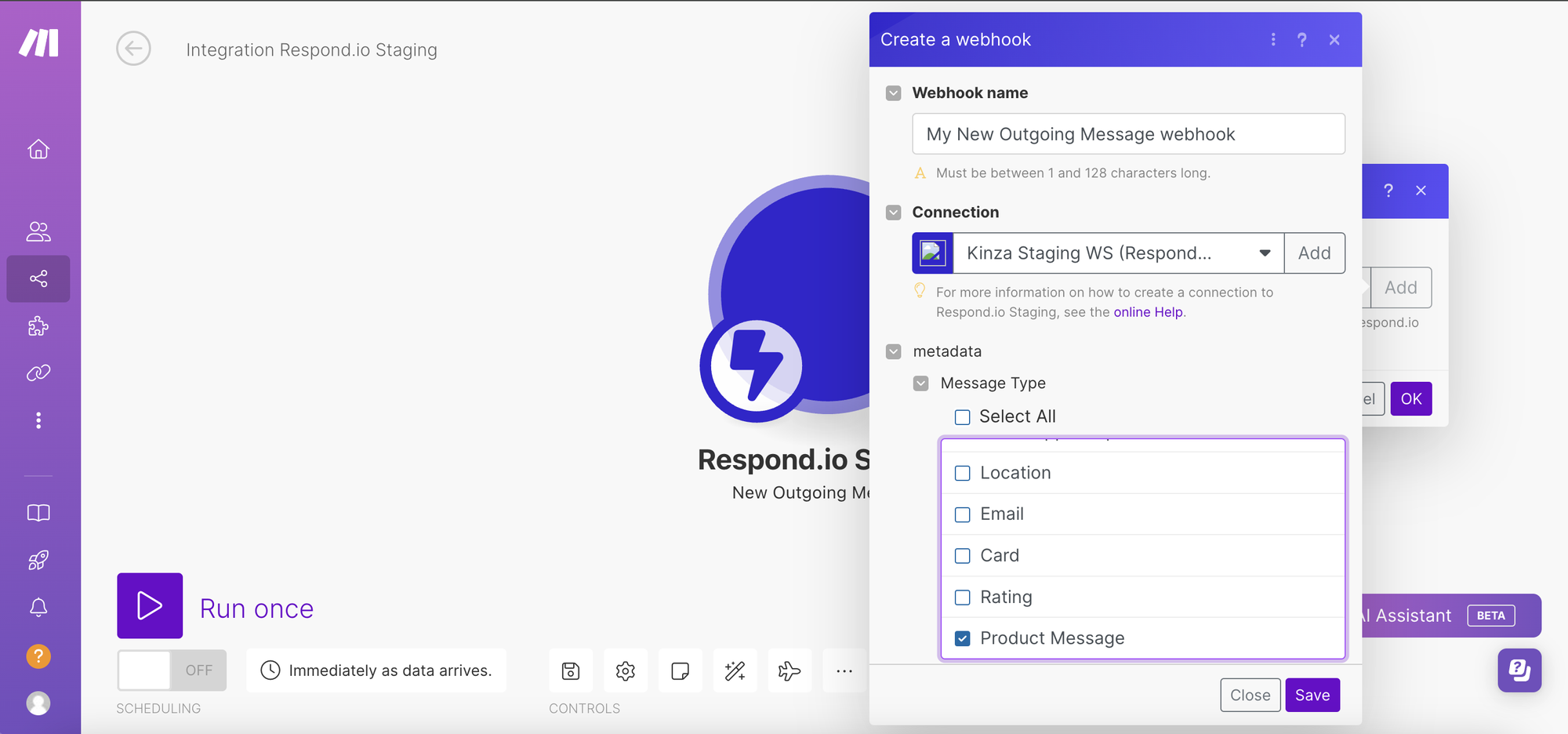
Step 2: Select Incoming or Outgoing Messages from the Webhook Event list.
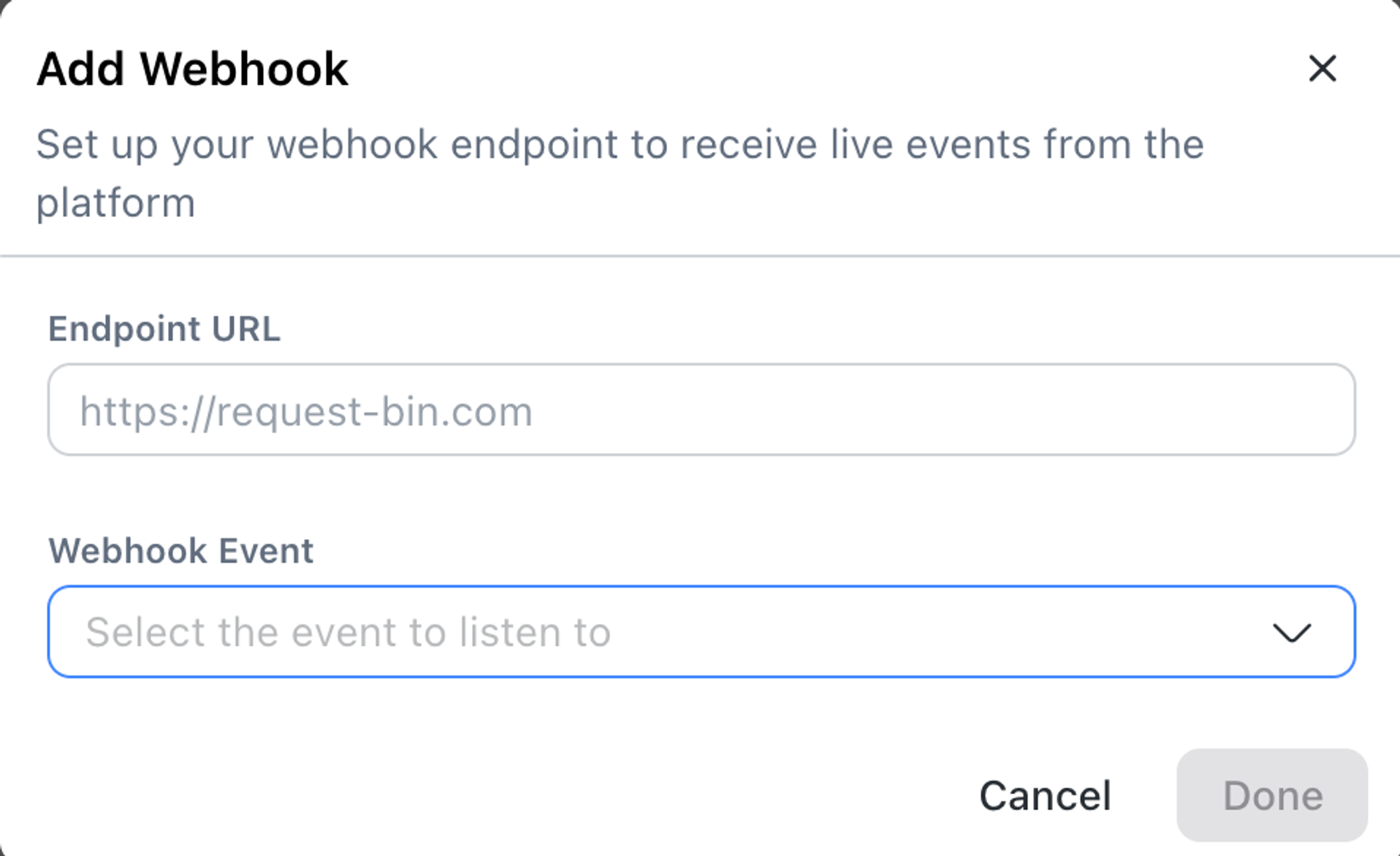
Step 3: Select Product Message as the Message Type.
Zapier
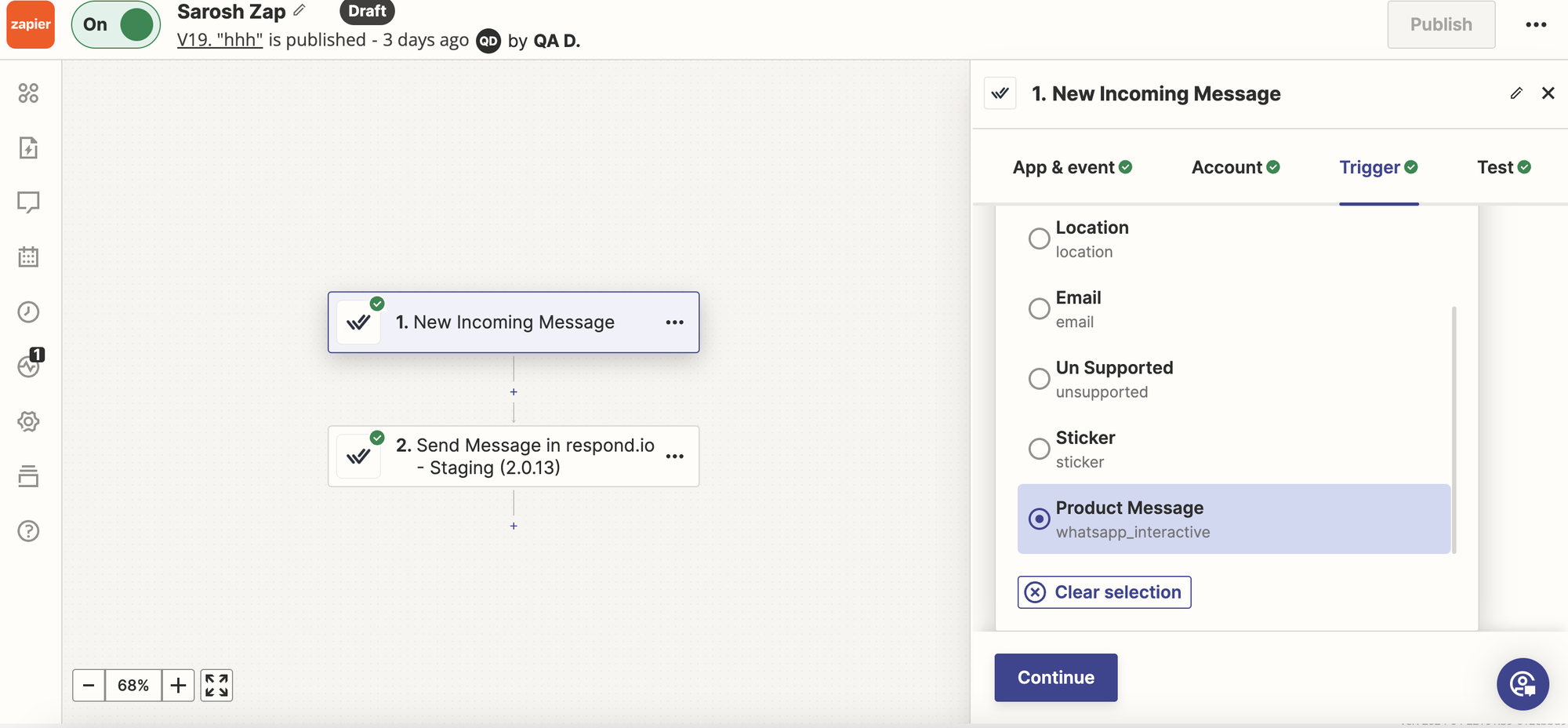
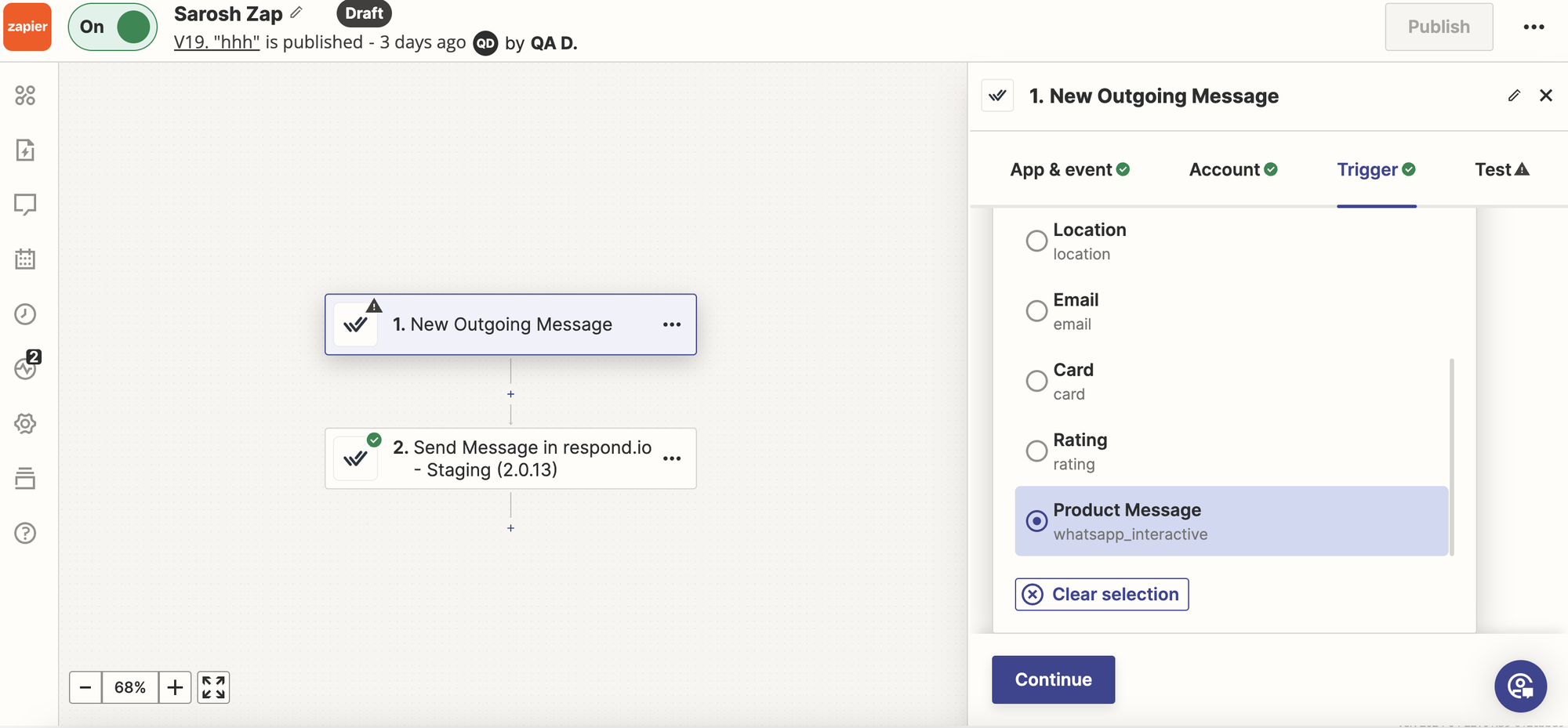
Create a webhook trigger under Integrations.
Select Incoming or Outgoing Messages.
Select Product Message as the Message Type.
Make
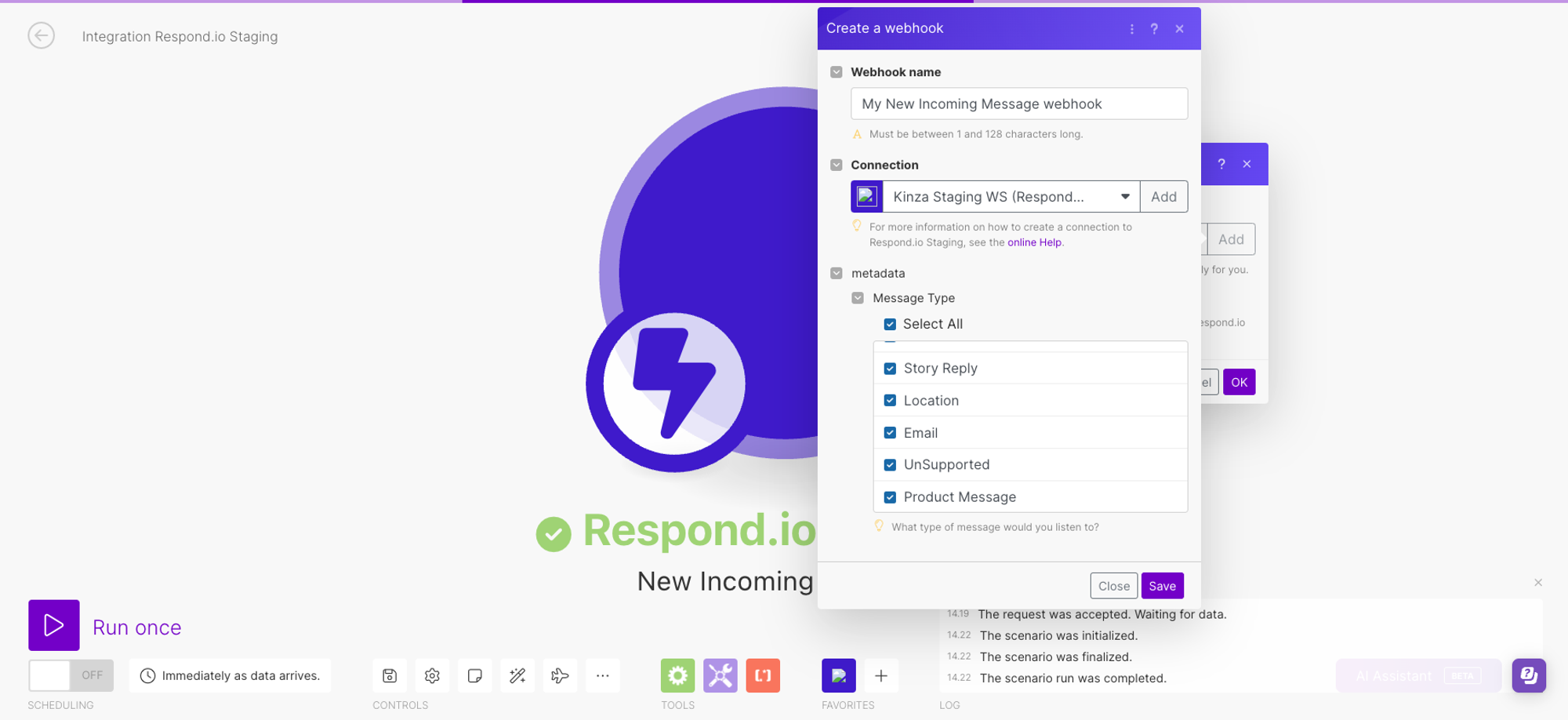
Create a webhook trigger under Integrations.
Select Incoming or Outgoing Messages.
Select Product Message as the Message Type.
FAQ and troubleshooting
I can't find the Product Catalog. What should I do?
First, make sure you've done the following:
Created a Catalog on Meta Business Manager
Connected a Catalog to the WABA in WhatsApp Manager in Meta Business Manager
To connect a catalog in Meta Business Manager:
Step 1: Navigate to https://business.facebook.com/wa/manage/home.
Step 2: Click Account tools in the sidebar to expand it.
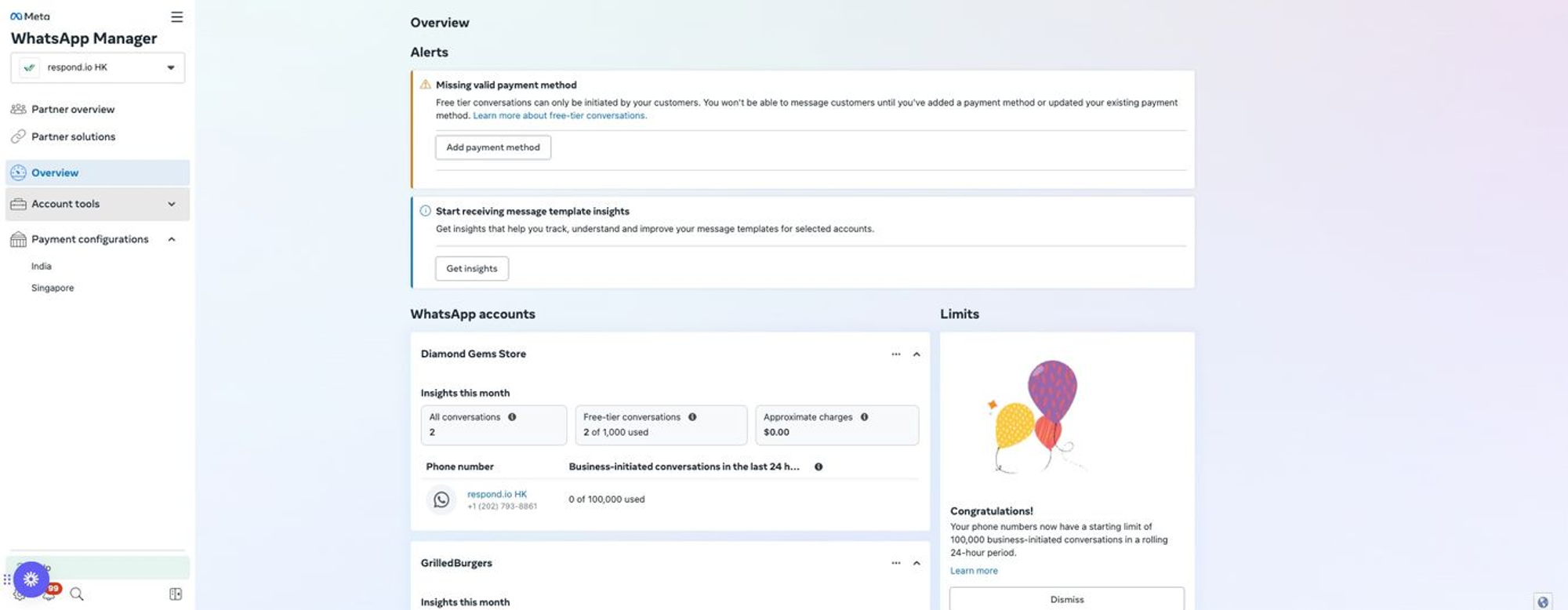
Step 3: Click Catalogue.
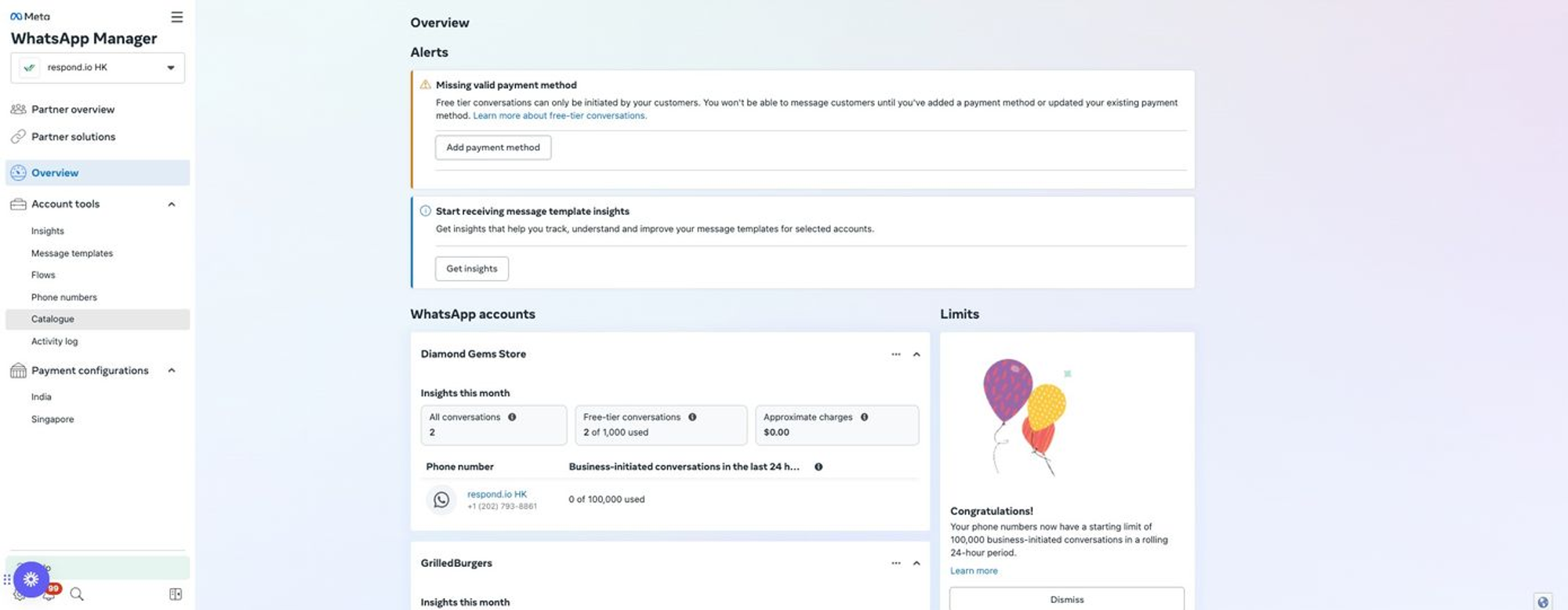
Step 4: Click Choose a Catalogue.
Step 5: Click Select catalogue and select your catalog.
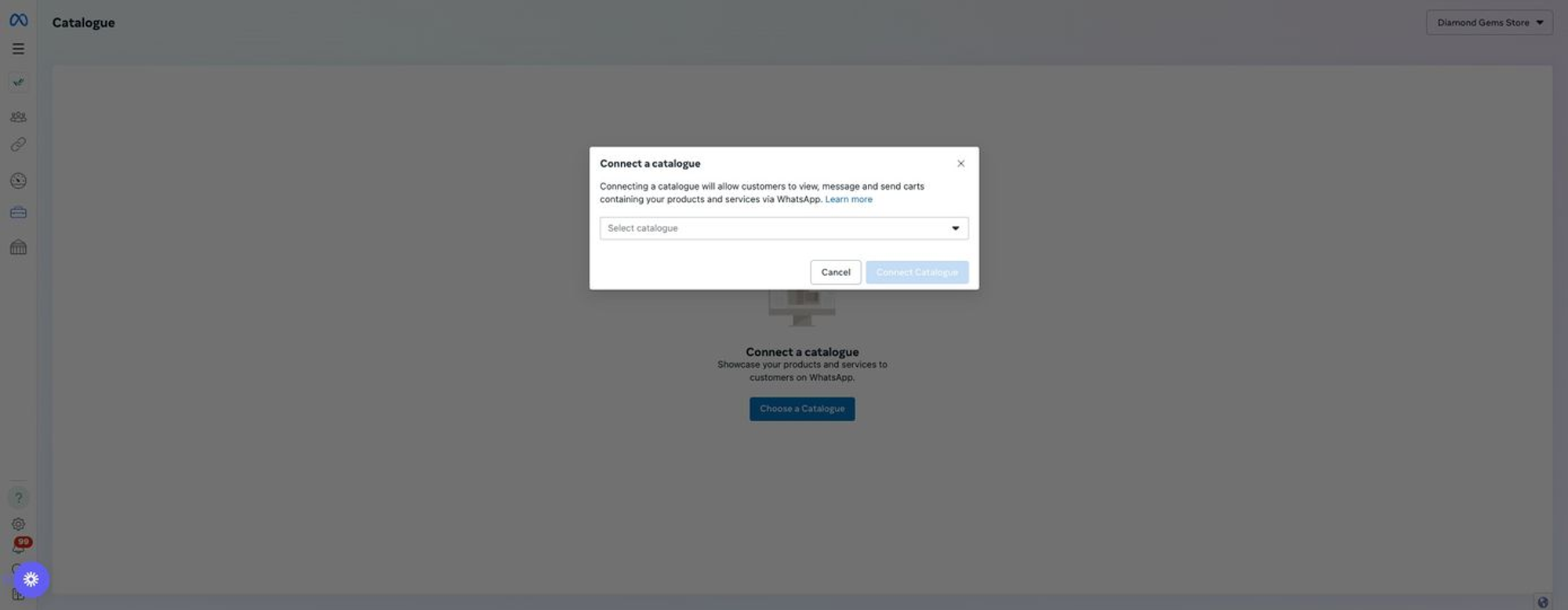
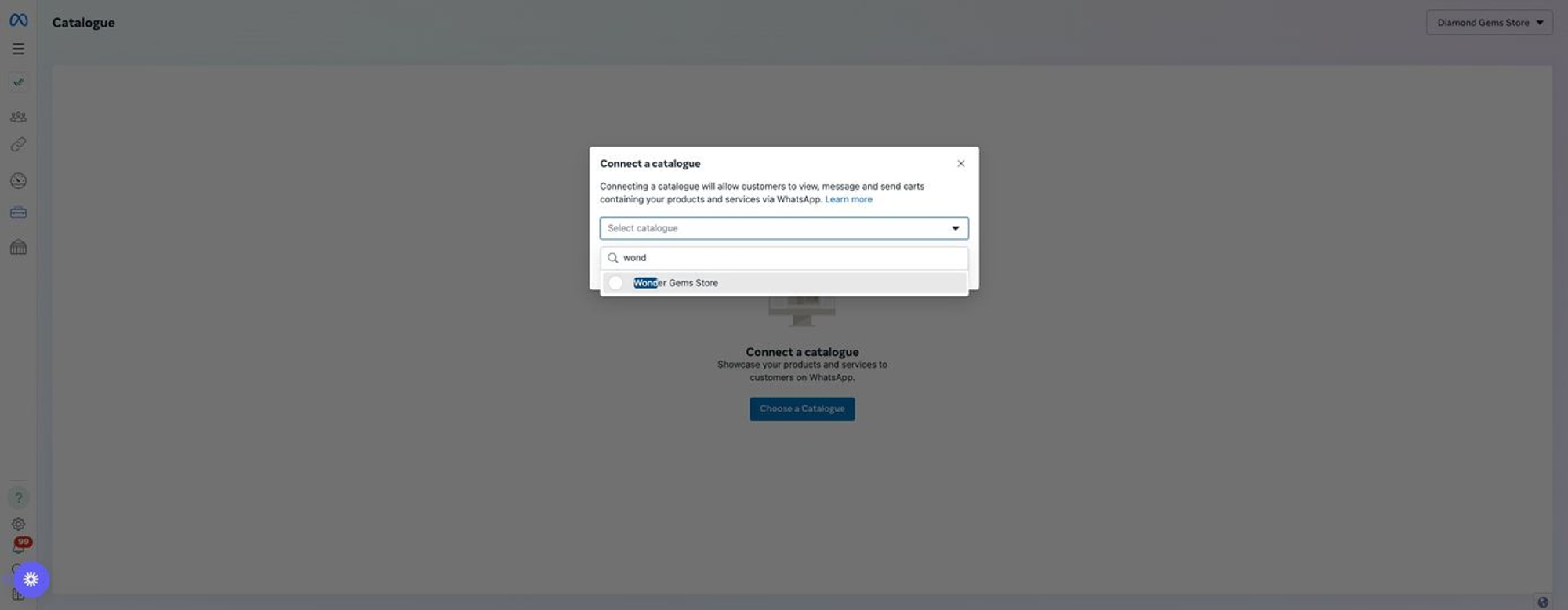
Step 6: Select your catalog.
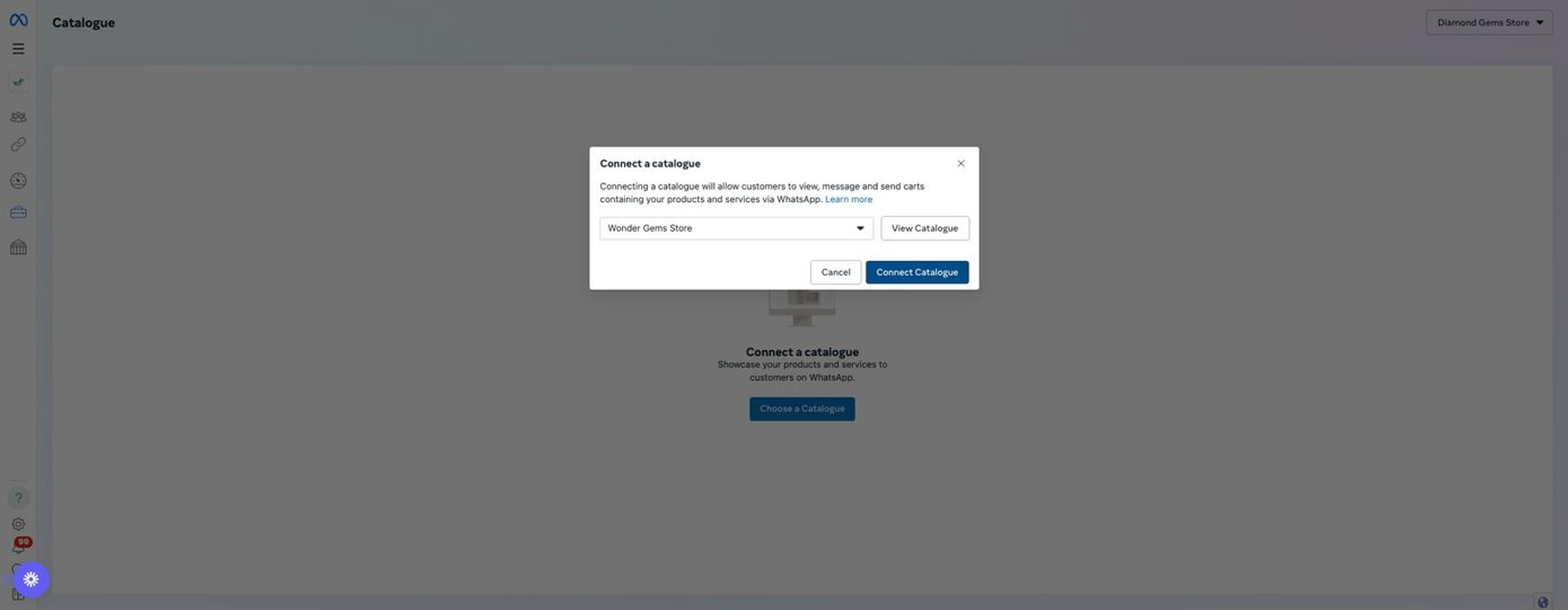
Step 7: Click Connect Catalogue.
If the product catalog cannot be retrieved after connecting a new Channel or after recent WABA changes, review the steps below and check if you have the right access to your Channel.
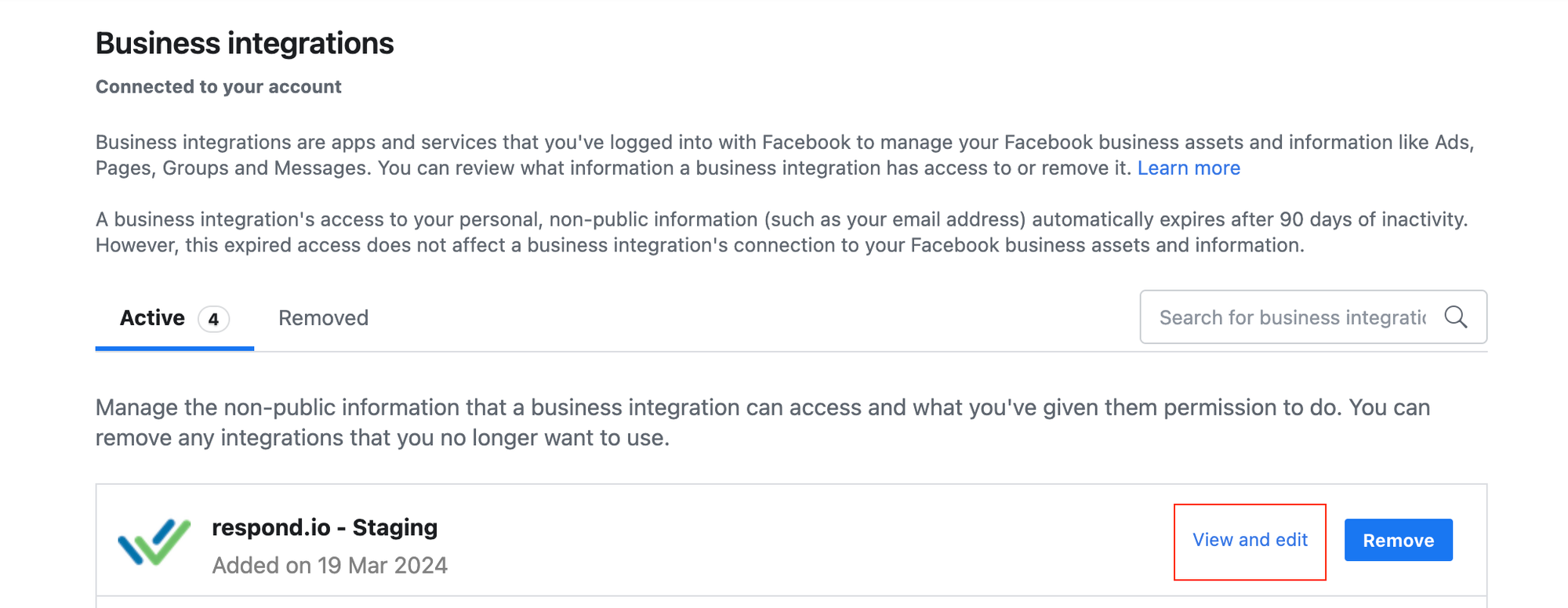
Step 1: Navigate to Business Integration settings.
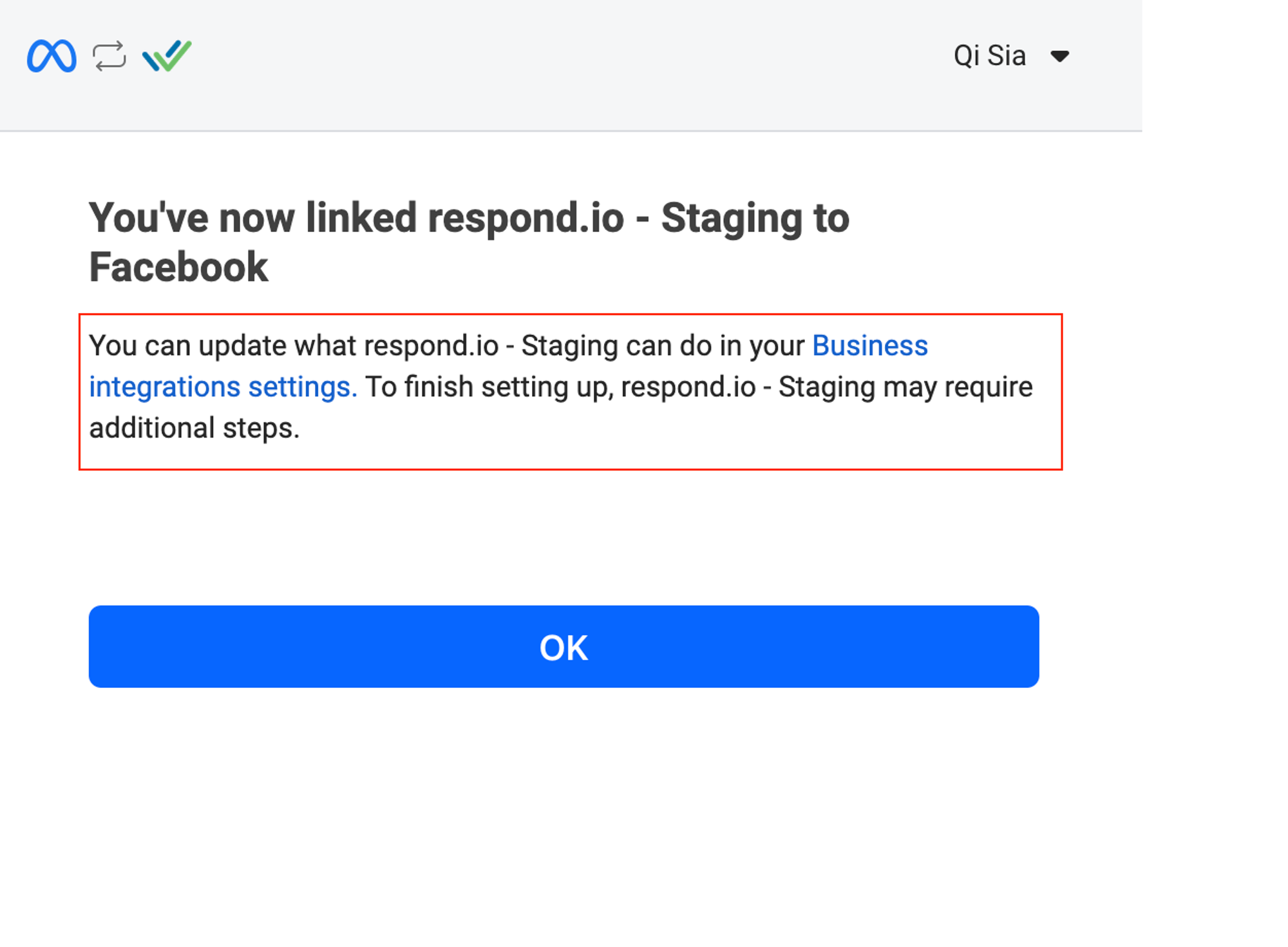
Step 2: Select the respond.io integrated app and click View and edit.
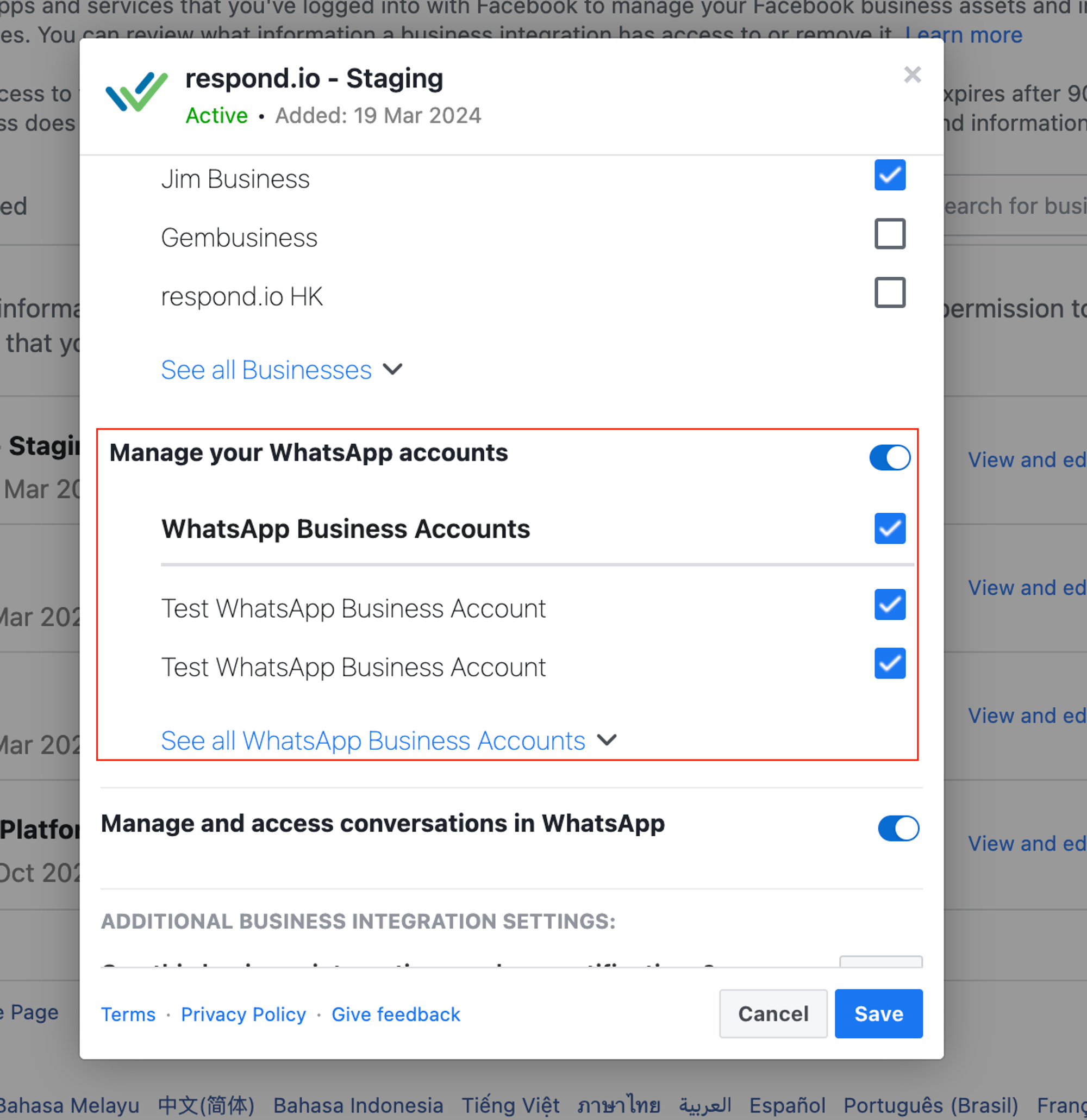
Step 3: Confirm access to the WABA listed under "Manage your WhatsApp accounts". If the toggle is off, turn it on.
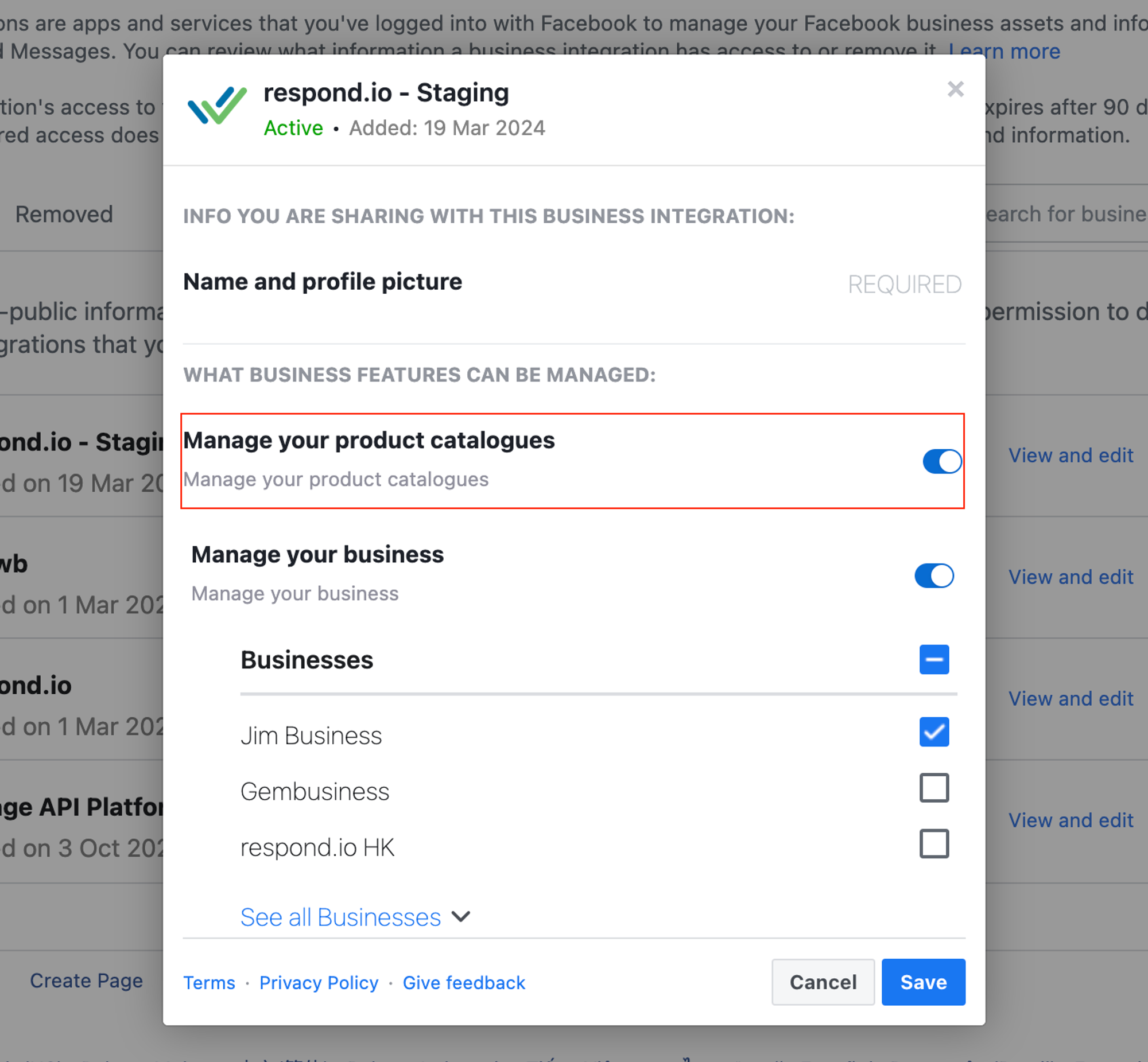
Step 4: Toggle off "Manage your product catalogues" if you have already tried to connect your WhatsApp catalog before this step.
Step 5: Navigate to Channel settings > Troubleshoot and refresh the permission.
Step 6: Navigate to Channel settings > Meta Product Catalog and log in to Facebook again to retry connecting to the product catalog.
Why is my catalog preview empty or missing products?
Only products published and approved by Meta for WhatsApp appear on respond.io. Products set to Hidden or with a WhatsApp review status of No Review are filtered out.
To publish your products and submit them for review:
Navigate to Meta Commerce Manager > Catalog > Items.
Select the affected products > change their visibility from Hidden to Published.
Open the Diagnostics tab > fix any product quality issues listed.
Replace any placeholder images with actual product images.
Wait for Meta to review the products automatically.
Once the products are Published and their WhatsApp review status is Approved, they appear in the catalog preview automatically. To refresh sooner, navigate to Channel settings > Troubleshoot and refresh the permission.
My token has expired. What should I do?
If your token has expired, refresh the catalog token by disconnecting and reconnecting the WhatsApp Business Channel in respond.io.
Why did I receive this error message "Missing Business Compliance Form"?
If your business operates within India, there are additional specific legal requirements to sell on WhatsApp. Learn more about selling online on WhatsApp Business Platform in India.
Why can't I connect my product catalog or why did the catalog icon disappear from the Inbox composer?
This happens when:
The connected admin lost Full Control permissions to the WABA or catalog in Meta Business Manager.
The catalog was inactive for over six months. Meta automatically deletes unused catalogs, making them permanently inaccessible.


