In this article, you'll discover how AI can automate calculations on the platform, relieving agents of performing this task manually.
When your business frequently receives calculation-related inquiries from customers, AI can perform the calculation for you. This guarantees speedy and accurate replies to customer queries.
AI Assist Setup for Calculation Inquiries
Learn how to add pricing or quantifiable information as Knowledge Sources for AI Assist to help you with calculation inquiries.
Prepare pricing or quantifiable information in a non-tabular format
Add information as a Knowledge Source
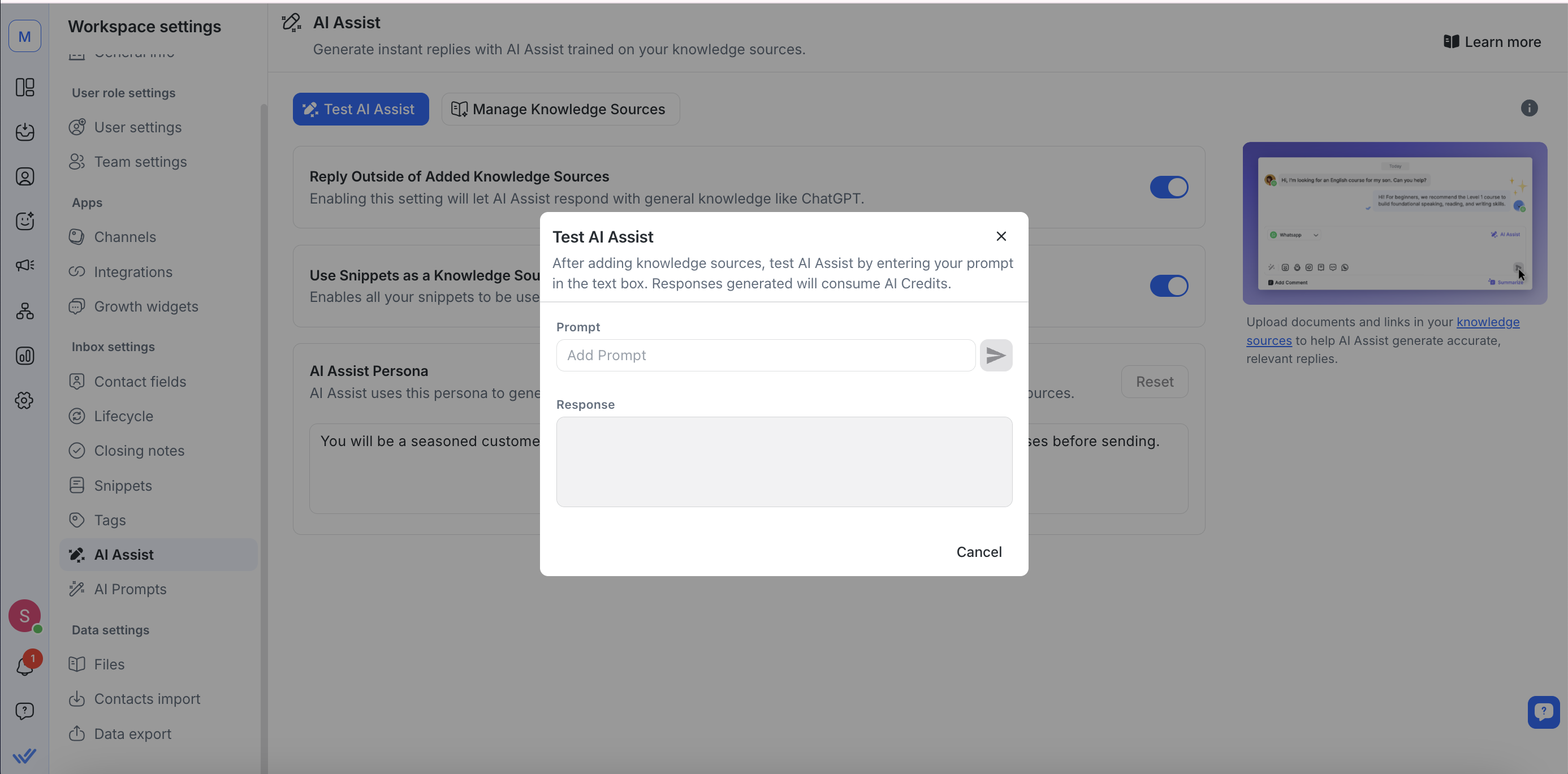
Test AI Assist
Prepare pricing or quantifiable information in a non-tabular format
You can upload CSV files as knowledge sources for AI Assist. However, at this moment, AI Assist cannot reliably process data stored in Excel or Google Sheets files. Learn more
If your pricing or quantifiable information is in a tabular format, convert the information to a non-tabular format. There are 2 ways to do this:
Automatic conversion in ChatGPT (recommended for a large volume of data).
Manual conversion (recommended for a small volume of data).
ChatGPT supports simple table formatting (rows and columns in plain text or CSV). However, Google Sheets files and spreadsheet-style formats are not supported.
Automatic conversion with ChatGPT
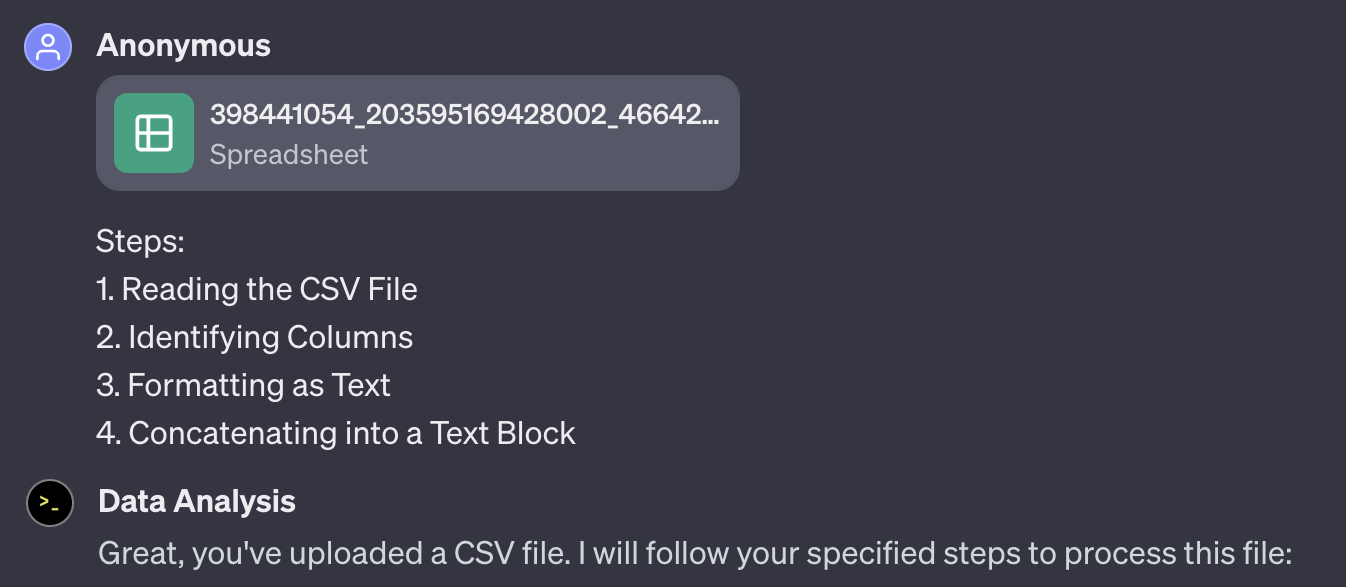
Step 1: Upload Your CSV File
You can upload your CSV file directly into ChatGPT.
Step 2: Ask ChatGPT to Analyze or Automate Your Calculations
Once your file is uploaded, describe what you’d like ChatGPT to do — for example:
“Calculate the average response time per agent.”
“Summarize lead conversion rates by month.”
ChatGPT will automatically process your data and return results.
If you want to include data directly in your document instead of uploading a file, convert your table to plain text or CSV format and paste it into the chat before asking ChatGPT to analyze it.
Step 3: Provide Clear Instructions for Data Processing
If your goal is to transform or reformat data before using it elsewhere (e.g., in a report or PDF), you can include step-by-step instructions such as:
Read the CSV file.
Identify the relevant columns.
Format or clean the data as text.
Combine the results into a single text block.
These steps help ChatGPT understand the structure and formatting you expect.
Step 4: Guide ChatGPT to Format the Output Text
After the data is processed, you can guide ChatGPT to format the text for display. For example, you can ask it to format text as:
“In
{{Market}}, the cost per conversation for Marketing is{{Marketing column}}, for Utility is{{Utility column}}, for Authentication is{{Authentication column}}, and Service is{{Service column}}.”
This ensures consistent phrasing and structure in your output.
Step 5: Generate the PDF
Once the text is formatted, ask ChatGPT to generate a PDF file containing the output.
For example:
“Generate a PDF using this formatted text.”
Step 6: Download the PDF
When the PDF file is ready, download it directly from the chat interface.
Manual conversion
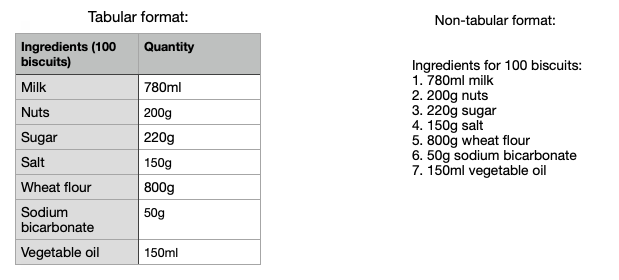
If you’re converting the information manually, refer to the examples in this section. Here, the tabular information has been formatted to a non tabular format:
Messaging costs
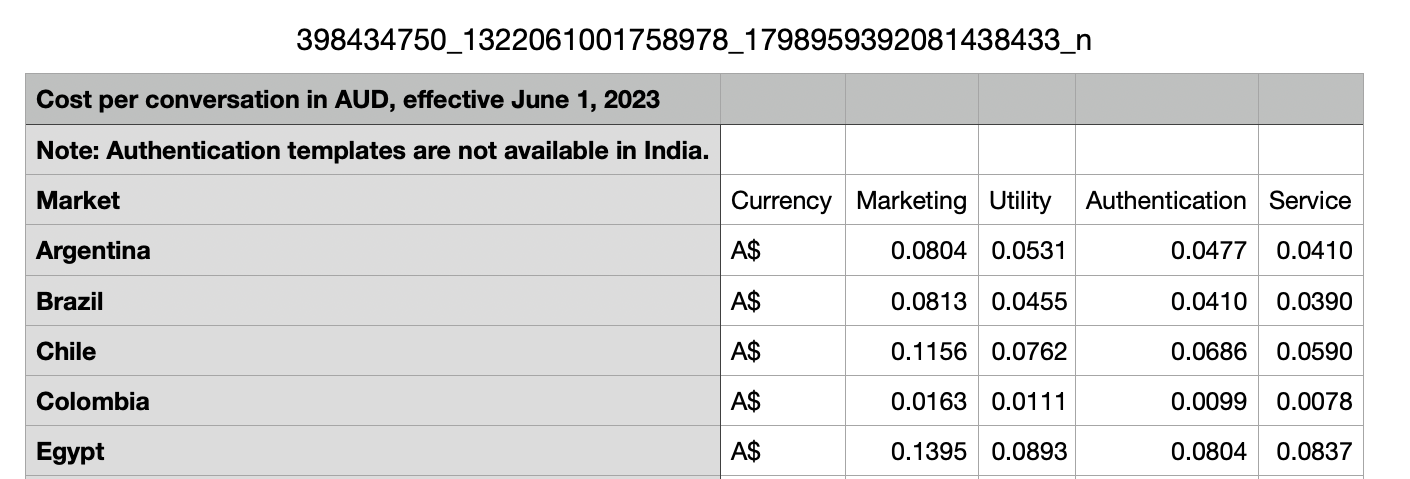
Tabular format:
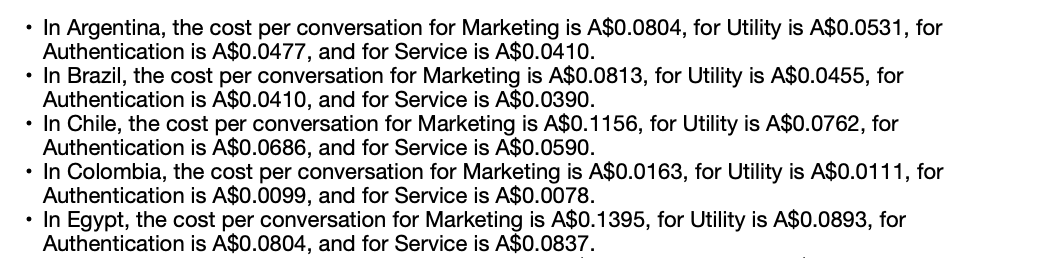
Non-tabular format:
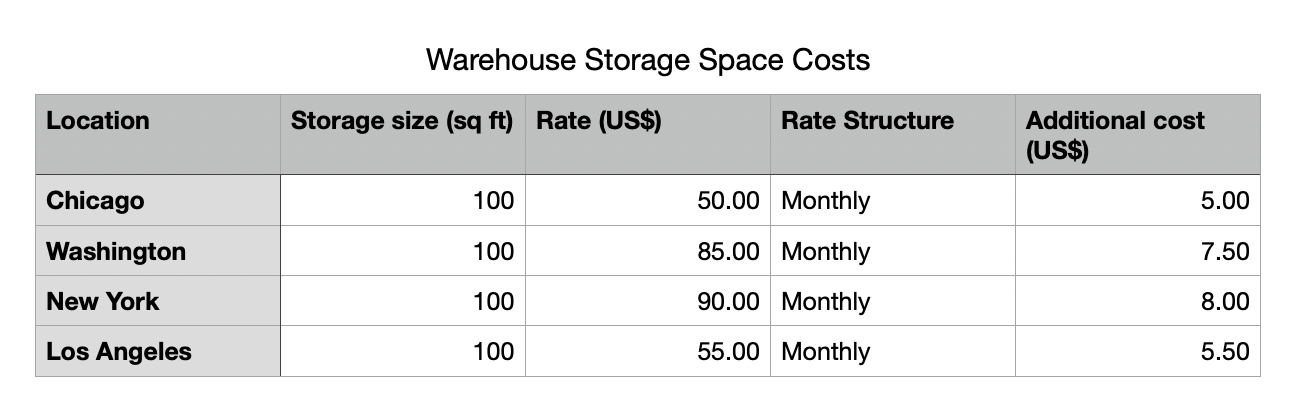
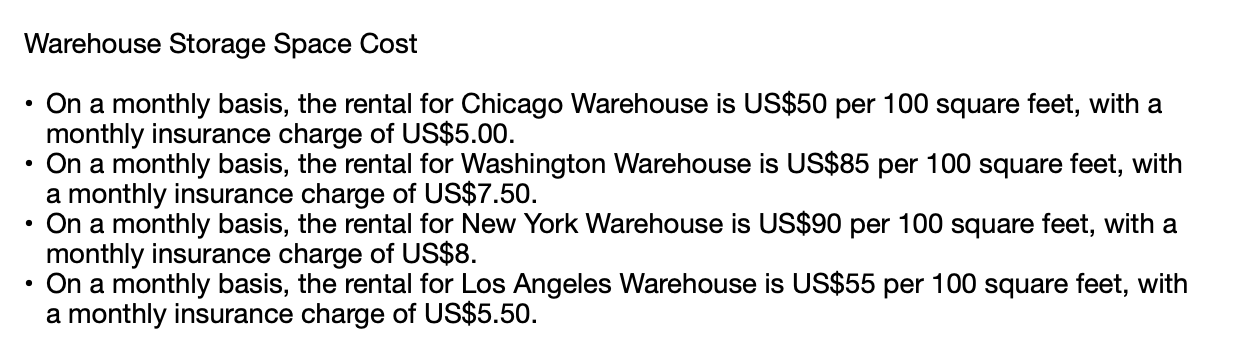
2. Storage space costs
Tabular format:
Non-tabular format:
3. Part quantities
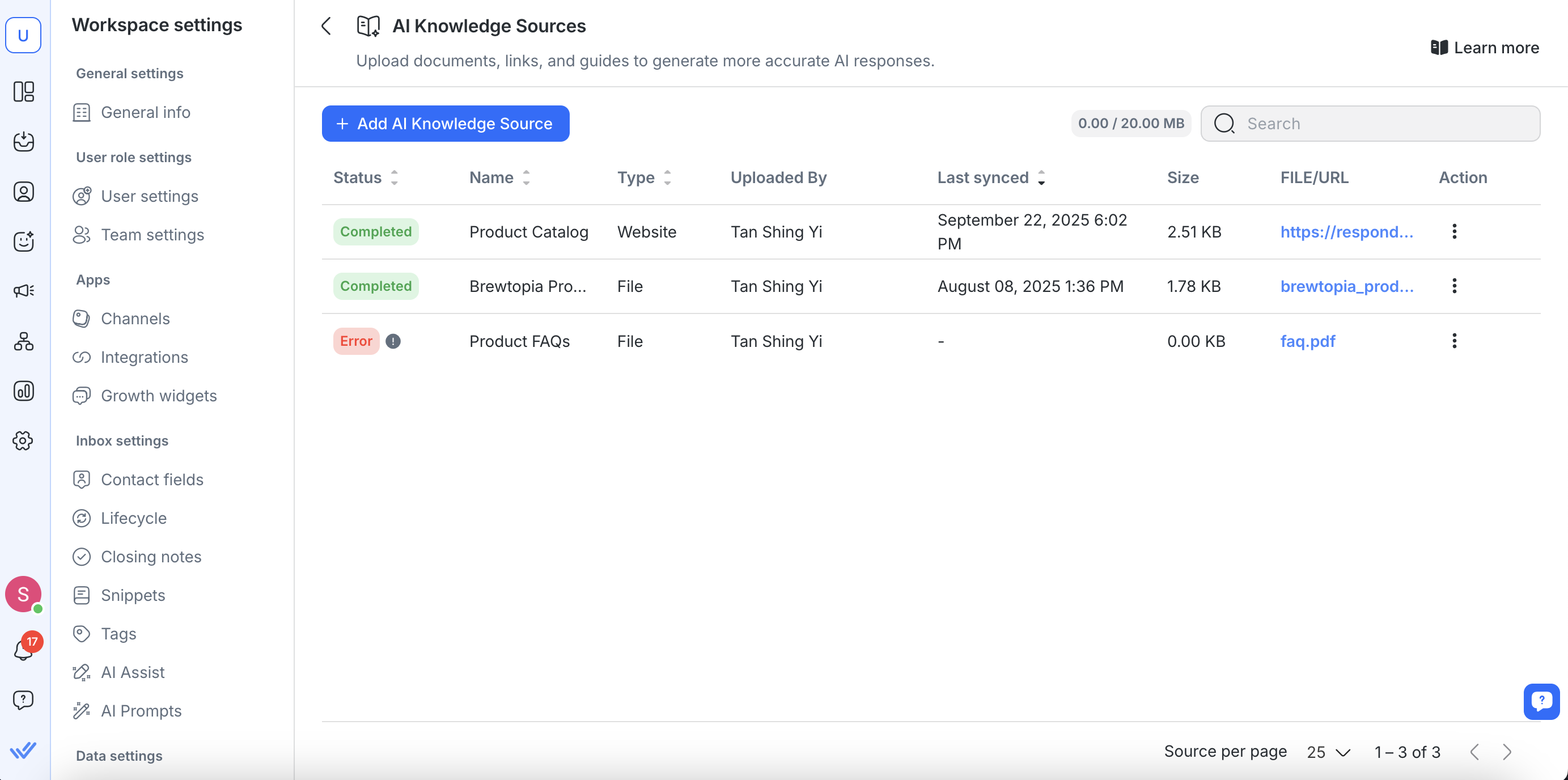
Add information as a Knowledge Source
Prerequisite: Only Workspace Managers and Owners have the rights to add Knowledge Sources.
With pricing or quantifiable information stored in the right format, you can add the file as a Knowledge Source for AI Assist to reference when answering queries that requires calculations. Learn how to do this here.
Test AI Assist
Prerequisite: Only Workspace Managers and Owners have the rights to test AI Assist.
Test AI Assist to ensure the calculations are correct. If the calculations are incorrect, modify the pricing or quantifiable information accordingly, delete the wrong information that’s been added to the Knowledge Source, and then add the new information as a Knowledge Source.