

Inbox supports calls alongside text messages. Call activities can be accessed via the vertical sidebar, making it easier to track and review calls in context. This article explains how to access call details, recordings, and transcripts.
Viewing call activities
When a Contact has call-related history, all call-related activities are available in the dedicated Call activities tab.
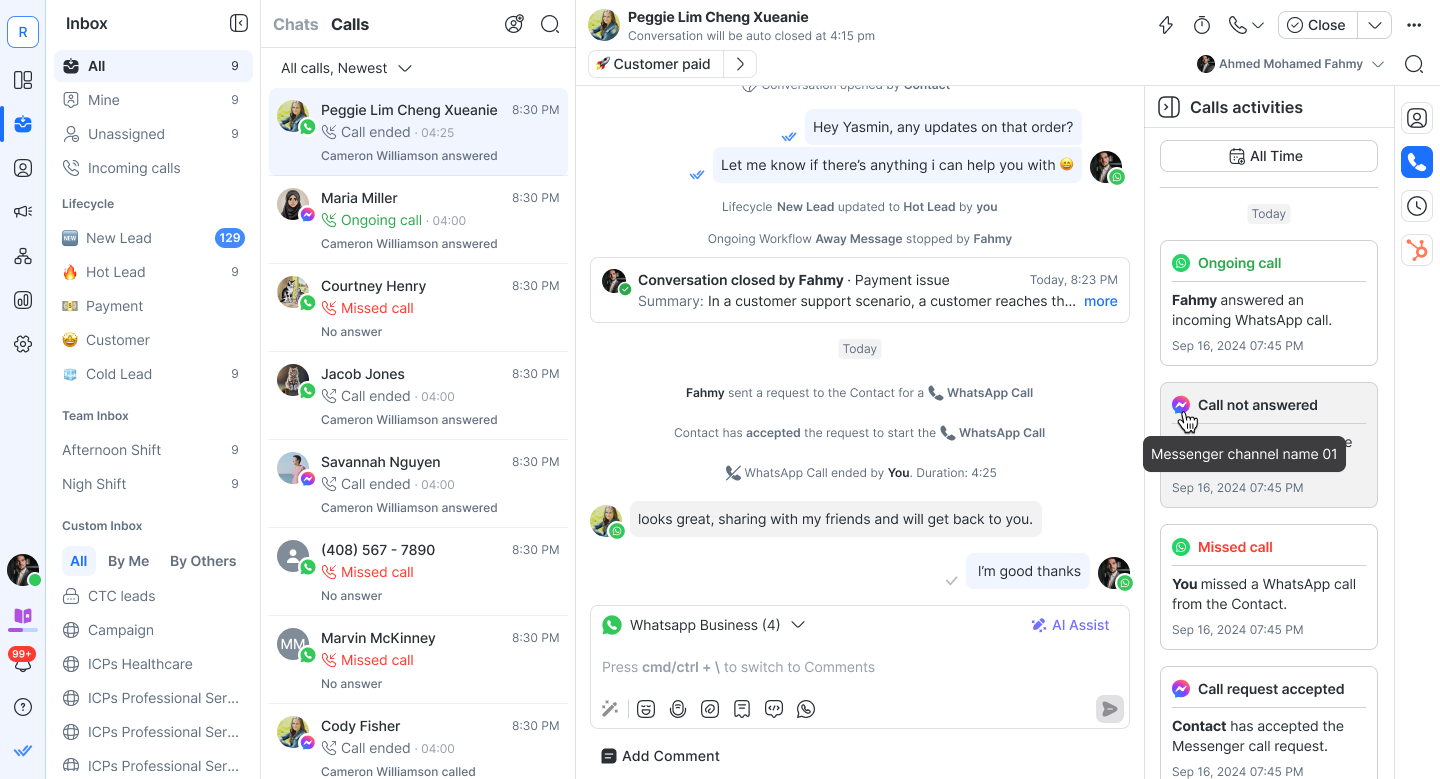
Ongoing calls will always appear at the top of the list.
These activities are grouped by date, which is the same as the other Activities tab.
The following call-related events are recorded:
Permission request accepted / declined
Incoming & outgoing calls (ongoing and ended)
Missed call or no answer
Call ended due to maximum duration
AI Agent transferred call to human agent (accepted, missed, or declined)
Call details
If enabled in Workspace settings, additional call details such as recordings and transcripts are available for each call.
These details appear alongside call activities and have their own dedicated controls.
Call recordings
Call recordings let you review calls with Contacts after they end.
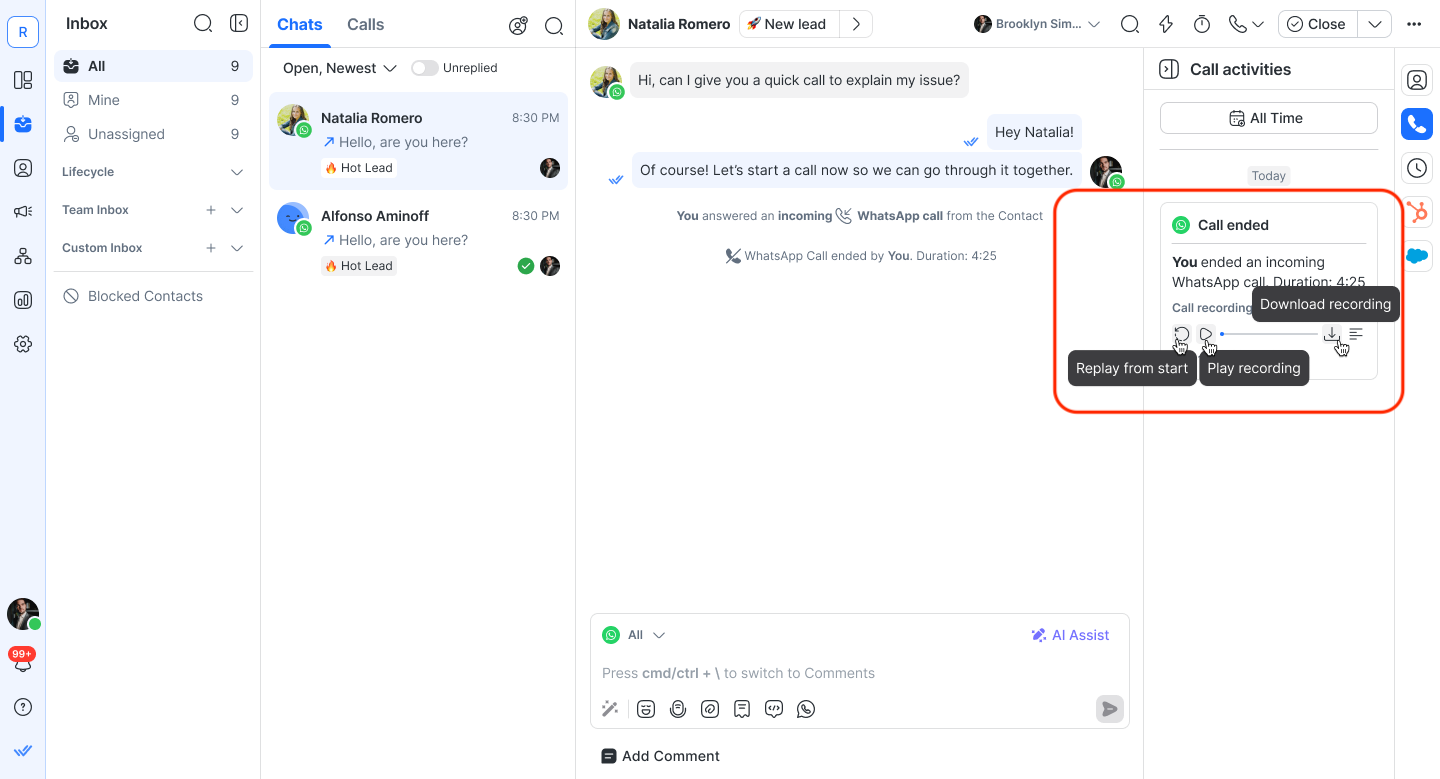
This is what you can do with call recordings:
Playback directly within the call event card.
Download recordings for offline reference.
For calls that include an AI Agent to human agent transfer — including any missed or declined transfer attempts — the entire interaction is saved as a single recording file.
Call transcripts
Transcripts are available only if Call Recording and Call Transcripts are enabled in Workspace settings.
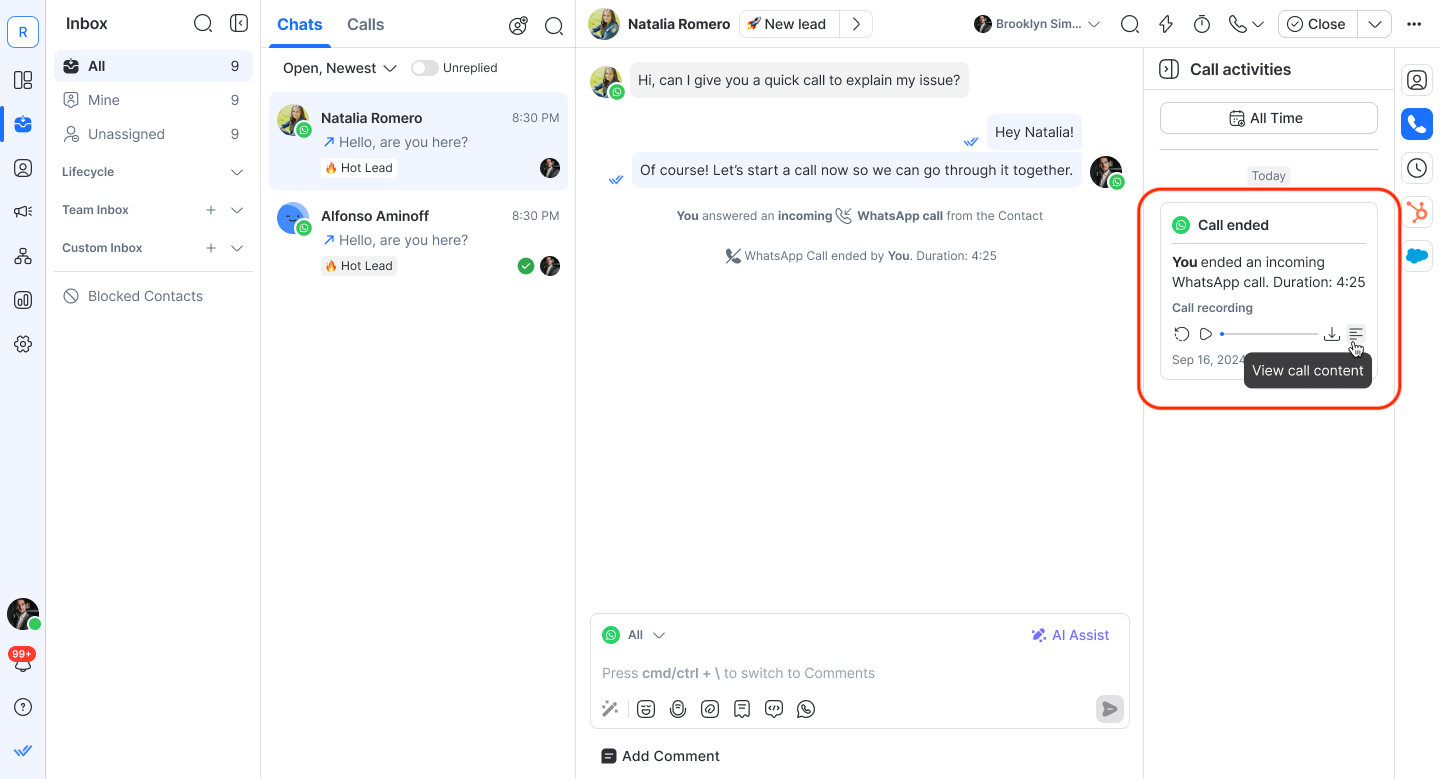
This is what you can do with call transcripts:
View transcripts inline.
Copy text for easy reuse.
Download full transcripts for documentation or compliance.
For calls that include an AI Agent to human agent transfer — including any missed or declined transfer attempts — the entire interaction is generated as a single transcript.
AI Agent call transfers
When an AI Agent transfers a live call to a human agent, the transfer appears in the Incoming Calls tab and the Conversation view.
Receiving a transferred call
Incoming Calls tab: The transferred call row displays — "[Transfer icon] From [AI Agent Name]"
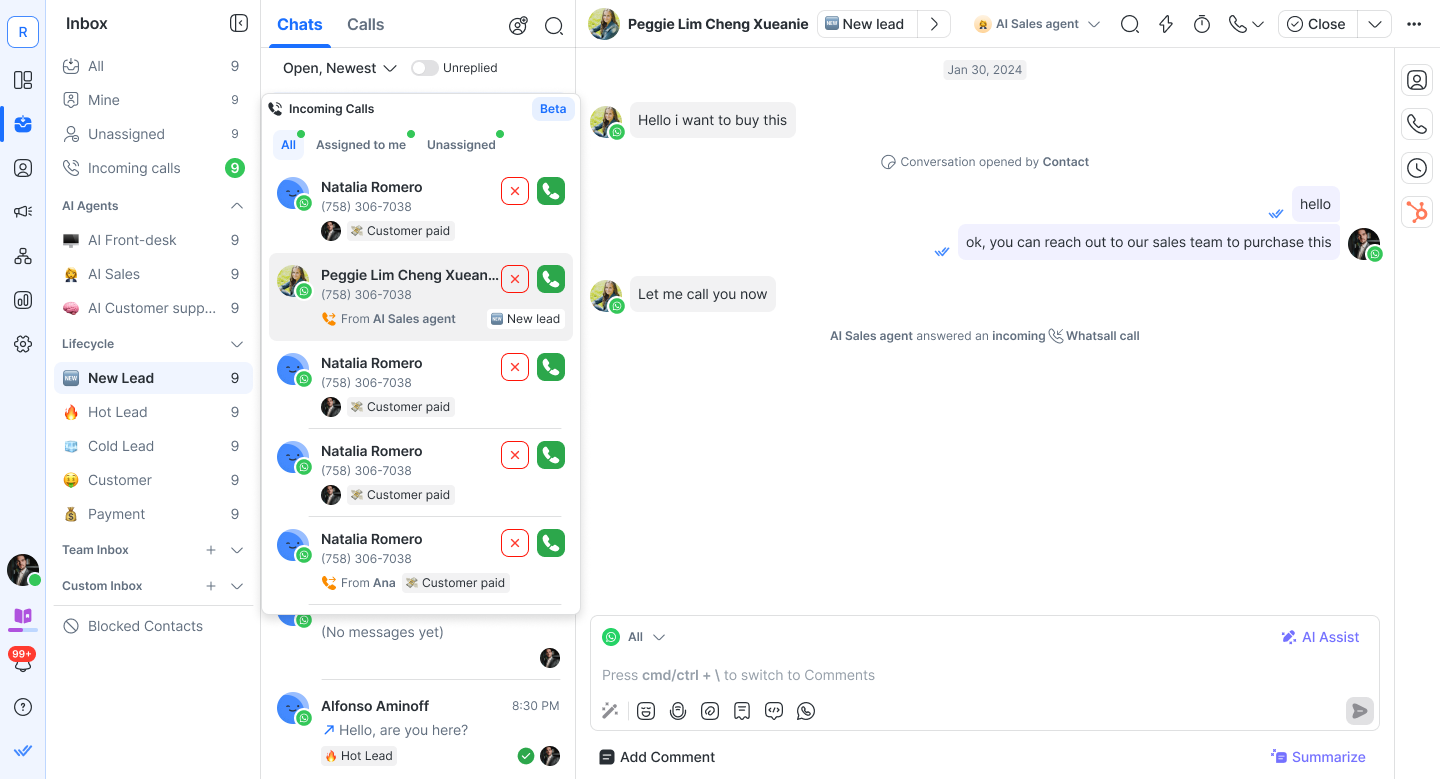
Conversation view: The incoming call CTA displays — "Transfer from [AI Agent Name]"
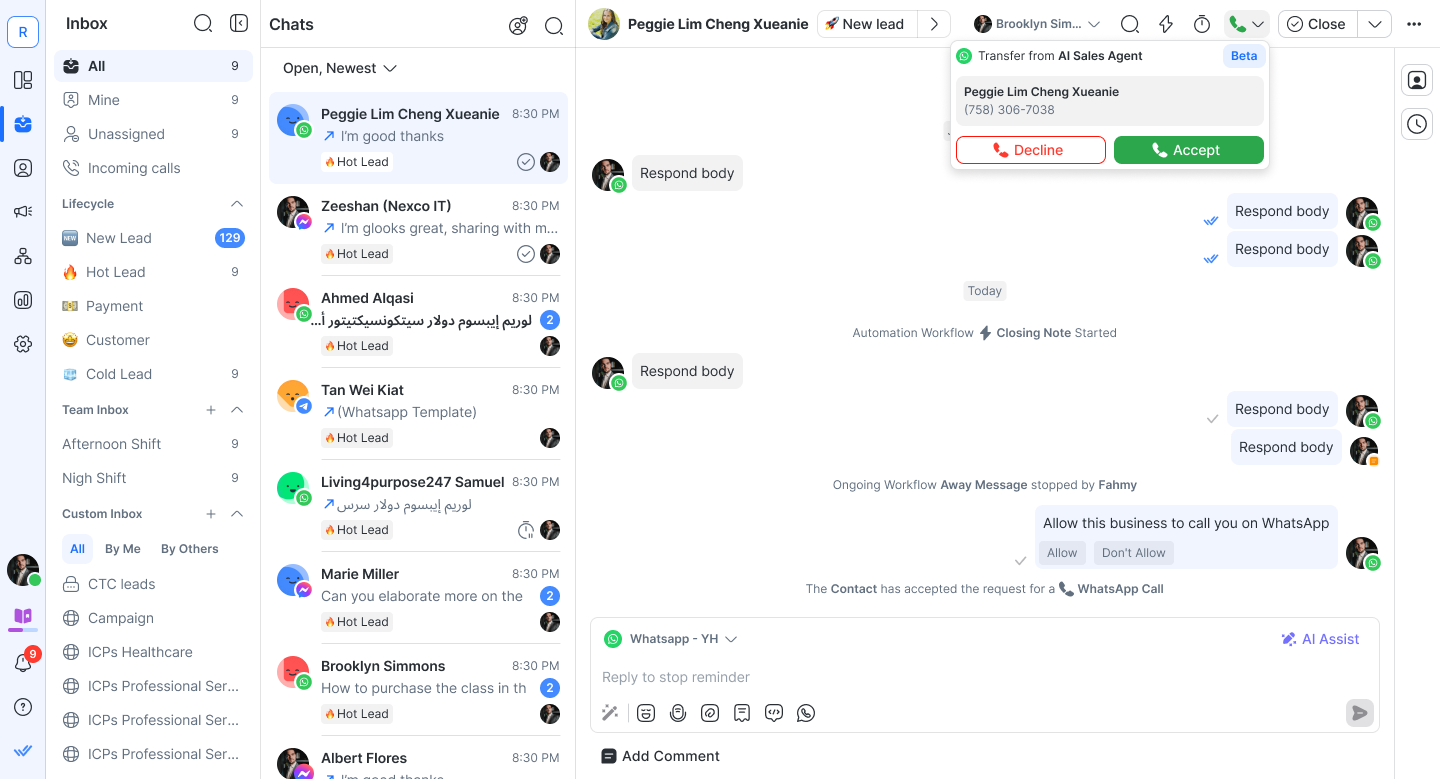
Transfer Contact events
All transfer outcomes are logged as Contact events:
Outcome | Event displayed |
|---|---|
Human agent accepts | "[Agent Name] accepted the transferred [channel] call from [AI Agent Name]" |
Human agent misses or declines | "[Agent Name] missed the transferred [channel] call from [AI Agent Name]" |
If a transfer is missed or declined
If a human agent misses or declines the transferred call, the call does not end. The system automatically routes the call back to the AI Agent, which resumes the conversation with: "I couldn't connect you to a human agent just now, but I'm here to help. What can I do for you?"
Note: The AI Agent resumes without retaining the context of the conversation prior to the transfer attempt.
Next steps
You’ve learned how to view and manage call activities in Inbox. Next, learn how to manage Contacts in Inbox so you can keep customer information accurate, view key details in the sidebar, and stay focused on your conversations.


