

Getting here
Files is accessible by Owners and Managers only!
You can access Files by going to Workspace settings > Data settings > Files.
Files lets you upload documents to the platform and send them later to Contacts in conversations or broadcasts.
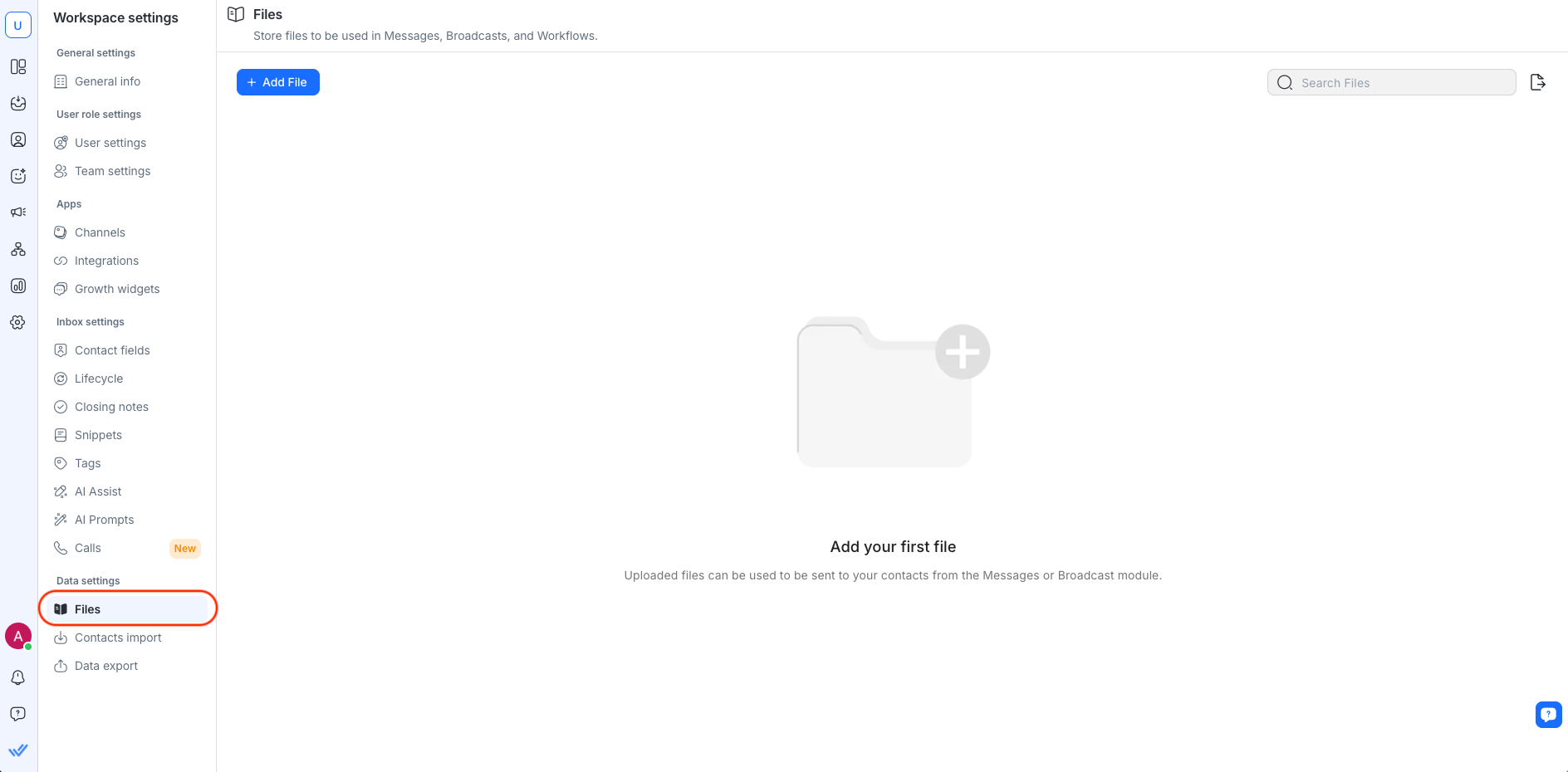
Files overview
From this table, you can browse through the list of existing files that have been uploaded onto the platform.
Tip: Use the 🔍 function to search for the file you are looking for.
File Name and ID
The file name displays the human-friendly name of each file on the system. Meanwhile, File ID is the unique identifier used to label the files stored on the platform.
The File ID will be used to send files from our system through integrations.
Description and File Type
The description shows a short description of the content for each of the files. The file type column displays what kind of files they are.
Date Added
This is the date on which the file was added to the system.
Actions

You can perform the following actions with files:
Uploading a new file
Go to Workspace settings > Data settings > select Files
Click Add File to open the Upload File dialog.
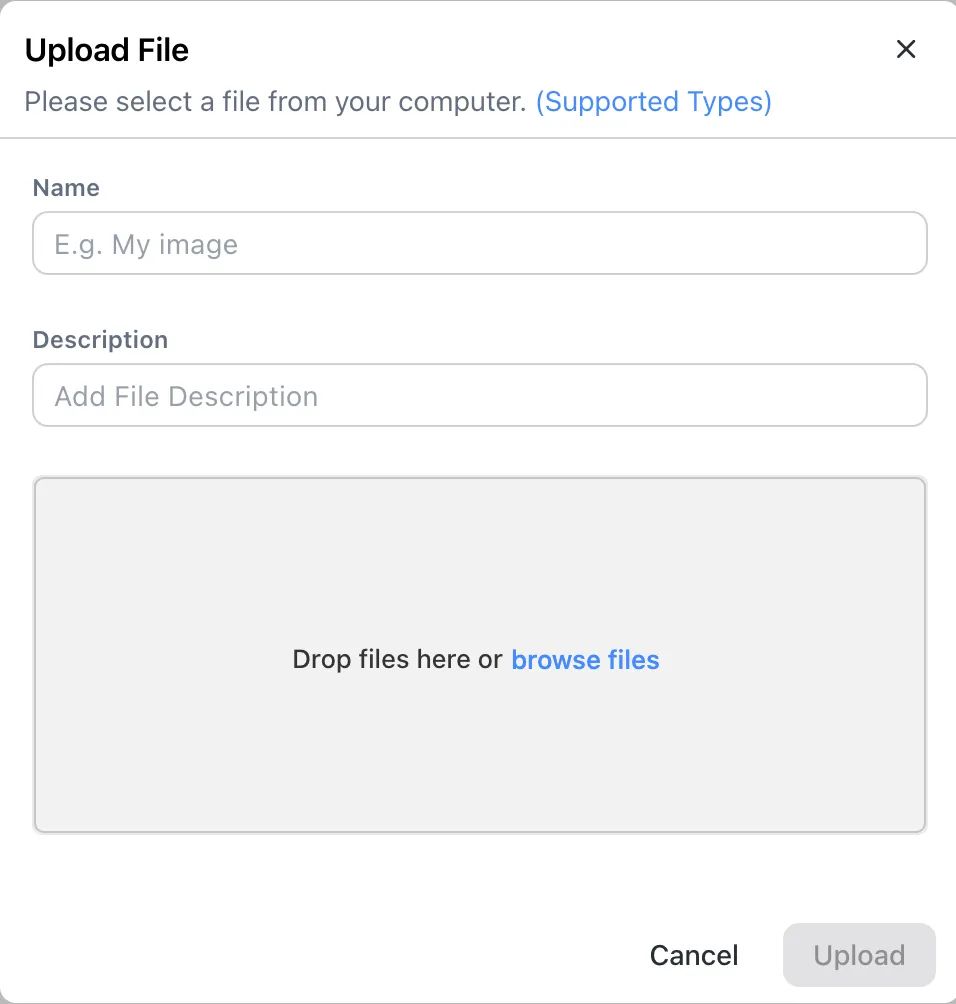
Add a name and description for the file.
Drag and drop the file, or click browse files to select a file from your device.
Click Upload.
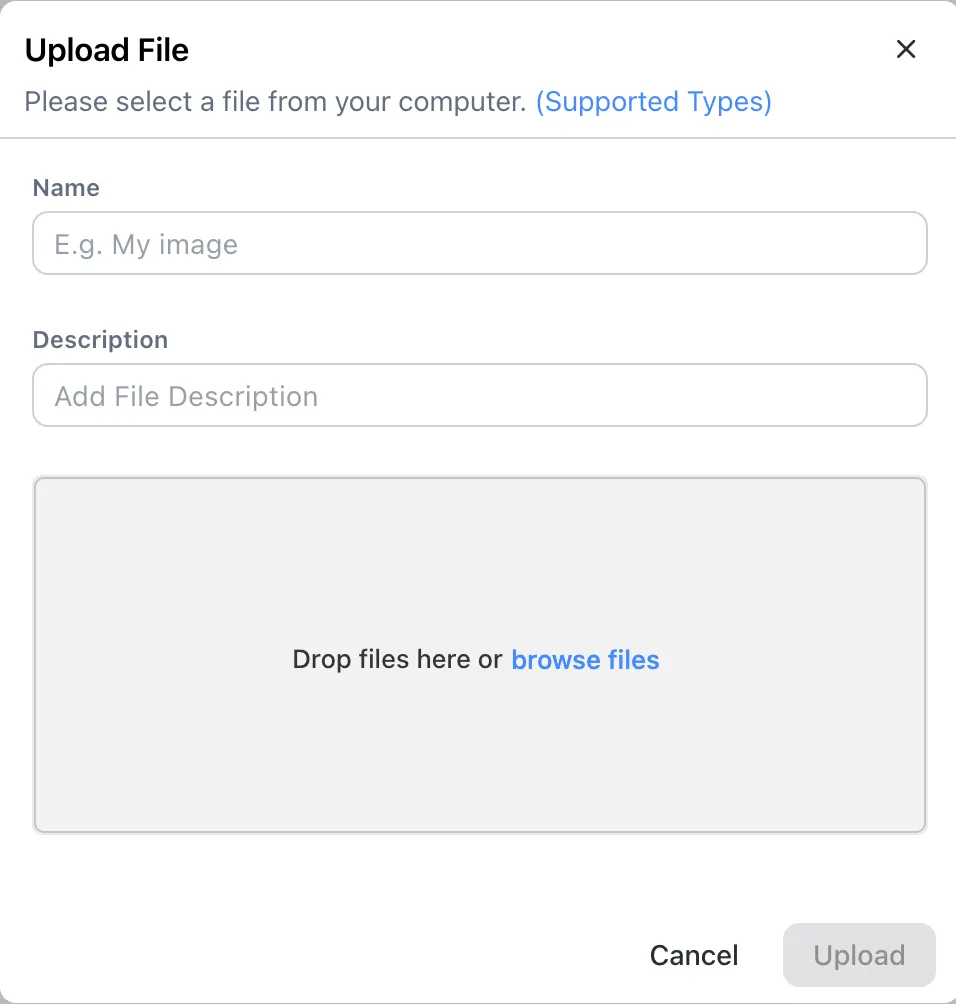
Supported file types
The allowed file types have been listed in the following table:
Format | File type |
|---|---|
Image | jpg, jpeg, gif, bmp, png, svg, ai, webp, tiff, jfif |
Documents | txt, xls, xlsx, doc, docx, csv, ppt, pptx, pdf, log, xml, json, html, url, ppsx, ovpn, sxc |
Audio/video | mp3, mp4, mov, wav, mpg, mpeg, mpga, adp, avi, webm, ogg, oga, ogv, 3g2, midi, mid, m4a, qt, mp2, opus |
Compressed | zip, tar, tgz, gz, tar.gz, rar |
Maximum file size: 20MB
If your file size is larger than 20 MB, it is suggested that you compress it into a ZIP folder before uploading.
Sending a file to a Contact
You can send files to a Contact directly.
Before sending a file to your Contact, make sure the Contact's Channel is capable of receiving the file to prevent undelivered messages. You can check Channel compatibility.
Here’s how to send a file:
Go to Inbox > select the Contact you want to send the file to.
Click the File icon in the message composer.

Choose either Select file from device to upload a file from your device or Select file from library to use an uploaded file from Files.

Click Send Message to send the file.


Channel compatibility
While the respond.io platform accepts uploads up to 20MB in size, different Channels have their own guidelines and specifications for files they can accept. For example, some don't accept certain file types while others may limit attachment sizes.
Channel | Maximum File Size | Supported File Types |
|---|---|---|
WhatsApp Business Platform (API) | Image: 5MB | 3gp,amr,csv,doc,docx,jpeg,jpg,mp4,mpeg,opus,pdf,png,ppt,pptx,webp,xls,xlsx,xml |
Facebook Messenger | Image: 8 MB | 3g2,3gp,3gpp,aa,aac,aax,ac3,aiff,ape,asf,au,avi,csv,dat,divx,docx,f4v,flac,flv,gif,jpeg,jpg,m2fts,m4a,m4b,m4p,m4r,m4v,mka,mkv,mod,mov,mp3,mp4,mpe,mpeg,mpeg4,nsv,ogg,ogm,ogv,pdf,png,tod,vob,wav,wma,wmv,xml,zip |
Image: 8 MB | bmp,gif,ico,jpg,png | |
Image: 5 MB | amr,jpeg,jpg,mp3,mp4,png | |
Image: 5 MB | gif,jpeg,jpg,mp3,mp4,png,webp | |
LINE | 10 MB | aac,jpeg,jpg,m4a,mp3,mp4,png,wav |
Telegram | Image: 5 MB | 3g2,3gp,3gpp,aa,aac,aax,ac3,aiff,ape,asf,au,avi,csv,dat,divx,docx,f4v,flac,flv,gif,jpeg,jpg,m2fts,m4a,m4b,m4p,m4r,m4v,mka,mkv,mod,mov,mp3,mp4,mpe,mpeg,mpeg4,nsv,ogg,ogm,ogv,pdf,png,tod,vob,wav,wma,wmv,xml |
Viber | Image: 1 MB | 3g2,3gp,3gpp,aa,aac,aax,ac3,aiff,ape,asf,au,avi,csv,dat,divx,docx,f4v,flac,flv,gif,jpeg,jpg,m2fts,m4a,m4b,m4p,m4r,m4v,mka,mkv,mod,mov,mp3,mp4,mpe,mpeg,mpeg4,nsv,ogg,ogm,ogv,pdf,png,tod,vob,wav,wma,wmv,xml,zip |
SMS - Twilio | 1 MB | jpeg,jpg,png |
SMS - Bird | 1 MB | jpeg,jpg,png |
SMS - Vonage | 1 MB | gif,jpeg,jpg,png |
Gmail | 25 MB | N/A |
TikTok | 3 MB | jpg,png |
Fallback sending method
When you attempt to send a file that is incompatible or does not meet the requirements of the messaging channel, the platform will automatically replace your attachment with a URL link to your file instead.
This way, the file can reach the Contact even if the Channel does not support receiving such attachment types.
Downloading a file
If you are unsure of a file's content, download it and check its contents before sending it to your Contact. Click on Download in the Actions menu to download the file to your computer.
Editing a file
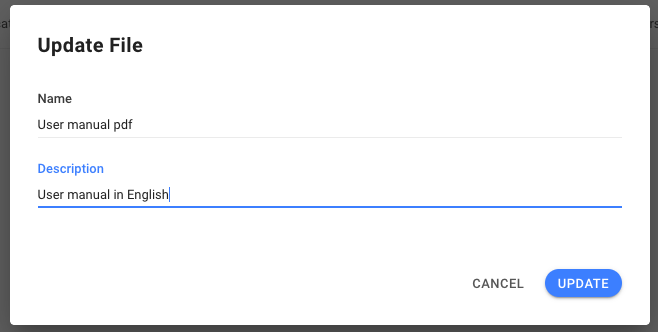
If you need to make a change to a file's name or update its description, click the Edit button in the Actions menu.
Copying the File ID
During integration, you may need the File ID of a file to facilitate a process. The File ID can be obtained by selecting Copy File ID from the Actions menu and the File ID will be copied onto your clipboard.
Copying the File URL
Select Copy File URL from the Actions menu to copy a file's link to the clipboard.
Use this link to send the file as an attachment — for example, in an AI Agent's Knowledge Sources or Instructions.
Learn more in sending files and images as attachments.
Deleting a file
If a file is no longer relevant or is not in use anymore, it can be deleted from the Workspace by choosing Delete from the Actions menu.
Be careful when you delete a file as it may be used by other Users in the Workspace. Bear in mind that the deletion cannot be undone.
Troubleshooting
Sending high-resolution photos
If you fail to send a photo to your Contact, please check its resolution and make sure it is less than 85 megapixels. Channels like Facebook have photo resolution and megapixels restrictions.
Sending videos
If you fail to send videos to your Contact, please check the video resolution as some Channels may not support high-resolution videos. You may try to send the video again with a lower resolution.
WhatsApp Business Platform (API) video requirements
Only H.264 video codec and AAC audio codec are supported, with a single audio stream or no audio stream.
Videos encoded with the H.264 "High" profile and B-frames are not supported on Android WhatsApp clients.
For broader compatibility, encode or re-encode your video using the H.264 "Main" profile without B-frames, or the H.264 "Baseline" profile. If you are using ffmpeg, use the -movflags faststart flag to place moov boxes before mdat boxes.
Learn more about video requirements in the Meta doc.
Receiving and sending files
If your Workspace has trouble receiving and sending files to your Contacts, your network may have restricted some IPs. Please add the following to whitelist the IPs:
{
  "CLOUDFRONT\_GLOBAL\_IP\_LIST": \[
    "120.52.22.96/27",
    "205.251.249.0/24",
    "180.163.57.128/26",
    "204.246.168.0/22",
    "205.251.252.0/23",
    "54.192.0.0/16",
    "204.246.173.0/24",
    "54.230.200.0/21",
    "120.253.240.192/26",
    "116.129.226.128/26",
    "130.176.0.0/17",
    "99.86.0.0/16",
    "205.251.200.0/21",
    "223.71.71.128/25",
    "13.32.0.0/15",
    "120.253.245.128/26",
    "13.224.0.0/14",
    "70.132.0.0/18",
    "13.249.0.0/16",
    "205.251.208.0/20",
    "65.9.128.0/18",
    "130.176.128.0/18",
    "58.254.138.0/25",
    "54.230.208.0/20",
    "116.129.226.0/25",
    "52.222.128.0/17",
    "64.252.128.0/18",
    "205.251.254.0/24",
    "54.230.224.0/19",
    "71.152.0.0/17",
    "216.137.32.0/19",
    "204.246.172.0/24",
    "120.52.39.128/27",
    "118.193.97.64/26",
    "223.71.71.96/27",
    "54.240.128.0/18",
    "205.251.250.0/23",
    "180.163.57.0/25",
    "52.46.0.0/18",
    "223.71.11.0/27",
    "52.82.128.0/19",
    "54.230.0.0/17",
    "54.230.128.0/18",
    "54.239.128.0/18",
    "130.176.224.0/20",
    "36.103.232.128/26",
    "52.84.0.0/15",
    "143.204.0.0/16",
    "144.220.0.0/16",
    "120.52.153.192/26",
    "119.147.182.0/25",
    "120.232.236.0/25",
    "54.182.0.0/16",
    "58.254.138.128/26",
    "120.253.245.192/27",
    "54.239.192.0/19",
    "120.52.12.64/26",
    "99.84.0.0/16",
    "130.176.192.0/19",
    "52.124.128.0/17",
    "204.246.164.0/22",
    "13.35.0.0/16",
    "204.246.174.0/23",
    "36.103.232.0/25",
    "119.147.182.128/26",
    "118.193.97.128/25",
    "120.232.236.128/26",
    "204.246.176.0/20",
    "65.8.0.0/16",
    "65.9.0.0/17",
    "120.253.241.160/27",
    "64.252.64.0/18"
  \],
  "CLOUDFRONT\_REGIONAL\_EDGE\_IP\_LIST": \[
    "13.113.196.64/26",
    "13.113.203.0/24",
    "52.199.127.192/26",
    "13.124.199.0/24",
    "3.35.130.128/25",
    "52.78.247.128/26",
    "13.233.177.192/26",
    "15.207.13.128/25",
    "15.207.213.128/25",
    "52.66.194.128/26",
    "13.228.69.0/24",
    "52.220.191.0/26",
    "13.210.67.128/26",
    "13.54.63.128/26",
    "99.79.169.0/24",
    "18.192.142.0/23",
    "35.158.136.0/24",
    "52.57.254.0/24",
    "13.48.32.0/24",
    "18.200.212.0/23",
    "52.212.248.0/26",
    "3.10.17.128/25",
    "3.11.53.0/24",
    "52.56.127.0/25",
    "15.188.184.0/24",
    "52.47.139.0/24",
    "18.229.220.192/26",
    "54.233.255.128/26",
    "3.231.2.0/25",
    "3.234.232.224/27",
    "3.236.169.192/26",
    "3.236.48.0/23",
    "34.195.252.0/24",
    "34.226.14.0/24",
    "13.59.250.0/26",
    "18.216.170.128/25",
    "3.128.93.0/24",
    "3.134.215.0/24",
    "52.15.127.128/26",
    "3.101.158.0/23",
    "52.52.191.128/26",
    "34.216.51.0/25",
    "34.223.12.224/27",
    "34.223.80.192/26",
    "35.162.63.192/26",
    "35.167.191.128/26",
    "44.227.178.0/24",
    "44.234.108.128/25",
    "44.234.90.252/30"
  \]
}


