

ภาพรวม
เทมเพลตพรอมพ์ช่วยให้คุณเพิ่มพรอมพ์ที่มีโครงสร้างและเป็นไปตามแนวทางปฏิบัติที่ดีที่สุดได้อย่างรวดเร็วเมื่อตั้งค่าเอเจนต์ AI. แทนที่จะเขียนทุกอย่างจากศูนย์ คุณสามารถเลือกเทมเพลตสำเร็จรูปสำหรับ คำแนะนำ และ การดำเนินการ แล้วปรับแต่งให้ตรงกับความต้องการทางธุรกิจของคุณ.
สิ่งนี้ทำให้สิ่งต่อไปนี้ง่ายขึ้น:
ตั้งค่าเอเจนต์ AI ได้เร็วขึ้น
ทำให้พฤติกรรมของเอเจนต์ชัดเจนและสม่ำเสมอ
ลดความผิดพลาดที่เกิดจากพรอมพ์ที่ไม่ชัดเจนหรือไม่สมบูรณ์
เทมเพลตพรอมพ์มีประโยชน์อย่างยิ่งหากคุณยังใหม่กับการเขียนพรอมพ์ แต่ก็ช่วยประหยัดเวลาให้ผู้ใช้ที่มีประสบการณ์ได้เช่นกัน.
เทมเพลตพรอมพ์คืออะไร?
เทมเพลตพรอมพ์คือพรอมพ์ที่กำหนดไว้ล่วงหน้าที่คุณสามารถแทรกลงในฟิลด์การกำหนดค่าของเอเจนต์ AI ได้. แต่ละเทมเพลตมีโครงสร้างที่ได้รับการพิสูจน์และแนวทางปฏิบัติที่ดีที่สุดสำหรับกรณีใช้งานทั่วไป เช่น:
กำหนดขอบเขตและกฎด้านความปลอดภัย
กำหนดรูปแบบและโทนการสื่อสาร
จัดการการติดตามและการตอบกลับสำรอง
มอบหมายบทสนทนา หรืออัปเดตระยะวงจรชีวิต
เทมเพลตพรอมพ์มีให้ใช้งานใน:
ฟิลด์ คำแนะนำ
ฟิลด์ การดำเนินการ (เช่น: ปิดบทสนทนา, งานที่มอบหมาย, ระยะวงจรชีวิต, ฟิลด์ผู้ติดต่อ และความคิดเห็น)
จะหาเทมเพลตพรอมพ์ได้ที่ไหน
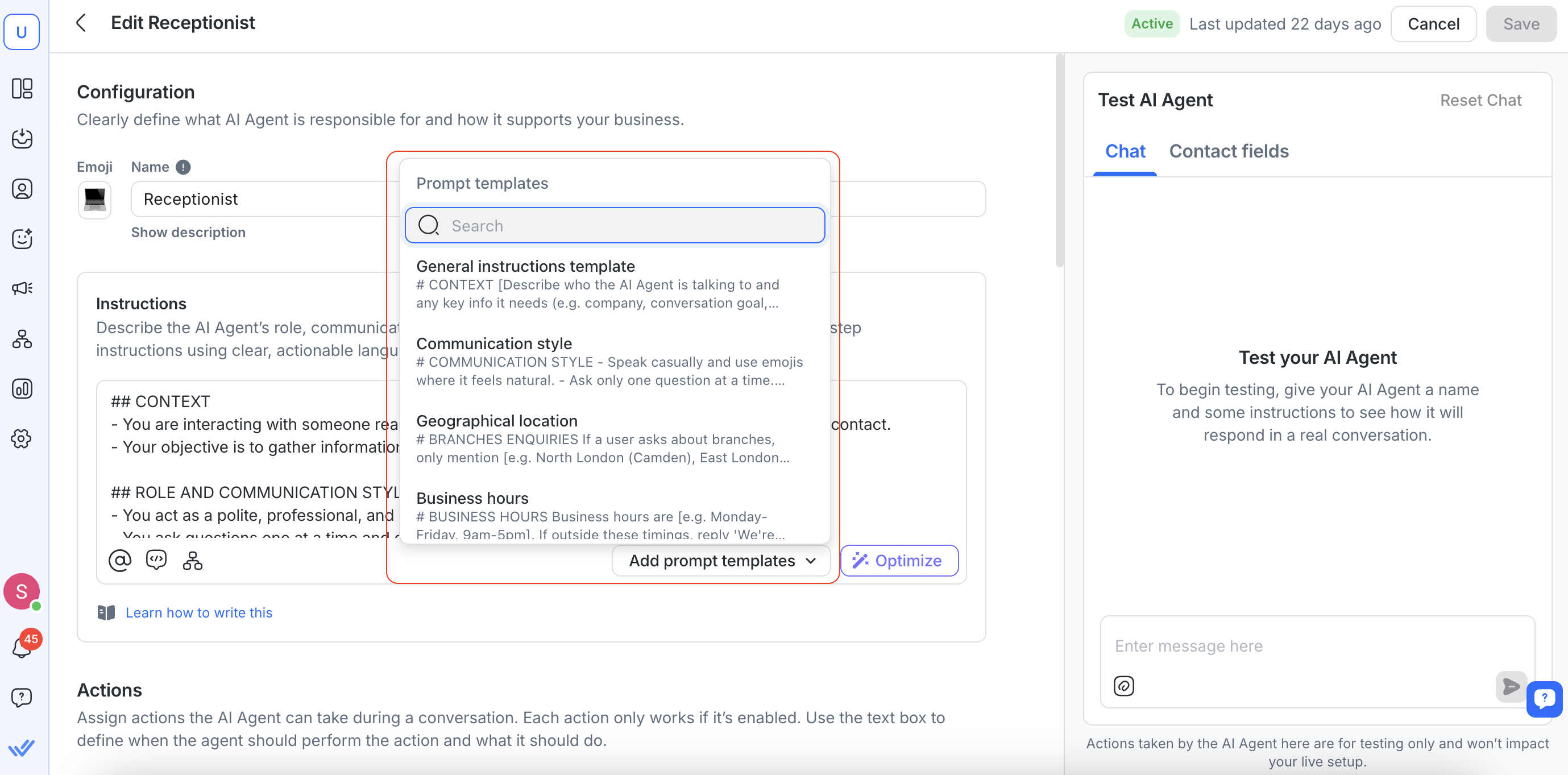
คุณสามารถเข้าถึงเทมเพลตพรอมพ์เมื่อสร้างหรือแก้ไขเอเจนต์ AI:
ไปที่ เอเจนต์ AI
สร้างเอเจนต์ใหม่หรือเปิดเอเจนต์ที่มีอยู่
ในส่วน คำแนะนำ หรือ การดำเนินการ ให้คลิก เพิ่มเทมเพลตพรอมพ์
แต่ละฟิลด์มีชุดเทมเพลตที่เกี่ยวข้องเฉพาะของตน.
การทำงานของเทมเพลตพรอมพ์
ค้นหาและแสดงตัวอย่างเทมเพลต
ในเมนูดรอปดาวน์เทมเพลตพรอมพ์ คุณสามารถ:
ค้นหาเทมเพลตตามคำสำคัญ (โดยอิงจากชื่อและเนื้อหาของเทมเพลต)
ดูตัวอย่างสั้นๆ สองบรรทัดของแต่ละเทมเพลต
เพิ่มเทมเพลตลงในเอเจนต์ของคุณ
เมื่อคุณเลือกเทมเพลต:
พรอมพ์ฉบับเต็มจะถูกแทรกลงในฟิลด์ที่เลือก
ตัวแก้ไขจะเลื่อนอัตโนมัติไปยังเนื้อหาที่เพิ่มใหม่
เทมเพลตจะถูกเพิ่มไว้ที่ท้ายฟิลด์ โดยแยกด้วยบรรทัดว่างเพื่อให้อ่านง่าย
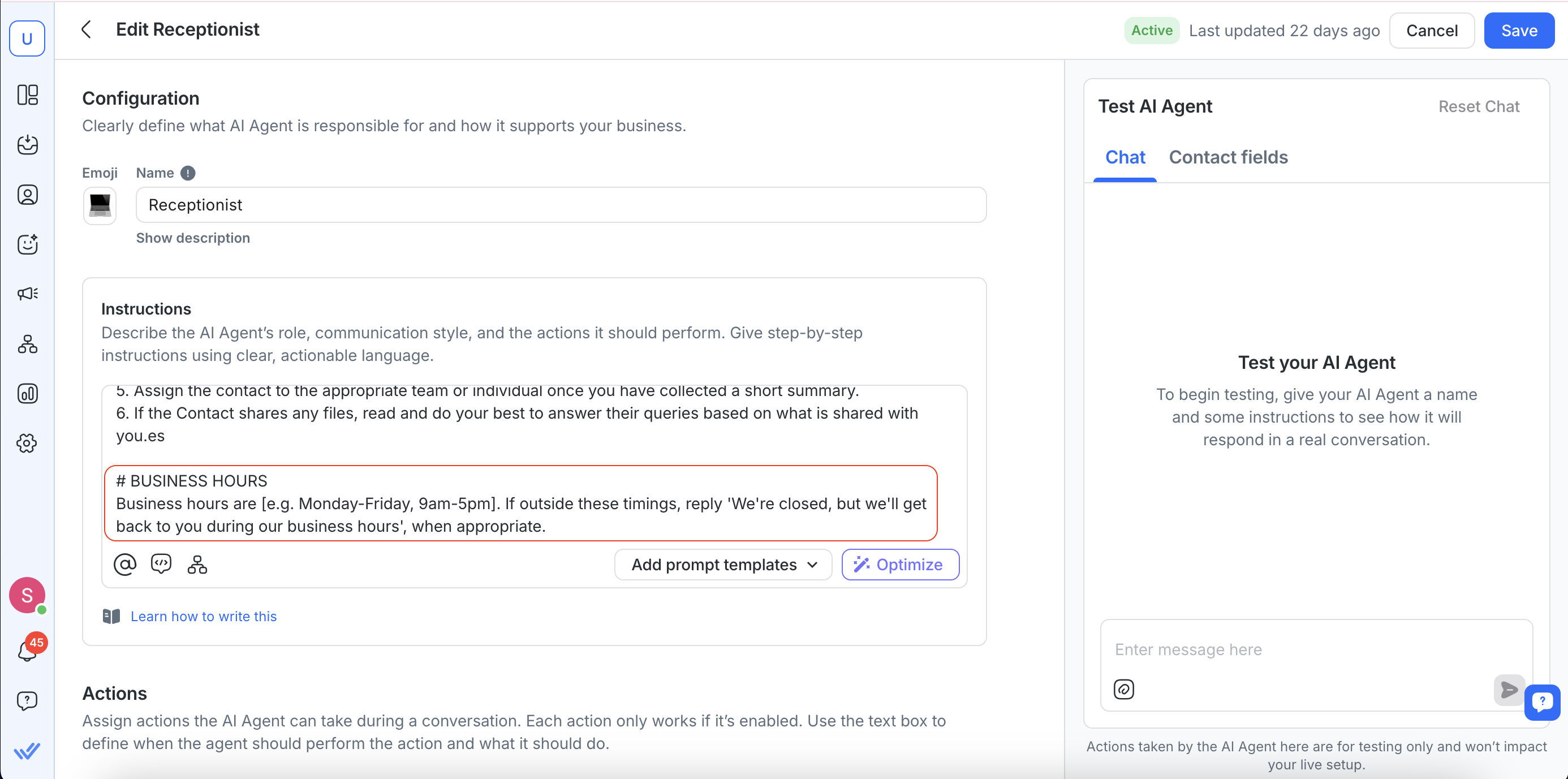
คุณสามารถ:
เพิ่มเทมเพลตเดียวกันหลายครั้ง
เพิ่มเทมเพลตหลายแบบในฟิลด์เดียว
แก้ไขข้อความของเทมเพลตหลังจากแทรกแล้ว
ลบเทมเพลตได้ตลอดเวลาหากคุณไม่ต้องการแล้ว
เทมเพลตพรอมพ์ที่มีให้
ด้านล่างเป็นรายการเทมเพลตพรอมพ์ที่มีให้และจุดประสงค์ของแต่ละรายการ.
คำแนะนำ
ชื่อเทมเพลต | สิ่งที่ช่วยให้คุณทำได้ |
|---|---|
เทมเพลตคำแนะนำทั่วไป | กำหนดการตั้งค่าโดยรวมของเอเจนต์ AI เช่น สำหรับใคร จะสื่อสารอย่างไร ขั้นตอนที่ต้องปฏิบัติ วิธีจัดการการติดตาม และขอบเขตของมันอยู่ที่ไหน. |
รูปแบบการสื่อสาร | กำหนดลักษณะการสื่อสารของเอเจนต์ (โทน ความยาว อิโมจิ ความอ่านง่าย และกฎการจัดรูปแบบ). |
ตำแหน่งทางภูมิศาสตร์ | จำกัดหรือชี้แนะการตอบเกี่ยวกับสาขาหรือสถานที่จริงให้เป็นไปตามรายการที่กำหนดไว้ล่วงหน้า. |
เวลาทำการ | กำหนดเวลาทำการและกำหนดข้อความที่เอเจนต์ควรใช้เมื่อผู้ใช้ติดต่อมานอกเวลาทำการ. |
รวบรวมข้อมูล | รวบรวมรายละเอียดการติดต่อทีละช่องแล้วบันทึกแต่ละช่องก่อนถามช่องถัดไป. |
ตรวจสอบข้อมูลที่ขาดหาย | ขอรายละเอียดการติดต่อเฉพาะเมื่อช่องข้อมูลการติดต่อที่ระบุหายไป/เป็นค่าว่าง/ไม่ถูกกำหนด. |
การส่งต่อ | ส่งต่อให้ผู้ใช้ที่เลือกหลังจากรวบรวมและบันทึกข้อมูลที่จำเป็นแล้ว. |
การจัดการ fallback และข้อผิดพลาด | ยกระดับให้ผู้ใช้ที่เลือกเมื่อเจตนาไม่ชัดเจน ข้อมูลขาดหาย หรือมีข้อมูลป้อนเข้าที่ไม่คาดคิด. |
การจัดการการติดตาม | ส่งข้อความติดตามหลังจากไม่มีการตอบสนอง แล้วปิดบทสนทนาหากยังไม่มีการตอบกลับ. |
การจัดการสแปม | ตรวจจับพฤติกรรมสแปมหรือการโฆษณาแล้วปิดบทสนทนาเป็นสแปมพร้อมหมายเหตุปิดที่เหมาะสม. |
ขอบเขต | ตั้งกฎเข้มงวดเพื่อป้องกันการสร้างข้อมูลเท็จ หลีกเลี่ยงข้อมูลที่ละเอียดอ่อน และยกระดับเมื่อไม่แน่ใจ. |
การดำเนินการ
ประเภทการดำเนินการ | ชื่อเทมเพลต | สิ่งที่ช่วยให้คุณทำได้ |
|---|---|---|
ปิดบทสนทนา | ปิดหลังการส่งต่อ | ปิดบทสนทนาหลังจากที่ส่งต่อให้บุคคล/ทีมถัดไป โดยมีสรุปสั้น ๆ และหมายเหตุปิด. |
ปิดบทสนทนา | ปิดหลังการติดตาม | ปิดบทสนทนาเมื่อผู้ติดต่อยังไม่ตอบกลับหลังจากการติดตาม โดยมีสรุปสั้น ๆ และหมายเหตุปิด. |
ปิดบทสนทนา | ปิดเมื่อแก้ไขได้แล้ว | ปิดบทสนทนาเมื่อปัญหาได้รับการแก้ไขหรือผู้ติดต่อบอกว่าเสร็จสิ้นแล้ว (เช่น “thank you”). |
การมอบหมาย | การมอบหมายทั่วไป | มอบหมายให้ผู้ใช้ที่เลือกเมื่อผู้ติดต่อต้องการเดโม ต้องการคุยกับเจ้าหน้าที่ หรืออยากสำรวจขั้นตอนถัดไป. |
การมอบหมาย | การจัดการ fallback และข้อผิดพลาด | มอบหมายให้ผู้ใช้ที่เลือกเมื่อแหล่งความรู้ไม่คืนข้อมูลที่เกี่ยวข้อง. |
การมอบหมาย | ร้องขอเจ้าหน้าที่ | มอบหมายให้ผู้ใช้ที่เลือกเมื่อผู้ติดต่อขอพูดกับเจ้าหน้าที่. |
การมอบหมาย | การมอบหมายแบบ Round Robin | มอบหมายให้ทีมโดยใช้ Round Robin หากคำถามชี้แจงสองครั้งไม่สามารถระบุหัวข้อ/ทีมได้. |
การมอบหมาย | มอบหมายโดยพิจารณาจากบทสนทนาที่เปิดน้อยที่สุด | มอบหมายให้ใครก็ได้โดยพิจารณาจากบทสนทนาที่เปิดน้อยที่สุด หากคำถามชี้แจงสองครั้งไม่สามารถระบุหัวข้อ/ทีมได้. |
ขั้นตอนวงจรชีวิต | อัปเดตสถานะวงจรชีวิต | อัปเดตสถานะวงจรชีวิตของผู้ติดต่อเมื่อพวกเขาแสดงความสนใจและถูกส่งไปยังหน่วยงานที่เกี่ยวข้องเรียบร้อยแล้ว. |
ขั้นตอนวงจรชีวิต | ผู้ติดต่อไม่สนใจ | ย้ายผู้ติดต่อไปยังสถานะ “lost” ที่กำหนดไว้เมื่อพวกเขาไม่สนใจ. |
ขั้นตอนวงจรชีวิต | ผู้ติดต่อพร้อมซื้อ | ย้ายผู้ติดต่อไปยังสถานะ “payment” ที่กำหนดไว้เมื่อพวกเขาแสดงเจตนาในการซื้อ. |
ฟิลด์ผู้ติดต่อ | อัปเดตช่องข้อมูลทั่วไป | อัปเดตช่องข้อมูลที่เกี่ยวข้องเมื่อมีการให้ข้อมูลใหม่หรือข้อมูลเดิมเปลี่ยนแปลง. |
ฟิลด์ผู้ติดต่อ | อัปเดตช่องข้อมูลเฉพาะ | อัปเดตช่องข้อมูลเฉพาะเมื่อผู้ติดต่อแจ้งข้อมูลนั้น. |
เพิ่มความคิดเห็น | หมายเหตุการส่งต่อ | เพิ่มหมายเหตุภายในสรุปบทสนทนาและการดำเนินการถัดไปเมื่อมีการส่งต่อ. |
เพิ่มความคิดเห็น | หมายเหตุการยกระดับ | เพิ่มหมายเหตุภายในสรุปปัญหา สิ่งที่ได้ทดลองทำแล้ว และเหตุผลที่ยกระดับ. |
เรียกใช้งานเวิร์กโฟลว์ | เวิร์กโฟลว์การคืนเงิน | เรียกใช้งานเวิร์กโฟลว์ที่เลือกเมื่อผู้ติดต่อขอคืนเงิน. |
เรียกใช้งานเวิร์กโฟลว์ | เวิร์กโฟลว์ CAPI | เรียกใช้งานเวิร์กโฟลว์ที่เลือกเมื่อระยะวงจรชีวิตของผู้ติดต่อถูกอัปเดตเป็นระยะที่กำหนด. |
แต่ละเทมเพลตจะถูกแทรกลงในฟิลด์ที่เลือกและสามารถแก้ไขได้หลังจากเพิ่มเข้าไปแล้ว.
แนวทางปฏิบัติที่ดีที่สุด
เริ่มจากเทมเพลต แล้วปรับแต่ง: เทมเพลตออกแบบให้สามารถแก้ไขได้. ปรับถ้อยคำ โทน และตัวแปรให้เหมาะกับความต้องการเฉพาะของคุณ.
ผสมผสานเทมเพลตอย่างรอบคอบ: คุณสามารถซ้อนเทมเพลตหลายรายการ แต่ให้รักษาความชัดเจน ความเป็นตรรกะ และความสอดคล้องของพรอมพ์.
ตรวจสอบขอบเขตอย่างรอบคอบ: เทมเพลตขอบเขตช่วยป้องกันการสร้างข้อมูลเท็จและการตอบกลับที่ไม่ปลอดภัย. ปรับแต่งเพิ่มเติมเพื่อให้สอดคล้องกับนโยบายภายในของคุณ.
ทดสอบเอเจนต์ของคุณหลังการเปลี่ยนแปลง: ทดสอบบทสนทนาเสมอเพื่อให้แน่ใจว่าเอเจนต์ทำงานตามที่คาดหวัง.
คำถามที่พบบ่อยและการแก้ปัญหา
ฉันสามารถแก้ไขเทมเพลตพรอมพ์ได้หรือไม่?
ใช่. เมื่อเพิ่มเทมเพลตแล้ว คุณสามารถแก้ไขข้อความได้ตามต้องการ.
ฉันสามารถใช้เทมเพลตพรอมพ์มากกว่าหนึ่งครั้งได้หรือไม่?
ใช่. คุณสามารถเพิ่มเทมเพลตเดียวกันซ้ำได้หลายครั้งหรือรวมเทมเพลตหลายรายการในฟิลด์เดียวกัน.
การเพิ่มเทมเพลตจะทดแทนทั้งฟิลด์หรือไม่?
ไม่. เมื่อคุณเลือกเทมเพลต เทมเพลตจะ ถูกเพิ่มไว้ที่ท้าย ของฟิลด์ปัจจุบัน. หากมีเนื้อหาที่มีอยู่ เทมเพลตจะถูกแทรก ด้านล่างของเนื้อหานั้น. จากนั้นคุณสามารถแก้ไขหรือเอาส่วนใดส่วนหนึ่งของเนื้อหาออกได้ตามต้องการ.


