

WhatsApp Calls allows your business to make and receive voice calls with customers directly through the respond.io platform. Agents handle inbound and outbound calls from the Inbox, transfer active calls to teammates, and view call records as Contact events.
Before you begin
WhatsApp Business Calling API is currently in Beta.
User-initiated calls: Supported globally for numbers in all regions where Meta's Business Messaging operates and WhatsApp Calls are supported on mobile. These calls can be received in the respond.io Inbox free of Meta fees.
Business-initiated calls: Supported in all countries except numbers from USA, Canada, Egypt, Vietnam, Nigeria.
Not supported: Numbers from sanctioned regions (Cuba, Iran, North Korea, Syria, Crimea, Donetsk, and Luhansk).
Restricted or unavailable due to local restrictions: United Arab Emirates (UAE), Saudi Arabia, Qatar, and Egypt
Access and availability may change once the Beta period ends.
Eligibility: Your WhatsApp Business number must have a messaging limit of at least 2,000 business-initiated conversations in a rolling 24-hour period to enable WhatsApp Calls. Learn more about WhatsApp messaging limits.
Balance requirement: A minimum balance of $10 is required to make or receive WhatsApp calls.
Enable WhatsApp Calls
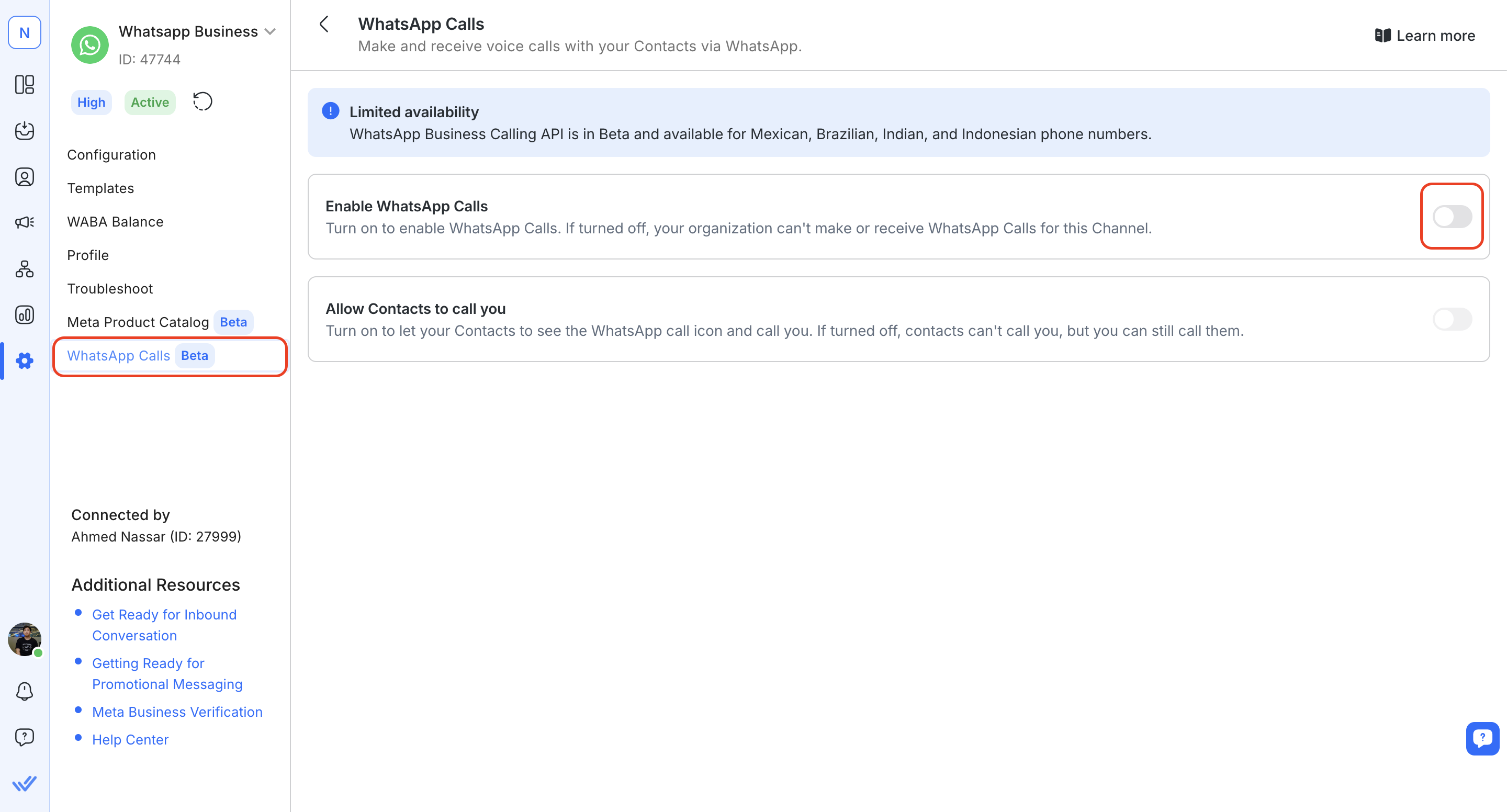
Navigate to Workspace Settings and click Channels.
Select the WhatsApp Channel to enable calls for and click Manage.
Navigate to WhatsApp Calls in the left sidebar and turn on WhatsApp Calls.
Once enabled, an option appears to allow or disallow Contacts from calling your business. If turned off, Contacts cannot call you, but your agents can still call them.
Receiving WhatsApp Calls
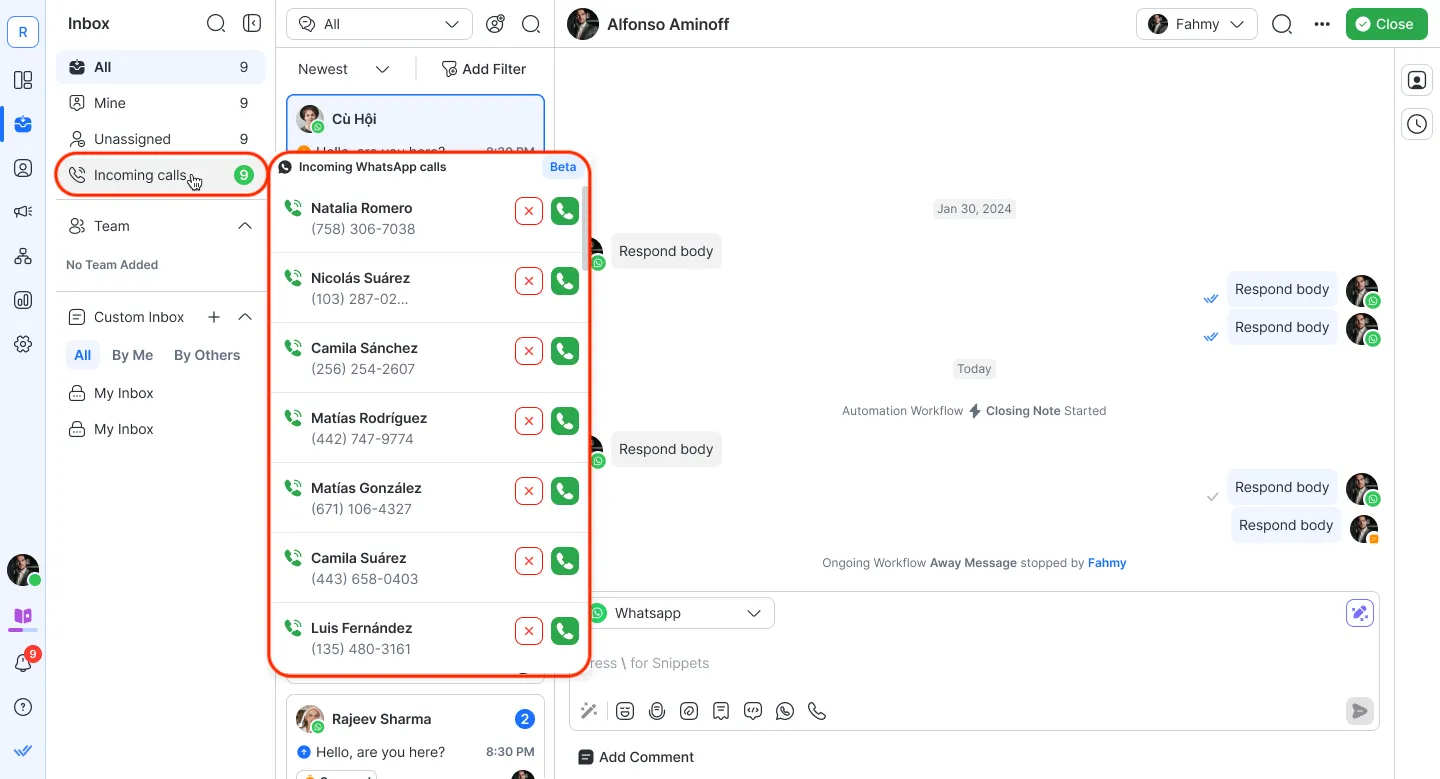
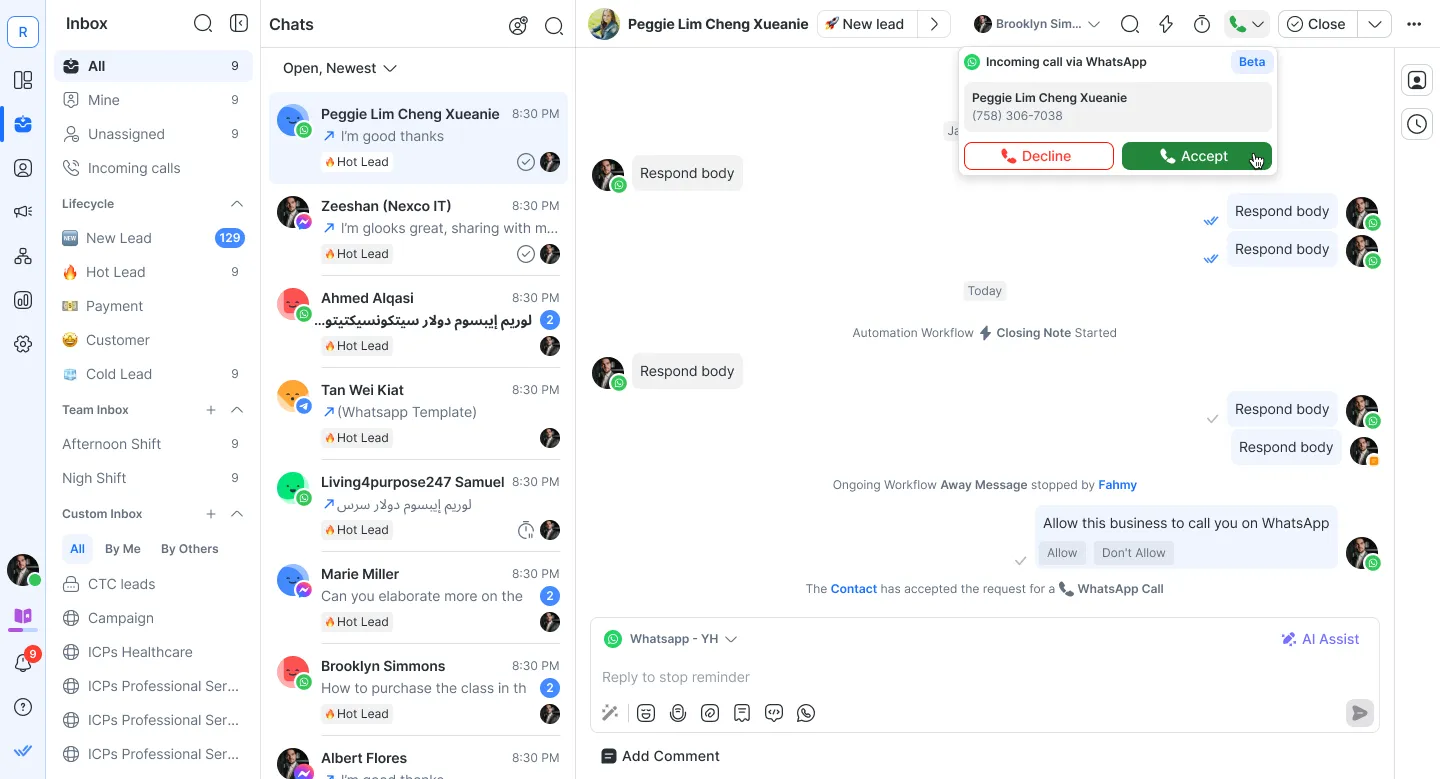
Incoming calls appear in two places: the Inbox sidebar and directly within the active conversation with the Contact who is calling. Accept or decline calls from either location.
The Inbox sidebar
Directly within the conversation with the calling Contact
While on a call, new incoming calls trigger notifications but cannot be accepted until the current call ends.
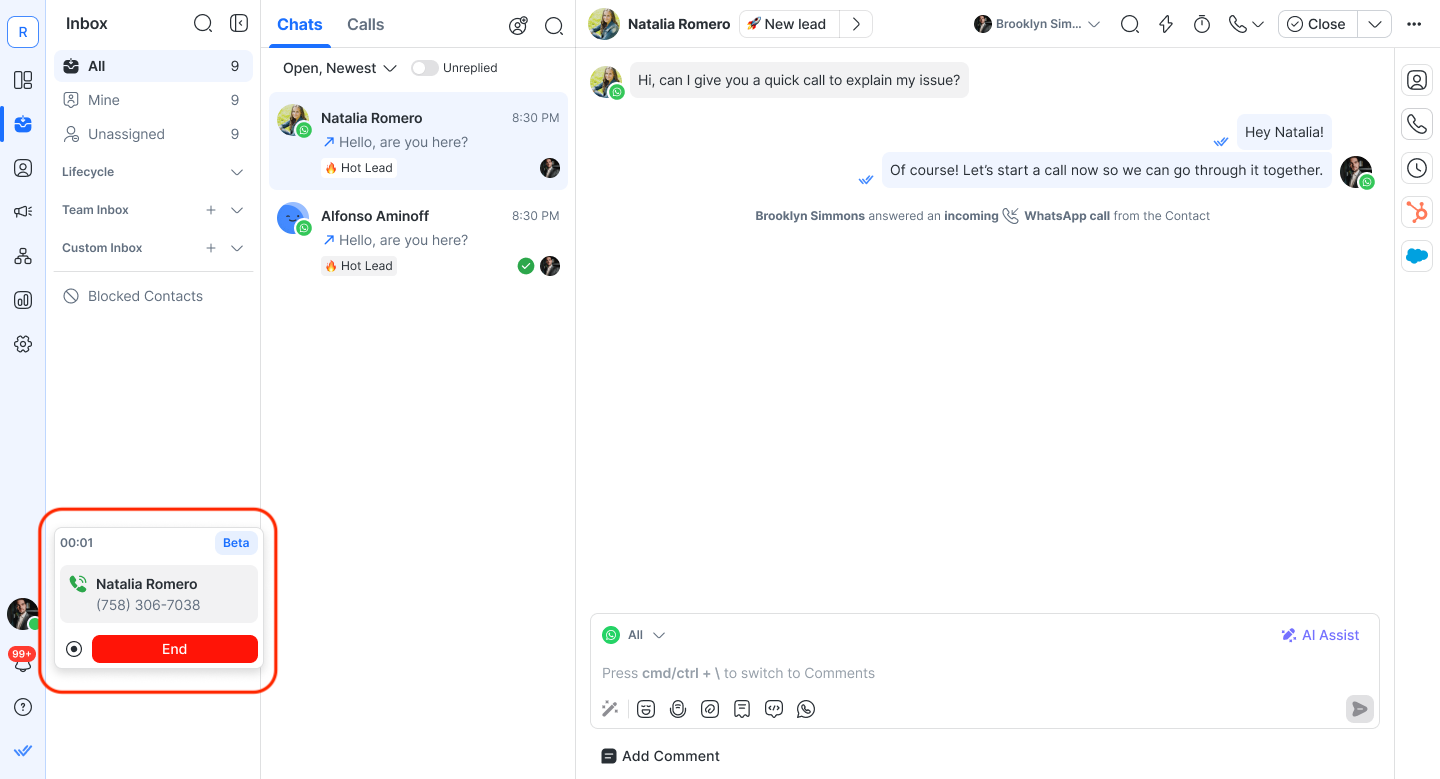
When a call is answered and call recording is enabled, a record button appears on screen.
Missed calls
Missed calls are marked as Contact events so agents can follow up later.
Call transfers
Agents can transfer active calls to other available teammates within the Workspace.
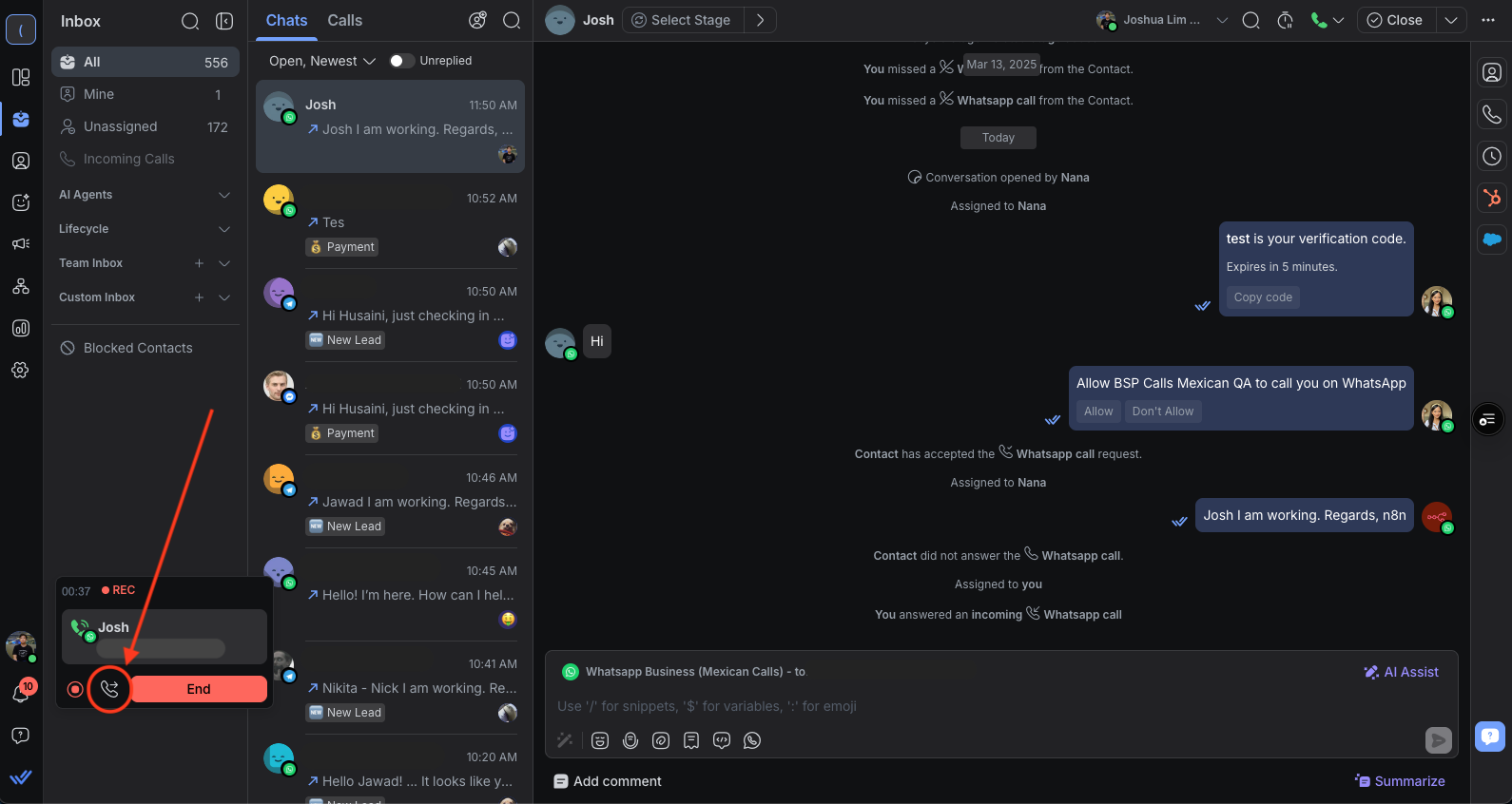
Click the Call Transfer icon on the call card.
Select the agent to transfer the call to.
(Optional) Add a note to provide context before transferring.
Notes:
Agents with restricted call capabilities do not appear in the transfer list.
Agents already on a call cannot receive a transfer — the initiating agent sees a notification if the transfer fails.
If the receiving agent does not answer within 30 seconds, the call automatically reverts to the initiating agent.
Improving call pickup rates
Frequent missed calls outside business hours create a poor experience for Contacts. Set your business hours in Meta Business Suite to reduce missed calls and improve pickup rates.
Go to Meta Business Suite.
Navigate to WhatsApp Settings > Business Profile.
Set your Business Hours.
Calls received outside configured hours are auto-rejected by Meta and do not count against your pickup rate.
Making a WhatsApp call
A Contact's permission is required before making an outbound call. When approving a request, Contacts choose between temporary permission (valid for 7 days) or permanent permission. If a request goes unanswered, it expires after 7 days.
Contacts can revoke permanent permission at any time. If revoked, request permission again before making another call.
Request permission to call
Conditions for sending permission requests:
- Open conversation window: Send requests only during an open conversation window — meaning the Contact has recent chat history.
- Request limits: One request per 24 hours, maximum two requests in 7 days.
- If a message template was used to open the conversation, wait for a reply from the Contact before sending a permission request.
Go to the conversation with the Contact to call.
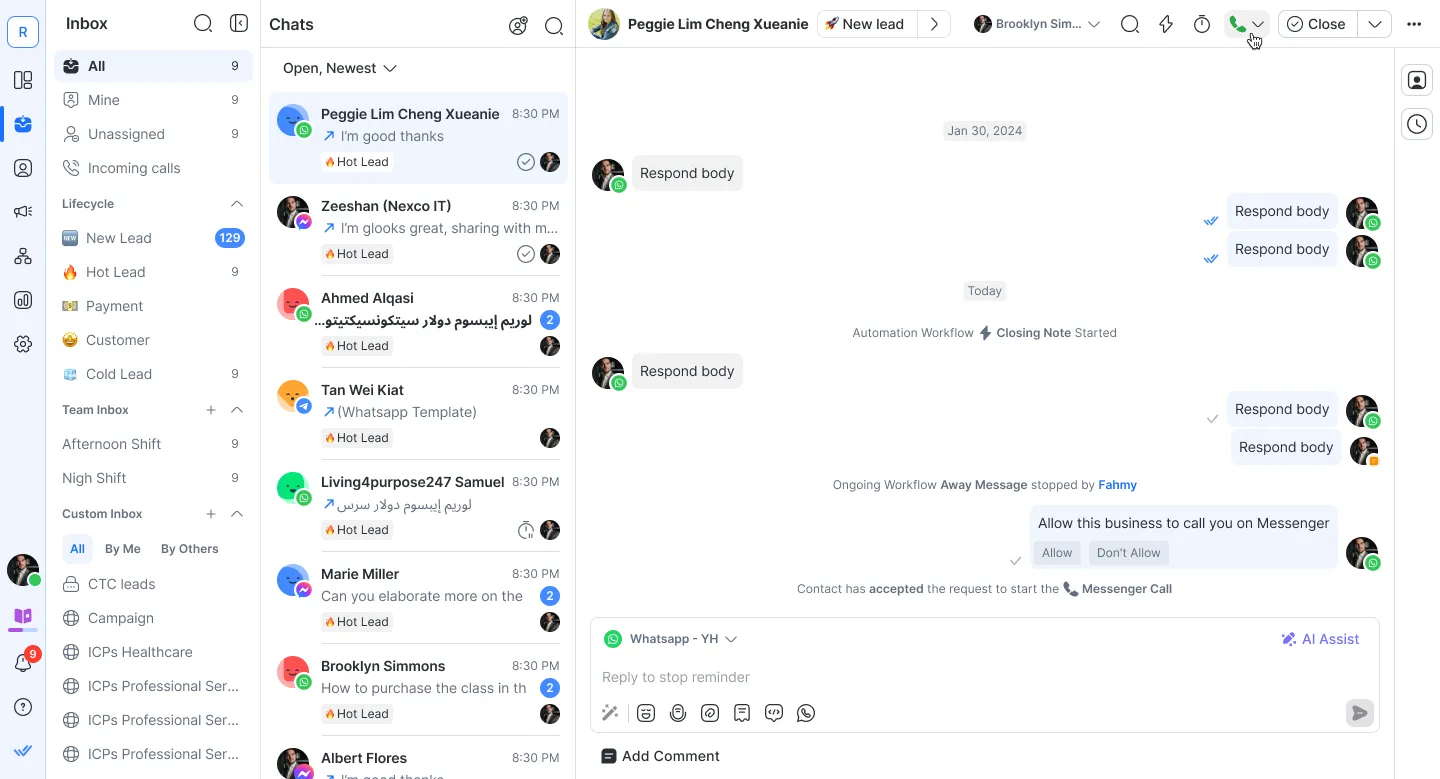
Click the phone icon in the message composer and click Request permission to call.
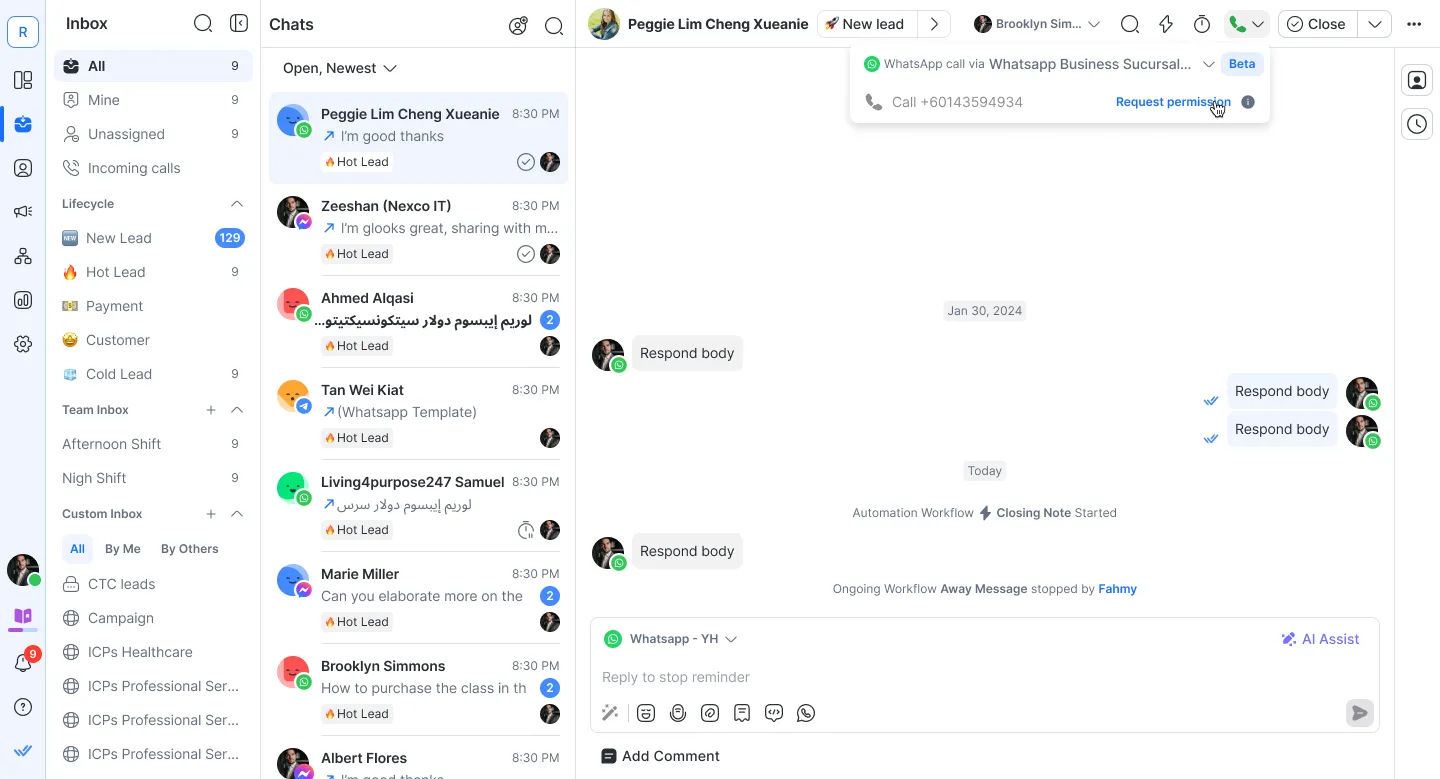
The Contact receives a notification asking for consent.
- If approved with permanent permission, calls are available immediately and indefinitely, unless the Contact revokes it.
- If approved with temporary permission, calls are available for 7 days. After expiry, send a new permission request.
- If declined, send another permission request after 24 hours.
- If no response, the request expires after 7 days of delivery.
Call the Contact
Outgoing calls to Contacts with WhatsApp usernames (no phone number) are not yet supported
When a Contact adopts a username, their phone number will no longer be shared with your business. Messaging continues as normal. Outgoing calls to these Contacts will fail because Meta doesn't yet support BSUID for outgoing calls.
What you can do
1. Send a message template with the Request phone number button — the Contact can share their number directly in the conversation.
2. Once shared, the phone number automatically becomes the Contact's identifier instead of the BSUID. Outgoing calls to their phone number then work as usual.
Need help? Contact support.
Once a Contact grants permission, calls can be made anytime — even after a missed call — as long as permission has not been revoked. Businesses may make up to 5 call attempts in the first 24 hours after permission is granted without being limited by a 7-day window.
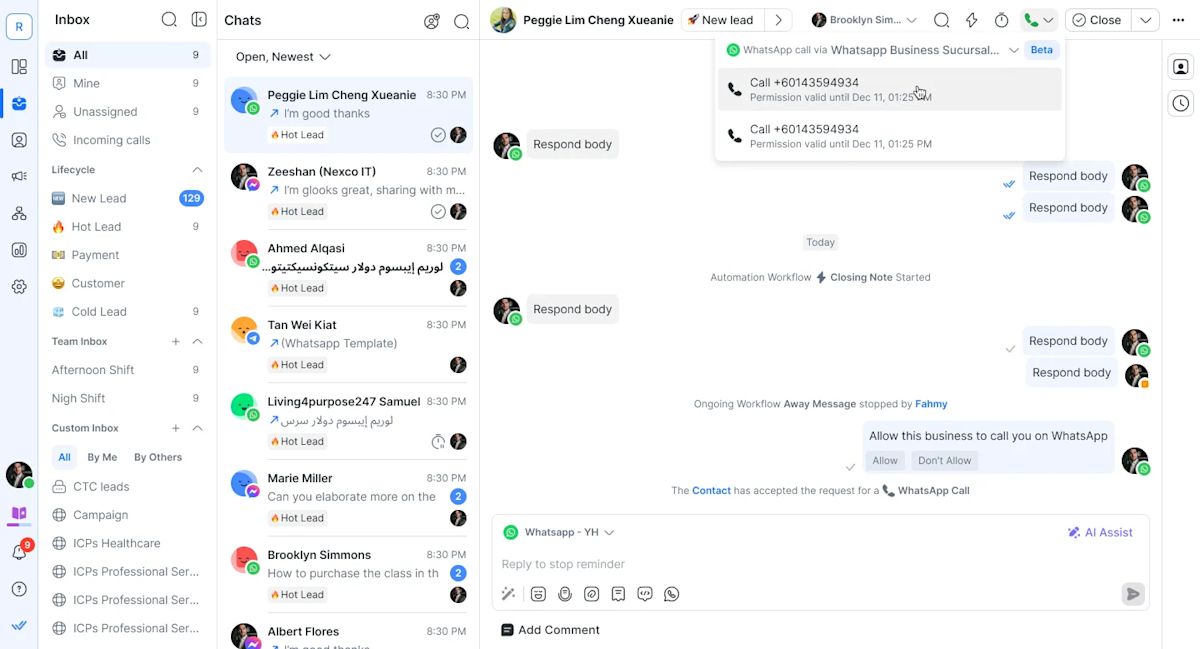
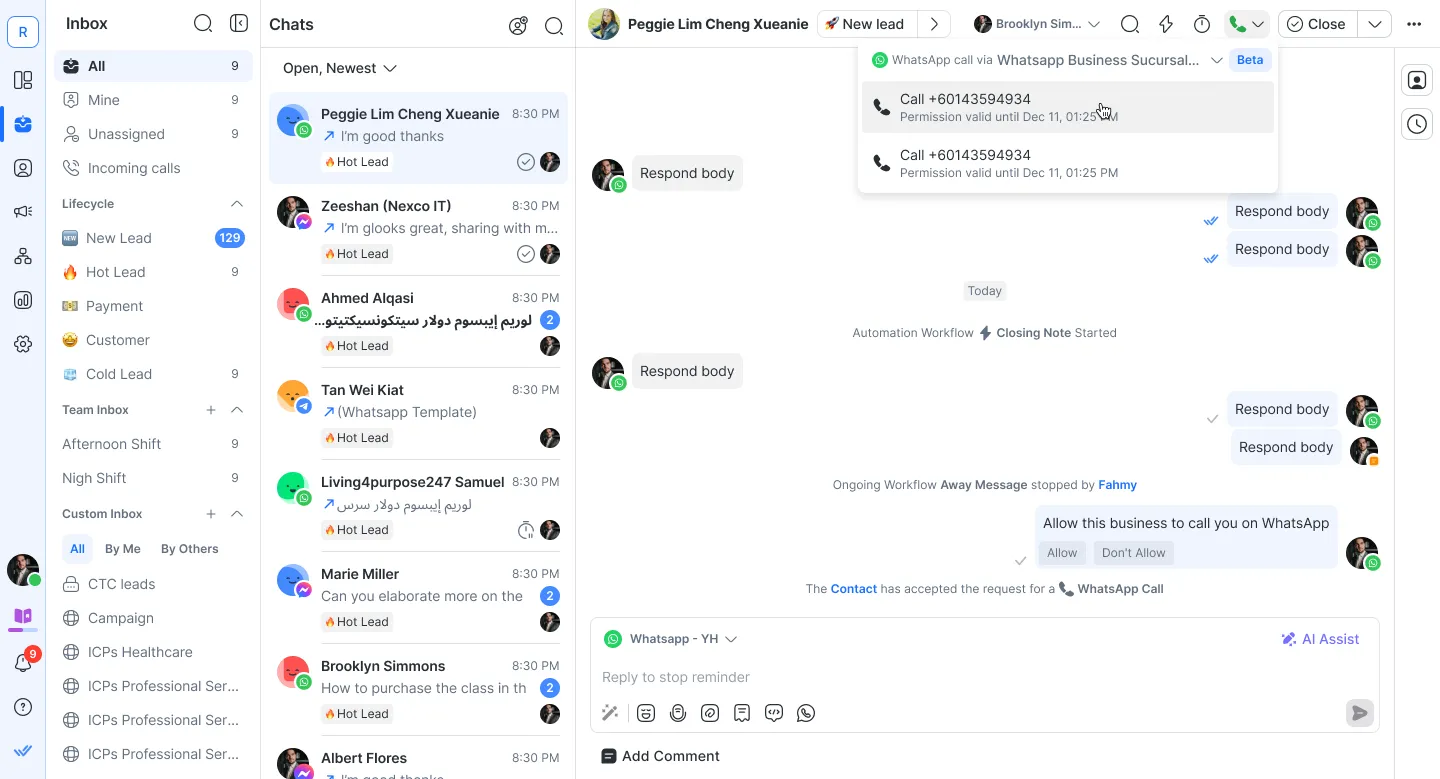
Click the phone icon in the conversation actions bar.

Select the phone number to call from the dropdown and click to initiate the call.
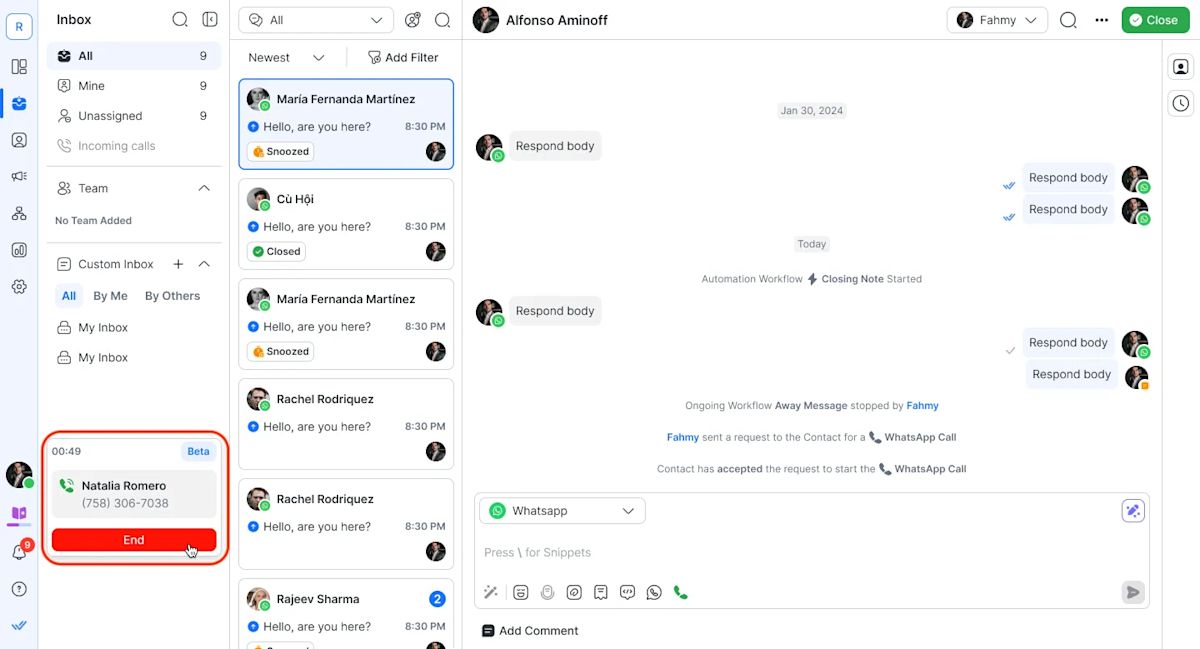
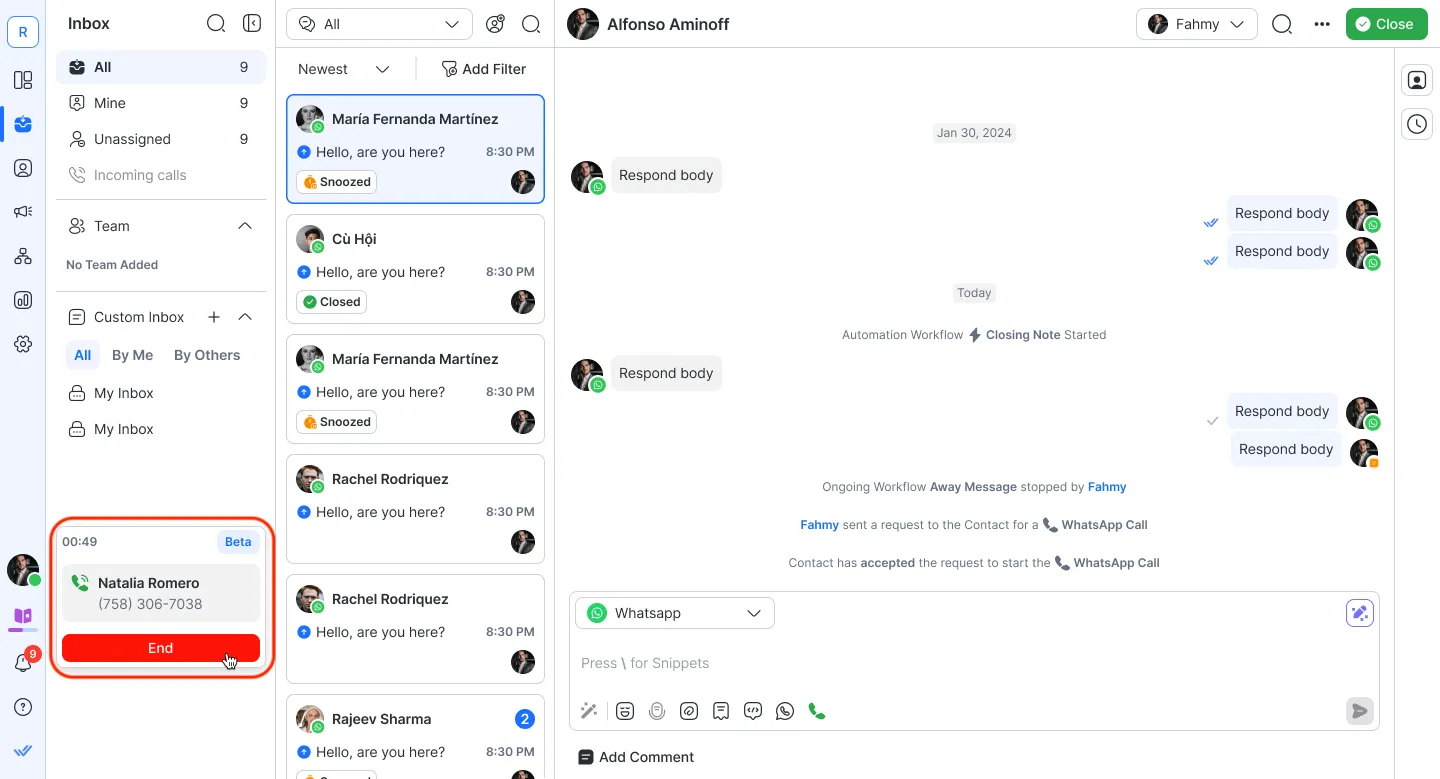
During the call, a Contact card with a call timer appears on the left. To end the call, click End.
Pricing
WhatsApp does not offer free business-initiated calling on the Business API. For detailed information on rates and countries, review Meta's official pricing documentation.
WhatsApp Calls are charged based on call type and the country code of the user.
Inbound calls (user-initiated):
Starting May 1, 2025, calls initiated by the user to the business are free.
Outbound calls (business-initiated):
Charges apply for calls initiated by the business, which require user permission beforehand.
Pricing details:
Rates are time-based and calculated per minute.
Prices vary by country.
Invoices reflect exact usage.
WhatsApp call recordings are billed to respond.io. You are not charged for call recordings on your account.
Review the country-specific rate card for a full breakdown.
FAQ and Troubleshooting
Is WhatsApp Business API Calling free?
No, WhatsApp Calls are not free. Pricing varies depending on the country and whether the call is inbound (user-initiated) or outbound (business-initiated). Rates are charged per minute, with details based on the user’s country code. Starting May 1, 2025, calls initiated by the user to the business will be free.
Can multiple agents pick up the same call?
Only one agent can answer a call at a time. WhatsApp Business API calling does not support conference calling, so the call will connect to the first agent who answers.
Does a user-initiated call open a customer service window?
Yes, a 24-hour customer service window starts or refreshes when a user messages, calls, or accepts a call from your business. During this window, you can send non-template messages.
Does an incoming WhatsApp call open a conversation on respond.io?
No. Receiving a WhatsApp call does not trigger a conversation open event on respond.io.
Can I record my calls?
Yes, all call-capable Channels including the WhatsApp Business Calling API supports call recording.
WhatsApp call recordings are billed to respond.io, so you won’t incur any charges.
Why can't I send permission requests?
Meta has implemented this limit to help prevent spam and scam calls, ensuring a safer experience for everyone.
Why is my WhatsApp Call permission request failing?
The error occurs because a call permission request requires an open conversation window.
Solution:
1. User-Initiated Conversation: Send a regular message before the call permission request.
2. Business-Initiated Conversation: Send a template message first, then the call permission request.
Note: Always ensure a message is sent before the call permission request to avoid this error.
Why is a minimum balance required to make or receive calls?
Calls can run smoothly: This prevents calls from dropping suddenly because of low funds.
Fair billing: Avoids issues like negative balances or billing errors during calls.
Account management: Helps you manage your account balance proactively to avoid disruptions.
Why am I seeing a “Top-up required for calls” tag in WABA when my balance shows $10?
If your WABA balance is slightly below $10 (e.g., $9.98), the system rounds the value and displays it as $10. However, the system still recognizes the actual balance and flags it as below the required threshold for making calls. As a result, the “Top-up required for calls” tag will appear, even though the displayed balance is rounded to $10.
Can Contacts initiate or receive calls via the WhatsApp Desktop App?
No, Contacts cannot initiate or receive calls via the WhatsApp Desktop App.
The WhatsApp Desktop App currently supports only consumer-to-consumer calling and does not support business calls through the Business API. Users will need to use other supported platforms, such as mobile apps, for calling functionalities.
How many WhatsApp calls can happen at the same time in a Workspace?
The limit is 100 WhatsApp calls at the same time per WhatsApp Business Account (WABA), as defined by Meta.
Can I call WhatsApp Contacts with a username but no phone number?
No. When Contacts adopt a username, their phone number is no longer shared with your business and they are identified by a Business-Scoped User ID (BSUID) instead.
Meta does not yet support BSUID for outgoing calls, so any call attempt will fail.
What you can do
Send a message template with the Request phone number button — the Contact can share their number directly in the conversation.
Once shared, the phone number automatically becomes the Contact's identifier instead of the BSUID. Outgoing calls to their phone number then work as usual.
Can I receive calls from WhatsApp Contacts who only have a username?
Yes. Incoming calls from Contacts with a WhatsApp username are supported.


