

A Growth Widget allows you to embed a single Channel or multichannel widget on your website, so visitors can connect with you via their preferred messaging apps. You can also add campaign attribution to your widgets to track which Growth Widget your Contacts came from.
If you are looking to add a Website Chat Widget, learn more here.
Supported Channels
Contacts are tracked when you fill in the Pre-filled Text or Reference fields for specific Channels.
Supported via Pre-filled text: WhatsApp, TikTok, Viber
Supported via Reference: Facebook
Not supported: Instagram, Telegram, Line, SMS, Email
What data is captured
The data captured depends on your widget type.
Website widget
When a Contact reaches out through a website widget, respond.io captures the following:
Widget name: The name given to the Growth Widget (e.g. Fruits).
Website: The domain the Contact reached out from (e.g. apple.com).
Page URL: The specific page the Contact reached out from (e.g. apple.com/abc).
QR code and chat link widget
When a Contact reaches out through a QR code or chat link widget, respond.io captures the following:
Widget name: The name given to the Growth Widget (e.g. Summer Sales Flyer).
Getting here
This setting is accessible by Owners and Managers only.
This setting can be accessed from the Settings navigation menu under the Workspace Settings sub-menu item, Growth Widgets.
Under the Growth Widget Settings section, you can see a list of existing widgets in your Workspace. Here, you can edit and manage these widgets or create new ones.
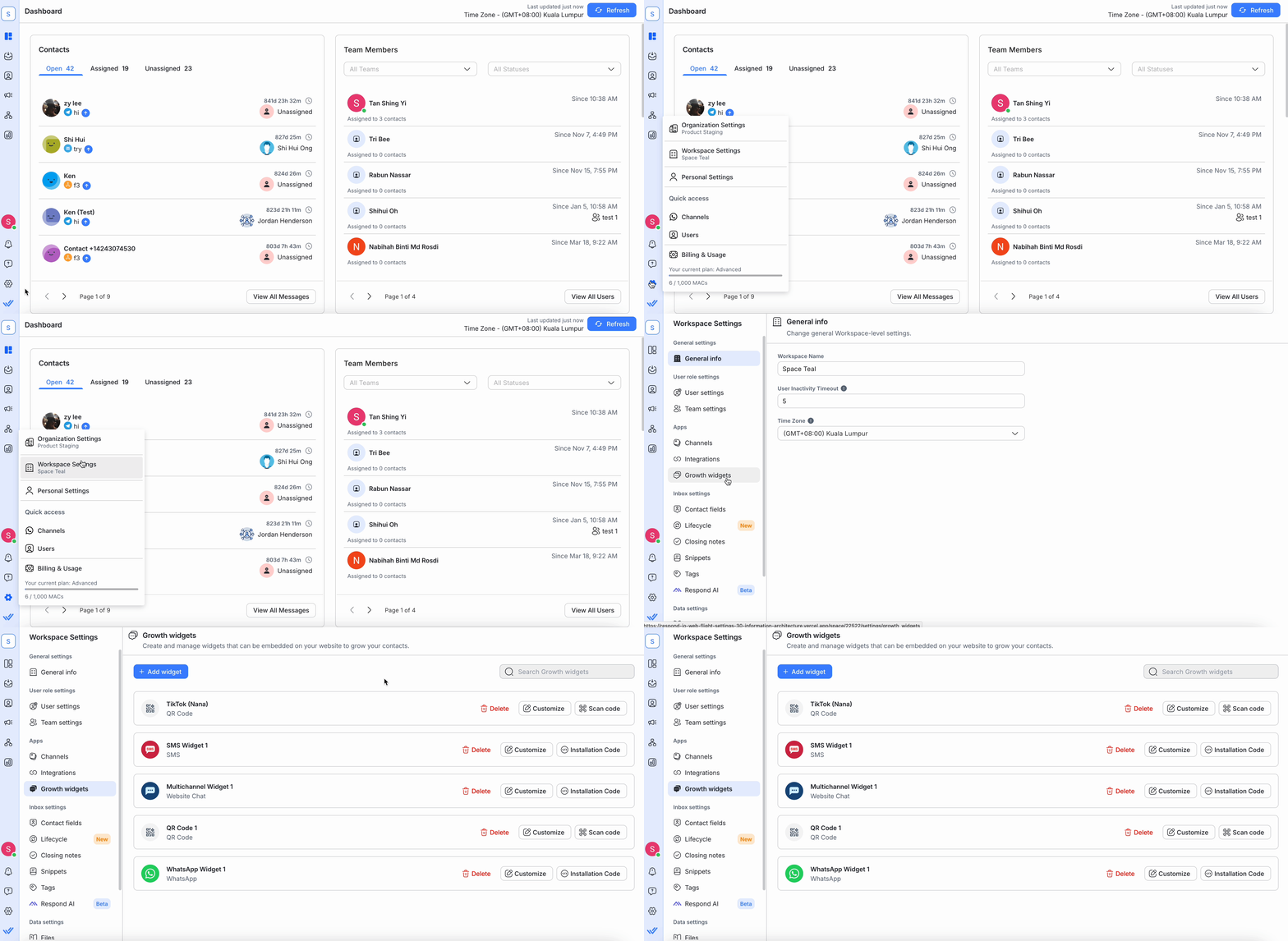
In this setting, you can:
Create a widget
Manage existing widgets
Delete a widget
Create a widget
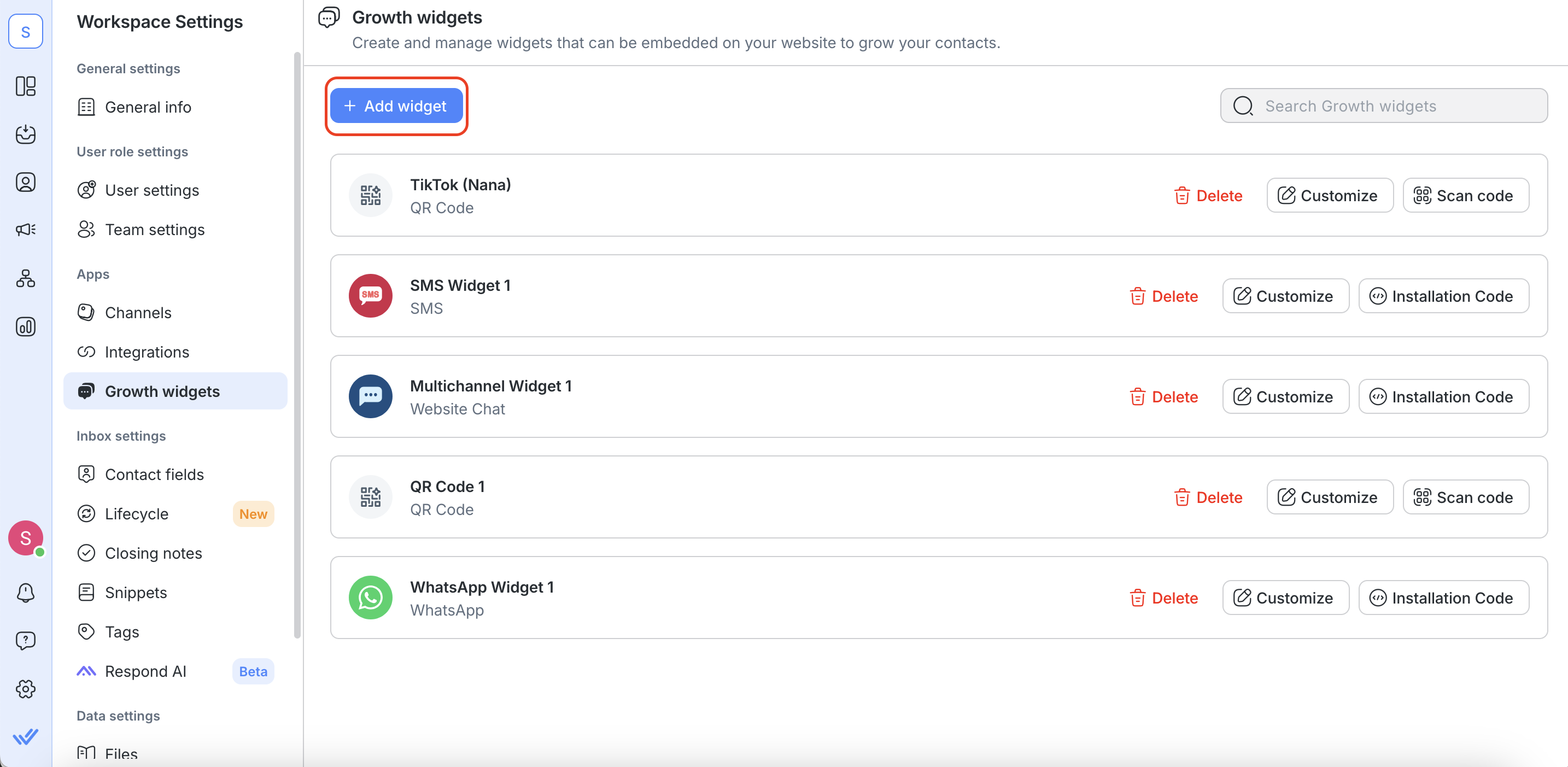
Step 1: Click the Add Widget button to explore all the available widgets.
Step 2: Select the widget you would like to create > click the Create Widget button
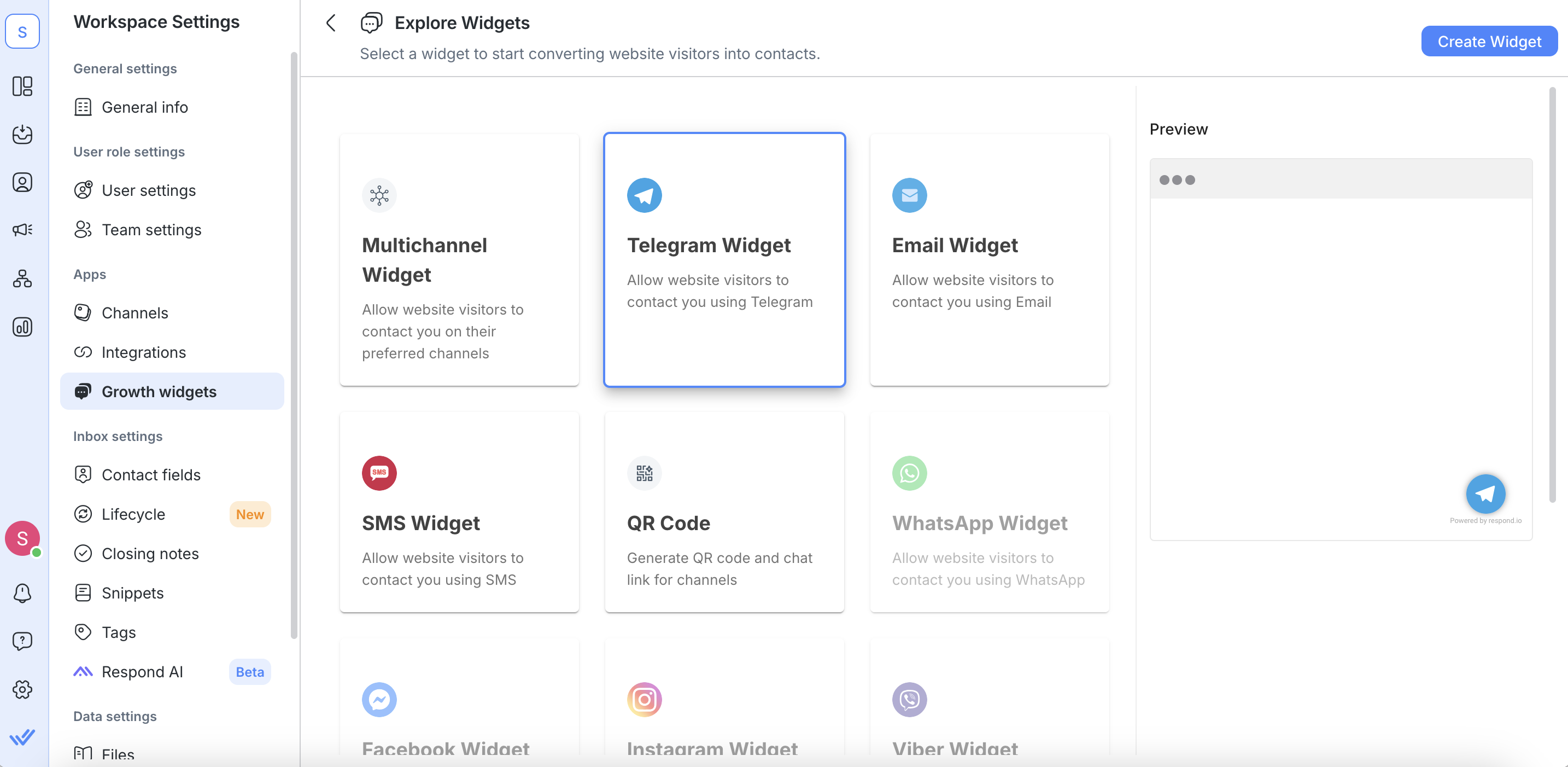
You can only select single-channel widgets if the Channel is connected to the Workspace.
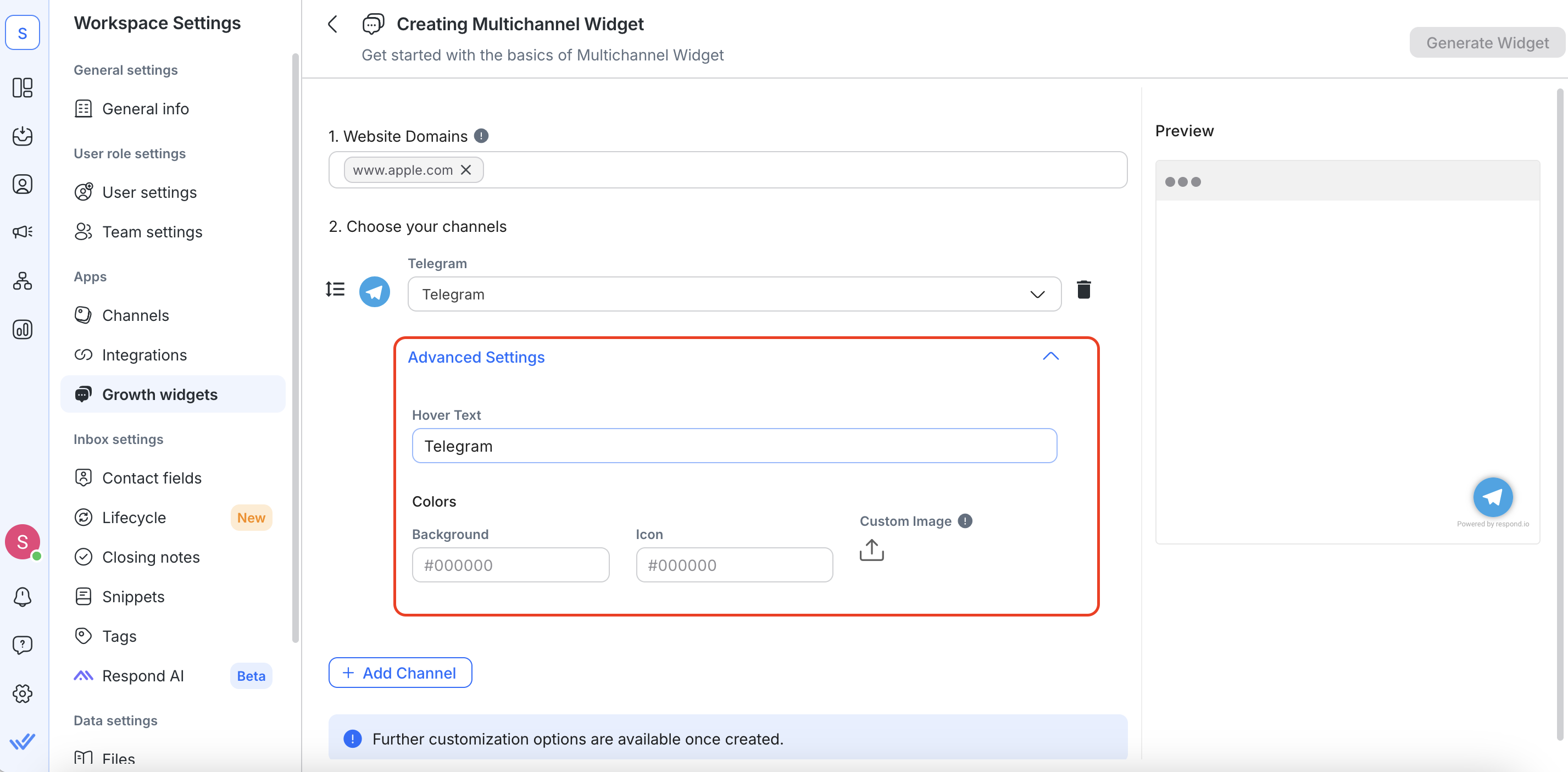
Configure a widget
Configure the selected widget according to the required fields.

Widget name
Add a name to identify your widget.
Website domains
Add website(s) where the Widget will be added in the Website domains field. Here's how to whitelist websites:
If the user adds
https://app.respond.io, then onlyhttps://app.respond.iowill be whitelisted. Any other subdomain or root should not work.If the user adds
https://*.respond.io, then all subdomains including the root domain will be whitelisted.If the user adds
https://respond.io, then only the root domain will be whitelisted.

Choose your Channels
Select the Channel you want to create a widget for from the dropdown list of available Channels.
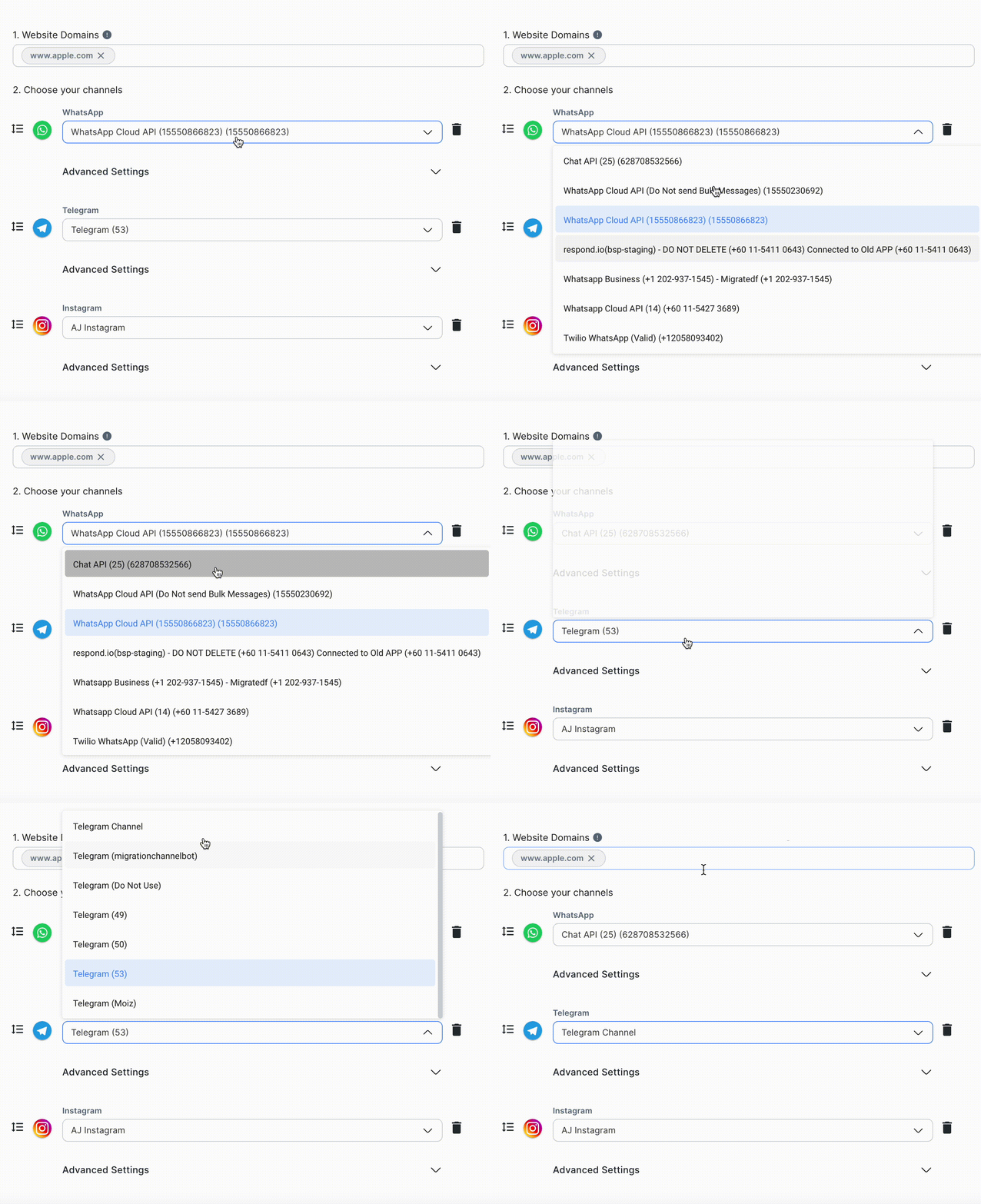
Advanced Settings
You may click the Advanced Settings button to further configure the optional fields.
Hover Text: Display when hovering over the widget.
Pre-filled text (optional): Prefilled text shown before a Contact sends a message. Fill this in to enable Contact source tracking.
Reference (Facebook Messenger only): A referral parameter added to your m.me URL to track where Contacts come from when they click the link. Learn more about References.
Due to Meta’s limitation, referral parameter may not work for some Android Messenger users or Pages with georestriction. The m.me link will still direct customers to send messages, but the referral data may not be passed. Learn more in the Meta doc.
Install the Script
Copy the generated script to install it on your website and click the Done button. Alternatively, forward the installation instructions via email.
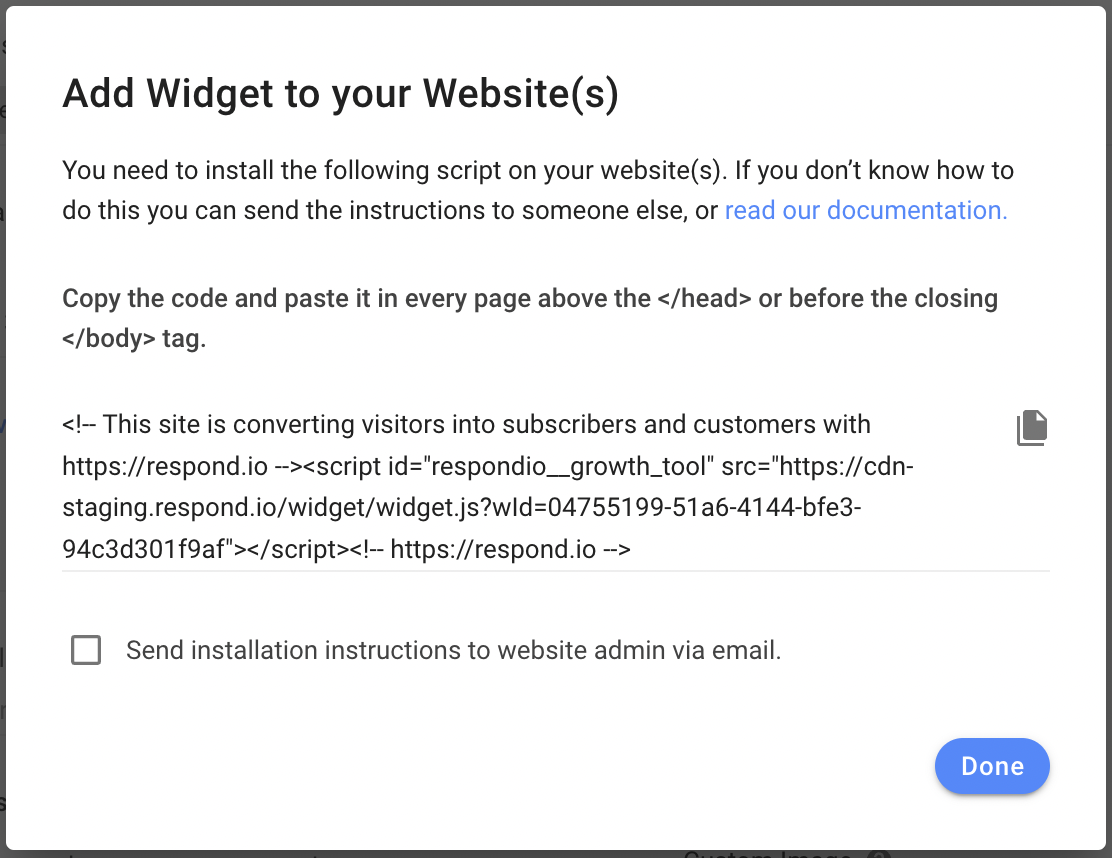
Refer here to learn how to install the script on your website.
Click the Generate Widget button in the top right corner once done.
Manage widgets
Once you have created a widget, you can manage it as below.
Open the Installation Code

To see or copy the installation code (script) of the created widget, click the Installation Code button and follow the instructions on the screen.
This function is not applicable to the QR Code Generator.
Download the QR Code

To download the generated QR Code, click the Scan Code button, then the Download button and select your desired pixel dimensions for your scannable code.
This is only applicable to the QR Code Generator, not the other messaging widgets.
For more information on how to utilize this feature, read our blog article on using scannable codes here.
Customize the widget
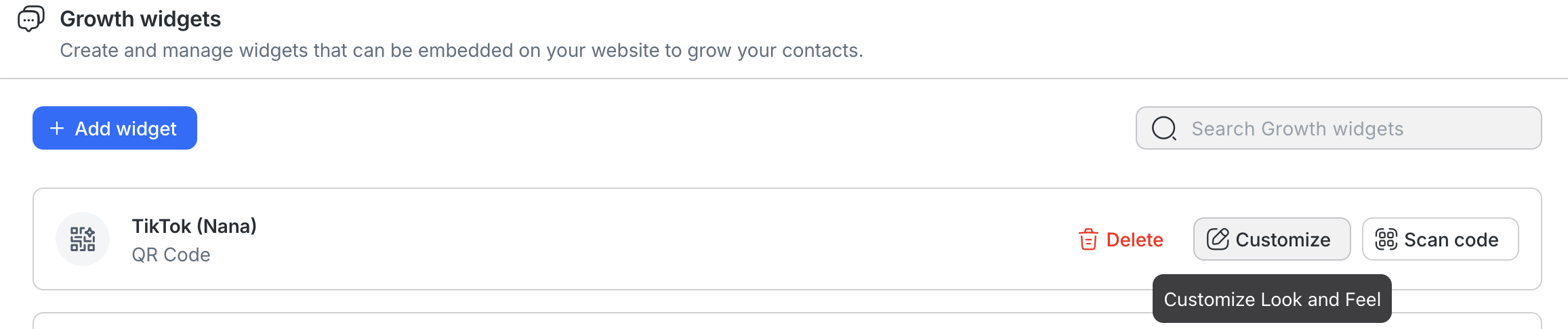
To customize existing widgets, click the Customize button to open the customization page.
You'll see an ID displayed next to your widget's name at the top of the customization page. This is the Growth Widget ID and cannot be edited.

There are 5 sections you can customize depending on the type of widget:
General
You may configure the following general settings:
Widget Name: Name used internally to identify the widget
Website domains: The websites on which the widget is to be installed. If you do not add your website to this list, your widget will not load. You can enter multiple URLs if you plan on installing the widget on multiple websites.
Channels
You may customize the following to define the behavior of the widget based on the selected channel:
Hover Text: The hover text is shown in a tooltip when hovering over the widget.
Pre-filled text: The pre-filled text is an input suggestion when a Contact starts a conversation. It includes a default text you can edit — use it as a source identifier to track which widget a Contact came from.
Colors: Choose the channel icon’s background color and icon appearance in the widget.
If you created a Growth Widget before Contact tracking was introduced:
- The Include current page URL (checkbox) may still be visible. This option is deprecated and is no longer available for new widgets.
- The Pre-filled text field will not include a default text. You can add one manually by editing the widget.
Display & Appearance
You may customize the following to change the display appearance of the widget on your website:
Popup Message: The popup message is shown to website visitors once per day 5 seconds after the page loads. If it is not defined, no popup message will appear.
Widget Size: Choose from the Large, Standard or Small widget size.
Display Options: Choose to display this widget on desktop, mobile devices or both.
Position
You may change the position of the widget on your website based on the following settings:
Alignment: Specify if you would like to display the widget on the bottom left or right of the website.
Vertical Spacing: Specify the amount of vertical spacing between the widget and the bottom of the screen.
Horizontal Spacing: Specify the amount of horizontal spacing between the widget and the edge of the screen.
Additional Settings
Additional customization for widgets:
Hide Respond.io Branding: Remove the respond.io branding from your widget.
Best practices
Always fill in the Pre-filled Text field and the Reference field. Contact tracking requires either pre-filled text or reference text, depending on the Channel.
Use a specific, consistent naming convention for your Growth Widgets. Vague widget names like "aug-campaign" may make Reports hard to read. Something like "aug-promo-sale" or "storefront-qr-viber" makes it immediately clear which Growth Widget and campaign the Contact came from.
Always click Generate Widget before copying your link or downloading your QR code. This saves any changes you’ve made. if you copy the link or download the QR code before clicking Generate Widget, it will not reflect your latest changes and Contacts will not be tracked correctly.
Delete a widget
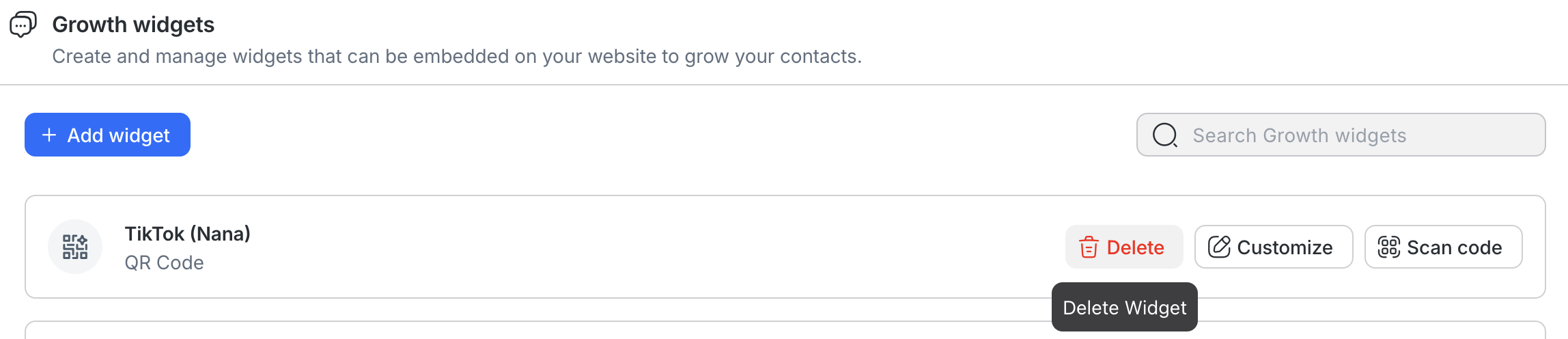
To delete an existing widget, click the Delete button and follow the instructions on the screen. Doing so will completely remove the widget from your Workspace.
Be careful when deleting a widget from your Workspace. When a widget is deleted, all its configurations will be deleted. Deletion cannot be undone.
Reports
Contacts from your Growth Widgets are automatically tracked and included in Reports.
To view Contact-based data by Growth Widget, use the Lifecycle or Contacts Reports:
Go to Reports.
Select Lifecycle or Contacts.
Click + Add Filter.
Select Source > Growth Widget.
Select the widget you want or select all widgets.
In Lifecycle and Contacts Reports, you can also filter by:
Widget Name ID: The ID of your Growth Widget.
Website: The domain the Contact reached out from.
Page URL: The specific page the Contact reached out from.
To view Conversation-based data by Growth Widget, use the Conversations, Responses, or Resolutions Reports:
Go to Reports.
Select Conversations, Responses or Resolutions.
Click + Add Filter.
Select Conversation Opened Source > Growth Widget.
Select the widget you want or select all widgets.
FAQ and troubleshooting
Why isn’t the script working after I installed it on my website?
The Growth Widget will only appear on websites you’ve whitelisted in the Growth Widget settings.
What you can do
Whitelist your website by adding your website URL to the Website domain field.


