

O módulo de integração orienta novos usuários na configuração de um espaço de trabalho do respond.io.
Ao concluir o módulo de integração, você:
Conecte um canal para que as conversas com clientes comecem a chegar ao seu Inbox
Configure o ciclo de vida para organizar os Contatos com base no seu processo de vendas
Configure um Agente de IA para automatizar conversas e reduzir trabalho manual
Convide colegas para o seu Espaço de trabalho para colaborar e distribuir a carga de trabalho
O que é o módulo de integração?
O módulo de integração é uma lista de verificação passo a passo para novos usuários na plataforma do respond.io. Ele garante que o espaço de trabalho esteja configurado corretamente para:
Receba e gerencie conversas com clientes
Acompanhar leads e clientes usando o ciclo de vida
Automatizar conversas usando Agentes de IA
Colaborar com seus colegas
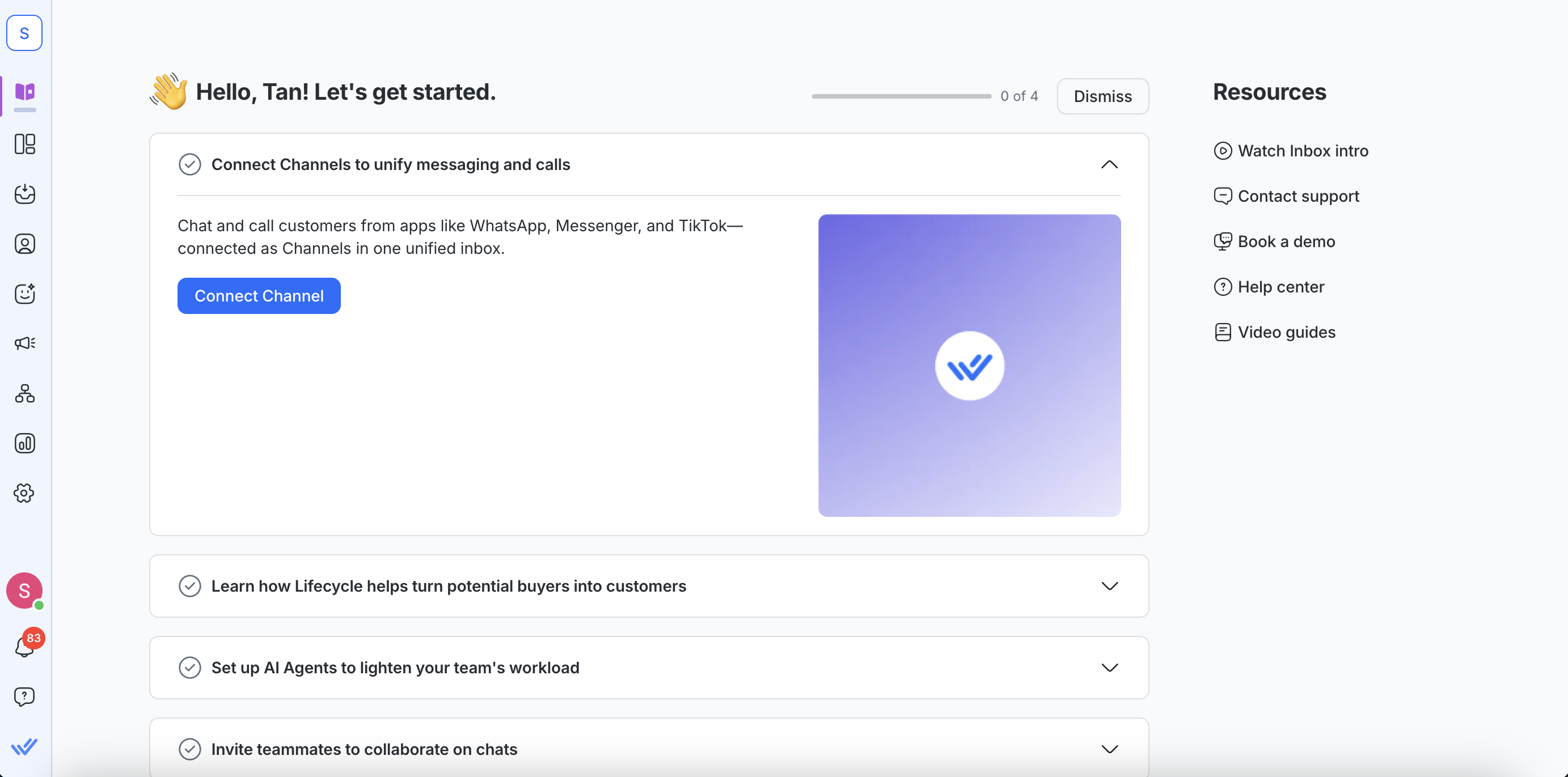
Nota: Somente os proprietários do espaço de trabalho podem descartar a lista de verificação. Uma vez descartada, o ícone do módulo de integração é removido da barra lateral de navegação para todos os usuários do espaço de trabalho.
Etapa 1: Conecte canais para unificar mensagens e chamadas
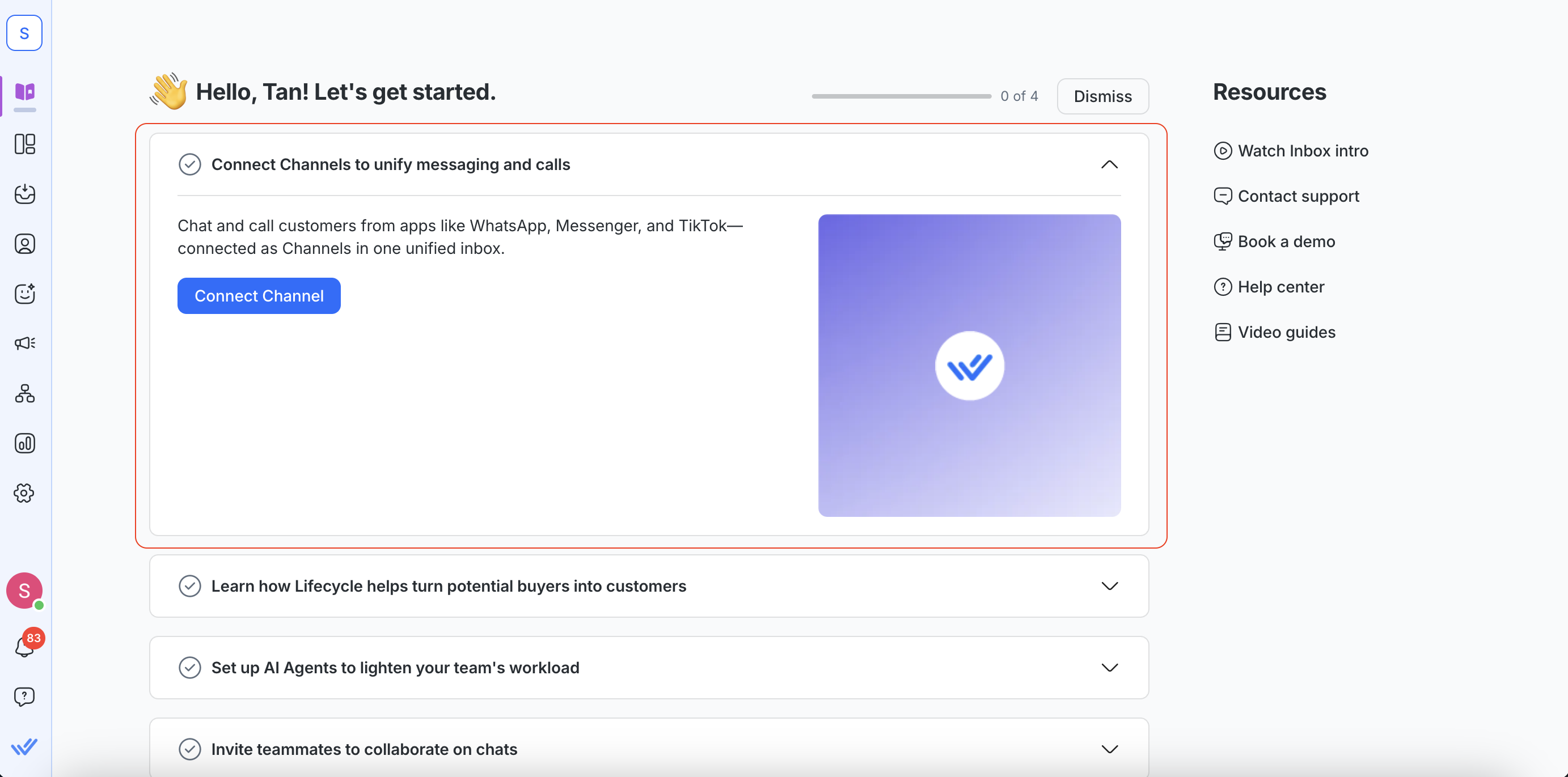
Para começar, conecte pelo menos um canal de mensagens ao seu Espaço de trabalho. Isso significa que seus clientes podem entrar em contato pela plataforma que preferirem e sua equipe pode gerenciar tudo em um só lugar.
Depois de conectar um canal:
Mensagens de clientes aparecem no seu Inbox
Sua equipe pode responder a partir de um único Espaço de trabalho
Conversas de diferentes plataformas ficam centralizadas em um só lugar
Você também pode gerenciar chamadas (quando suportado)
Veja a lista completa de Canais suportados e os guias de conexão passo a passo aqui.
Etapa 2: Como o ciclo de vida ajuda a transformar potenciais compradores em clientes
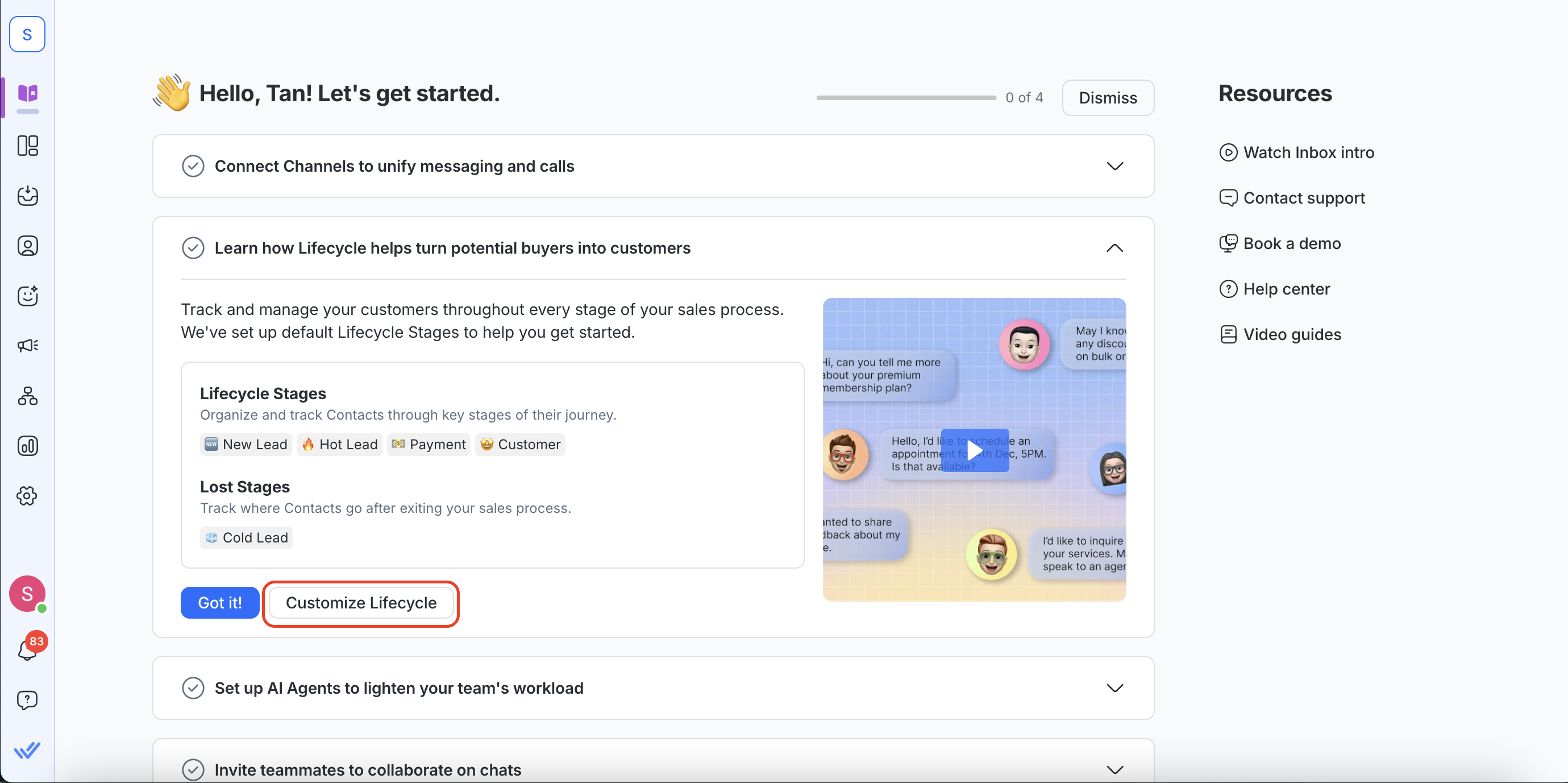
Depois que seu canal estiver conectado e as conversas começarem a chegar, rastreie e organize os contatos de acordo com a etapa em que se encontram no processo de vendas.
O ciclo de vida ajuda você e sua equipe:
Acompanhar novos leads desde a primeira mensagem
Identificar Contatos com alta intenção
Monitorar o progresso de conversão entre os estágios
Ver o desempenho do pipeline no módulo de Relatórios
Organizar Contatos com base na prontidão para vendas
Todo Espaço de trabalho inclui estágios padrão do ciclo de vida. Isso permite que você comece a rastrear Contatos imediatamente, sem configuração adicional. Se seu processo de vendas for diferente, você pode personalizar o ciclo de vida adicionando ou removendo estágios. Clique em Personalizar o ciclo de vida para alinhar o ciclo de vida ao seu funil de vendas.
Saiba mais sobre ciclo de vida.
Etapa 3: Configure Agentes de IA para reduzir a carga de trabalho da sua equipe
Agora que você conectou um Canal e configurou estágios do ciclo de vida que correspondem ao seu funil de vendas, você está pronto para introduzir uma automação para gerenciar conversas automaticamente.
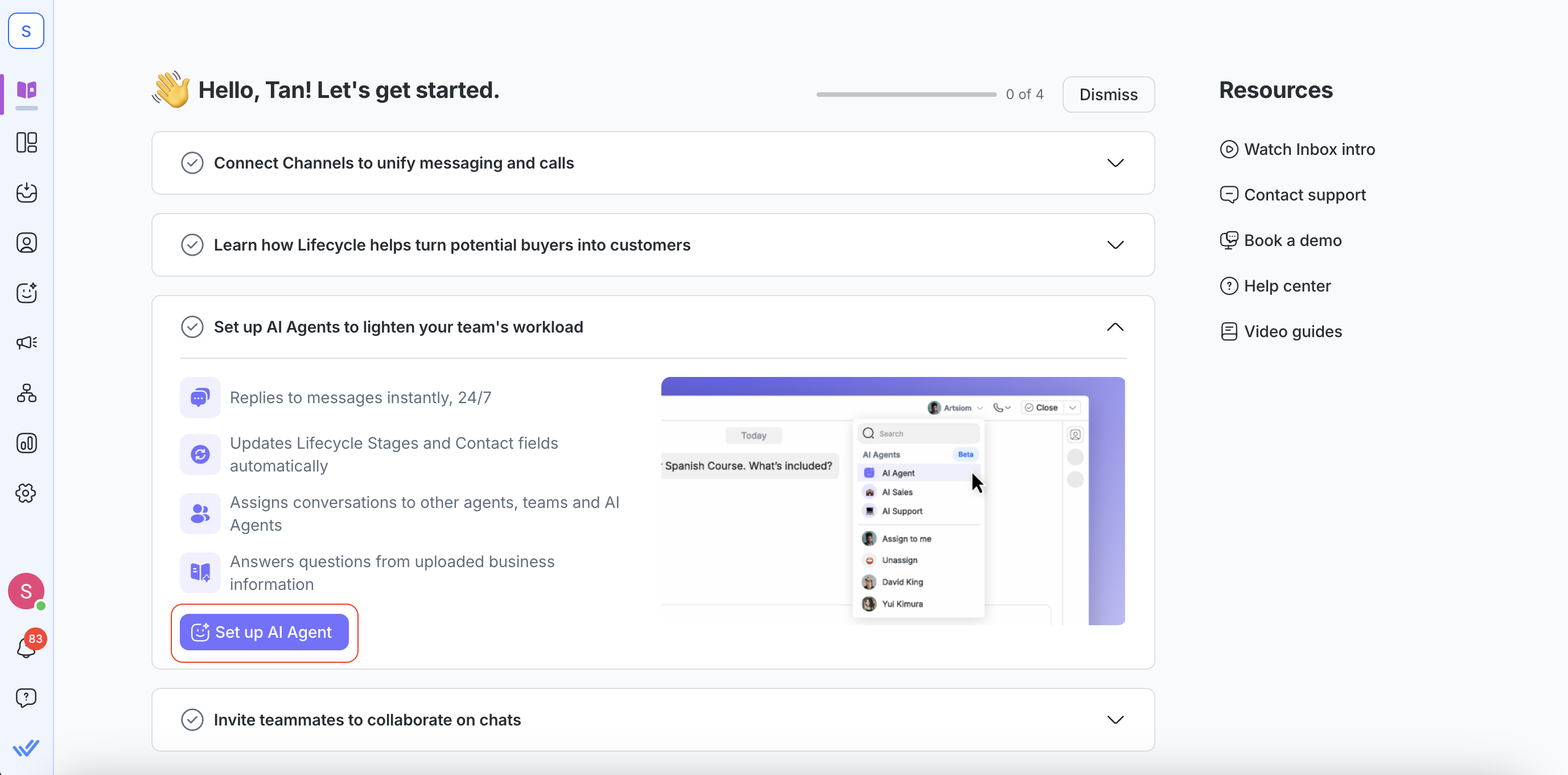
A melhor automação para isso são os Agentes de IA. Desde responder clientes 24/7 até atribuir conversas a outros agentes ou equipes, os Agentes de IA podem ajudar sua equipe a reduzir o trabalho manual e melhorar os tempos de resposta.
Clique em Configurar Agente de IA para criar seu primeiro Agente de IA.
Saiba mais sobre:
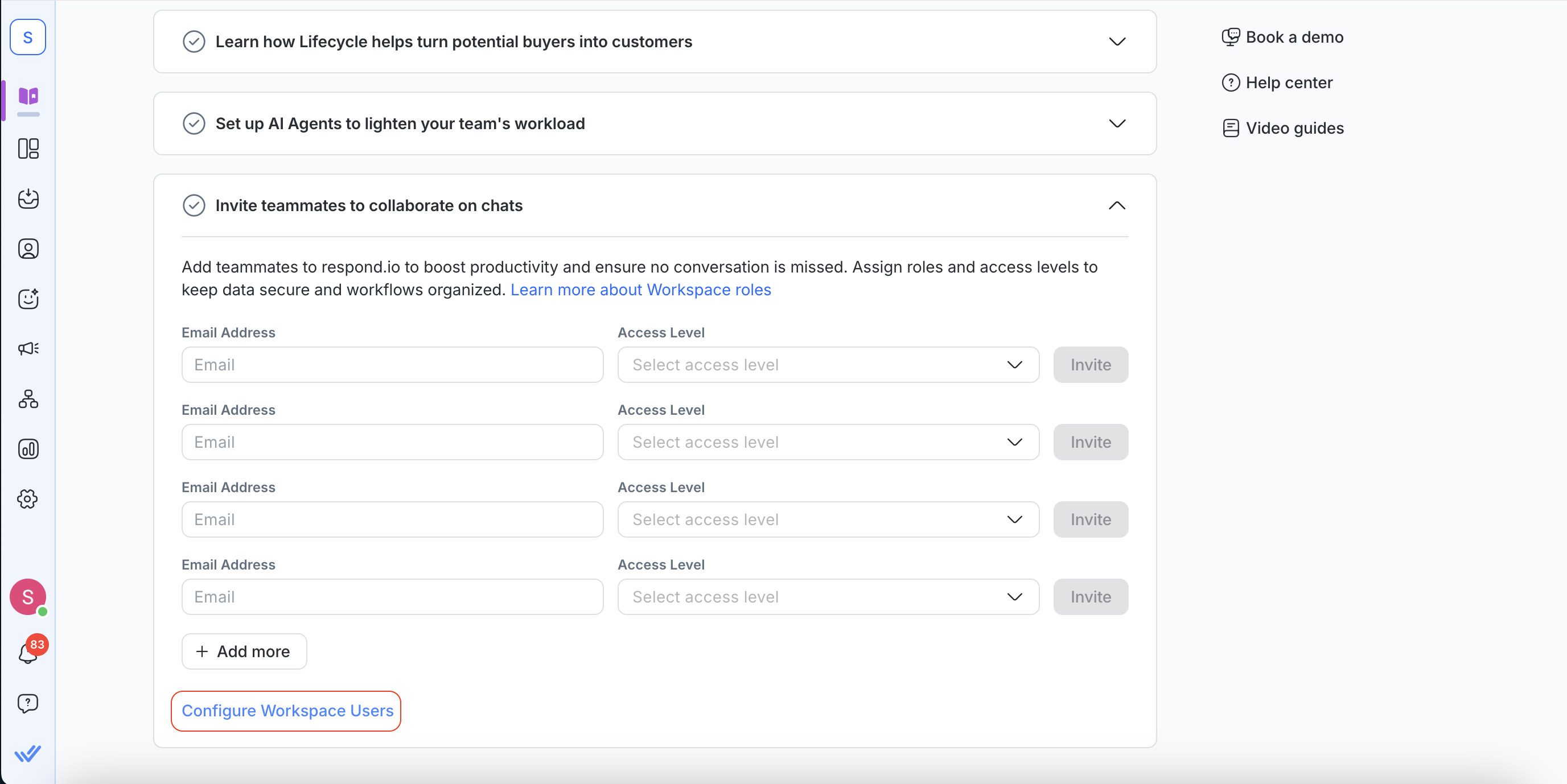
Etapa 4: Convide colegas para colaborar nos chats
Com seus Canais, o ciclo de vida e o Agente de IA configurados, convide o restante da sua equipe para que possam compartilhar o acesso ao Inbox, assumir conversas e distribuir a carga de trabalho.
Cada colega recebe um nível de acesso — proprietário, gerente ou agente — que controla o que eles podem ver e fazer no espaço de trabalho.
Recursos no módulo de Integração
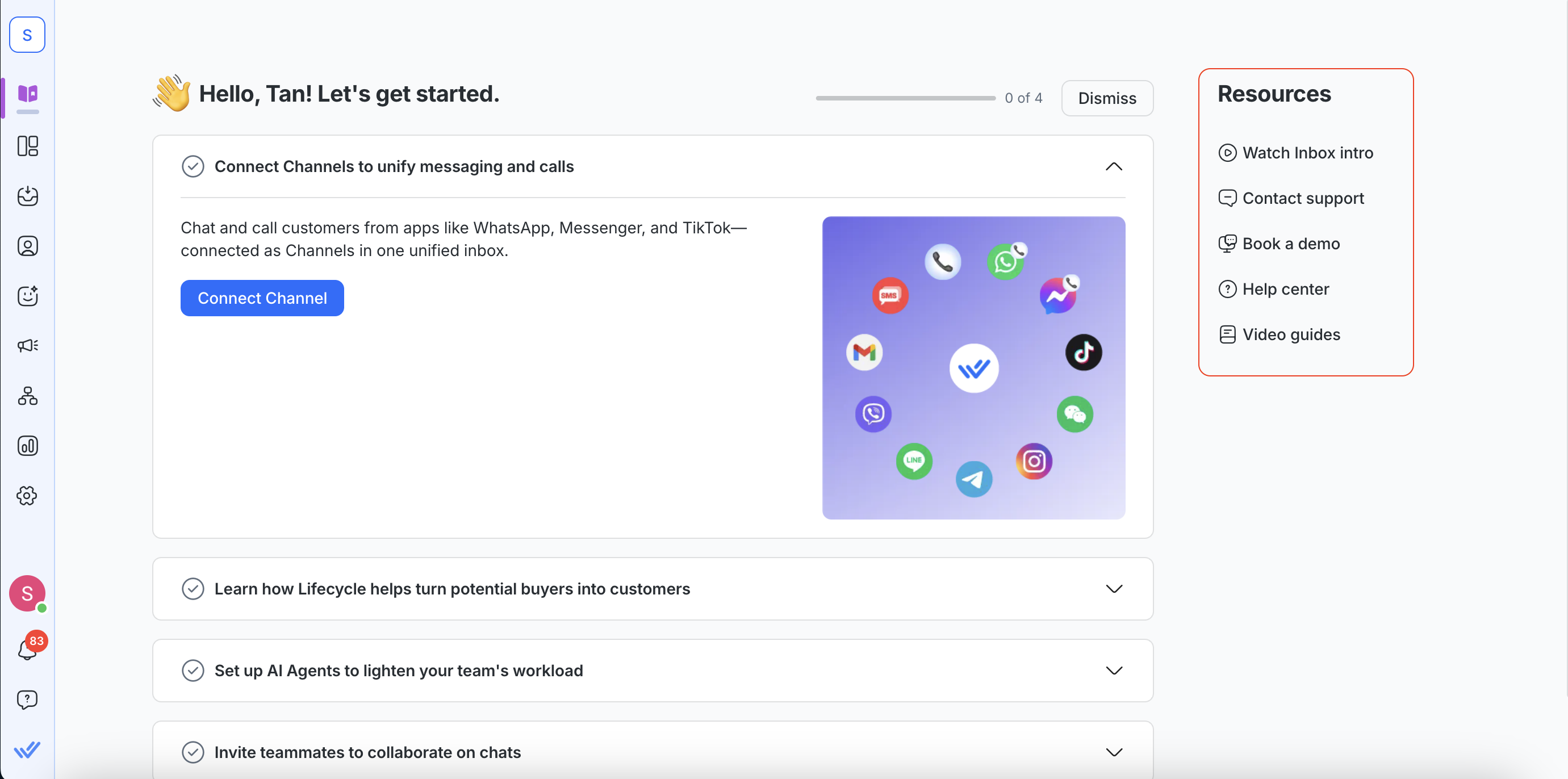
No lado direito do módulo de Integração, você encontrará uma lista de recursos. Essa lista oferece atalhos para aprendizado e suporte.
A lista de recursos inclui:
Um vídeo passo a passo do módulo Inbox
Links diretos para contatar a equipe de suporte
Um link para agendar uma demonstração com a equipe de vendas
Acesso ao Centro de Ajuda do respond.io
Uma coleção de vídeos tutoriais do respond.io
O que vem agora?
Vamos prosseguir para conectar o seu primeiro Canal de mensagens.


