
















 Electronics
 Fashion & Apparel
 Furniture
 Jewelry and Watches
 Afterschool Activities
 Sport & Fitness
 Beauty Center
 Dental Clinic
 Medical Clinic
 Home Cleaning & Maid Services
 Photography & Videography
 Car Dealership
 Travel Agency & Tour Operator

TL;DR — How to send WhatsApp broadcasts at scale
WhatsApp Broadcast lets businesses send one message to multiple contacts privately, with each recipient receiving it as an individual chat.
The WhatsApp Business App works for small businesses, but broadcasts are limited to 256 contacts per list, recipients must have saved your number and there are no broadcast analytics.
WhatsApp API is better suited to businesses sending broadcasts at scale. It supports much larger audiences, contact imports, audience segmentation, personalized templates and scheduled messages.
With respond.io, businesses can create and manage WhatsApp API broadcasts, track performance and handle large volumes of replies with automation, AI Agents and human agents from one platform.

For mid-market B2C businesses whose customers chat before buying, broadcasting from the WhatsApp Business App gets difficult once your list grows past 256 contacts, because you have to split it into multiple lists, and contacts who haven't saved your number won't receive your messages. At that point, it's time to move broadcasts to the WhatsApp API. Respond.io is a customer conversation platform that lets you broadcast to your full contact list and handle every reply in one inbox. If you have fewer than 256 customers and all of them have your number saved, the WhatsApp Business App is enough.
What is a WhatsApp broadcast?
A WhatsApp broadcast is one message sent to many contacts at once, delivered to each person as a private one-to-one chat, so recipients can't see each other and replies come back only to you. Businesses send broadcasts through broadcast lists in the WhatsApp Business App or through approved message templates on the WhatsApp Business Platform (API).
WhatsApp broadcast via WhatsApp Business App: 6 things to note
Broadcasting from the WhatsApp Business App works for businesses whose whole audience fits in lists of 256 or fewer and every contact has saved its number. Broadcast via the Business App are free to send; they support photos, videos, documents and catalog items, and each reply comes back as its own private chat.
Here are the six key points that you should know if you want to broadcast with the WhatsApp Business App.
1. Free broadcasts
Broadcasting with the WhatsApp Business App is free, allowing unlimited messages. However, avoid spamming to prevent being blocked or reported.
2. Segment audiences with labels
Labels help categorize contacts for targeted broadcasts, such as returning customers. Keep labels updated to save time, or tag contacts individually for new broadcasts.
3. Send multimedia and catalogs
You can send images, videos, documents, and product catalogs, making it easier to engage customers and showcase offerings.
4. Enhanced privacy and engagement
Messages sent via a broadcast list are received as individual messages by your clients. This means their responses come directly to you, not to the entire list, fostering a sense of privacy and personal engagement.
5. Quick and easy broadcast list setup
Setting up a WhatsApp broadcast list is straightforward and user-friendly, making it accessible even for non-tech-savvy users. You simply select your contacts, organize them into a list and start sending messages!
6. Compliance with WhatsApp
Using the WhatsApp Business App for broadcasts ensures that you’re operating within WhatsApp’s terms of service by default. That said, you still need to deeply familiarize yourselves with their terms of service.
However, broadcasting on the WhatsApp Business app is far from perfect. Let’s see why.
Limitations of WhatsApp broadcast via WhatsApp Business App
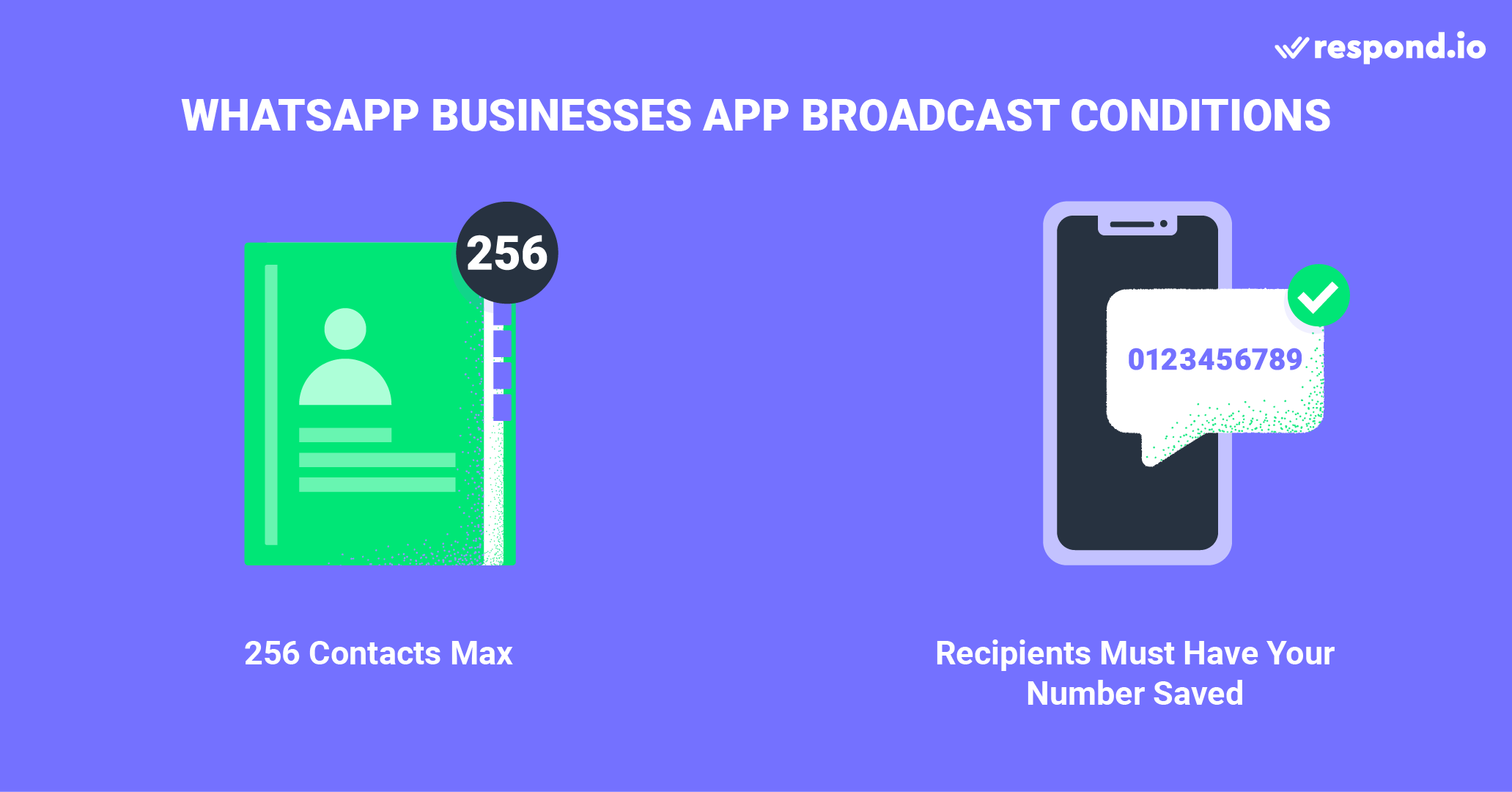
The WhatsApp Business App stops working for broadcasts once your list or team grows. Each list is capped at 256 contacts, messages reach only people who saved your number, contacts can't be imported, and there's no reporting beyond per-message read receipts.
1. Contacts must save the sender’s number
WhatsApp broadcasts are not always guaranteed to reach their recipients. The WhatsApp Business Policy prohibits businesses from spamming, so contacts must save the sender’s number on their phones to receive broadcasts. Make sure all the contacts in the WhatsApp Broadcast list have saved your number in their address book.
2. Limited number of contacts per broadcast list
While there is no limit to the number of Broadcast lists you can create, you can include up to 256 contacts in each broadcast list. As your business scales, you will need an easy way to reach more than 256 people at once without creating multiple broadcast lists.
3. Limited users
You can use WhatsApp Business App on a maximum of 5 devices at the same time. However, only one of those devices can be a phone.
4. Lack of broadcast analytics
WhatsApp Business App doesn’t offer any analytics tools to measure the performance of WhatsApp broadcasts. You will not have insights into broadcast message delivery and other important metrics.
5. Limited message types
While the app supports text, images and videos, it doesn't natively include advanced options like interactive buttons, carousel templates or other formats for more engaging broadcasts.
Next, we’ll show you how to send a broadcast on the WhatsApp Business App.
How to broadcast WhatsApp messages with WhatsApp Business App in 3 steps
To send a broadcast from the WhatsApp Business App, open New broadcast, select up to 256 contacts who have saved your number, then write and send your message. Each contact receives it as an individual chat.
Go to New Broadcast
Create a broadcast list
Compose and send the WhatsApp Broadcast
In this section, we will cover each point in further detail.
Step 1: Go to new broadcast
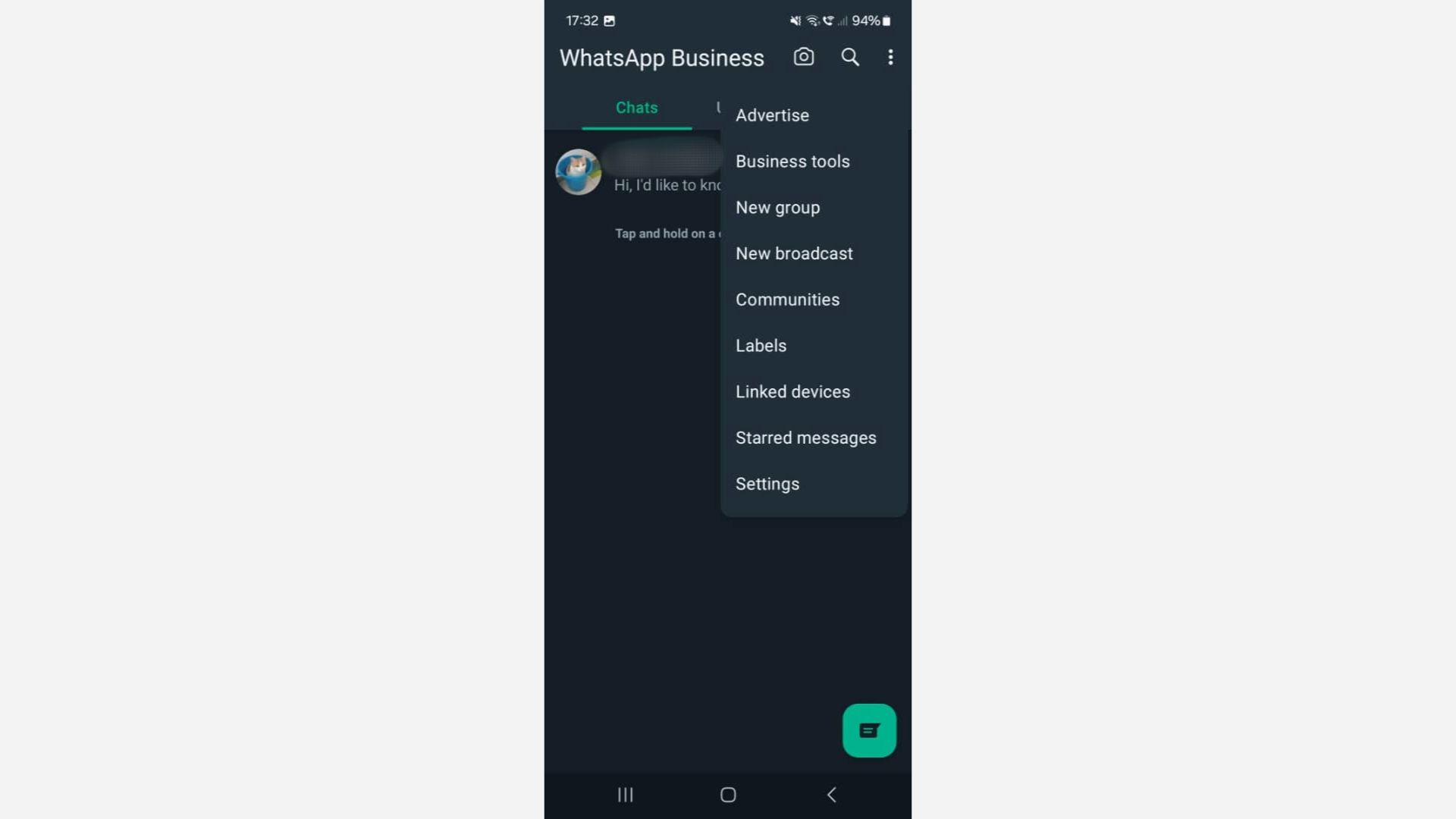
To start a new broadcast on WhatsApp, tap the triple dot in the top right corner. Then, select New broadcast.
Step 2: Create a broadcast list
A list of your contacts should now appear. Tap to select the contacts you wish to include in your broadcast list.
But remember! Recipients must have your number saved in order to receive your broadcast messages.
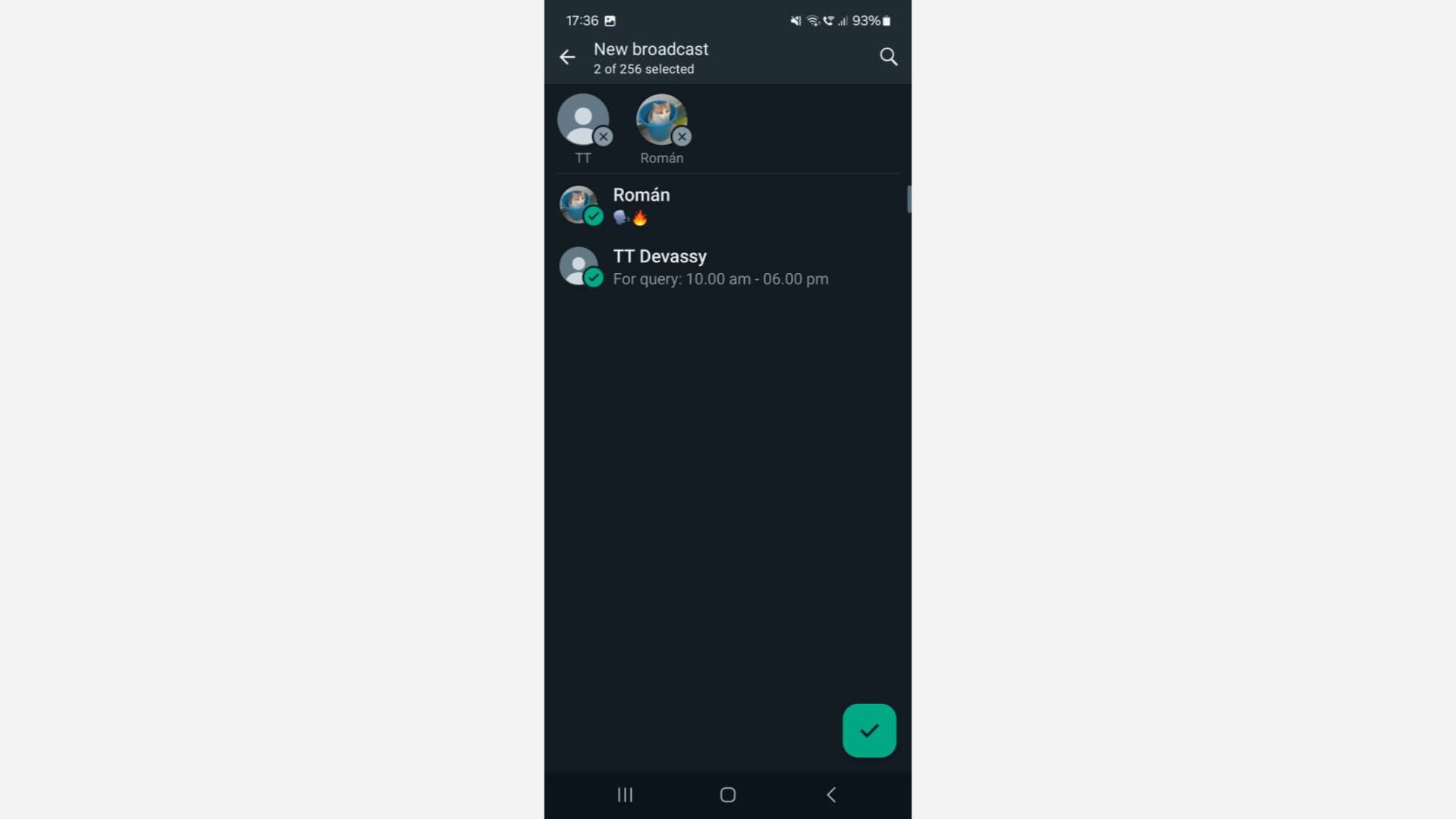
After selecting your contacts, you can assign a name to your broadcast list for future reference. This is particularly useful for managing multiple lists targeting different audience segments.
Step 3: Send the WhatsApp broadcast
Once your broadcast list is set up, a chat window similar to a WhatsApp group chat will open. Compose and send the WhatsApp Broadcast — remember that you can add images, video files and even items from your WhatsApp Catalog.
After composing, tap the send button. Each recipient will receive the message as an individual chat, maintaining privacy and personalization for all parties involved in the process.
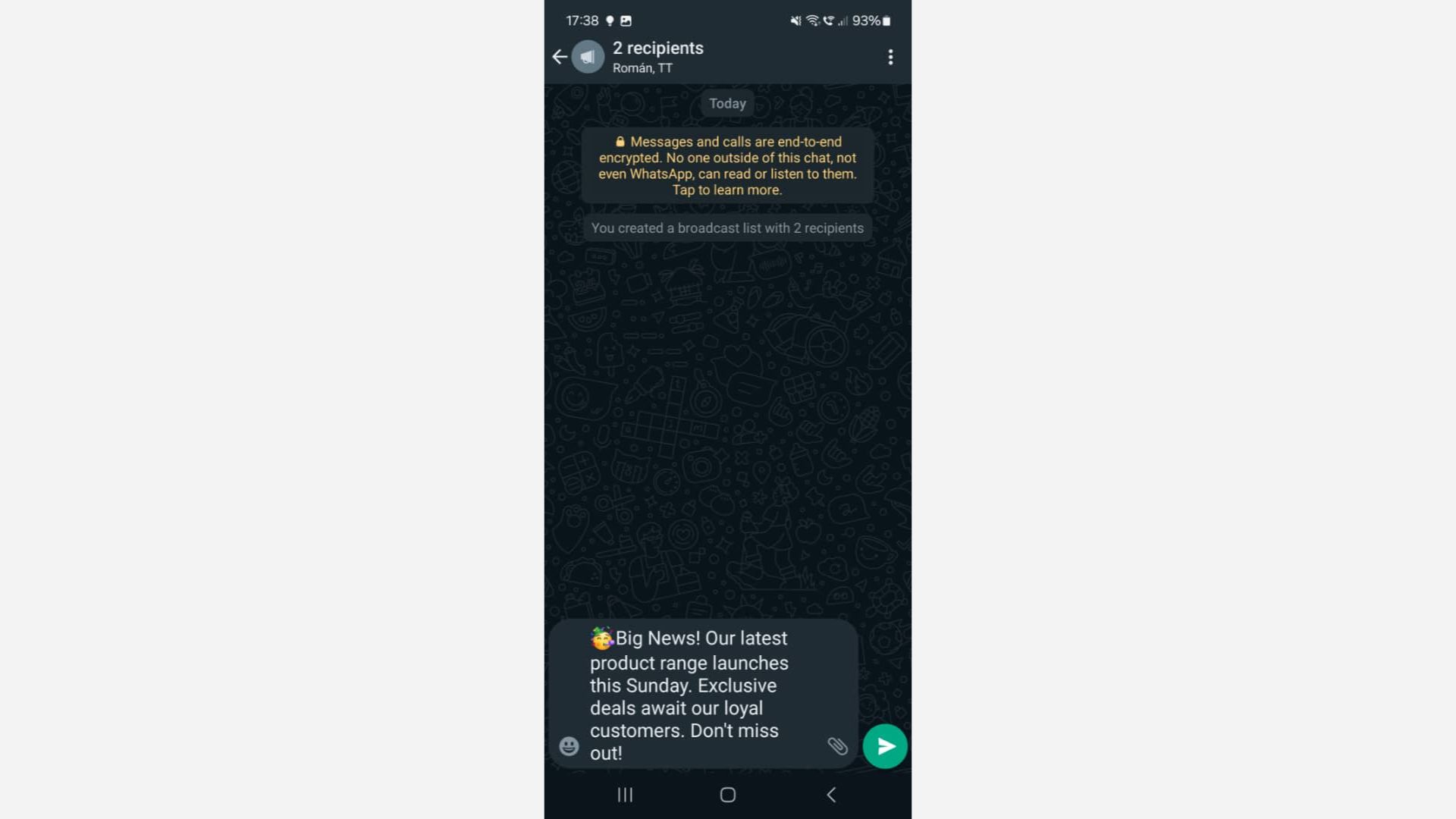
This WhatsApp broadcast list will remain in your Chat Inbox indefinitely. You can re-engage and interact with customers in this broadcast list as needed. However, be aware of the WhatsApp Business Messaging policy to ensure a good customer experience and avoid getting banned.
Should your business solely rely on WhatsApp Business App?
Keep broadcasting from the WhatsApp Business App only if your list stays under 256 people who all have your number saved and your team can answer every reply from the app. Move to the WhatsApp API when new leads haven't saved your number, when one campaign needs several lists, or when broadcast replies go unanswered. You don't have to give up the app: respond.io supports WhatsApp Coexistence, so you can keep using the WhatsApp Business App on the same number.
The solution? Broadcast WhatsApp messages with WhatsApp API
The best solution for mid-market B2C businesses is WhatsApp API. Whatsapp API is a WhatsApp solution designed for medium to large companies, and it comes with advanced multiuser capability. Unlike WhatsApp Business App, WhatsApp API has no app or front-end interface.
WhatsApp Broadcast allows for non-transactional notifications, such as marketing announcements or account authentication. However, businesses must use pre-approved Message Templates.
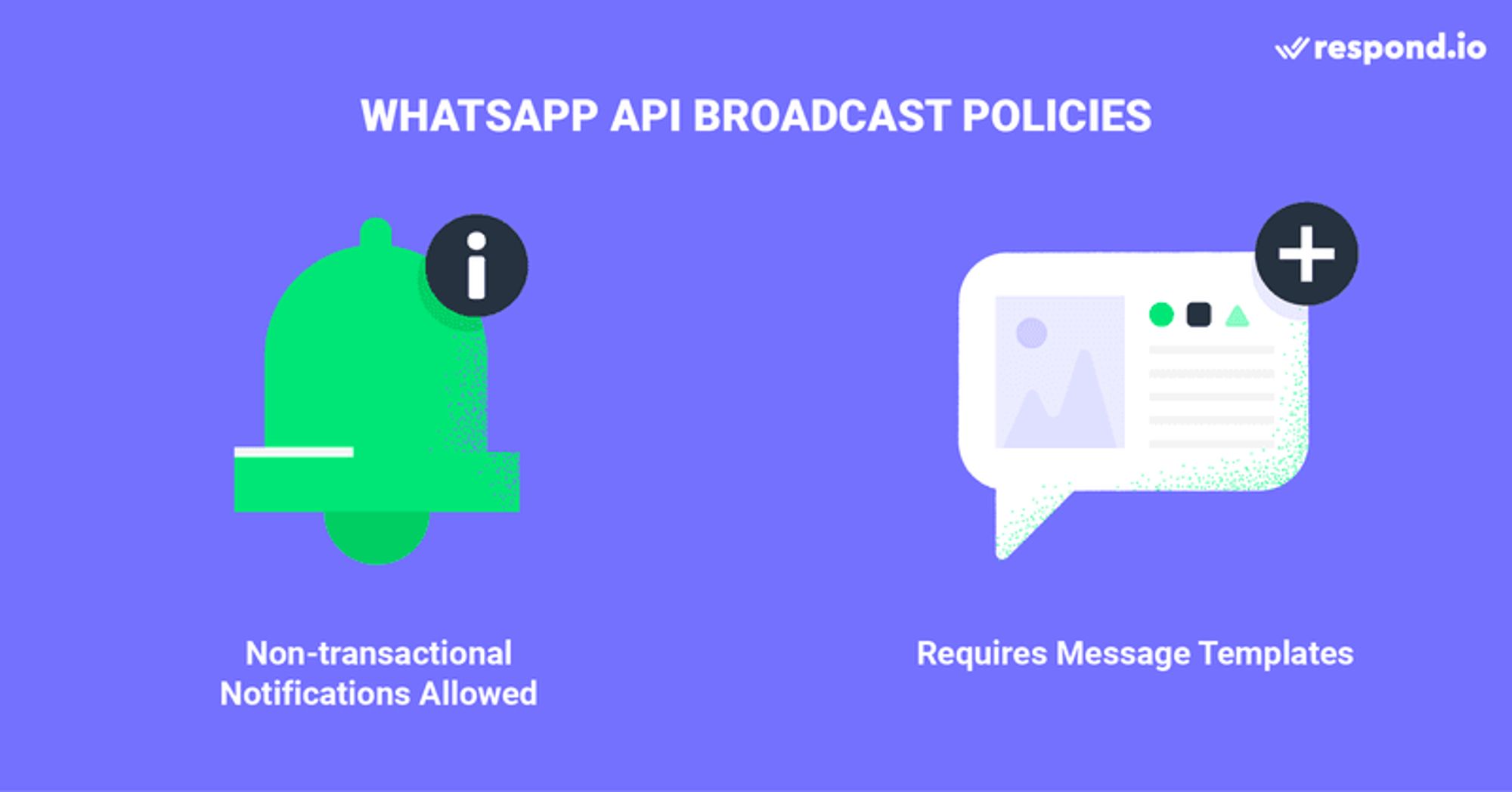
Businesses must also abide by WhatsApp Business and Commerce Policies to broadcast on WhatsApp. Failure to do so may result in bans on business-initiated messages and responses to customer-initiated messages. Similarly, strict adherence to WhatsApp’s Message Template Category guidelines is crucial to avoid penalties.
Meta has rolled out new WhatsApp Setup Guidance directly inside your Meta Business Portfolio. This new hub provides step-by-step instructions to simplify your API setup and manage message eligibility. You can now launch campaigns faster with pre-approved templates and instantly check your template review and appeals status.
4 Benefits of using WhatsApp Broadcast API
Once you’ve set up your respond.io WhatsApp Business API account, you can leverage the many benefits of using respond.io WhatsApp API for broadcasts.
WhatsApp Business App | WhatsApp API |
|---|---|
Broadcast limit of 256 contacts | Much higher contact limit depending on your Business Portfolio |
Limited personalization options | Advanced personalization options and scheduling |
No contact import | Import contacts and message them even if they don't have your number |
Challenges when handling many broadcast replies | Manage high volumes of contact replies with ease |
1. Get rid of the 256-contact broadcast limit
Unlock the capability to broadcast to a significantly larger WhatsApp audience all at once. Or even remove messaging limits to seamlessly accommodate your ambitious messaging requirements.
If you are a WhatsApp API user, perhaps you have the following question: How many contacts can be added to a WhatsApp broadcast list? This will depend on your WhatsApp account’s messaging limit.
Business Manager Messaging Limits
WhatsApp API is designed for scale. With Business Portfolio-level messaging limits, all phone numbers under a single Business Portfolio share the same quota:
No need for multiple numbers to increase capacity.
Tier upgrades (2K → 10K → 100K → Unlimited) happen every 6 hours, giving new numbers faster access.
Existing accounts adopt the highest phone-level limit as the business-level limit.
Note: Backward compatibility is maintained until February 2026. After that, updating to the new fields is required.
2. Personalize your broadcasts for better engagement
Create WhatsApp Catalogs or interactive message templates with call-to-action buttons or quick replies. Then, customize them with images, files and personalized customer data to hit home. Last, schedule your WhatsApp broadcasts for a specific date and time to boost open rates.
3. Message customers even if you are not on their contact list.
Import Contacts to respond.io and message them all at once. As long as you have their WhatsApp number, they will receive your message.
4. Handle high volumes of broadcast replies effortlessly
You can expect many replies after broadcasting to your WhatsApp audience, and that can be challenging to handle. With respond.io, you can set up automated replies to manage customer expectations or, even better, leave the conversation in the hands of an AI Agent to answer inquiries before assigning the conversation to a human agent.
To effectively utilize the WhatsApp API for message broadcasting, businesses must have two essential components in place: a WhatsApp API account and a reliable business messaging software for seamless message exchange.
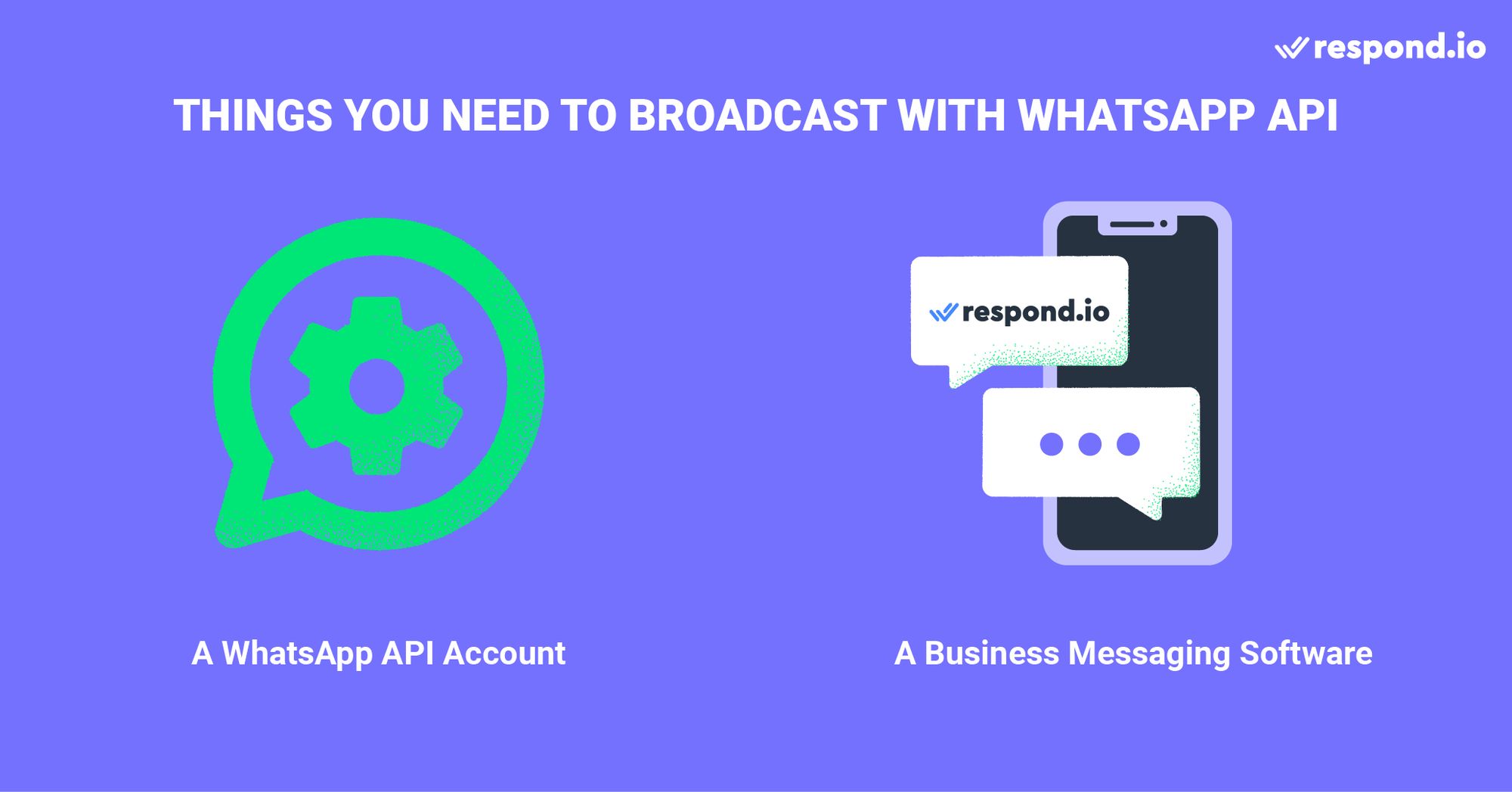
Next, we explain how to get both things at once.
How to broadcast WhatsApp messages with WhatsApp API in 3 steps
Creating an API account via respond.io is hassle-free and only involves 3 simple steps:
Buy a phone number, or port an existing number
Sign up for a respond.io account — you can start with a free trial
Complete the WhatsApp API application through respond.io
Now that you know what you need to get WhatsApp API, we’ll go through the steps to set up your broadcast on respond.io.
Setting up a WhatsApp broadcast on respond.io is simple, as it only takes three steps.
Import a Contact list to respond.io
Create a message template
Broadcast your message with WhatsApp API
Step 1: Import a contact list to respond.io
With respond.io, users can upload a contact list using a CSV file. They also can assign Tags to contacts in the CSV file to categorize them. Later on, these Tags will appear on the platform once the Contact list is uploaded. Make sure the phone numbers are in the international format, with a country code and area code.
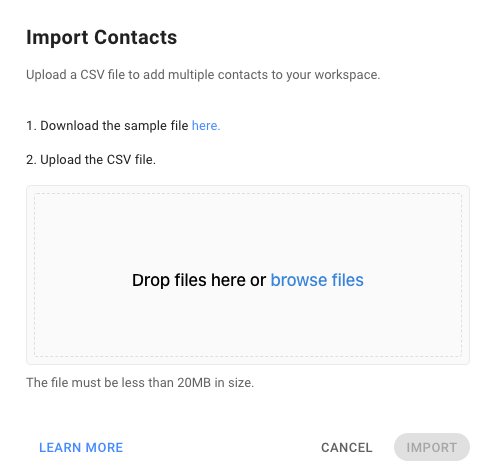
To import a contact list, open the Contacts Module and follow these steps:
Go to Add Contact and click on the 🔽 button.
SelectImport Contacts.
Download the sample CSV file if you don’t have it yet.
Fill the file with Contact data.
Drop the file or click on Browse Files to upload it.
When the import is complete, you’ll receive an email with the results. You can choose to download them if you wish. Once your WhatsApp broadcast list is ready, it’s time to create a Message Template.
Step 2: Create a message template
To initiate a conversation with a WhatsApp Message Template, your message has to fall within one of three conversation categories: Utility, Authentication or Marketing conversations.
All Message Templates must be approved by WhatsApp before they can be used. You can create and submit Message Templates for approval directly from respond.io.
Check the status of your Message Templates on respond.io by clicking the Sync Templates button to update the data. However, for respond.io WhatsApp Business API users, templates sync automatically.
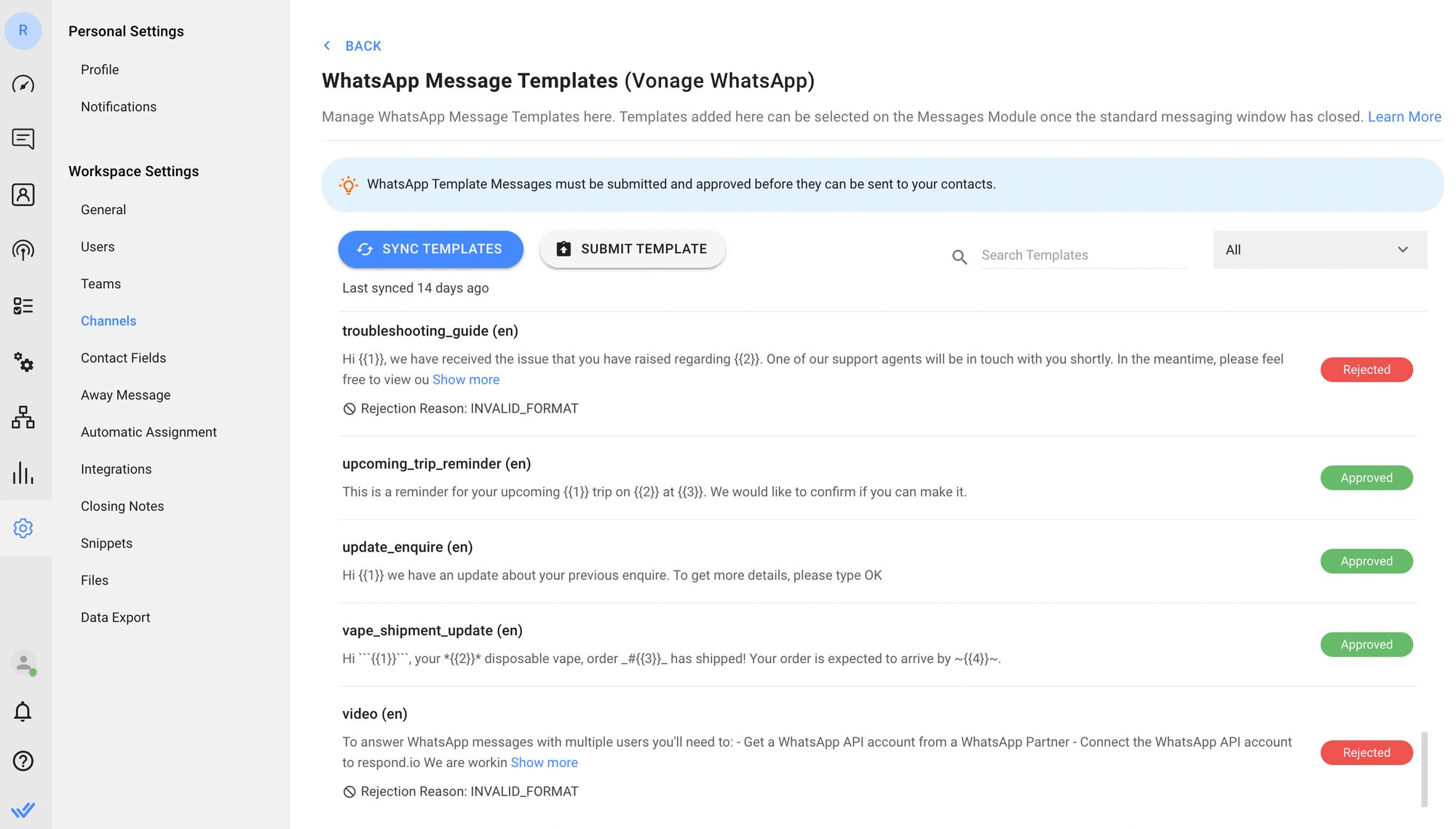
A Message Template’s status can be Submitted, Approved or Rejected. In case of Message Template rejection, Users can edit and re-submit them for approval.
Using High-Quality Message Templates matters. Being blocked by Contacts affects a Template’s Quality Rating, which can drop to a Medium or even a Low-Quality Rating.
Low-Quality Message Templates will get a Flagged status. If their Quality Rating doesn’t improve in 7 days, the status will change to Disabled. Under this status, Messages Templates can’t be sent or edited.
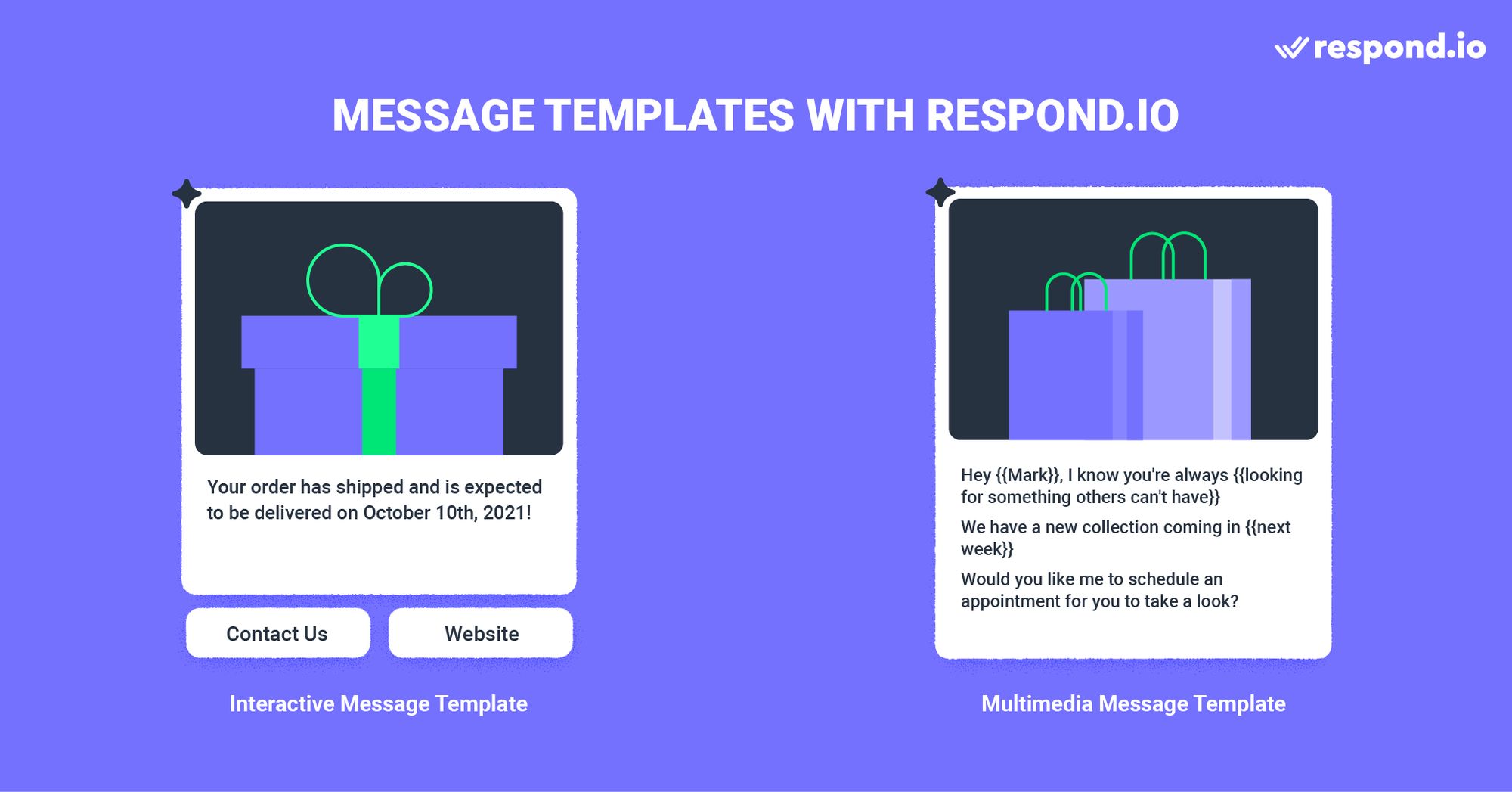
Users who broadcast respond.io WhatsApp Business API can create Media and Interactive Message Templates. What’s more, they can create a Message Template that combines both message types.
Interactive Message Templates include Call To Action or Quick Reply buttons. On the other hand, Media Message Templates let Users add a customizable header. This header can be a text, an image, a video or a PDF file.
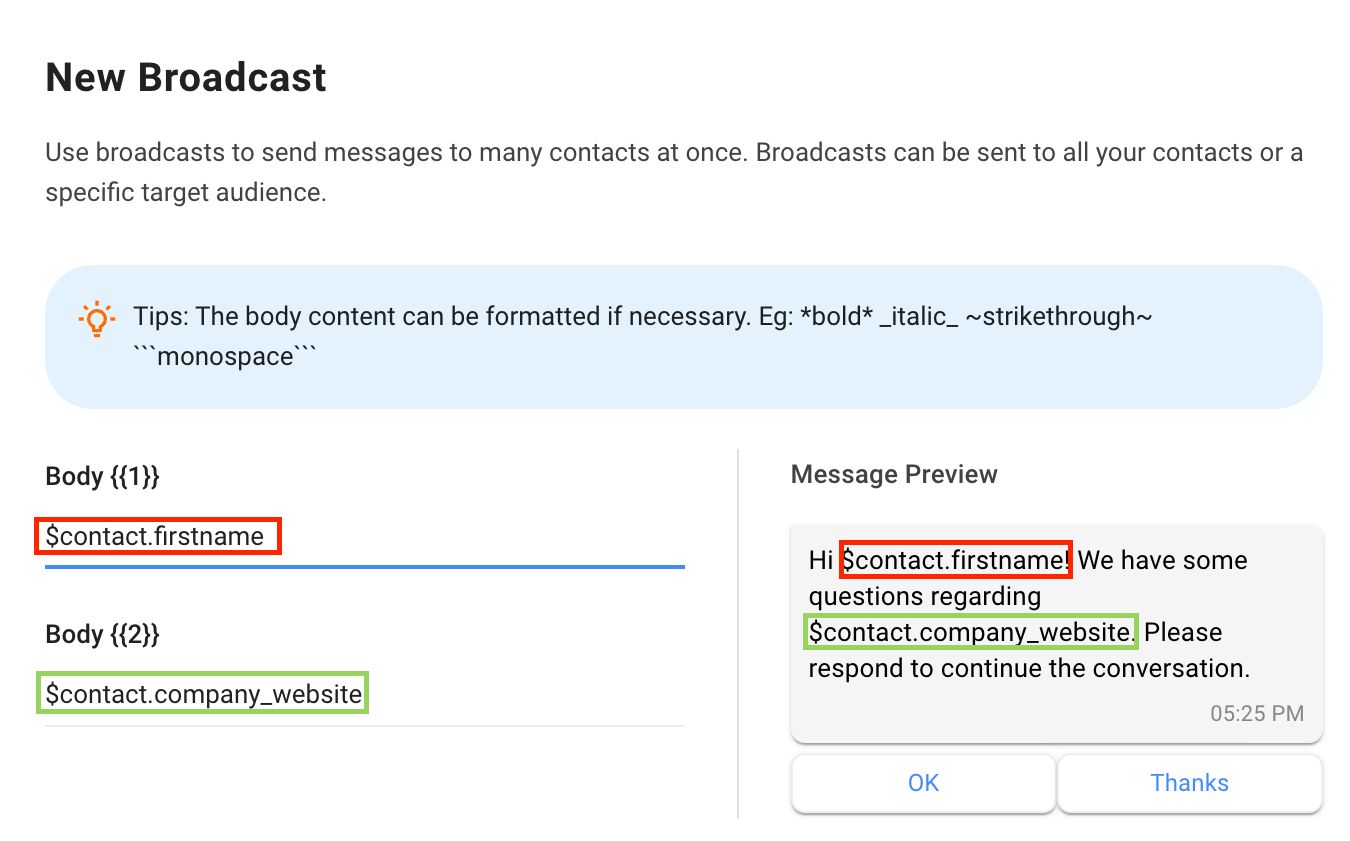
But the customization possibilities don’t end there. When writing the message body, Users can customize the placeholders with variables. Once your Message Template is composed and approved, you can broadcast it using the respond.io Broadcast Module.
Step 3: Broadcast WhatsApp messages with WhatsApp API
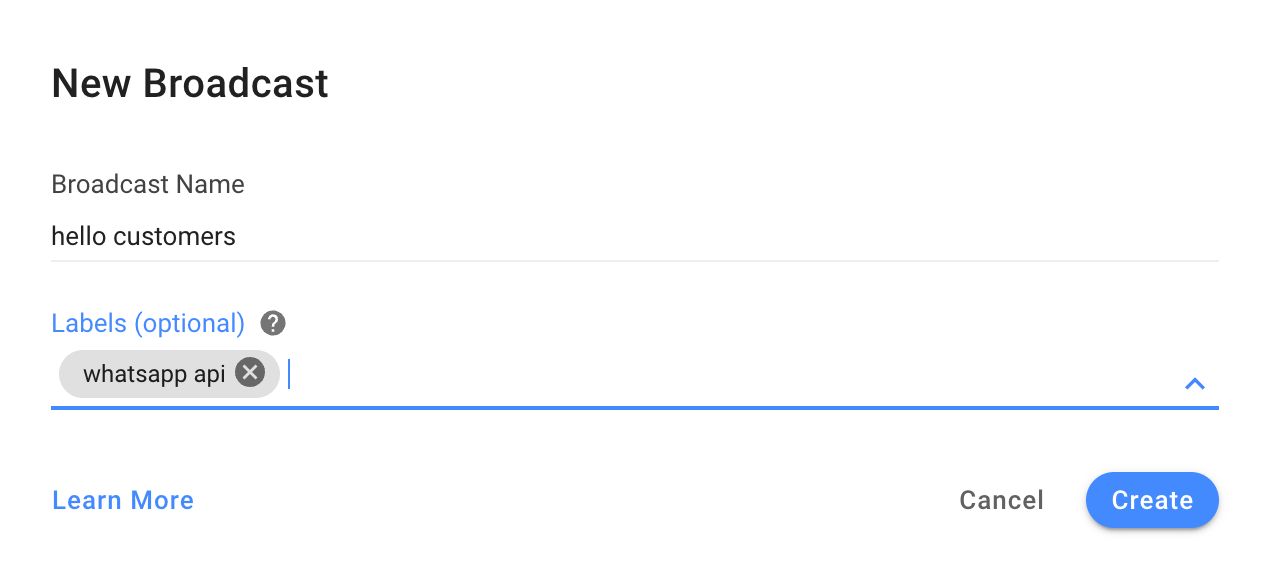
To start a WhatsApp API broadcast, click on the Broadcast Module and then on the Add Broadcast button at the top. Name your broadcast and click Create. You also have the option to label (categorize) it for easier referencing in the future.
By default, a broadcast’s audience is set to All. If you’d like to limit your broadcast to a specific group of people, select a Segment from the drop-down list. Segments are editable and creatable within the Contacts Module, providing users with the ability to categorize Contacts using filters.
Select the Specific Channel option. In the channel drop-down list, select the WhatsApp API channel you’d like to use to send the broadcast message.
Below, you’ll find a checkbox that reads: Only send to contacts who interacted with this channel before. The primary purpose of this tool is to exclude your recently imported Contact list from receiving the broadcast. Therefore, refrain from clicking on it this time.
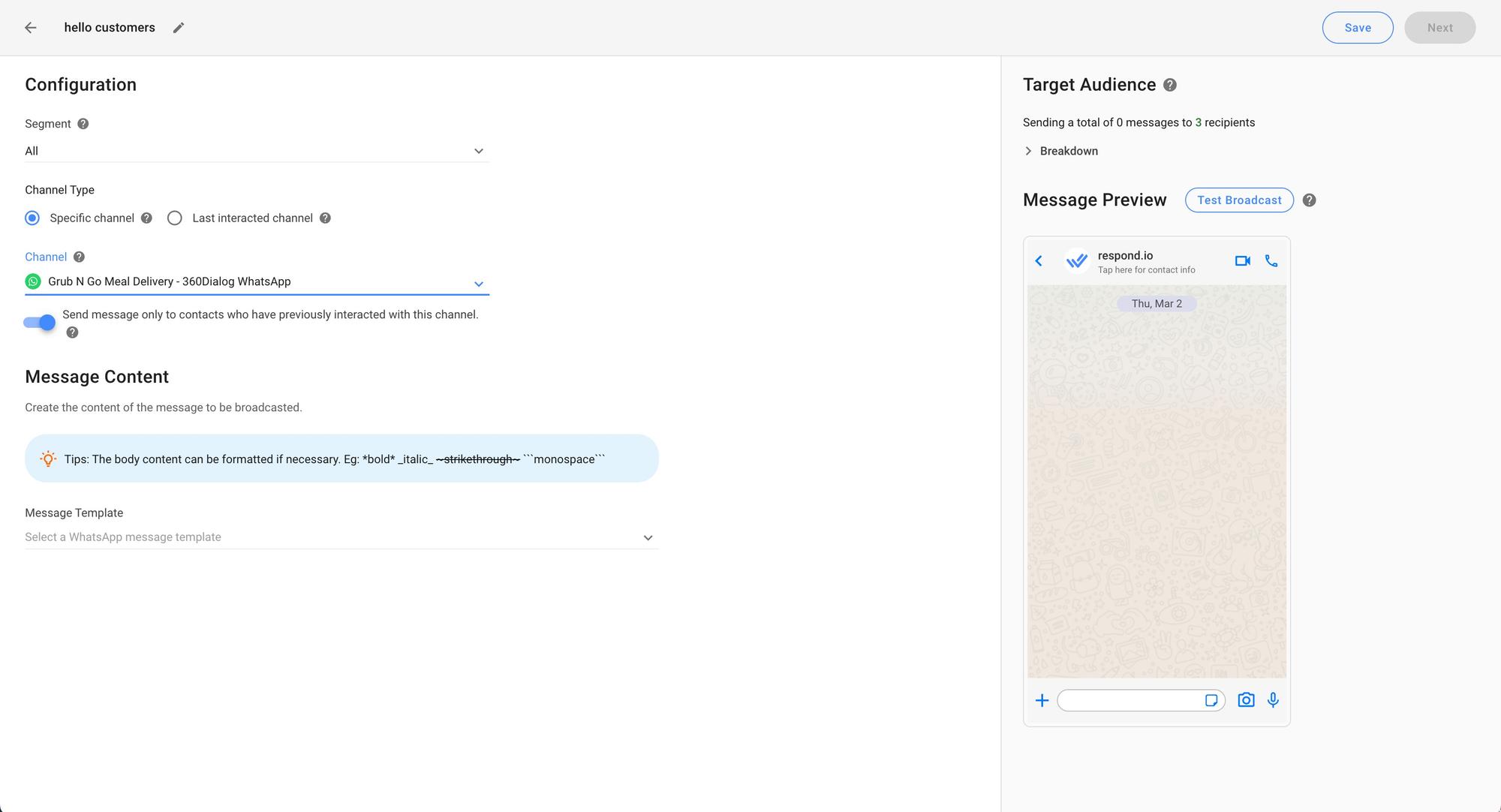
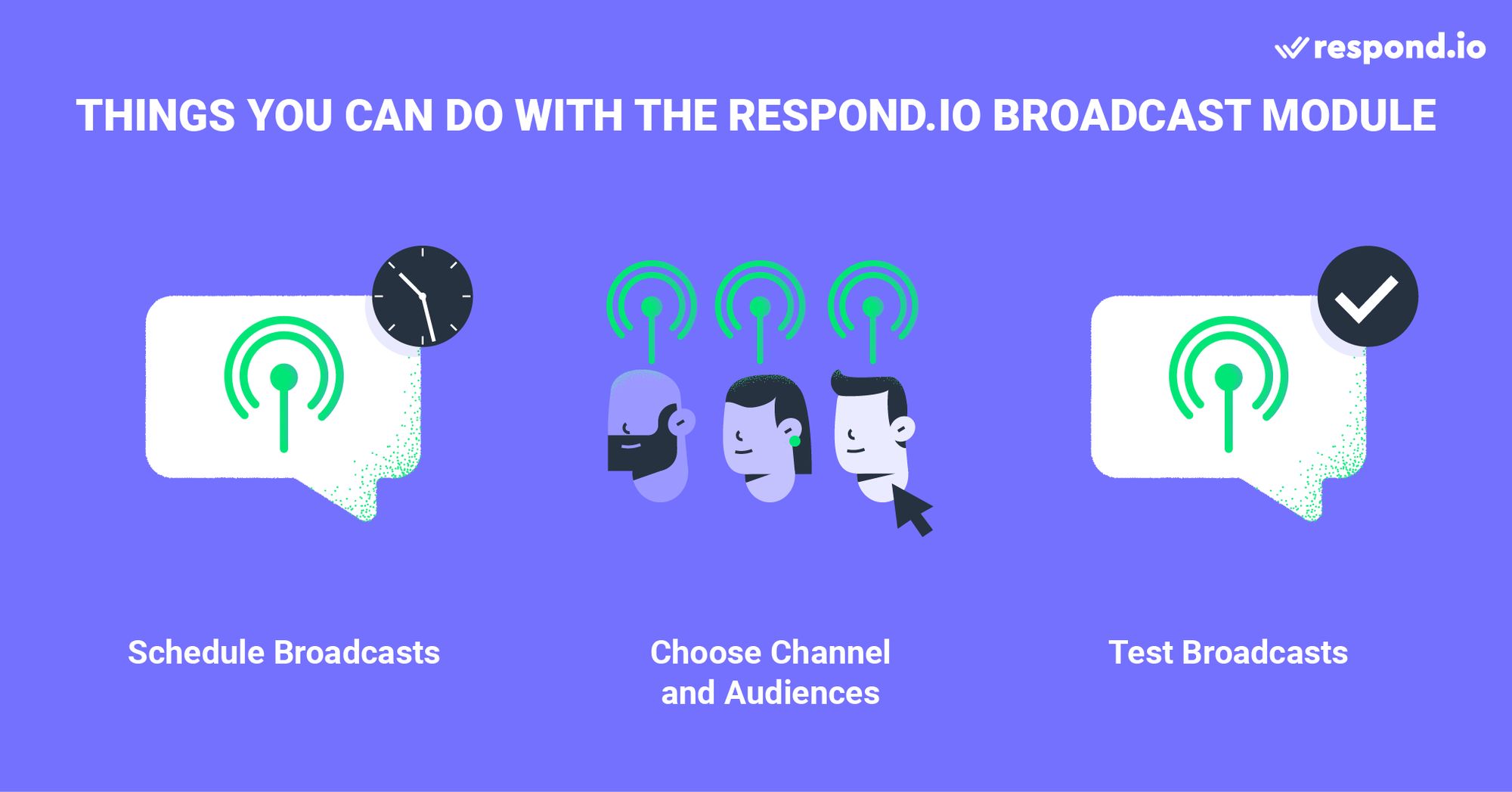
Next, select the relevant Message Template and fill in the details of your broadcast content. Once the WhatsApp broadcast is ready, schedule it for a specific date and time or test it by sending it to yourself or a Contact of your choice.
Something to remember: Not all messages will arrive at the exact same time when messaging a large WhatsApp broadcast list. Broadcasts are delivered according to country codes in sequence, with lower numbers going first.
In this article, we’ve covered everything you need to know to broadcast on WhatsApp. Now let’s look at what makes for a good WhatsApp broadcast.
4 Best practices in doing WhatsApp broadcasts
Broadcasts that get replies instead of blocks are personalized to a segment, focused on one offer, sent at a sensible local time and end with one clear next step. Blocks and reports lower your template's quality rating, and a low rating can get a template paused or disabled.
But if you get it right, you’ll have a direct line to hundreds of customers and here’s how you can get started.
To maximize engagement, WhatsApp will adjust how marketing messages are delivered starting March 2025. Messages will be prioritized for users who have interacted with past broadcasts, helping businesses reach the most responsive audience while reducing message fatigue.
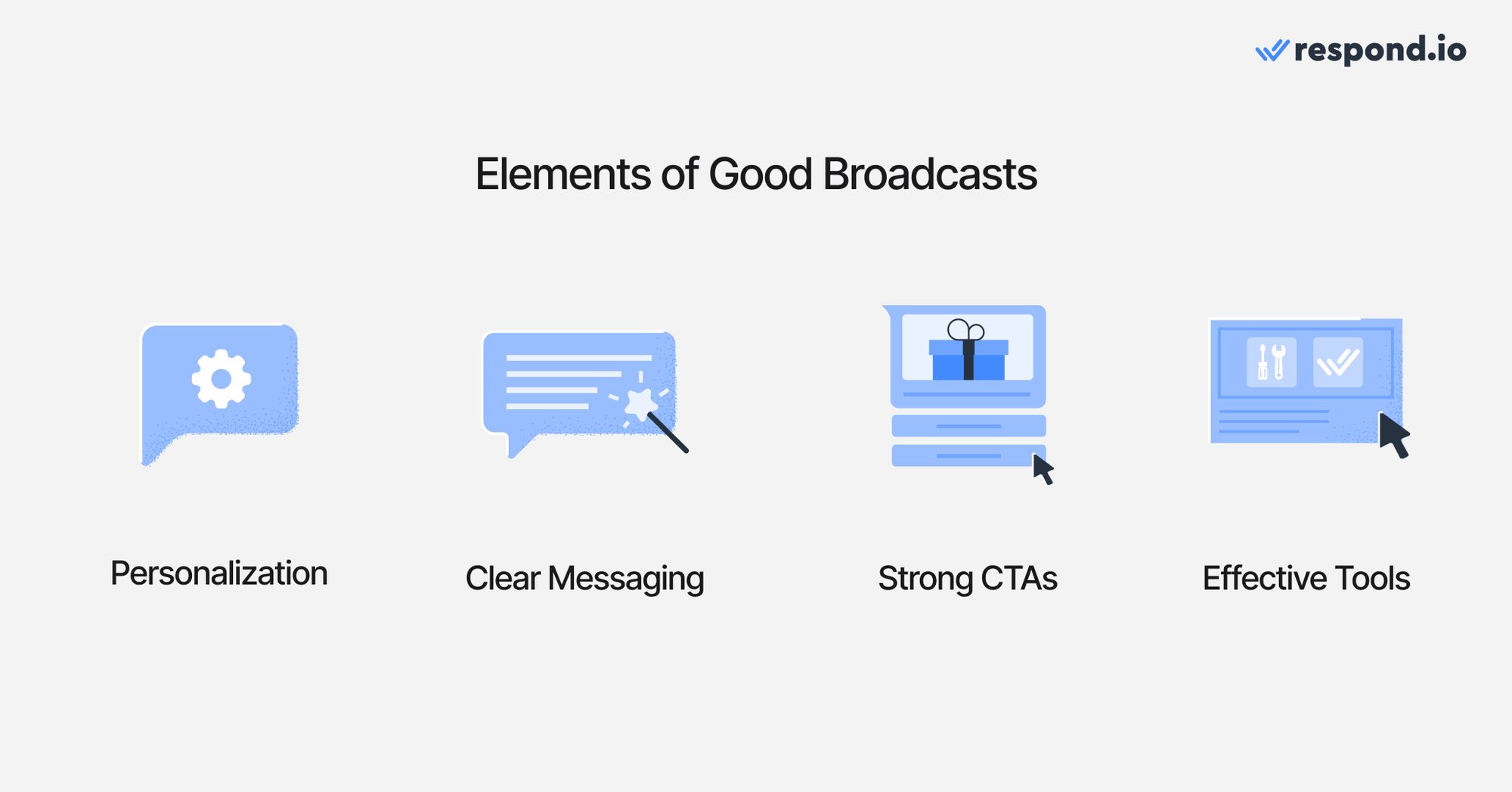
1. Make it personalized
Nobody wants to receive a boilerplate broadcast that lacks any personalization. Little things like using your audiences’ actual names and segmentation go a long way in helping your messaging reach the right audiences. For example, if you have a pet shop, you wouldn’t want to send the same promotions to cat and dog lovers.
2. Keep messaging clear and concise
Much like any good ad, broadcasts need to get straight to the point. Broadcasts are snappy; they aren’t novels. Focus on one clear message, one offer, one idea at a time instead of spreading yourself thin. Nothing impacts broadcasts for the worse than the dreaded wall of text.
3. Create strong call-to-actions
You’ve sent out broadcasts and have your audiences’ attention wrapped around your finger, but now what? Don’t waste this opportunity and let them wonder. Be crystal clear about what specific action you want them to take next.
Whether it’s clicking a link, visiting your store, or even signing up for an event, your CTA should be clear and stand out to spark action. Think more along the lines of “Claim your 50% discount today” and less “Contact us maybe if you’re interested.”
4. Use an effective messaging tool
Automate WhatsApp broadcasts: Managing and sending messages manually can be time-consuming; use a platform to handle repetitive tasks.
Organize and segment contacts: Tools like respond.io allow you to categorize your audience for tailored messaging.
Schedule broadcasts strategically: Send messages at optimal times to avoid overwhelming recipients.
Track performance: Gain insights into message engagement to refine your approach and improve results over time.
Leverage AI Agents:
Automatically respond to broadcast replies.
Qualify leads generated from your campaigns.
Transfer qualified leads to human agents or handle calls directly.
Autogenerate call and conversation summaries.
3 Ways to increase your WhatsApp broadcast messaging list
Grow a WhatsApp broadcast list by asking for opt-in wherever customers already find you (your website, emails, social profiles and stores) and by putting WhatsApp QR codes on receipts, packaging and posters. Contacts who opted in are also less likely to block or report you.
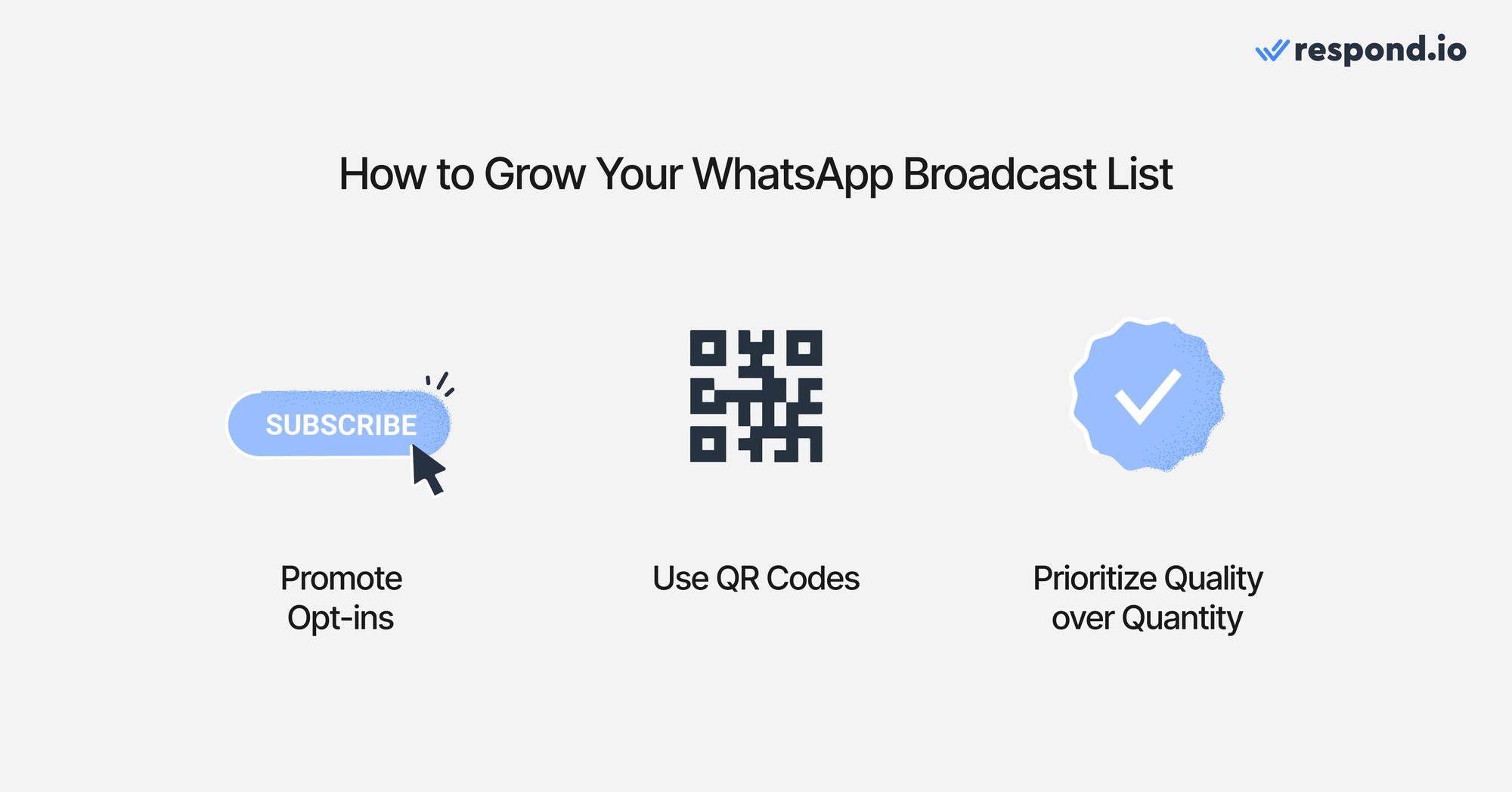
Here’s how you can nurture and grow your list:
1. Encourage and promote opt-ins
You can’t expect your audience to read your mind. Do you want them on your broadcast list? Then ask them! Add WhatsApp opt-in prompts everywhere relevant. This could be on your blog, email newsletter, YouTube videos, social media, or even in your physical stores.
2. Take advantage of QR codes
QR codes are powerful. When done right, they practically create instant bridges between potential leads and your broadcast lists. Consider placing them in key locations, not just digitally but physically. Think receipts, packaging, emails or even posters.
3. Prioritize quality over quantity
Growing your list as fast as possible is tempting and may yield more immediate results in the short term, but in the long run, it’ll hurt you. Bloated lists won’t do you any favors if they're full of unengaged users and spammy broadcasts.
Why you should consider respond.io as your WhatsApp Business Solution Provider
Respond.io is a customer conversation platform and badged Meta Business Partner that includes WhatsApp API broadcasts, built for mid-market B2C businesses whose customers chat before buying. Replies land in one inbox with each contact's history, and an AI Agent can answer questions and qualify leads before handing them to your team.
Badged Meta Business Partner: Respond.io has been vetted for its expertise in handling Meta products, making it a highly recommended choice for a customer conversation software platform.
Smooth Onboarding and Support: Start with a seamless onboarding experience. For any blockers in your way, benefit from respond.io’s access to Meta’s high-quality support.
Exclusive Access to Cutting-Edge WhatsApp Features: Stay ahead with exclusive access to advanced features like Meta Catalog broadcast and broadcast analytics.
No Setup and Hosting Fees: Get started without paying set-up and hosting fees or requiring a Facebook Developer Account.
Centralized Account and Fee Management: Manage all your WhatsApp accounts and fees effortlessly from one centralized platform.
WhatsApp Green Tick: Obtain and display a WhatsApp green tick for increased brand credibility.
Advanced AI agents: GPT-powered AI agents learn from knowledge sources, take on specific roles and respond intelligently to help handle high volumes of messages
Scheduled Messages: Use Whatsapp schedule messages to deliver updates, reminders and promotions at the right time.
Broadcast smarter, not harder – try respond.io today!
To segment customers easily, send WhatsApp broadcasts at scale and unlock features like advanced chat automation and analytics, get the respond.io WhatsApp Business API.
Respond.io customers have already experienced the benefits in terms of WhatsApp marketing: Farmacia La Buena is now using respond.io WhatsApp API to broadcast 8,000 monthly catalogs and promotions to its contact list, while Automax sends 80,000+ follow-up broadcasts per months resulting in 42.5x ROI.
If you already have a WhatsApp API account, connect your API to respond.io to start sending WhatsApp broadcasts. We are constantly updating our platform with new features to make communication with your customers easy and effective.
FAQ and Troubleshooting
What do I need to broadcast messages?
If you’re a small business, you’ll need the WhatsApp Business App. If you are a mid-market B2C business, you should instead use the WhatsApp Business API and connect it to a messaging inbox. Regardless of your choice, you must also have a list of WhatsApp contacts.
What does a WhatsApp broadcast message sample look like?
This depends on your goal, as promotional messages don’t look the same as, say, platform updates. Here’s an example of a WhatsApp broadcast message for new product releases: "🎉 Big News! Our latest product range launches this Sunday. Exclusive deals await our loyal customers. Don't miss out!"
What is the WhatsApp broadcast limit?
You can include up to 256 contacts in each broadcast list in the WhatsApp Business app.
How to find the broadcast list on WhatsApp?
From the Chats tab, tap your broadcast list.
Tap Broadcast list info.
In the broadcast list info screen you can change the name of your broadcast list by tapping Change broadcast list name. Enter the new name of your broadcast list and tap OK. Add recipients to the list by tapping Edit recipients.
How do I create a WhatsApp Broadcast list?
Open WhatsApp on your mobile device.
Tap on the Chats tab.
Tap on the New broadcast button.
Select the contacts you want to add to the broadcast list.
Once you have selected all the contacts you want to add, tap on the Create button.
Give your broadcast list a name
How do I edit a Broadcast list?
Open WhatsApp and select Broadcast Lists
Find the list you want to edit and select it.
Click on the menu button (the three vertical dots) in the upper right corner of the screen.
Click on Edit Broadcast List.
How can I see who has received or read my broadcast message?
You can see the delivery and read receipts for your WhatsApp Broadcast message by checking the message info. However, you will only see this information for recipients who have enabled read receipts.
Further reading
If you enjoyed this article and would like to learn more about WhatsApp API, check out the following articles:


